Timesheet notifications tell submitters and approvers when they need to review, submit, approve, or correct time. They remove the need to check Rocketlane repeatedly for changes in a timesheet's status.
Notifications cover manual and automatic reminders, approval requests, approvals, rejections, and partial approval outcomes.
In this article
Understand When Notifications Are Sent
| Notification | Recipient | When it is sent |
|---|---|---|
| Timesheet approval requested | Approver | A submitter submits a timesheet for review. |
| Timesheet approved | Submitter | The entire timesheet is approved. |
| Timesheet rejected | Submitter | The entire timesheet is rejected. |
| Timesheet partially approved | Submitter | Some entries are approved, but other entries remain unapproved. |
| Timesheet partially rejected | Submitter | Some entries are rejected, but the entire timesheet is not rejected. |
| Timesheet requested | Submitter | Someone sends the submitter a manual reminder. |
| Timesheet submission reminder | Submitter | An automatic reminder is sent before the submission due time. |
| Timesheet overdue reminder | Submitter | The due time has passed and the timesheet remains unsubmitted. |
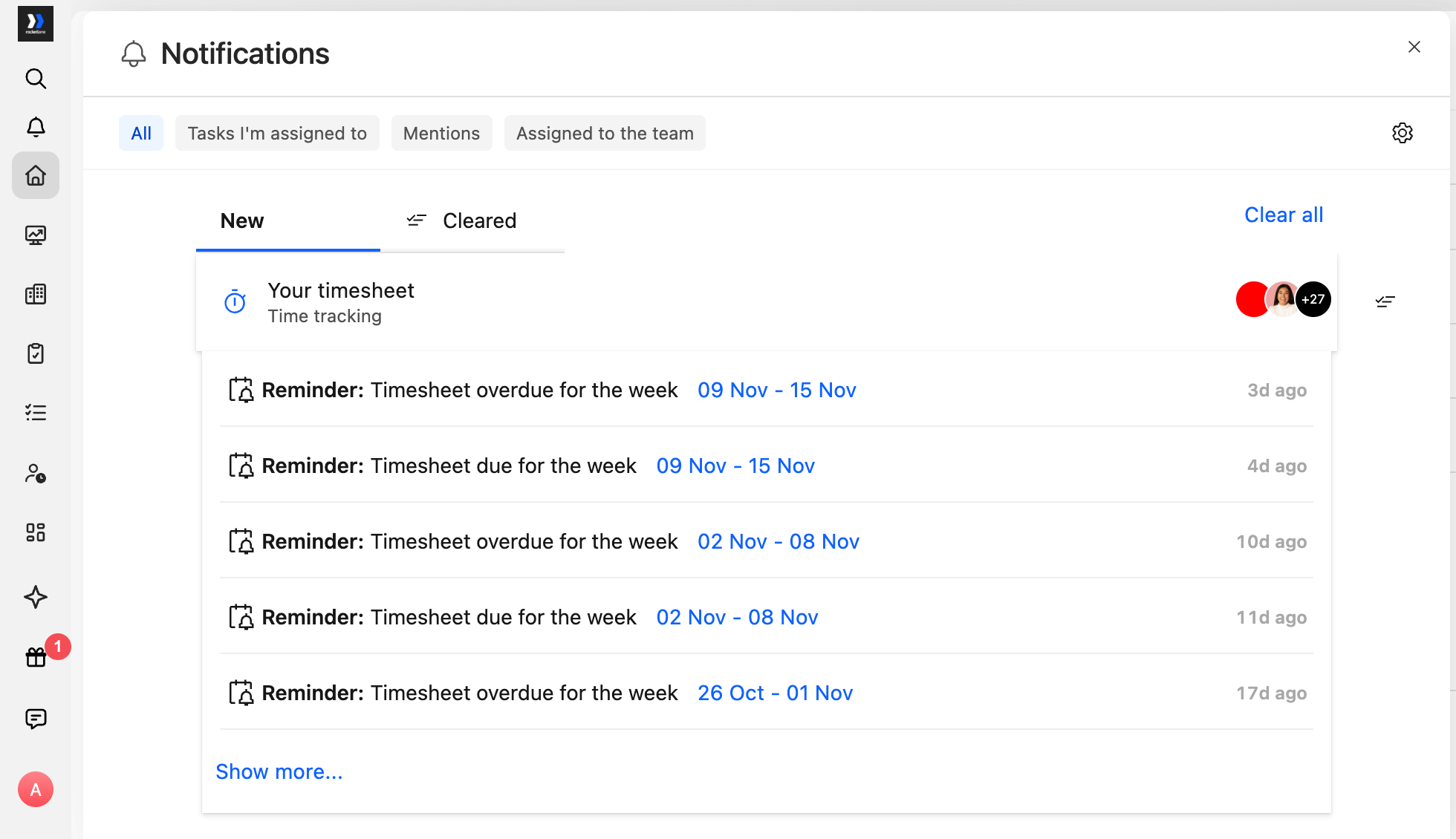
Timesheet notifications include:
- The timesheet's date range.
- Billable hours.
- Non-billable hours.
- Total hours.
- A link to the relevant timesheet.
Choose How to Receive Notifications
Timesheet notifications support the following delivery channels:
| Channel | Availability |
|---|---|
| Supported | |
| In-app notification | Supported |
| Mobile push notification | Supported through the Rocketlane mobile app |
| Slack | Not supported |
Customer users do not receive timesheet notifications because they do not participate in the timesheet submission and approval process.
Manage Your Notification Preferences
To choose which timesheet notifications you receive:
- Go to Settings > Notifications.
- Find Timesheet submission and Timesheet approval.
- Turn email and in-app delivery on or off for each available event.
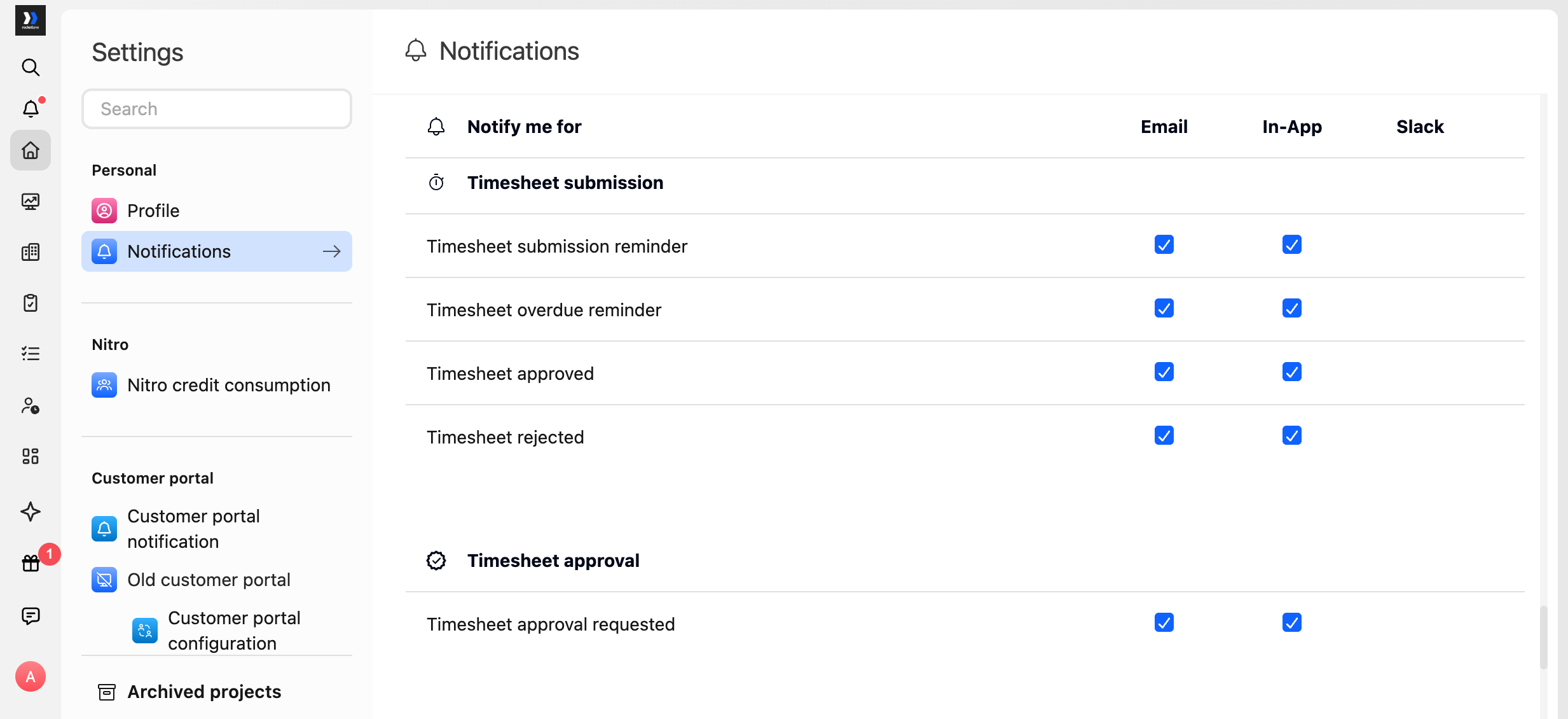
You can manage the following events individually:
- Timesheet submission reminder.
- Timesheet overdue reminder.
- Timesheet approved.
- Timesheet rejected.
- Timesheet approval requested.
Each person manages their own preferences. For example, an approver controls whether they receive Timesheet approval requested. The submitter cannot disable this notification for the approver.
Configure Automatic Submission Reminders
Admins can configure an account-wide due day and time for timesheet submissions. They can also determine how long before and after the due time automatic reminders should be sent.
Each reminder can be sent from 1 to 24 hours before or after the due time, in whole hours, or turned off.
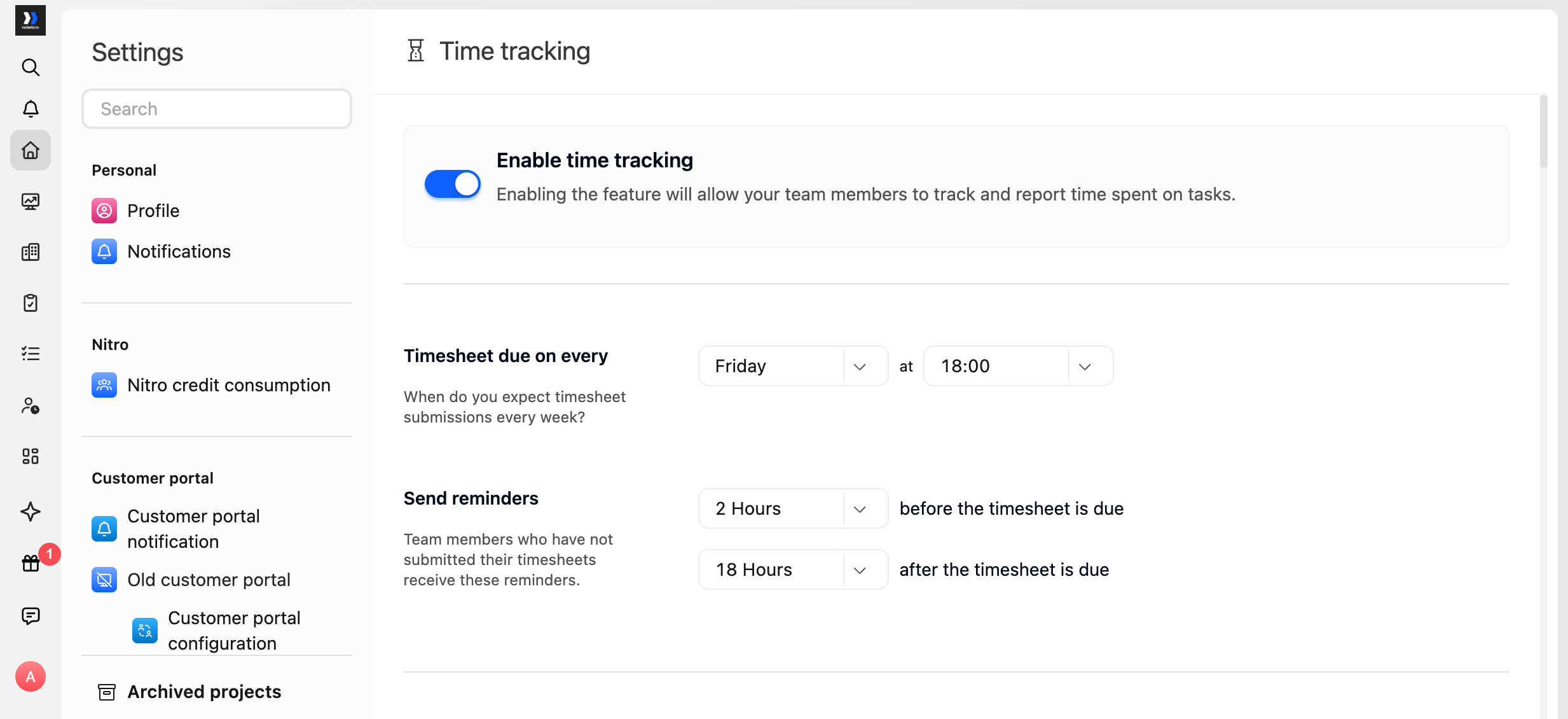
Each reminder is scheduled using the recipient's timezone. Team members therefore receive the reminder at the equivalent local time relative to the account's shared due day and time.
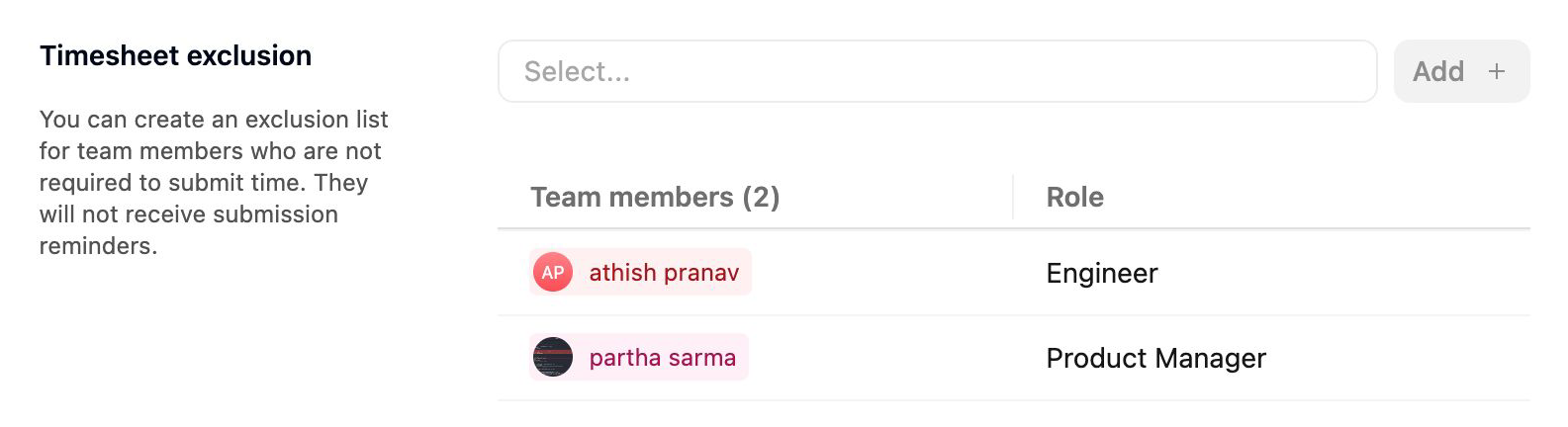
An automatic reminder is not sent when:
- The timesheet has already been submitted.
- The team member has no required hours for the week, such as when they were on leave for the entire week.
- The team member is on the account's Timesheet exclusion list.
- The recipient has disabled the applicable reminder in their notification preferences.
Send a Manual Reminder
A user with the required permission can send a manual reminder without waiting for the automatic reminder schedule.
You can remind one team member at a time, or use Remind all in Manage and approve to remind everyone in the current view at once.
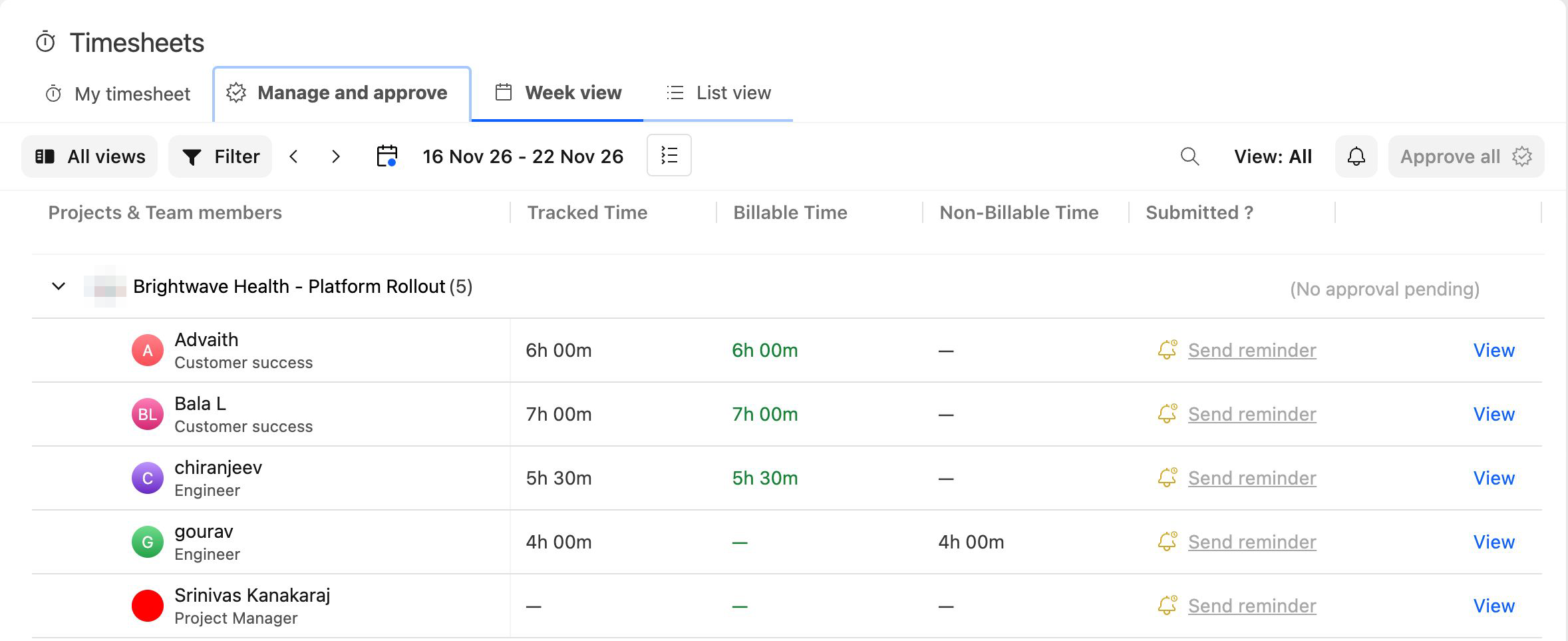
Manual and automatic reminders generate different notifications:
| Reminder type | Notification sent | What it communicates | Can the recipient disable it? |
|---|---|---|---|
| Manual reminder | Timesheet requested | Identifies the person who requested the timesheet. | No |
| Before the due time | Timesheet submission reminder | Reminds the submitter that the timesheet is due soon. | Yes |
| After the due time | Timesheet overdue reminder | Tells the submitter that the timesheet is overdue. | Yes |
See Configuring Automatic Timesheet Reminders for the account-wide reminder schedule. See Configuring Approvers and Reviewing Timesheets for instructions on sending manual reminders.
FAQ
Why did I receive a Timesheet requested notification?
Someone sent you a manual reminder. The notification identifies the person who requested your timesheet and is separate from automatic due and overdue reminders.
Can I turn off the notification my approver receives when I submit?
No. The approver controls Timesheet approval requested through their own notification preferences.
Can I turn off manual timesheet reminders?
No. Timesheet requested is always sent when someone manually requests your timesheet and does not have a preference setting.
Why didn't I receive an automatic reminder?
An automatic reminder is not sent if the timesheet has already been submitted, you have no required hours for the week, or you are on the account's Timesheet exclusion list. You may also have disabled the reminder in your notification preferences.
Why isn't Slack available for timesheet notifications?
Timesheet notifications support email, in-app notifications, and mobile push notifications. Slack is not supported for this notification category.
Will I be notified when my timesheet is locked?
No. Locking does not generate a notification. Review the affected timesheet to see its lock status.
Do approvers receive a digest of outstanding timesheets?
No. Rocketlane sends a separate notification for each applicable submission, reminder, approval request, or outcome.