Recording time off keeps your availability and timesheet requirements accurate. It explains why fewer hours were logged during a week and adjusts your expected hours based on the capacity you had available.
You can apply for your own time off. If your account permits it, the people who review your timesheet can also apply time off on your behalf.
In this article
Apply for Time Off
- Go to Settings > Profile.
- Under Time off & Holidays, select Apply time off.
- Select the date range.
- Choose a time-off type: Full day, Half day, or Custom.
- Add a note, if required.
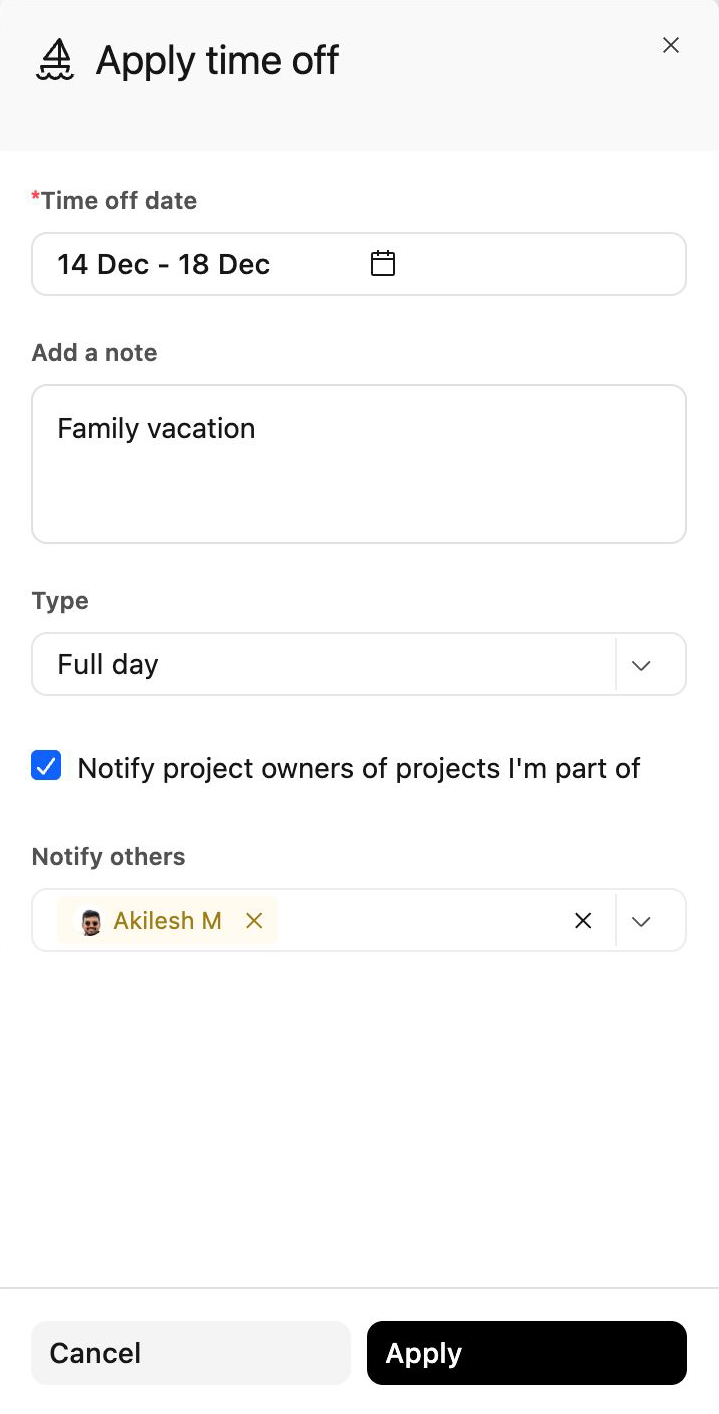
- Choose whether to notify project owners or other team members.
- Select Apply.
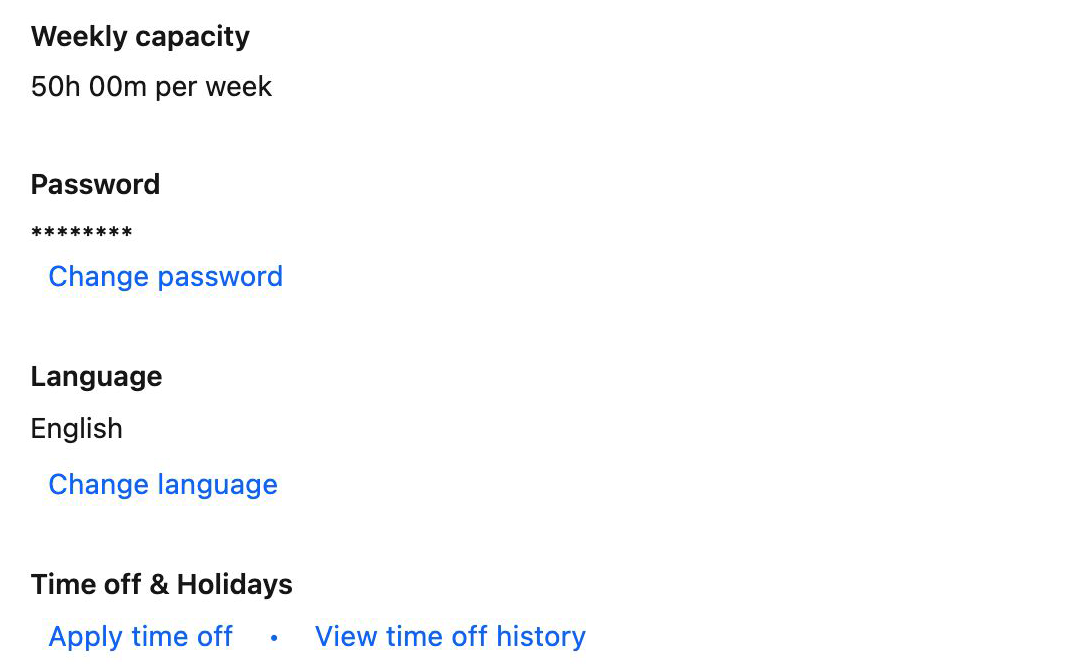
Full-day and half-day time off are calculated using your daily capacity, which is your weekly capacity divided by five. The number of hours represented by either option can therefore differ between team members.
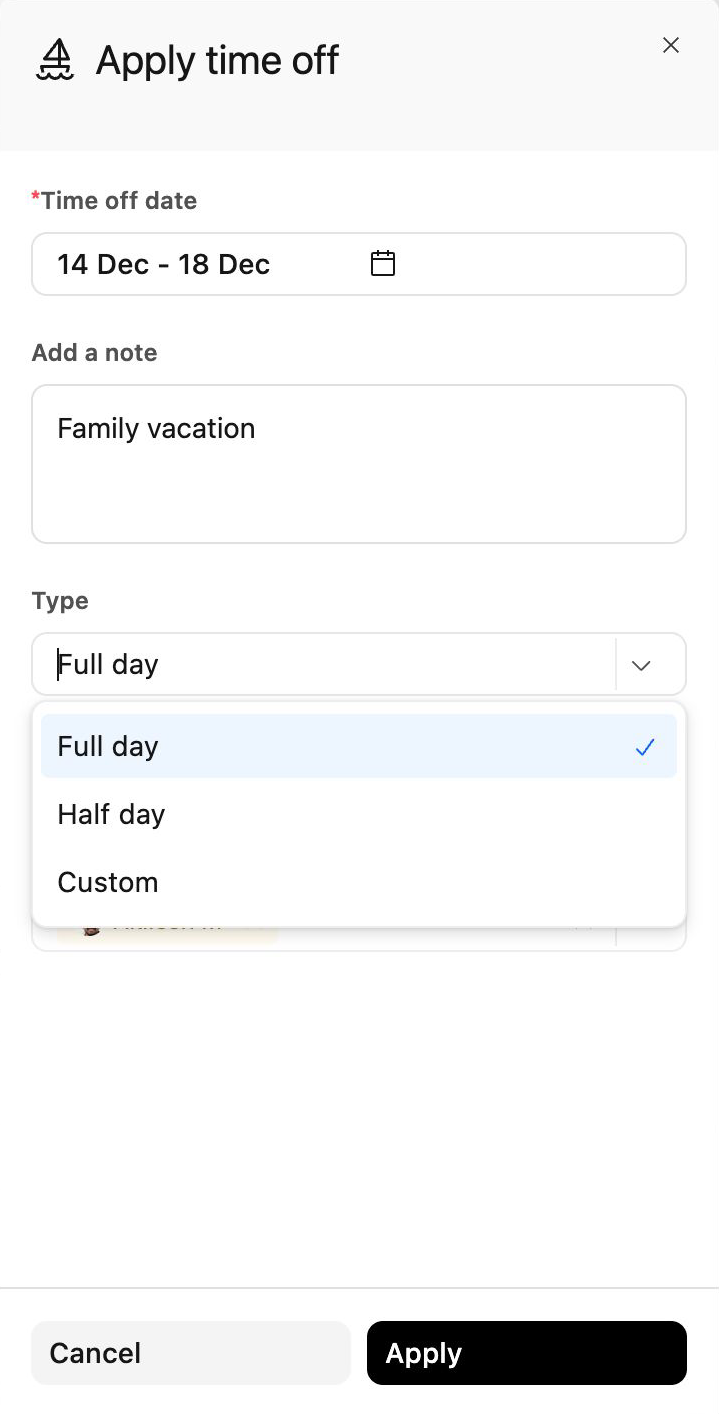
Select Custom when the time off does not match a full or half day. Custom time off can be up to one day's capacity.
You cannot apply time off that overlaps existing time off, that starts or ends on a company holiday, or that is more than one year in the future. Weekends cannot be selected.
Time off cannot be edited. To change it, delete the entry and apply it again.
Notify Other Team Members
When applying for time off, you can:
- Select Notify project owners of projects I'm part of to notify the owners of your projects. This option is selected by default.
- Use Notify others to select additional people.
These notifications help project stakeholders account for your absence while planning project work. The same people are notified if the time off is later deleted.
Review Your Time-Off History
- Go to Settings > Profile > Time off & Holidays.
- Select View time off history.
The history includes the time-off dates, when the request was applied, and who applied it when it was recorded on someone else's behalf. Deleted entries remain in the history so that a record is kept.
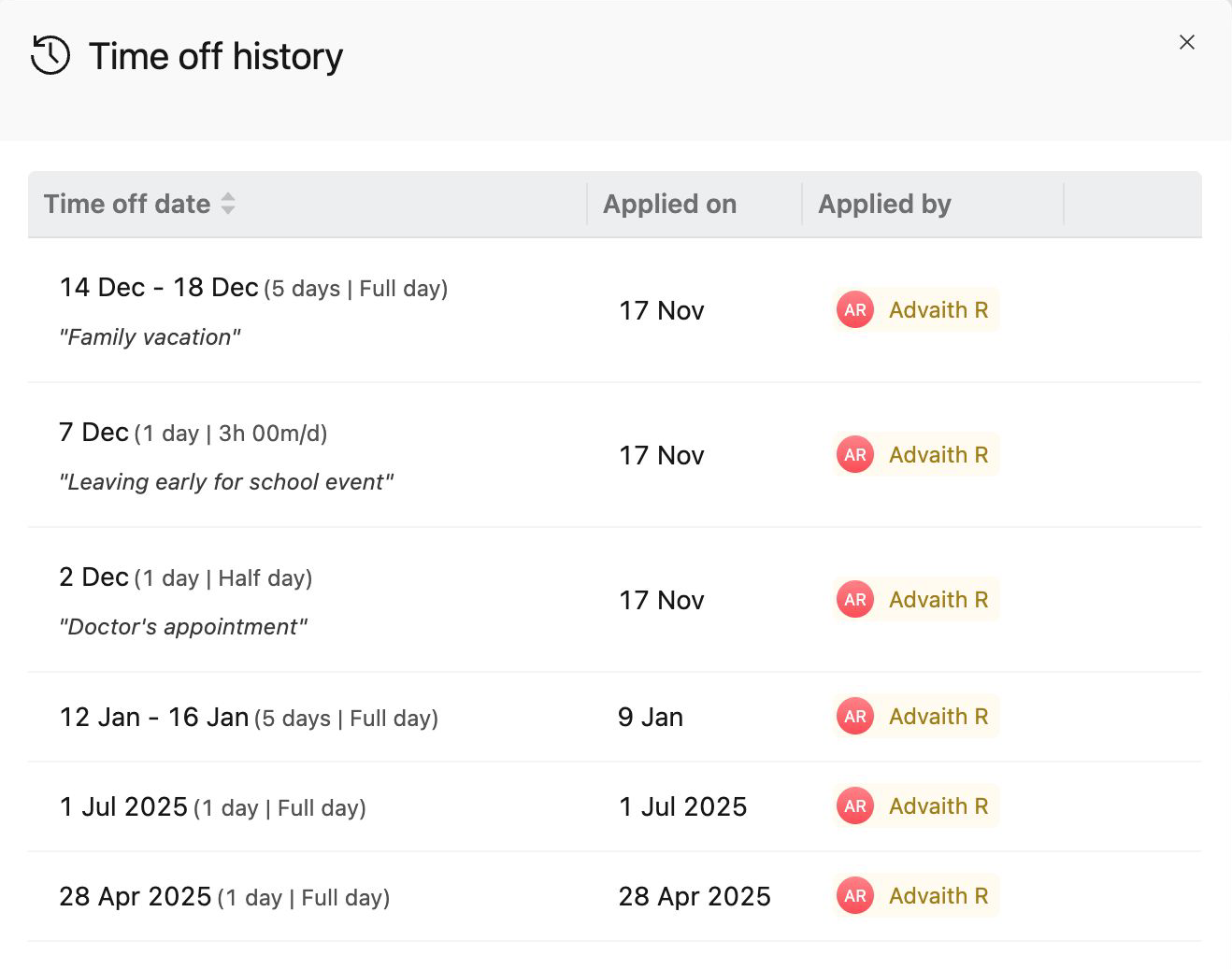
You can delete time-off entries that you applied. You cannot delete an entry that someone else applied on your behalf. Ask the person who applied it, or an admin, to delete it.
Understand How Time Off Affects Your Timesheet
Time off reduces your available capacity for the affected week. If your account requires a minimum number of submitted hours, Rocketlane compares the minimum requirement with your remaining capacity after deducting time off.
For example, if the account requires 40 hours but time off reduces your available capacity to 32 hours, you are required to submit only 32 hours.
Time off does not create a time entry and does not count as logged time. It reduces the number of hours you are expected to record.
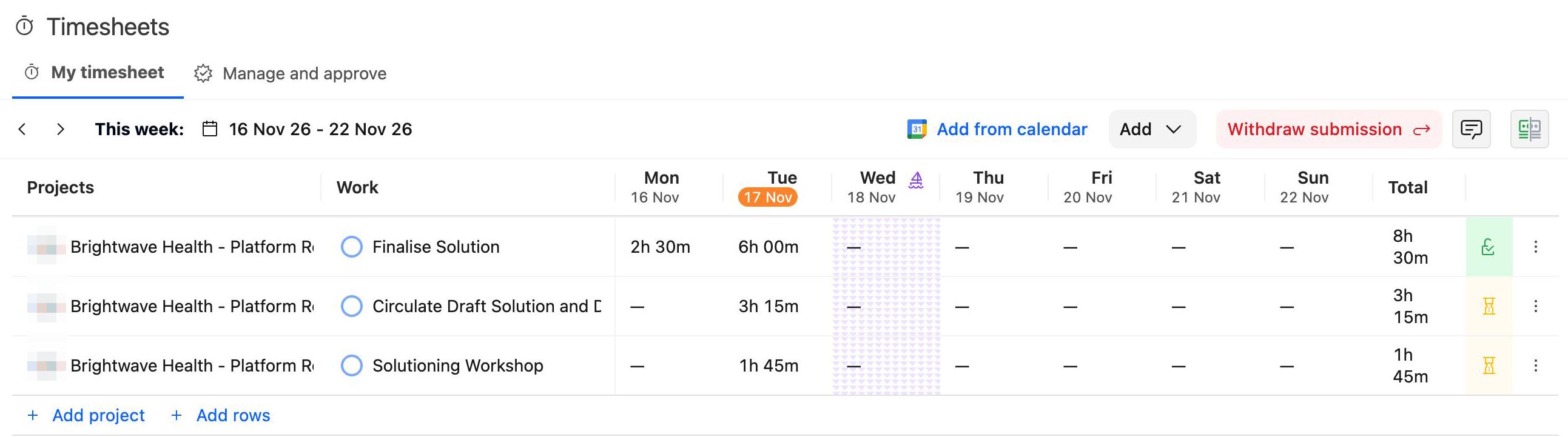
If you are on time off for the entire week, no hours are required for that week. Because there is no time to submit, the week cannot be submitted.
See Submitting, Withdrawing, and Rejecting Timesheets for more information about submission-hour requirements.
Apply Time Off for a Team Member
An account can allow the people who review a team member's timesheet to apply time off on that team member's behalf.
Enable Approver-Managed Time Off
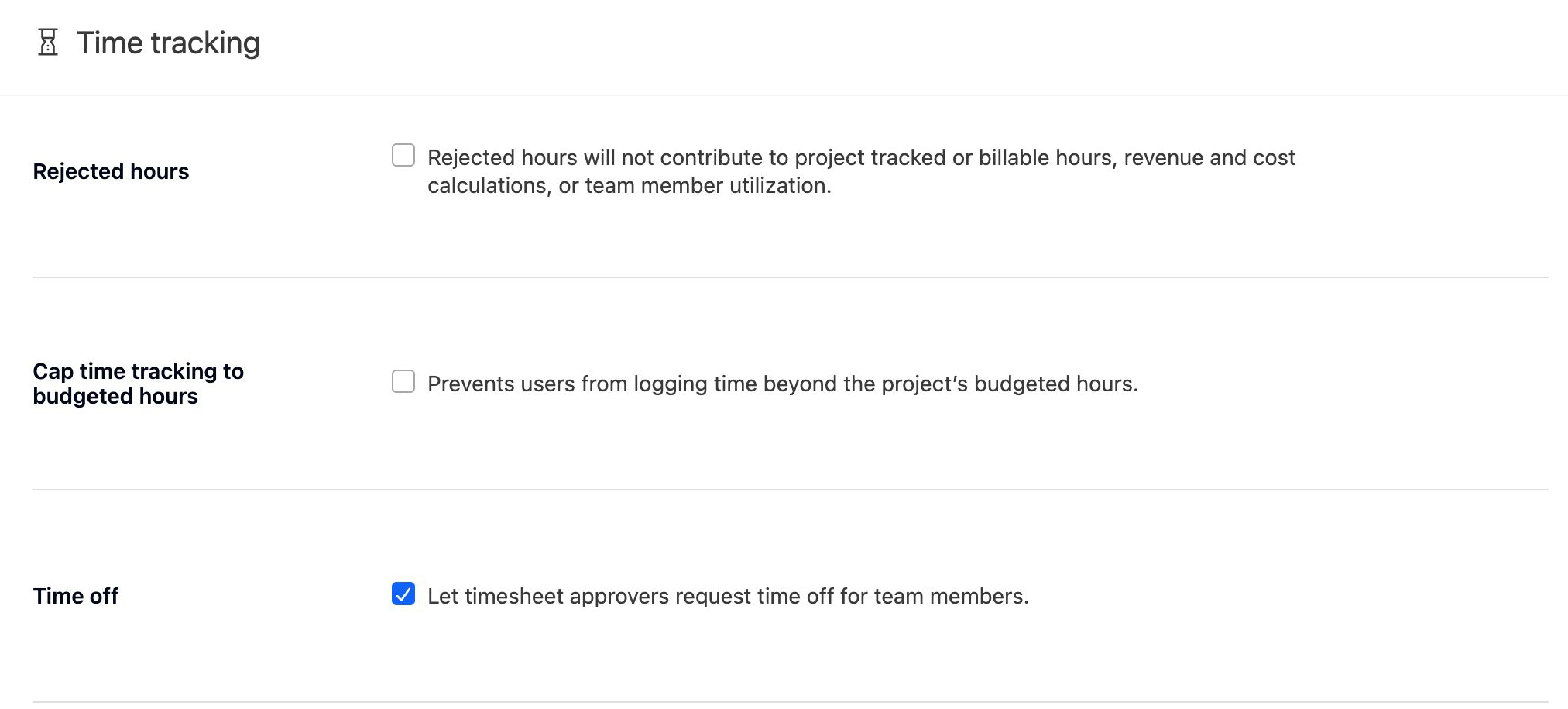
An admin must first enable the setting:
- Go to Settings > Timesheet Settings.
- Turn on Let timesheet approvers request time off for team members.
Apply Time Off as an Approver
Once the setting is enabled:
- Open the team member's timesheet from the Approvals view.
- Select Time off.
- Select Apply time off for [name].
- Enter the dates, time-off type, and other required information.
- Select Apply.
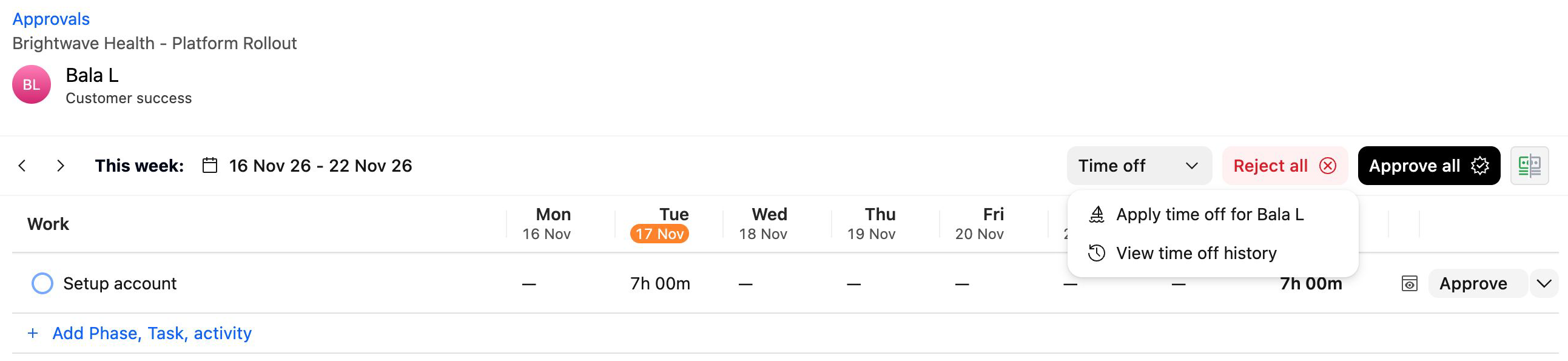
To review the person's existing time off, select View time off history instead.
The history identifies both the person taking time off and the person who applied it. You can delete time off that you applied. Admins can delete any entry in the team member's history.
Review Company Holidays
Your account may use holiday calendars to account for company-wide holidays. When a holiday calendar is assigned to you, its holidays are considered when calculating your available capacity and timesheet requirements.
To review your assigned holidays, go to Settings > Profile > Time off & Holidays, and then select View holiday calendar. This option appears only when a holiday calendar is assigned to you.
Creating and assigning holiday calendars is an administrative task. See How to set up Holiday Calendar? for configuration instructions.
FAQ
Can someone else apply for time off on my behalf?
Yes, if the account allows it. Anyone who can open your timesheet in the Approvals view, such as your timesheet approver or an admin, can apply time off for you.
Does time off count as logged time?
No. Time off reduces the number of hours you are expected to log, but it is not a time entry and does not count toward your submitted hours.
Does time off reduce the number of hours I am required to submit?
Yes, when your account has a minimum-hour requirement. The required hours are capped by your available capacity after time off is deducted.
What happens if I am on time off for the entire week?
You have no required hours for that week. There is nothing to submit, so the week cannot be submitted.
Can I delete a time-off entry?
You can delete an entry that you applied. An entry that someone else applied for you can be deleted by the person who applied it or by an admin.
Can I edit a time-off entry?
No. Delete the entry and apply the time off again.
Why can't I apply time off for certain dates?
Time off cannot overlap existing time off, start or end on a company holiday, fall on a weekend, or be more than one year in the future.
Can any manager or admin apply time off for me?
Only when the account setting is enabled, and only people who can open your timesheet in the Approvals view, such as your timesheet approver or an admin.
Do company holidays count as time off?
Company holidays are managed through holiday calendars rather than personal time-off entries. Both can reduce your available capacity and required timesheet hours.
Is Out of Office the same as applying for time off?
No. Out of Office manages automatic replies and stand-in notifications. It does not affect your capacity, timesheet requirements, or approvals.