Submitting a timesheet sends the week's time entries for review. While approval is pending, the submitter can continue making routine changes without withdrawing the timesheet. Approvers can approve the submitted time, reject specific tasks or activities, or reject the entire week.
This article covers the submission process for team members and the rejection process for approvers.
In this article
Submit a Timesheet
- Open My Timesheet and review the entries for the required week.
- Select Submit week for approval.
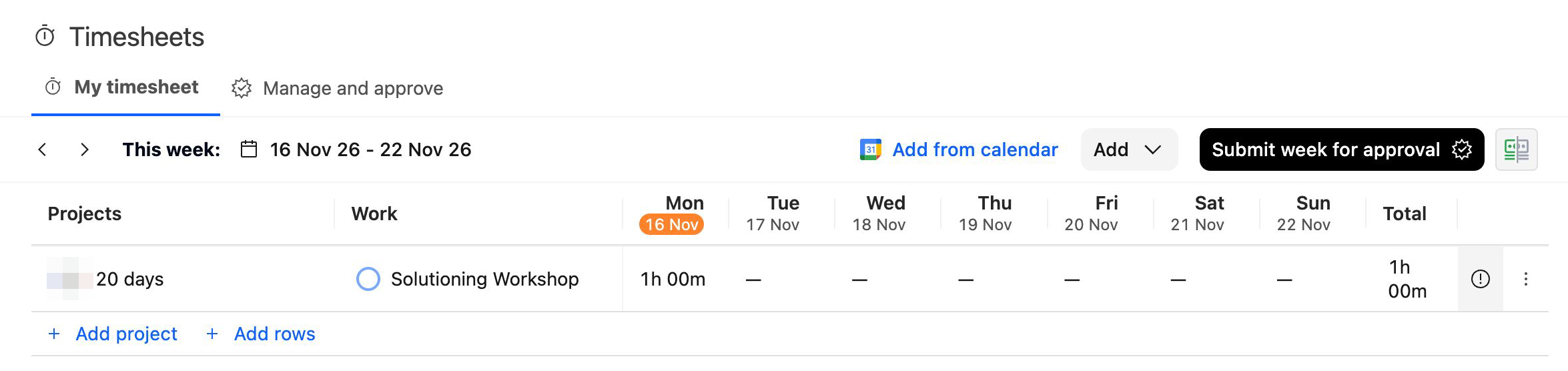
The entries are sent to the project owner or assigned timesheet approver, depending on your account configuration.
Submission begins immediately when you select Submit week for approval. There is no additional confirmation step (unless you have enabled Timesheet Policies).
See Choosing Who Approves Timesheets in the Configuring Timesheets folder for information about how approvers are assigned.
Edit Time While Approval Is Pending
You can continue adding or editing entries after submitting the week, provided the affected entries have not been approved or locked.
Changes made while approval is pending are included in the existing approval request. You do not need to withdraw and resubmit the entire week to:
- Correct an entry.
- Add another entry.
- Update duration.
- Change notes or other editable fields.
Withdraw the submission only when you want to remove the entire week from the approver's queue.
Withdraw an Entire Timesheet
- Open the submitted week in My Timesheet.
- Select Withdraw submission.
- Confirm the withdrawal.
- Make the required changes.
- Select Submit week for approval when the timesheet is ready for review again.
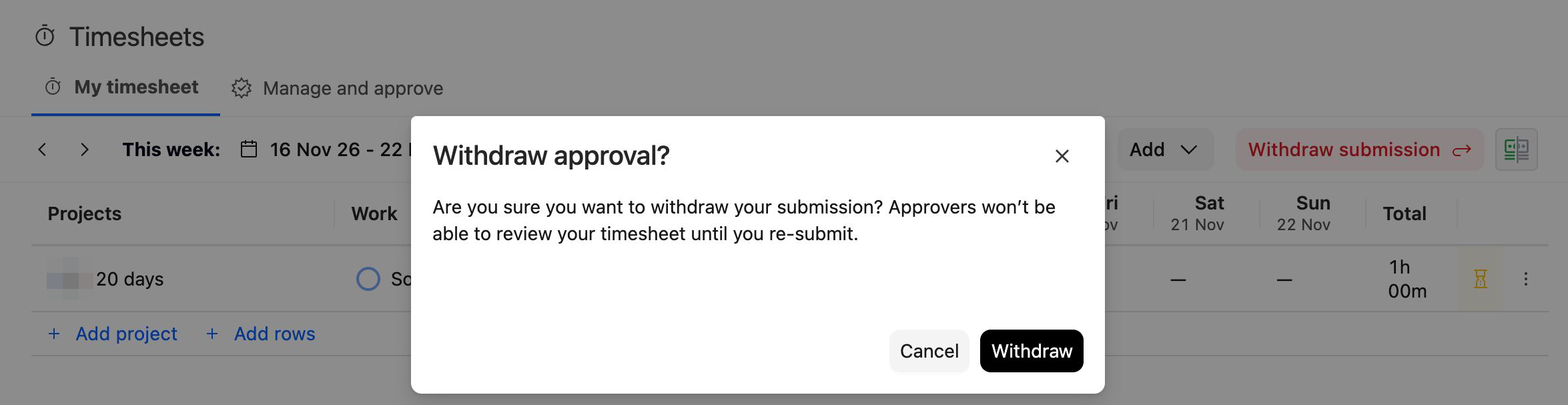
Withdrawing removes the entire week from the approver's queue until you submit it again.
To withdraw only the entries associated with one task, open that row's menu and select the withdrawal option. Task-level withdrawal does not require confirmation and does not withdraw the rest of the week.
Respond to Rejected Time
When an approver rejects submitted time, review the rejection notes before correcting and resubmitting it.
- Open the rejected week in My Timesheet.
- Select the comment icon.
- Review the approver's notes.
- Correct the affected entries.
- Select Submit week for approval.
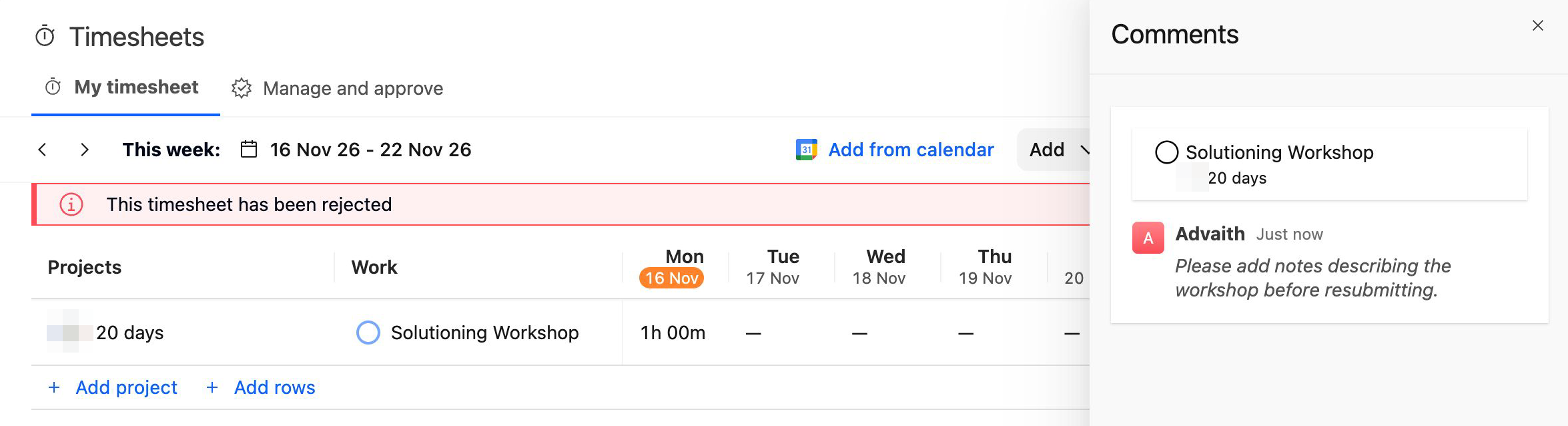
A rejection can apply to:
- The entire timesheet.
- A specific project task.
- A non-project activity.
You may see multiple notes when different tasks or activities were rejected separately.
There is no separate resubmit action. Submit week for approval submits entries that are rejected or have not yet been submitted. Entries that have already been approved remain approved.
Meet Submission-Hour Requirements
Your account may require a minimum, maximum, or exact number of hours before you can submit a timesheet.
| Requirement | How it works |
|---|---|
| Minimum hours | The requirement is capped at your available capacity for the week after time off and company holidays are deducted. |
| Maximum hours | The configured limit applies without being adjusted for time off or company holidays. |
| Exact hours | The requirement is capped at your available capacity for the week after time off and company holidays are deducted. |
For example, if the minimum or exact requirement is 40 hours but time off reduces your available capacity to 32 hours, you are required to submit only 32 hours.
Reject Submitted Time
Approvers can reject a specific task or activity when only part of a timesheet needs correction. They can also reject the entire week when the complete timesheet needs to be reviewed again.
Rejection is available from the team member's weekly timesheet, not from the Week view list in Manage and approve.
From the Week view in Manage and approve, select the team member's name or View to open their timesheet.
Reject a Project Task
Use task-level rejection when only the entries associated with one project task need to be corrected.
- Open the team member's timesheet.
- Find the task that needs correction.
- Select the chevron beside Approve.
- Select Reject.
- Add a note explaining what needs to be changed.
- Select Reject.
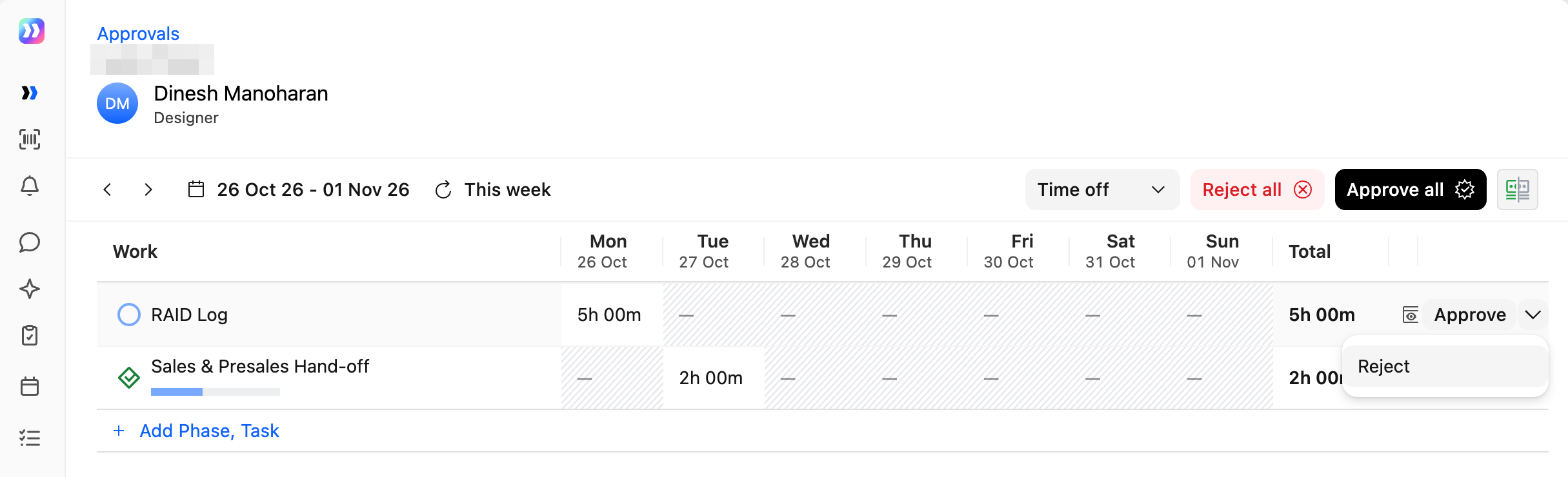
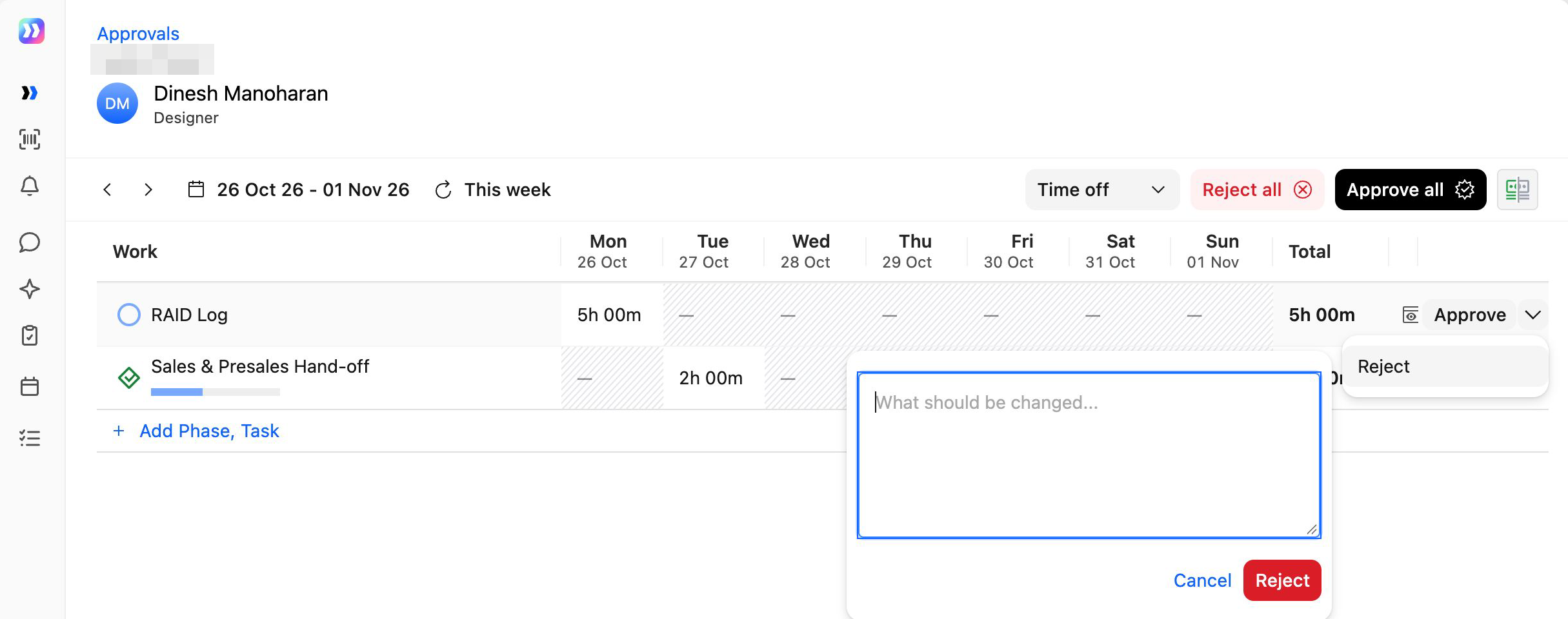
The rejection applies only to the selected task within its project. Other tasks and activities in the week remain unchanged.
Reject a Non-Project Activity
Use the same task-level rejection process for a non-project activity:
- Open the team member's timesheet.
- Find the activity that needs correction.
- Select the chevron beside Approve.
- Select Reject.
- Add a note explaining what needs to be changed.
- Select Reject.
The rejection applies only to the selected activity.
Reject the Entire Timesheet
Use Reject all when the complete week needs to be reviewed or corrected.
- Open the team member's timesheet.
- Select Reject all.
- Add a note explaining what needs to be changed.
- Select Reject.
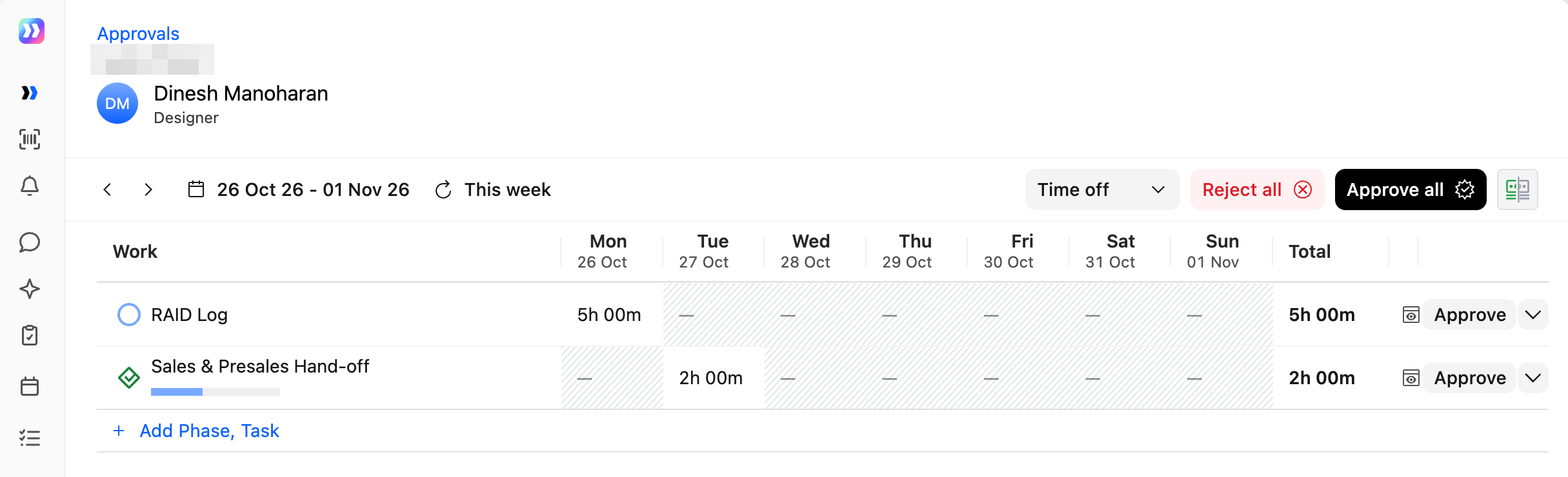
The rejection is submitted immediately. There is no additional confirmation step.
Understand the Scope of Rejection Notes
The action you select determines which part of the timesheet receives the rejection note.
| Rejection action | Note scope |
|---|---|
| Reject all | Entire timesheet |
| Reject a project task | Selected task within its project |
| Reject a non-project activity | Selected activity |
When you reject multiple tasks or activities separately, the submitter receives a separate note for each rejected item.
To review existing rejection notes, select the comment icon. This option is available when the timesheet contains notes.
Approve or Reject Your Own Timesheet
Users with the Can approve their own timesheets permission can approve or reject their own submitted time using the same actions available for other team members.
Self-approval is not enabled by default for any role. See Enhanced Time Tracking and Approval Experience in Rocketlane for the required access.
Handle Timesheets with Locked Tasks
If a timesheet contains a locked task and you do not have the Can modify or delete approval locked entries permission, you cannot use Reject all or Approve all.
You can still approve or reject unlocked tasks and activities individually.
See Understanding and Configuring Timesheet Locks for information about locked entries and override permissions.
FAQ
Can I edit my timesheet after submitting it?
Yes, provided the affected entries have not been approved or locked. Changes made while approval is pending are included in the existing approval request.
When should I withdraw my timesheet?
Withdraw the timesheet when you want to remove the entire week from the approver's queue. You do not need to withdraw it to make routine changes while approval is pending.
Can I withdraw only one task?
Yes. Use the task row's menu to withdraw the entries associated with that task. The remaining entries in the week stay submitted.
Can I submit a timesheet with zero hours?
No. The week must contain at least one eligible time entry. Time off and company holidays do not count as entries by themselves.
What happens when my timesheet is rejected?
Open the rejected week, review the notes from the comment icon, correct the affected entries, and select Submit week for approval again.
What happens when I resubmit a partially approved timesheet?
Only entries that are rejected or not yet submitted are sent for review. Entries that were already approved remain unchanged.
Will I be notified about the outcome?
Yes. You receive a notification when your timesheet is approved, rejected, or partially approved.
See Understanding Timesheet Notification Emails in the Actions as an Approver folder.
Can I reject part of a timesheet and approve the rest?
Yes. Reject the tasks or activities that need correction and approve or leave the remaining items unchanged.
See Reviewing and Approving Timesheets for task-level approval.
Do I need to enter a rejection note?
No. You can reject submitted time without a note. However, adding a clear explanation tells the submitter what needs to be corrected.
Why can't I reject a timesheet from the Week view list?
The Week view list in Manage and approve supports quick approval and access to individual timesheets. Open the team member's timesheet to reject a task, activity, or the entire week.
Why are Reject all and Approve all unavailable?
The timesheet may contain a locked task that you do not have permission to override. You can still act on unlocked tasks and activities individually.
Where can I review previous rejection notes?
Select the comment icon from the timesheet. The option is available when notes have been added.