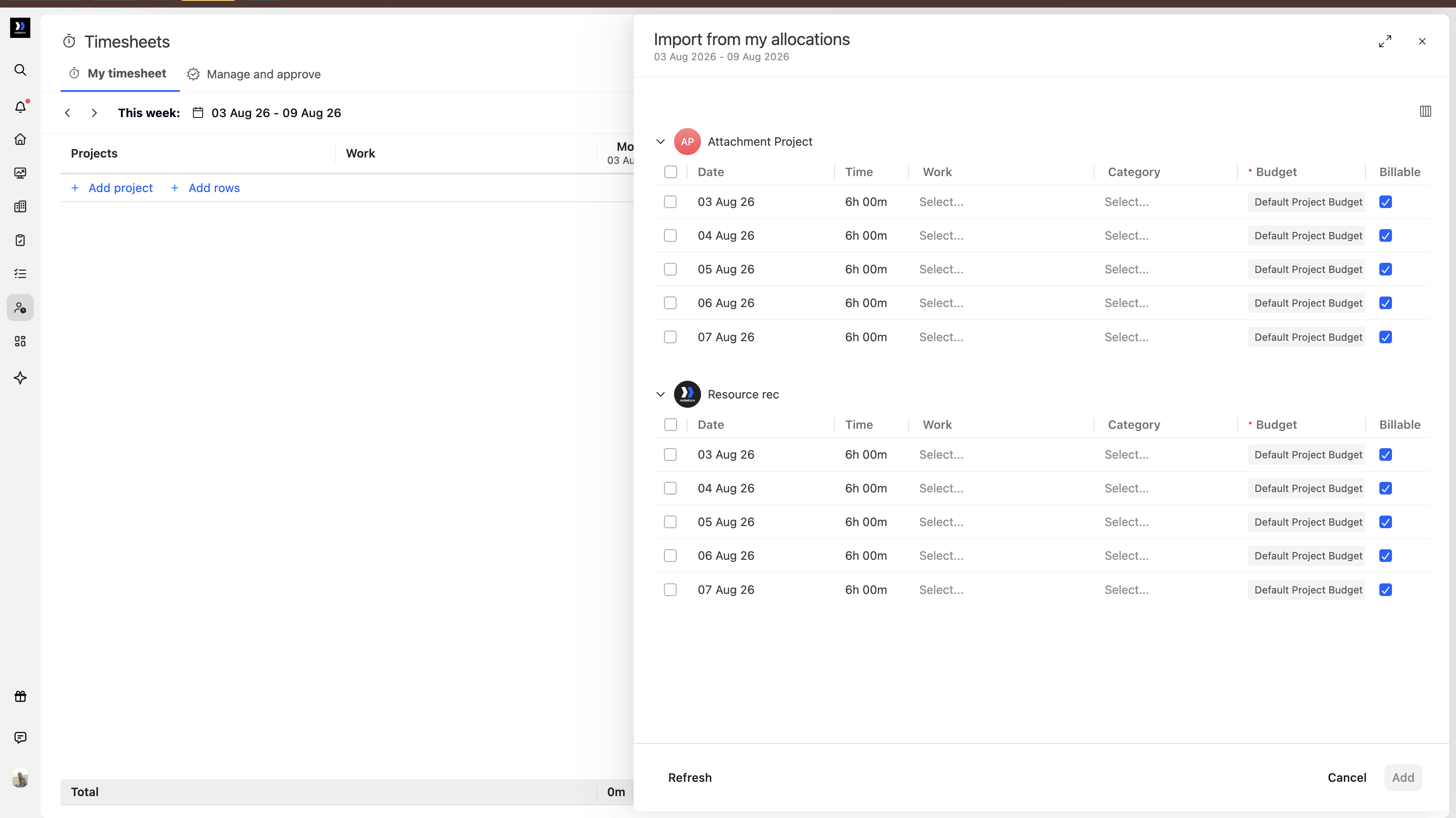
You can collapse completed days and rearrange columns while adding time from your calendar or allocations. These options help keep the drawer focused on the entries you still need to review.
In this article
Collapse days in Calendar Activity
Go to Timesheets > My timesheet > Add from calendar.
Calendar events imported from Google Calendar or Outlook are grouped by day. Click a day header to collapse its entries. The day name and date remain visible while the entries are hidden.
Click the same header again to expand the day and review or edit its entries.
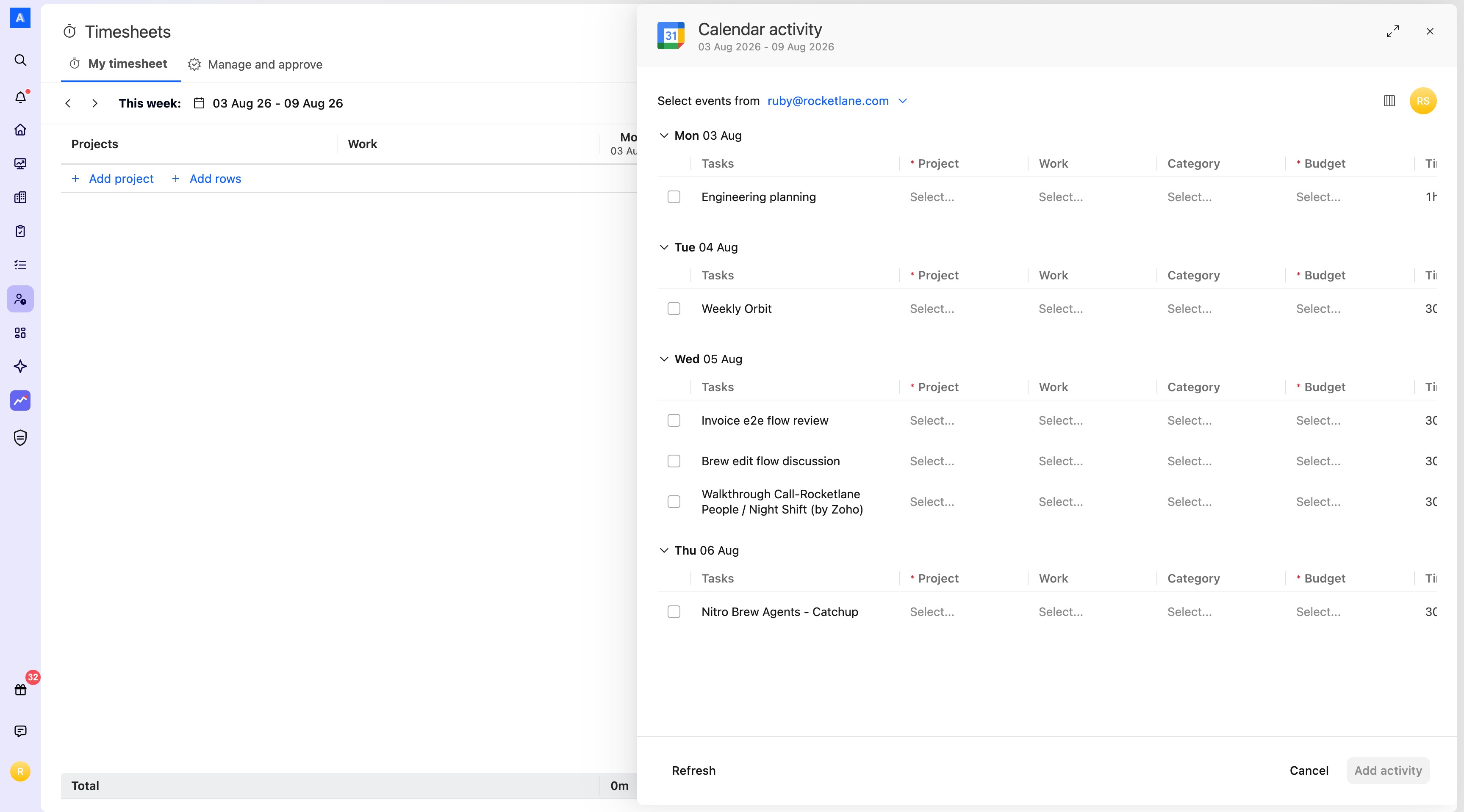
Rocketlane remembers which days you collapsed for each week. If you navigate away and return to that week, those days remain collapsed.
This can help you:
- Collapse each day after completing its time entries.
- Keep only unfinished days visible.
- Continue a partially completed weekly timesheet from where you stopped.
Rearrange columns
You can rearrange the columns displayed in the following drawers:
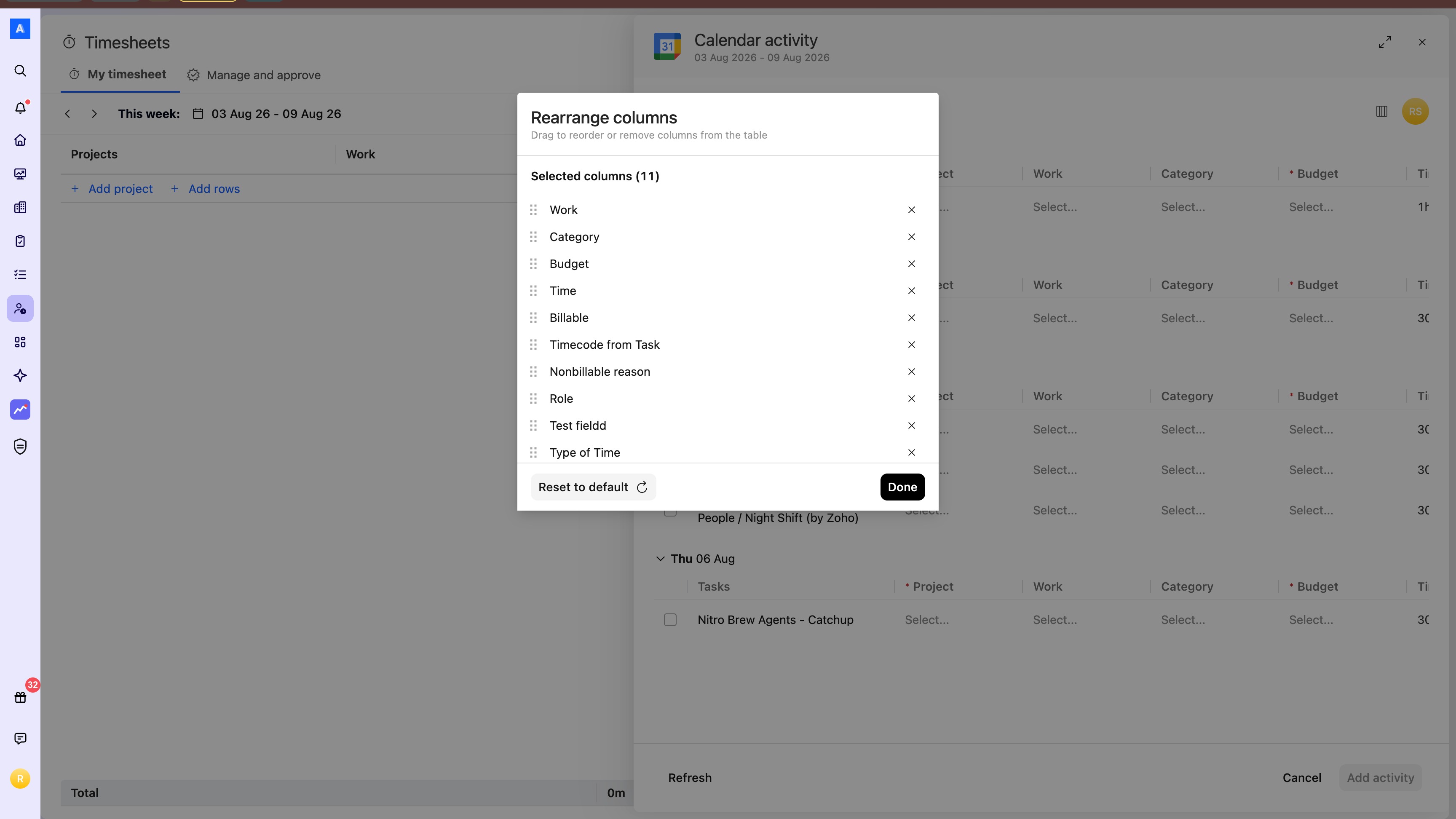
- Timesheets > My timesheet > Add from calendar
- Timesheets > My timesheet > Add rows > Import from my allocations
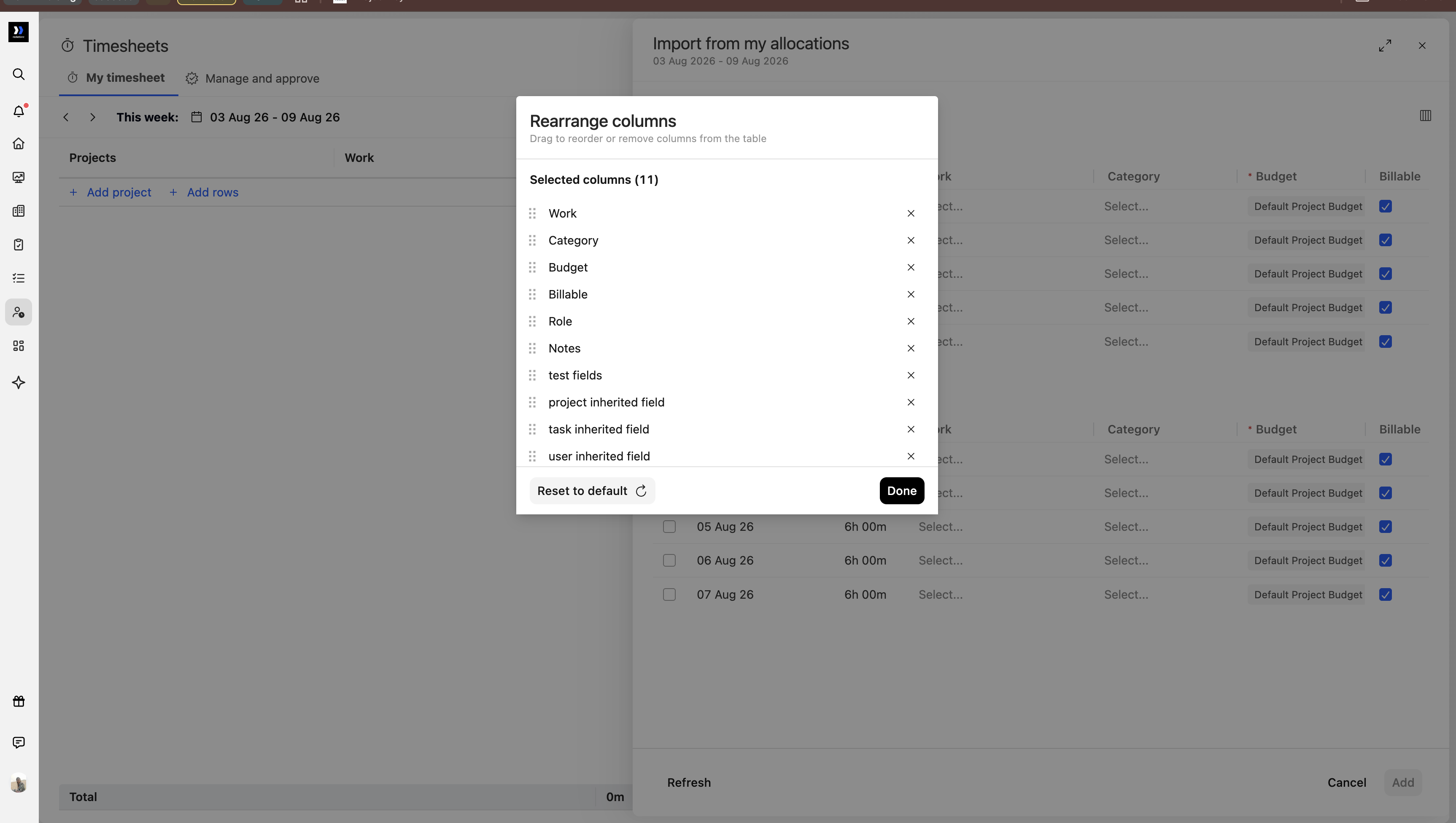
Click the table icon in the upper-right corner of either drawer to open Rearrange columns.
In the Rearrange columns window, you can:
- Drag a column using its handle to change its position.
- Hover over a column and click the up arrow to move it to the top.
- Click the X beside a removable column to hide it.
- Click Reset to default to restore the original columns and order.
- Click Done to apply your changes.
Add from calendar
Use this option to import time entries from calendar events and adjust the columns shown in the calendar activity drawer.
Import from my allocations
Use this option to import time entries from your allocations. The same column controls are available when importing time from allocations.