Rocketlane now supports tax code configuration within invoices, enabling more accurate and customizable tax entries for your billing needs. Built for teams that want to manage taxes internally without relying entirely on external accounting tools, this feature adds a flexible tax layer on top of the existing invoicing module without changing invoice statuses, approvals, or the entire invoice lifecycle behavior.
Rocketlane invoices are always tax-exclusive. Line item amounts are treated as net amounts and taxes are always calculated on top of those amounts.
Rocketlane still supports invoices without tax codes. If you are creating strictly pro forma invoices and don't need to worry about taxes, you can turn off tax codes for easier use.
TABLE OF CONTENTS
- Where and How to Use Tax Codes
- Tax Codes and Components
- Managing Tax Components
- Managing Tax Codes
- Invoice Display Options
- Default Tax Code Settings
- Applying Taxes in Invoices
- RBAC and Permissions
- Invoice Types Supported
- Tax Calculation Behavior
Where and How to Use Tax Codes
Enabling Tax Codes
To activate this feature:
Navigate to Settings > Invoices.
Toggle Enable tax codes.
Only Admins or users with the “tax settings” and “managing tax codes” permissions can activate it.
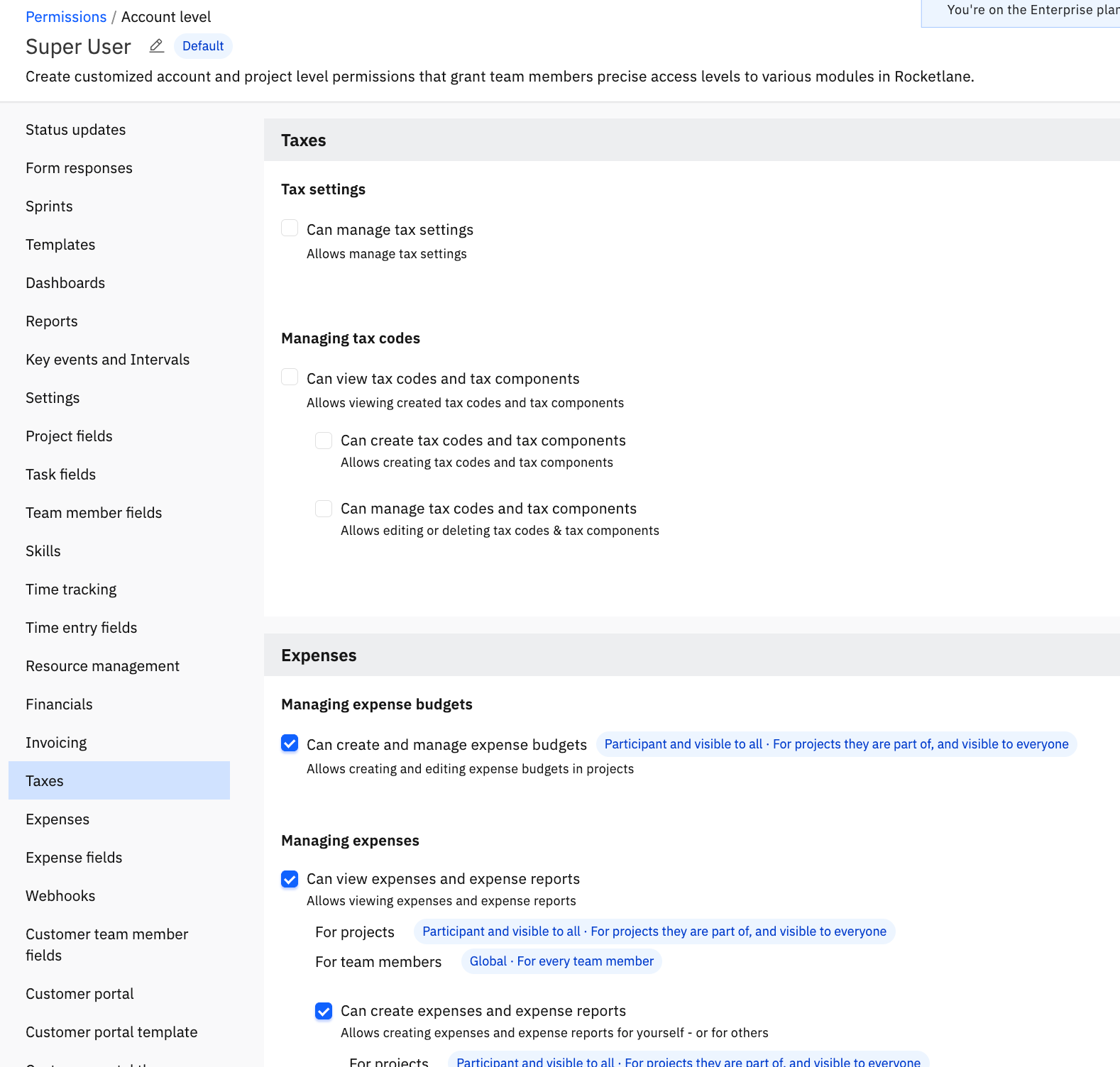
Once enabled, new invoices and new invoice drafts will support tax code configuration. Invoices and drafts that were created before tax codes were enabled keep their previous tax format and are not retrofitted.
Rocketlane does not alter any existing invoices when you enable tax codes. Invoices created without tax codes continue to be edited in the legacy tax format (i.e, manually adding the tax amount), and invoices created with tax codes continue to use the tax code format. These two formats are independent of each other and are not compatible.
Note: Enabling or disabling tax codes only affects invoices created after the setting is changed. Existing invoices and existing draft invoices cannot be converted to use the new tax structure.
Tax Codes and Components
Tax Components
These represent the granular units of tax applied to an invoice line item. Each component is a percentage applied on top of the tax-exclusive line item amount, and components are always added together as a simple sum of percentages without any compounding.
Examples:India: CGST (9%) and SGST (9%)
UK/EU: VAT (20%)
USA: Federal, state, and local taxes
A single tax component can be reused across multiple tax codes.
Tax Codes
Tax codes group one or more components under a single label for easy reuse.
Example:GST 18% = CGST (9%) + SGST (9%)
Tax codes are applied at the invoice line item level, giving you precision and control over how taxes are displayed and calculated.
Managing Tax Components
To create a new tax component:
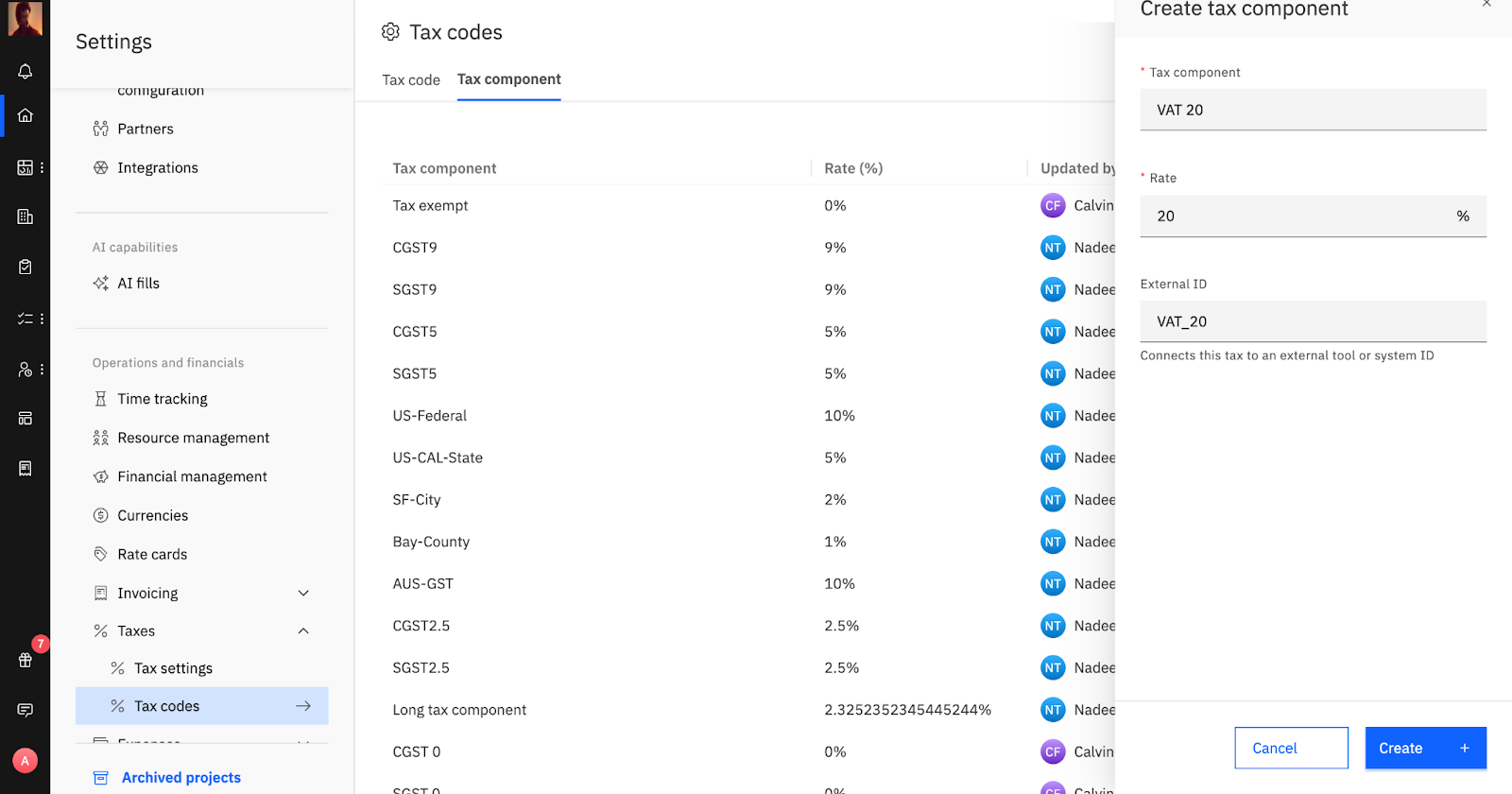
Go to Settings > Tax codes> Tax components.
Click New tax component.
Add tax component details by specifying a name and percentage and ID (The tax component ID that connects it to an external tool or system).
Click Save.
Once created, the tax component will appear on the page. To modify it, click the three dots (...) next to the component name to access options for editing, deleting, or duplicating it.
Managing Tax Codes
To create a new tax code:
Go to Settings > Tax codes.
Click New tax code.
Select the desired component(s) from the dropdown menu to add tax components.
Group one or more tax components under the new tax code, for example, VAT UK with a VAT 20% component.
Click Save.
Once created, the tax code will appear on the page. To modify it, click the three dots (...) next to the code name to access options for editing, deleting, or duplicating it. You can also toggle the tax code on or off.

A single tax component can be reused across multiple tax codes, such as reusing CGST 9% in several India-specific GST codes.
Tax code names and tax component names must be globally unique. You cannot create a tax code and a tax component with the same name.
Tip: You can set up regional codes like VAT UK, GST India, or Federal US tax to match your compliance and reporting needs.
Note: The system prevents users from editing or deleting a tax code or tax component once it has been used. However, you can deactivate a used tax code or component, which prevents it from being used on future invoices.
Invoice Display Options
You can configure how tax details appear on the invoice PDF. This is a global setting that applies to all invoices created after the setting is changed.
To set this, navigate to Settings > Tax Settings>Show tax subtotal as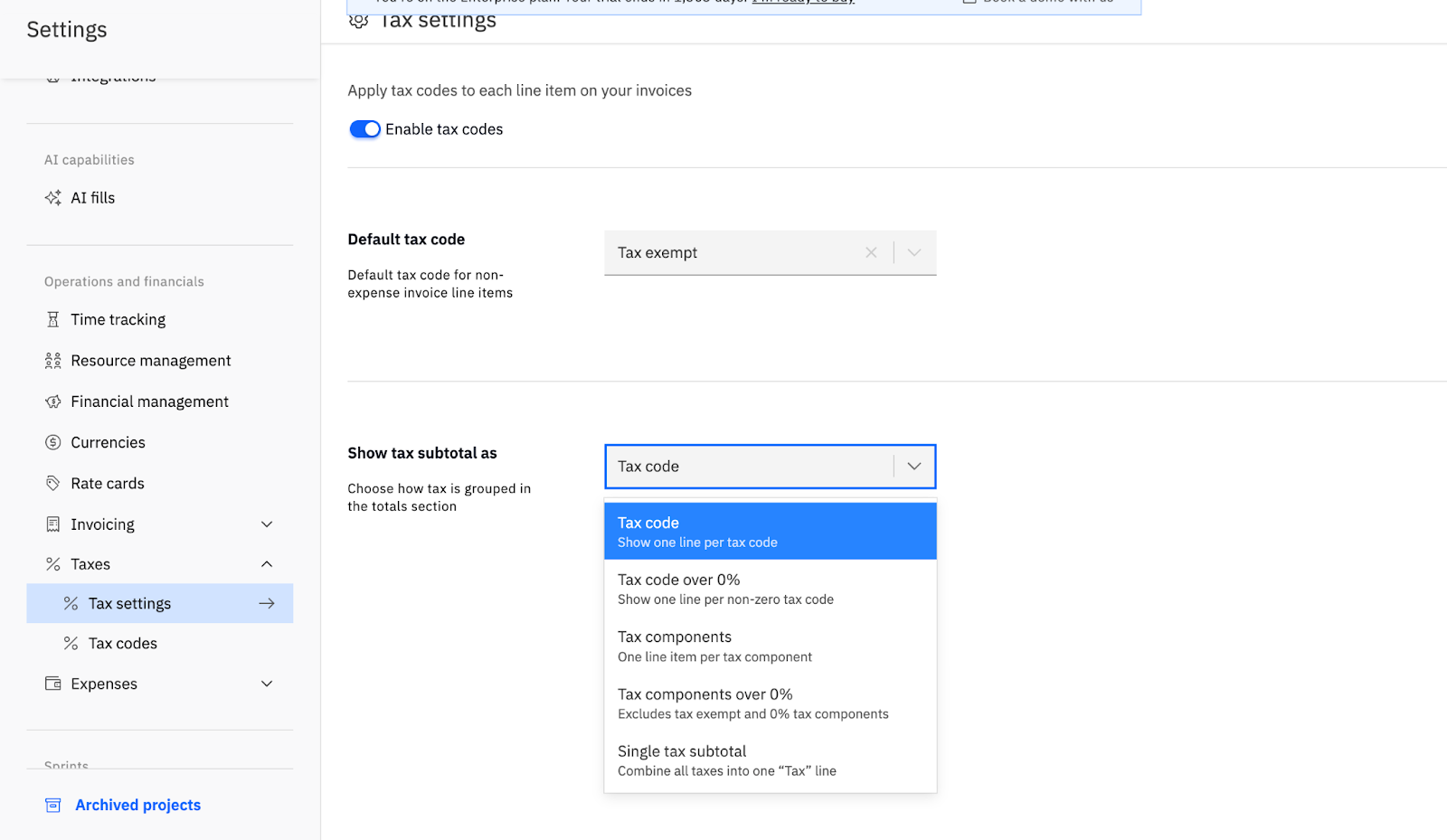
You can choose one of these options at a time and it applies to all invoices:
Generic tax label on line items
Show a single Tax label on line items and a combined Tax subtotal, without exposing individual tax codes or components.Tax subtotals by tax code
Show invoice-level tax subtotals grouped by tax code, including the tax code name and percentage for each code.Tax subtotals by tax code above zero percent
Show invoice-level tax subtotals grouped by tax code, but only for tax codes with a percentage above zero. Zero tax and tax-exempt codes are not shown in the tax subtotal section.Tax subtotals by tax component
Show invoice-level tax subtotals grouped by tax component, such as CGST, SGST, or VAT.Tax subtotals by tax component above zero percent
Show invoice-level tax subtotals grouped by tax component, but only for components that result in a non-zero tax amount. Zero tax components and tax-exempt components are not shown in the tax subtotal section.
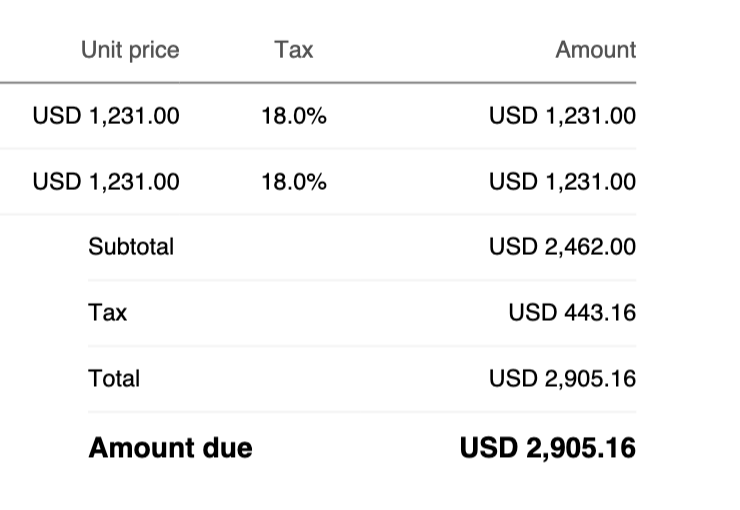
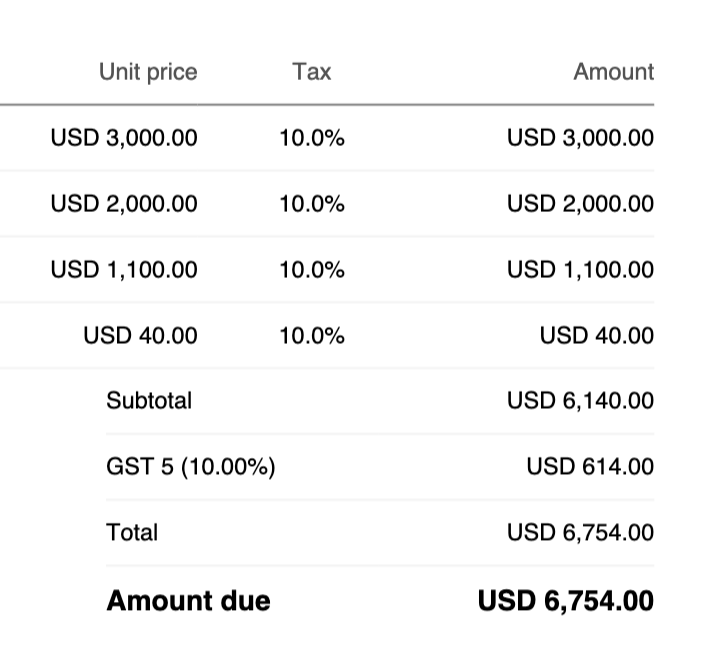
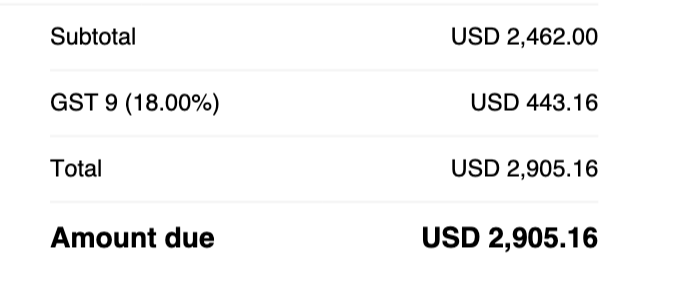
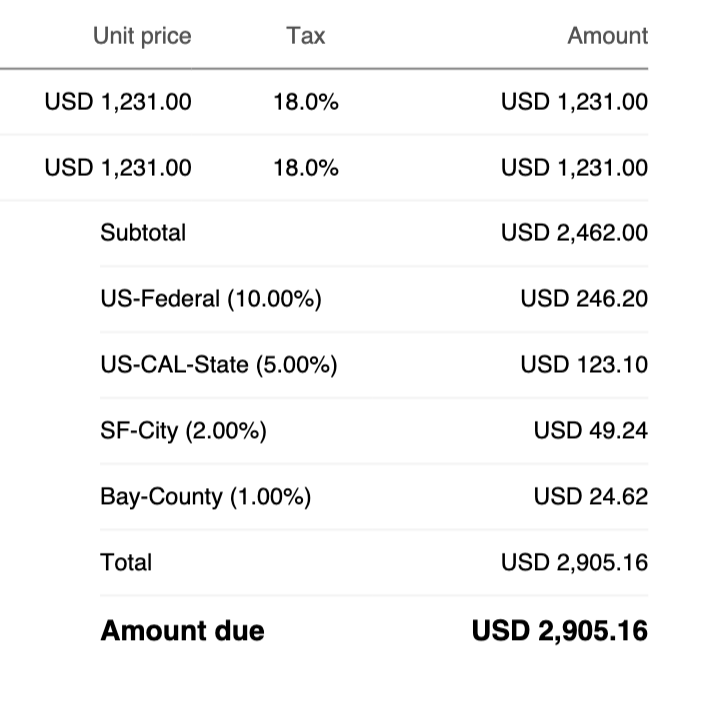
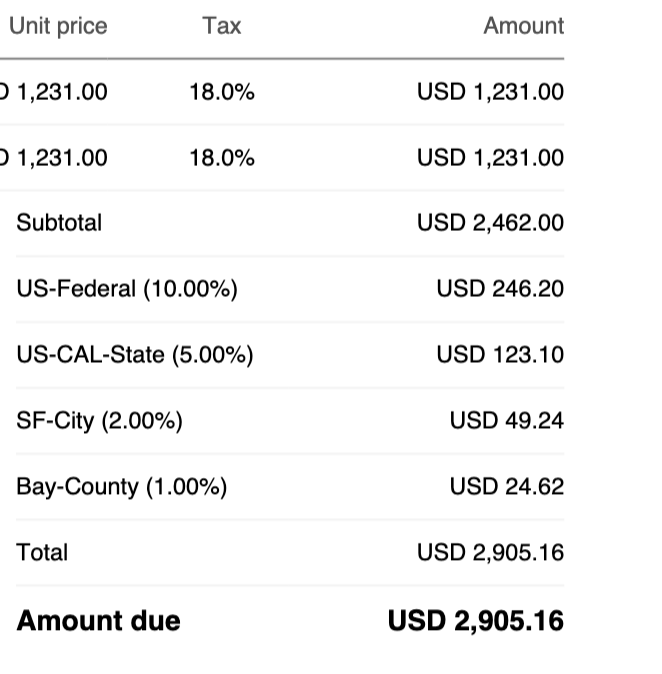
In all cases, the underlying tax calculation remains the same. These options control only how tax information is displayed on the PDF.
Zero tax or tax-exempt is represented as a valid tax code in the system. When tax codes or components are filtered to show only values above zero, zero tax and tax-exempt entries are hidden from the subtotal section but still apply at the line item level where relevant.
Default Tax Code Settings
To reduce repetitive entry, you can configure default tax codes:
Global default tax code
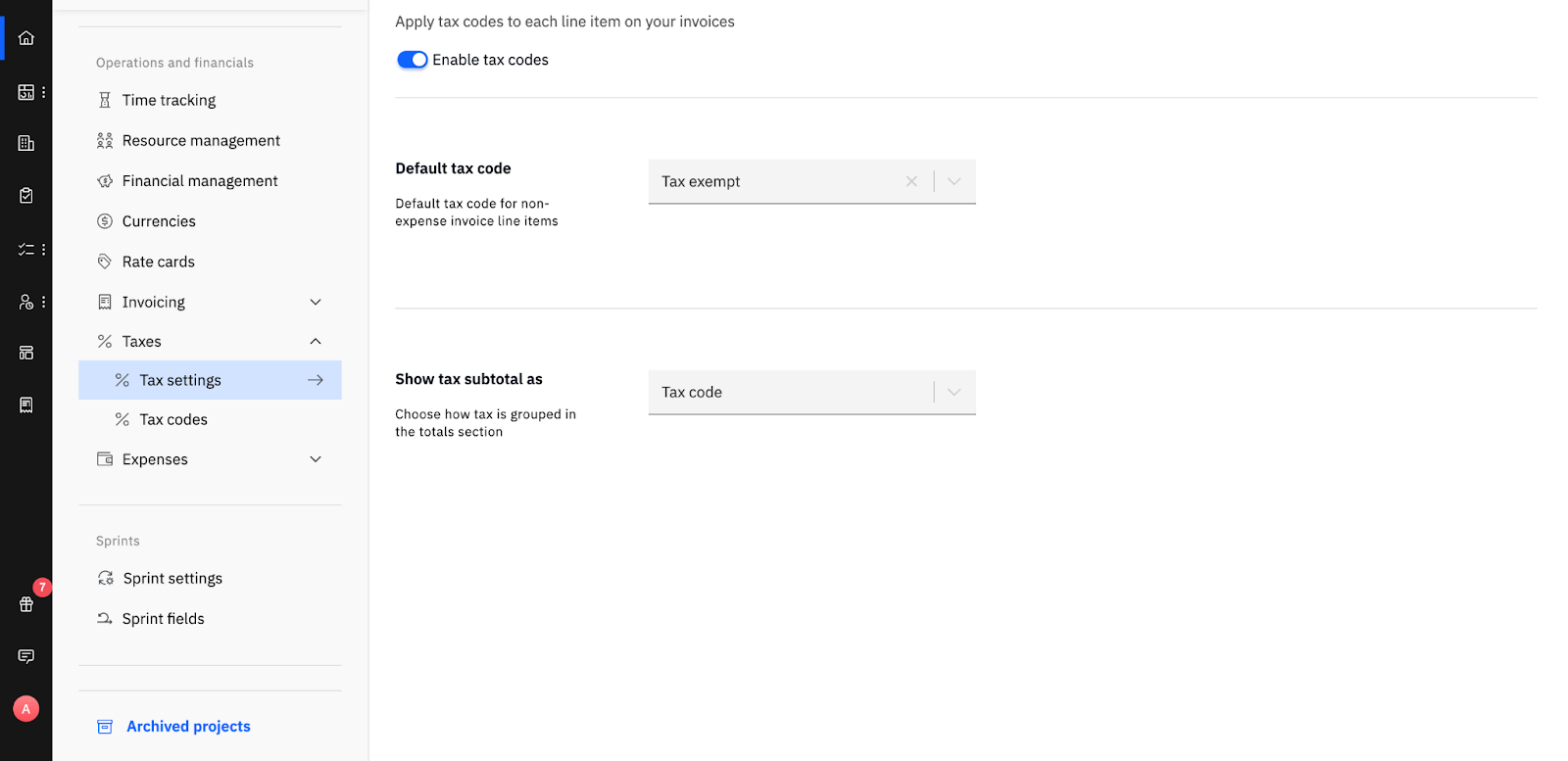
Applied to all invoices in the workspace unless overridden. Rocketlane ships with a global default tax code named Tax exempt, so by default all line items are treated as tax-exempt until another tax code is applied. To set this up:Navigate to Settings > Taxes > Tax Settings > Default tax code, and then select the desired tax code.
Account-level default tax code
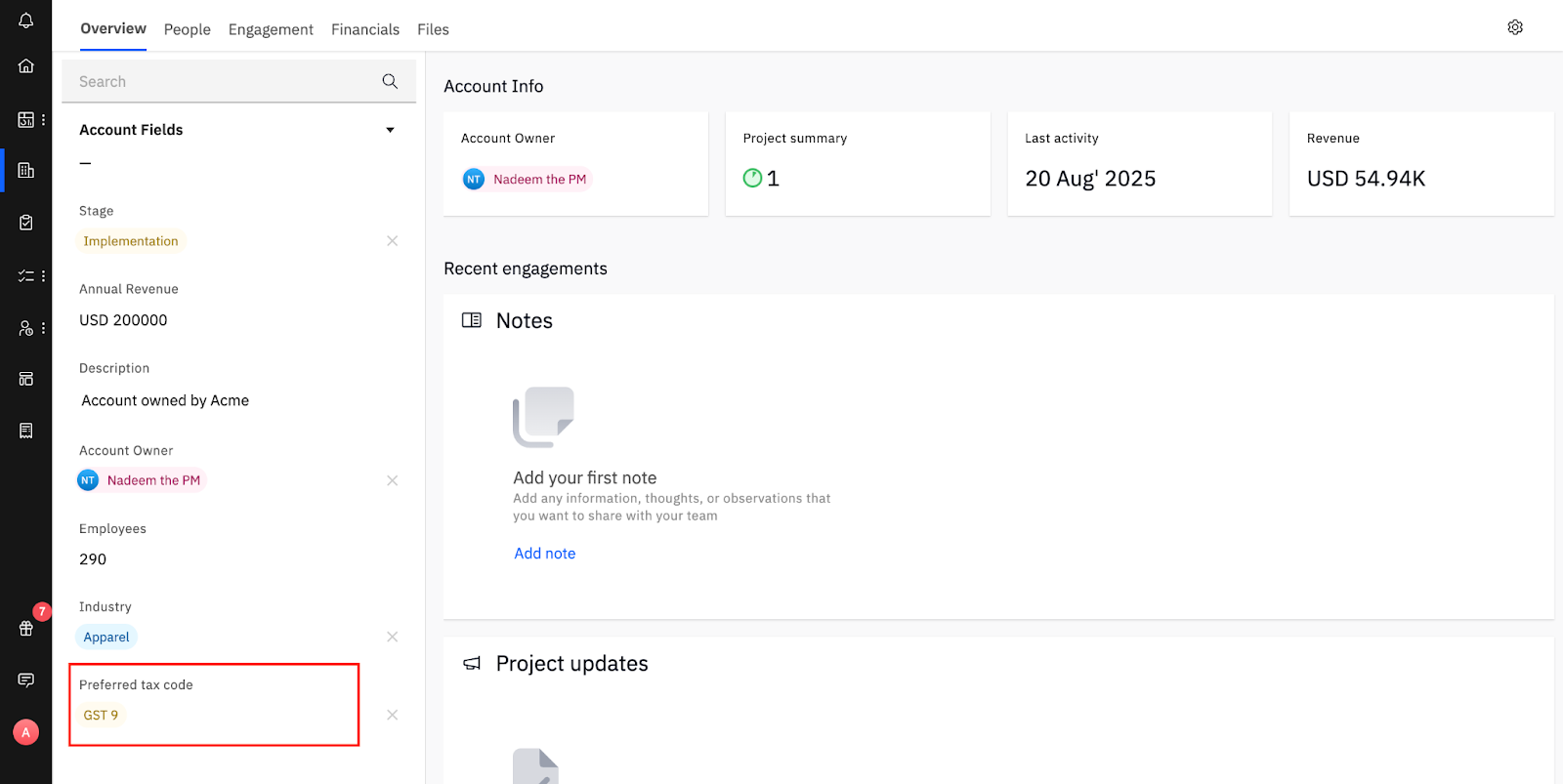
Applied to all invoices for a specific customer or account. If an account-level default is configured, it overrides the global default for invoices created for that account. To set this up:Navigate to Accounts > [Select Account] > Preferred tax code (located in the account fields) and select the desired tax code.
Invoice creators can override the default tax code at the invoice level or at the individual line item level when creating or editing an invoice.
Defaults determine which tax code is prefilled, but you can still clear or change it on individual line items as long as all line items follow some tax-code rule as described below. By default, the system sets the invoice with a tax-exempt tax code.
Tax Code Rule: You cannot mix taxed and untaxed line items within a single invoice. Either all line items on an invoice must have a tax code value (including zero tax or tax-exempt codes) or all line items must have an empty tax code cell. Leaving the tax cell blank means that the line item does not have any tax code associated with it.
Note: Project-level defaults are not supported yet. The Account-Level Default (Preferred tax code) takes precedence over the Global Default (Default tax code), as the more specific account setting overrides the general system-wide setting.
Applying Taxes in Invoices
When creating or modifying an invoice that uses tax codes. If you are not familiar with how to create an invoice in Rocketlane, refer this article:
Choose a tax code per line item. You can apply any available tax code, including zero tax or tax-exempt codes.
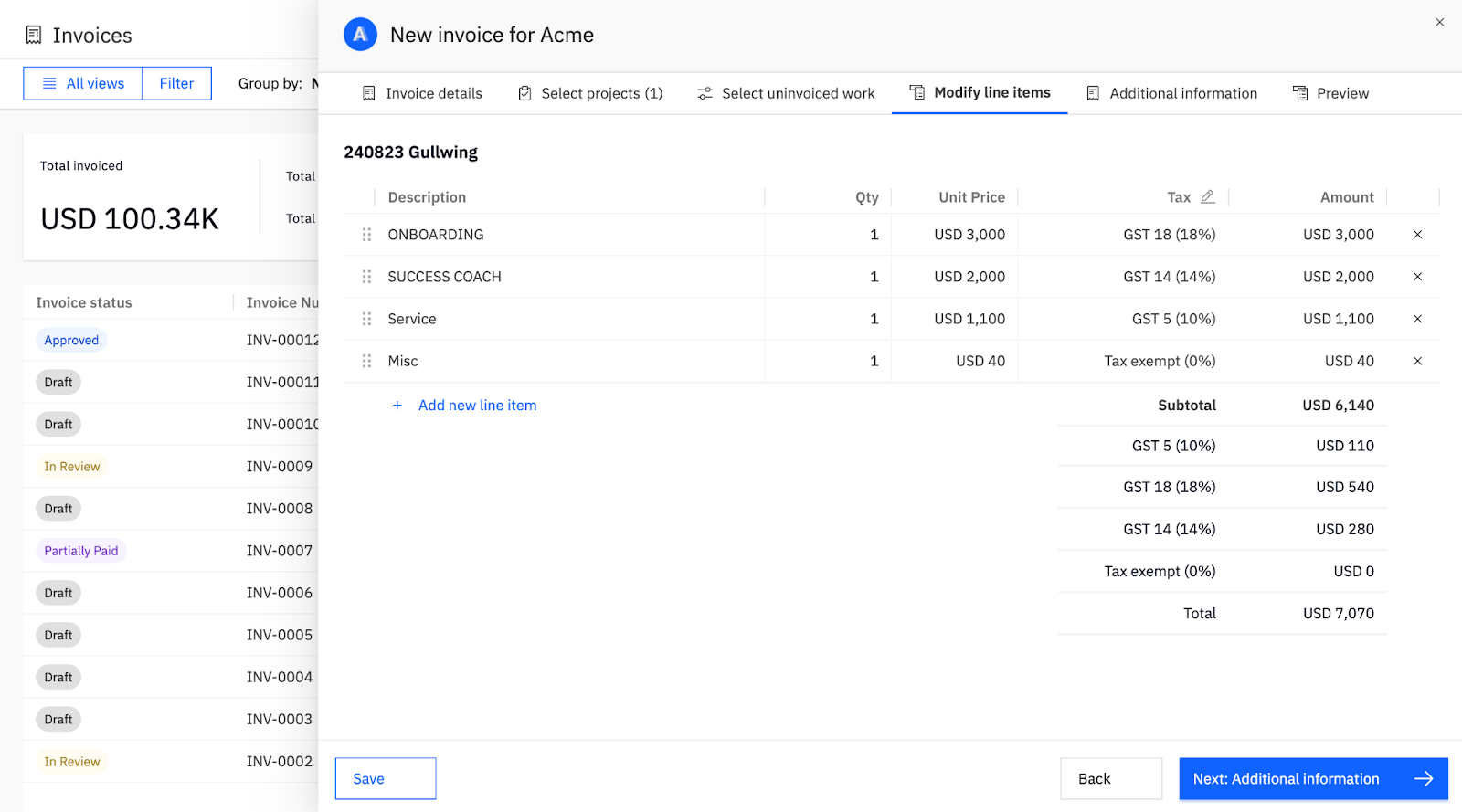
Tax amounts are auto-calculated based on the selected tax code and its underlying components. Rocketlane calculates each tax component as a percentage of the line item amount and then adds the component amounts together.
Use bulk actions to apply or clear taxes across all line items for faster updates.
To bulk manage taxes:
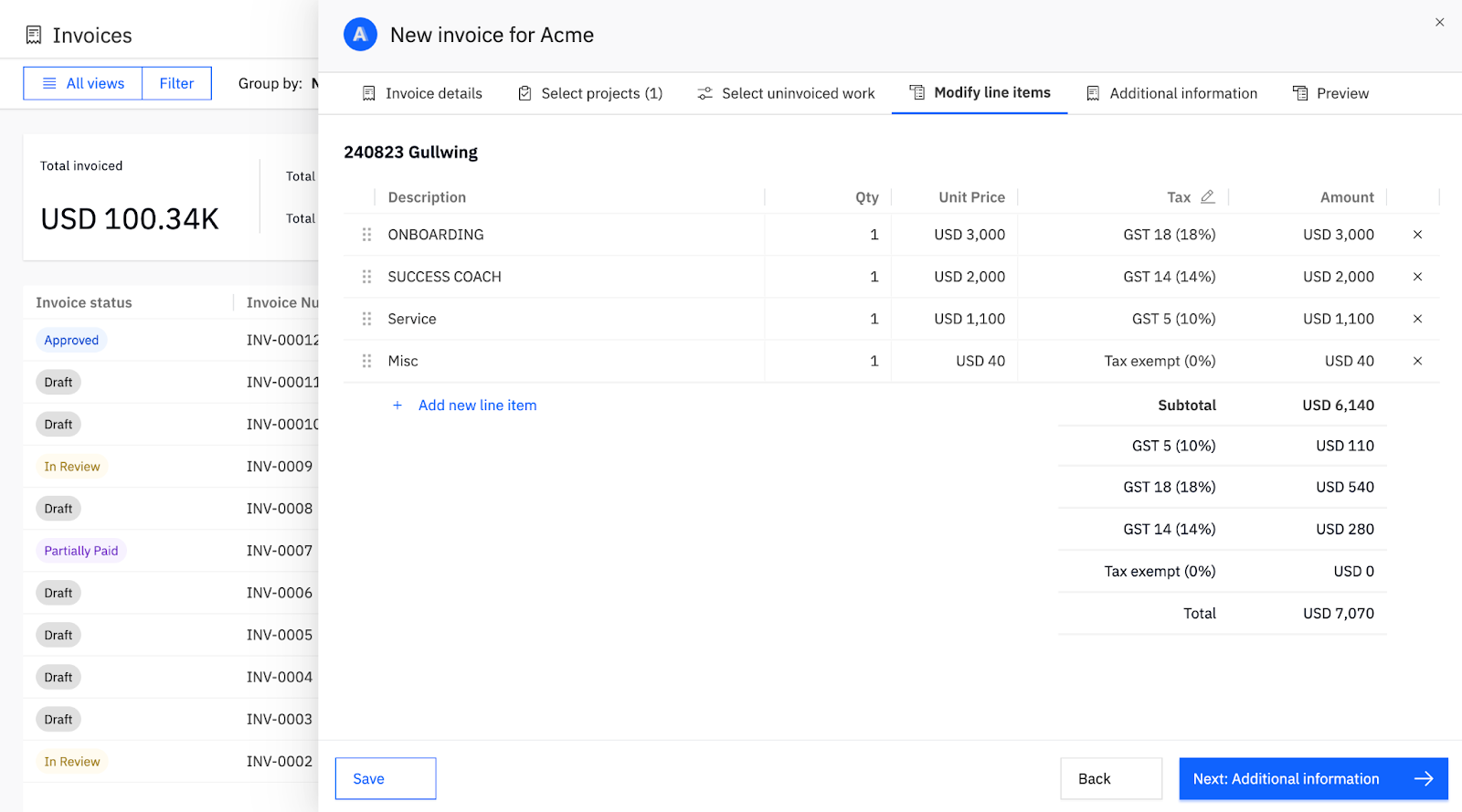
Click the header of the Tax column in the invoice line item table.
Click the pencil icon next to Tax.
Choose a tax code to apply that code to all line items, or clear the tax code to remove it from all line items.
Rocketlane follows the existing invoice editing rules. Invoices cannot be edited once they are approved. To edit an invoice, including its tax codes, you must move it back to the In review status, and only users with the appropriate permissions can do this. Whether an invoice is paid or unpaid does not change this behavior.
Note: If you want an invoice with no tax codes at all, use the bulk clear action to remove the tax code from every line item
RBAC and Permissions
Invoice permissions remain the same. Tax codes are simply a component of the invoice, so all your existing permissions for invoices will continue to work.
Tax code management is restricted via role-based permissions:
Go to Settings > Permissions > Taxes.
Grant Manage tax codes and components to finance admins or specific roles.
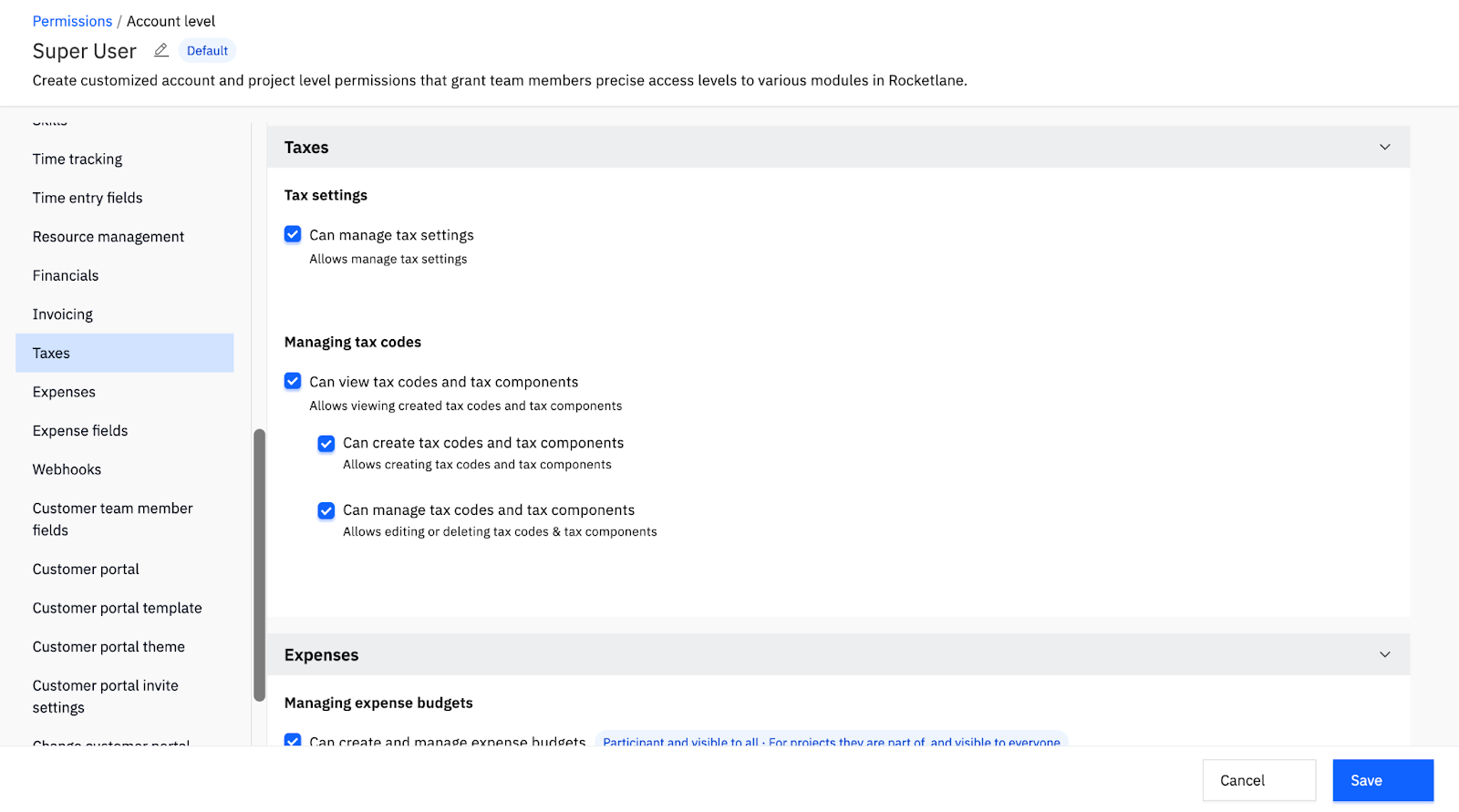
This permission controls access to add and edit tax components and tax codes.
Creating and applying tax codes in invoices is allowed for anyone who has invoice creation access. However, modifying the tax codes and components themselves is restricted to roles with the Manage tax codes and components permission. Moving invoices between statuses, such as from In review to Approved, is controlled by the existing invoice permissions and continues to govern when taxes can be edited.
Invoice Types Supported
Tax codes can be used across all project-based invoices in Rocketlane:
Time and material projects
Fixed fee projects
Subscription billing on projects
Rocketlane uses the same invoicing method across these billing models. Each invoice supports modifying line items individually and applying tax codes as needed.
Note: Multi-project invoices continue to follow the existing behavior. All projects included in a multi-project invoice must use the same currency. Tax codes do not change this behavior.
Tax Calculation Behavior
As mentioned earlier, Rocketlane invoices are tax-exclusive. Line item amounts are always treated as net amounts, and tax is calculated on top of the line item subtotal.
As mentioned earlier, tax components are always additive. Each component is calculated as a percentage of the line item amount and Rocketlane adds the component amounts together without compounding.
Each tax component amount is rounded to two decimal places. Rounding happens at the tax component level.
Rocketlane does not support multi-currency invoices. Each invoice is created in the currency of the project, and multi-project invoices are created only from projects that share the same currency. This is existing invoice behavior and is unchanged by tax codes.
Enabling tax codes does not change the tax structure or values on invoices that were already created. Invoices retain the tax model that was in effect when they were issued.