This article explains how to provide users with the correct permissions to access, create, edit, and manage invoicing features in Rocketlane. These permissions determine what each role or user type can perform within the invoicing workflow.
Overview
Rocketlane provides granular invoicing permissions so you can control who can view invoices, update invoice details, request approvals, manage billing schedules, and modify invoice field settings. You can assign these permissions to any user type through the Permissions section in Settings.
How to Access Invoicing Permissions
Navigate to Settings
Select Permissions
Choose the user type you want to configure
Scroll to the Invoicing section
You will see a list of invoicing permissions that can be adjusted based on responsibility and access needs.
Invoicing Permission Levels
Several permissions support access at different scopes. When a permission has a scope selector, you can click Global to choose from the available options:
Scope Options
| Scope Option | Description |
|---|---|
| Global (For all projects) | User can perform the action across all projects in the workspace. |
| Group (For projects belonging to their groups and visible to all) | User can act on projects assigned to their groups and on projects visible to everyone. |
| Participant and visible to all (For projects you are part of and visible to all) | User can act only on projects where they are a participant and on projects visible to everyone. |
| Projects they own (For projects you are the owner of and visible to all) | User can act only on projects they own and on projects visible to everyone. |
Invoice Access and Action Permissions
Below is a complete list of invoicing actions you can enable for a user type.
Access and Creation
Can access invoices
Can create and edit invoices
Approval Workflow Permissions
Can request approvals on invoices
Can edit approval requests on invoices
Can approve or reject approval requests assigned to them
Can approve or reject any approval requests on invoices
Status Management
Can manually override invoice status to approved
Financial Record Management
Can create and manage payment records
Can create and manage write-off records
Invoice Control
Can void an invoice
Can delete an invoice
Each of the above permissions supports scope configurations.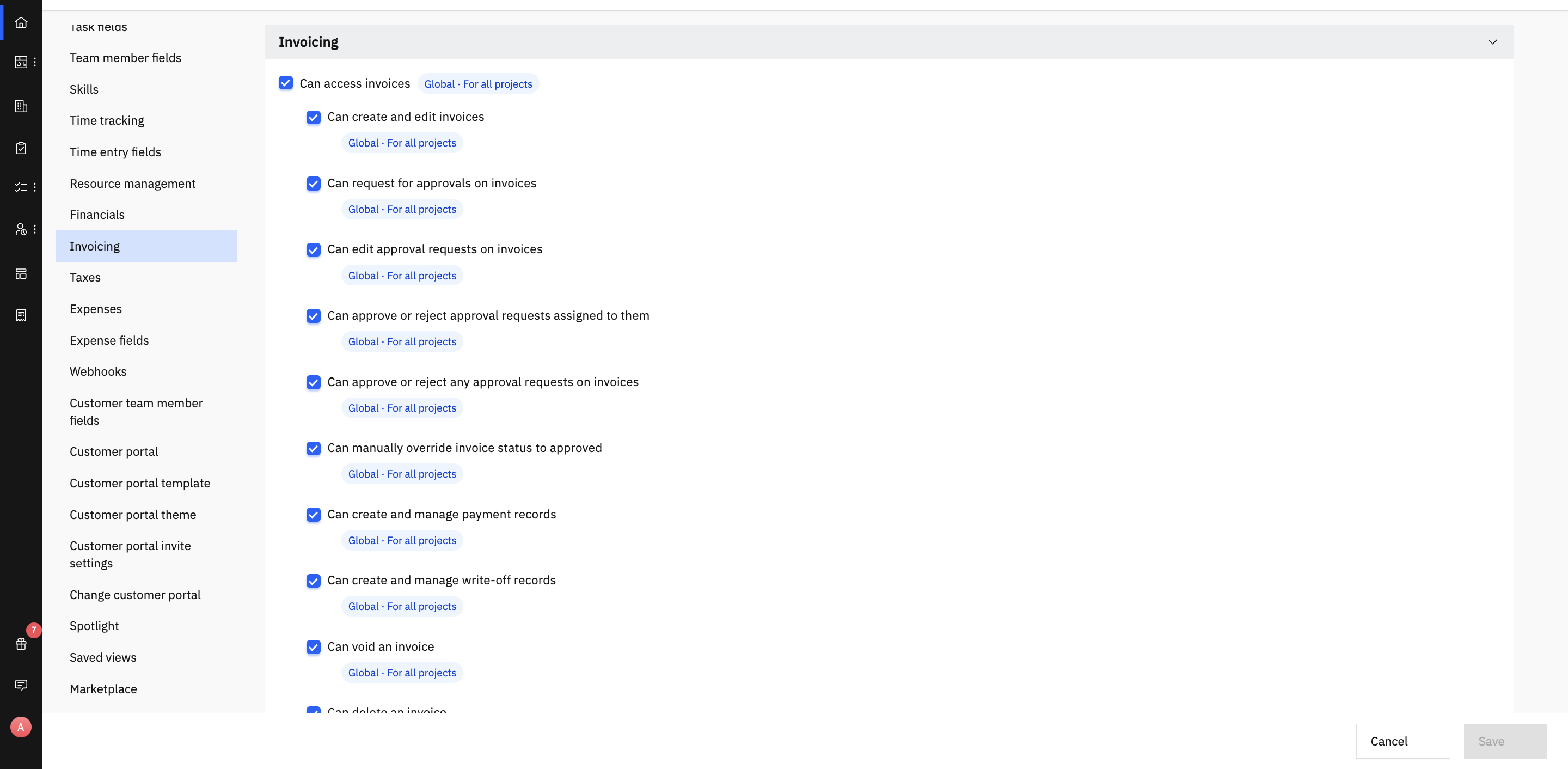
Billing Events and Billing Schedules
The following permissions apply when working with billing events or project billing schedules.
Can view billing events for the project
Can create and manage billing events for the project
Users with this permission can manage billing events, create billing schedules manually, or import billing schedule templates.
Invoice Settings Permissions
These permissions define who can configure invoice-related settings across the workspace.
Can manage invoice essential settings
Can manage approval workflows
Can manage invoice custom fields
Managing Invoice Fields
Users with the appropriate permissions can:
Create new invoice fields from the settings page
Edit existing invoice fields
(For example, disable a field, show or hide a custom field on the invoice PDF, add or remove options from a multi-select field, or move fields across sections)Delete invoice fields
Create and manage invoice field sections
(Users can create new sections, rearrange them, or delete them)
Billing Schedule Templates
Can manage billing schedule templates