Timesheet approval helps your organization verify that submitted hours are accurate before they are used for billing, reporting, and other downstream processes.
Rocketlane supports two account-wide approval models. You can route project time to project owners or assign one timesheet approver to each team member. Once time is submitted, approvers can review and approve the complete submission or act on individual tasks and activities.
In this article
- Configure Timesheet Approvals
- Choose an Approval Model
- Use Project Owners as Approvers
- Assign a Timesheet Approver
- Enable Approver Hierarchy
- Open Timesheet Approvals
- Approve Time from Week View
- Review an Individual Timesheet
- Send Timesheet Reminders
- Approve Your Own Timesheet
- Understand Which Timesheets You Can Review
- FAQ
Configure Timesheet Approvals
- Go to Settings.
- Select Operations and financials > Time tracking.
- Find the Approval settings section.
- Select an approval model.

Choose an Approval Model
| Approval model | How it works |
|---|---|
| Project owners approve timesheets for their projects | Each project owner approves the time recorded against the projects they own. A team member's weekly time may therefore be reviewed by multiple project owners. |
| Timesheet approver approves timesheets for their team | Each team member has one assigned timesheet approver who reviews all their submitted time, regardless of the projects against which it was recorded. |
Use Project Owners as Approvers
When Project owners approve timesheets for their projects is selected, Rocketlane routes project time to the owner of the associated project.
No additional project-level approval setup is required. If the project owner changes, responsibility for approving time recorded against that project also changes.
A team member who records time against several projects may have their weekly time reviewed by several project owners.
Approval for Non-Project Time
General and ad hoc activities are not associated with a project, so they do not have a project owner.
When the project-owner approval model is used, non-project time is routed to:
- The team member's assigned timesheet approver, if one has been configured.
- An admin, if the team member does not have an assigned timesheet approver.
This fallback applies even when project owners are responsible for approving project time.
Assign a Timesheet Approver
When Timesheet approver approves timesheets for their team is selected, assign an approver to each team member.
- Go to Settings > Team members.
- Open the team member.
- Find Timesheet approver.
- Select the person who should review the team member's submitted time.
- Save the changes.
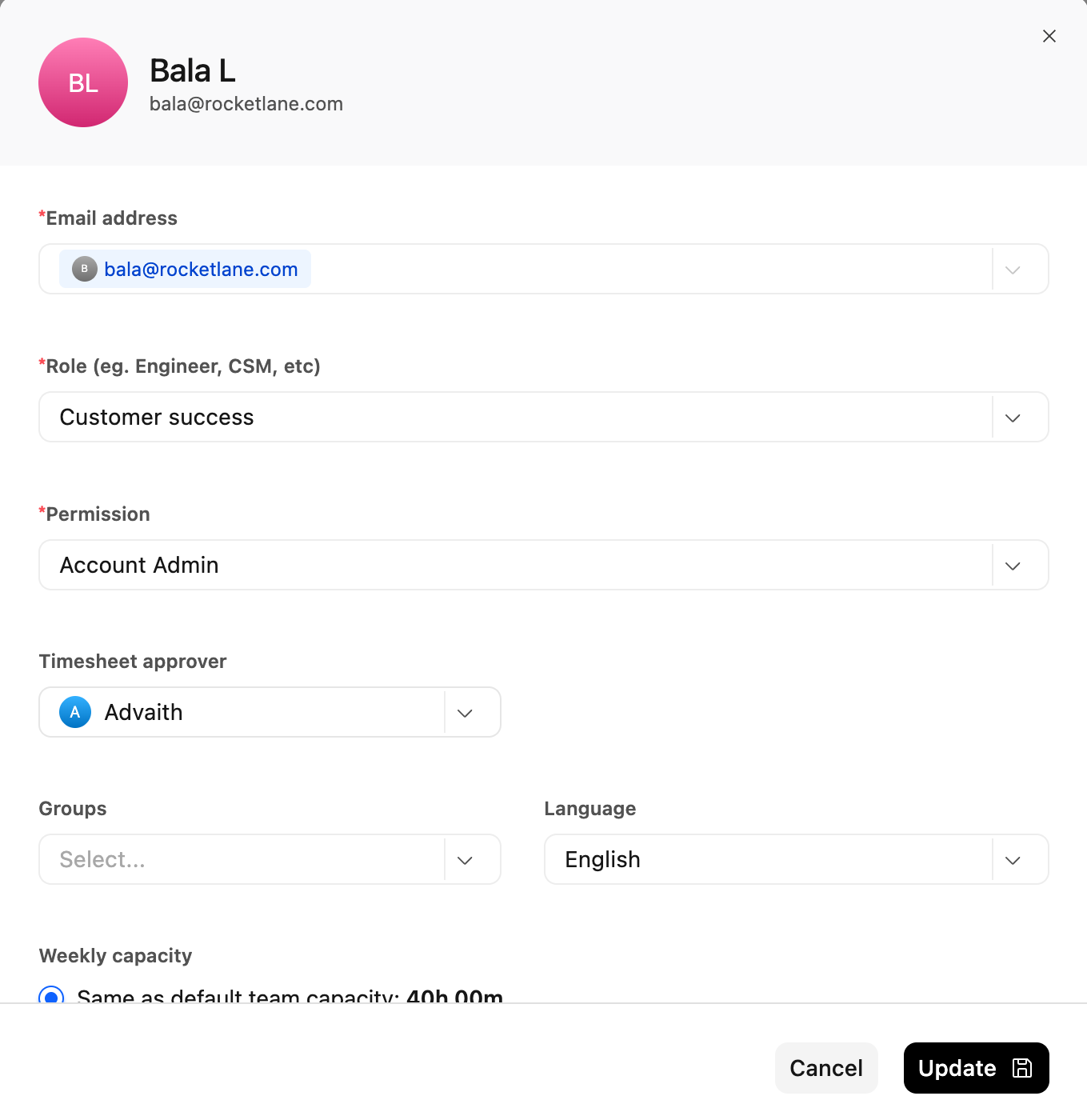
Each team member can have one assigned timesheet approver. If no approver is assigned, approval defaults to an admin.
Enable Approver Hierarchy
When using assigned timesheet approvers, enable Approver hierarchy if additional approvers in the reporting chain should be able to review submitted time.
With Approver hierarchy enabled, approval access extends to:
- The directly assigned timesheet approver.
- The assigned approver's own approver.
- Other approvers further up the reporting chain.
This provides additional approval coverage without changing the team member's directly assigned approver.
Open Timesheet Approvals
- Select Timesheets from the left navigation.
- Select Manage and approve.
- Select Week view.
Week view lists the submitted time available for you to review during the selected week.
When project owners approve time, a team member may have a separate row for each project. When assigned timesheet approvers are used, the row represents the submitted time within that approver's scope.
Approve Time from Week View
Select Approve beside a row to approve all eligible submitted entries represented by that row.
The approval is applied immediately. There is no confirmation step.
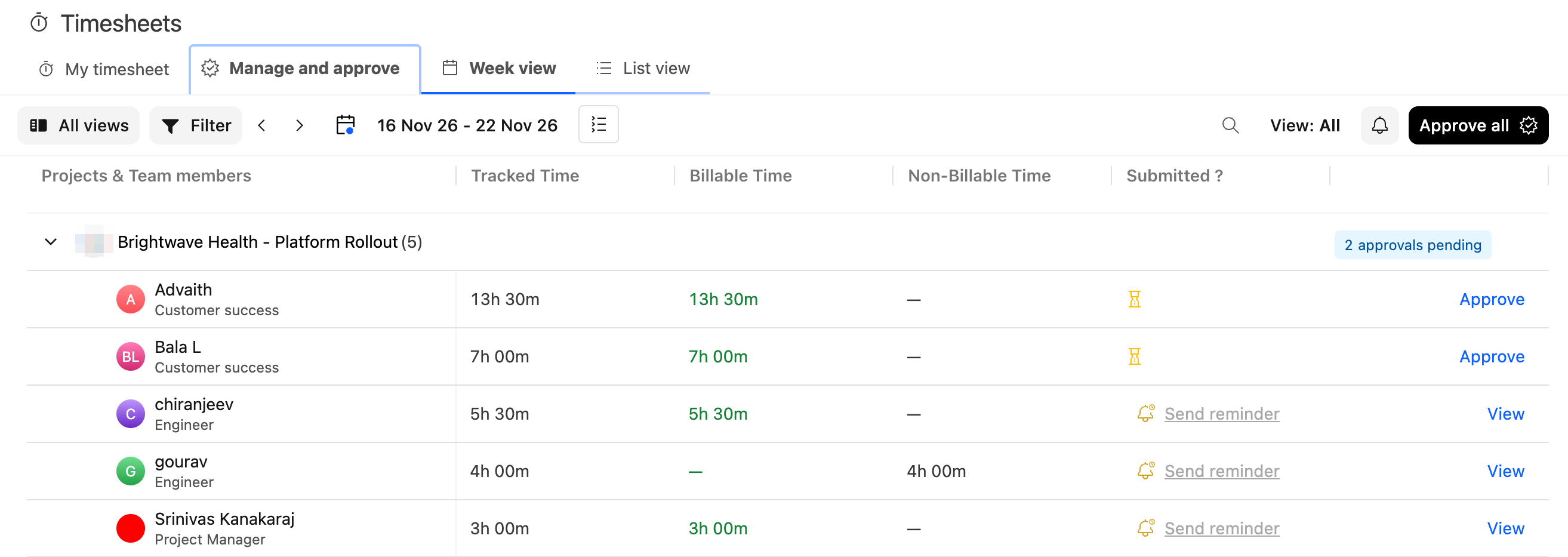
To review individual tasks and activities before approving them, select the team member's name or View.
See Submitting, Withdrawing, and Rejecting Timesheets for the rejection workflow.
Review an Individual Timesheet
Open a team member's weekly timesheet when you need to review or act on individual work items.
For each task or activity, you can:
- Select Approve to approve its submitted entries.
- Select the chevron beside Approve, and then select Reject.
- Withdraw an existing approval from the chevron beside the Approved status.
- Change a rejected item directly to approved from the chevron beside the Rejected status.
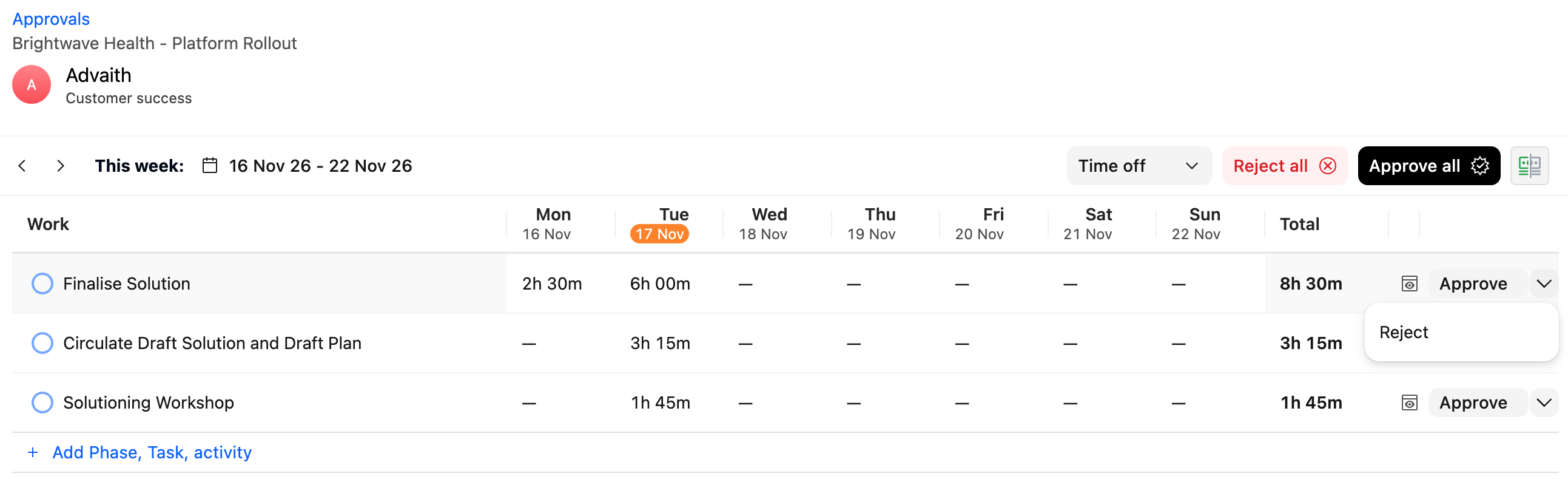
Approval and rejection can happen at the individual task or activity level. You do not need to reject the entire week when only one work item requires correction.

Act on the Entire Week
An individual timesheet provides the following whole-week actions:
| Action | What it does | Confirmation required? |
|---|---|---|
| Approve all | Approves every eligible entry that has not already been approved. | No |
| Reject all | Lets you add a rejection note before rejecting the week. | No additional confirmation |
| Withdraw approval | Removes the entire week from the approved state. | Yes |
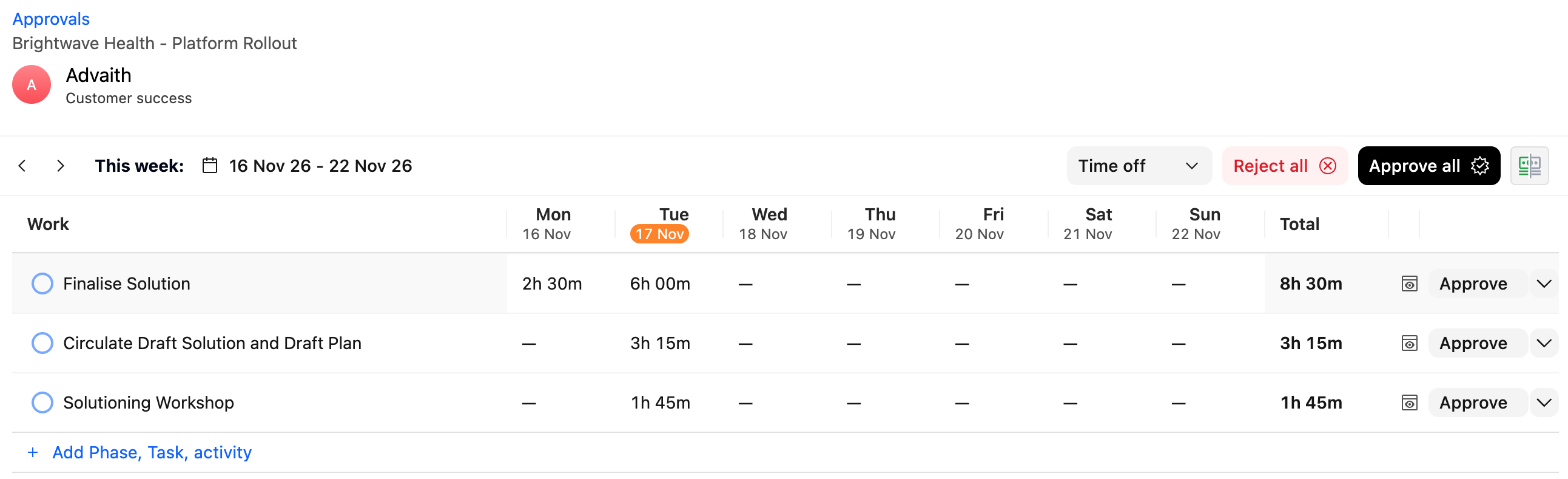
See Understanding and Configuring Timesheet Locks for information about locked entries and override permissions.
Send Timesheet Reminders
From Manage and approve > Week view, you can remind team members who have not submitted their timesheets.
- Select Remind all to notify everyone who has not yet submitted their timesheet for the week. Team members on the timesheet exclusion list are not included.
- Select Send reminder beside a team member to notify only that person.
After you send a reminder, the row shows how long ago it was sent for the next 30 minutes.
See Managing Timesheet Notifications and Reminders for information about manual reminders and automatic due-date reminders.
Approve Your Own Timesheet
Users with self-approval permission can approve their own submitted time using the same approval actions available for other team members.
Self-approval is included by default in the Account Admin, Super User, and Project Owner roles. Other roles need it added. See Timesheet Permissions for the required access.
Understand Which Timesheets You Can Review
The team members, projects, and entries available to you depend on:
- The account's selected approval model.
- Your approval permissions and scope.
- The projects you own, when project-owner approval is used.
- Whether you are an assigned timesheet approver.
- Whether Approver hierarchy is enabled.
- Whether any entries are locked.
Account Admins can review and approve any team member's timesheet under either approval model.
See Timesheet Permissions for the applicable access rules.
FAQ
Can different teams use different approval models?
No. The selected approval model applies across the entire account.
What happens to non-project time when project owners approve timesheets?
Non-project time is routed to the team member's assigned timesheet approver. If no approver is assigned, it is routed to an admin.
Can I assign more than one timesheet approver to a team member?
No. Each team member can have only one directly assigned timesheet approver.
Can I assign a backup approver?
There is no separate backup-approver setting. Enable Approver hierarchy if approvers further up the reporting chain should also be able to review and approve submitted time.
Does Approver hierarchy notify everyone in the reporting chain?
No. The approval request is sent only to the directly assigned approver or to an admin when no approver is assigned.
Are the approval models restricted by plan?
No. Both approval models and Approver hierarchy are available without a plan restriction.
Can I approve submitted time without opening the team member's timesheet?
Yes. Select Approve beside the appropriate row in Week view.
Can I reject submitted time from Week view?
No. Open the team member's timesheet to reject an individual task, activity, or the entire week.
Can I approve part of a timesheet and reject the rest?
Yes. Open the team member's timesheet and approve or reject individual tasks and activities.
Can I approve a rejected task without sending it back to the submitter?
Yes. Open the chevron beside the Rejected status and change the task directly to approved.
Why are Approve all and Reject all unavailable?
At least one entry in the week is one you cannot act on, such as a locked entry you cannot override, an invoiced entry, or your own entry without self-approval permission. You can still act on the other tasks and activities individually.
Can I approve my own timesheet?
Only when your role has self-approval permission. Account Admin, Super User, and Project Owner roles include it by default.
Why can't I see a team member's timesheet?
The submitted time may fall outside your approval scope, belong to a project you do not own, or be routed to another approver based on the account's approval model.