Knowing how many hours a team logged is useful, but it does not tell you what the time was spent on. Without a consistent way to classify work, it is hard to see how much effort goes into meetings, configuration, or documentation, or to explain hours to a customer.
Time entry categories classify the type of work behind each time entry. Team members choose a category when they log time, and you can then group, filter, and report on time by category. Use categories when you want a consistent breakdown of effort across projects, team members, and reports.
In this article
Before You Start
- You need access to time tracking settings. Categories are managed in Settings > Time tracking, which requires the Can manage Time tracking settings permission. Account admins have it by default.
- Time tracking must be turned on. See Configuring Time Tracking Settings.
- Categories apply to the entire account. You cannot create categories for a single project.
How Categories Work
| Behavior | Details |
|---|---|
| One category per entry | Each time entry can have one category. |
| Account-wide list | Every team member chooses from the same list of categories. |
| Starting list | New accounts start with Meeting, Setup, Workshop, Design, and Documentation. You can rename or delete these. |
| Unique names | Two active categories cannot share a name. Names are compared without regard to capitalization, so Meeting and meeting count as the same name. |
Add, Rename, or Delete a Category
- Go to Settings > Time tracking.
- Find Time entry categories.
- Choose an action:
- To add a category, enter a name in the field, such as
Meeting, and select Add. - To rename a category, select the edit icon beside it, enter the new name in Category name, and select Save.
- To delete a category, select the delete icon beside it.
- To add a category, enter a name in the field, such as
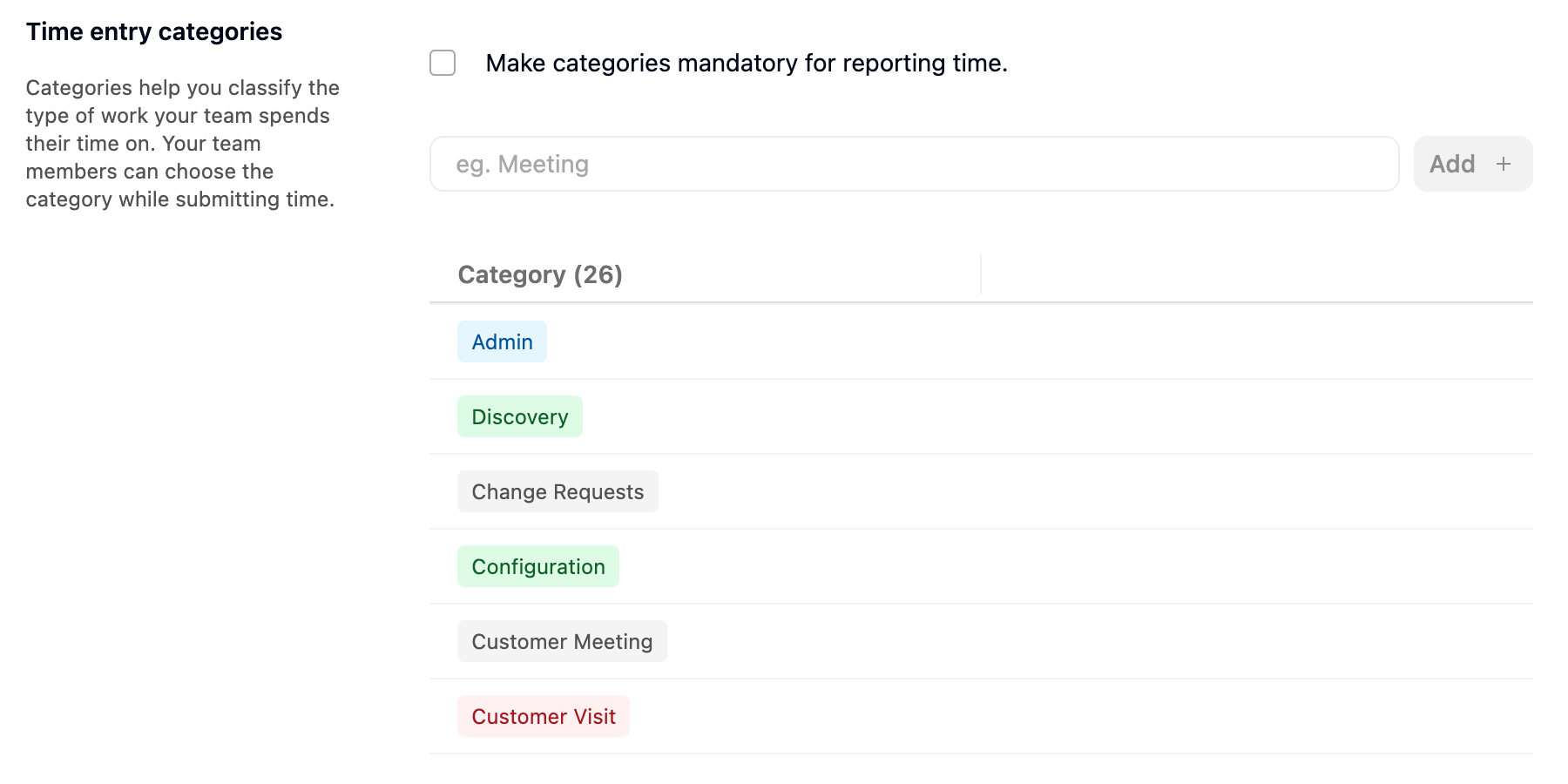
The change applies immediately.
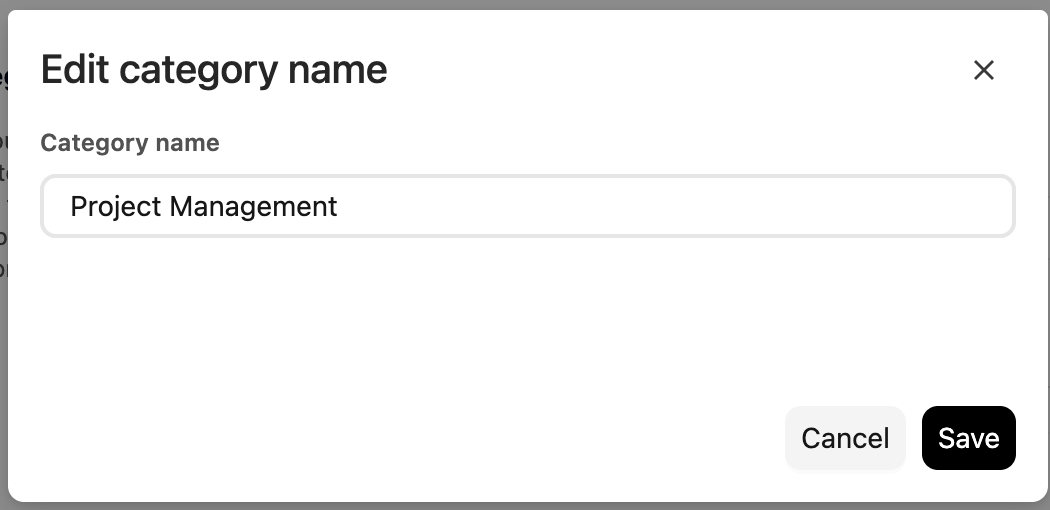
What Happens to Existing Time Entries
| Action | Effect on existing time entries |
|---|---|
| Rename | Entries that use the category show the new name. |
| Delete | Entries keep the category. It appears as inactive and team members cannot choose it for new entries. The category is also removed as the default category from any activity that used it. |
| Add a deleted name again | The deleted category is restored, along with its link to existing entries. |
Make Categories Mandatory
Select Make categories mandatory for reporting time under Time entry categories to require a category on every time entry.
When this setting is on:
- A time entry with hours cannot be saved without a category.
- If a team member tries, Rocketlane shows the message "Time entry category is mandatory as per timesheet configuration. Please select a category."
- In Timesheet List View, the Category field is marked as required.
Set a Default Category for Activities
Activities can carry a default category so that team members do not have to choose one each time.
- Go to Settings > Time tracking.
- Under Activities, edit a project or non-project activity.
- In Choose a category, select the default category.
- Select Save.
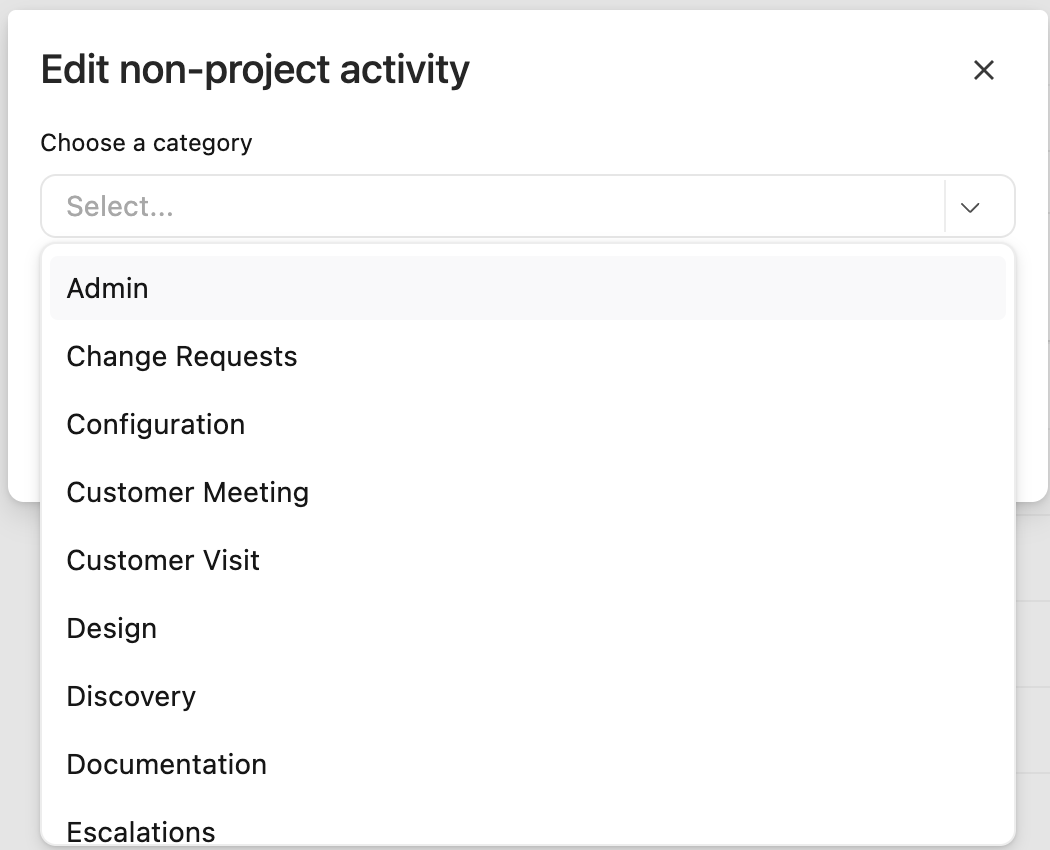
When a team member logs time against that activity, Rocketlane applies the activity's default category to the entry. Tasks can also have a default category, which is applied the same way to time logged against the task.
See Configuring Time Tracking Settings for more about activities.
Where Categories Appear
| Area | How categories are used |
|---|---|
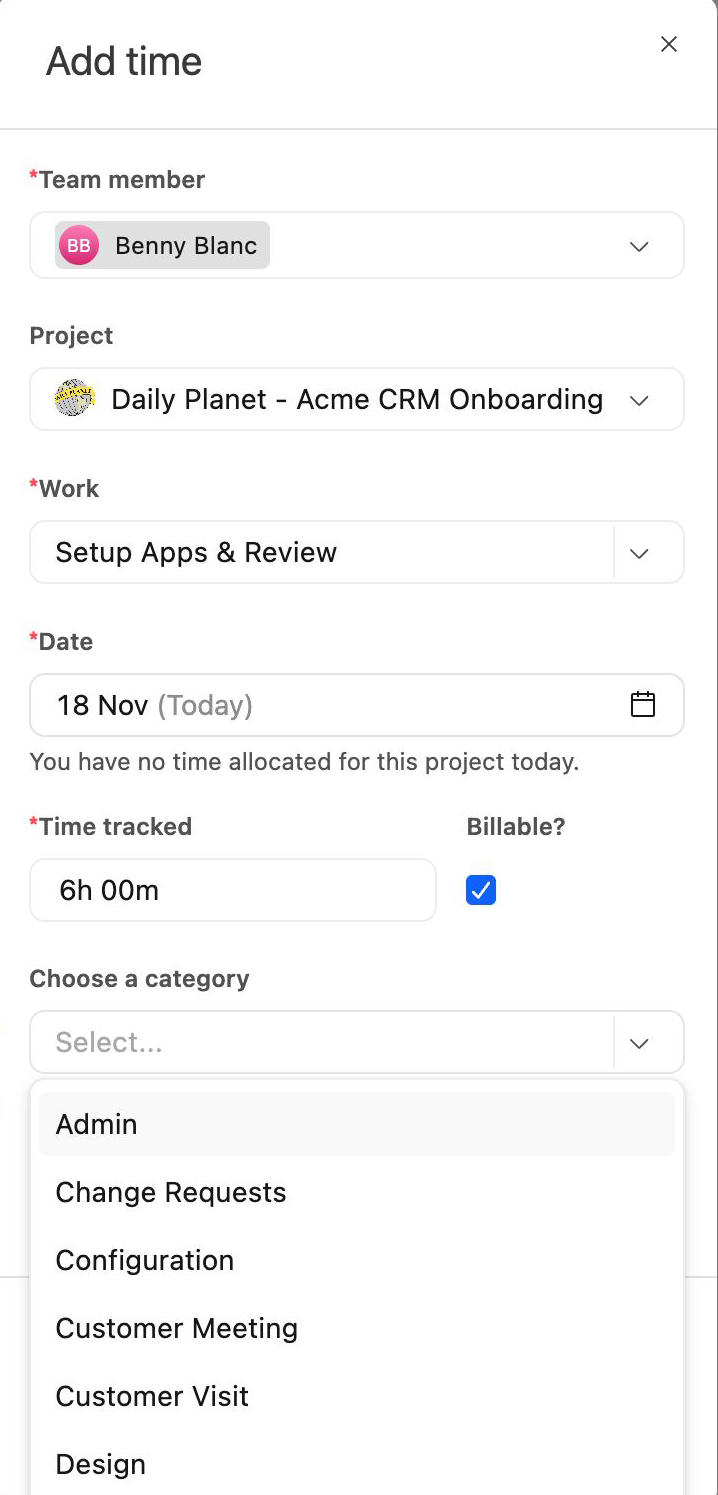
| My timesheet and Add time | Team members choose a category for each entry. |
| Timesheet List View | Category appears as a field you can filter by. |
| Category time analytics | Shows how tracked time is distributed across categories. See Choosing the Right Timesheet Report. |
| Customer portal | The tracked-time widget can group its table or chart by category, and filter hours by category. See Time Tracking in the Customer Portal. |
| Invoices | Invoice line items can be grouped by time entry category. |
FAQ
Can I create categories for one project only?
No. Categories apply to the entire account, and every team member chooses from the same list.
Can a time entry have more than one category?
No. Each time entry has one category.
What happens to time entries when I delete a category?
They keep the category, which appears as inactive. Team members cannot choose a deleted category for new entries.
Can I undo a deleted category?
Yes. Add a category with the same name. Rocketlane restores the deleted category and its link to existing entries.
Why can't I rename a category?
Another active category already has that name. Names are unique regardless of capitalization.
Why can't a team member save a time entry?
If Make categories mandatory for reporting time is on, every entry with hours needs a category. Ask the team member to choose one.
Why does a time entry already have a category?
The task or activity it was logged against has a default category, which Rocketlane applies automatically.
Summary
- Categories classify the type of work behind each time entry and apply to the entire account.
- Manage them under Settings > Time tracking > Time entry categories.
- Make categories mandatory for reporting time requires a category on every time entry with hours.
- Deleting a category keeps it on existing entries but removes it from new ones.
- Activities and tasks can carry a default category that is applied automatically.