When timesheets come in late, approvals stall, invoices are delayed, and utilization reports show gaps that are not real. Chasing each team member by message every week takes time away from approvers and managers.
Automatic timesheet reminders notify team members who have not submitted their timesheet, once before it is due and once after. Use them to set a predictable weekly deadline and let Rocketlane follow up, so approvers only need to step in for the timesheets that are still missing.
In this article
Before You Start
- You need the Can manage Time tracking settings permission to change the due date and reminders. Account admins have it by default.
- Time tracking must be turned on. See Configuring Time Tracking Settings.
- The schedule applies to the entire account. Every team member has the same due day, due time, and reminder offsets.
How Automatic Reminders Work
Each week has one due date and up to two automatic reminders:
| Reminder | When it is sent | Notification team members receive |
|---|---|---|
| Before the due time | The number of hours you choose before the due time | Timesheet submission reminder, which says the timesheet is due |
| After the due time | The number of hours you choose after the due time | Timesheet overdue reminder, which says the timesheet is overdue |
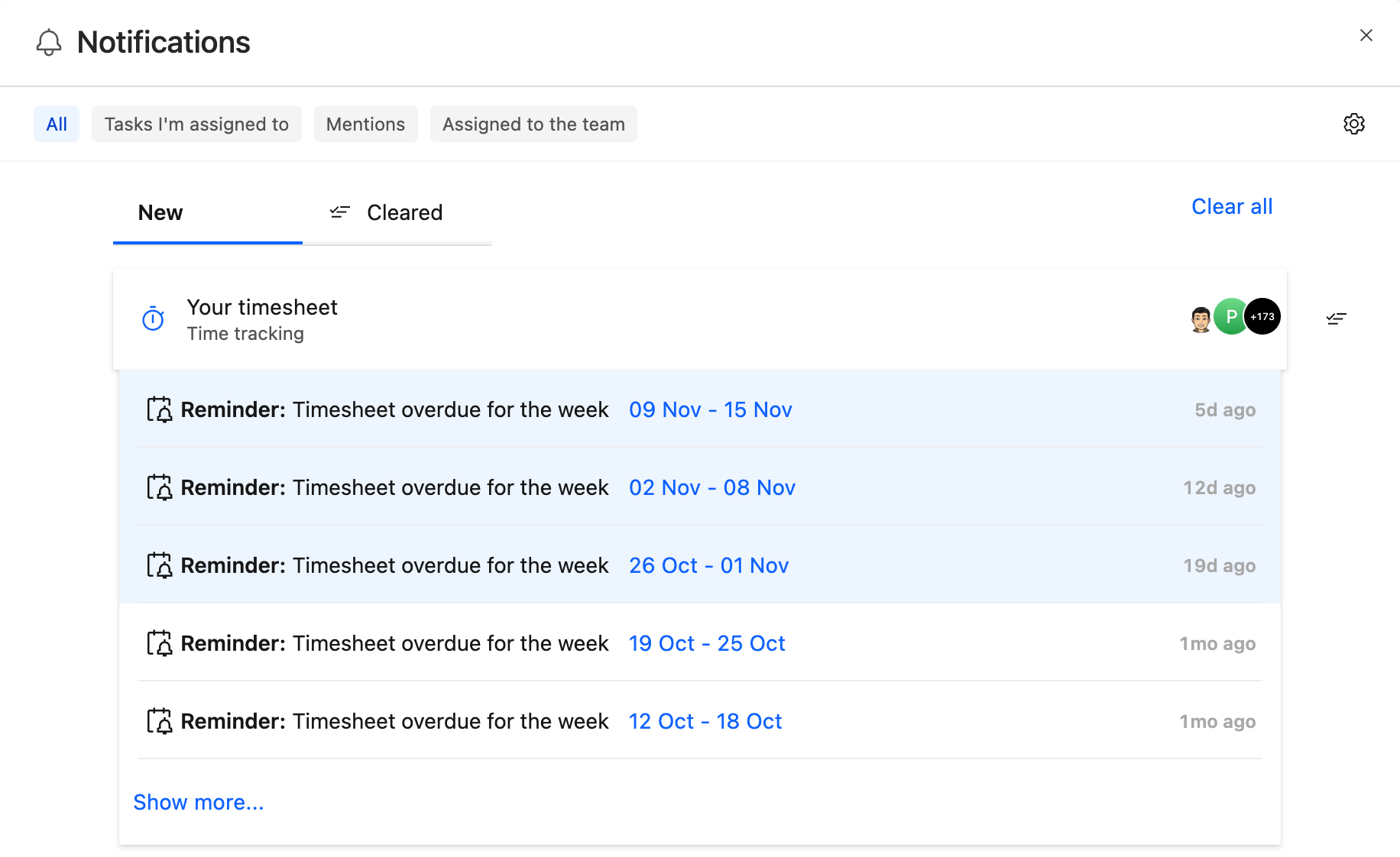
Each reminder is sent once per week. The overdue reminder does not repeat daily.
Reminders are scheduled in each team member's own time zone, from the time zone in their profile. For example, if timesheets are due on Friday at 18:00, a team member in London and a team member in New York are each reminded relative to 18:00 on Friday in their own time zone.
Which Week Is Due
Weeks in Rocketlane run from Monday to Sunday. The due day decides which week's timesheet a reminder asks for:
| Due day | Timesheet requested |
|---|---|
| Friday, Saturday, or Sunday | The current week |
| Monday through Thursday | The previous week |
For example, if timesheets are due every Monday, the Monday reminder asks for the previous Monday-to-Sunday week.
Set the Due Date and Reminders
- Go to Settings > Time tracking.
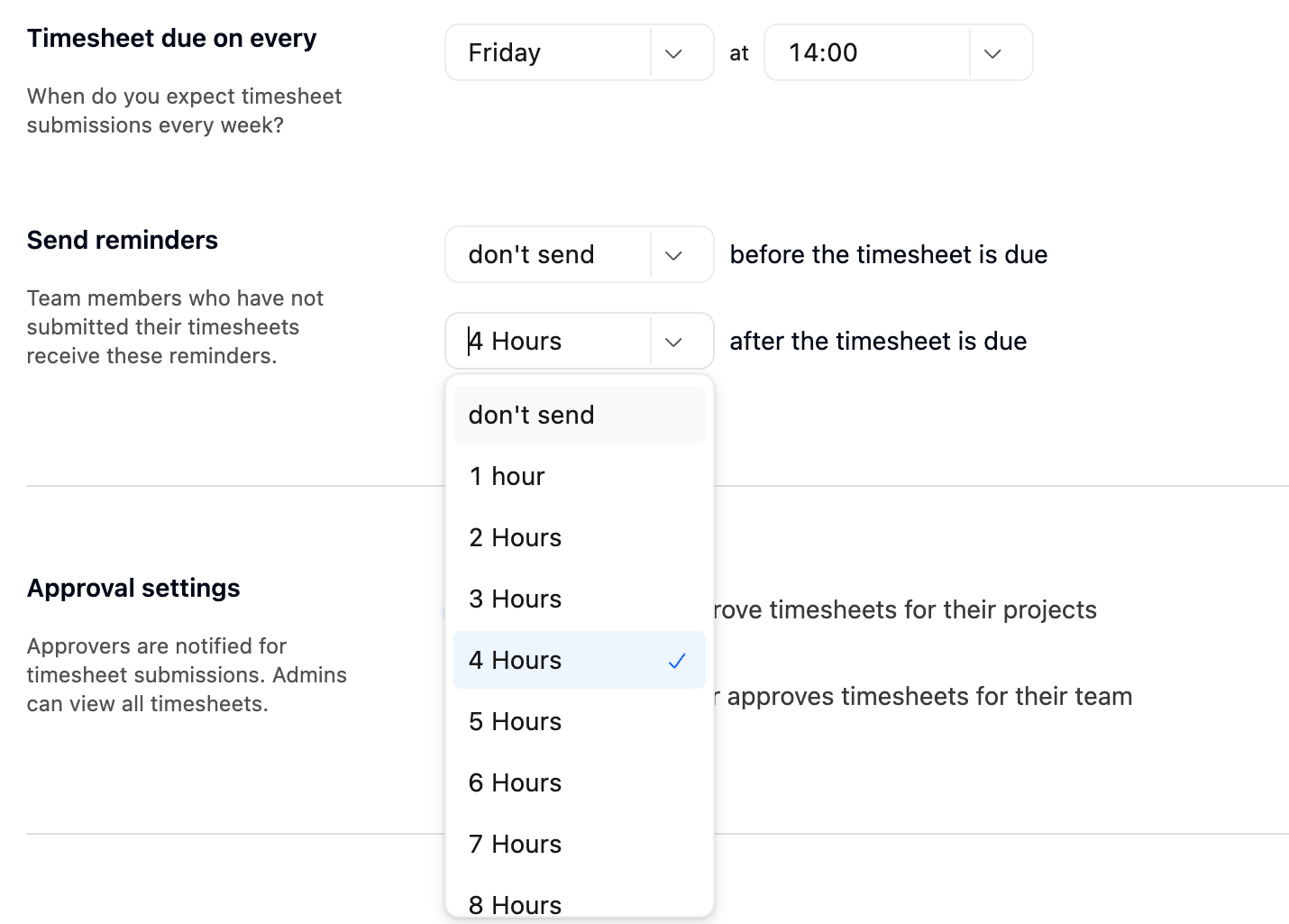
- Under Timesheet due on every, choose the day and the time. Times are available on the hour, from 0:00 to 23:00.
- Under Send reminders, choose how long before the timesheet is due to send the first reminder, from 1 hour to 24 hours, or don't send.
- Choose how long after the timesheet is due to send the second reminder, from 1 hour to 24 hours, or don't send.
The change saves immediately and applies from the next scheduled reminder. If the new reminder time for the current week has not passed yet, the reminder is sent this week. Reminders that were already sent are not recalled.
Who Receives Reminders
Automatic reminders go to team members whose timesheet for the week has not been submitted. This includes team members who have not logged any time that week.
A team member does not receive an automatic reminder when:
| Situation | Why |
|---|---|
| Their timesheet is submitted, approved, rejected, or partially submitted | Only timesheets that are not submitted are reminded. |
| They are on the Timesheet exclusion list | Excluded team members are not required to submit time. |
| They are on time off or holidays for the entire week | They have no available capacity that week. |
| The reminder is set to don't send | That reminder is turned off. |
| They have turned off the reminder in their notification settings | Each person controls their own reminder notifications. |
| They are a customer user | Customer users do not receive timesheet notifications. |
Team members receive reminders by email and in-app by default. Each person can change this in their notification settings. See Managing Timesheet Notifications and Reminders.
Send a Reminder Manually
Approvers can remind team members at any time without waiting for the automatic schedule.
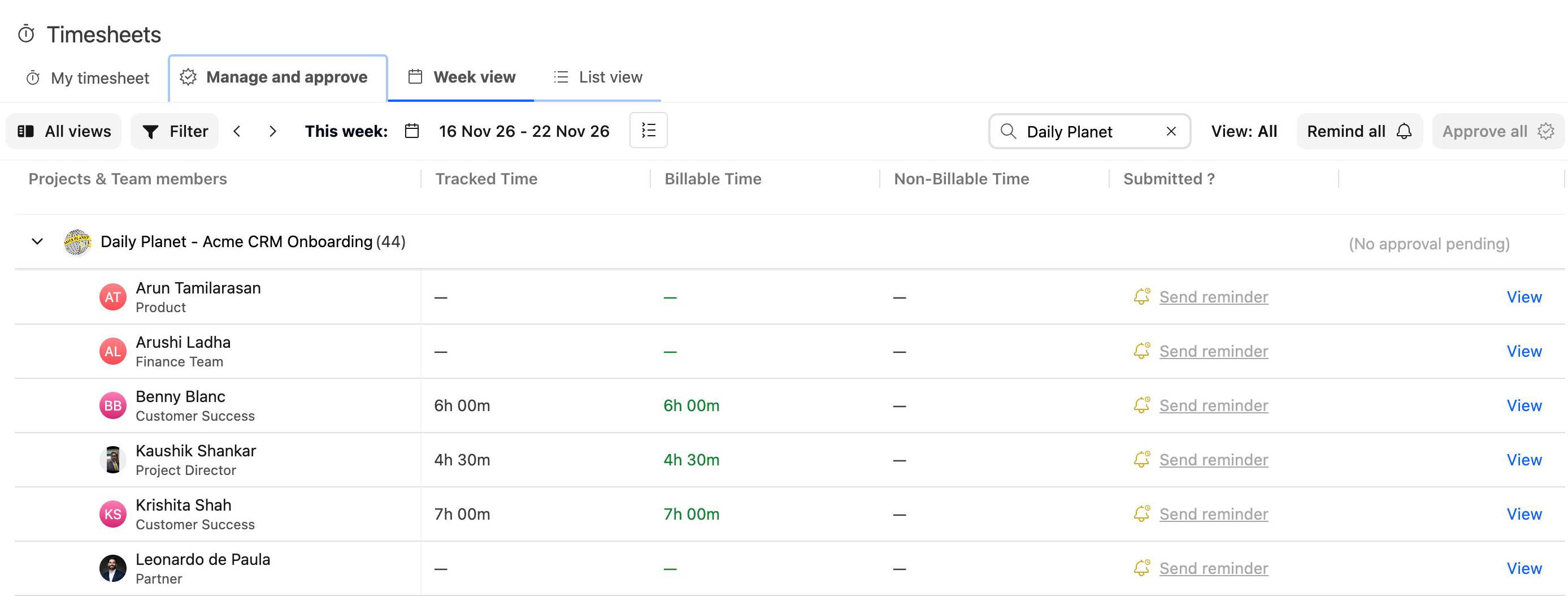
- Go to Timesheets > Manage and approve > Week view.
- Choose how to remind:
- Select Send reminder beside a team member to remind only that person.
- Select Remind all to remind everyone in the current view who has not submitted their timesheet. Team members on the exclusion list are not included.
Team members receive a Timesheet requested notification that names the person who requested the timesheet. This notification cannot be turned off.
See Configuring Approvers and Reviewing Timesheets for more about the Week view.
FAQ
Why didn't a team member receive a reminder?
Their timesheet may already be submitted, approved, rejected, or partially submitted. They may also be on the exclusion list, on time off for the whole week, or have the reminder turned off in their notification settings. Check that the reminder is not set to don't send.
Are reminders sent in the team member's time zone or the account's time zone?
In the team member's time zone, based on their profile. If their profile has no time zone, UTC is used.
Does the overdue reminder repeat every day?
No. Each team member receives at most one reminder before the due time and one after it each week.
Why does a Monday due date ask for last week's timesheet?
When the due day is Monday through Thursday, the reminder asks for the previous week, which runs Monday to Sunday. When the due day is Friday through Sunday, it asks for the current week.
Do team members with a rejected timesheet get reminders?
No. Automatic reminders go only to timesheets that have not been submitted. Approvers can send a manual reminder if needed.
Can I set different due dates for different teams?
No. The due day, due time, and reminders apply to the entire account.
Can I send more than two automatic reminders a week?
No. You can set one reminder before the due time and one after. Use Send reminder or Remind all for additional follow-ups.
Summary
- Set one weekly due day and time for the account, with up to one reminder before and one after.
- Reminders are scheduled in each team member's own time zone and sent once per week.
- Only timesheets that have not been submitted are reminded. Excluded team members and those on time off for the whole week are skipped.
- Approvers can send reminders manually at any time with Send reminder or Remind all.