Every team tracks time a little differently. Some bill customers for every logged hour, some only need to know where effort went, and some must close timesheets each month for payroll or invoicing. If time tracking is not configured to match how your team works, team members log time against the wrong work, miss deadlines, or submit timesheets that do not reflect their actual hours.
Time tracking settings control how your whole account records, submits, and reviews time. Use them to set when timesheets are due, what team members can log time against, how many hours they must submit, and how logged hours affect budgets and utilization. Configure them when you first turn on time tracking, and revisit them when your billing, approval, or reporting process changes.
In this article
- Before You Start
- Turn Time Tracking On or Off
- Default Settings
- Set the Weekly Due Date and Reminders
- Choose Who Approves Timesheets
- Choose What Team Members Can Track Time Against
- Manage Activities
- Set Up Time Entry Categories
- Set the Hours Team Members Must Submit
- Control How Hours Affect Budgets and Utilization
- Let Approvers Apply Time Off
- Lock Time Entries
- Connect a Calendar
- Exclude Team Members From Submitting Time
- FAQ
- Summary
Before You Start
- You need the Can manage Time tracking settings permission. Account admins have it by default.
- Settings apply to the entire account. You cannot use different settings for different teams, projects, or users.
- Changes save as soon as you make them. There is no separate save step.
To open the settings, go to Settings > Time tracking.
Turn Time Tracking On or Off
Turn on Enable time tracking to let team members track and report time spent on their work. The other settings on the page become available only while time tracking is on.
To turn time tracking off, turn off Enable time tracking, and then confirm in the Disable timesheet? dialog. After you confirm:
- Team members can no longer track or report time.
- You keep access to existing reports.

Default Settings
A new account starts with the following settings. Review each one before your team starts logging time.
| Setting | Default |
|---|---|
| Timesheet due on every | Friday at 18:00 |
| Send reminders | 2 hours before and 18 hours after the timesheet is due |
| Approval settings | Project owners approve timesheets for their projects |
| Track time against | Milestones, Tasks, and Activities |
| Hours to be reported | No requirement |
| Lock time entries | Off |
| Calendar integration | Off |
Set the Weekly Due Date and Reminders
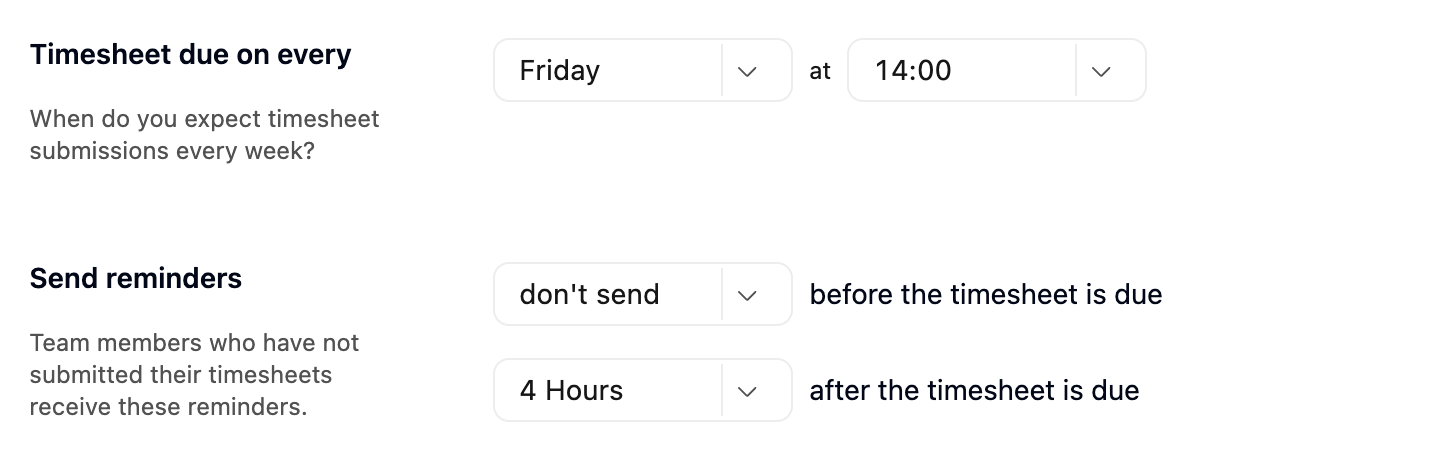
Use Timesheet due on every to choose the day and time your team's weekly timesheets are due.
Use Send reminders to remind team members who have not submitted their timesheet. You can send one reminder before the due time and one after it. Set each reminder from 1 to 24 hours, or choose don't send to turn it off.
See Configuring Automatic Timesheet Reminders for how reminders are scheduled, and Managing Timesheet Notifications and Reminders for the notifications team members receive.
Choose Who Approves Timesheets
Use Approval settings to choose one approval model for the account:
| Option | Who approves |
|---|---|
| Project owners approve timesheets for their projects | The owner of each project approves the time logged against it. |
| Timesheet approver approves timesheets for their team | Each team member's assigned timesheet approver approves all of their time. |
When you choose Timesheet approver approves timesheets for their team, you can also select Enable approver hierarchy. Approvers higher in the reporting chain can then approve submitted time as well.
See Configuring Approvers and Reviewing Timesheets for how each model routes time and how to assign approvers.

Choose What Team Members Can Track Time Against
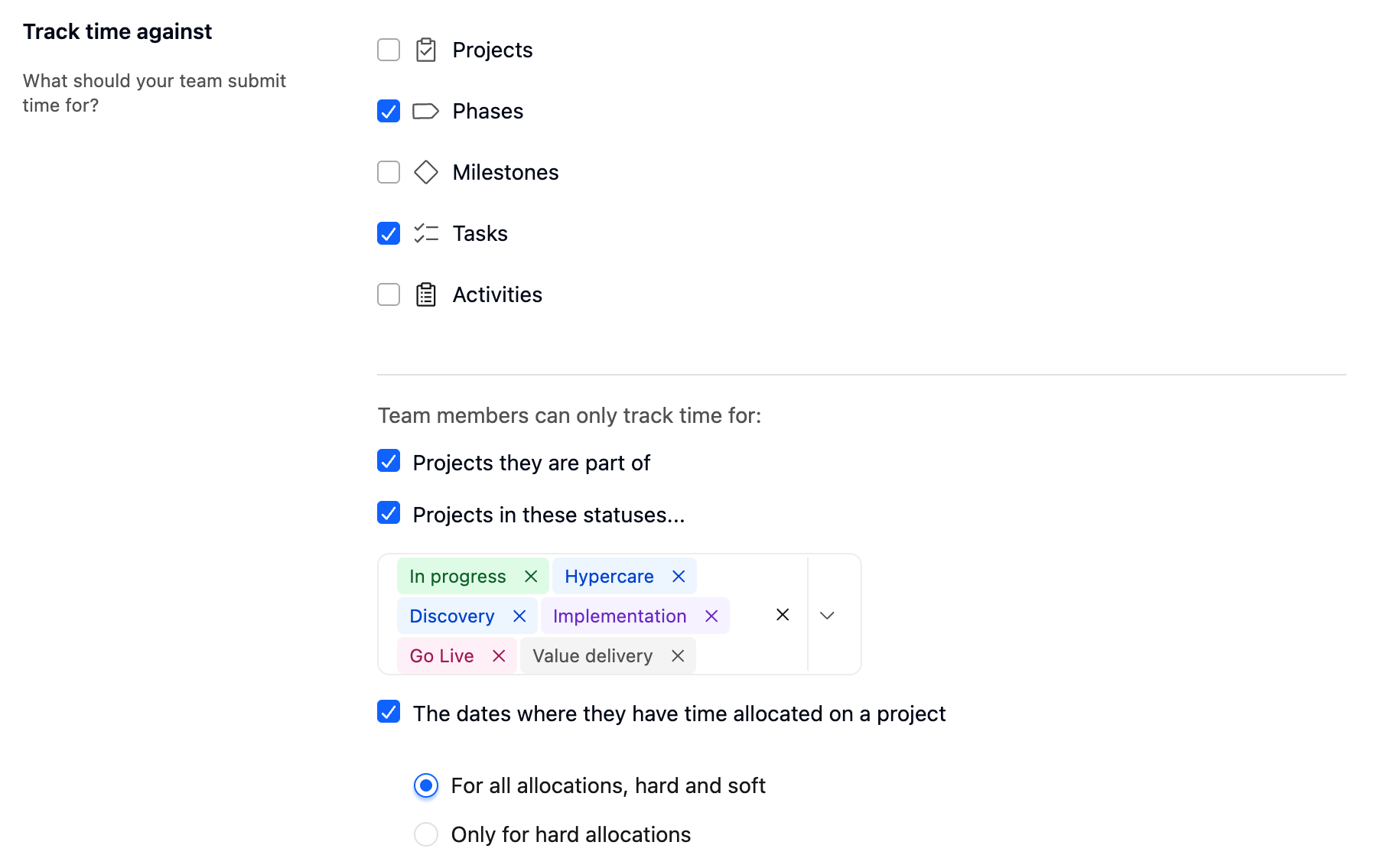
Use Track time against to decide what your team submits time for.
| Option | Team members can log time against |
|---|---|
| Projects | A project as a whole |
| Phases | A phase in a project |
| Milestones | A milestone in a project |
| Tasks | A task in a project |
| Activities | Work that is not a project task, such as internal meetings or admin work |
At least one option must stay selected.
Restrict Where Team Members Can Track Time
Under Team members can only track time for, you can narrow where time can be logged:
| Restriction | Effect |
|---|---|
| Projects they are part of | Team members can log time only on projects where they are a team member. |
| Projects in these statuses | Team members can log time only on projects in the statuses you select. |
| The dates where they have time allocated on a project | Team members can log time on a project only on dates when they are allocated to it. Choose For all allocations, hard and soft or Only for hard allocations. |
If your account uses multiple budgets per project, two more restrictions are available: Budgets they are part of and Budgets in these statuses. Budgets they are part of is available only when Projects they are part of is selected.
Manage Activities
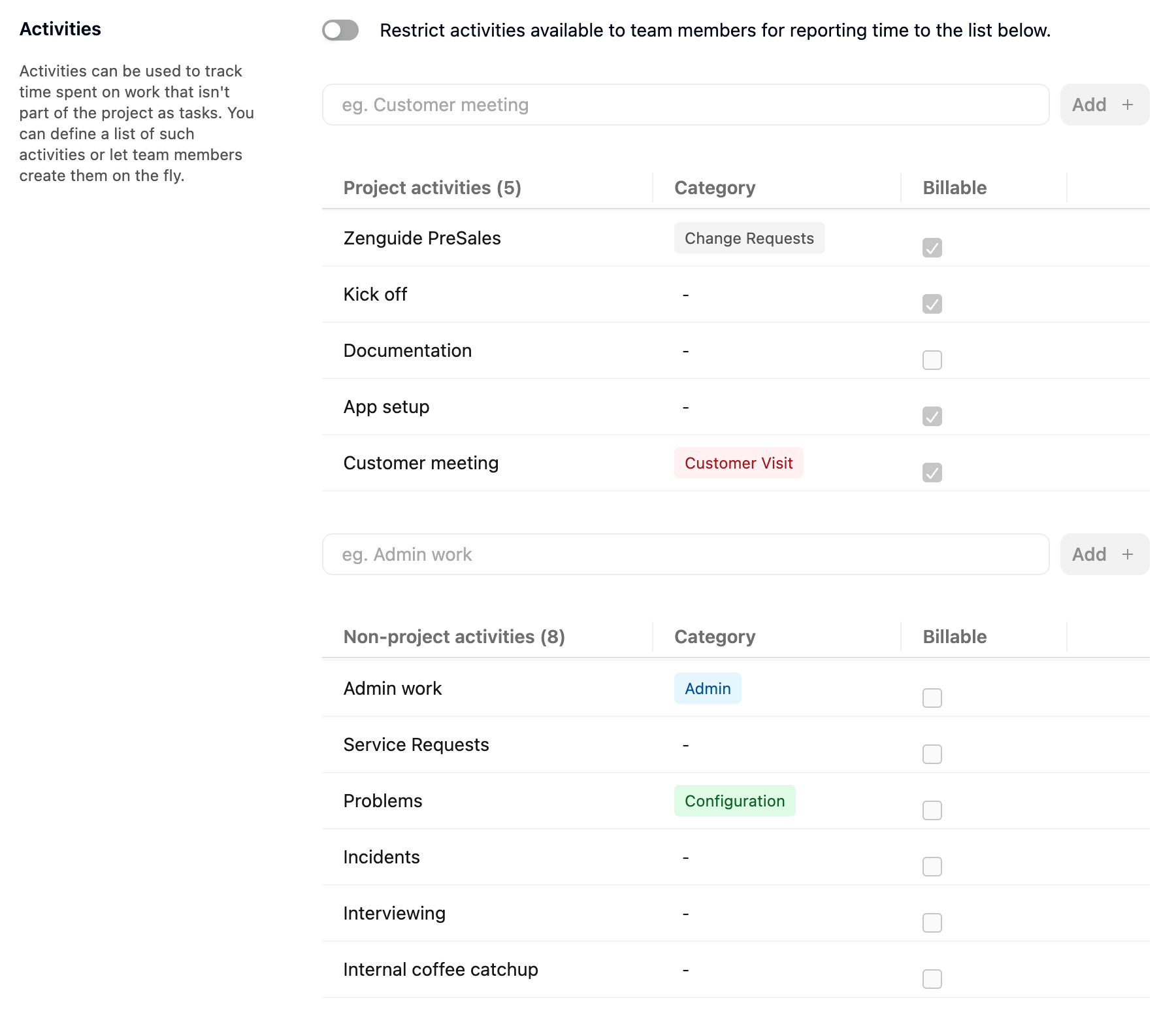
Activities let team members track time on work that is not a project task. There are two kinds:
| Type | Use it for | Example |
|---|---|---|
| Project activities | Work on a project that is not a task | Customer meeting |
| Non-project activities | Work that is not tied to any project | Admin work |
You can add, edit, and delete activities in each list, and give each activity a default Category and Billable setting.
By default, team members can also create activities while logging time. To limit them to the activities you define, turn on Restrict activities available to team members for reporting time to the list below.
Set Up Time Entry Categories
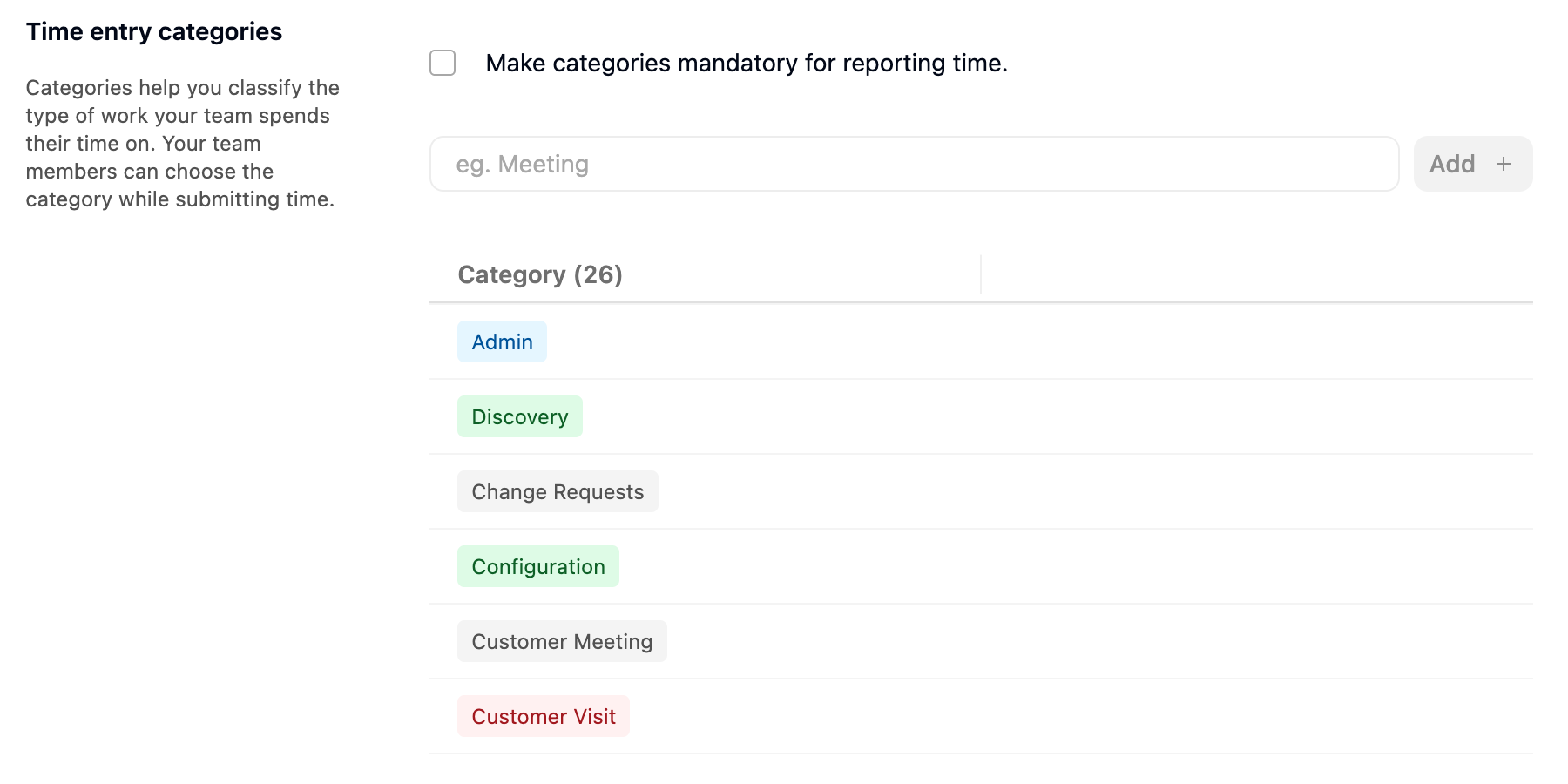
Time entry categories classify the type of work your team spends time on, such as meetings or configuration. Team members choose a category when they log time.
Add, edit, or delete categories under Time entry categories. Select Make categories mandatory for reporting time if every time entry must have a category.
See Setting Up Timesheet Categories for more detail.
Set the Hours Team Members Must Submit
Use Hours to be reported to control how many hours a weekly timesheet must contain before it can be submitted.
| Option | Effect when a team member submits |
|---|---|
| No requirement | Any number of hours can be submitted. |
| Cannot submit less than... | The timesheet must contain at least the hours you enter. |
| Cannot submit more than... | The timesheet cannot contain more than the hours you enter. |
| Must submit exactly... | The timesheet must contain exactly the hours you enter. |

When a timesheet does not meet the requirement, the team member cannot submit it and sees a message such as "Please submit a minimum of 40 hours in total".
See Submitting, Withdrawing, and Rejecting Timesheets for how submission works.
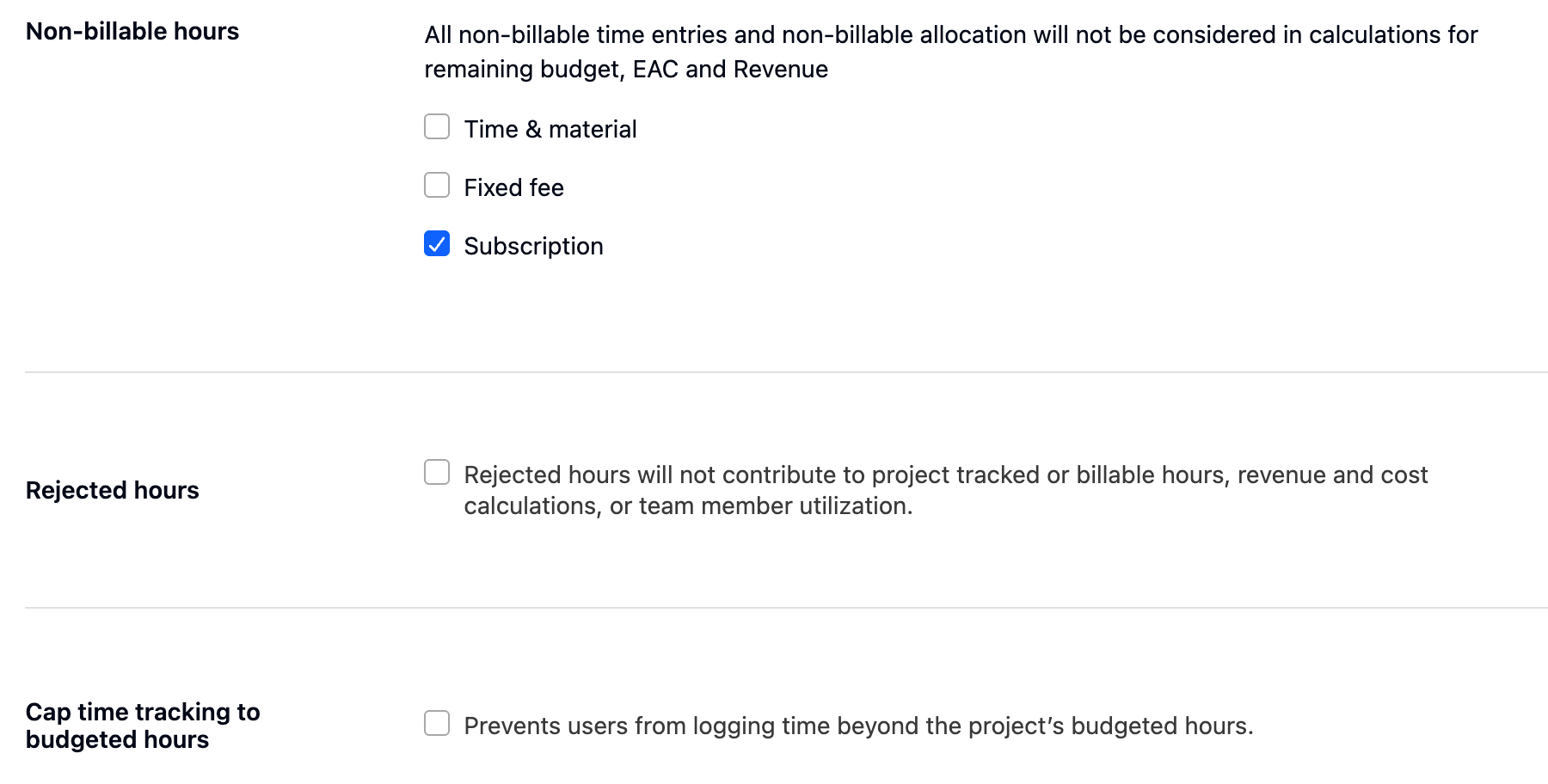
Control How Hours Affect Budgets and Utilization
| Setting | What happens when it is selected |
|---|---|
| Non-billable hours | For the project types you select (Time & Material, Fixed fee, or Subscription), non-billable time entries and non-billable allocations are not considered in remaining budget, EAC, and revenue calculations. |
| Rejected hours | Rejected hours do not contribute to project tracked or billable hours, revenue and cost calculations, or team member utilization. |
| Cap time tracking to budgeted hours | Team members cannot log time beyond a project's budgeted hours. |
Let Approvers Apply Time Off
Select Let timesheet approvers request time off for team members to let the people who review a team member's timesheet apply time off on that person's behalf.
See Applying and Managing Time Off for who can use this option and how.

Lock Time Entries
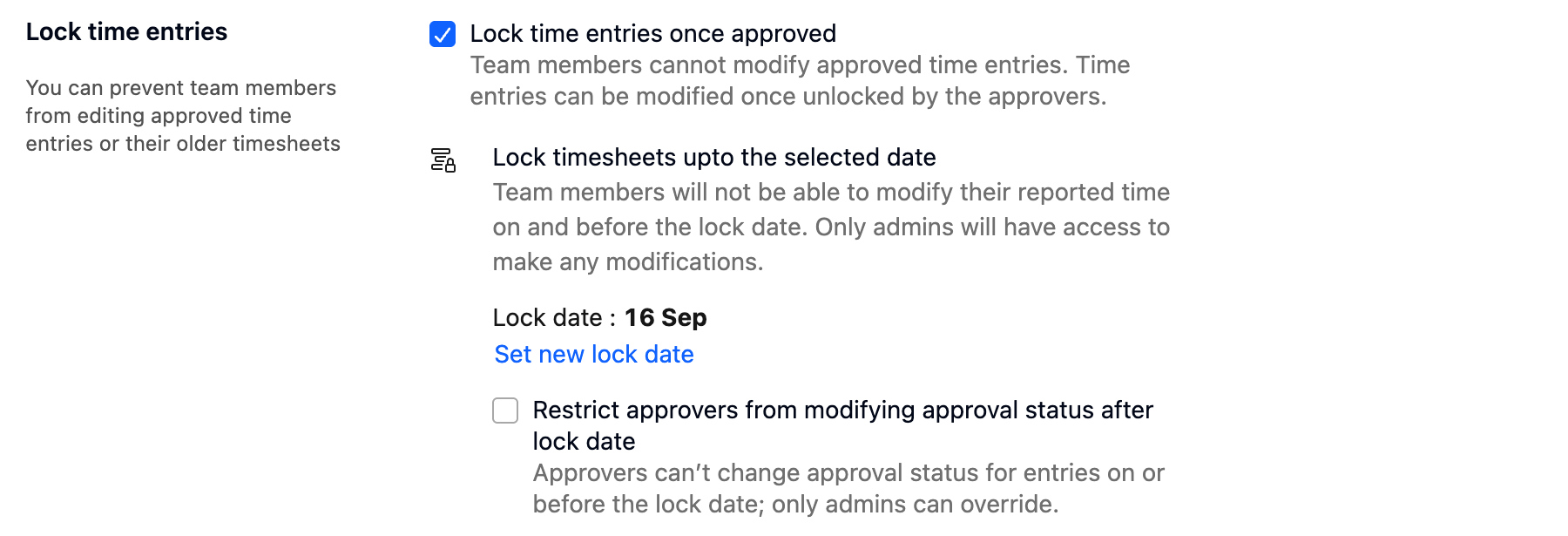
Use Lock time entries to stop changes to approved time or to time in a closed period:
| Setting | What it prevents |
|---|---|
| Lock time entries once approved | Team members cannot change approved time entries until an approver unlocks them. |
| Lock timesheets upto the selected date | Team members cannot add, change, or remove time entries dated on or before the lock date. Select Set lock date to choose the date. |
| Restrict approvers from modifying approval status after lock date | Approvers cannot change the approval status of entries on or before the lock date. |
See Understanding and Configuring Timesheet Locks for how locks work and who can override them.
Connect a Calendar
Use Calendar integration to let team members view their calendar meetings and turn the relevant ones into time entries.
- Turn on Calendar integration.
- Select Google calendar or Outlook calendar.
- Optional: select Track time from calendar directly against tasks, milestones, activities or phases to let team members log calendar time against those items.
See How to add Events from your Google Calendar to your Timesheet? and How to add Events from your Outlook Calendar to your Timesheet? for how team members use it.

Exclude Team Members From Submitting Time
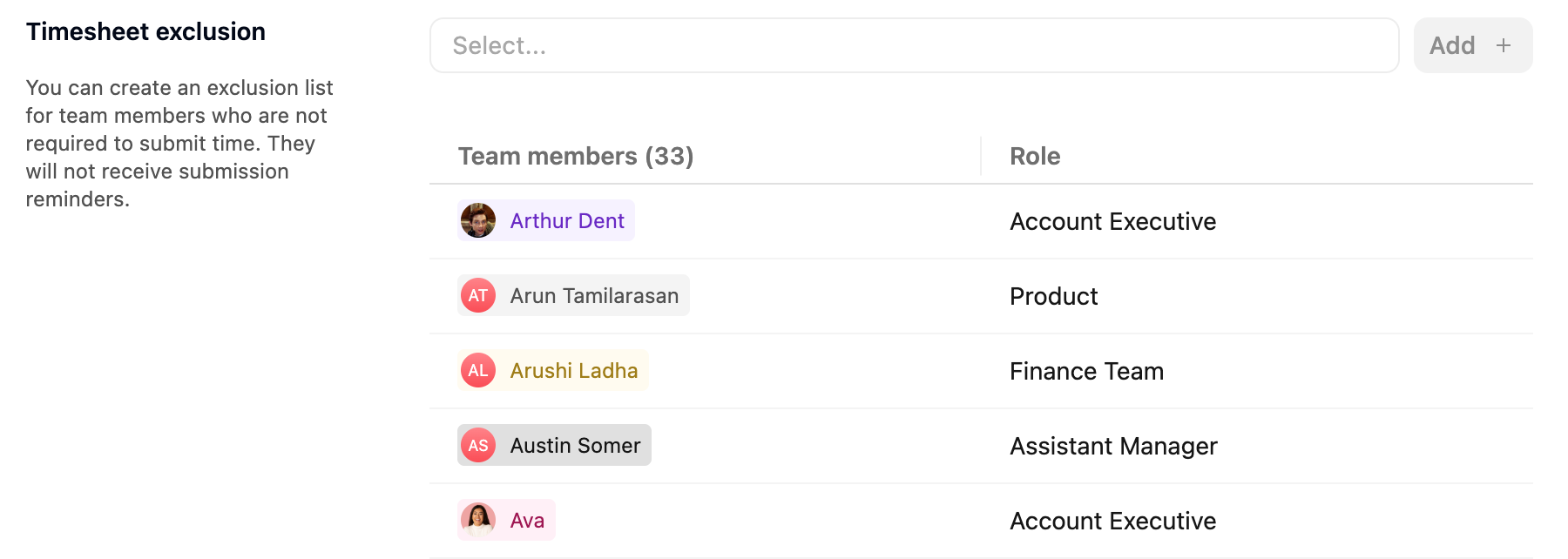
Use Timesheet exclusion for team members who are not required to submit time, such as executives or contractors who do not track time. Excluded team members do not receive submission reminders.
- Under Timesheet exclusion, select the team members.
- Select Add.
Remove a team member from the list when they need to start submitting time again.
FAQ
Who can change time tracking settings?
Users whose role includes the Can manage Time tracking settings permission. Account admins have it by default.
Can different teams use different settings?
No. Time tracking settings apply to the entire account.
What happens to existing time entries if I turn time tracking off?
You keep access to existing reports. Team members cannot track or report time until you turn time tracking on again.
Why can't I clear every option under Track time against?
At least one option must stay selected so that team members have something to log time against.
Why can't a team member log time on a project?
One of the restrictions may apply. The team member may not be part of the project, the project may not be in an allowed status, they may not be allocated on that date, or the project may have reached its budgeted hours while Cap time tracking to budgeted hours is selected.
Why don't I see the Budgets they are part of option?
The budget restrictions appear only when your account uses multiple budgets per project.
Can team members create their own activities?
Yes, unless Restrict activities available to team members for reporting time to the list below is turned on. When it is on, team members can choose only from the activities you define.
Does Hours to be reported apply to each week?
Yes. The requirement applies to the total hours in a weekly timesheet when it is submitted. Time off and holidays reduce the requirement for that week.
What changes for a team member on the exclusion list?
They are not required to submit timesheets and do not receive submission reminders.
Summary
- Time tracking settings apply to the entire account and require the Can manage Time tracking settings permission.
- Timesheets are due weekly, with optional reminders before and after the due time.
- Track time against and its restrictions decide where team members can log time.
- Hours to be reported sets a minimum, maximum, or exact total for each weekly timesheet.
- Rejected hours, Non-billable hours, and Cap time tracking to budgeted hours control how logged time affects budgets and utilization.