Time data affects billing, payroll, and utilization, so not everyone should be able to change it. A team member should log their own time, an approver should review their team's time, and only a few people should be able to change approved or closed timesheets. When permissions are set up incorrectly, people either cannot do their work or can change time they should not touch.
Timesheet permissions control who can report time, approve it, change locked entries, manage settings, and view time reports. This article explains each permission, how scopes limit who it applies to, and how Rocketlane adjusts default permissions when you change time tracking settings.
In this article
Before You Start
- You need permission to manage permission sets. Account admins can do this by default.
- Custom permission sets require the Enterprise plan or the RBAC add-on. Without them, you can view the default permission sets but cannot create new ones.
- Account Admins have every time tracking permission by default. Settings changes that update default permissions do not affect them.
Where to Manage Timesheet Permissions
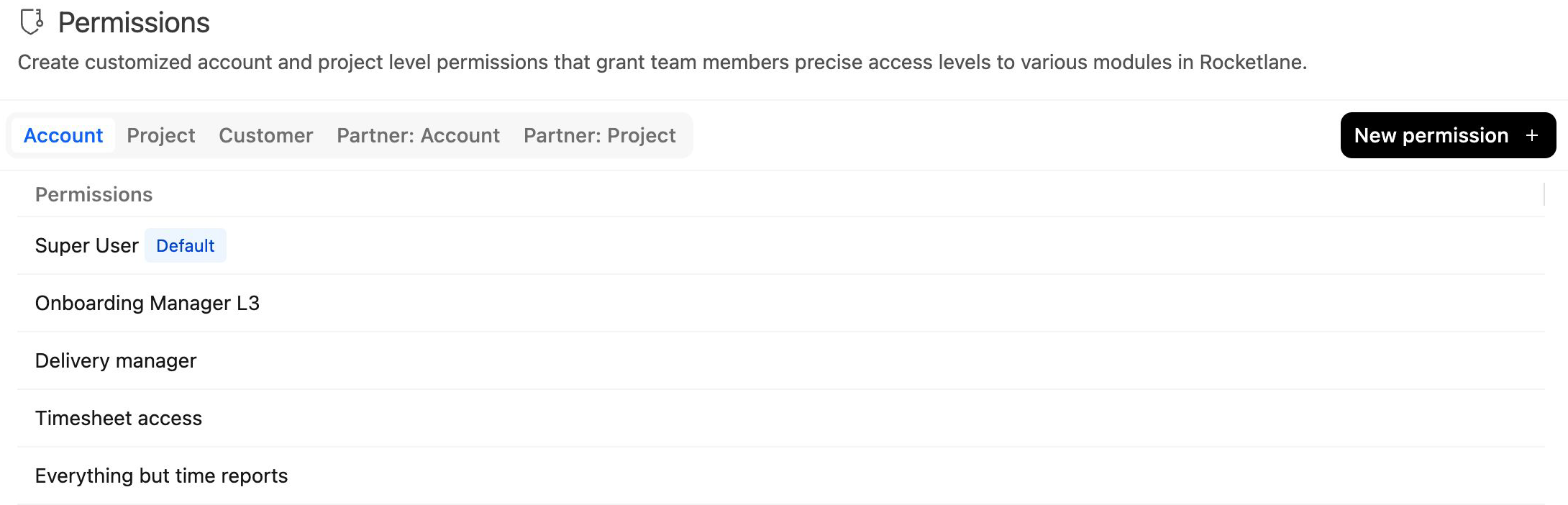
- Go to Settings > Permissions.
- Open the Account or Project tab.
- Open the permission set you want to change.
- Go to the Time tracking section.
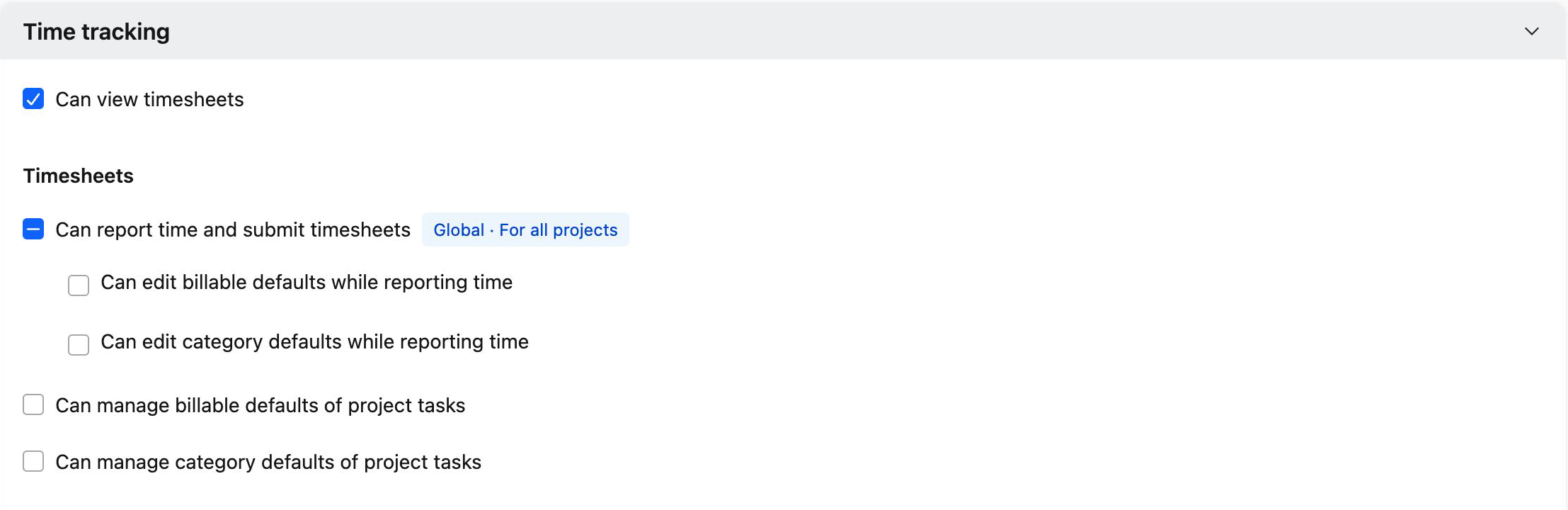
Time tracking permissions are grouped as follows:
| Group | What it covers |
|---|---|
| Timesheets | Reporting time and the billable and category defaults on entries |
| Approvals > For projects | Approving time logged on projects |
| Approvals > For non-project activities | Approving time logged on non-project activities |
| Date-locked time entries | Changing entries on or before the lock date |
Related permissions appear in other sections, such as Settings, Reports, and Financials. See Settings, Reports, and Other Permissions.
How Scopes Work
Many timesheet permissions have a scope that limits which projects or team members the permission applies to.
| Scope | Applies to |
|---|---|
| Global | All projects or all team members |
| Group | Projects or team members belonging to the user's groups |
| Participant and visible to all | Projects the user is part of, and projects visible to all |
| Projects they own | Projects the user owns |
| Time approver | Team members for whom the user is the designated timesheet approver |
Reporting Time
| Permission | What it allows |
|---|---|
| Can view timesheets | View timesheets. Every permission set includes this permission. |
| Can report time and submit timesheets | Log time and submit timesheets for projects within the permission's scope. |
| Can edit billable defaults while reporting time | Change whether a time entry is billable. |
| Can edit category defaults while reporting time | Change the category of a time entry. |
| Can manage billable defaults of project tasks | Set the default billable value on project tasks. |
| Can manage category defaults of project tasks | Set the default category on project tasks. |
Approving Time
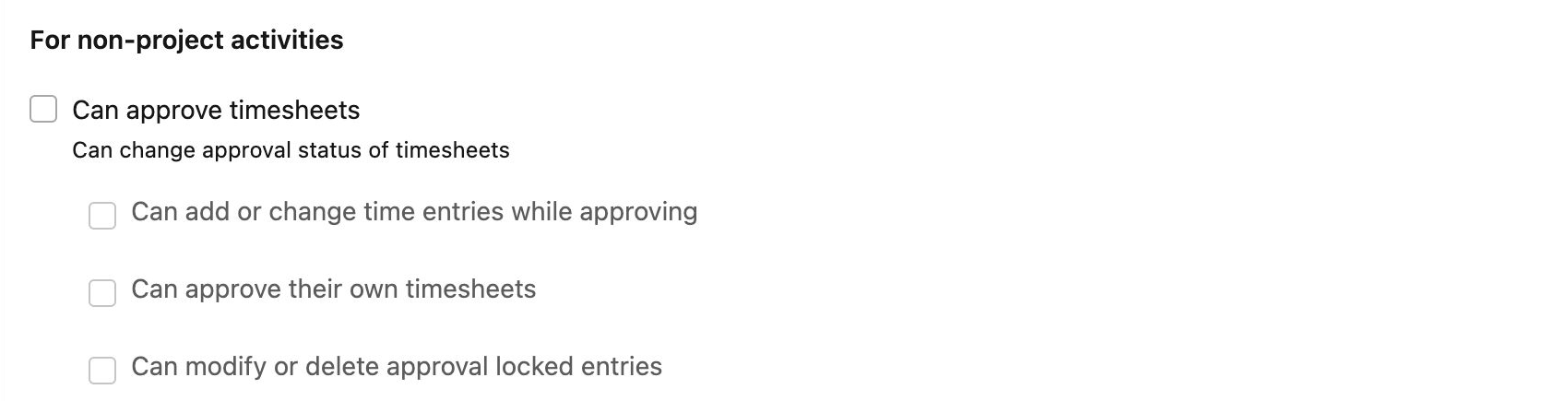
Approval permissions are set separately for project time and for non-project activities.
| Permission | What it allows |
|---|---|
| Can approve timesheets | Change the approval status of timesheets, meaning approve or reject submitted time. |
| Can add or change time entries while approving | Add or edit entries while reviewing a team member's timesheet. |
| Can approve their own timesheets | Approve or reject the user's own submitted time. |
| Can modify or delete approval locked entries | Edit, delete, or resubmit entries that are locked because they were approved. |

For project time, Can approve timesheets has two scopes, and both must include the time entry:
- A project scope, such as Projects they own.
- A team member scope, such as For team members for whom they are designated as time approver.
For example, a user whose project scope is Projects they own and whose team member scope is For all team members can approve anyone's time on the projects they own.
See Configuring Approvers and Reviewing Timesheets for how approvals work.
Locked Time Entries
| Permission | What it allows |
|---|---|
| Can edit details of date-locked time entries | Edit time entry details (such as hours, dates, or notes) on or before the lock date. |
| Can change status of date-locked time entries | Change the status (submitted, approved, rejected) of time entries on or before the lock date. |
| Can modify or delete approval locked entries | Edit, delete, or resubmit approved entries when Lock time entries once approved is on. |

These permissions work independently. A user can be allowed to edit the details of a date-locked entry without being allowed to change its status.
See Understanding and Configuring Timesheet Locks for how locks work.
Settings, Reports, and Other Permissions
| Permission | Section | What it allows |
|---|---|---|
| Can manage Time tracking settings | Settings | Open and change Settings > Time tracking |
| Can create and manage timesheet policies | Timesheet policies | Create and manage timesheet policies |
| Can view custom time entry field values | Custom time entry field values | View custom time entry field values on entries the user can access |
| Can edit custom time entry field values | Custom time entry field values | Edit custom time entry field values on entries the user can access |
| Can manually override bill rates for time entries | Financials | Change the bill rate on a time entry |
| Can manually override cost rates for time entries | Financials | Change the cost rate on a time entry |
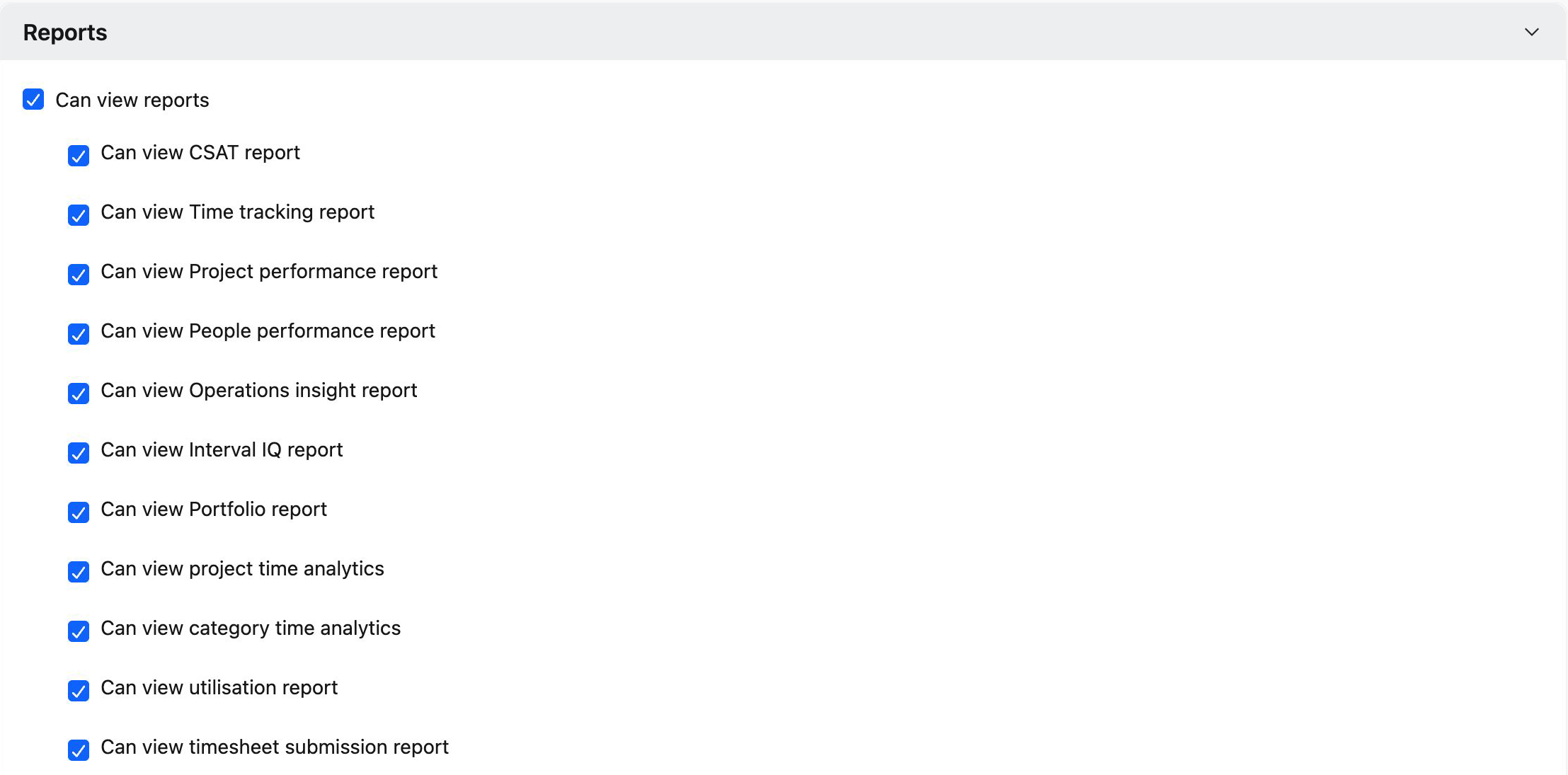
| Can view Time tracking report | Reports | Open the original Time tracking report |
| Can view utilisation report | Reports | Open the Utilization report |
| Can view timesheet submission report | Reports | Open the Timesheet submissions report |
| Can view people time analytics | Reports | Open People time analytics |
| Can view project time analytics | Reports | Open Project time analytics |
| Can view category time analytics | Reports | Open Category time analytics |
See Choosing the Right Timesheet Report for what each report shows.
Default Permissions
| Permission | Account Admin | Other default permission sets |
|---|---|---|
| Can report time and submit timesheets | All projects | Included, with a scope that varies by permission set |
| Can approve timesheets | All projects and team members | Depends on the approval model. See How Settings Changes Update Default Permissions. |
| Can approve their own timesheets | Included | Included for the Project Owner permission set when project owners approve timesheets. Not included by default for other permission sets. |
| Can modify or delete approval locked entries | Included | Not included by default |
| Can edit details of date-locked time entries | Included | Not included by default |
| Can change status of date-locked time entries | Included | Not included by default |
| Can manage Time tracking settings | Included | Not included by default |
To give another role one of these permissions, add it to that role's permission set.
How Settings Changes Update Default Permissions
Two time tracking settings automatically update the default permission sets. Custom permission sets, and default sets you have already customized, are not changed.
Changing the Approval Model
When you switch Approval settings between Project owners approve timesheets for their projects and Timesheet approver approves timesheets for their team, Rocketlane updates the approval permissions in the default permission sets to match the new model:
| Approval model | Default approval access |
|---|---|
| Project owners approve timesheets for their projects | Users can approve time on projects they own. The Project Owner permission set can also approve its own time. |
| Timesheet approver approves timesheets for their team | Users can approve time for team members for whom they are the designated timesheet approver, across all projects. The Project Owner permission set no longer includes approval permissions. |
Reporting, billable and category, date-lock, and custom field permissions are not affected by this change.
Restricting Approvers After the Lock Date
When you turn on Restrict approvers from modifying approval status after lock date, Rocketlane removes Can change status of date-locked time entries and Can edit details of date-locked time entries from the default permission sets. When you turn it off, Can change status of date-locked time entries is added back.
Account Admin permissions are not affected.
FAQ
Why can't an approver approve a team member's time?
Both scopes of Can approve timesheets must include the entry. The project must be within the approver's project scope, and the team member must be within their team member scope. The entry may also be locked, invoiced, or the approver's own time.
Why can't I approve my own timesheet?
Your permission set does not include Can approve their own timesheets. Only Account Admins and, under the project owner approval model, the Project Owner permission set have it by default.
Why can't an approver withdraw a team member's submitted entry?
Only the person who reported a time entry can withdraw it. Approvers can reject the entry instead.
Who can change approved or locked time?
Users with Can modify or delete approval locked entries can change approved entries. Users with the date-locked permissions can change entries on or before the lock date. Account Admins have all three by default.
Why did my default permission sets change?
You changed the approval model or the Restrict approvers from modifying approval status after lock date setting. Both update the default permission sets that have not been customized.
Why can't I create a custom permission set?
Custom permission sets require the Enterprise plan or the RBAC add-on.
Can anyone edit an invoiced time entry?
No. Invoiced entries cannot be edited, submitted, approved, or rejected.
Summary
- Timesheet permissions are managed in Settings > Permissions, in the Time tracking section of each permission set.
- Can approve timesheets for projects needs both a project scope and a team member scope that include the entry.
- Self-approval, approval-locked changes, and date-locked changes need their own permissions, which only Account Admins have by default.
- Changing the approval model or the lock date restriction updates default permission sets, but not custom ones.
- Invoiced entries cannot be changed by anyone.