Time-tracking data can answer several different questions, from whether team members submitted their timesheets to how actual project effort compares with the plan.
Rocketlane provides separate reports for submissions, utilization, people, projects, and categories. Choose the report based on the question you need to answer rather than trying to review all time data in one place.
In this article
Access Timesheet Reports
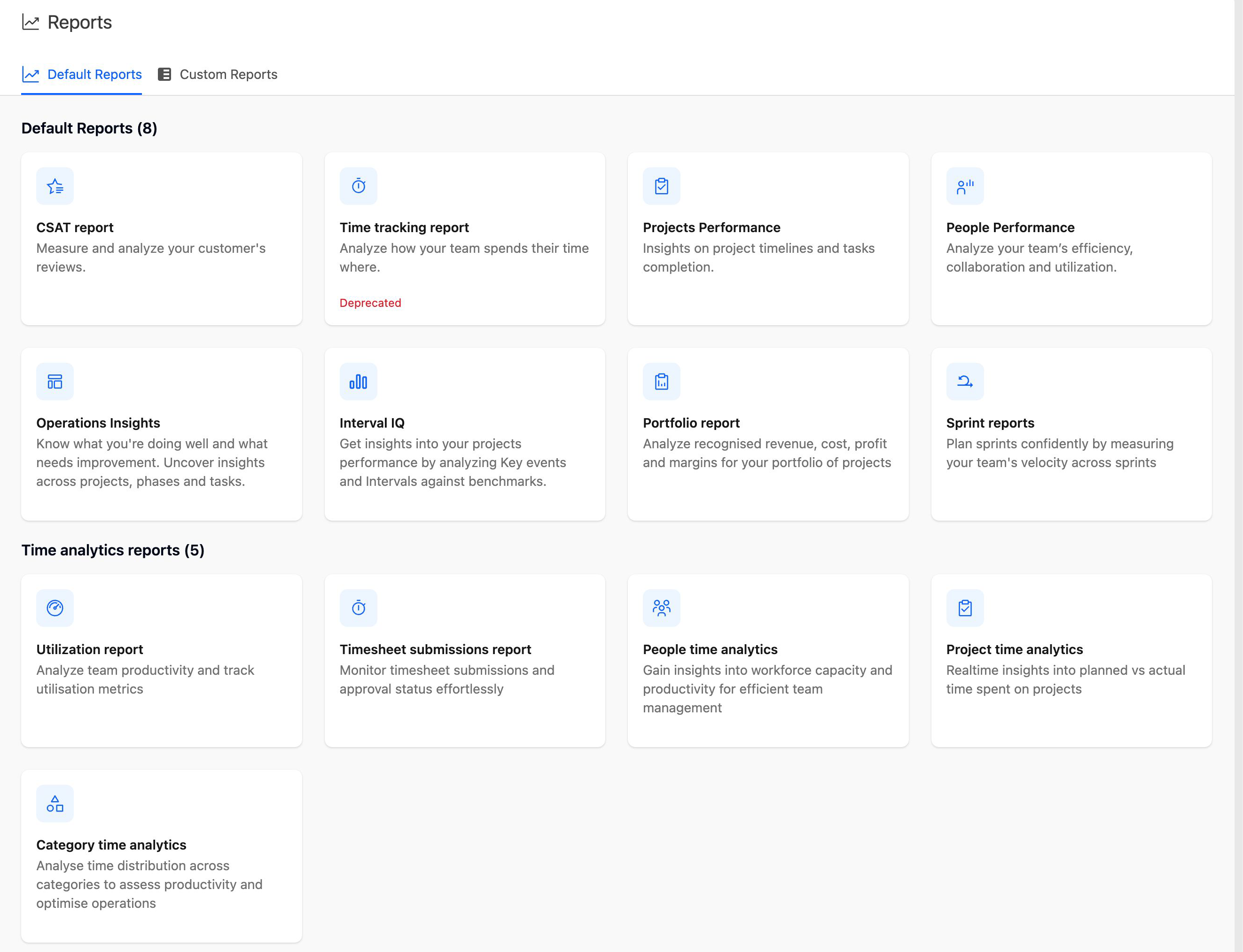
Go to Reports > Default Reports.
The five current reports are grouped under Time analytics reports. The original Time tracking report is available separately on the same page.
Each report has its own view permission, so you may see only some of these reports. Partner users do not see the Default Reports section.
Choose a Report
| Question you want to answer | Report to use | What it provides |
|---|---|---|
| How much time was recorded by a person, project, or category? | Time tracking report | Tracked time by project, person, or category, with billable and non-billable time, allocations, time off, and holidays. This report is deprecated but remains available. |
| How productive or utilized is the team? | Utilization report | Team productivity and utilization metrics. |
| Who submitted their timesheet, and what is its approval status? | Timesheet submissions report | Weekly submission and approval status for each team member. |
| How are individual team members using their capacity? | People time analytics | Capacity and productivity data organized by person. |
| How does planned project effort compare with actual time? | Project time analytics | Planned and actual time organized by project. |
| How is time distributed across different types of work? | Category time analytics | Tracked time organized by time-entry category. |
No single report combines every submission, utilization, capacity, project, and category metric. Use the report designed for the specific question you are investigating.
Review Timesheet Submissions
Use Timesheet submissions report to see each team member's status for each week. The report has two views:
- Submissions shows whether each week is Submitted, Partially submitted, or Not submitted.
- Approvals shows whether each week is Approved, Partially approved, or Unapproved.
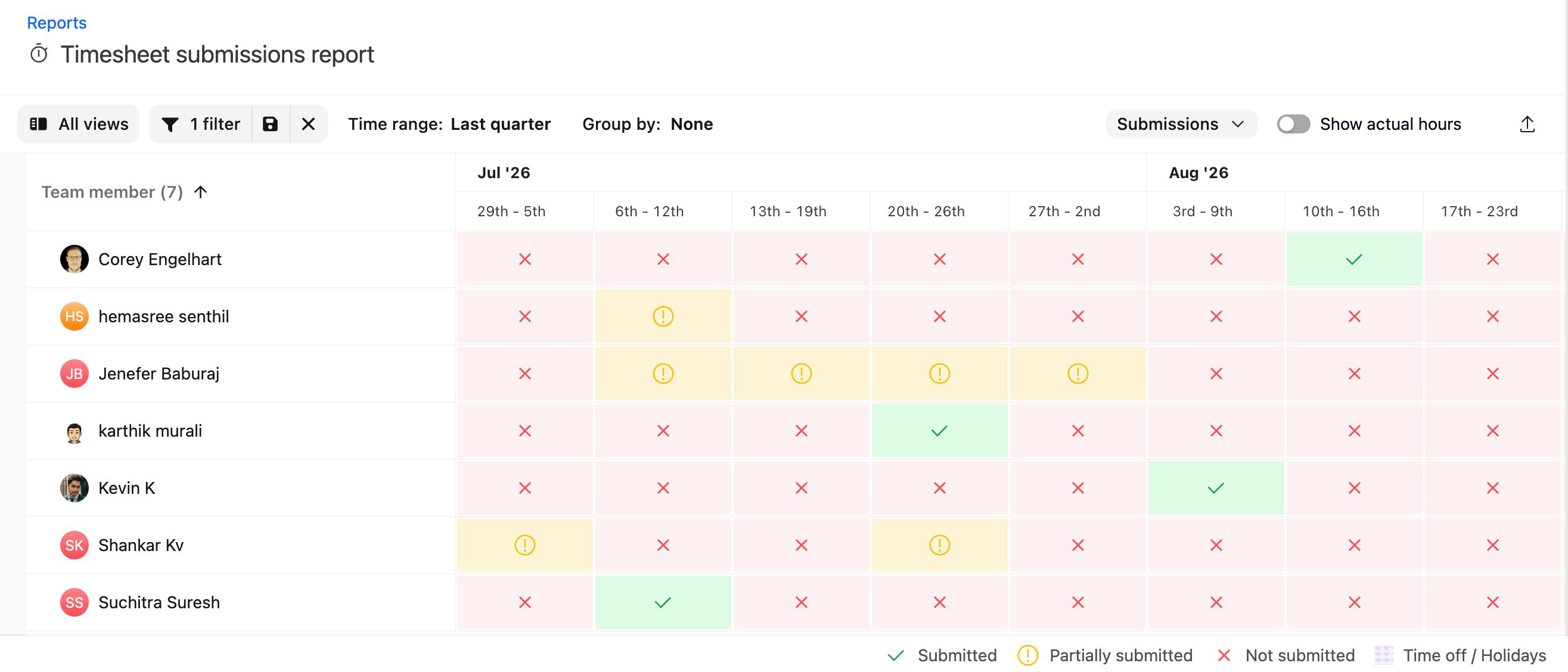
Turn on Show actual hours to see the tracked hours instead of the statuses.
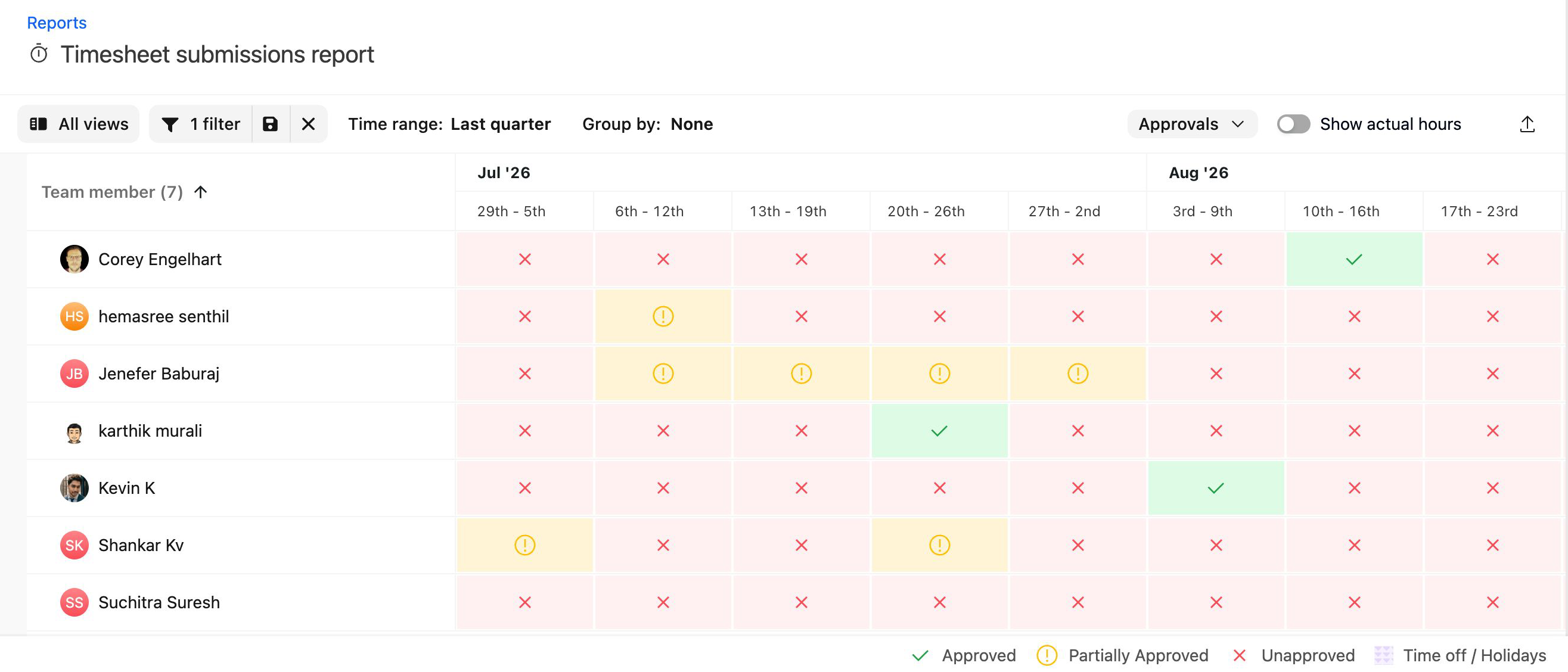
This report is the most appropriate starting point for monitoring timesheet compliance and approval progress.
Review Team Utilization
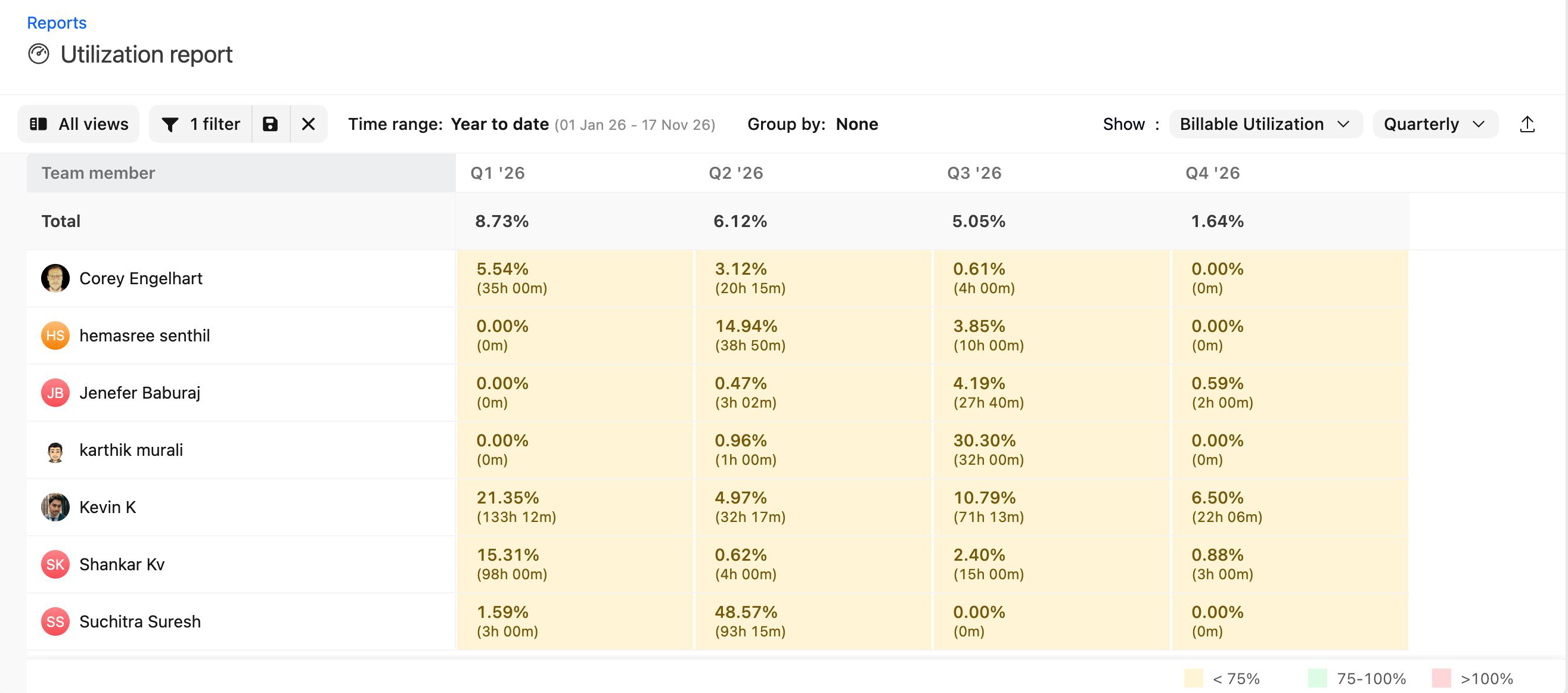
Use Utilization report when you need to understand how the team's available capacity is being used.
Use People time analytics when you need a person-level breakdown of workforce capacity and productivity.
These reports answer related questions, but they serve different purposes:
- Utilization report focuses on utilization and productivity metrics.
- People time analytics organizes capacity and time data around individual team members.
Compare Planned and Actual Project Effort
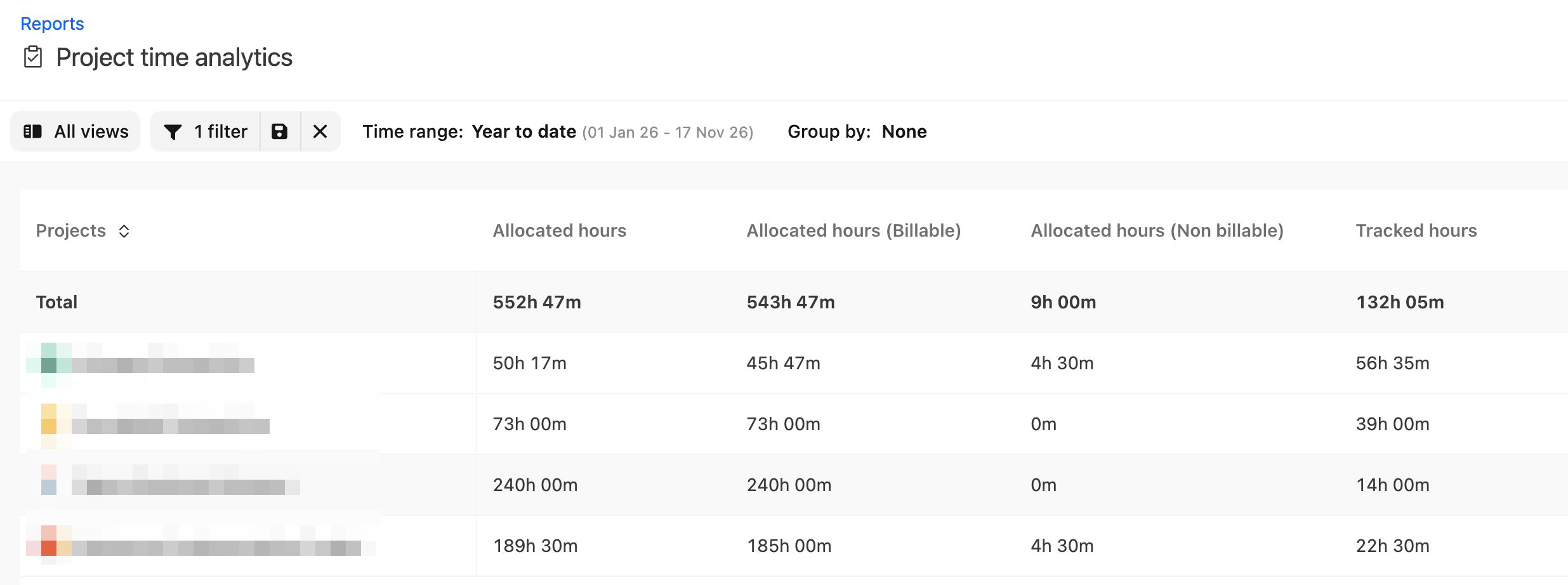
Use Project time analytics to compare planned effort with the time actually recorded against projects.
This report helps identify projects that are using more or less effort than planned and provides a project-level view of time performance.
Review Time by Category
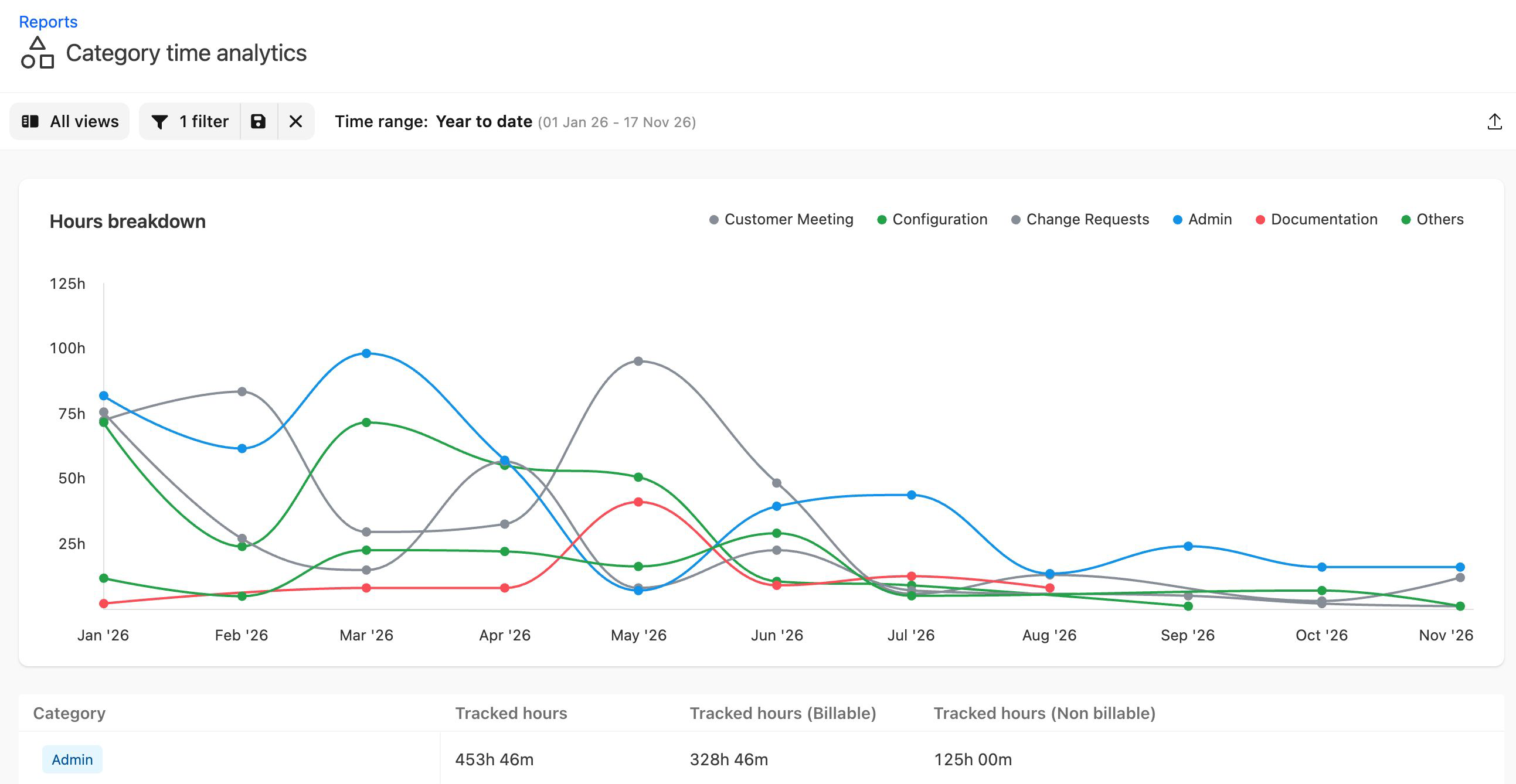
Use Category time analytics to understand how recorded time is distributed across categories.
This is useful when your organization categorizes time by work type, service, activity, or another reporting classification.
Use the Deprecated Time Tracking Report
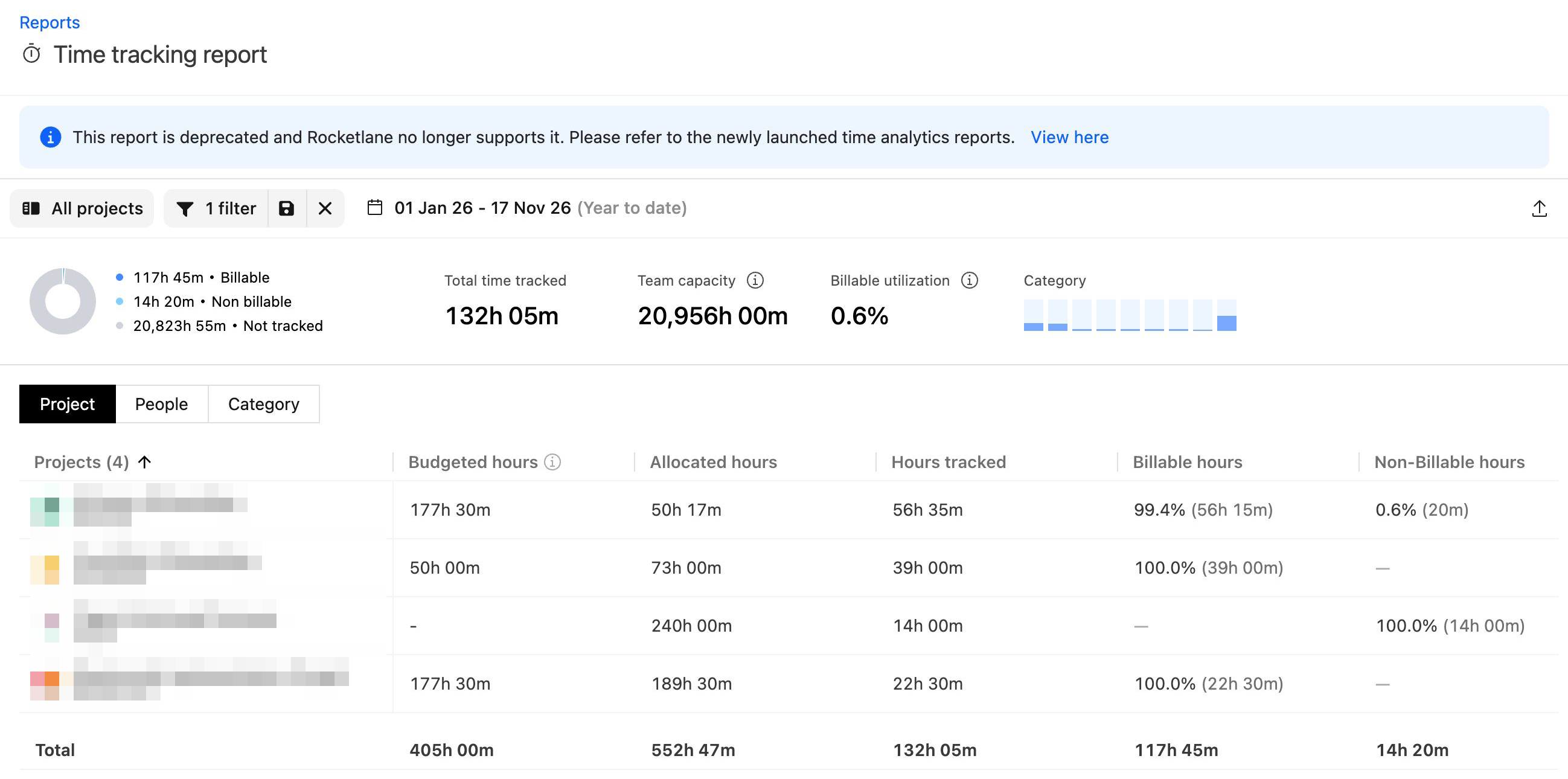
The original Time tracking report shows tracked time by project, person, or category, along with billable and non-billable time, allocations, time off, and holidays. It does not show timesheet submission or approval status.
The report is marked Deprecated, and Rocketlane no longer supports it. It remains available, so existing users can continue using it for established reporting processes.
If you are setting up time reporting for the first time, begin with one of the newer reports. They provide more focused analysis for submissions, utilization, people, projects, and categories.
See Time analytics report for a detailed walkthrough of each report.
FAQ
Why does the Time tracking report say Deprecated?
It is the original tracked-time report. It remains available, but Rocketlane no longer supports it. The newer reports provide more focused submission, utilization, capacity, project, and category analysis.
Which report shows who has not submitted a timesheet?
Use Timesheet submissions report.
Which report shows team utilization?
Use Utilization report.
Which report compares planned and actual project time?
Use Project time analytics.
Which report shows how a specific person is using their capacity?
Use People time analytics.
Which report shows how time is distributed across categories?
Use Category time analytics.
Is the Timesheet List View export the same as one of these reports?
It corresponds to the data used by the original Time tracking report, not the newer analytics reports. Export a newer report directly when you need its additional metrics and breakdowns.
Why can't I see some of the reports?
Each report has its own view permission. Ask your admin to check the permissions for your role. Partner users do not have access to the Default Reports section.