Reviewing and correcting time entries individually becomes difficult when your team is tracking time across several users and projects. List View gives approvers and admins one place to filter, group, update, and export multiple time entries.
List View is available in two forms:
- Account-wide List View covers time entries across all projects you can access.
- Project-scoped List View covers time entries within a specific project.
Some actions and filters are available only in one of these views.
In this article
Where to Find List View
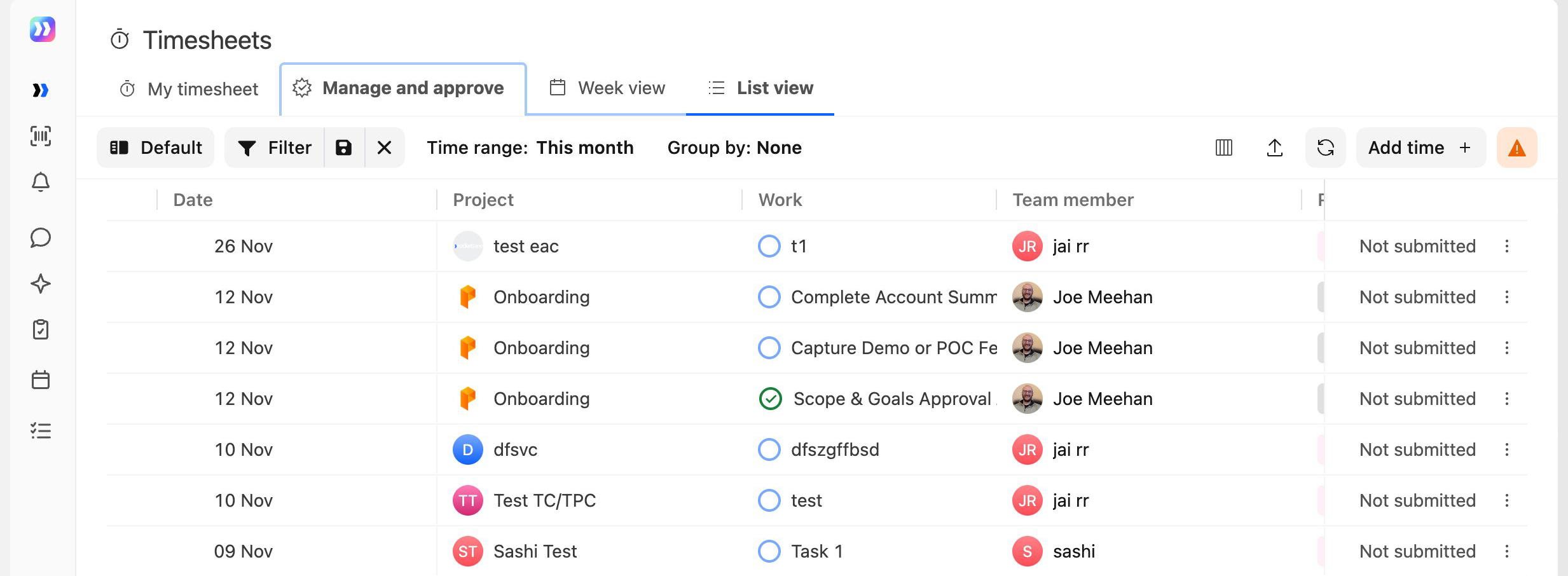
Open the Account-Wide List View
- From the left navigation, open the Timesheets flyout.
- Select Timesheets.
- Select the Manage and approve tab.
- Select the List view sub-tab.
Open a Project-Scoped List View
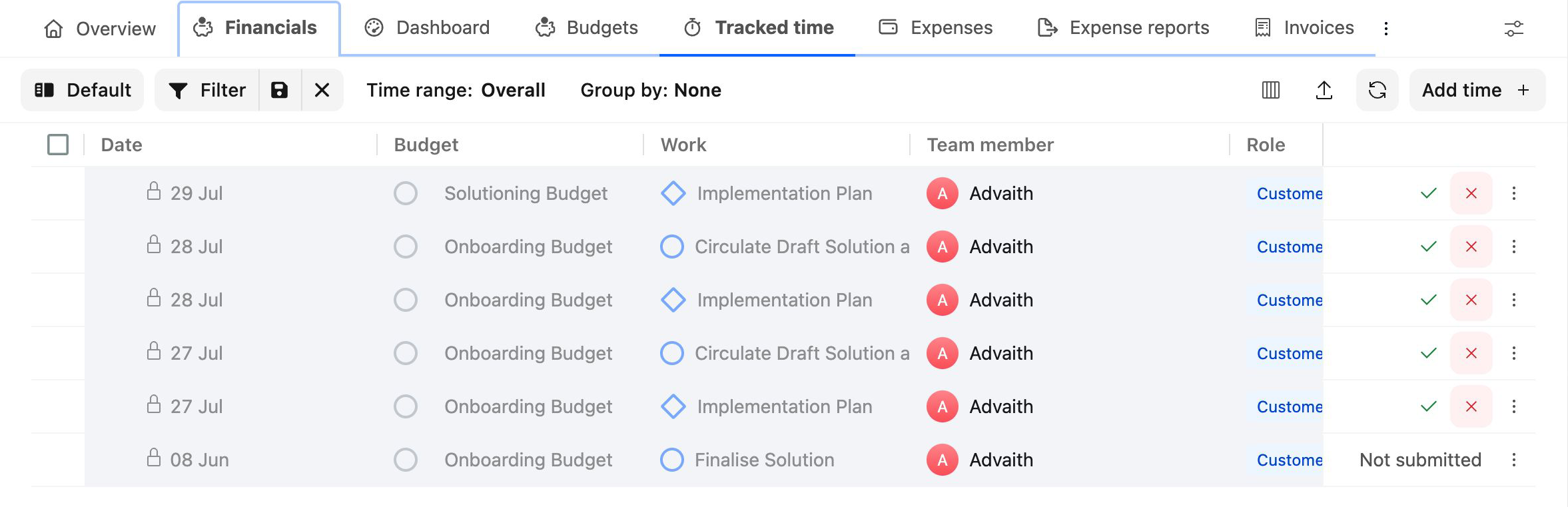
- Open the project.
- Select the Financials tab.
- Select the Tracked time tab.
Access to List View follows the same permissions as the Week view in Manage and approve. If you cannot view or approve time entries for a project, those entries will not appear in List View. See Enhanced Time Tracking and Approval Experience in Rocketlane for the available access rules.
Understanding the Grid
Unlike My Timesheet, which groups time by task and day, List View displays one row for each individual time entry.
Depending on the view and your account configuration, the available columns can include:
- Date
- Project
- Budget
- Task or activity
- Team member
- Role
- Time tracked
- Billable status
- Category
- Notes and rejection notes
- Invoice
- Cost rate and bill rate
- Submission, approval, and rejection audit details
The Project column appears only in the account-wide List View.
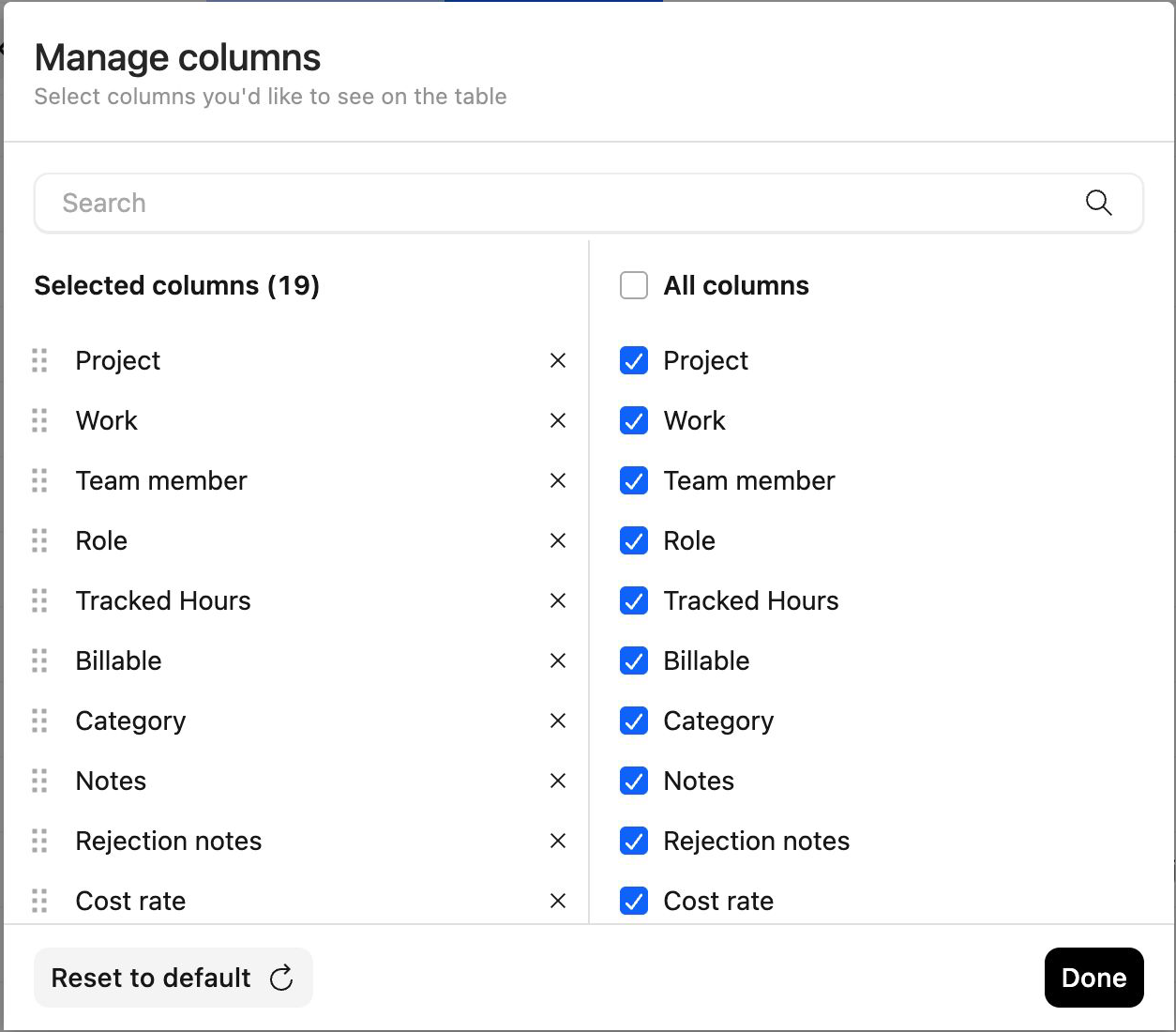
You can show, hide, and reorder columns using the column controls. You can also save the configuration as a reusable view.
Selecting Time Entries
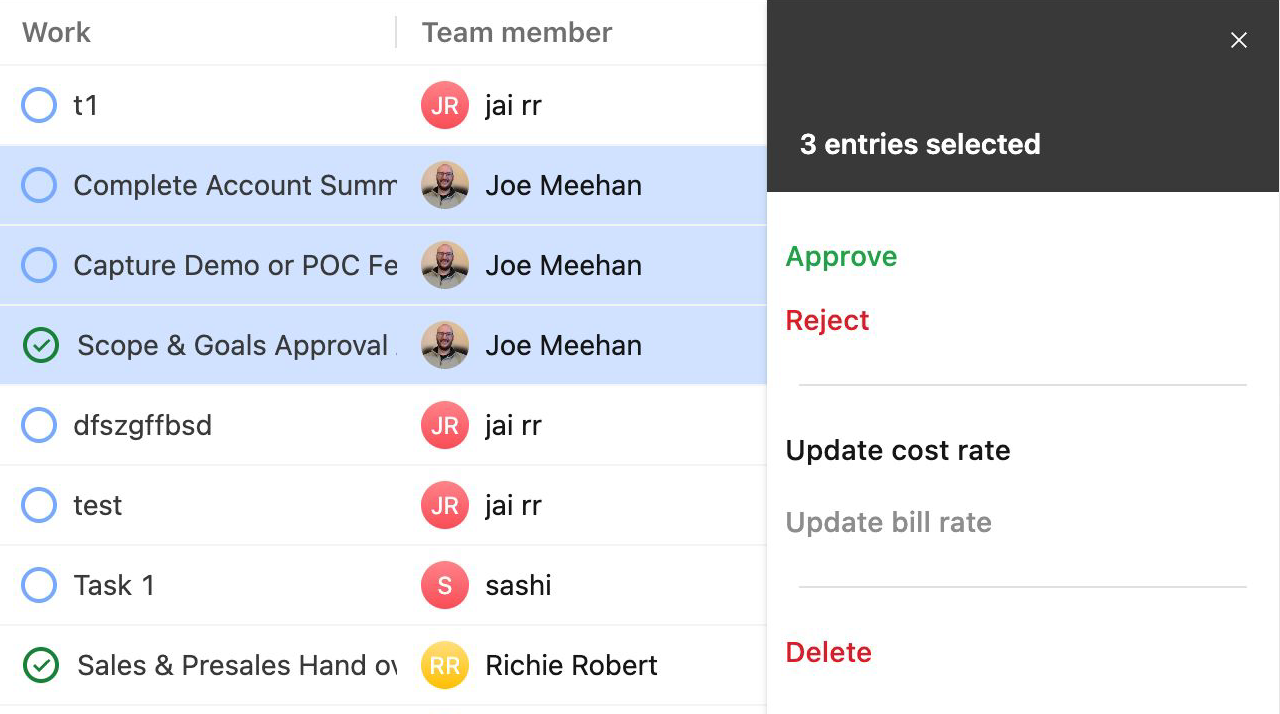
- Select the checkbox beside each entry you want to update.
- In the project-scoped List View, select the checkbox in the column header to select every visible entry.
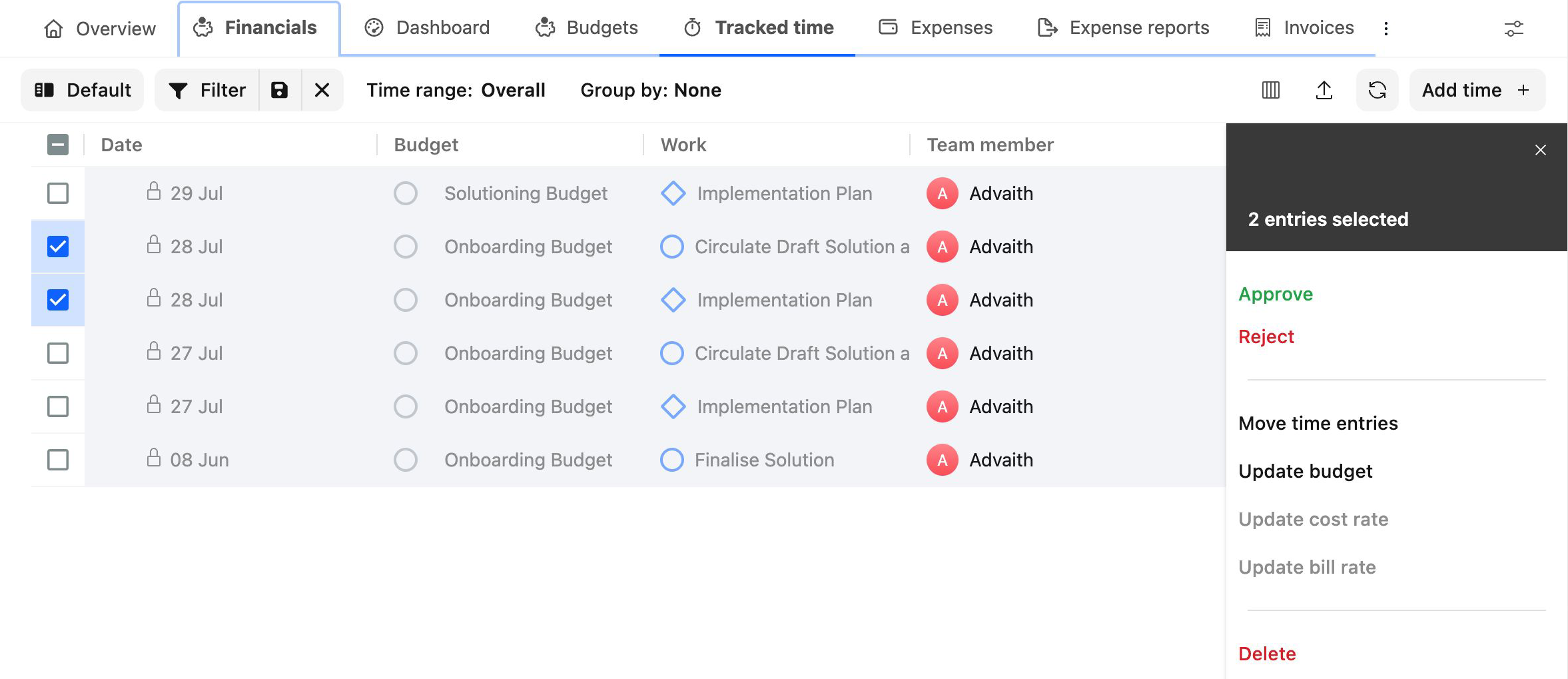
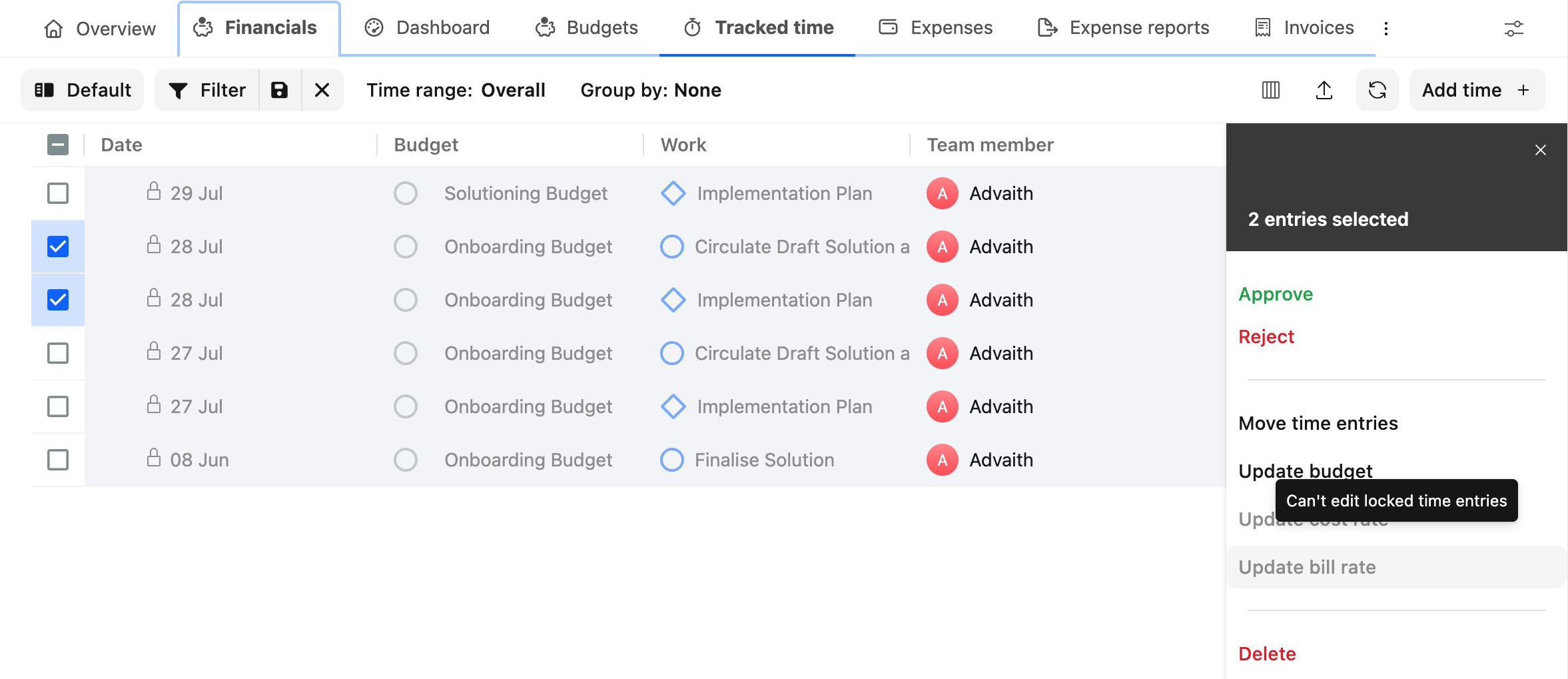
- Once at least one entry is selected, a floating action bar appears with the number of selected entries.
- Select Approve, Reject, or the more-actions button to open the complete list of bulk actions.

The account-wide List View does not include a select-all checkbox. Select entries individually, or group the list and select an entire group.
Available Bulk Actions
| Action | What it does | Availability |
|---|---|---|
| Approve | Approves the selected time entries | Both views |
| Reject | Rejects the selected entries with a comment explaining what must be changed | Both views |
| Delete | Deletes the selected entries | Both views |
| Move entries | Moves the selected entries to another project and budget, when required | Project-scoped only |
| Update budget | Moves the selected entries to another budget within the same project | Project-scoped only, on multi-budget projects |
| Update bill rate | Changes the bill rate on the selected entries | Both views. In the account-wide view, all selected entries must belong to the same project. |
| Update cost rate | Changes the cost rate on the selected entries | Both views |
Updating bill rates and cost rates requires the Can manually override bill rates for time entries and Can manually override cost rates for time entries permissions. See Enhanced Time Tracking and Approval Experience in Rocketlane for more information.
Approve or Reject Entries
Selecting Approve applies the action immediately. If the selection contains entries with different statuses, Rocketlane may first display a summary showing how many entries will be affected.
Selecting Reject opens a field where you can explain what must be corrected. The team member can view this comment with the rejected entry.
Delete Entries
Select Delete and confirm the action to remove the selected entries.
If you are not an admin, locked entries are skipped. If none of the selected entries can be deleted, Rocketlane indicates that there are no eligible entries to remove.
Move Entries to Another Project
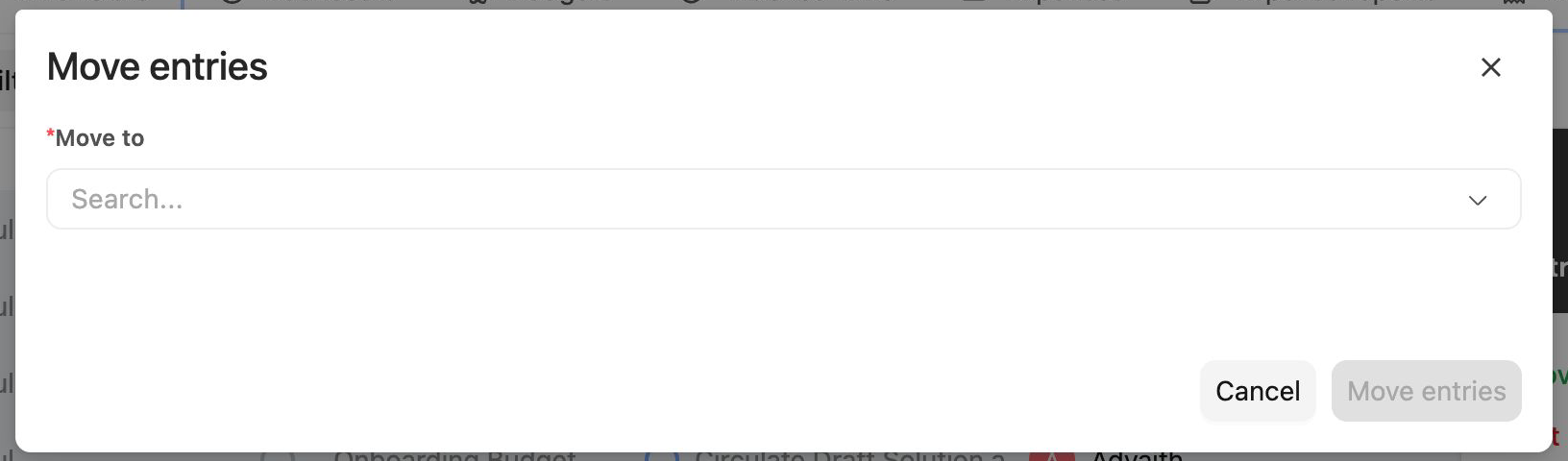
The Move entries action is available only from a project-scoped List View.
- Select the entries you want to move.
- Select Move entries.
- Choose the destination project.
- Map the entries to the appropriate work items in the destination project.
- If the destination uses multiple budgets, select the budget to which the time should be assigned.
- Confirm the move.
You cannot move entries into the project they already belong to.
Update the Budget
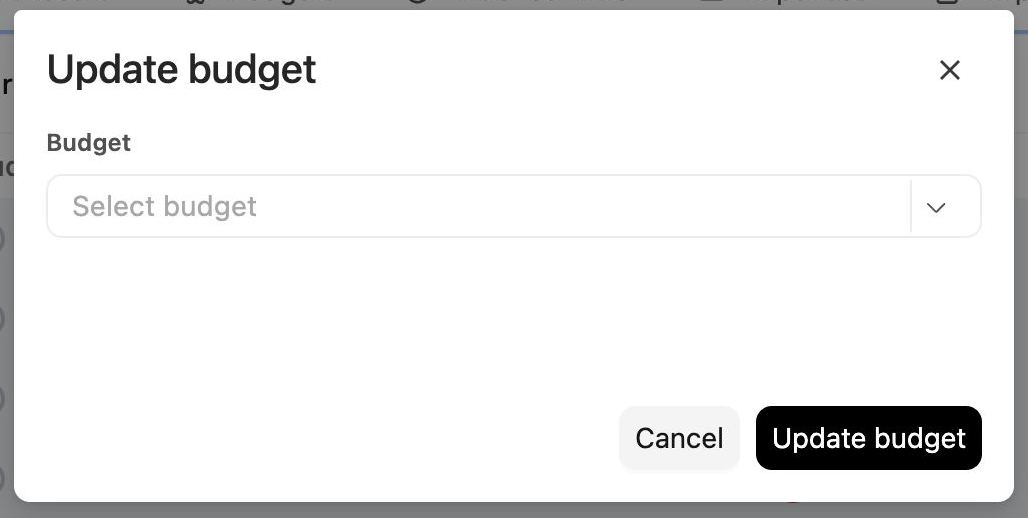
The Update budget action is available only in project-scoped List View for projects with multiple budgets.
Use this action to move selected entries between budgets within the same project. Budgets from other projects are not available.
Update Bill Rates and Cost Rates
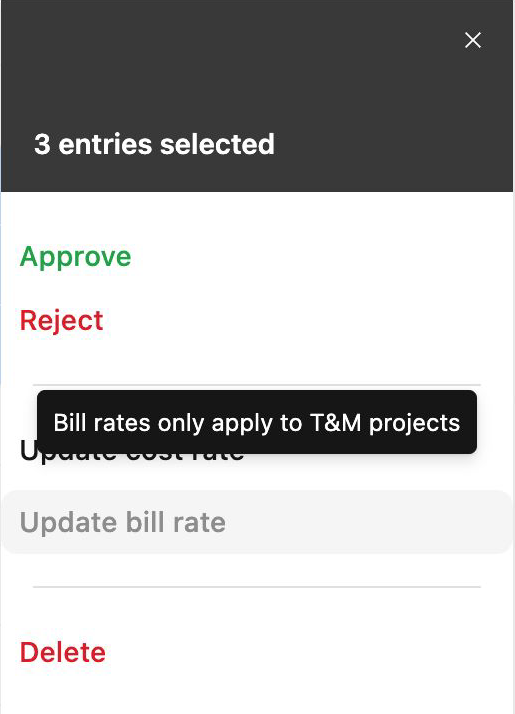
Select Update bill rate or Update cost rate, enter the required amount, and apply the change. Bill rates can be updated only on entries from time and materials (T&M) projects.
Cost-rate updates also allow you to select the currency.
Differences Between the Two List Views
| Capability | Account-wide List View | Project-scoped List View |
|---|---|---|
| Scope | All accessible projects | Current project only |
| Project column and grouping | Available | Not required |
| Select all | Not available | Available |
| Overall date range | Not available | Available |
| Budget filter | Text search | Select from the project's budgets |
| Saved views and filters | Saved for the account-wide view | Saved separately for each project's view |
Saved views, filters, and column configurations do not carry between the account-wide and project-scoped views.
Filtering and Grouping Entries
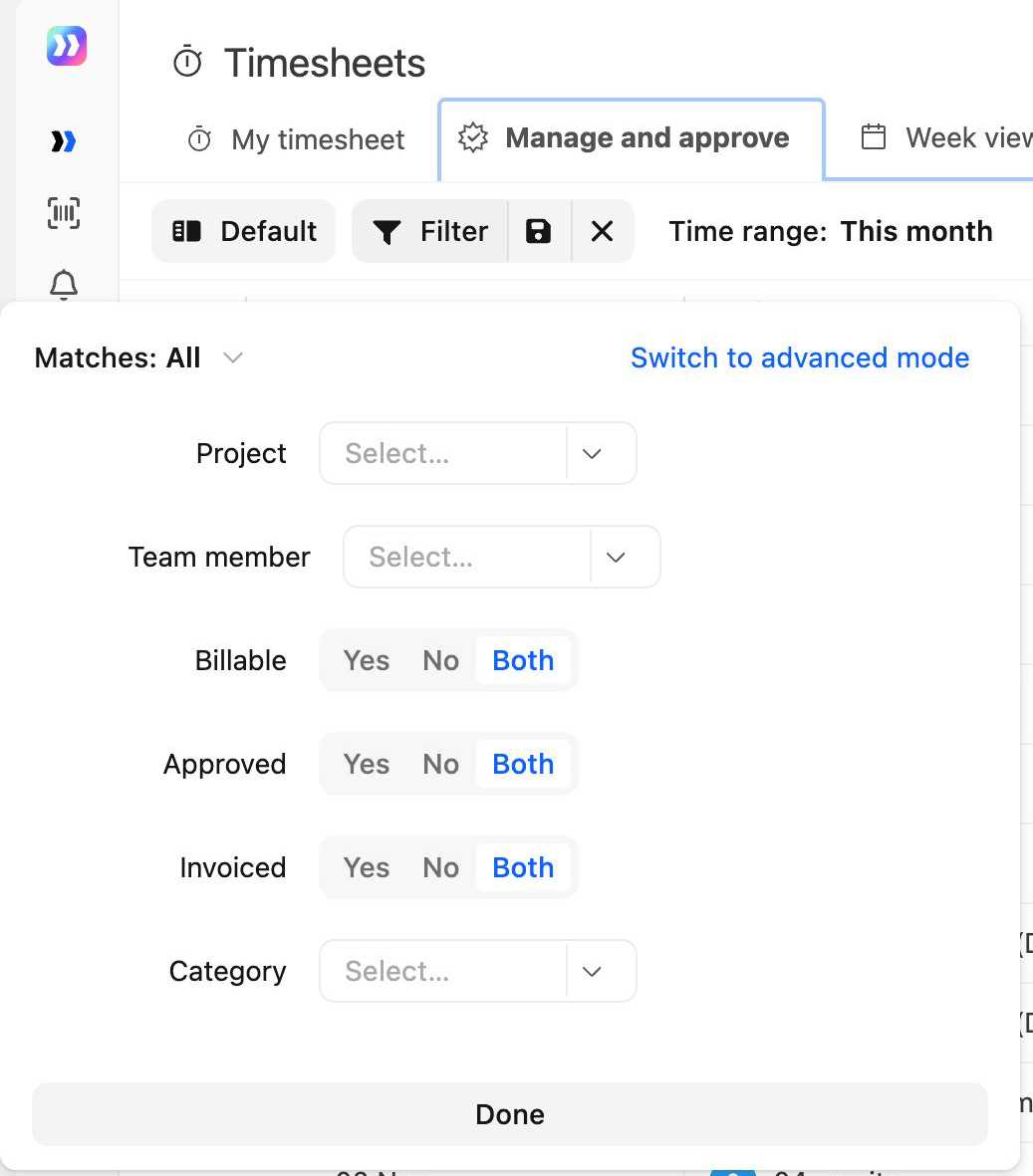
Both List Views support filters for information such as:
- Submission and approval status
- Team member
- Role
- Billable status
- Category
- Notes
- Budget
- Timesheet approver
The account-wide List View also includes project-level and invoice-related filters.
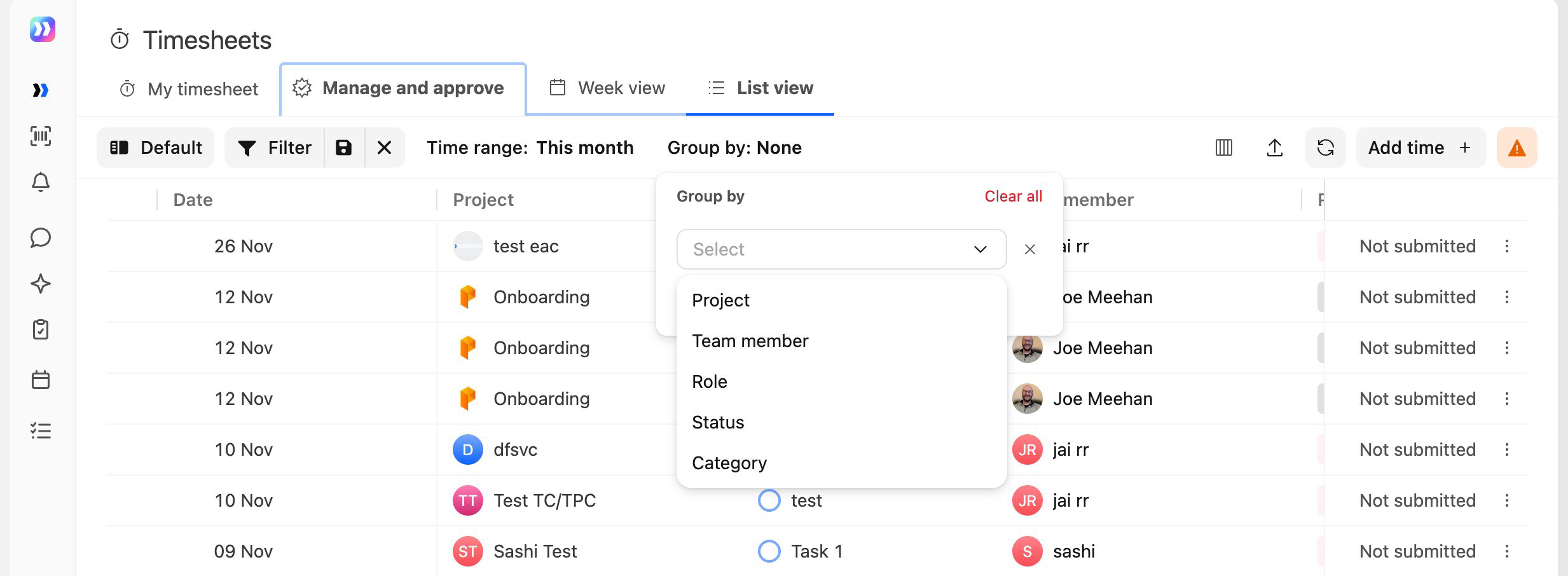
In the account-wide List View, you can group entries by project, team member, role, status, or category. In the project-scoped List View, you can group entries by budget, team member, phase, task, role, category, or status.
Processing Large Bulk Actions
There is no fixed limit on the number of entries you can include in a bulk action.
Large actions run in the background. A banner above the grid shows when processing begins, completes, or fails and provides an option to refresh the table.
While an action is processing, the controls for starting another bulk action are temporarily unavailable.
Exporting Timesheet Data
- Open either List View.
- Apply the filters required for the export.
- Select the export option.
- For large exports, wait for Rocketlane to complete the export in the background.
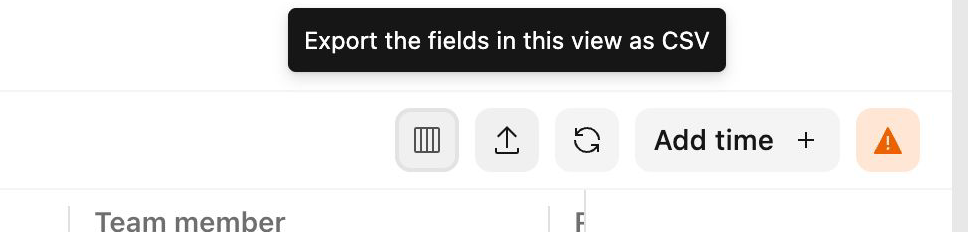
The export is a CSV file of the fields in the current view, filtered by the filters currently applied to the List View.
FAQ
What is the difference between List View and Week view?
Week view in Manage and approve is designed for reviewing submitted timesheets by team members and week. List View is designed for working with individual entries across users, projects, and date ranges, including bulk actions and exporting.
Why can't I select all entries in the account-wide List View?
The select-all checkbox is available only in project-scoped List View. In the account-wide view, select entries individually or group the list and select an entire group.
Why is Update bill rate unavailable?
In the account-wide List View, every selected entry must belong to the same project. Narrow the selection to one project or use the project-scoped List View.
Bill rates apply only to time and materials (T&M) projects, so the option is also unavailable for entries on other project types, when your selection contains locked entries, or when you do not have the required financial permission.
Why can't I move entries or update their budget?
Both actions are available only from a project's Financials > Tracked time List View. Update budget also requires the project to have multiple budgets.
What happens if some selected entries are locked?
If you are not an admin, locked entries are skipped during bulk approval, rejection, and deletion. Admins can act on locked entries.
For bill-rate or cost-rate updates, remove locked entries from the selection before applying the change.
Is there a limit to the number of entries I can update at once?
No fixed limit applies. Large actions are processed in the background, and a banner displays their progress.
Can I export only my own timesheet?
Exporting is available through List View and the Reporting module, which are generally used by approvers and admins. Access depends on your assigned permissions.