As services teams take on larger engagements, one project often covers several commercial agreements: an implementation, a change order, and an ongoing support subscription, each with its own billing terms. Multi-Budget lets a single project hold a separate budget for each of these. Enabling it changes more than the Financials tab. Fields that stored one value per project store one value per budget, filters and reports become budget-aware, time and expenses are recorded against individual budgets, and invoices are built from selected budgets rather than from the whole project.
If your team relies on saved filters, custom reports, automations, or integration mappings that use project financial fields, review and test them before Multi-Budget is enabled.
This article compares single-budget and Multi-Budget behavior area by area and lists what to validate in each one. For instructions on creating and managing budgets, see Using Multi-Project Budgets in Rocketlane. For eligibility and constraints, see Enabling Multi-Budget: Requirements and Constraints.
In this article
- How billing type changes
- How project financial fields change
- Changes to project setup
- How cost rates change
- Changes to filters
- Changes to reporting
- Changes to time tracking
- Changes to resource management
- Changes to expenses
- Changes to invoices
- Changes to credit notes
- Changes to revenue recognition
- Changes to integrations
- Changes to automations
- Changes to team assignment
- FAQ
- Summary
How billing type changes
Each budget uses one of four billing types:
- Fixed fee
- Time & material
- Subscription
- Non billable
What changes is where the value is stored. In a single-budget project, the billing type applies to the whole project. In a Multi-Budget project, each budget has its own billing type, so one project can contain, for example, a Fixed fee budget and a Time & material budget.
When you set the billing type on a budget, it is still a single choice. When Billing type appears as a project filter or report field, however, it represents every billing type used across the project's budgets, so the filter becomes multi-select.
How project financial fields change
The financial values below are set once for a single-budget project. With Multi-Budget, each budget has its own value, and the labels shown are the ones you see in the budget drawer.
| Field | Single-budget behavior | Multi-Budget behavior |
|---|---|---|
| Billing method | One value for the project  | One value for each budget 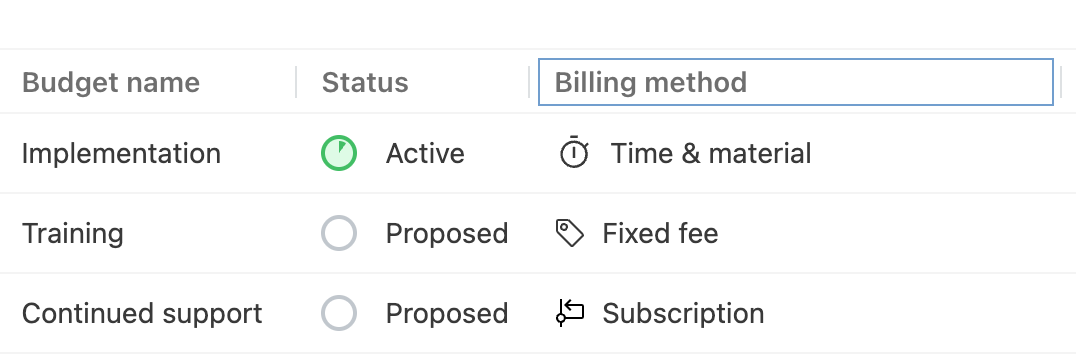 |
| Budgeted amount | One value for the project  | One value for each budget 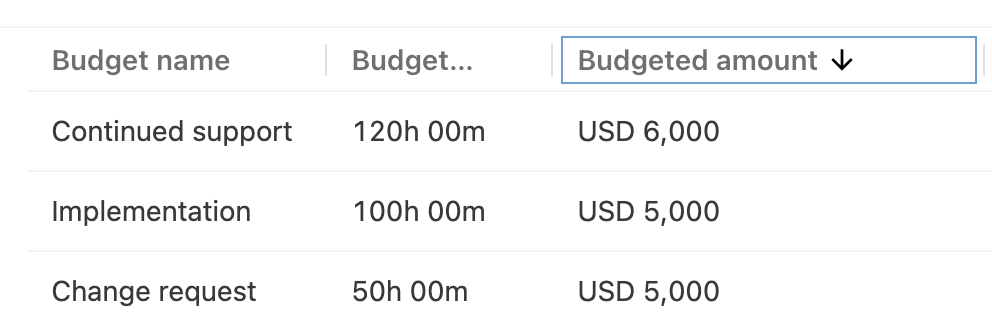 |
| Budgeted hours | One value for the project  | One value for each budget 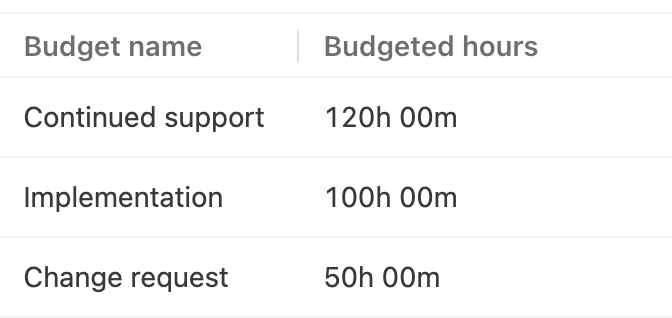 |
| Revenue recognition | One value for the project  | One value for each budget 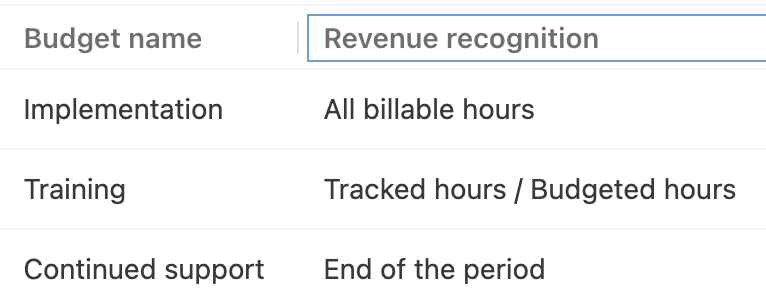 |
| Rate card (bill rates) | One value for the project | One value for each budget |
| Cost rates | Set for the project | Still set for the project, from a different page. See How cost rates change. |
| Currency | Set for the project | Still set for the project. Every budget uses the project currency. |
When a report, export, or integration reads a financial field after Multi-Budget is enabled, decide whether it should use:
- The total across all budgets.
- The value from one specific budget.
- Separate values for every budget.
Project fields that are no longer available
With Multi-Budget enabled, several subscription and period fields are removed from project-level filters and columns because these values now belong to individual budgets. Some have a budget-level equivalent. The current-period fields do not.
| Project-level field | Budget-level equivalent |
|---|---|
| Period budget | Period budget on each Subscription budget |
| Period budgeted hours | Period hours on each Subscription budget |
| Subscription frequency | Subscription frequency on each Subscription budget |
| Number of periods | Number of periods on each Subscription budget |
| Revenue recognition type | Revenue recognition on each budget |
| Current period | None |
| Current period start date | None |
| Current period end date | None |
| Current period revenue | None |
| Current period tracked hours | None |
Changes to project setup
Budget information appears in three places in a Multi-Budget project.
| Location | Purpose | Example |
|---|---|---|
| Financials | Review Overall financials, or switch to the financials for one budget | 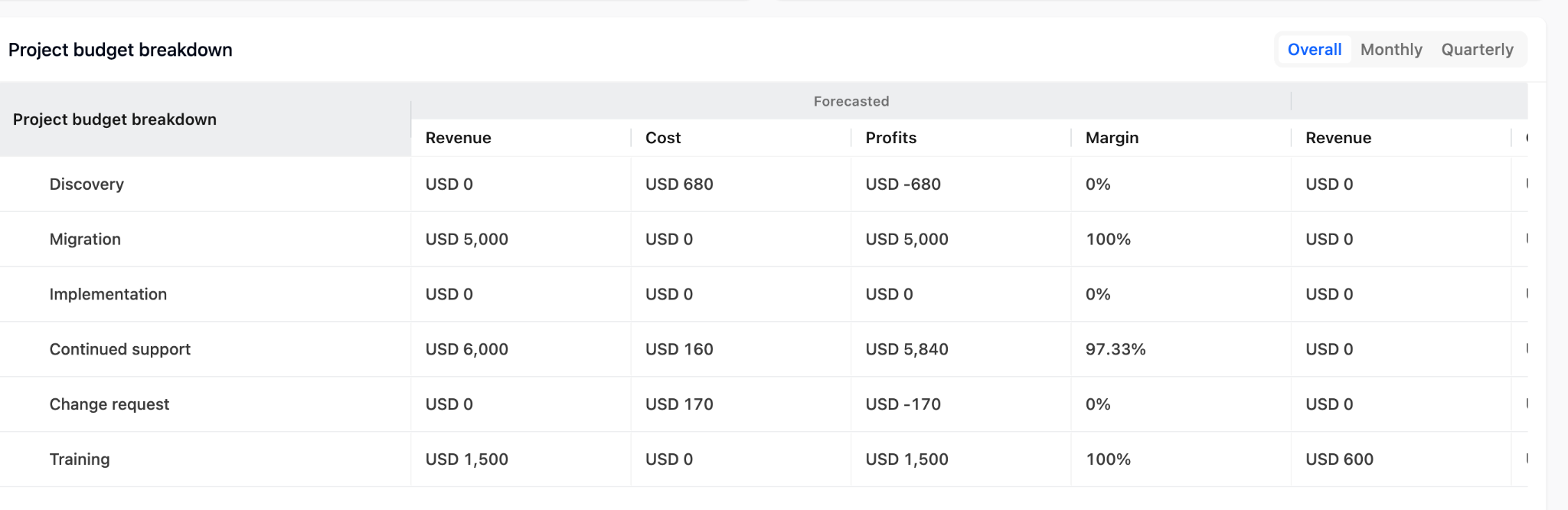 |
| Budgets tab | View the project's budgets | 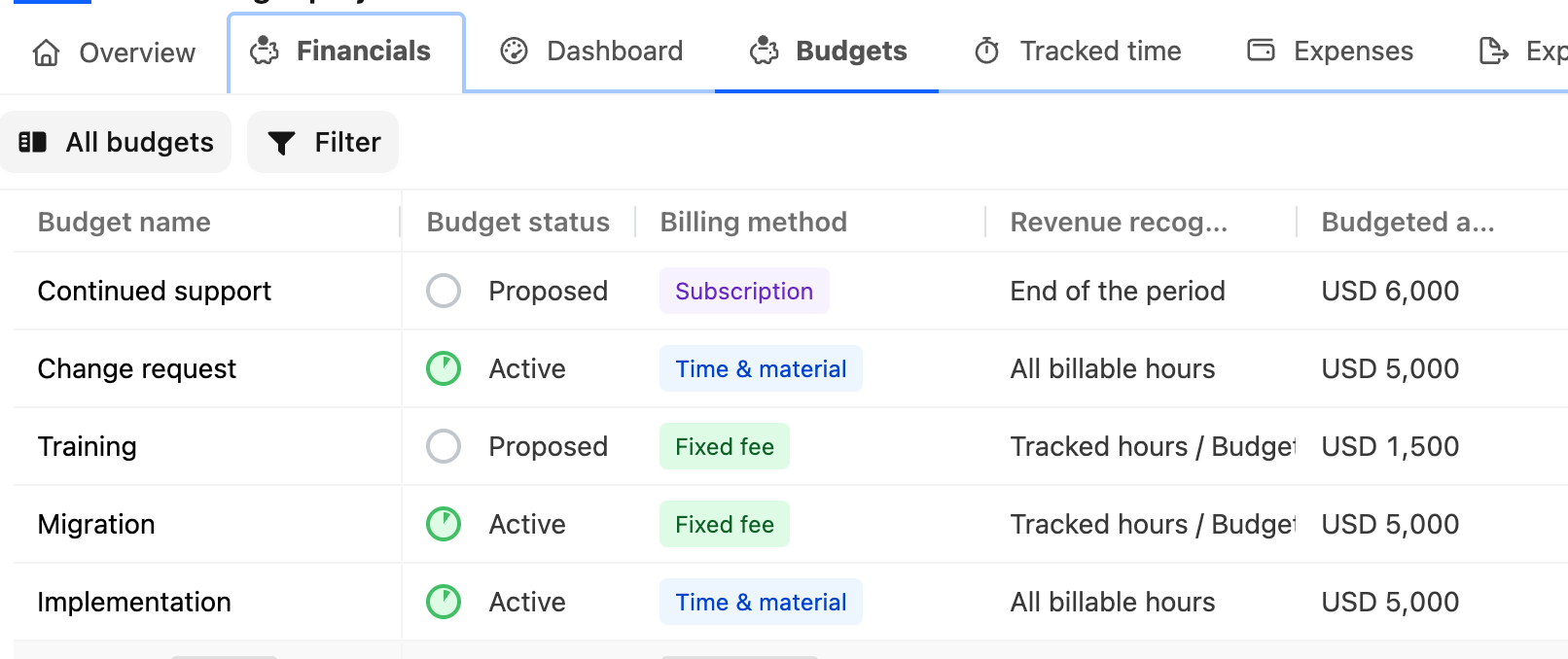 |
| Project settings > Budget management | Create and edit budgets | 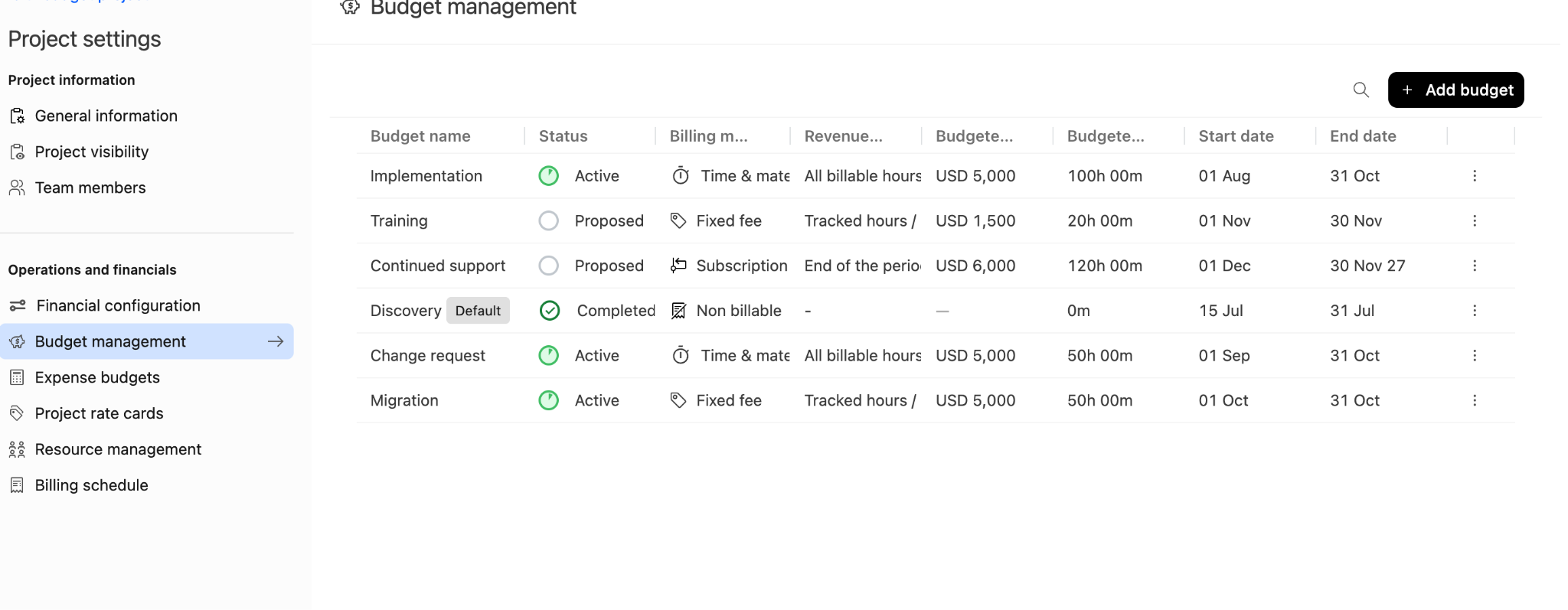 |
Financials
In a single-budget project, the Financials tab shows the project's financial information directly.

In a Multi-Budget project, the Financials tab has a switcher. Its first option is Overall financials, followed by each budget, so you can move between the project total and an individual budget.

Budgets tab
The Budgets tab lists the project's budgets. It appears inside Financials only when Multi-Budget is enabled.
Budget management
In a single-budget project, Project settings > Budget management opens the project's one budget directly. In a Multi-Budget project, it shows the list of budgets, and you create and edit budgets from there.
- Selecting Add budget opens the New budget drawer, where you enter the budget's details.
- Selecting an existing budget opens its own page. The page can contain the tabs Budget details, Team members, Revenue recognition, and Revenue entries.
The tabs you see depend on the budget and your permissions. For example, Revenue recognition appears only for Fixed fee budgets that use milestone-based or manual revenue recognition.
Two rules apply when you delete a budget:
- A budget that has been invoiced cannot be deleted.
- When you delete a budget, you choose another budget to move its data to.
For step-by-step instructions, see How to Set Up and Manage Multiple Budgets in a Project.
Project creation
The financial step of the project creation flow offers two options: Single budget (one budget for the entire project) and Multi budget (separate budgets for each scope). Selecting Multi budget lets you add and configure several budgets while you create the project.
Project summaries and integration cards
Reports and summaries that showed one billing type can show several tags, one for each billing type used by the project's budgets.
The HubSpot and Salesforce cards on the project overview switch to Multi-Budget versions when the feature is enabled.
How cost rates change
Teams that track margins often adjust the cost rates for the people on a specific project, for example when a contractor's rate differs from the account default. Multi-Budget does not change how cost rates work. Cost rates still apply to the whole project, not to individual budgets. What changes is where you edit them.
Bill rates work differently. Each budget has its own Rate card, so one project can use different bill rates across its budgets.
| Rate | Single-budget project | Multi-Budget project |
|---|---|---|
| Cost rates | Set for the project | Set for the project (unchanged) |
| Bill rates (rate card) | Set for the project | Set for each budget |
| Where to edit cost rates | Project settings > Budget management > Budget details | Project settings > Financial configuration |
Edit cost rates in a single-budget project
- Open the project and go to Settings.
- Under Operations and financials, select Budget management. The project's budget opens on the Budget details tab.
- Hover over the Cost rate row. Its value shows Standard if no project-specific rates are set, or Modified if they are.
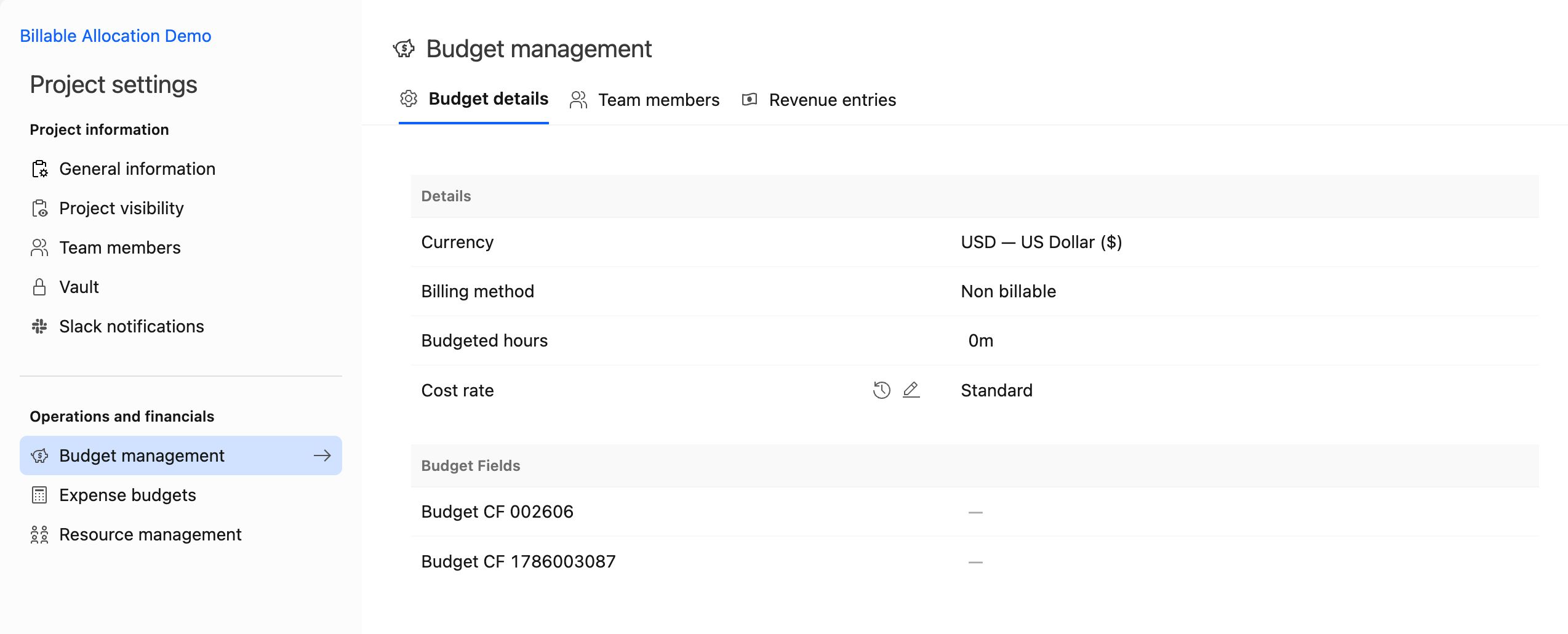
- Select the edit (pencil) icon. The Edit cost rates drawer opens.
- Update the cost rates for the team members you want to change, then select Save.
- In the Update cost rate? dialog, choose when the new rate applies, then confirm.
Edit cost rates in a Multi-Budget project
With Multi-Budget enabled, the Cost rate row no longer appears on any budget's Budget details tab. It moves, along with Project currency, to a project-level page called Financial configuration.
- Open the project and go to Settings.
- Under Operations and financials, select Financial configuration.
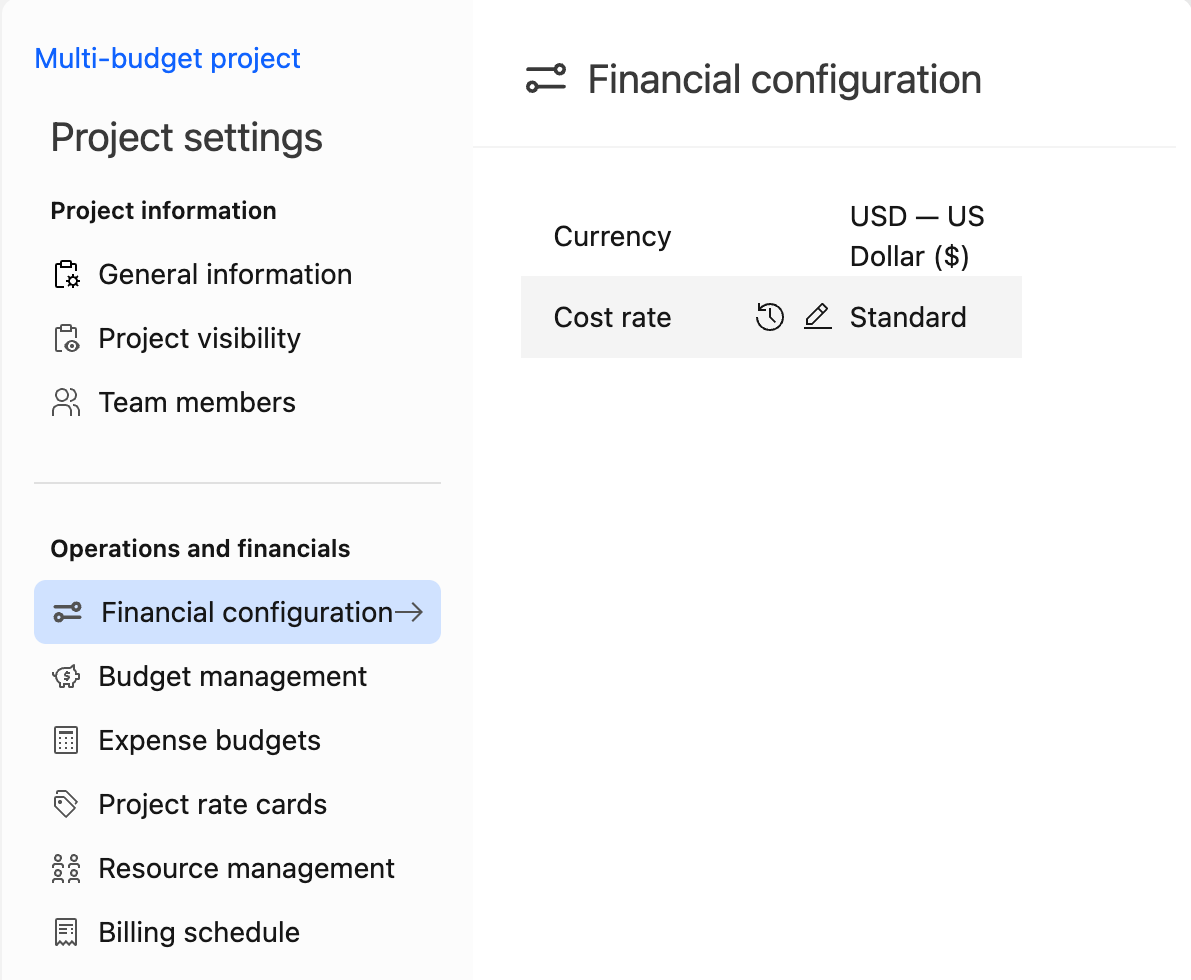
- Hover over the Cost rate row (Standard or Modified) and select the edit (pencil) icon. The same Edit cost rates drawer opens.
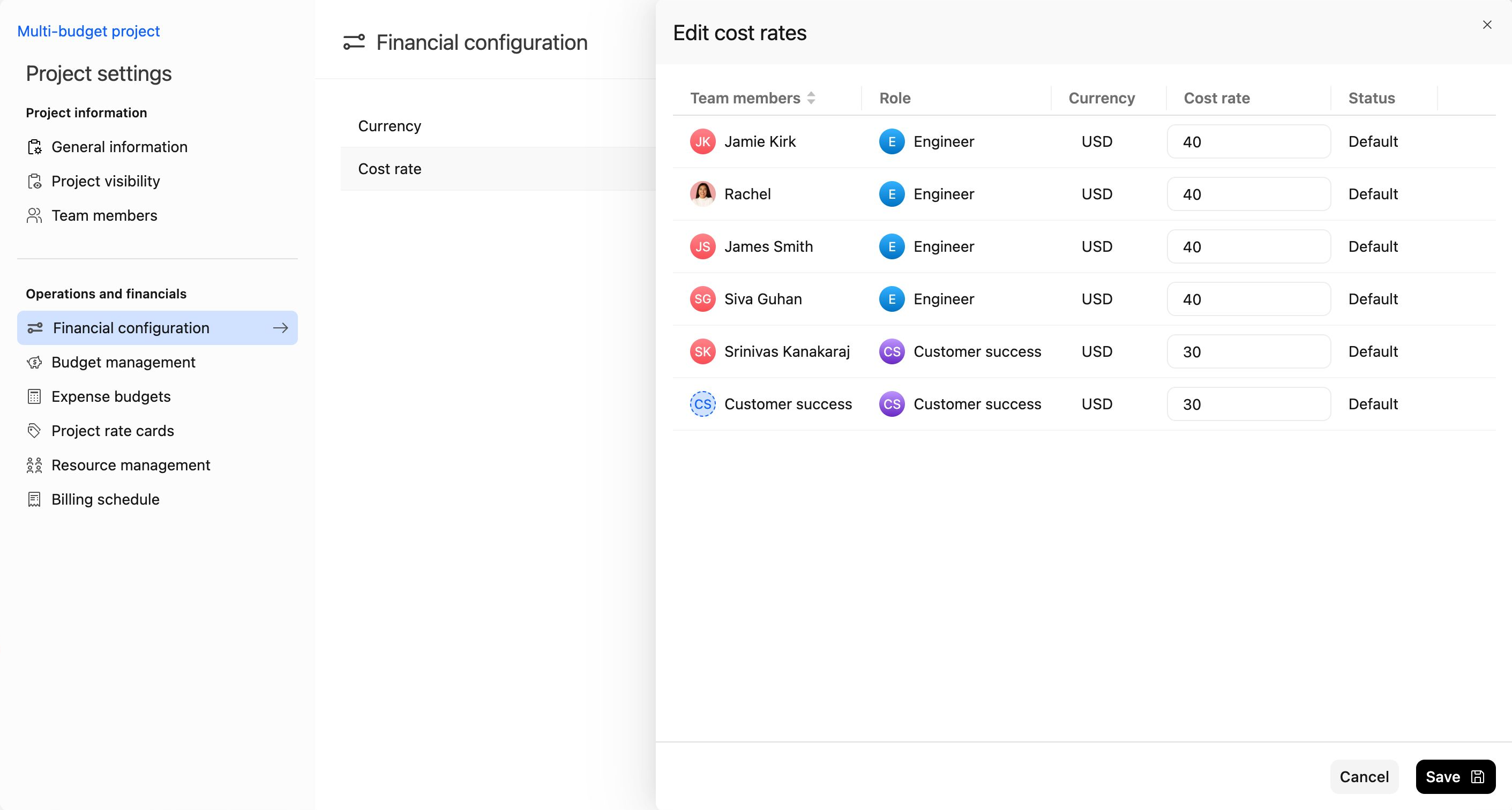
- Update the cost rates for the team members you want to change, then select Save.
- In the Update cost rate? dialog, choose when the new rate applies, then confirm.
The Update cost rate? dialog offers the same two options in both modes:
| Option | What it does |
|---|---|
| Going forward | The new cost rate applies to all time the team member reports from now on. |
| Backdate cost rate | The new cost rate applies from a date you select and going forward. |
Select the history icon next to Cost rate to see an audit log of earlier cost rate changes.
For account-level cost rates and rate cards, see Setting Up Rate Cards.
Changes to filters
Billing type filters
Billing type filters become multi-select after Multi-Budget is enabled. This applies wherever project financial fields are used as filters, including project lists, task lists, and reports.
Budget filters in Timesheet List View
The Budget filter in Timesheet List View depends on where you open it:
| Location | Budget filter behavior | Example |
|---|---|---|
| Inside a project | A multi-select list of that project's budgets | 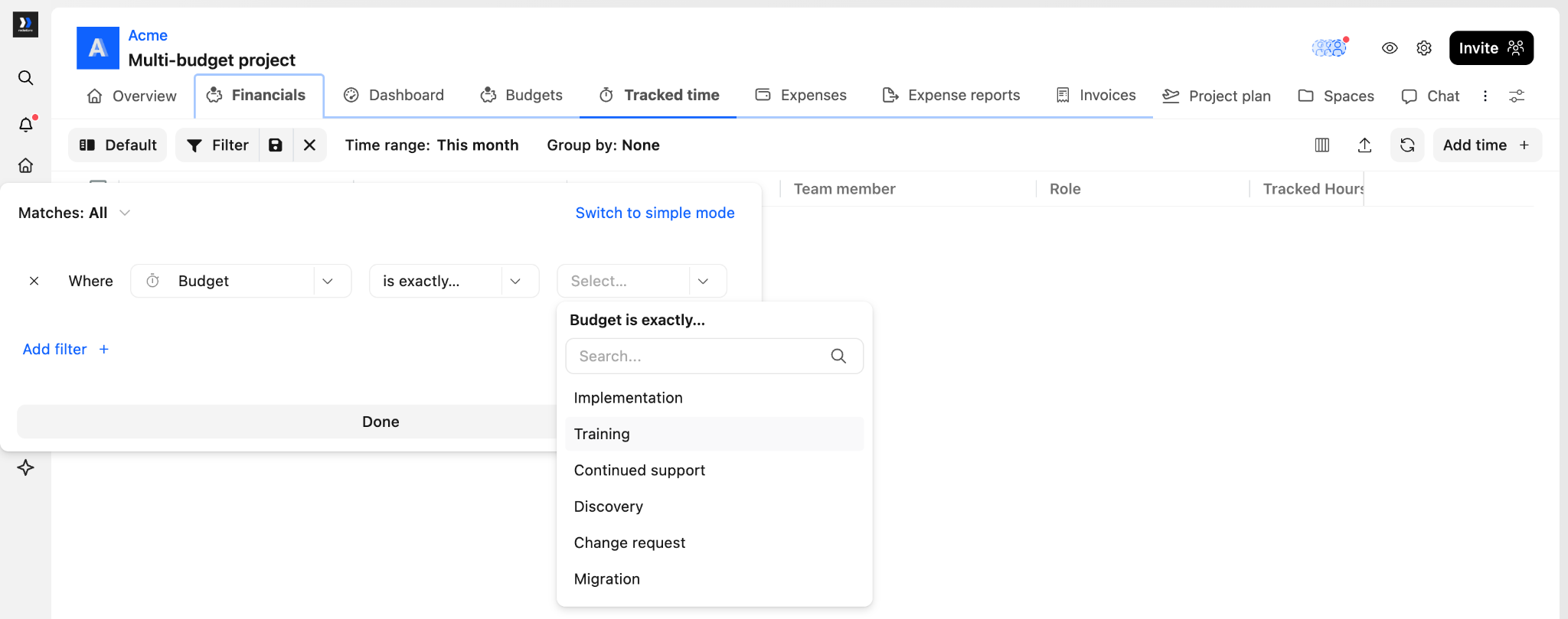 |
| Account-wide List View | A free-text filter on the budget name | 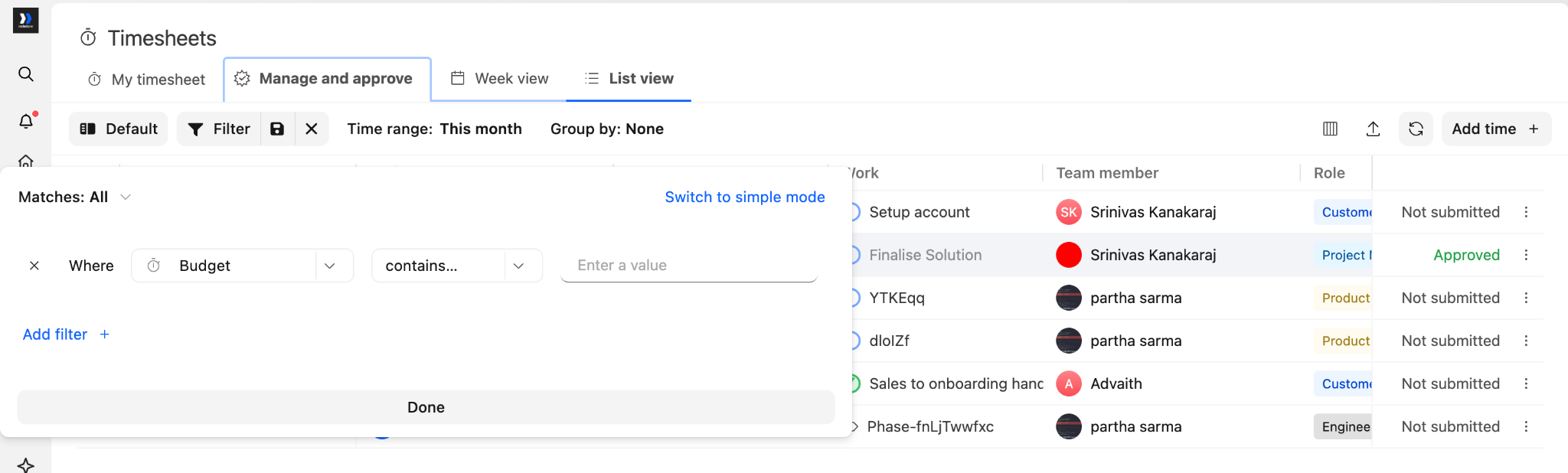 |
Account-wide Timesheet List View can also be grouped by Budget when Multi-Budget is enabled.
Changes to reporting
There is no separate Budget report in the Reports list. Budget information appears across the existing reports and dashboards.
Custom reports
Custom reports can use Budget as a report source. Selecting Budget changes what the report is built on, so each row represents a budget.
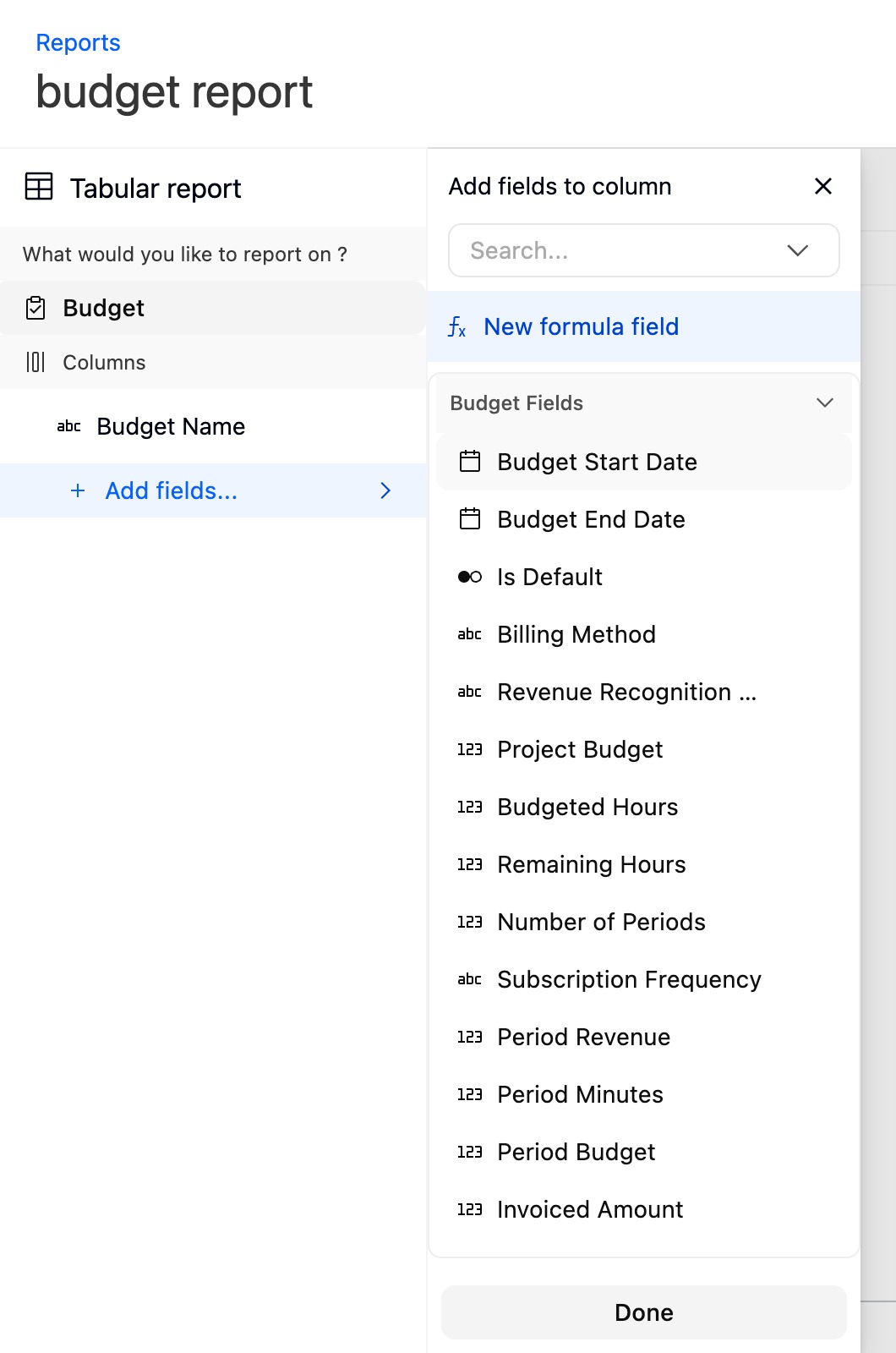
The Budget source is enabled separately for tabular and pivot reports, so your account may have it in one report type but not the other.
Profitability report
The Profitability report becomes budget-aware. Its first column changes from Project name to Projects and budgets, and budgets appear as rows beneath their projects. This lets you review margin and other profitability metrics for each budget, not only for the project. The Project budget column is renamed Budget.
Utilization report
The Utilization report adds budget fields as filters, so you can analyze utilization against the budgets that project work is recorded against.
Time Analytics reports
Time Analytics includes reports by project, people, and category. In all three, the breakdown labelled Phases and tasks becomes Budgets, Phases and tasks, giving a budget-level view of tracked time alongside phases and tasks.
Dashboards
Dashboard cards and charts can use Budget as a source, and budget fields can be used to filter, group, and compare financial metrics.
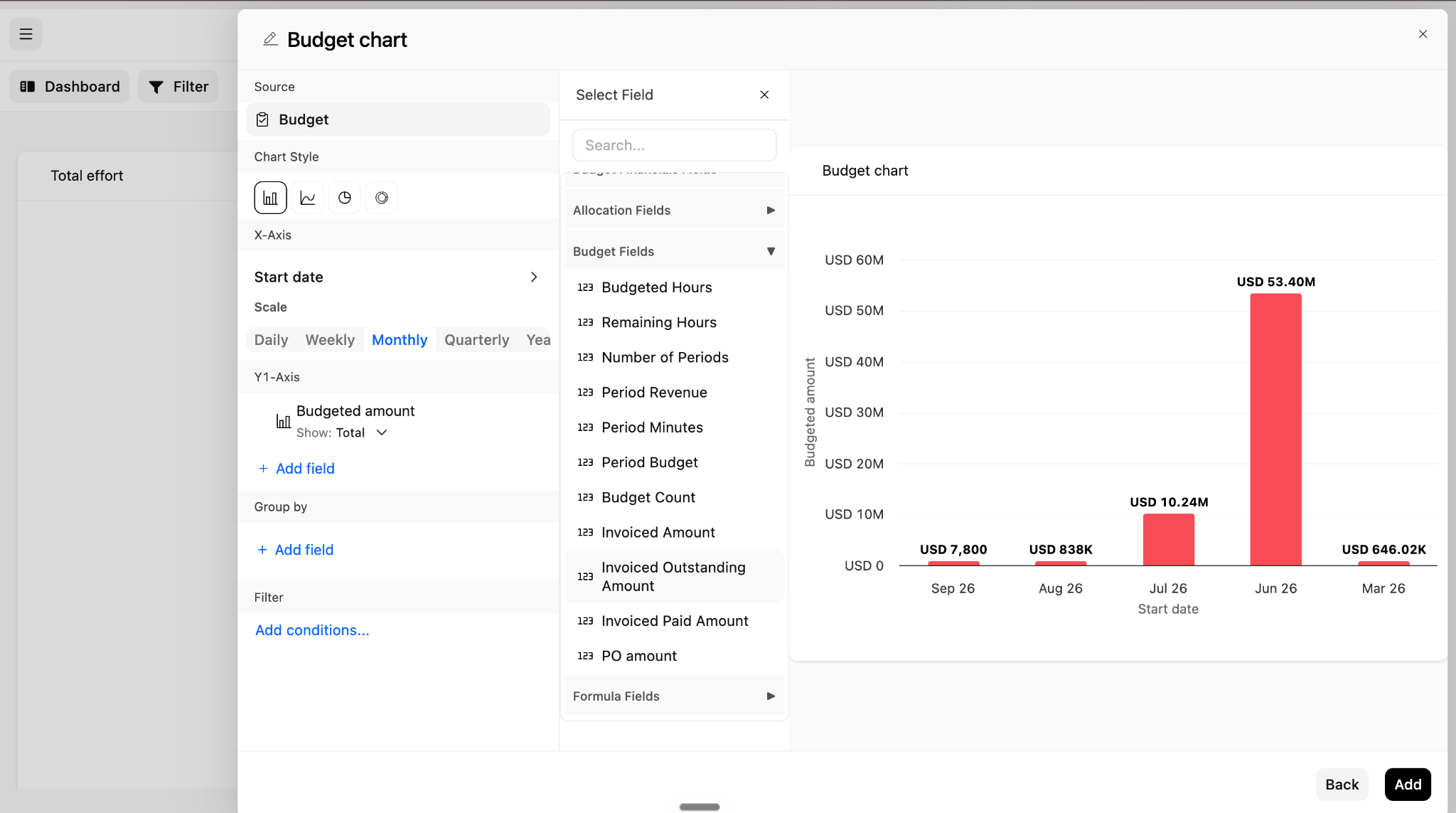
For example, dashboard widgets can:
- Compare budgeted amounts.
- Group budgets by status.
- Filter using budget fields.
- Show metrics for individual budgets.
For more on budget reporting, see Analyze Multi-Budget Performance in Reports.
Changes to time tracking
With Multi-Budget enabled, every time entry is recorded against a specific budget, not only against the project.
Default budget fallback
When you log time, Rocketlane fills in the budget if it can tell which one applies, for example when the task has exactly one budget or only one budget is available to you. If a time entry is saved without a budget, Rocketlane assigns it to the project's default budget. This applies to time logged in the app, through the API, and through imports.
Budgets from another project
A time entry cannot use a budget that belongs to a different project. If an API request, integration, or import references a budget from another project, Rocketlane rejects the time entry rather than moving it to the default budget.
Budget membership and status restrictions
Your account can restrict which budgets people can log time against, using the options under Team members can only track time for in Timesheet settings:
| Setting | Effect |
|---|---|
| Budgets they are part of | People can log time only against budgets they belong to. Project membership alone does not grant access to every budget. |
| Budgets in these statuses | Time can be logged only against budgets in the selected statuses. Otherwise Rocketlane shows that time entry is not allowed for the budget's current status. |
In the time entry budget picker, budgets are grouped as Budgets of this task, Budgets of this phase, Budgets you're a part of, and Budgets you're not a part of.
For the full workflow, see Time Tracking with Multi-Budgets.
Changes to resource management
Resource allocation becomes budget-aware when Multi-Budget is enabled. Allocations and resource requests are associated with a specific budget, and a budget is required when you submit a resource request.
Test the following where they apply to your team:
- Creating an allocation for a Multi-Budget project.
- Choosing or changing the budget an allocation belongs to.
- Submitting a resource request.
- Assigning a team to a project or budget.
- Reviewing budgeted and allocated hours in reports.
For details, see How to Manage Resources with Multi-Budgets.
Changes to expenses
When you create or edit an expense in the app, a project budget is required. The expense cannot be saved until a budget is selected, and Rocketlane shows Project budget is required if it is missing.
- Selecting a task can fill in the budget when the task has exactly one budget.
- Changing the project clears the selected budget.
- Selecting a Non billable budget turns off the expense's billable setting.
Budget fields are also available for grouping and filtering on My expenses and Expense approvals.
For details, see Managing Expenses and Financials with Multi-Budgets.
Changes to invoices
Multi-Budget changes invoice creation from a project-level workflow to a project-and-budget workflow. The invoice wizard has these steps:
| Step | What happens |
|---|---|
| 1. Invoice details | Select the customer. Projects and budgets load after a customer is selected. |
| 2. Select projects & budgets | Select the projects, and the budgets to include from each one. |
| 3. Select uninvoiced work | Choose the date range and how uninvoiced work is grouped. |
| 4. Modify line items | Review and edit the line items created for each selected budget. |
| 5. Additional information | Add notes and attachments. |
| 6. Preview | Review the invoice before saving. |
Without Multi-Budget, step 2 is labelled Select projects.
Selecting projects and budgets
- One invoice can include budgets from several projects.
- Each selected budget creates its own group of line items, so a project with several selected budgets adds several groups to the invoice.
- Non billable budgets are excluded and do not appear in the selection list.
- An invoice uses one currency. Projects and budgets in a different currency from your first selection cannot be selected.
- Deselecting every budget under a project removes that project from the invoice without an error. If no projects remain selected, you cannot continue.
- When you create an invoice from inside a project, that project stays selected and at least one of its budgets must remain selected.
Modifying line items
Every selected budget must have at least one line item, and every line item must have a description. If any line item in a selected budget has an empty description, you cannot continue from Modify line items.
The invoice can show a budget-by-budget breakdown in addition to project totals. Use Hide budget breakdown to hide it on the customer-facing invoice.
When Select uninvoiced work is skipped
The Select uninvoiced work step is skipped only when both of these are true:
- Every selected budget uses Fixed fee billing.
- Expenses are disabled for your account.
If expenses are enabled, the step appears even when every selected budget is Fixed fee.
Taxes, billing events, and billing schedules
- Taxes still apply at the invoice or line-item level. There is no budget-level tax setting.
- A billing event targets exactly one budget. One billing event cannot apply to several budgets.
- Billing schedules also let you choose a budget and include the Hide budget breakdown option.
For the complete workflow, see Invoices for Multi-Budget Projects in Rocketlane.
Changes to credit notes
Credit notes are created from existing invoice line items, so they do not use the invoice's project-and-budget selection step. Budgets appear as a grouping level between each project and its line items, and you select the line items to credit. Credit notes also offer Hide budget breakdown.
For the complete workflow, see Credit Notes for Multi-Budget Projects in Rocketlane.
Changes to revenue recognition
With Multi-Budget enabled, recognized revenue is tracked for each budget within the project. Revenue entries can reference a specific budget, and each budget's page has its own Revenue entries tab (and a Revenue recognition tab for eligible Fixed fee budgets).
For reviewing and managing entries, see Managing the Revenue Recognition Ledger in Rocketlane.
Changes to integrations
Integration mappings that used project-level financial values may need to point to a specific budget after Multi-Budget is enabled. Both the HubSpot and Salesforce field mapping screens add Budget as an object you can map to, so a property can sync with a budget rather than only with the overall project.
Review integrations that synchronize fields such as:
- Billing type
- Budgeted amount
- Budgeted hours
- Currency
- Rate card
- Revenue recognition
- Subscription period values
For supported scenarios and setup steps, see How to Sync Integrations with Multi-Budgets.
Changes to automations
Automations can still read project financial values. Updating them works differently:
- The Update project financial fields action is not available for new automations once Multi-Budget is enabled.
- Existing automations that use this action keep running, but they skip the financial field updates. The automation log records the skipped fields.
- Budget-level actions are available instead, such as creating a budget or updating a budget field, along with budget-related triggers and conditions.
Before migration:
- Review automations that reference billing type, budgeted amount, budgeted hours, or other financial fields.
- Identify any automation that updates those fields.
- Rebuild those updates with the budget-level actions.
- Test each affected automation against a Multi-Budget project.
Changes to team assignment
Project team members belong to every budget by default, and removing someone from a budget affects only that budget. If you assign someone to a task who is not a member of any of the project's budgets, Rocketlane asks which budget to add them to. For details, see Using Multi-Project Budgets in Rocketlane.
Test the following where they apply:
- Assigning a team to a project with several budgets.
- Confirming whether team members are added to the entire project or a specific budget.
- Checking whether budget membership affects who can log time.
FAQ
Can I disable Multi-Budget after enabling it?
No. Enabling Multi-Budget is a one-way change made in coordination with Rocketlane.
Does billing type become a multi-select field?
It stays a single choice when you set it on a budget. Filters and reports treat Billing type as multi-select because one project can contain budgets with different billing types.
Does Multi-Budget let me set different cost rates for each budget?
No. Cost rates still apply to the whole project. With Multi-Budget enabled, you edit them from Project settings > Financial configuration instead of from the budget's Budget details tab. Bill rates, set through each budget's rate card, can differ by budget.
Why don't I see the Cost rate row on my budget's Budget details tab?
In a Multi-Budget project, the Cost rate row moves to Project settings > Financial configuration. If that page is missing too, check that your permission set lets you view the project currency or edit project cost rates.
Does enabling Multi-Budget affect projects that only have one budget?
A project with one budget behaves much like a single-budget project. Account-wide changes still apply, such as field definitions, filters, reports, integrations, automations, and where cost rates are edited.
What happens if I deselect every budget under a project while creating an invoice?
The project is removed from the invoice, and no error is shown. If no projects remain selected, you cannot continue to the next step.
Why can't I continue from Modify line items?
Every selected budget needs at least one line item, and every line item needs a description. Check each selected budget for missing line items or empty descriptions.
Why can't I select some projects or budgets on an invoice?
An invoice uses a single currency. Projects and budgets in a different currency from your first selection cannot be added. Non billable budgets are also not listed.
Does Multi-Budget automatically add Budget as a custom report source?
The Budget source is enabled separately for tabular and pivot reports. Check which report types have it enabled for your account.
Will budget-related fields appear if Multi-Budget is not enabled?
No. Budget tabs, filters, columns, and field behavior appear only when Multi-Budget is enabled.
Do project members automatically become members of every budget?
Yes, by default. A member removed from a budget can't log time against it if your account restricts time tracking to Budgets they are part of.
What happens if no budget is selected when time is logged?
Rocketlane assigns the time entry to the project's default budget. This applies in the app, through the API, and through imports.
What happens if a time entry references a budget from another project?
Rocketlane rejects the time entry instead of reassigning it to the default budget.
Do expenses fall back to the default budget?
Not in the app, where a budget is required. Expenses created through the API without a budget are assigned to the project's default budget.
Do existing automations that update project financial fields keep working?
They keep running, but the financial field updates are skipped and recorded in the automation log. Rebuild them with budget-level actions.
Do existing integrations keep working without changes?
Some may, but review every mapping that uses a project financial field. After migration, the value you want may be the project total or a value from one budget.
Summary
- Billing method, budgeted amount, budgeted hours, revenue recognition, and rate card (bill rates) move from the project to each budget.
- Cost rates and currency stay at the project level. With Multi-Budget, cost rates are edited from Project settings > Financial configuration, using the same Edit cost rates drawer.
- Project-level subscription and period fields are removed. The current-period fields have no budget-level replacement.
- Budgets are viewed in Financials and the Budgets tab, and created and edited in Project settings > Budget management.
- Billing type stays a single choice on a budget but becomes multi-select in filters and reports.
- Custom reports and dashboards can use Budget as a source, and Profitability, Utilization, and Time Analytics become budget-aware.
- Time entries without a budget go to the project's default budget, and budgets from another project are rejected.
- Expenses created in the app require a budget.
- Invoices can include budgets from several projects in one currency, and each selected budget creates its own group of line items.
- Automations that update project financial fields skip those updates, so rebuild them with budget-level actions.
- Multi-Budget is a one-way change. Validate your filters, reports, integrations, and automations on a test project before rollout.