In this article
- When to Use
- How Multi-Budget Changes Credit Notes
- Create a Credit Note for a Multi-Budget Invoice
- Select Invoice Line Items by Budget
- Modify Line Items by Budget
- Add More Projects and Budgets During Credit Note Creation
- Budget Breakdown on Credit Note Preview
- Impact on Financials
- Credit Note Statuses for Multi-Budget Credit Notes
- Credit Note Custom Fields in Multi-Budget Credit Notes
- Permissions for Multi-Budget Credit Notes
- Imported Line Items vs. Ad Hoc Lines in Multi-Budget Credit Notes
Credit notes in Rocketlane help reverse all or part of an already issued invoice without editing the original invoice.
For the source invoice workflow, see Invoices for Multi-Budget Projects in Rocketlane.
When multi-budget is enabled, credit notes follow the same budget structure as the source invoice. This means you can reverse invoice amounts against the specific budget the original invoice line item belonged to, not just the project.
For example, if an invoice includes line items from Implementation, Training, and Change Order budgets, the credit note can reverse line items from one or more of those budgets while keeping the reversal tied to the correct budget.
When to Use
Use credit notes for multi-budget projects when:
- An issued invoice includes line items from multiple budgets.
- A specific budget-level charge needs to be reversed.
- A customer disputes line items from one budget but not the entire invoice.
- A billed time entry, expense, fixed fee, or subscription period needs to be credited against the correct budget.
- A single credit note needs to include line items from multiple project budgets.
- You need the credit note preview to show the project and budget breakdown.
For general guidance on when to use credit notes instead of discounts, refunds, coupons, or write-offs, refer to this article.
How Multi-Budget Changes Credit Notes
When multi-budget is not enabled, a credit note reverses invoice line items at the project level.
When multi-budget is enabled, a credit note can reverse line items at both:
- Project level
- Budget level
This means each credit note section can be tied to a specific budget under a project.
The core rule remains the same: a credit note cannot credit more than what was invoiced. With multi-budget enabled, Rocketlane applies this rule at both the project and budget levels.
If a line item is not tied to a budget, only the project-level cap applies.
Create a Credit Note for a Multi-Budget Invoice
The credit note creation flow follows the standard credit note flow, with budget-level grouping added when selecting and modifying line items.
To create a credit note for a multi-budget invoice:
- Go to Invoices.
- Open the Credit notes tab.
- Click New credit note.
Alternatively, open an approved source invoice, click More actions, and select Create credit note.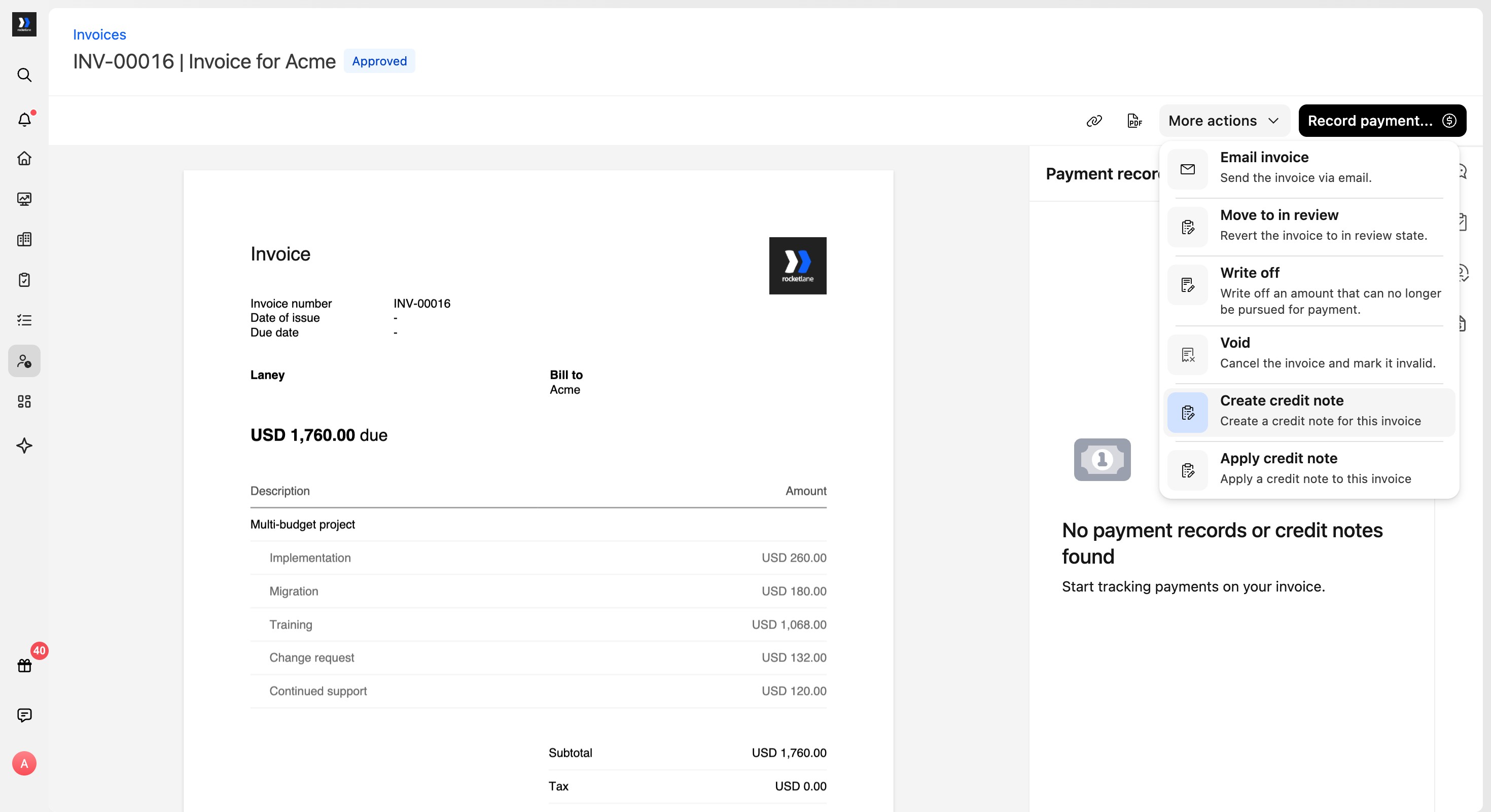
- Confirm the account and source invoice. Keep Apply credit to invoice when created selected when the credit should automatically reduce that invoice’s balance.
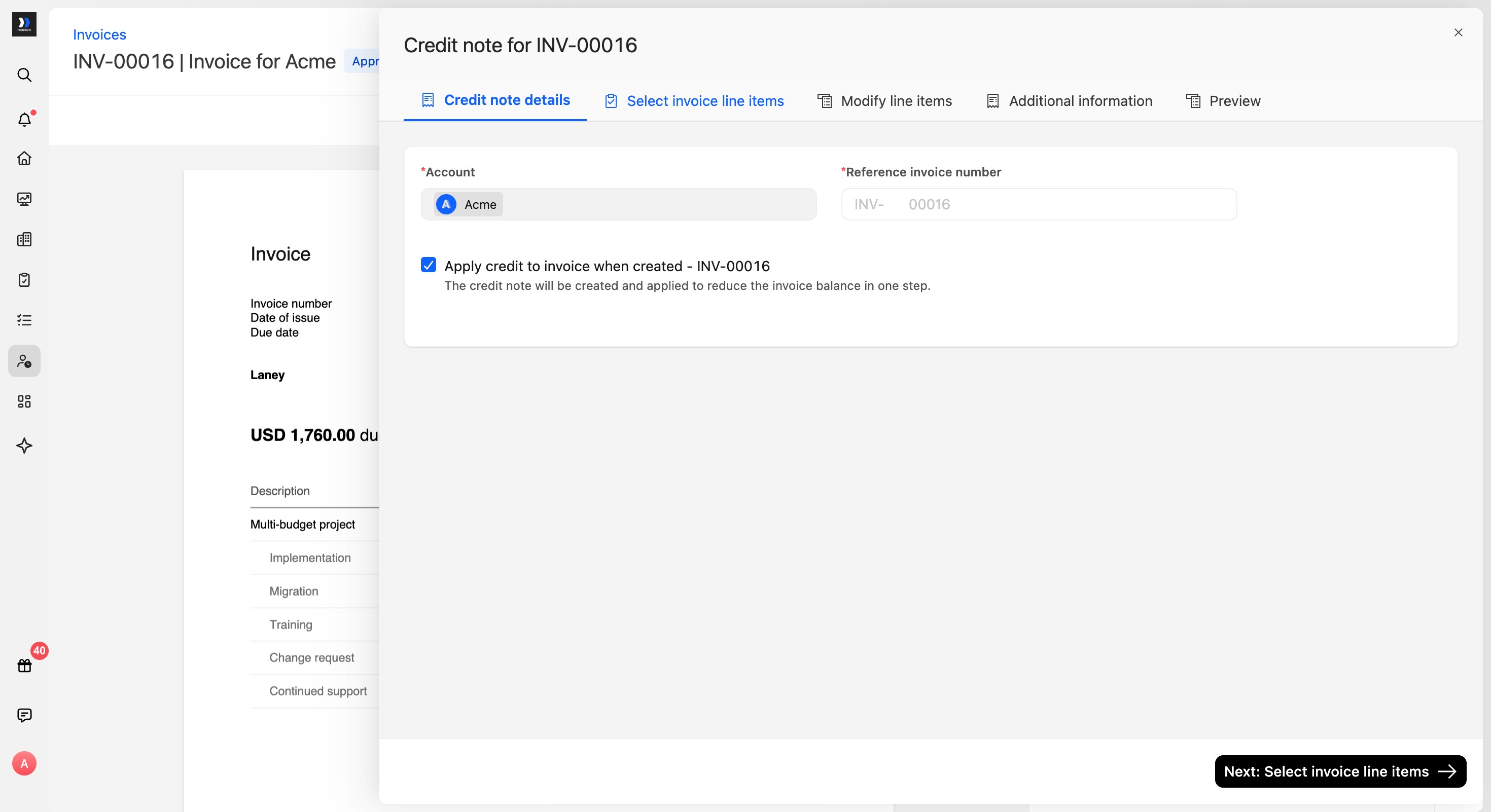
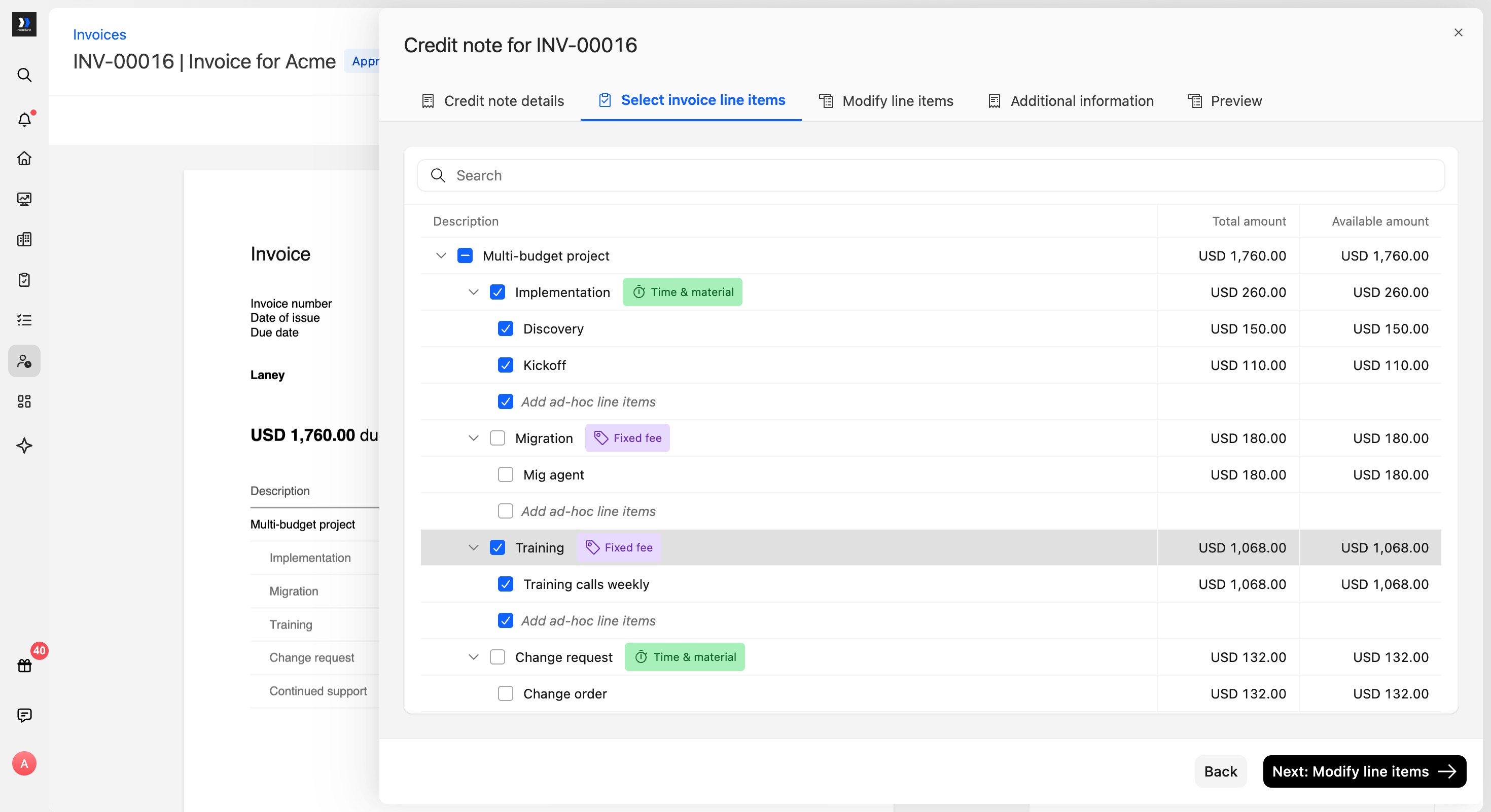
- Select the invoice line items to credit.
When multi-budget is enabled, line items are grouped by:- Project
- Budget
- Line item
- Select the parent multi-budget project to include its invoice line items by default. Deselect specific budgets or individual line items when you need to create a partial credit.
- Review and modify line items.
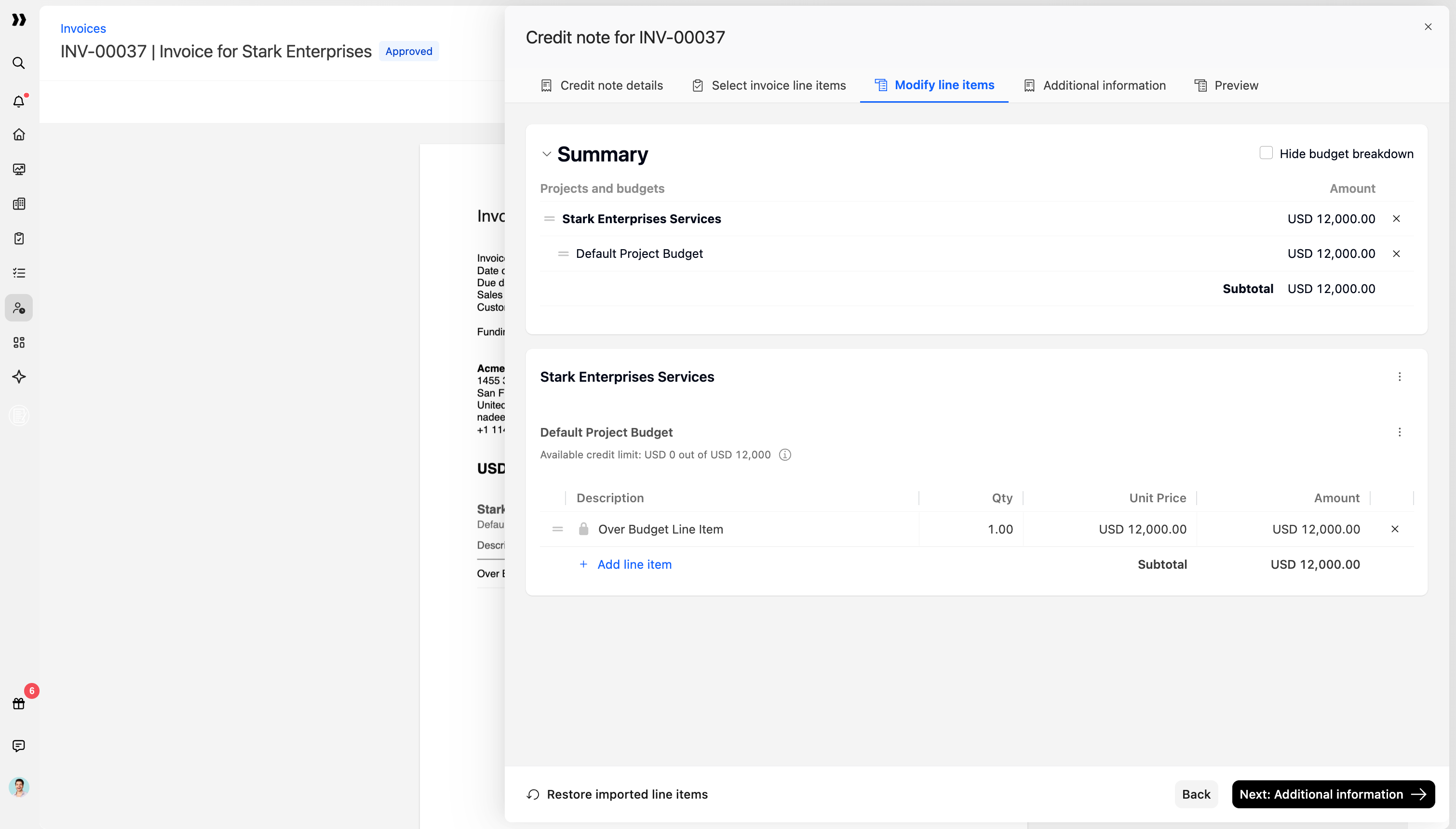
Each selected budget appears as its own section with its own available credit amount. - Use Add projects and budgets if you need to include another budget while creating the credit note.
- Add notes and attachments, if required.
- Preview the credit note.
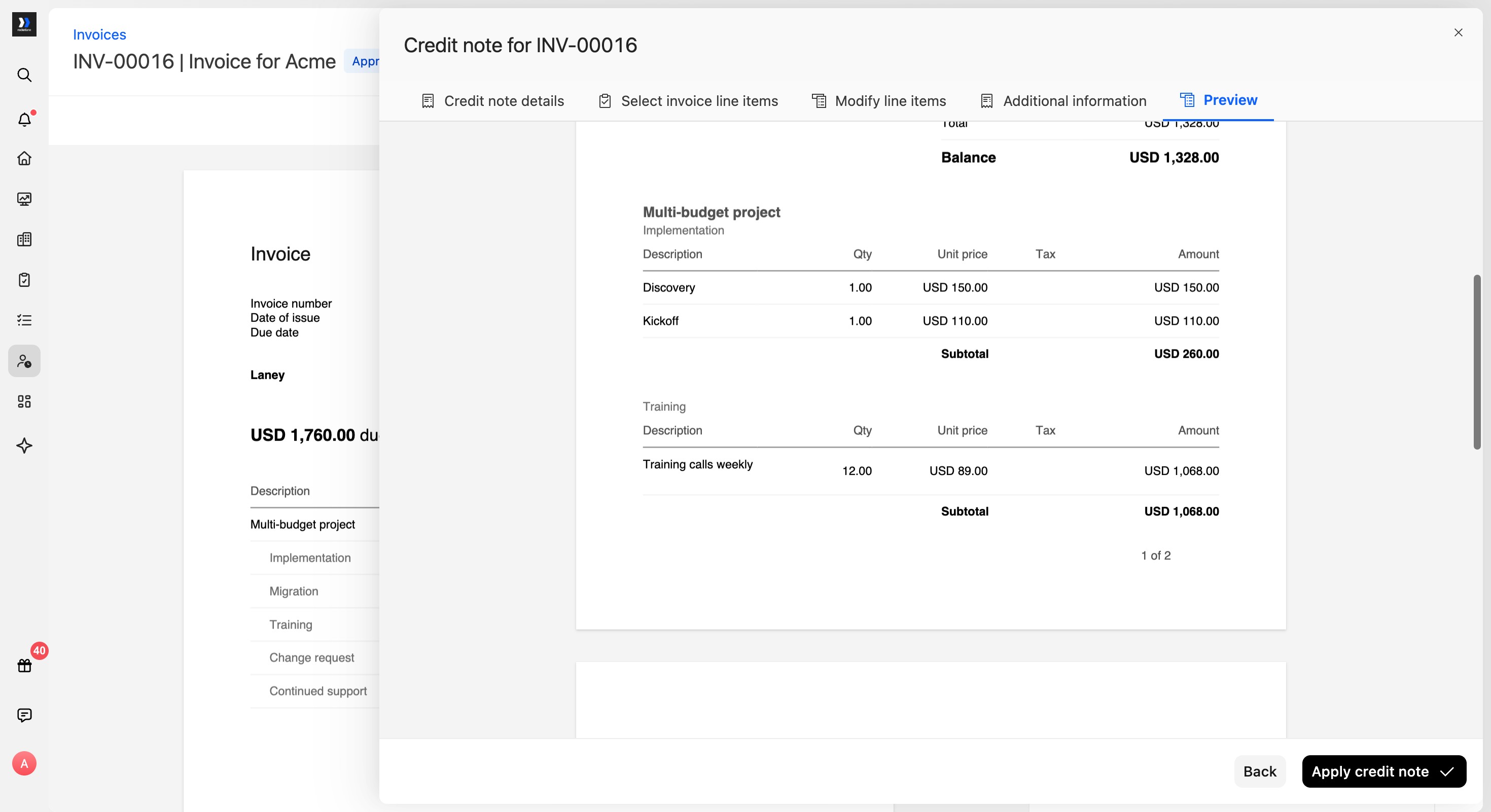
The preview shows the credit note broken down by project and budget.
- Click Apply credit note to finalize the credit note. When Apply credit to invoice when created is selected, Rocketlane also applies the credit to the source invoice.
Before the credit note is created, Rocketlane checks that the credited amount does not exceed the invoiced amount at the applicable project and budget levels.
For the full standard credit note creation flow, refer to this article.
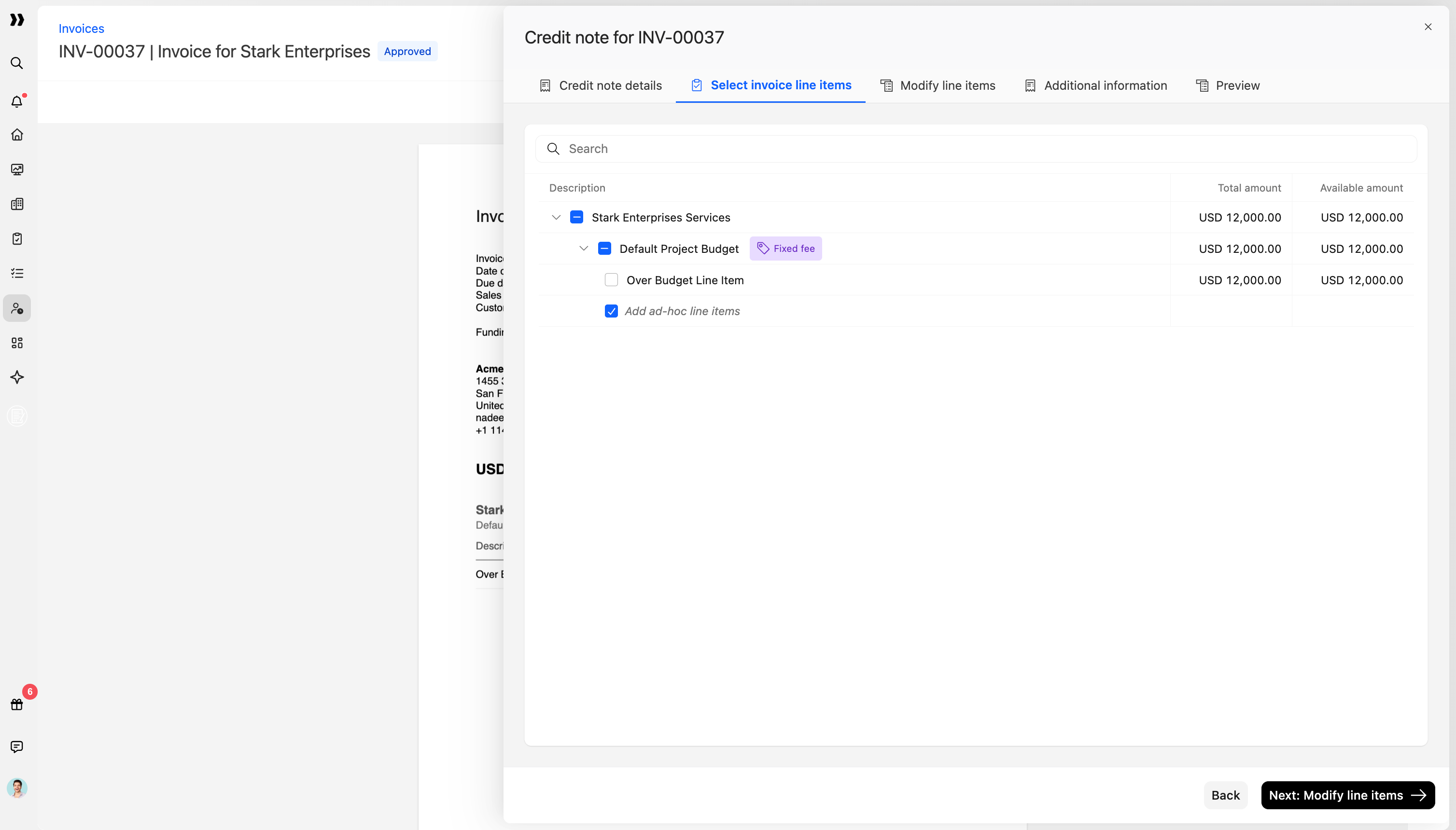
Select Invoice Line Items by Budget
In a multi-budget invoice, line items are grouped based on the budget they were billed against.
This makes it easier to credit only the relevant portion of the invoice.
For example, if the source invoice includes:
- Implementation budget line items
- Training budget line items
- Change Order budget line items
You can select only the Training budget line items if the correction applies only to Training.
Modify Line Items by Budget
After selecting invoice line items, each selected budget gets its own section in the credit note.
Each section shows its own Available credit limit, which indicates how much can still be credited for that budget. The Summary contains only the selected budgets, and each included budget retains its own line items and credit amount.
Use this step to:
- Review the selected budget-level line items.
- Adjust credit amounts.
- Remove line items that should not be credited.
- Add another project or budget.
- Add ad hoc line items, if required.
For standard line item import behavior, restore options, and line item validation rules, refer to this article.
Add More Projects and Budgets During Credit Note Creation
If you need to include another project or budget after you have already started modifying line items, use Add projects and budgets from the summary panel.
This lets you add more budget sections without restarting the credit note.
Use this when:
- The credit applies to more than one budget.
- The credit applies to more than one project.
- The credit note was started with only one budget, but another budget also needs to be credited.
- A multi-project invoice includes budget-level line items that need to be credited together.
Budget Breakdown on Credit Note Preview
The credit note preview shows how the credit is split across projects and budgets.
Use the preview to confirm:
- The correct project is included.
- The correct budget is included.
- The correct line items are selected.
- The credit amount is within the available credit amount.
- The document reflects the expected project and budget breakdown.
For the standard credit note preview actions, such as saving as draft or applying the credit note, refer to this article.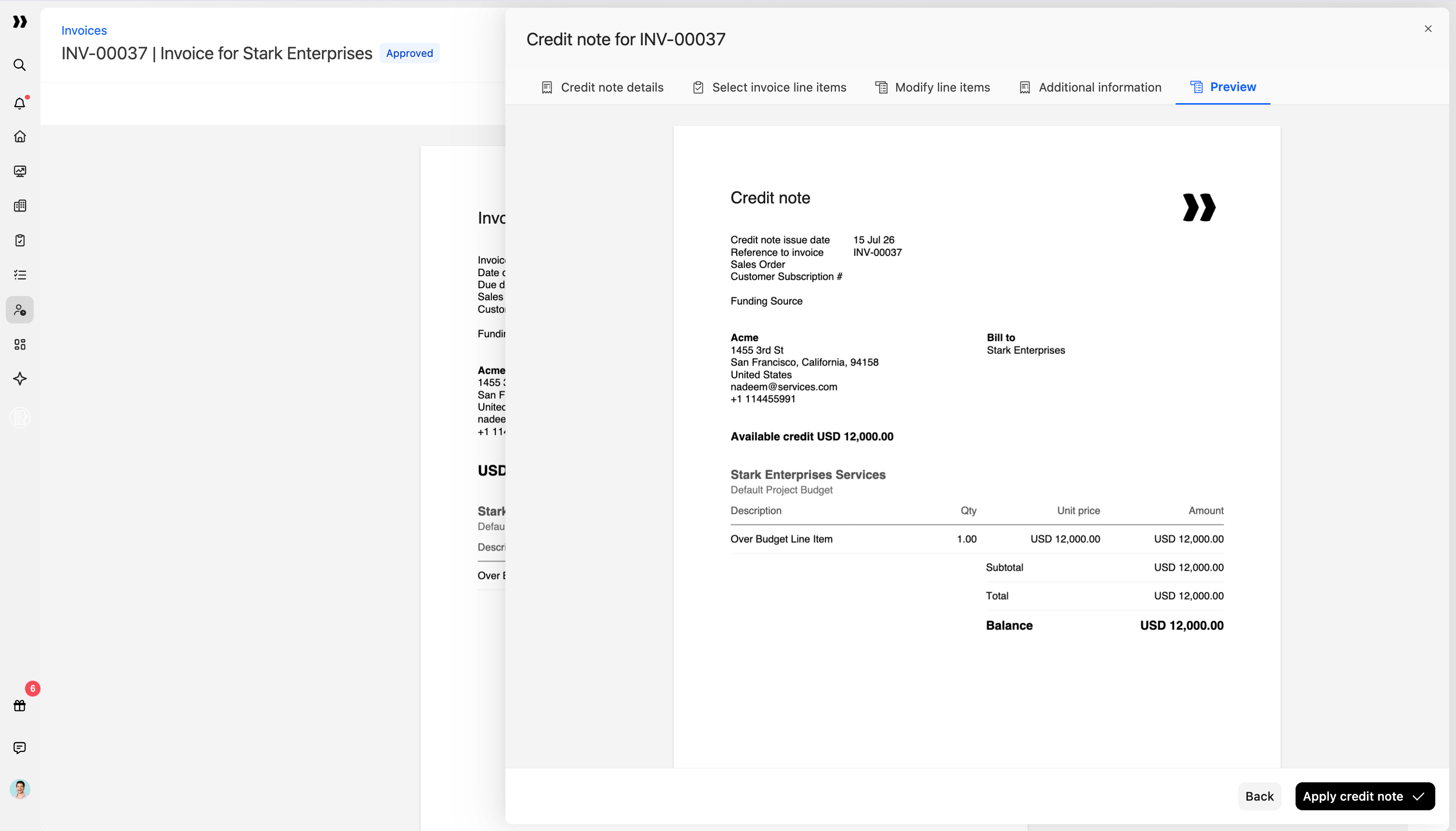
Impact on Financials
When a credit note is created for a multi-budget invoice, the financial impact follows the budget structure of the credited line items.
Budget-Level Reversal
Revenue and tax reversal happens against the specific budget associated with the credited invoice line item.
For example, if a line item was originally invoiced under the Training budget, the credit note reverses the amount against that same budget.
This keeps the credit note aligned with the budget that was originally billed.
Available Credit Is Reduced in Draft
Available credit is reduced as soon as the credit note exists in Draft.
It does not need to be approved, opened, or applied before the available credit amount changes.
This applies to both:
- Project-level available credit
- Budget-level available credit
Applying Credit Remains Invoice-Level
Applying a credit note to an invoice is still a single aggregate action.
The budget-level detail is captured in how the credit note is created, but the credit is applied to the invoice balance as one amount.
For example, a credit note can include line items from multiple budgets, but when the credit is applied, it reduces the invoice balance as a whole.
For standard credit application steps, including applying from the credit note or from the invoice, refer to this article.
Credit Note Statuses for Multi-Budget Credit Notes
Multi-budget does not add new credit note statuses.
A credit note has one status for the whole document, even if it includes line items from multiple projects or budgets.
For example, a credit note that includes three budgets does not have separate statuses for each budget. The credit note moves through the standard credit note lifecycle as a single document.
For credit note statuses such as Draft, In Review, Open, Closed, and Voided, refer to this article.
Credit Note Custom Fields in Multi-Budget Credit Notes
Multi-budget does not change how credit note custom fields work.
Credit notes use the invoice custom fields already configured in Rocketlane. You do not need to create a separate set of custom fields for multi-budget credit notes.
Credit notes also include native fields such as:
- Status
- Credit note number
- Amount
- Date of issue
For standard credit note custom field behavior and invoice custom field setup, refer to this article.
Permissions for Multi-Budget Credit Notes
Multi-budget does not add separate credit note permissions.
Credit note access is still governed by project-level permissions. Budget membership does not control whether a user can create, edit, void, delete, or apply a credit note.
This means:
- A user’s project access controls credit note actions.
- Being a member of a specific budget does not grant credit note access.
- Not being a member of a specific budget does not automatically restrict credit note access.
- Multi-budget availability is controlled by the account-level multi-budget entitlement, not by RBAC permissions.
For standard credit note permissions and invoice permission dependencies, refer to this article.
Imported Line Items vs. Ad Hoc Lines in Multi-Budget Credit Notes
A credit note line item can be created in two ways:
- Imported from the source invoice
- Added manually as an ad hoc line
This standard behavior remains the same for multi-budget credit notes. The difference is that each line item must be tied to the correct project and budget where applicable.
Use Imported Line Items
Use imported line items when you are reversing a specific item that was billed.
Examples:
- A customer disputed a specific budget-level charge.
- A particular expense should not have been invoiced.
- A time entry was billed incorrectly.
- A fixed fee was included under the wrong budget.
- A subscription period needs to be reversed.
Imported line items carry details from the original invoice, such as the description and tax code. They also keep the credit tied to the original billed item and budget.
This is the recommended option for most credit notes because it keeps the audit trail clear.
For standard imported line item behavior, tax code handling, restore behavior, and line-item limits, refer to this article.
Use Ad Hoc Lines
Use an ad hoc line when the correction does not map to one specific billed item.
Examples:
- A lump-sum reversal for an entire invoice.
- A reversal for an entire budget’s worth of billing.
- A negotiated goodwill credit.
- A general adjustment that is not tied to a single original line item.
When multi-budget is enabled, ad hoc lines must still be associated with the relevant project and budget.
Ad hoc lines are still capped at the project and budget level. However, they are not tied to a specific original invoice line item, so review the amount carefully before saving or submitting the credit note.
For general guidance on ad hoc line items and tax code behavior, refer to this article.