In this article
- Enabling multi-budget
- Project financial fields become read-only
- Salesforce, HubSpot, APIs, and Workato changes
- Project creation changes
- Project settings changes
- Task and phase budget mapping
- Effort tracking at the budget level
- Budget membership
- Resource management changes
- Time tracking changes
- Expense changes
- Project plan changes
- Project financials changes
- Invoicing changes
- Billing schedule changes
- Budget automations
- RBAC changes
- Custom reports changes
- API and integration considerations
- Key one-to-one and one-to-many rules
Multi-budget lets teams manage multiple budgets inside a single project. Instead of forcing all time, expenses, billing, revenue, allocations, and financial tracking into one project-level budget, Rocketlane lets each project contain one or more budgets that can represent different workstreams, billing models, change orders, phases, templates, or service lines.
Once multi-budget is enabled, budget becomes a key financial and operational dimension across Rocketlane. Project financials are aggregated from budgets, time and expenses are tracked against budgets, resource allocations can be planned at the budget level, invoices can be created for selected budgets, billing schedules can be configured per budget, and reports can use budgets as a source.
Enabling multi-budget
Multi-budget is enabled from account settings.
To enable multi-budget:
- Go to Settings.
- Open the financial management settings for your account.
- Enable Multi-budget.
- Configure budget fields as required.
Once multi-budget is enabled, Rocketlane treats budgets as a core project-level entity. This affects project creation, project financials, time tracking, expenses, resource management, invoicing, billing schedules, reports, automations, APIs, and integrations.
Project financial fields become read-only
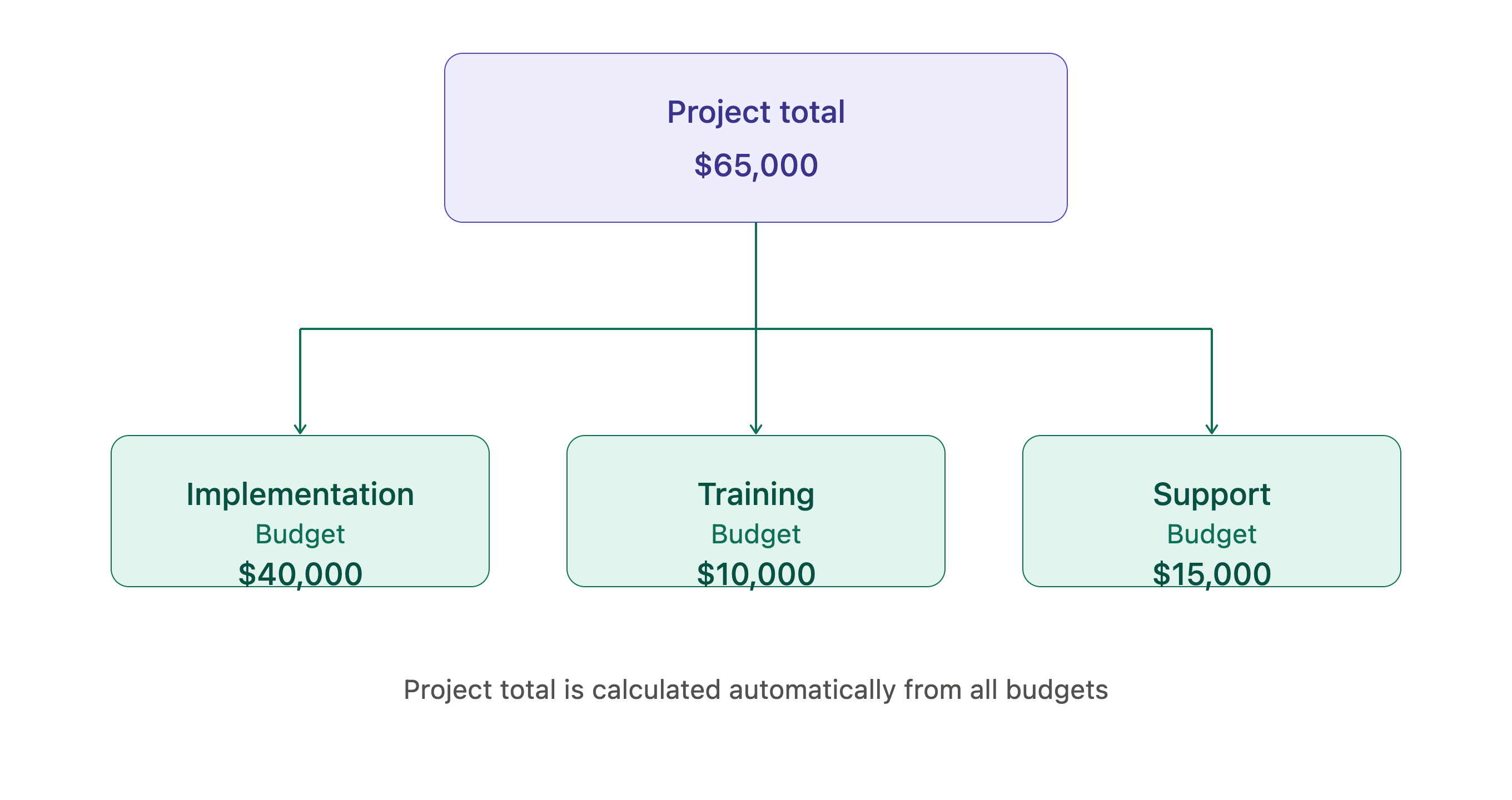
When multi-budget is enabled, project financial fields are calculated from the budgets inside the project. Fields such as project budget amount are no longer updated directly at the project level. Instead, Rocketlane aggregates budget-level values and shows the summed value on the project.
For example, if a project has three budgets:
What this means:
- Project financial fields become read-only.
- Budget-level values become the source of truth.
- Project-level financials are aggregated from all budgets.
- Updates should be made to the relevant budget, not directly to the project financial field.
Impact on automations and integrations
Any workflow that updates project financial fields directly may stop working after multi-budget is enabled because those fields become read-only.
Review any setup that updates project financial fields through:
- Rocketlane automations
- Salesforce sync
- HubSpot sync
- Workato
- APIs
- Other integration tools
Salesforce, HubSpot, APIs, and Workato changes
When multi-budget is enabled, external systems should no longer update aggregated project financial values directly.
Syncing project financials out of Rocketlane
You can continue syncing project financial values from Rocketlane to Salesforce or HubSpot. For example, Rocketlane can send the aggregated project budget amount, revenue, or financial metrics to Salesforce or HubSpot for reporting.
Syncing project financials into Rocketlane
If Salesforce, HubSpot, Workato, APIs, or another tool currently updates project financial fields in Rocketlane, that setup must be reviewed. Since project financial fields become read-only, those integrations should be changed to update budget-level values instead, where supported.
Direction of sync
For project-level financial fields, the safe sync direction after multi-budget is:
Rocketlane → External system
Project creation changes
Project creation continues to work as usual, but additional budget setup appears during the project creation flow. When creating a project, Rocketlane allows budgets to be created as part of the setup. These budgets define how work, financials, billing, time, expenses, and allocations are tracked inside the project.
Create multiple budgets during project creation
- Go to Projects → New Project.
- Add the basic project information.
- Select or import the required project templates.
- Create one or more budgets for the project.
- Map budgets to the relevant templates, if applicable.
- Complete project creation.
Mapping templates to budgets
If the project is created using one or more templates, budgets can be mapped to the templates during project creation. For example:
This ensures that work created from each template consumes from the right budget. A budget can be associated with one or more templates, depending on how the project is structured.
Default budget
Every project has a default budget. The default budget is used when Rocketlane needs to prefill a budget and no more specific budget has been selected.
The default budget is especially useful in places such as:
- Time tracking
- Expenses
- Tasks without a specific budget mapping
- Expense creation where no task or expense budget is selected
Budgets can be created after project creation
Budgets are not limited to the project creation flow. After a project is created, additional budgets can be added later if the project scope changes.
Use this when:
- A change order is approved
- A new workstream is added
- A new phase requires separate financial tracking
- Additional services are added to the project
- The project needs a separate budget for a new billing schedule
Project settings changes
When multi-budget is enabled, project settings include budget-related configuration and behavior.
Budget alerts
Budget alerts continue to exist in project settings. When multi-budget is enabled, budget alerts should be understood at the budget level - alerts can help track budget consumption for individual budgets rather than only the project overall. Use budget alerts to monitor when a budget approaches or crosses defined consumption thresholds.
Project-level rate cards
Projects can still have rate cards configured at the project level. When multi-budget is enabled, project-level rate card behavior continues to support financial calculations, but budget-level tracking determines where time, expenses, and financial consumption are attributed.
Task and phase budget mapping
When multi-budget is enabled, tasks and phases can be associated with budgets. This determines which budget the work consumes from and helps Rocketlane prefill the budget during time tracking, expenses, and planning.
Task budgets and phase budgets
You can configure which budget a task or phase consumes from. For example:
Multiple budgets on tasks or phases
Tasks and phases can be associated with multiple budgets in cases where work needs to be split or tracked across more than one budget. However, when a user logs time or creates an expense, the actual time entry or expense is associated with one budget.
Effort tracking at the budget level
When task or phase budgets are configured, effort can be broken down at the budget level. The task still owns the effort, but the effort can be distributed across budgets.
For example, a task may have 20 hours of effort split across two budgets:
If effort is split equally, Rocketlane can distribute the effort across selected budgets. If a custom split is used, effort must be set at each budget level.
Budget membership
Budget membership controls who can consume from a budget. A user can be part of one or more budgets inside a project. Budget membership affects assignment, resource planning, allocations, and, when configured, time tracking.
Assigning tasks with budget membership
To assign a task to a team member, the team member should be part of at least one of the budgets associated with the task. If a task is mapped to a budget and the assignee is not a member of that budget, Rocketlane warns that the user does not have access to the budget.
Budget membership and project teams
Budget membership does not replace project membership. A user may be part of the project team and also belong to one or more budgets inside that project. Budget membership adds a financial and operational layer on top of project membership.
Resource management changes
When multi-budget is enabled, resource allocations can be planned at the budget level. This helps teams understand capacity, planned effort, and staffing by budget instead of only at the overall project level.
Allocations require budget selection
For most allocation types, a budget must be selected. This allows Rocketlane to attribute planned work to the right budget. For example:
In Resource Management, allocations can be planned from the People view or the Projects view. In the People view, expand a team member and the relevant project, use Add budget under the project row to select an existing budget, and allocate hours on that budget's scheduler timeline row. In the Projects view, expand the project and budget, add team members, and allocate hours against the selected budget.
Budget selection in resource requests
For replacement allocation flows, budget selection is handled based on the user or placeholder being replaced. If one user replaces another, the new user inherits the relevant budget associations from the replaced user's allocations. If a placeholder already belongs to specific budgets, the replacement user is added to those budgets as part of the replacement flow.
Replacement behavior
For replacement allocation flows, budget selection is handled based on the user or placeholder being replaced. If one user replaces another, the new user inherits the relevant budget associations from the replaced user's allocations. If a placeholder already belongs to specific budgets, the replacement user is added to those budgets as part of the replacement flow.
Time tracking changes
When multi-budget is enabled, budget selection becomes mandatory for time entries. Each time entry is associated with one budget, ensuring that actual time consumed is tracked against the correct budget.
Budget prefill from task
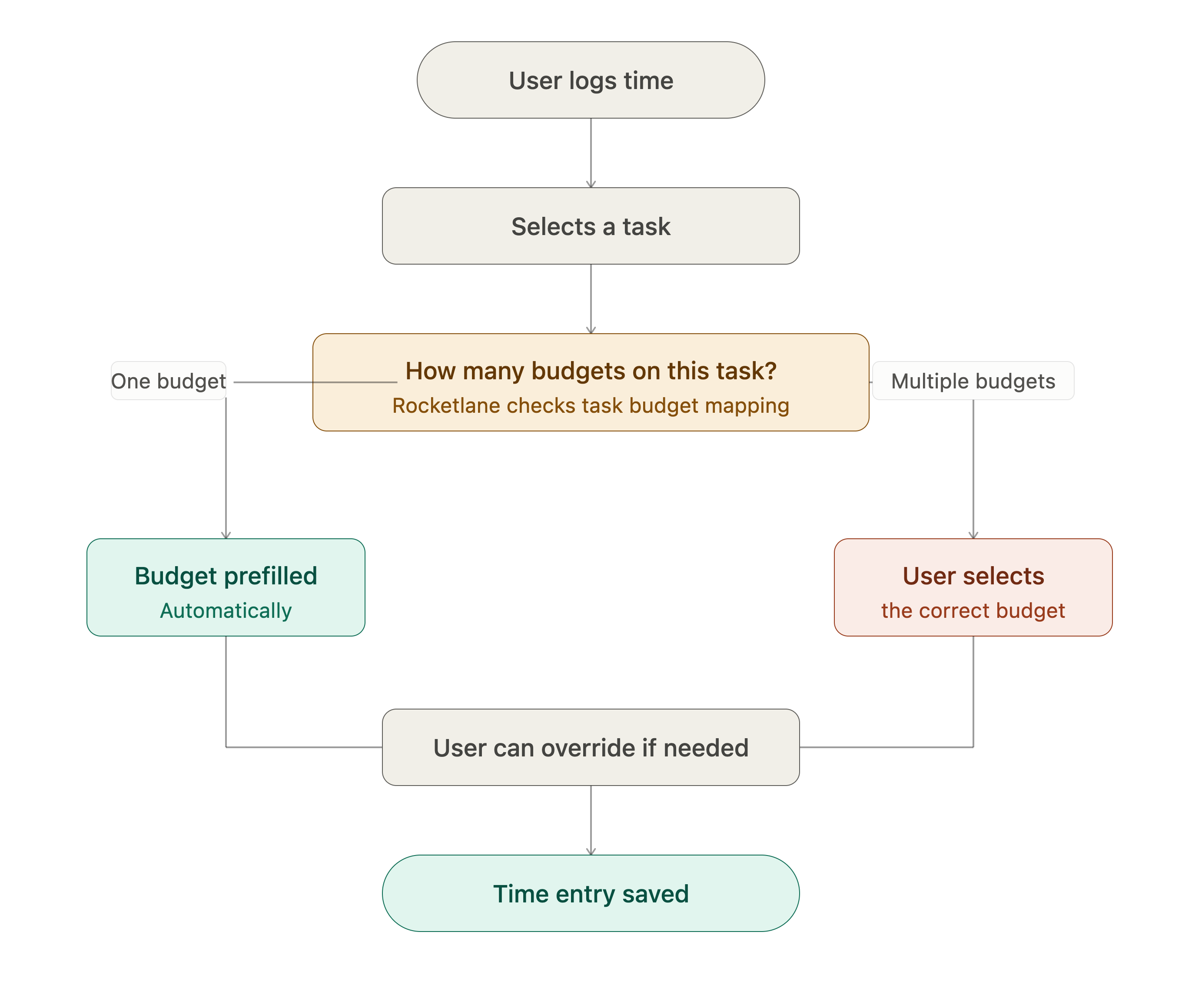
When a user selects a task while logging time:
- If the task is associated with only one budget, Rocketlane prefills that budget.
- If the task is associated with multiple budgets, the user selects the correct budget.
- The user can change the prefilled budget if required.
Budget membership setting for time tracking
Rocketlane includes a time tracking setting that controls whether users can track time only against budgets they are part of.
When this setting is enabled:
- Users can track time only against budgets where they are budget members.
- Budgets they are not part of are not available for time tracking.
When this setting is disabled:
- Users can track time against any budget in the project, even if they are not a budget member. This supports use cases where someone contributes a small amount of work to a budget without needing to be formally added as a budget member.
Time entries are single-budget
A time entry can belong to only one budget. If work needs to be split across multiple budgets, create separate time entries for each budget.
Expense changes
When multi-budget is enabled, expenses are tracked against project budgets. Each expense is associated with one budget.
Expense budget behavior
When creating an expense budget, select the project budget that the expense budget should consume from. When an expense is created against that expense budget, Rocketlane automatically uses the mapped project budget. For example:
Expense creation behavior
When creating an expense:
- If an expense budget is selected, Rocketlane uses the project budget mapped to that expense budget.
- If a task is selected, Rocketlane can prefill the budget based on the task's budget.
- If neither a task nor expense budget is selected, Rocketlane prefills the project's default budget.
Expenses are single-budget
An expense can belong to only one budget. If a cost needs to be split across budgets, create separate expense entries.
Project plan changes
When multi-budget is enabled, the project plan includes budget-based filtering. This helps teams view only the work associated with a specific budget.
For example, if a project has four budgets, selecting one budget in the budget filter shows only the tasks associated with that budget. Tasks not in the selected budget are hidden.
Budget filtering applies to:
- List view
- Gantt view
Project financials changes
When multi-budget is enabled, Rocketlane provides an overall project financial dashboard and budget-specific financial dashboards.
Overall financial dashboard
The overall project dashboard shows aggregated financials across all budgets. For example:
Budget-specific dashboard
You can switch from the overall project view to individual budget views. A budget-specific dashboard shows financials for one budget only.
Use this to answer questions such as:
- How much of the implementation budget has been consumed?
- Which budget has the highest margin risk?
- Which budget is over budget?
- Which budget still has unconsumed capacity?
Invoicing changes
When multi-budget is enabled, invoices can be created for selected budgets. This works similarly to selecting multiple projects on an invoice, except the selection happens at the budget level within a project.
Choose budgets while creating an invoice
- Select the project.
- Choose one or more budgets to invoice.
- Add invoice line items based on the selected budgets.
- Review time entries, expenses, or fixed-fee line items.
- Create the invoice.
An invoice can include multiple budgets. For example:
Invoice line items and budgets
Invoice line items are associated with the selected budgets. Time entries and expenses included in an invoice come from the budget they were tracked against. A time entry or expense can belong to only one budget, but an invoice can include line items from multiple budgets.
Credit notes and budgets
Credit notes created from multi-budget invoices preserve the source invoice's budget grouping. You can credit selected budgets or individual line items, and Rocketlane applies the resulting credit total to the invoice balance.
See Invoices for Multi-Budget Projects in Rocketlane for invoice steps and Credit Notes for Multi-Budget Projects in Rocketlane for credit-note steps.
Billing schedule changes
Billing schedules are configured at the budget level when multi-budget is enabled. This allows each budget to have its own billing plan. For example:
Use budget-level billing schedules when different parts of the project need different invoicing timing, triggers, or payment structures.
Budget automations
Multi-budget introduces budget-related automation triggers and conditions. Automations can be built around budget events and budget consumption.
Budget triggers
Budget automation triggers can include:
- Budget created
- Budget updated
- Budget deleted
Budget-based conditions
Automations can use budget conditions such as budget consumption percentage. For example: when budget consumption is greater than 100%, create a follow-up action.
Use budget automations to:
- Notify project owners when a budget crosses a threshold
- Create follow-up tasks when a budget is over-consumed
- Trigger approval workflows for additional budget
- Alert finance or delivery leaders about budget risk
RBAC changes
Multi-budget introduces budget-related permissions. Budget access and actions are governed by role-based access control. Depending on a user's role and permissions, they may be able to view, create, edit, or delete budgets, manage budget membership, configure budget fields, and use budget-level financial information.
Review RBAC settings before enabling multi-budget to ensure the right teams can manage budgets. Suggested access model:
Custom reports changes
When multi-budget is enabled, budgets become available as a reporting dimension or source. Reports can be created to analyze budgeted amount by budget, actuals by budget, budget consumption, margin, time tracked, expenses, status, owner, and project totals grouped by budget.
Example reports:
API and integration considerations
Because budgets become the source of truth for financial values, API and integration workflows should be reviewed before enabling multi-budget.
Review any integration that:
- Creates projects
- Updates project financial fields
- Syncs budget amount or revenue data
- Creates invoices
- Creates or updates time entries
- Creates or updates expenses
- Uses financial fields in downstream reporting
- Syncs data to Salesforce, HubSpot, Workato, or other tools
Project creation through integrations
If projects are created through Salesforce, HubSpot, API, or Workato, ensure budget information is passed correctly. When a project is created through these systems, the budget information should create or populate the default budget.
Financial field sync
Project financial values should generally be treated as output values from Rocketlane after multi-budget is enabled. Budget-level fields should be used for input and updates.
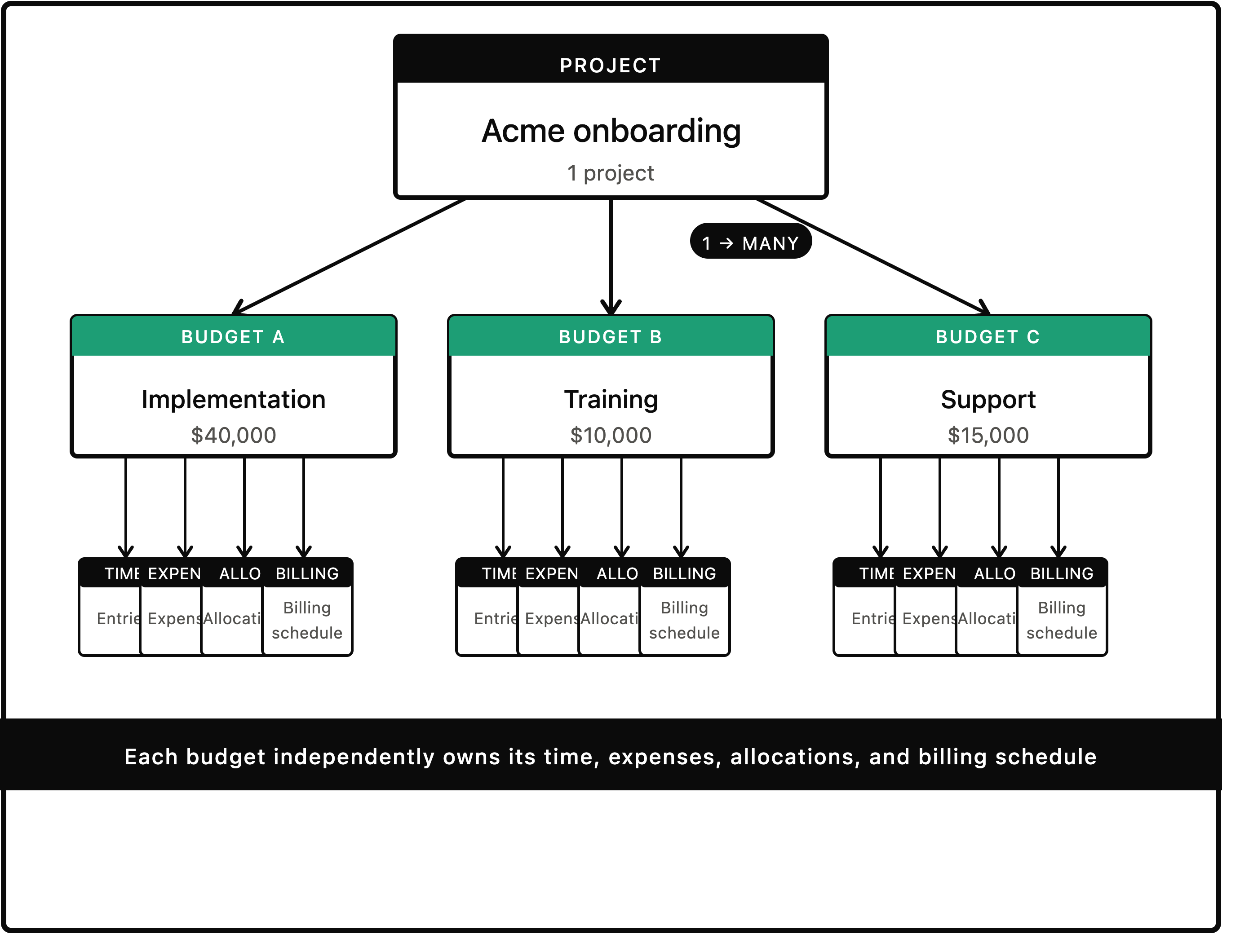
Key one-to-one and one-to-many rules
Multi-budget introduces important relationship rules across the system.
Quick recap
When multi-budget is enabled:
- Project financial fields become read-only and are aggregated from budgets.
- Project creation includes budget setup and template-to-budget mapping.
- Each project has a default budget.
- Tasks and phases can be associated with budgets.
- Effort can be tracked at the budget level.
- Budget membership controls who can consume from each budget.
- Resource allocations are planned at the budget level.
- Time entries and expenses are associated with one budget.
- Project plan views can be filtered by budget.
- Financial dashboards support overall and budget-specific views.
- Invoices can include selected budgets.
- Credit notes can target selected line items from one or more budgets while applying the credit to the invoice balance as one amount.
- Billing schedules are configured at the budget level.
- Budgets become available in automations, RBAC, custom reports, APIs, and integrations.