In this article
When a single project encompasses various work streams, billing models, or service lines, tracking everything under one financial umbrella can get complicated. By enabling multiple budgets within a project, you gain granular control over time tracking, expenses, and team allocations.
Enabling multi-budgets
To enable the multi-budgets feature for your entire account:
- Click on your Profile icon in the navigation sidebar and select Settings.
- From the left-hand menu, scroll down and click Financial management.
- Check the box labeled Enable multiple project budgets.
Creating budget fields
Each budget can have its own individual fields. To create a new budget field:
- Navigate to Settings and scroll down to the Fields section.
- Select Budget Fields.
- Click Add new budget field or Add a new section.
- Configure the field by assigning a Name and a Type. You can also add a description and mark the field as private if needed.
Creating multi-budgets in a new project
- Go to the Projects tab and click New Project.
- Under the Financials tab, select the Multi Budget option.
- Click New Budget to create the first budget.
- Enter the Budget name, Status, Billing method, Start date, and End date.
- Configure the billing method fields based on your selection:
- Fill in the budget fields in the next window and click Save.
- Repeat steps 3 to 6 to add more budgets to the project.
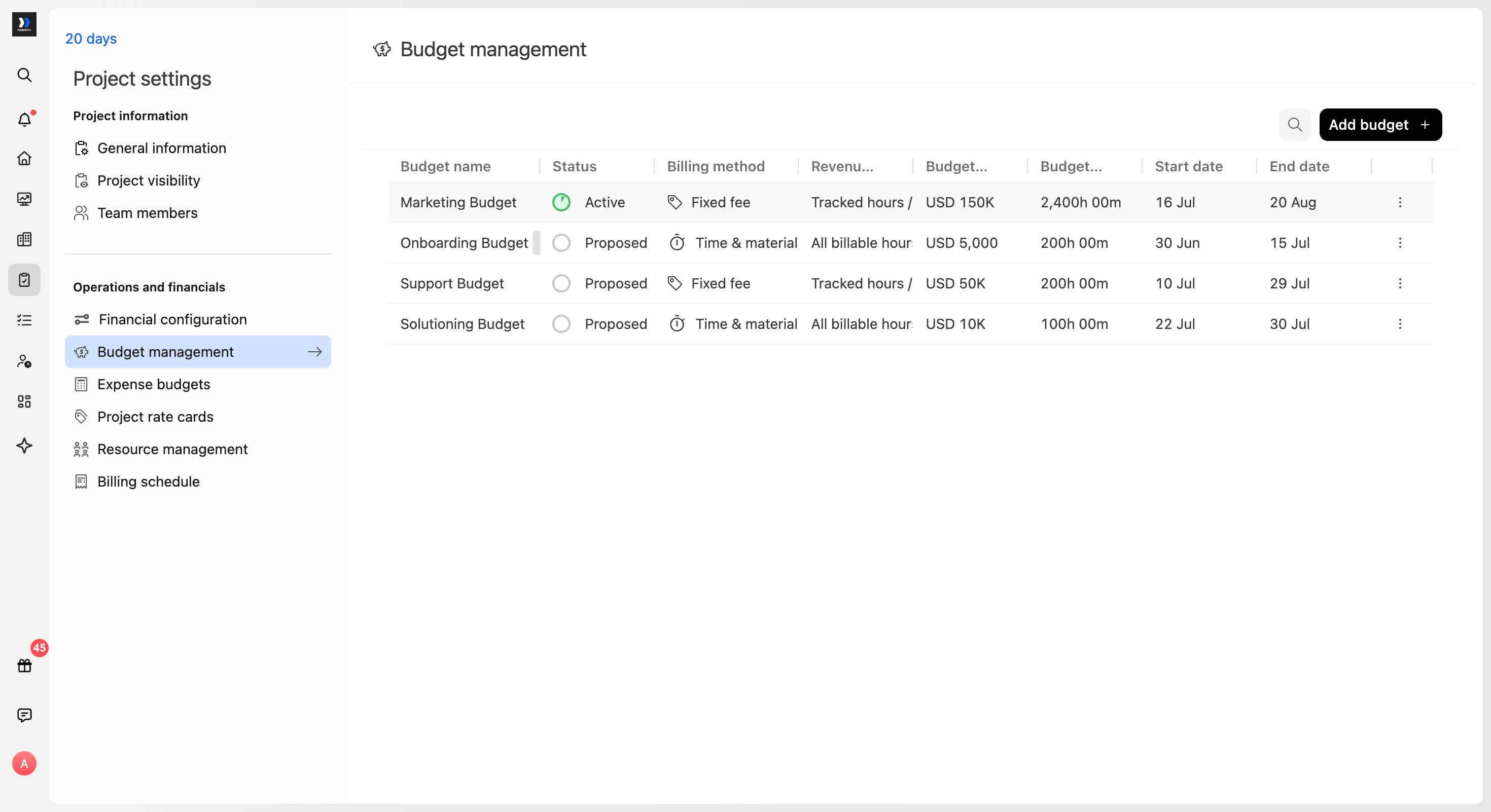
Creating multi-budgets in an existing project
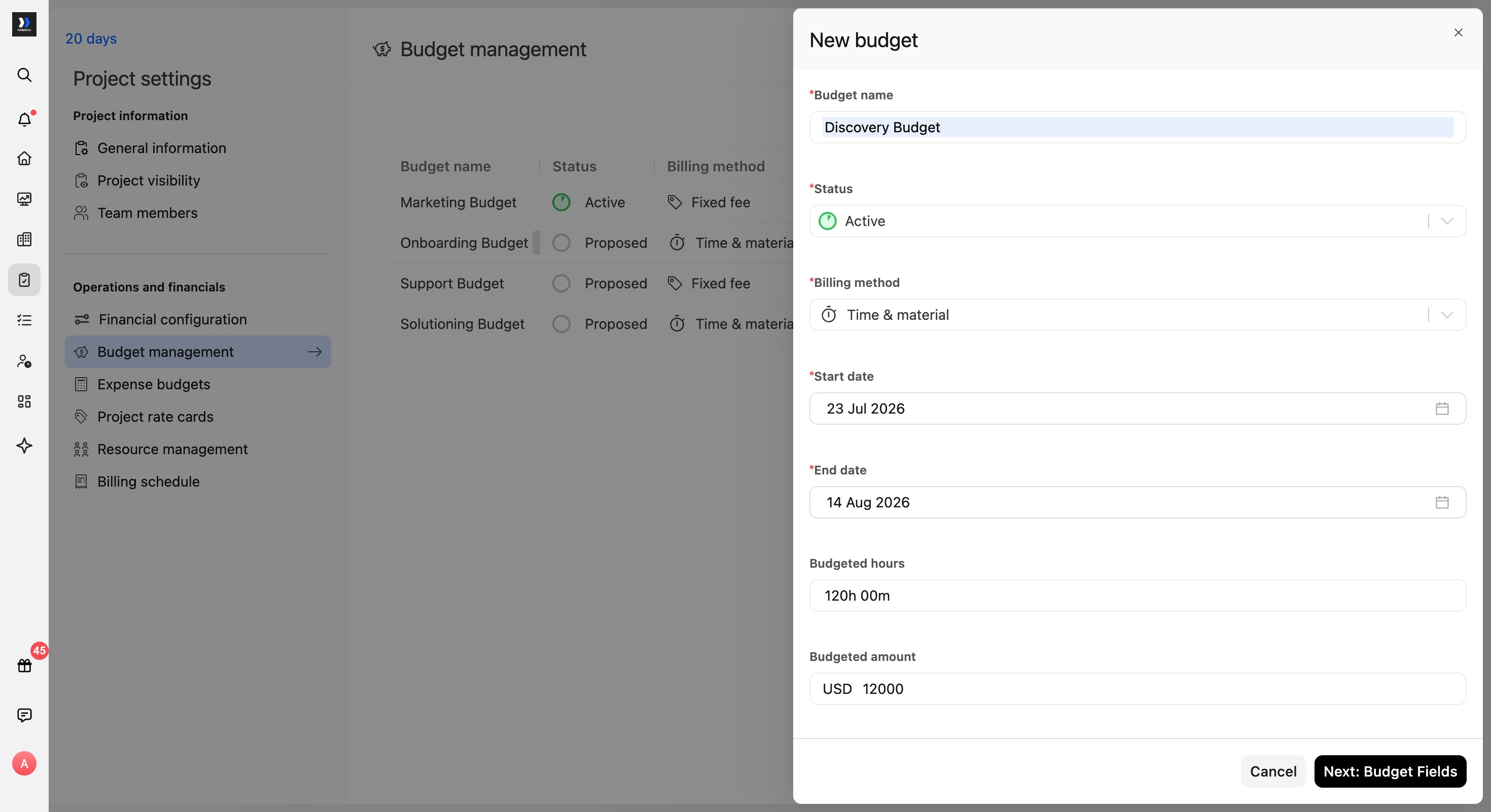
In the budget drawer, configure the following details:
- Budget name
- Status
- Billing method
- Start date and End date
- Budgeted hours
- Budgeted amount
- The applicable Rate card
Click Next: Budget Fields, complete any budget-specific fields, and click Save. The budget appears in the budget list after it is created.
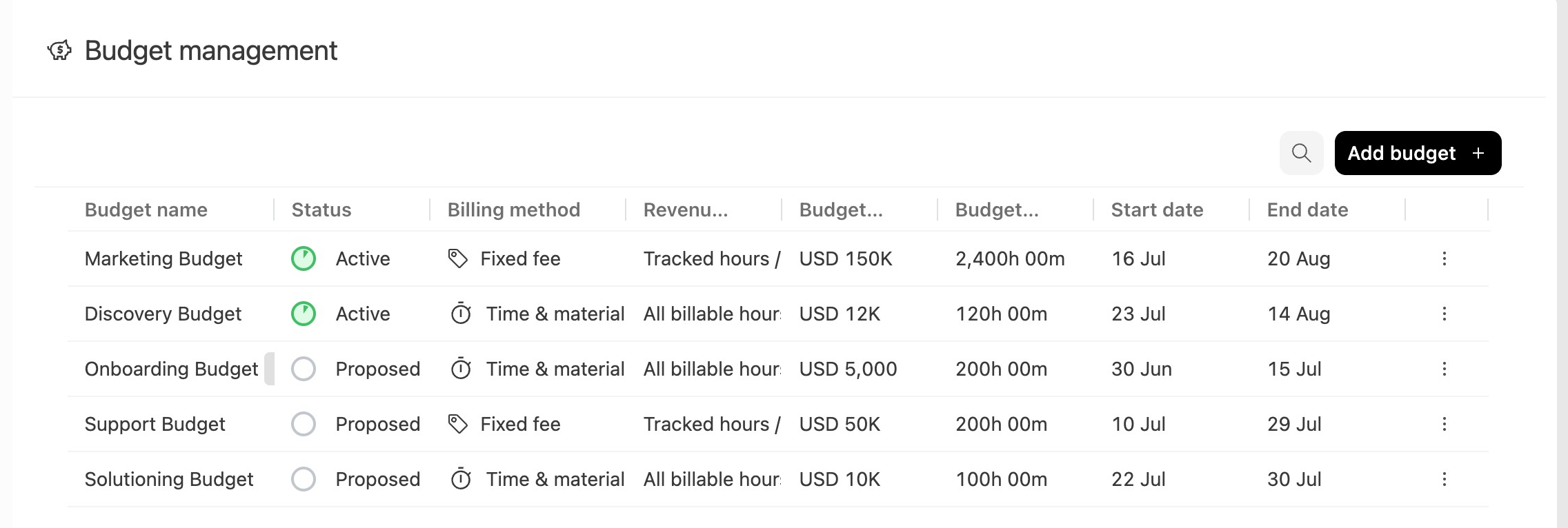
Once a budget is created, manage it using the More actions (three-dot) menu next to the budget name:
- Set as default: Make a specific budget the primary reference for project financials.
- Check audit logs: View a detailed history of changes and updates made to that budget.
Managing budgets in projects
Once budgets are added to a project, you can review and manage them from the project’s Budgets tab or open an individual budget from Project Settings > Budget Management to configure its details.
Managing budgets from the Budgets tab
When a project contains several budgets, opening each one individually makes it difficult to compare financial details or update common fields. The Budgets tab provides a filterable list of every budget in the project and allows supported fields to be edited inline.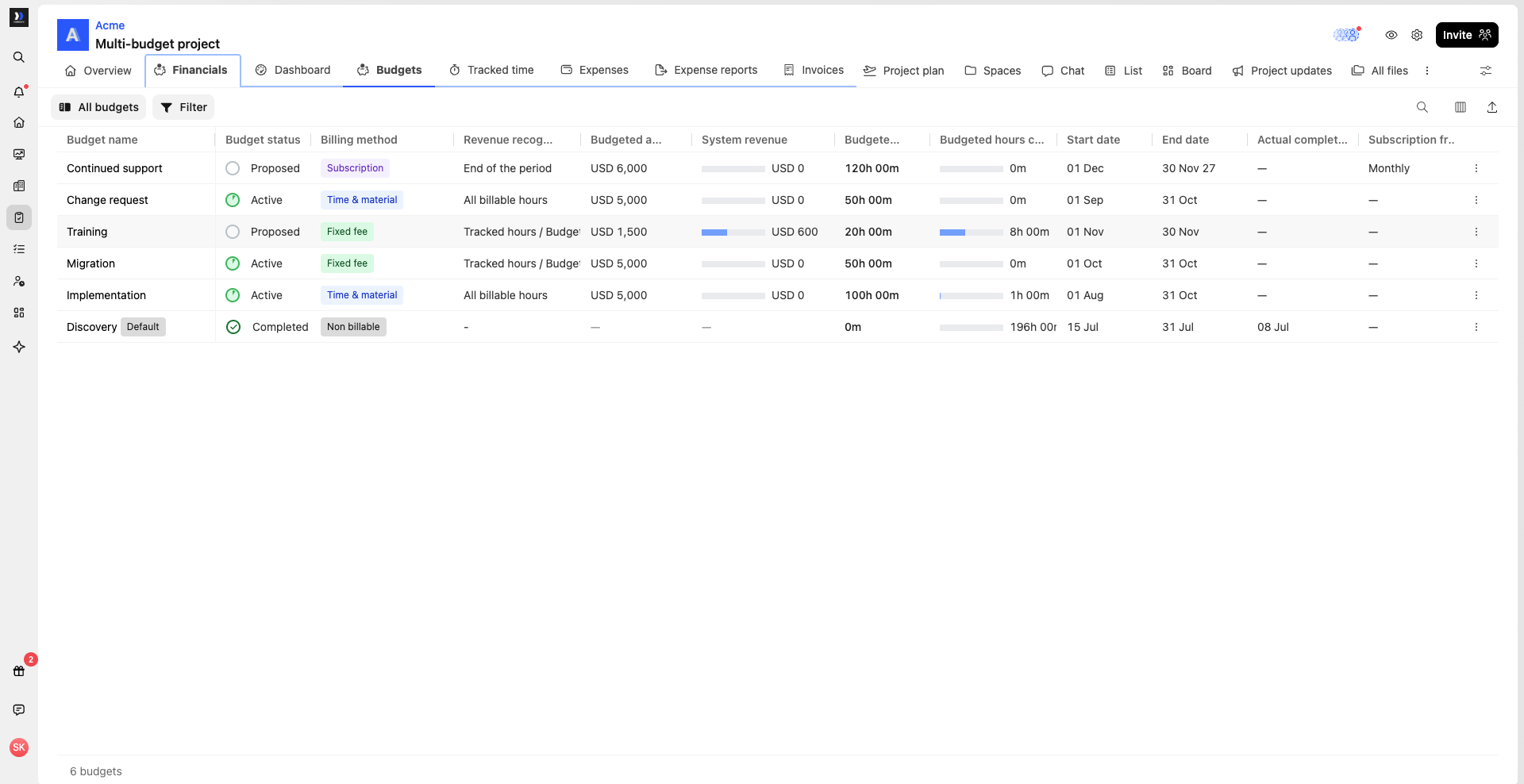
Where to find it
- Open the project.
- Go to Financials.
- Select the Budgets tab alongside Dashboard, Tracked time, Expenses, and Invoices. Budget amount and revenue columns appear in the list and its exports only when you have permission to view that financial data.
What you can do from the list
- Review every budget in the project. Available columns include budget name, status, billing method, revenue recognition method, budgeted amount, revenue, budgeted hours, consumed hours, start and end dates, and custom budget fields.
- Filter the list. For example, display only active budgets or budgets that use the Fixed Fee billing method.
- Edit supported fields inline. Select a custom-field or status cell to update it without opening the budget’s settings.
- Configure the columns. Show, hide, and reorder columns based on the information you need.
- Save a view. Save the active columns and filters so you can return to the same configuration later.
- Export the list. Export the currently displayed columns and filtered results to a CSV file.
Budget details and custom fields
Review and update native fields such as name, dates, billing method, status, revenue recognition method, amount, and hours, as well as any custom fields and sections configured at the account level.
Custom fields can be used to store information such as:
- Linked sales order or opportunity identifier
- Region or business unit
- Any other financial or operational metadata needed at the budget level
You can also link a Salesforce object from this section.
For Salesforce Budget field-mapping instructions, see How to Sync Integrations with Multi-Budgets.
Adding team members to budgets
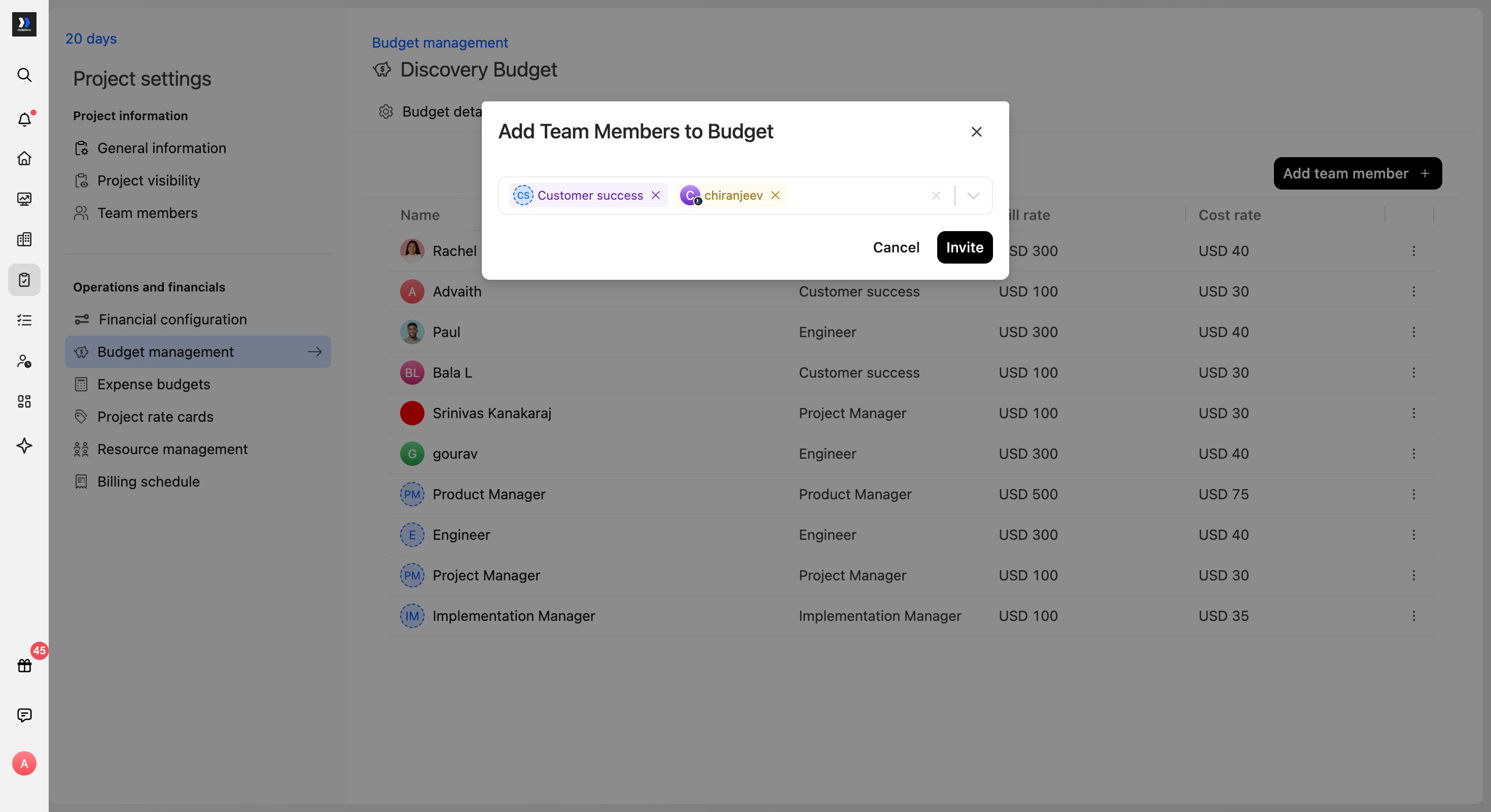
To add members to a specific budget:
- From Budget management, open the required budget.
- Select the Team members tab and click Add team member.
- Select one or more users or placeholders.
- Click Invite.
Effects of budget membership:
- Only team members in a budget can be allocated to that budget.
- Only those members can track time and record expenses against that budget when restrictions are enabled.
- Removing a member from a budget does not remove them from the project. Removal from the project only happens through project-level actions.
Linking revenue entries to budgets
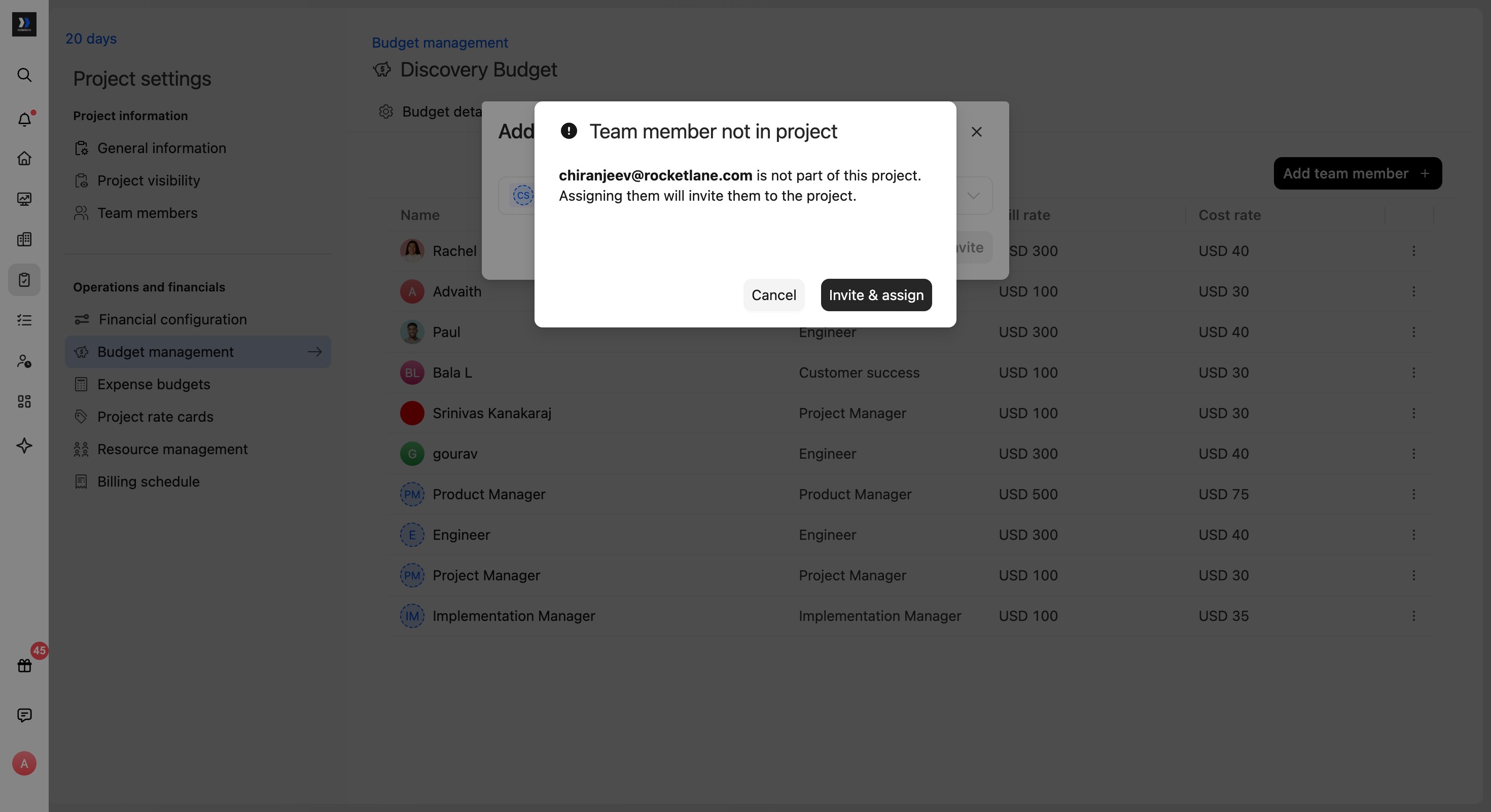
To recognise revenue against a budget:
- Open the budget and select the Revenue entries tab.
- Click Recognise revenue.
- Confirm the Project, select the Budget and Posting period, enter the Amount, and add optional Notes.
- Click Recognise revenue to save the entry.
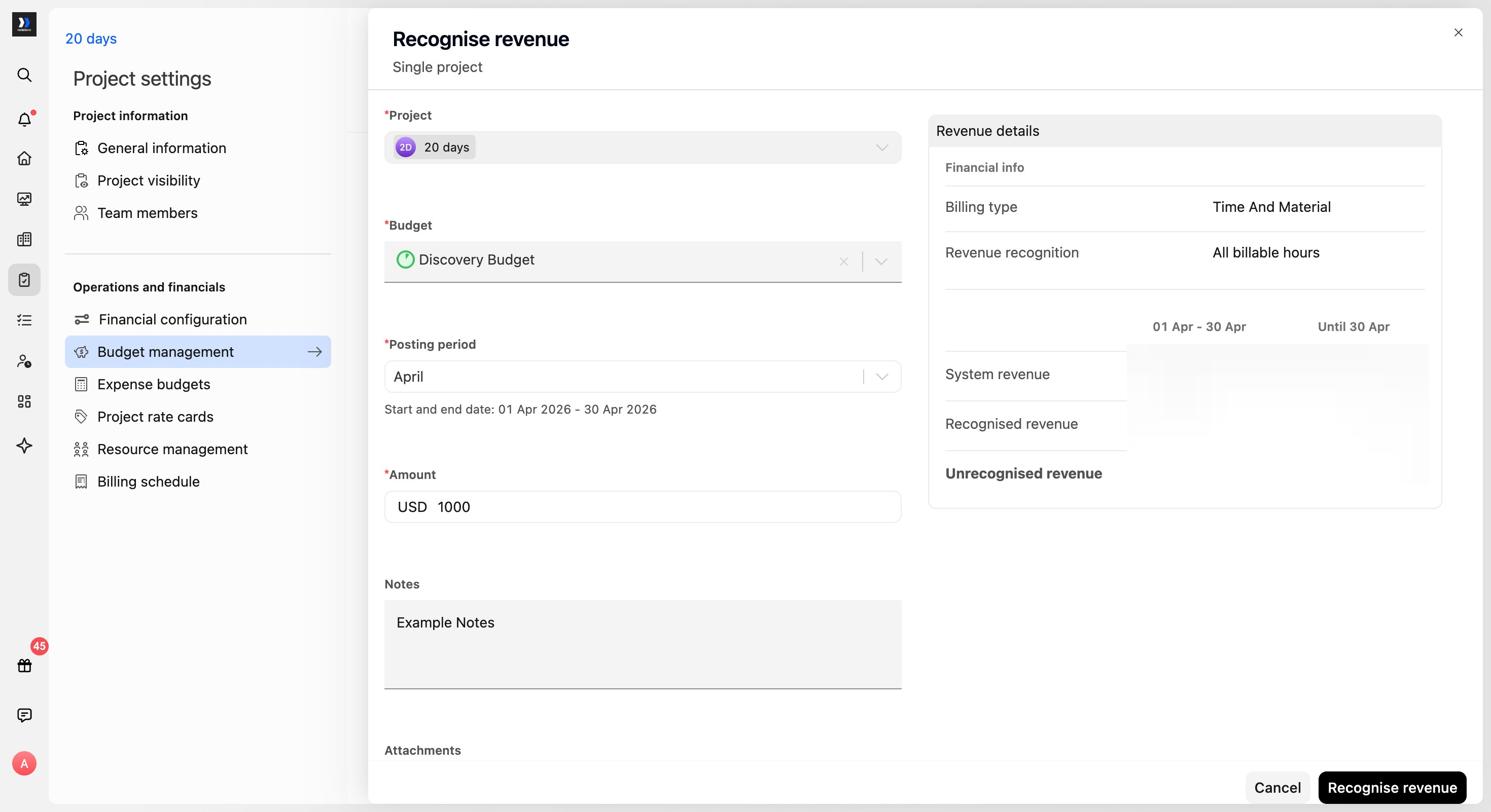
The saved entry appears in the Revenue entries table for the selected budget.
Linking tasks and phases to budgets
When your project uses more than one budget, you may need to distribute specific tasks or phases across different financial lines. For example, a "Requirements Gathering" task could be tracked under a Discovery budget, while a "User Training" phase draws from a separate Enablement budget.
To associate a budget with a task or phase:
- Open the Project Plan.
- Select the specific phase or task you want to edit.
- If editing a task: Navigate to Additional info in the task window, scroll to Financial settings, and select the budget or budgets the task should consume from.
- If editing a phase: Click Edit project phase and select the appropriate budgets.
- Save your changes.
With budgets linked to tasks and phases:
- Time tracked against that task or phase uses the selected budgets.
- Expenses linked to that task or phase use the same budgets.
- Auto allocation for that task consumes from the chosen budgets.
- Budget filters in the project plan can be used to focus on items linked to specific budgets.