Credit notes help reverse all or part of an already issued invoice without editing the invoice itself. Since invoices are often treated as legal and tax artifacts (and may be immutable under e-invoicing regimes), credit notes provide a compliant, auditable way to correct billing after an invoice has been sent.
In Rocketlane, a credit note is always created from a specific source invoice. It is not a generic account-level discount instrument. Credit notes preserve an audit trail down to the line-item level (including time entries and expenses) and support flexible application of credits without disrupting cash management.
When to Use
Use credit notes when an invoice has already been issued and the billed amount needs to be reduced or reversed, for example:
- A customer contests charges after an invoice has been sent
- A billing error is discovered post-issuance
- A goodwill concession is offered after invoice issuance
- Negotiations reduce the amount due after the invoice has been sent
- A correction is required across a financial period boundary (for example, an invoice issued on a fiscal year-end date)
Do not use credit notes for discounts or promotional incentives that should be applied before issuing an invoice.
Note on Compliance: From an accounting perspective, a credit note is a formal legal document required to maintain the integrity of your general ledger. In many jurisdictions, particularly under EU VAT, UK HMRC, and various e-invoicing regimes; it is legally prohibited to delete or edit a finalized invoice. In these regions, regulations mandate the use of credit notes to ensure that every reduction in billed revenue and tax liability is recorded as a separate, auditable transaction.
Credit Notes vs Discounts, Refunds, and Coupons
Credit notes differ from other billing instruments primarily by timing and scope.
- Discounts: Applied while creating an invoice, before it is issued.
- Credit notes: Used after an invoice is issued. They reverse amounts that were already billed and sent.
- Coupons or promo credits: Account-level incentives that are not tied to a specific invoice. These can apply to future invoices broadly and do not originate from a single invoice.
- Unlike a Credit Note, which reverses the original revenue and tax liability, a Write-off acknowledges that the service was delivered but the payment is uncollectible, recording it as a bad debt or loss rather than a financial reversal
A credit note must originate from a specific invoice and is not a free-floating coupon-like balance.
What Is a Credit Note
A credit note in Rocketlane functions as a negative line item invoice. It is a specialized billing document that functions as the direct inverse of a standard invoice. By mapping directly to a specific source invoice, it automates the reversal of earned revenue or services rendered by generating negative entries for the corresponding line items.
A credit note can:
- Reduce the amount due on the original invoice, or
- Create an available credit that can be applied to other invoices for the same customer account
Why Credit Notes Matter for Compliance
Invoices often carry legal and tax implications. Many regions enforce or are moving toward e-invoicing models where invoices are raised through centralized portals or APIs. In these contexts, issued invoices are typically immutable, and edits can break compliance or distort tax calculations, especially across financial periods.
Example:
- An invoice raised on March 31 (financial year-end in India) cannot be corrected by editing after books close.
- Under HMRC (UK) or EUVAT rules, once a VAT invoice is issued, you cannot simply "delete" it if the client disputes a line item.
- A credit note must be issued to reverse the effect of the original invoice.
Rocketlane uses credit notes as the sanctioned mechanism to modify issued billing outcomes while preserving auditability.
Credit Note Types
There are two conceptual models of how a credit note is typically applied
- Adjustment credit note: Directly reverses the source invoice, for example “reverse invoice #5.”
- Refundable credit note: Used when the customer has already paid and the business prefers to carry forward the credit to future invoices for the same account. There is no timeline limit for when the credit can be applied.
If a customer relationship ends and no future invoices exist, any remaining credit can be settled externally. In Rocketlane, a credit note remains Open as long as it is not fully applied, as the system only processes payments against invoices.
Setting Up Credit Notes
Before credit notes can be raised, enable and configure the feature in Settings.
Navigate to Settings → Operations and Financials → Credit Notes to access the Credit notes essentials page.
Note: To enable Credit Notes, both the Financials and Invoices modules must be active.
Enabling the feature
Toggle the switch at the top of the page. Once enabled, credit notes can be raised against invoices (subject to permissions).
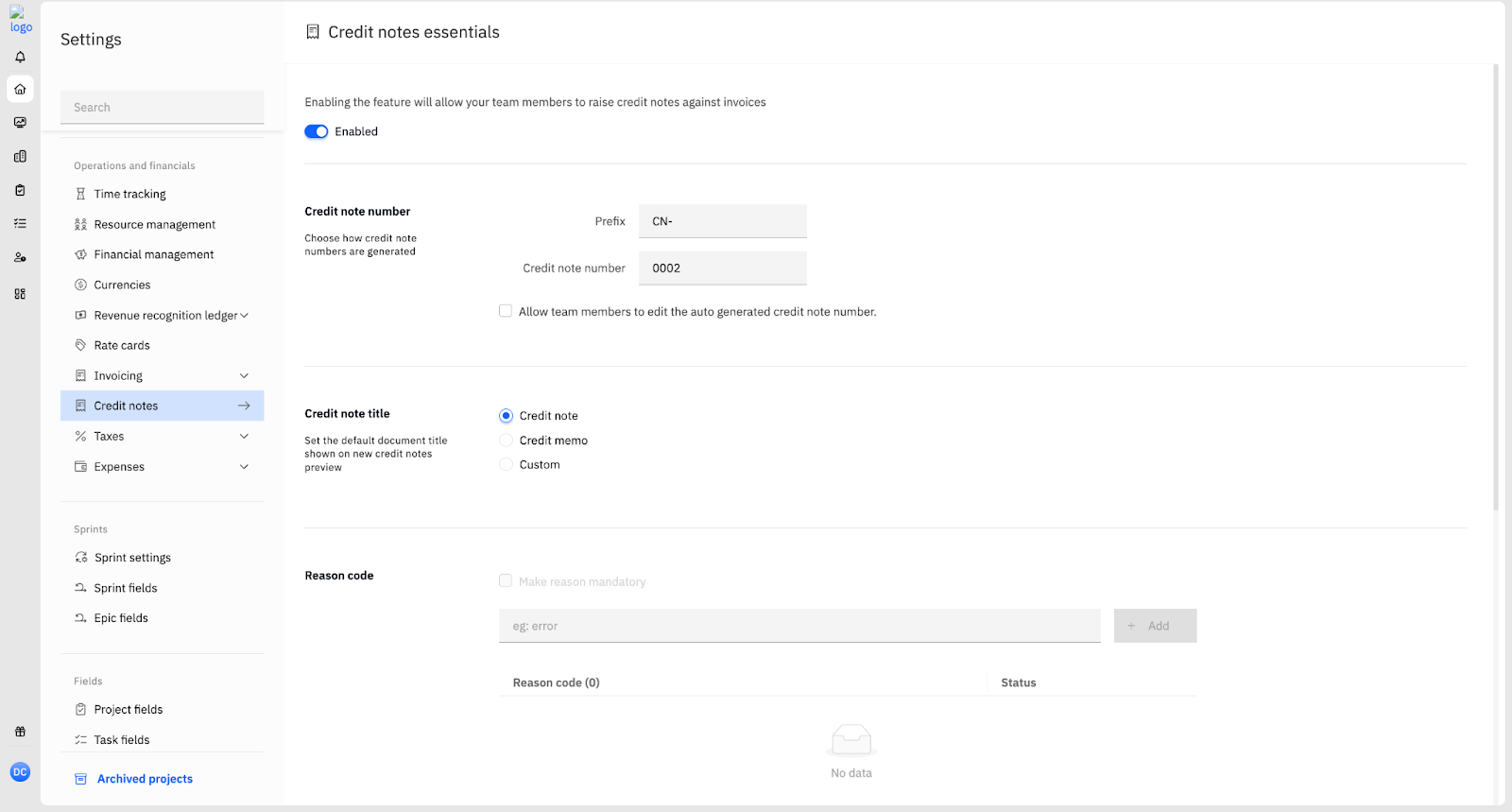
Credit note number
Configure how credit note numbers are generated:
- Prefix: Set a prefix for all credit note numbers (for example, CN-).
- Credit note number: Set the starting sequence number.
- Optionally enable Allow team members to edit the auto-generated credit note number if manual overrides are required.
Credit note title
Choose the default document title shown on the credit note PDF:
- Credit note (default)
- Credit memo
- Custom: Define a custom title
Reason code
Reason codes can be added to standardize reasons captured when creating credit notes.
- Enter a code and click + Add to add it to the list.
- Optionally enable Make reason mandatory to require a reason on every credit note.
How Credit Notes Work in Rocketlane
Credit notes involve two distinct steps:
- Create the credit note from an invoice
- Apply the available credit to invoices
A credit note can be created and applied only to an approved or partially paid invoice, and its value can only be applied to invoices belonging to the same customer.
Credit Note Workflow
Step 1: Create a credit note from an invoice
By design, a credit note exists specifically to reverse or adjust an existing invoice; therefore, it is always linked to a source invoice. This ensures that every reversal is mapped to specific line items, maintaining a clear and automated audit trail for your professional services revenue.
During creation:
- Select the account and the source invoice
- Enter a credit note number and a reason
- Choose whether to apply the credit note when it becomes available
Credit notes reflect the multi-project structure of the source invoice. If the invoice spans multiple projects, the credit note displays project-level groupings.
Step 2: Apply the credit
After creation, a credit note produces an available credit amount.
Apply credit:
- Back to the original invoice, or
- To any other invoice for the same customer account
Credit application is performed at the amount level, not line-item level.
Creating a Credit Note
Prerequisites
- A source invoice must already exist and be issued (approved, partially paid, or fully paid).
- Access must be available to the source invoice (invoice permissions apply).
- Credit note actions depend on credit note permissions and invoice permissions (see RBAC section).
Navigating to credit notes
The credit notes list is accessible from the main Invoices section.
- Open Invoices.
- Select the Credit notes tab alongside the Invoices tab.
The list displays columns for credit note status, credit note number, reference invoice number, amount, account, project, and created date.
Create a new credit note using either method:
- From the list: Click New credit note (top-right).
- From an invoice: Open the invoice, click More actions, select Create credit note.
The New Credit Note flow
Creating a credit note follows a four-step wizard:
Credit details → Modify line items → Additional information → Preview
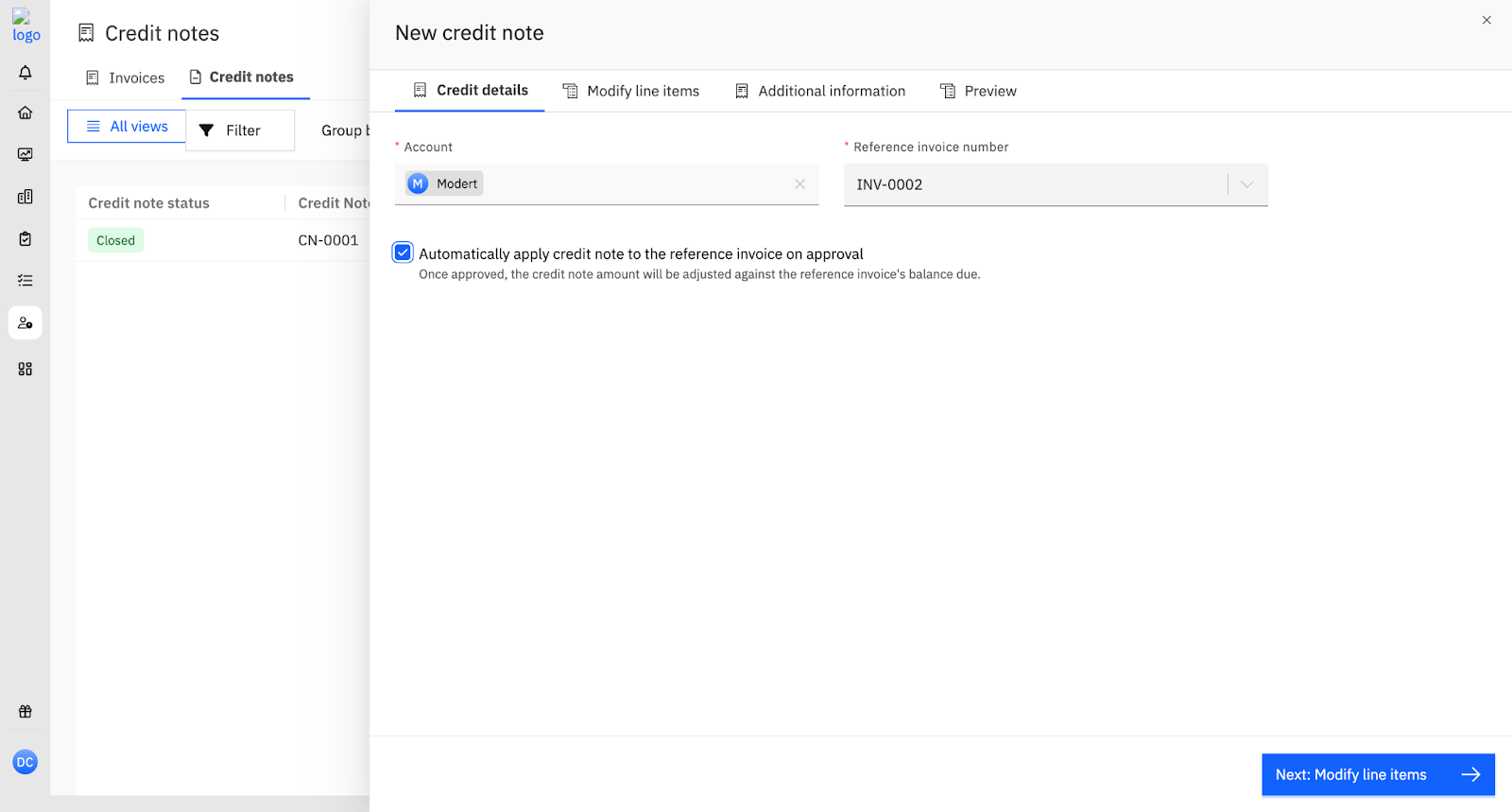
Step 1: Credit details
- In Account, select the customer account.
- In Reference invoice number, select the source invoice.
- Optionally enable Automatically apply credit note to the reference invoice on approval.
- When enabled, once the credit note is approved and becomes open, the credit note amount is automatically adjusted against the reference invoice’s balance due. For example, if a credit note of USD 100 is created against an invoice with a balance due of USD 480, applying this credit note will automatically reduce the balance due to USD 380 upon approval, without requiring a separate manual application step.
- Click Next: Modify line items.
Step 2: Modify line items
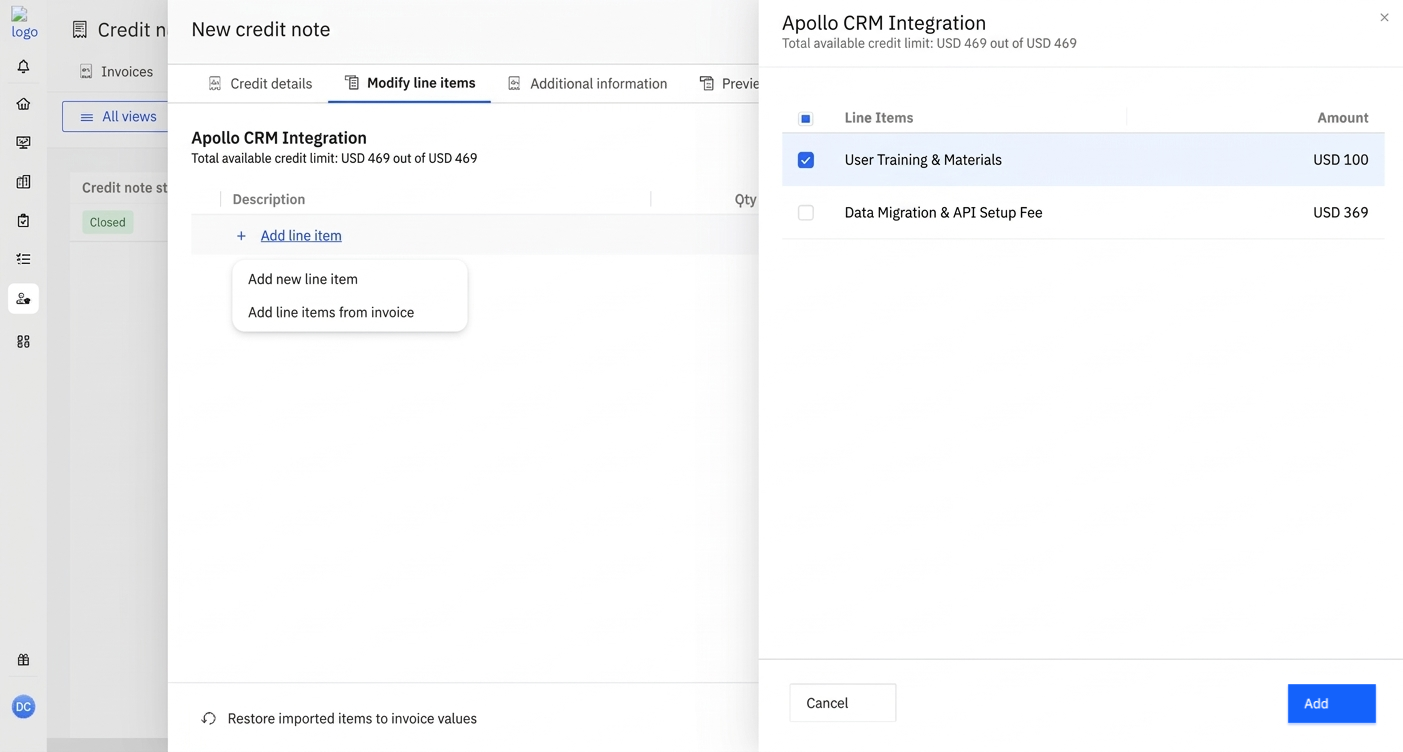
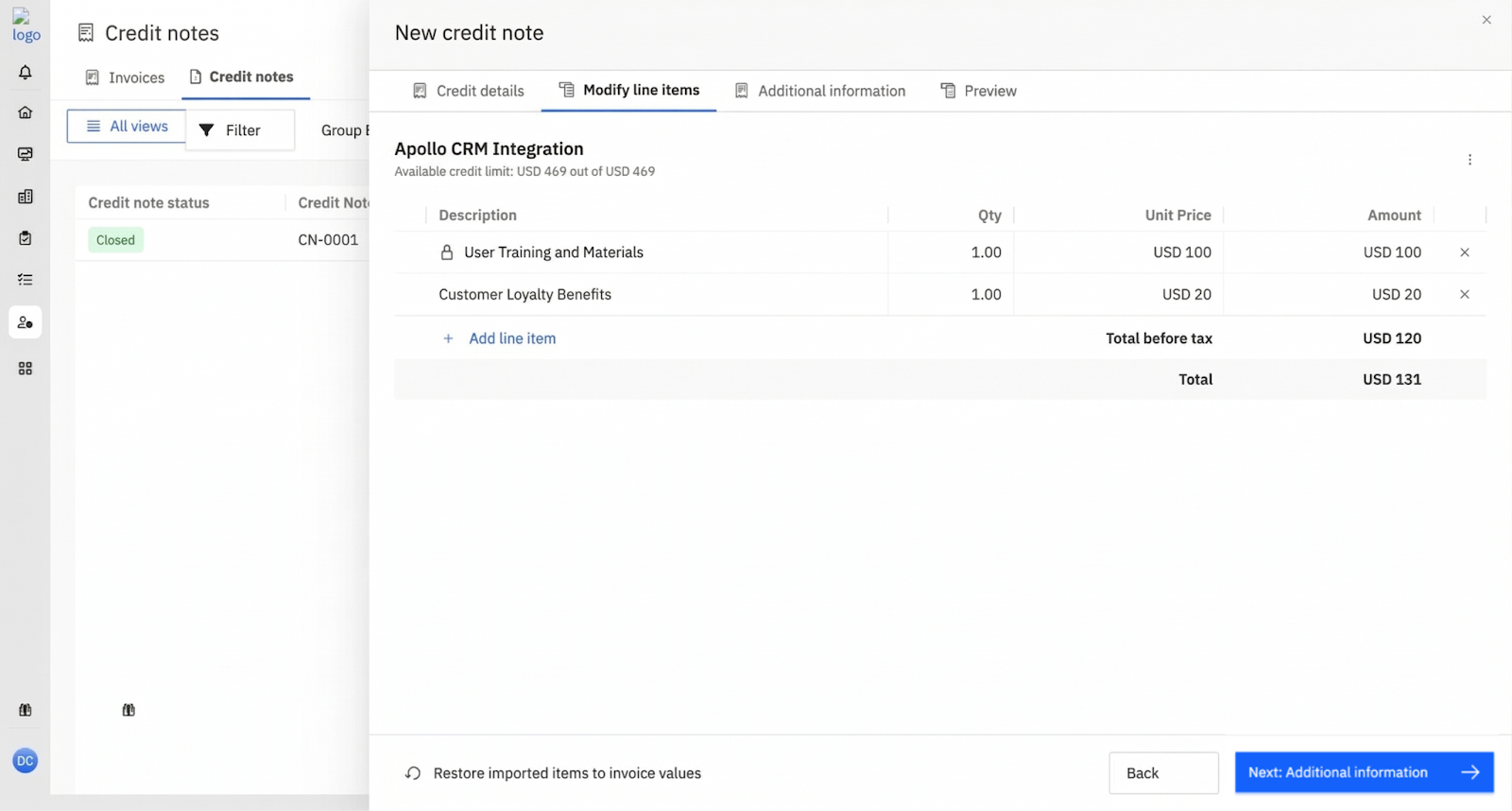
Add line items using + Add line item, which provides two options:
- Add line items from invoice
Opens a panel showing the source invoice line items. Select items and click Add.
(We recommend this method because it automates the direct reversal of specific line items and their associated tax ledgers. By mapping the credit note to the original invoice, you ensure that the system reverses the exact financial records, thereby maintaining a clean audit trail and preventing manual errors in revenue or tax reconciliation.)
- Add new line item
Adds a blank ad hoc line.
The available credit limit appears at the top of this step (for example, “Available credit limit: USD 469 out of USD 469”), showing the maximum amount that can be credited against the source invoice.
Formula: Available credit = Invoice amount due - existing credit notes applied to the invoice
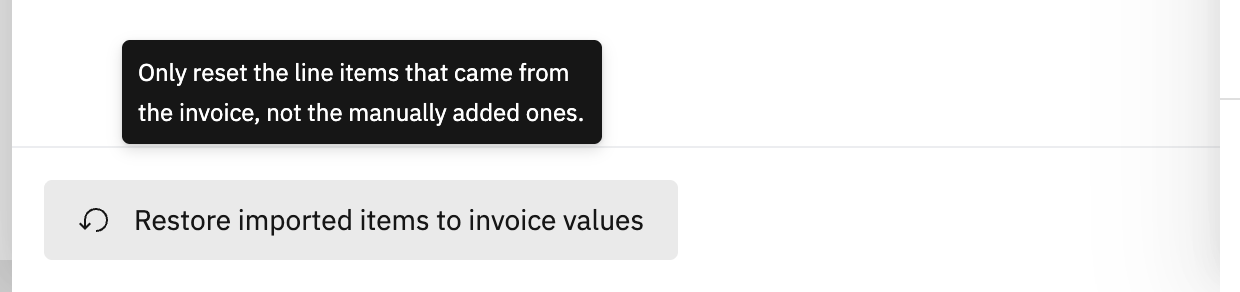
To reset imported invoice line items back to their original values, select Restore imported items to invoice values at the bottom of the step.
- This resets only invoice-imported lines.
- Manually added lines are not affected.
Click Next: Additional information.
Adding Line Items to a Credit Note
Credit notes can reverse some or all of an invoice. Line items can be added in two ways.
Option 1: Import line items from the invoice (recommended)
From Modify line items, select + Add line item → Add line items from invoice. A panel opens showing all invoice line items with descriptions and amounts. Select items and click Add.
Behavior when importing:
- Original descriptions carry over.
- Tax codes carry over and are locked.
- Guardrails are applied so credited values cannot exceed what was billed.
This approach is recommended because it:
- Preserves line-item identity for audit
- Maintains tax treatment consistency per line item
- Prevents over-crediting hours, expenses, or amounts
Reset imported items at any point using Restore imported items to invoice values at the bottom of the step.
- This resets only invoice-imported lines.
- Manually added lines are not affected.
Option 2: Add an ad hoc line item
Select + Add line item → Add new line item to add a blank line.
Some teams reverse an entire invoice with a single line item, for example:
- Quantity 1 with the full credit amount
This is supported but requires care when invoices use multiple tax codes.
If the source invoice includes multiple tax codes, a single-line reversal requires a deliberately configured blended tax code to reverse the original ledger effects accurately. Importing original invoice lines is typically the more robust approach.
Note: A credit note does not fix incorrect tax codes applied on the original invoice. If tax codes were incorrect, voiding or writing off and reissuing the invoice may be required depending on the accounting process.
Limits and validation rules
Rocketlane enforces the following limits when creating credit notes:
- Credit note maximum amount: The maximum total value of a credit note cannot exceed the invoice amount due minus existing credit notes applied to the invoice.
- Multi-project credit note limits: For credit notes created from invoices that span multiple projects, the credited value for each project cannot exceed the corresponding project-level amount from the original invoice line items.
- Line-item limits (price, quantity, amount): For invoice-imported line items, price, quantity, and amount cannot exceed the original invoice line item.
Special case: if the same line item has already been reversed in another credit note and a second credit note is being created:
- The system checks only the remaining amount due for that line item.
- Price and quantity must be adjusted manually to stay within the remaining allowable amount.
Notes on ad hoc line items and tax codes
When adding an ad hoc line item on a credit note to reverse an invoice:
- Any tax code can be selected for the ad hoc line item.
- If tax codes are used on the source invoice, apply caution when selecting tax codes on the credit note. Using a different tax code on the credit note than what was used on the invoice can lead to mismatches, especially when the invoice is being reversed using a different tax code on the credit note.
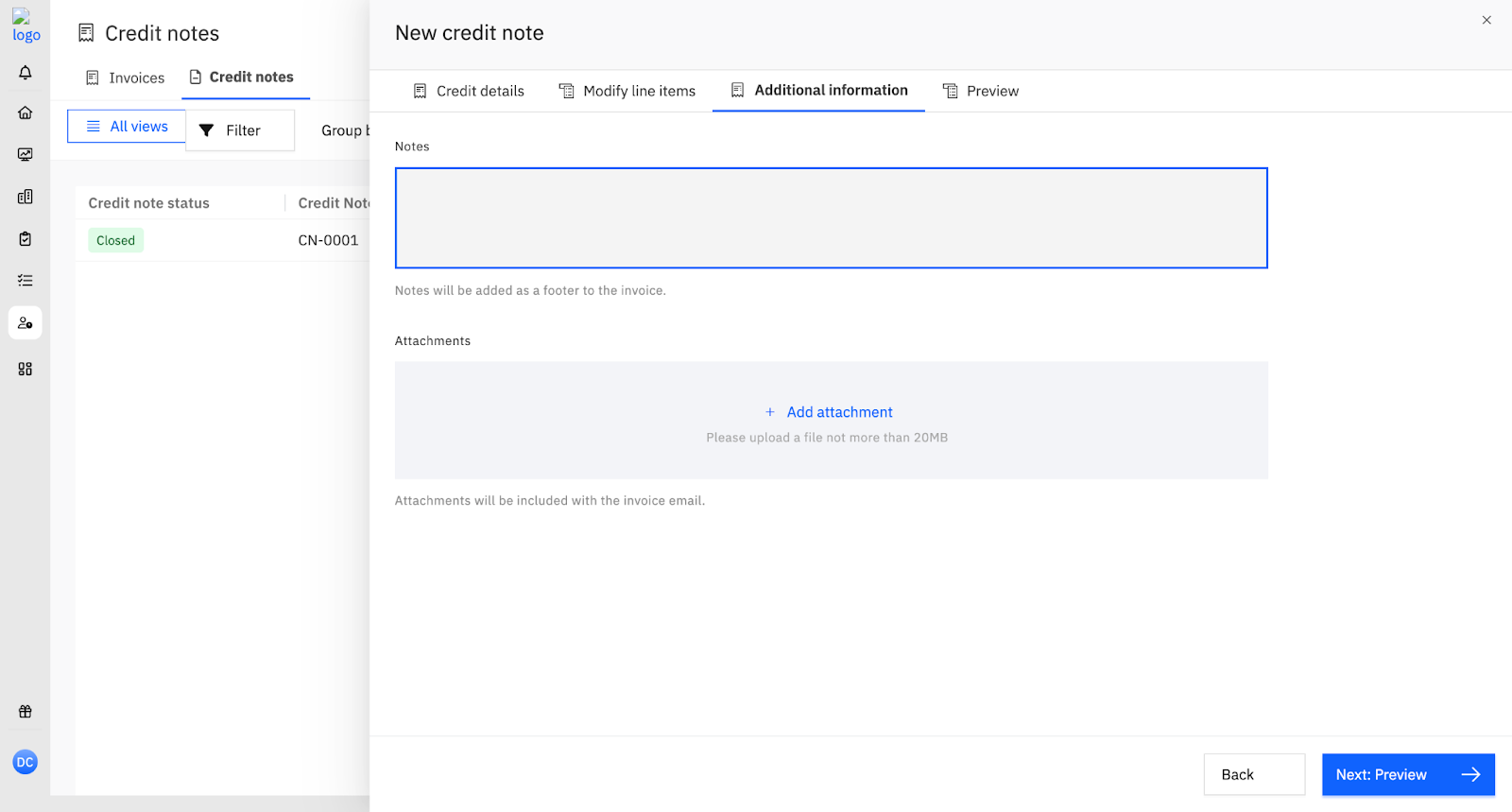
Step 3: Additional information
- Notes: Add notes to include as a footer on the credit note document.
- Attachments: Attach supporting files (up to 20 MB each). Attachments are included with the invoice email.
Click Next: Preview.
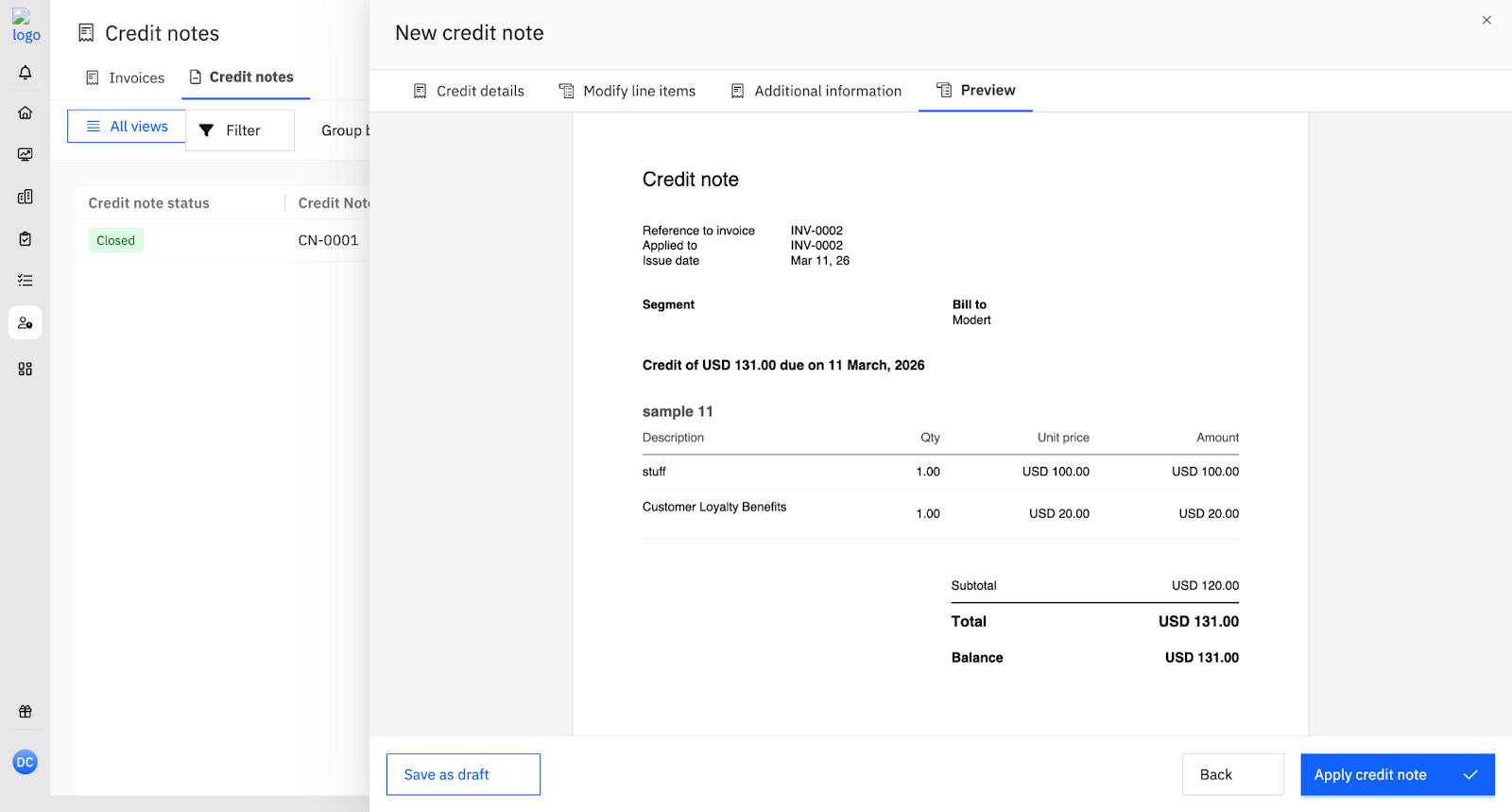
Step 4: Preview
Review the complete credit note document, including reference invoice, applied-to invoice, issue date, line items, subtotal, total, and balance. From this step:
- Click Save as draft to save the credit note in Draft state without applying it.
- Click Apply credit note to approve and apply the credit immediately.
Applying Credits
Feature |
| Marked as Closed when the credit balance is fully applied. |
| Line Item Logic |
Once created, a credit note produces an available credit that can be applied back to invoices within the same customer account.
Where credit can be applied
- Apply to the source invoice (Recommended for better auditability and easier downstream accounting syncs)
- Apply to any other approved invoice for the same customer account (supported for real-world operations)
Applying from the credit note
Open the credit note. When the credit note is in Open state, Apply credit note is visible in the top-right corner. The right-hand panel also shows Apply credit note if no credit has been applied yet.
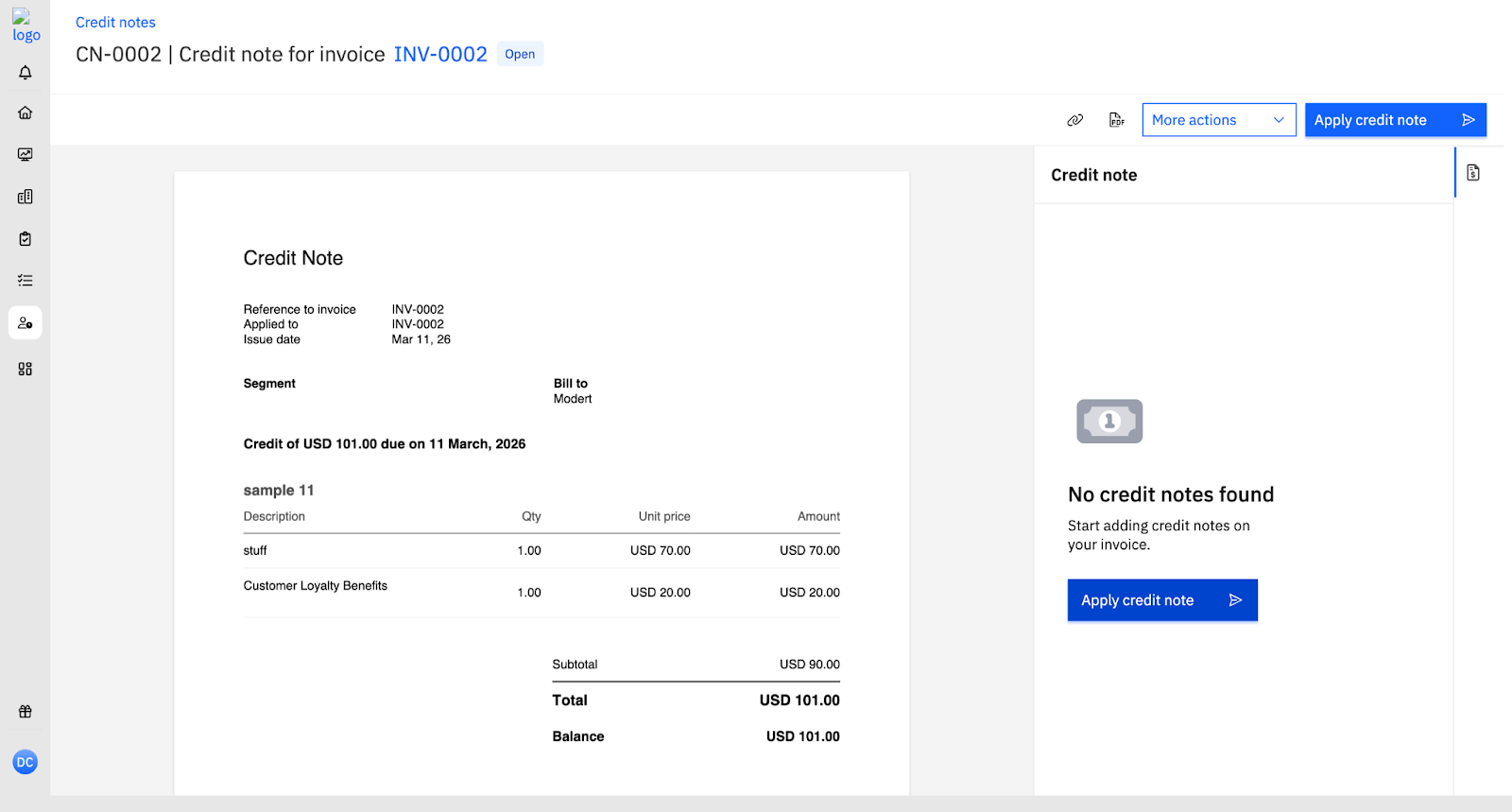
Selecting Apply credit note opens a panel:
- Select the target invoice from Choose invoice.
- The panel shows the invoice’s current Amount due and the credit note’s Available credit amount.
- Enter the Credit amount to apply (up to the available balance).
- Click Apply.
If no eligible invoices are available for the account, Choose invoice shows “No options.”
Applying from the invoice
Credit notes can also be applied directly from the invoice.
- Open the target invoice.
- Select More actions → Apply credit note.
- In the panel:
- Select a credit note from Choose credit note.
- The panel shows the credit note’s Available credit amount.
- Enter the Credit amount to apply.
- Review Invoice amount due balance after credit note applied shown below the amount field.
- Click Apply.
- Select a credit note from Choose credit note.
- Once applied:
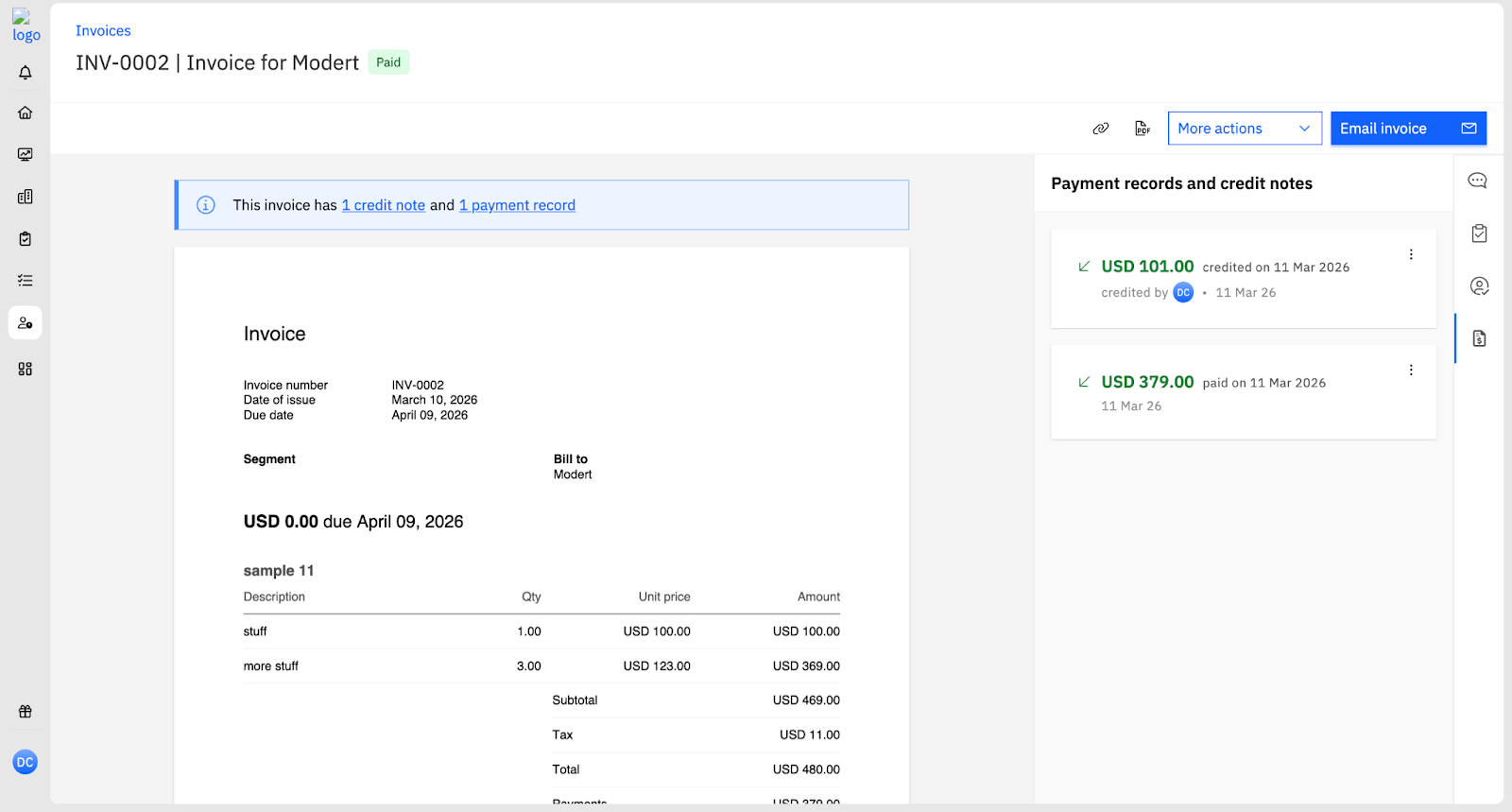
- A banner appears on the invoice reading “This invoice has 1 credit note” (or “1 credit note and 1 payment record” once a payment is also recorded).
- The invoice amount due is reduced accordingly.
- The right-hand Payment records and credit notes panel shows full credit and payment history, including amounts, dates, and who applied each entry.
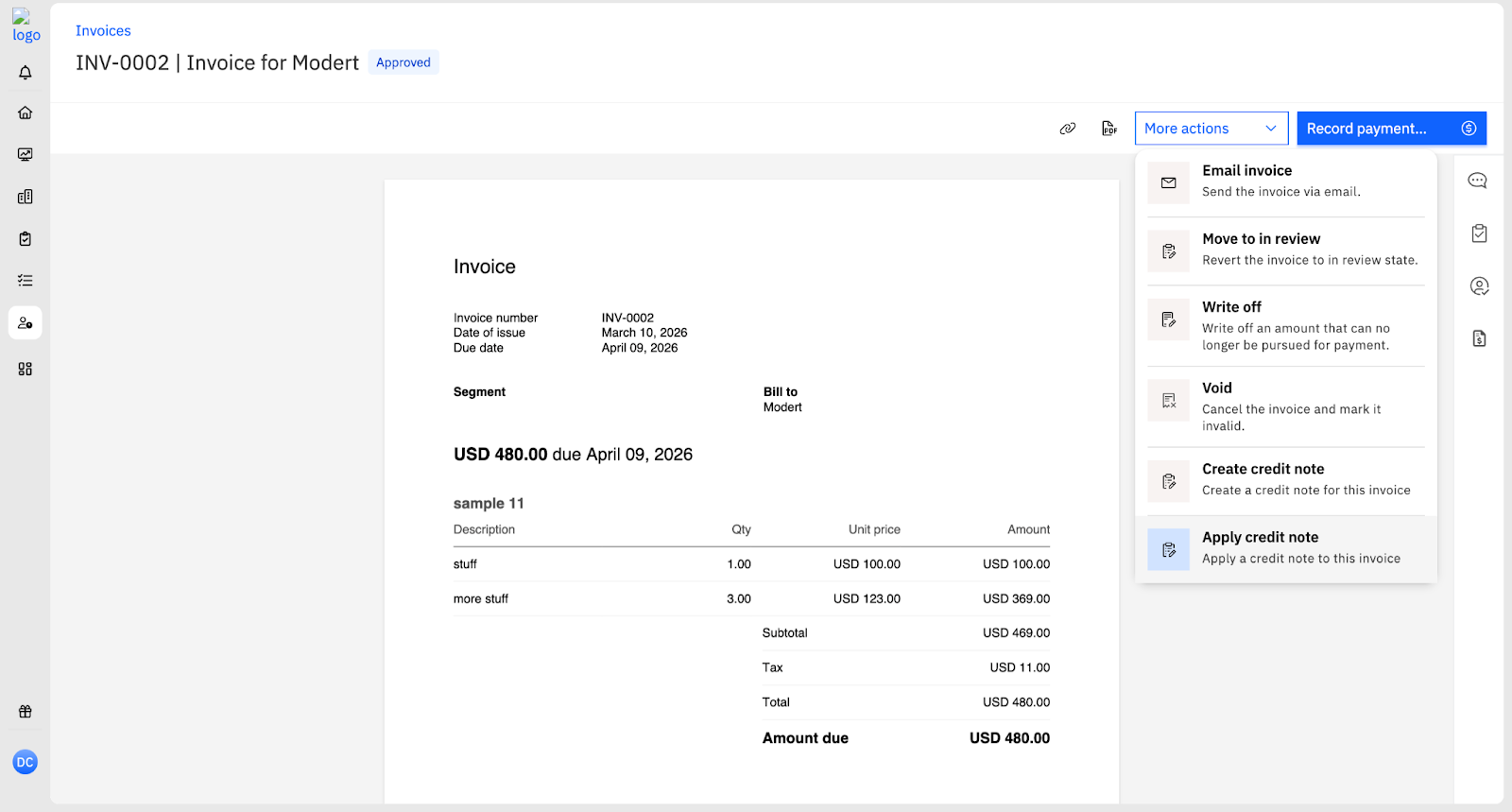
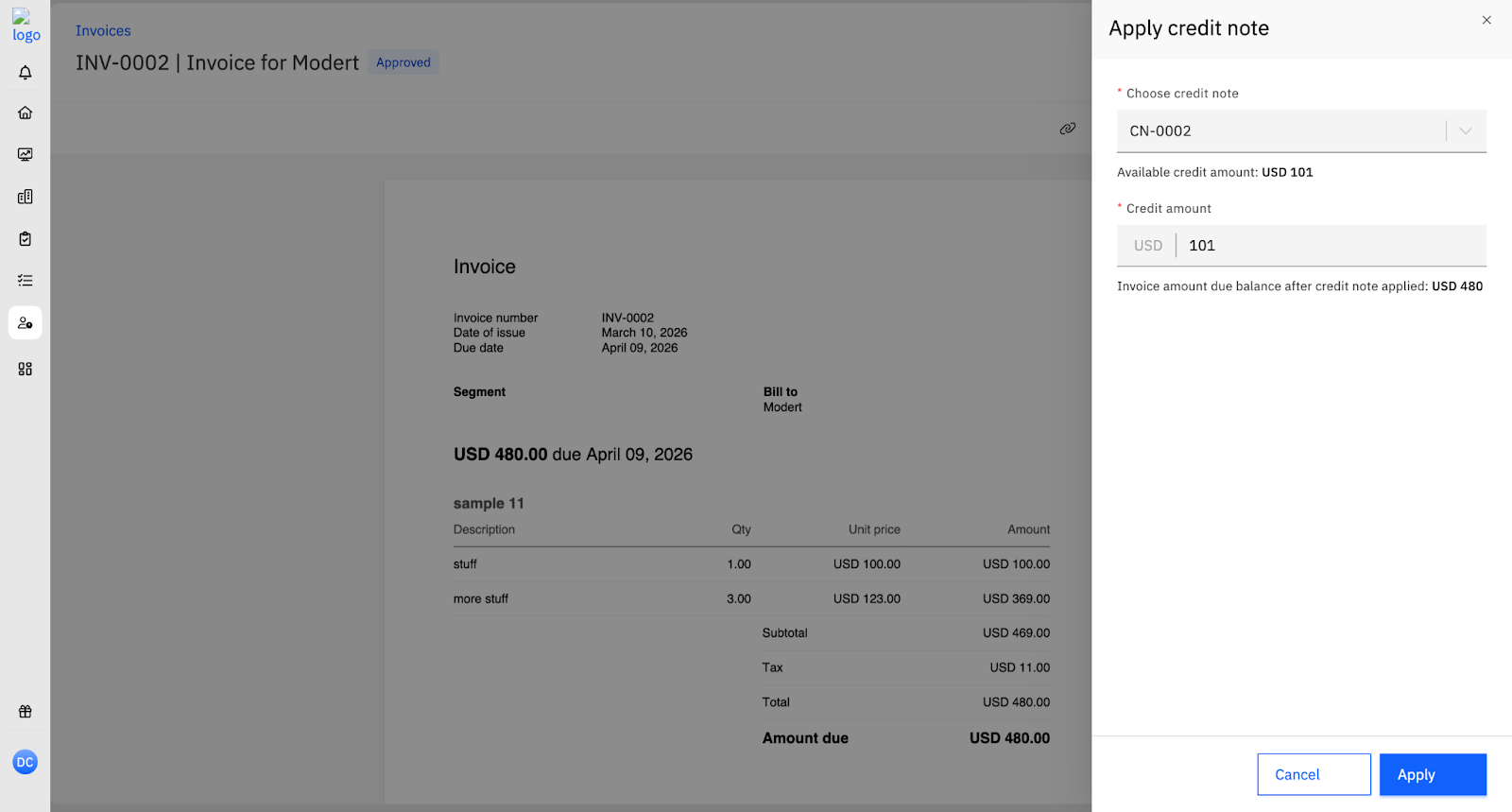
How application works
- Application is done at the amount level, not line-item level.
- Credits can be applied partially, leaving remaining credit open for future use.
- Credit Notes can be applied only on Partially Paid, or Unpaid Invoices.
Constraints during application
- Credit application is constrained by invoice dues.
- A credit amount cannot exceed the unpaid balance of the target invoice.
- If the unpaid balance is zero, the maximum applicable amount may be zero, and the credit remains open.
Payments already recorded on the source invoice
Credit notes can still be created up to the invoice total (subject to invoice-level and project-level caps), even if payments exist.
If auto-application is enabled:
- Only the outstanding balance is automatically applied.
- Remaining credit becomes an open credit to use later.
Removing an applied credit
To remove a credit that has already been applied:
- Open the credit note.
- In the right-hand panel, locate the application entry.
- Select the three-dot menu on the entry.
- Select Remove from invoice.
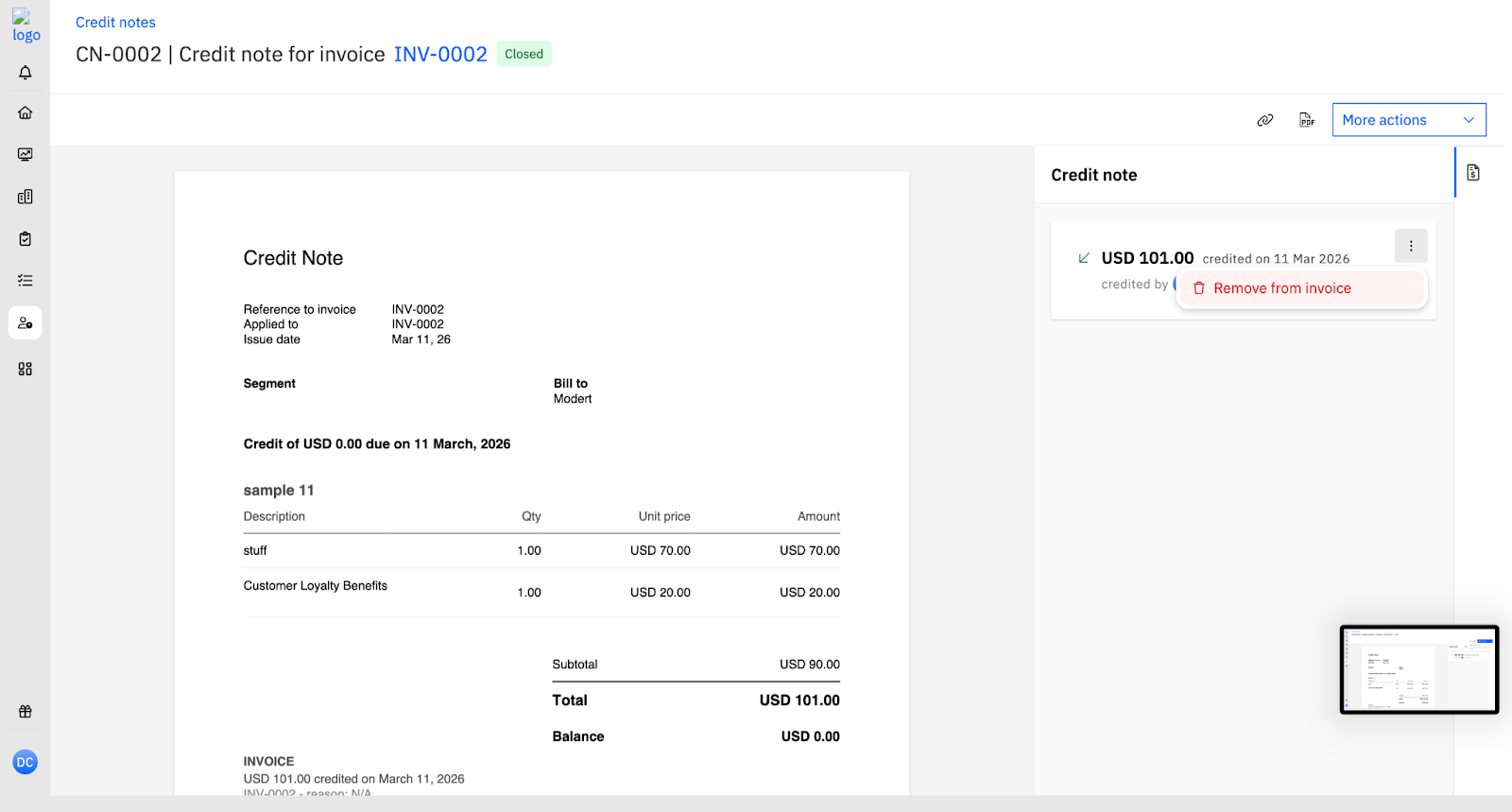
This reverses the application and returns the credit to the available balance.
Credit Note Lifecycle and States
Credit notes move through a lifecycle that tracks availability and exhaustion of credit.
Draft
A credit note begins in Draft after creation from an invoice that is approved, partially paid, or fully paid. From Preview in the wizard, select Save as draft to save in this state.
Review and Open
From draft, the credit note moves through review and becomes Open.
Open means:
- Credit is available to be applied, or
- Credit has been partially applied and has remaining balance
When a credit note is Open, Apply credit note is active in the top-right corner.
Closed
A credit note becomes Closed when the entire credit amount has been applied and the available balance is exhausted.
- The balance on the credit note displays as USD 0.00.
- The right-hand panel shows the full application history with amounts, dates, and who applied each credit.
Void and Delete
Both actions are available from More actions on the credit note page:
- Void credit note: Marks the credit note as created but no longer valid. Available for both Open and Closed credit notes.
- Delete: Removes the credit note as if it never existed.
Void is typically used when the decision to credit is reversed. Delete is typically used when the credit note was created by mistake.
Credit Note Application Across Invoices
Rocketlane supports common enterprise billing patterns:
- A single credit note can be applied across multiple invoices for the same account.
- A single invoice can have multiple credit notes applied to it.
Open credits maintain:
- A running balance
- A history of which invoices they were applied to
While applying back to the source invoice preserves the strongest audit story, applying to a future invoice is supported when needed operationally.
RBAC and Permissions
Credit notes require permission control at two levels:
- Credit note object permissions: Controls whether credit notes can be created, edited, voided, or deleted.
- Invoice permissions: Applying credit notes changes invoice balances, so application requires invoice-level access.
In practice:
- Credit note permissions is equal to or more restrictive than invoice permissions.
- Credit note scope typically matches the invoice scope available.
- Example: If invoice access is limited to projects owned, credit note creation and application is limited similarly.
This ensures credits cannot be applied in ways that bypass invoice access rules.