Revenue ledgers help a finance team control when and how revenue is recognized in Rocketlane, so that reported numbers do not change after books are closed. This article explains what revenue entries are, how they relate to existing revenue recognition methods, and how to create, review and manage them, including when a period is recognized in several instalments.
In this article
Enable the revenue recognition ledger
Access and view revenue entries
Work with multiple entries in a period
Overview
Rocketlane already supports revenue recognition methods based on billing types and project activity, for example:
- Time and material, based on bill rate and hours tracked
- Fixed fee, based on allocation, tracked effort, or milestones
- Subscription projects, based on completed periods
These methods are dynamic. If someone adds or edits time entries for a past period, the calculated revenue for that period can change. This creates a problem for finance teams that must publish income statements and keep those numbers fixed for regulatory and audit purposes.
Revenue entries solve this by:
- Decoupling reported revenue from dynamic system calculations
- Allowing the finance team to manually lock revenue in each posting period
Once revenue entries are used and posting periods are locked, revenue for those periods does not change, even if time entries or other inputs are adjusted later.
Enable the revenue recognition ledger
To enable revenue entries:
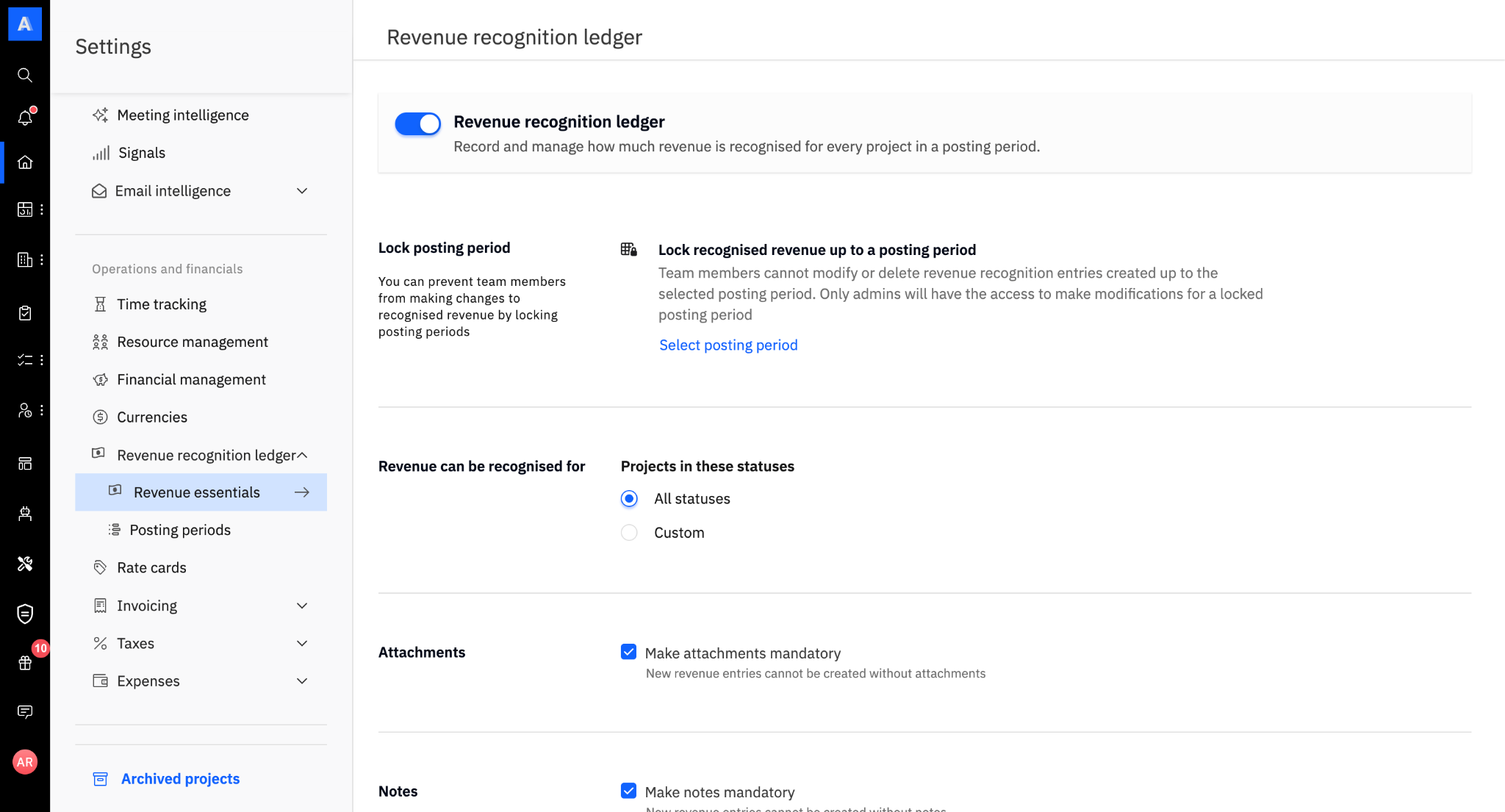
- Click your profile icon in the bottom-left corner and select Settings.
- In the Settings sidebar, click Revenue recognition ledger and select Revenue essentials.
- Click the toggle switch to activate Revenue recognition ledger.
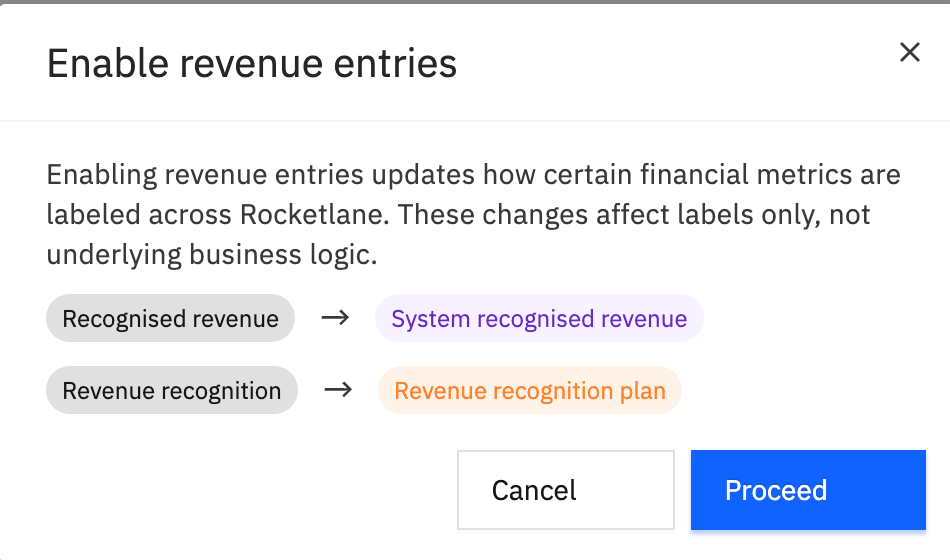
- Review the pop-up modal to see how your metrics (like Actual revenue and Actual profit) will be renamed.
- (Optional) Set configuration to make attachments and notes mandatory.
Once the feature is enabled:
- Existing Actual revenue in the UI is relabeled as System revenue.
- Existing revenue recognition configuration is treated as the Revenue plan.
- Revenue recognized through revenue entries becomes the new Actual revenue used for financial reporting.
You cannot adopt revenue entries starting from a chosen posting period. Once enabled, entry-based Actual revenue applies across periods.
Once enabled, you can configure the revenue entry lock, mandate attachments or notes, and define the specific criteria for revenue recognition.
You can set revenue to be recognized based on:
- Projects: Select all statuses or choose specific project-related custom statuses.
- Budgets: Select all statuses or choose specific budget-related custom statuses.
System revenue vs recognized revenue vs revenue plan
| Term | Meaning |
|---|---|
| System revenue | Revenue that Rocketlane calculates automatically using the configured revenue recognition method (for example, time tracked, milestones, or subscription periods). This continues to exist as a suggested or estimated value and can change if historical inputs change. |
| Revenue plan | The configuration that defines how system revenue is calculated for a fixed fee project with milestone or manual revenue recognition. |
| Recognized revenue (via revenue entries) | The final revenue amount that the finance team approves for a posting period. This is the value that becomes Actual revenue in the UI and is used in reports and financial dashboards once revenue entries are enabled. When a period has several entries, recognized revenue is the total of all of them. |
Revenue entries allow the finance team to review system revenue, then confirm or adjust the final recognized revenue.
Recognized revenue can be positive or negative (negative values are supported for reversals or true-ups).
Access and view revenue entries
Once enabled, to navigate to the revenue entries table:
- Click on the Resource Management module on the left navigation.
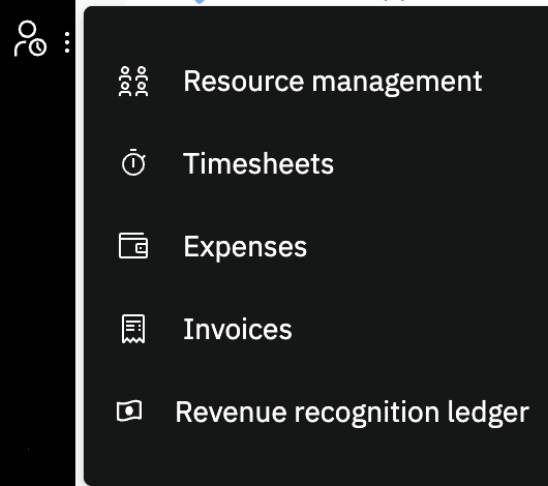
- Open Revenue recognition ledger.
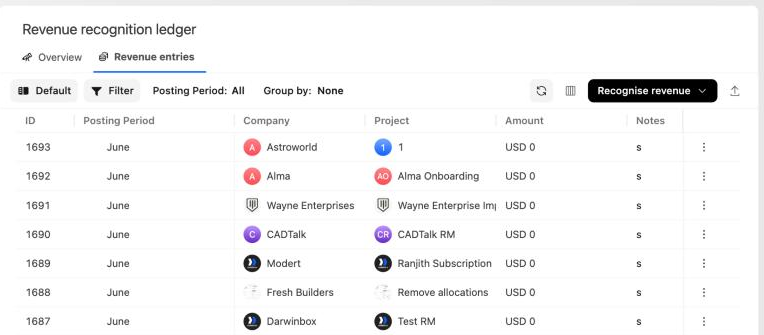
The ledger has two tabs. Overview shows the revenue recognized across projects and their budgets as rows, with posting periods as columns. Revenue entries lists every individual entry, with its ID pinned on the left so it stays visible while you scroll.
In the Overview
- Each row typically represents a project and budget.
- Each column represents a posting period (for example, January, February, March).
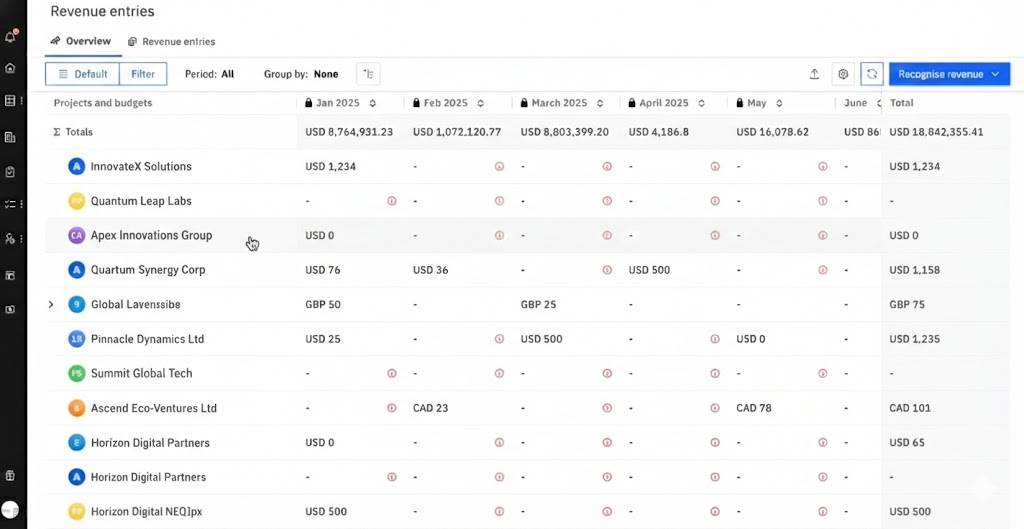
You can:
- See totals per period
- Filter by project, company, billing type, and more
- Group by fields such as company or project type
For each project and period, the finance user can compare:
- System revenue (calculated by Rocketlane)
- Recognized revenue (from revenue entries, shown as Actual revenue once enabled)
- The difference between them (for example, under-recognized or over-recognized amounts)
Create a revenue entry
A finance user can create a revenue entry directly from the Overview or from a dedicated creation flow.
- Open Revenue recognition ledger.
- Select or click the desired posting period.
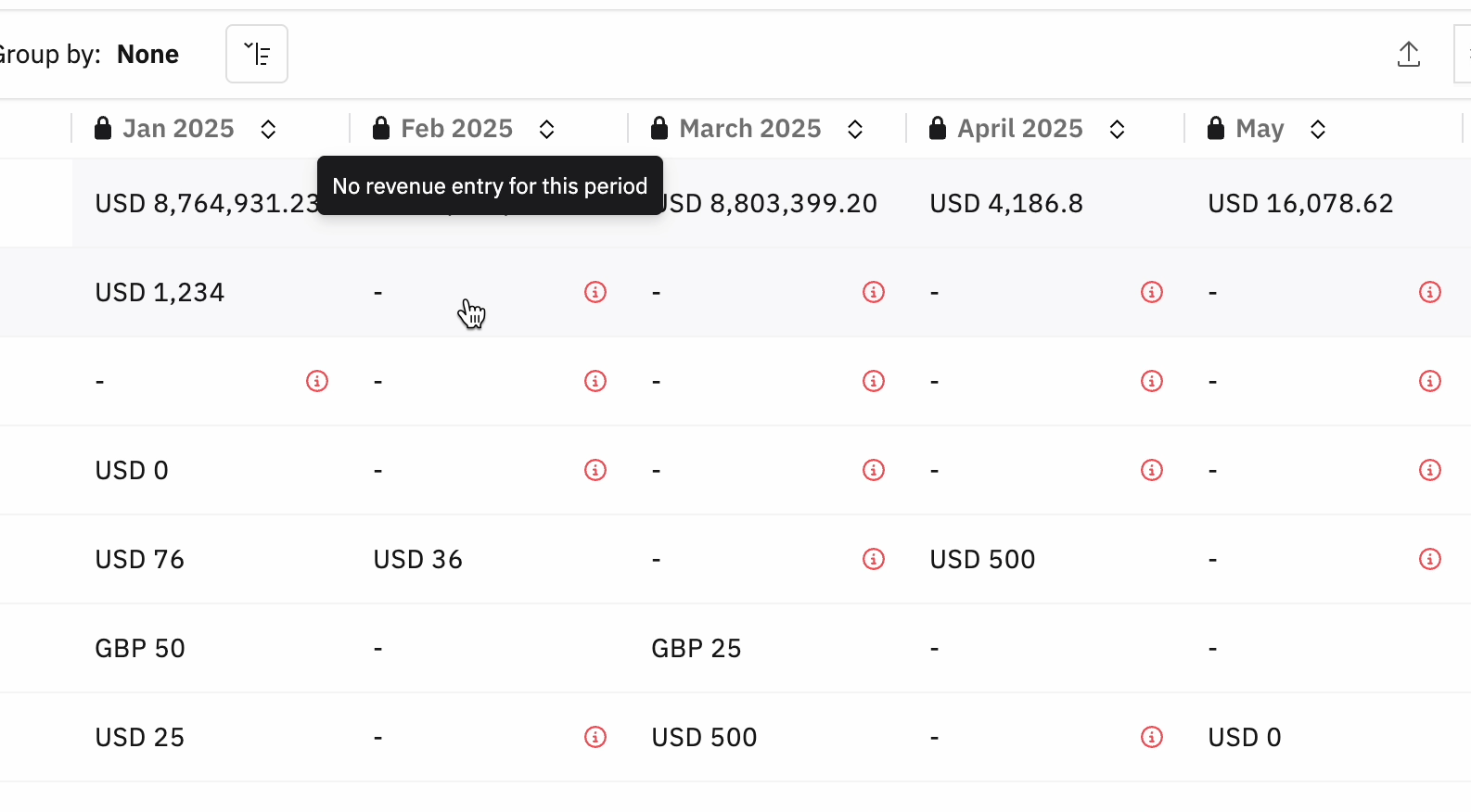
- Click the Recognise revenue button and select For a project.
- Select a project and period.
Alternatively, click the cell for the project and period in the table. A cell that shows a dash has no revenue yet and opens the Recognise revenue sidebar directly. A cell that already shows an amount opens the list of entries for that period instead; see Work with multiple entries in a period below.
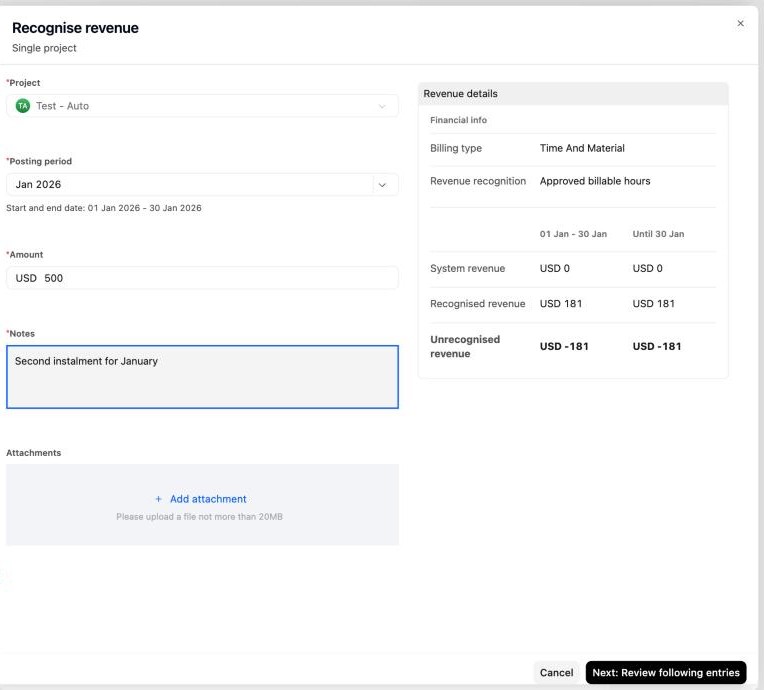
Configure recognition details in the Recognise revenue sidebar
- Project: Select the specific project from the dropdown.
- Budget: Select the budget of the project.
- Posting period: Confirm the posting period. Its start and end dates appear below the field.
Enter financial data
- Enter the Amount to be recognized (positive or negative values supported).
- Add Notes for documentation (if mandated by your organization's configuration).
Add supporting documents
- Click + Add attachment to upload invoices, receipts, or other supporting files (maximum 20 MB).
Review and save
- Click Next: Review following entries.
- On Review impact on subsequent periods, check how the new amount changes the recognized totals for this period and the periods after it.
- Click Create recognised revenue to save the entry.
Work with multiple entries in a period
Revenue for a project often arrives in stages within a single period. For example, a milestone might be recognized early in the month and a true-up at month end. When a cell already has revenue, you can see every entry behind the total and add another without leaving the ledger.
What happens when you click a cell
| Cell in the Overview | What opens |
|---|---|
| Empty (shows a dash) | The Recognise revenue sidebar, with the project, budget and posting period filled in. |
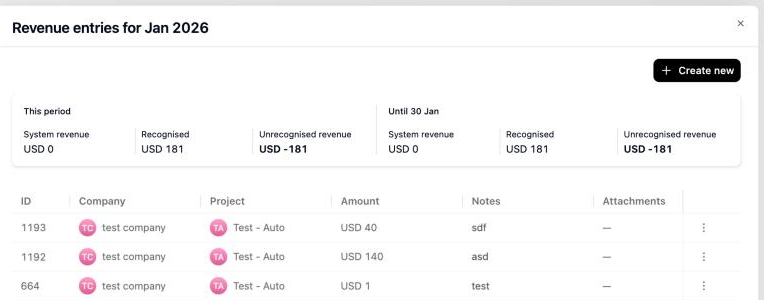
| Has recognized revenue | The Revenue entries for period panel, listing every entry recorded for that project and budget in the period. |
What the Revenue entries panel shows
- A summary card with two sections: This period, and Until the period's end date. Each section shows Recognised and Unrecognised revenue. Users who can view system revenue also see System revenue.
- A table of the entries in that period, with the same columns as the Revenue entries tab: ID, Company, Project, Amount, Notes and Attachments. Accounts that use multiple budgets also see a budget column.
To add another entry to a period that already has revenue:
- Open Revenue recognition ledger.
- Click the cell for the project (and budget) and posting period.
- In the Revenue entries for period panel, click Create new. The project, budget and posting period are already filled in.
- Enter the Amount, and add notes or attachments if needed.
- Click Next: Review following entries, review the impact, then click Create recognised revenue.
The new entry appears in the table, and the summary card updates.
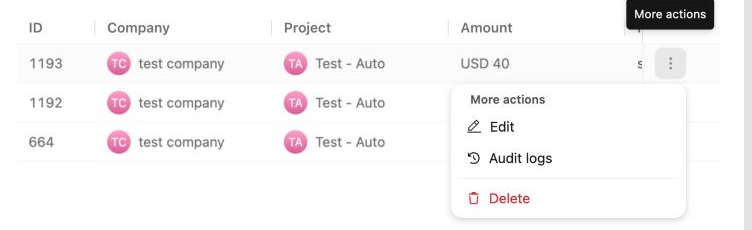
To edit, audit or delete an individual entry, click the entry's More actions menu (the three dots at the end of its row):
| Action | What it does |
|---|---|
| Edit | Opens the entry. After you change it, click Next: Review following entries, review the impact (the entry you changed is tagged Edited), then click Update recognised revenue. |
| Audit logs | Shows the history of changes to that entry. |
| Delete | Removes that entry only. Rocketlane asks you to confirm, because deleting an entry changes the total recognized revenue for later posting periods. |
Review the impact on later periods
Because recognized revenue accumulates across periods, a change in one period moves the running totals of the periods after it. Before any new or edited entry is saved, Rocketlane shows a review step so you can see that effect first.
On Review impact on subsequent periods:
- The first row, All previous periods, shows the running total carried in from earlier periods. Each posting period after it has its own row.
- Periods that contain entries expand to list each entry by its ID. The entry you are adding appears as New. When you edit an entry, it is tagged Edited. Rows open expanded, and you can collapse them to see period totals only.
- Amounts are grouped under System revenue, Current recognised revenue and Updated recognised revenue. Each group shows For this period and Cumulative, so you can compare the running total before and after your change in every later period.
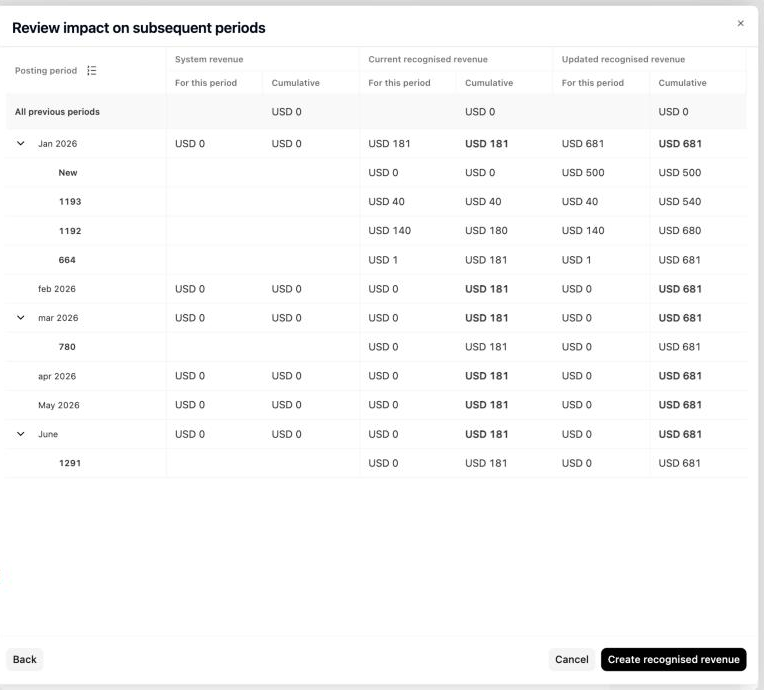
Click Create recognised revenue (for a new entry) or Update recognised revenue (for an edit) to save, or go back to change the amount.
Bulk create revenue entries
Closing a period one project at a time does not scale once a portfolio runs to dozens of engagements. With bulk creation, a finance user picks a posting period, selects the projects and budgets to recognize revenue for, reviews every prefilled amount in one grid, and creates all the entries in a single action.
To create revenue entries in bulk:
- Open Revenue recognition ledger.
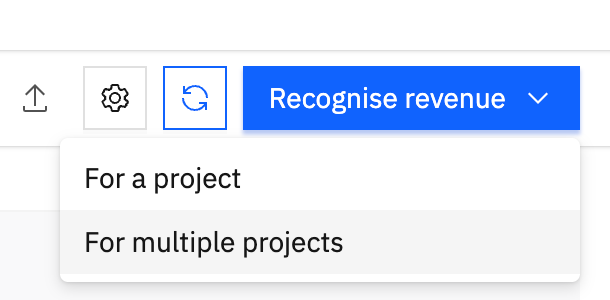
- Click Recognise revenue > For multiple projects.
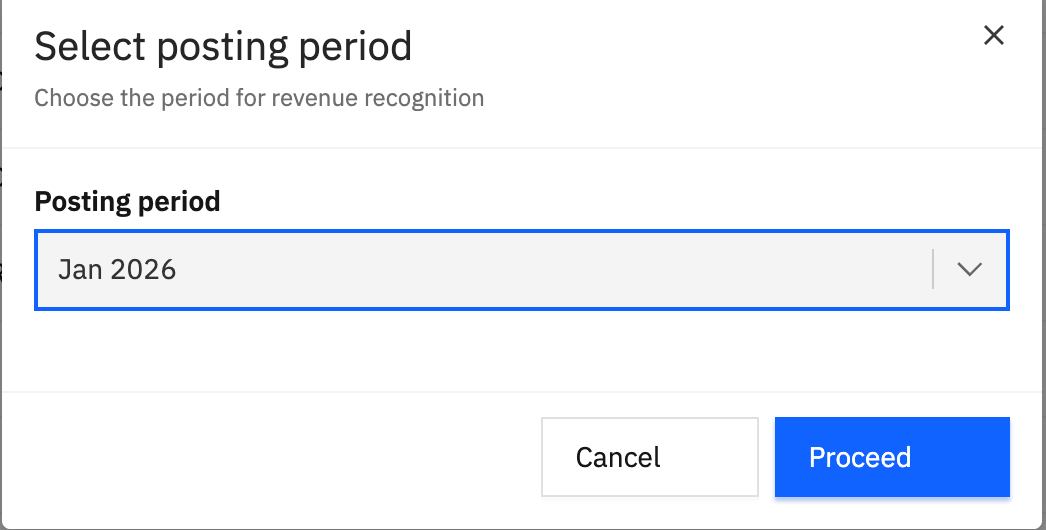
- Under Select posting period, choose the period to recognize revenue for.
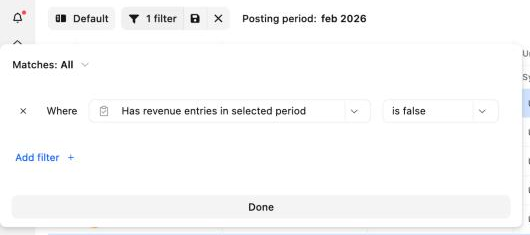
- On the Select projects tab, review the list. By default it shows only project and budget rows that have no revenue entries in the selected period yet. This comes from a filter that is applied automatically: Has revenue entries in selected period is false. Use filters and saved views to narrow the list further, for example to all fixed fee projects or a specific portfolio.
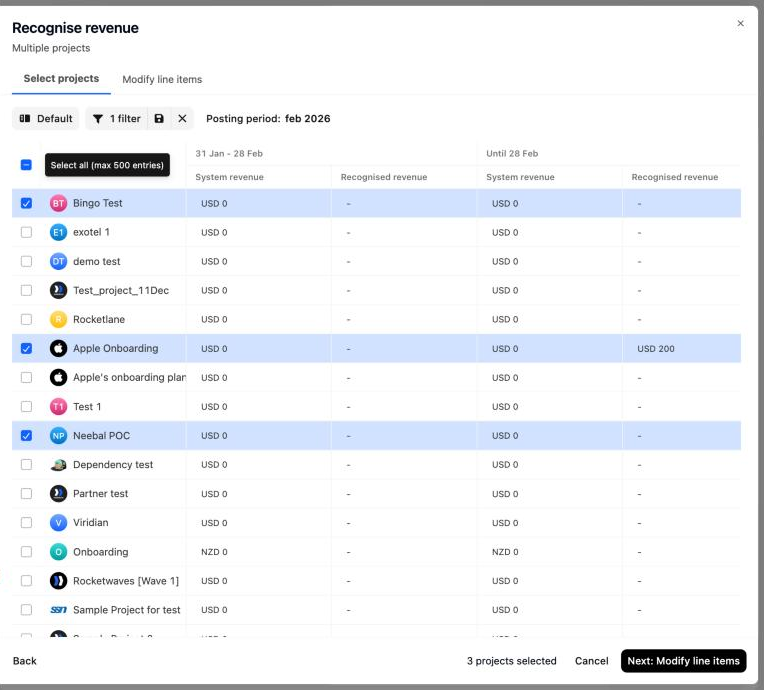
- Select the rows you want. To take every row that matches your filters, use the header checkbox. Hover over it to see Select all (max 500 entries), the maximum for one bulk action.
- Click Next: Modify line items.
- On the Modify line items tab, review the amounts. Rocketlane prefills each row with the system revenue for that project, budget and period. Overwrite any value that needs adjusting.
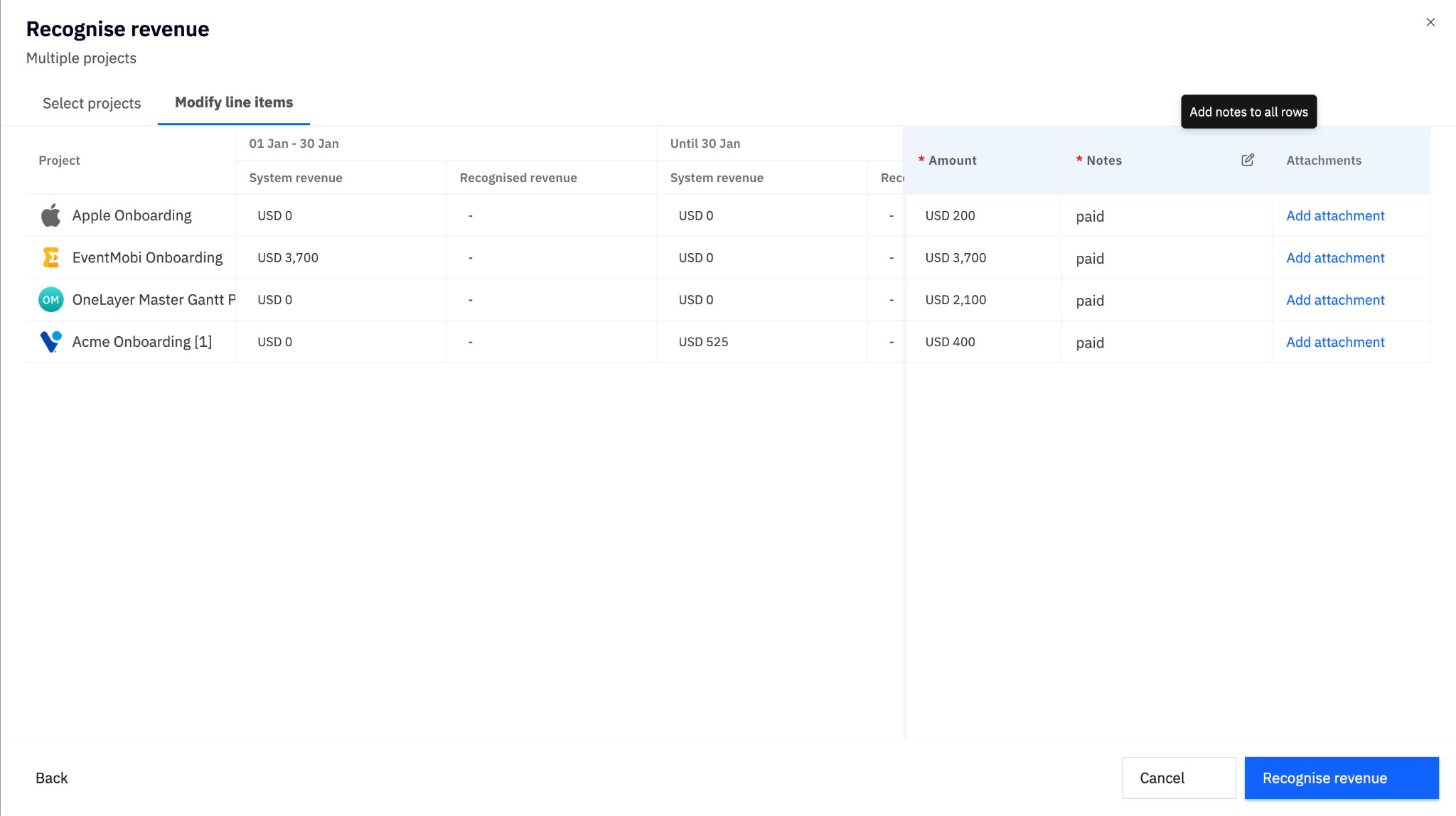
- Add notes if your account requires them. To apply the same note to every row, use Add notes to all rows.
- Click Recognise revenue to create the entries.
Things to know about bulk creation
| Behavior | What happens |
|---|---|
| Rows that already have entries | Hidden by default. To add a further entry to cells that already have one, change or remove the Has revenue entries in selected period filter. Bulk creation then adds a new entry alongside the existing one. It does not skip or overwrite it. |
| Filtering by recognized amount | Use Current period recognised revenue to find rows by how much has already been recognized in the period. |
| Saved views | The project selection step supports saved views, so a filter set you use every month can be saved and reused. |
| Selection limit | Each bulk action can create up to 500 entries. Select all selects every row that matches your filters, not just the rows loaded on screen, up to that limit. |
| Large requests | Larger requests are queued and processed in the background. Rocketlane shows Processing bulk action, and you can continue working. |
| Partial failures | Rows that fail do not roll back the rows that succeeded. Rocketlane reports both counts. |
| Same cell from two places | While a bulk action is processing a project, budget and period, a single entry for that same cell cannot be created until the bulk action finishes. |
Export revenue entries
Revenue entry data can be:
- Exported from Rocketlane for use in ERPs such as NetSuite or Xledger
- Used as the source of truth for professional services revenue in the company's financial system
The finance team can:
- Export revenue entries by posting period
- Use integrations, APIs, or automation tools (such as Workato, where available) to move data into the external ledger system
To export the revenue entry table:
- Navigate to Revenue entries.
- Use the export option available on the revenue entries table (if enabled for your organization).
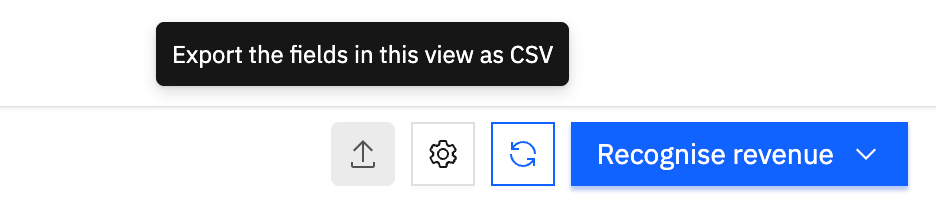
This allows ERP ledgers, such as Professional Services Revenue, to rely on Rocketlane's recognized revenue values. Each entry carries its own ID, so when a period has several entries you can tell them apart in exports and audit logs.
RBAC permissions
Navigate to Settings > Permissions to set up the following for the revenue recognition ledger.
Posting periods
| Permission | What it allows |
|---|---|
| Can create posting periods | Set up new posting periods. |
| Can delete posting periods | Remove existing posting periods. |
Revenue recognition entries
To grant access to any revenue actions, you must first enable the primary view permission. For each enabled permission, you can define the access level via a scope dropdown.
| Permission | What it allows |
|---|---|
| Can view revenue recognition entries | View revenue entries. |
| Can create revenue recognition entries | Create revenue entries, including further entries in a period that already has revenue. |
| Can manage revenue recognition entries | Edit and delete revenue entries. |
| Can manage locked revenue recognition entries | Create, edit and delete revenue entries in locked posting periods. |
Revenue locking
| Permission | What it allows |
|---|---|
| Can manage revenue locking | Set or change the lock period for revenue entries. |
For the view, create, and manage permissions above, you can choose from the following levels:
- Global: Access for all projects across the entire system.
- Group: Access for projects belonging to the user's specific groups.
- Participant: Access for projects where the user is an active team member.
- Owner: Access restricted only to projects owned by the user.
FAQ
Can I have more than one revenue entry for the same project, budget and posting period?
Yes. Each recognition can be its own entry with its own amount, notes and attachments. The recognized revenue for the period is the total of all its entries. Click the cell in the Overview to see each entry and who recognized it.
Do I need to change or re-enter my existing revenue entries?
No. Existing entries stay as they are. You can add further entries to any period that is not locked.
I clicked a cell and got a list instead of the edit form. Why?
The cell already has recognized revenue, so Rocketlane shows every entry for that period. Use the more actions menu on an entry to edit it, or click Create new to add another.
Why is Create new unavailable?
Either you do not have permission to create revenue entries for this project, or the period is locked and you do not have permission to manage entries in locked periods.
Bulk creation is not showing a project I expected. Why?
By default the list shows only rows with no revenue entries in the selected period. If the project already has an entry, change the Has revenue entries in selected period filter to include it.
If a cell already has an entry, will bulk creation overwrite it?
No. If you include that row, bulk creation adds a new entry alongside the existing one. Check the existing amount first so that you do not recognize the same revenue twice.
How many entries can I create at once?
Up to 500 per bulk action. The limit also appears when you hover over the header checkbox: Select all (max 500 entries). Narrow your filters and run the action again for the rest.
Some rows failed and some succeeded. Do I have to start over?
No. The successful rows are created and kept. Fix the failed rows and run the action again for those rows only.
How do I tell entries apart in the same period?
Every entry has an ID, shown in the Revenue entries list and in the period panel. Use it when discussing an entry, matching exports, or reading audit logs.
Summary
- Revenue entries fix reported revenue per posting period, independent of system calculations that can change later.
- A project and budget can hold several revenue entries in one posting period. Recognized revenue for the period is their total.
- Clicking a cell with revenue opens every entry in that period, where you can add, edit, delete or audit entries.
- Every new or edited entry goes through Review impact on subsequent periods before it is saved.
- Bulk creation shows rows without entries by default, can add further entries to rows that already have one, and handles up to 500 entries per action.
- Locked periods stay protected: changes in them need the locked-entries permission.