As projects grow, allocations pile up across phases, placeholders, and resource requests. By the time someone notices that a project has far more hours allocated than planned, or that most of its budgeted hours are already used, the overrun is hard to recover from.
A global automation can watch these numbers for you. When a project's allocated hours or budget usage crosses a limit you set, Rocketlane notifies the project owner, a resource manager, or a Slack channel, so the team can act early.
In this article
Before you start
- You need permission to manage global automations. See Setting Up Global Automations.
- Time tracking must be turned on to monitor hours, such as Total Allocated Hours or Budgeted hours consumed %.
- Financials must be turned on to monitor money, such as Budget consumed %.
- Projects need budgeted hours or a budget for the percentage fields to have a value.
How it works
| Step | What happens |
|---|---|
| 1. An allocation or time entry changes | Someone adds, edits, or deletes an allocation, or logs time on the project. This includes allocations created by auto-allocation and by approved resource requests. |
| 2. Project numbers are recalculated | Rocketlane updates the project's totals, such as Total Allocated Hours and Budgeted hours consumed %. |
| 3. The automation checks the value | The Financial field is updated trigger fires, and the condition checks whether the value has crossed your limit. |
| 4. Someone is notified | If the value has crossed the limit, the automation sends the notification you set up. |
Choose what to monitor
| Field | What it measures | Use it to |
|---|---|---|
| Total Allocated Hours | All hours allocated on the project, for team members and placeholders | Catch projects where allocations grow beyond a set number of hours |
| Budgeted hours consumed % | Hours logged as a percentage of the project's budgeted hours | Warn when a project is using up its budgeted hours |
| Budget consumed % | Budget used as a percentage of the project's budget | Warn when a project is using up its budget |
| Project Budgeted Hours | The project's budgeted hours | Spot changes to the planned hours themselves |
Create the automation
- Go to Settings > Automations, select New automation, and then select Blank slate.
- Select Untitled and name the automation, for example "Allocation Threshold Alert".
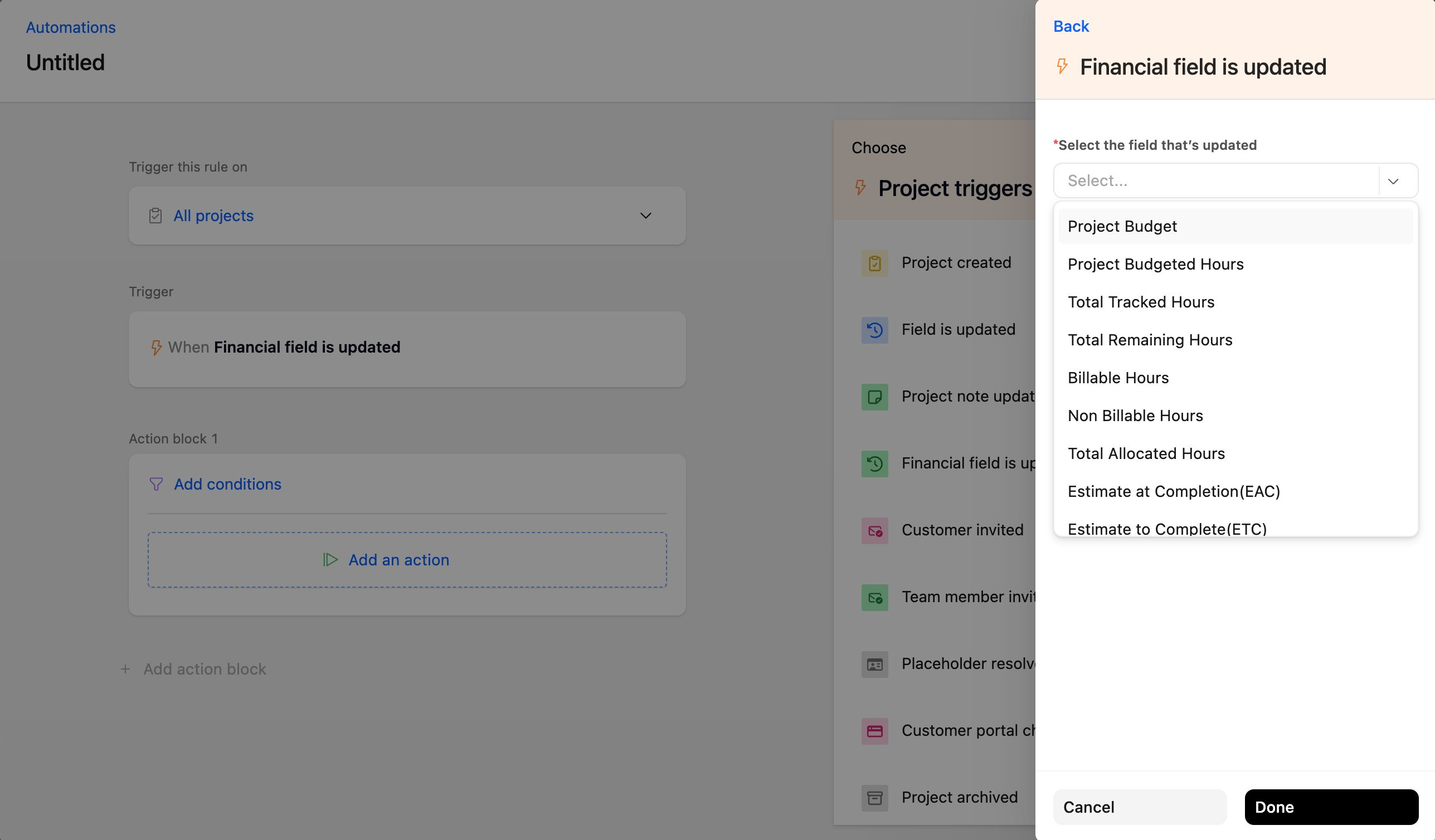
- Under Trigger this rule on, select All projects.
- Under Project triggers, select Financial field is updated.
- In Select the field that’s updated, choose the field to monitor, for example Total Allocated Hours, and then select Done.
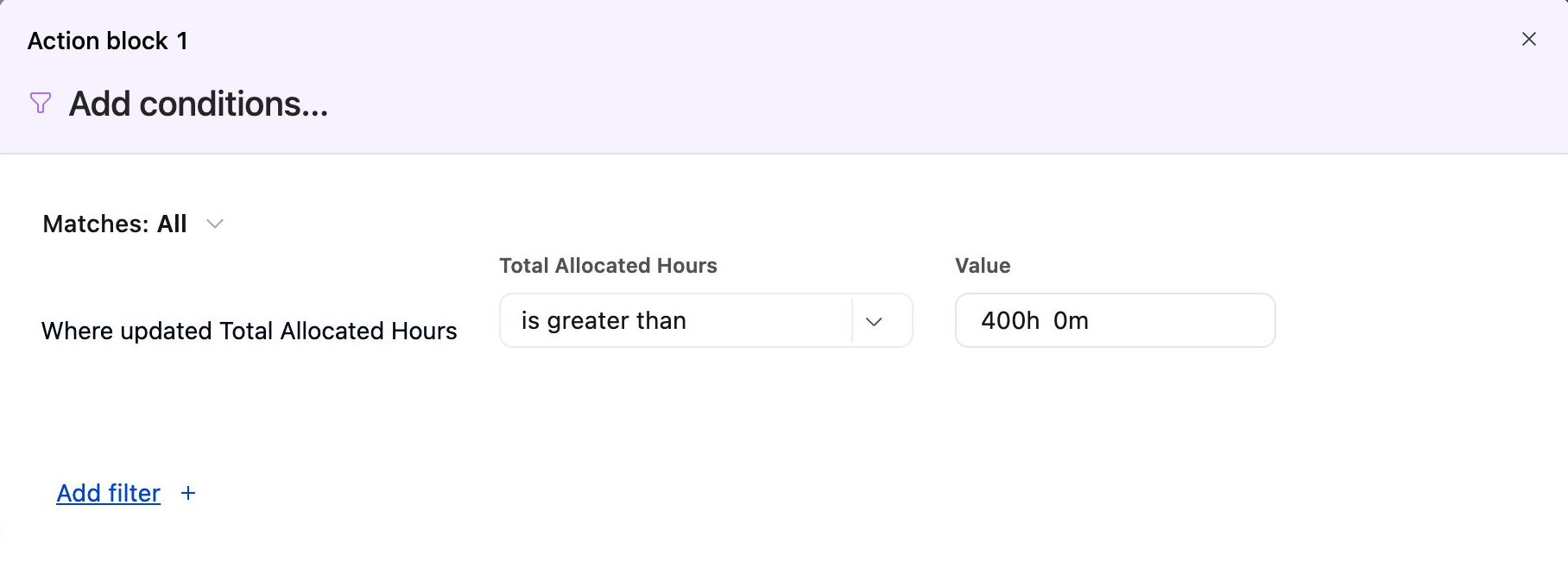
- In Action block 1, select Add conditions. Set the operator to is greater than and enter your limit in Value. For hours fields, enter the limit as a duration, for example
400h. - Optional: select Add filter to limit the automation to certain projects, for example projects where Project Type is Fixed Fee. Then select Save.
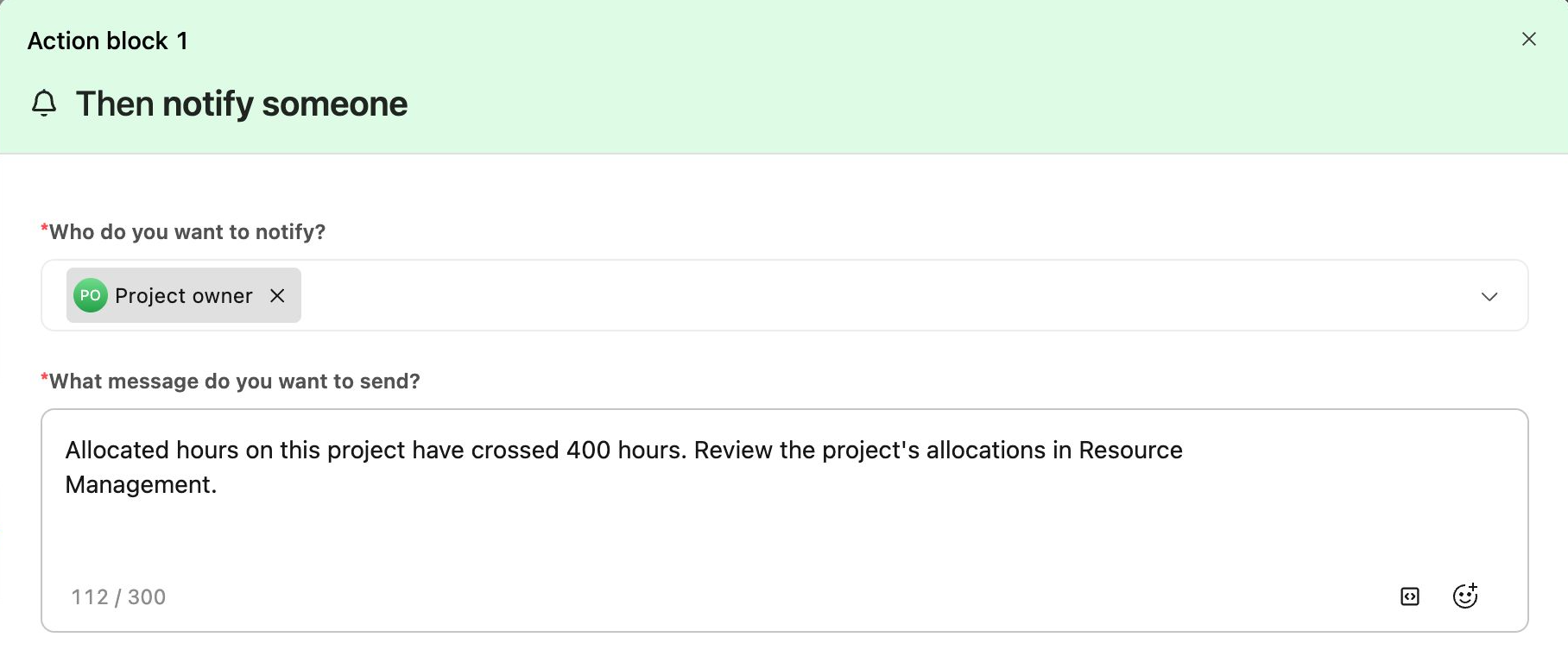
- Select Add an actionand choose how to notify the team:
- Notify someone sends an in-app notification. Under Who do you want to notify?, choose people or roles, for example Project owner. Under What message do you want to send?, enter the message, up to 300 characters.
- Send an email sends an email.
- Notify via slack posts to a Slack channel.
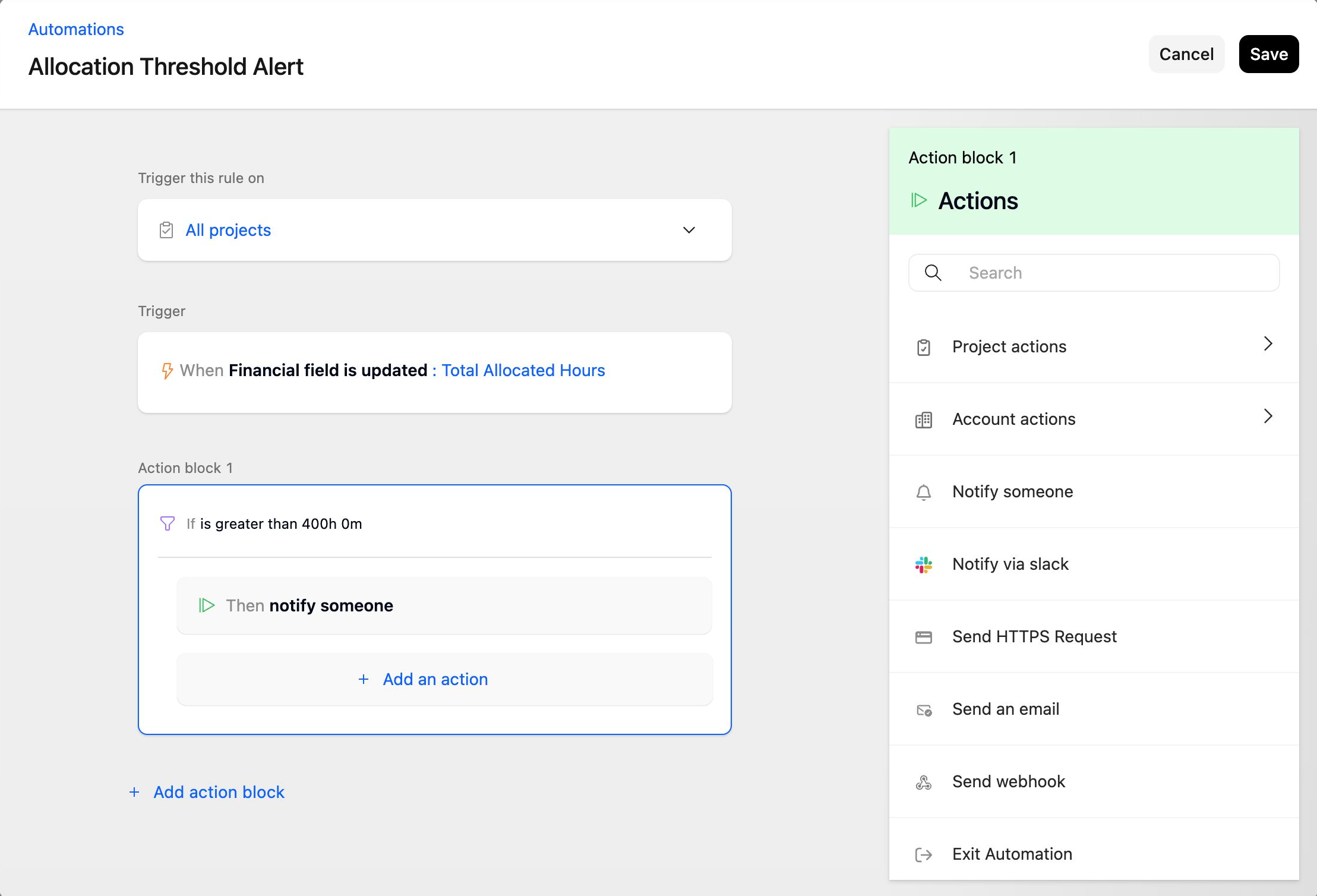
- Review the automation, and then select Save. Check that the automation is turned on in the automations list.
Examples
Alert when a project is over-allocated
A team plans fixed-fee implementations at around 400 hours. They want to know when allocations go beyond that.
- Trigger: Financial field is updated > Total Allocated Hours
- Condition: Total Allocated Hours is greater than
400h - Filter: Project Type is Fixed Fee
- Action: Notify someone > Project owner and the resource manager
When a new allocation takes a fixed-fee project from 390 to 420 allocated hours, the project owner and resource manager are notified once.
Warn when budgeted hours are running out
A delivery lead wants an early warning before projects use up their budgeted hours.
- Trigger: Financial field is updated > Budgeted hours consumed %
- Condition: Budgeted hours consumed % is greater than
80 - Action: Notify via slack > the delivery team's channel
When logged time on a project passes 80% of its budgeted hours, the team's Slack channel receives one alert.
FAQ
Can I get notified when a team member is over-allocated?
No. Automations cannot check a team member's allocation against their capacity. Use the overallocation indicators in Resource Management to find team members who are allocated beyond their capacity.
Can I alert when allocated hours exceed the budgeted hours?
Not directly. A condition compares a field to a fixed number, not to another field. Set a limit in hours with Total Allocated Hours, and use filters to apply different limits to different groups of projects.
Why didn't I get an alert even though the value is above the limit?
The alert is sent only when the value crosses the limit. If the value was already above the limit when the automation was turned on, no alert is sent until it drops below the limit and crosses it again.
Why don't I see Total Allocated Hours in the field list?
Time tracking is not turned on for your account. The hours fields appear only when time tracking is turned on, and the budget fields appear only when Financials is turned on.
Does the alert fire for allocations created from resource requests or auto-allocation?
Yes. Every allocation that is added, edited, or deleted updates the project's totals, whatever created it.
Can I use this on accounts with Multiple Project Budgets?
Yes, with a different set of fields. On accounts with Multiple Project Budgets, some project-level budget fields are not available in this trigger. Use the budget triggers instead, such as Budget field updated.
Summary
- Use the Financial field is updated project trigger to watch project totals that change when allocations or time entries change.
- Monitor allocations with Total Allocated Hours and a limit in hours, and monitor usage with Budgeted hours consumed % or Budget consumed %.
- The is greater than condition sends one alert when the value crosses the limit.
- Use filters to set different limits for different groups of projects.
- Automations cannot alert on an individual team member's over-allocation or compare allocated hours to budgeted hours directly.