When onboarding a customer across multiple services or workstreams, separate templates are often imported into the same project. Some phases (service-specific setup and training) should repeat for every engagement. Other phases (account-level setup such as admin and billing) should only be created once per project, even if multiple templates contain the same phase.
This article explains how to prevent duplicate phases by combining:
- A Yes/No project field to track whether the shared phase already exists
- A global automation to update the field when the phase is created
- A dynamic template condition to import the phase only when the field is still No
When to Use
Use this setup when:
- Multiple service templates are imported into the same project over time
- One or more phases should exist only once per project
- The same shared phase appears across multiple templates and should not be duplicated
Example Scenario
A professional services team onboards a customer who starts with Service A and later expands to Service B. Each service has its own onboarding template with three phases:
| ✅ Yes - once per engagement |
Expected behavior:
- Import Template A: Phase 1, Phase 2, and Phase 3 are added
- Import Template B later in the same project: Phase 1 and Phase 2 are added again for the new engagement, Phase 3 is skipped because it already exists
How It Works
This approach uses three parts working together:
- A custom Yes/No project field
Acts as a flag that records whether Phase 3 has already been created in the project. - A global automation
Sets the flag to Yes as soon as Phase 3 is created. - A dynamic condition on the template
Tells Rocketlane to import Phase 3 only if the flag is still No.
Phases 1 and 2 have no conditions and continue to import every time a template is applied.
Step 1: Create a Custom Project Field
- Go to Settings → Project Fields.
- Click New Field.
- Enter a field name, for example Admin & Billing Phase Added.
- Select field type Yes/No.
- Click Save.
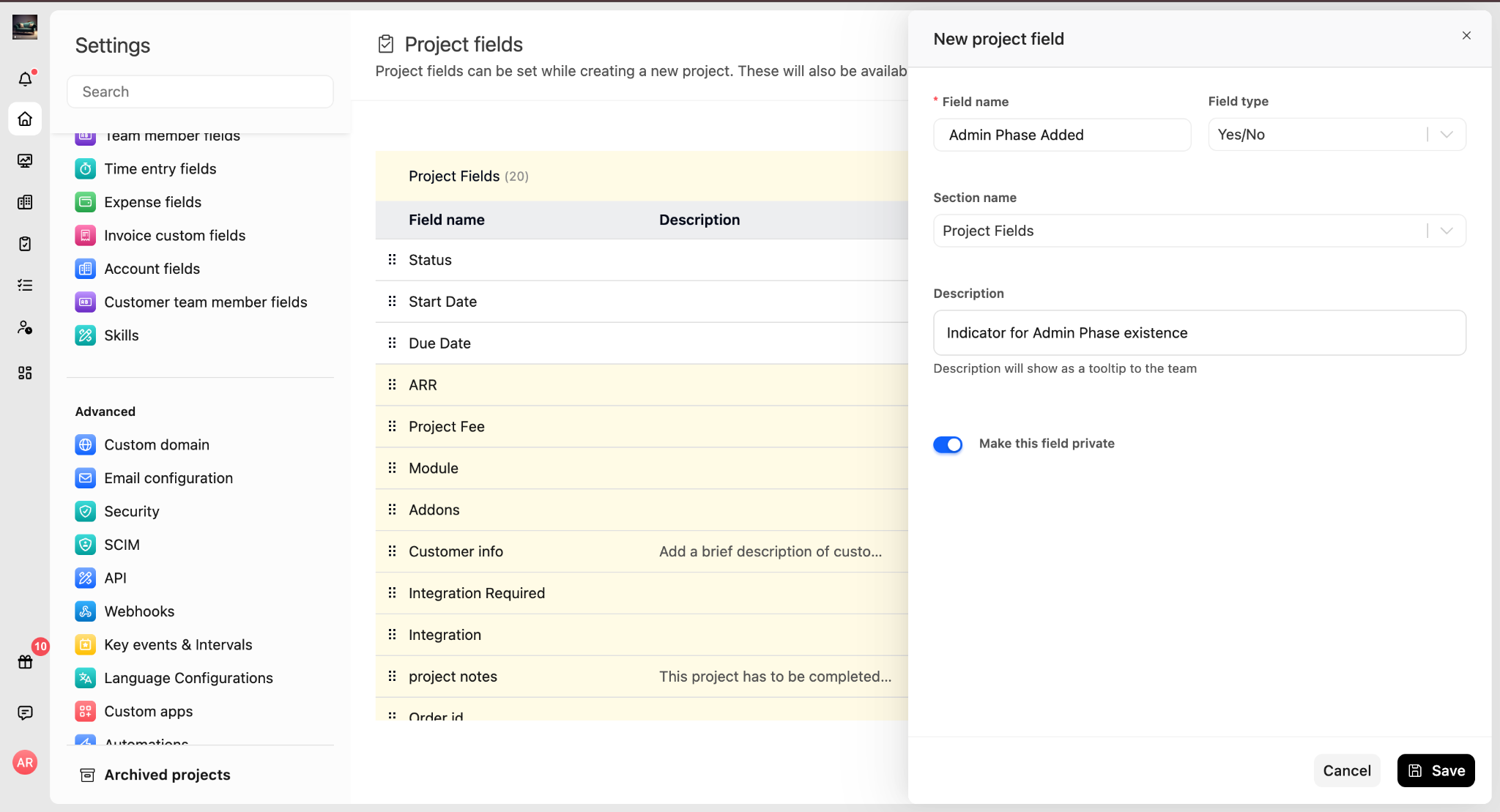
This field becomes the project-level marker that determines whether the shared phase should be imported.
Step 2: Create a Global Automation to Set the Flag
- Go to Settings → Automations.
- Click New Automation.
- Configure the automation:
- Trigger: On all phases, when a phase is created
- Condition: Phase name contains Admin & Billing
- Action: Set project field Admin & Billing Phase Added to Yes
- Click Save.
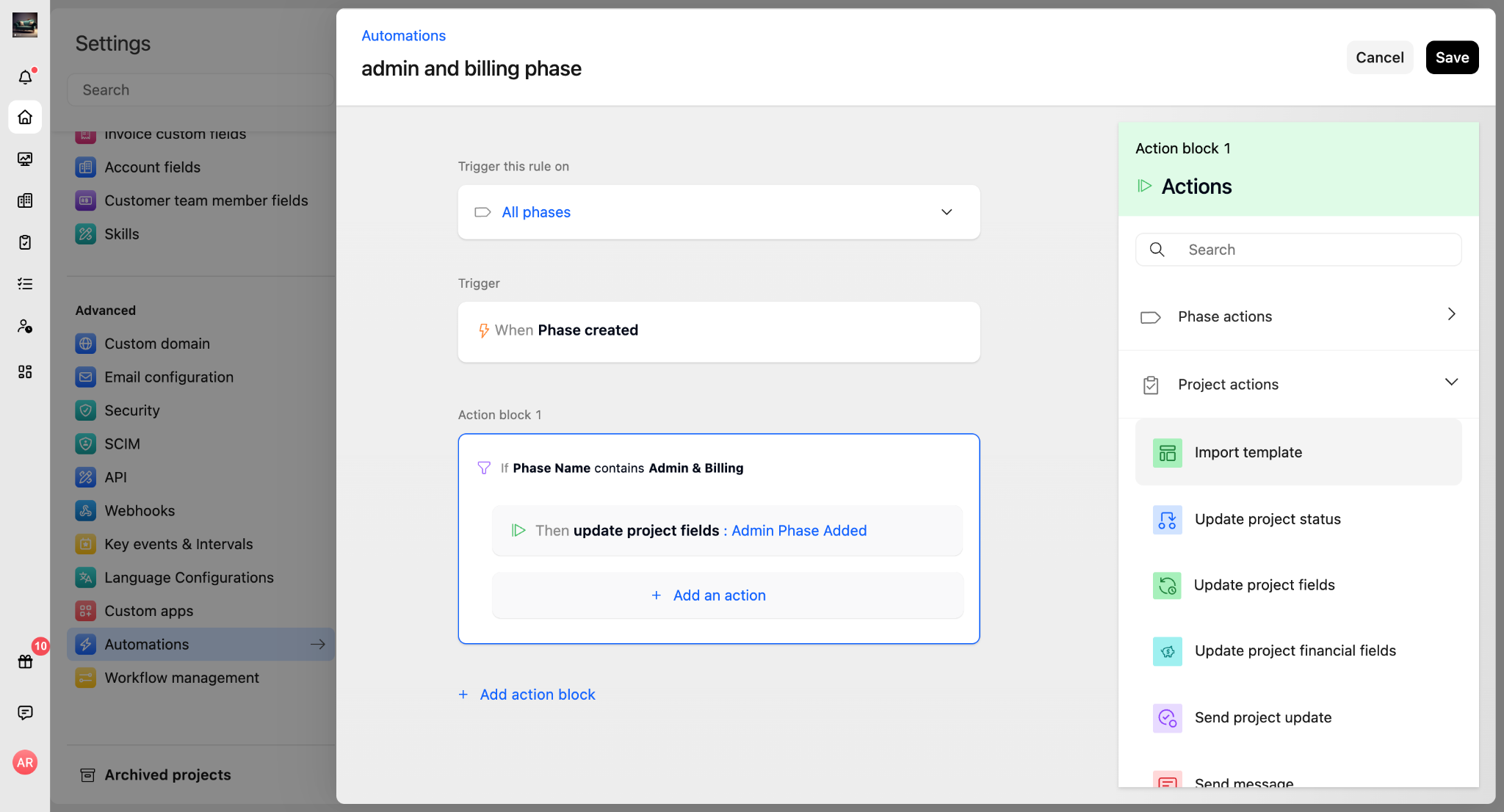
This automation runs whenever a phase matching the naming condition is created in any project, and updates the flag immediately for that project.
Step 3: Add a Dynamic Condition to the Template Phase
- Navigate to Templates → Project Templates
- Open the Service Onboarding template.
- Switch to the Dynamic view.
- Locate Phase 3 - Admin & Billing Setup.
- Add a dynamic condition:
- Condition: Admin & Billing Phase Added is False
- Leave Phase 1 and Phase 2 without any conditions.
- Click Save.
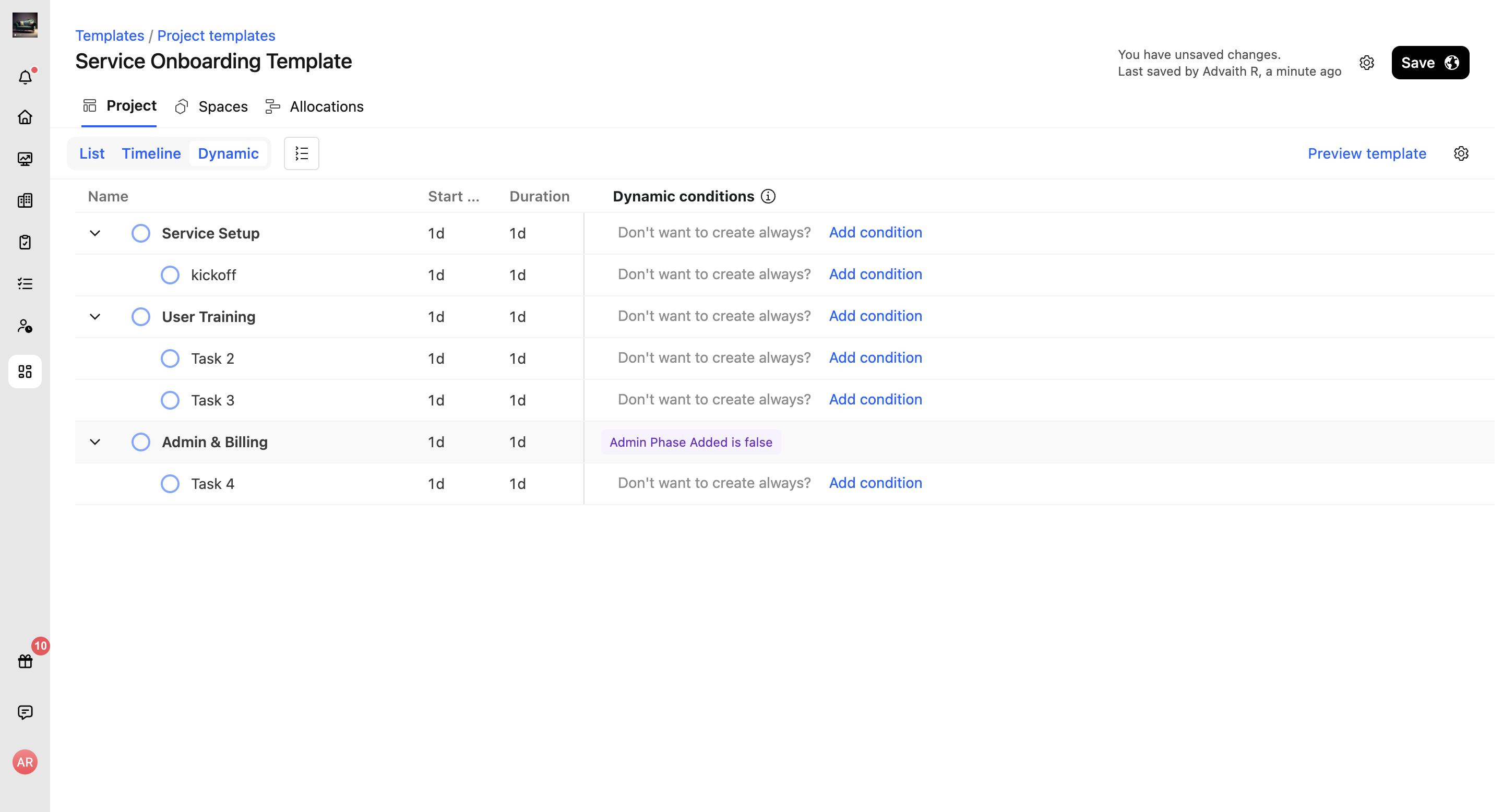
Repeat this step for every service template that includes Phase 3, so the same project field controls behavior across templates.
Expected Outcome
First import (Service A template)
- The field Admin & Billing Phase Added is No by default.
- Phase 1, Phase 2, and Phase 3 are imported.
- The global automation fires when Phase 3 is created and sets the field to Yes.
Second import (Service B template)
- Phase 1 and Phase 2 have no conditions, so they import again for Service B.
- Phase 3 checks the field:
- It is already Yes, so Phase 3 is skipped.
- No duplicate Admin & Billing phase is created.
Points to Consider
- Ongoing projects
This applies moving forward. If a project already includes Phase 3 before this configuration is implemented, manually set Admin & Billing Phase Added to Yes for that project. - Matching phase names
The automation utilizes a “name contains” condition. Make sure the phase name is detailed enough to prevent matching with unrelated phases. - Applicable across templates
The flag is established at the project level, so it doesn't matter which template introduced Phase 3. Any following template that includes it will adhere to the same flag. - Independence of each project
The flag is specific to each project. The value on one project does not affect other projects.