Rocketlane does not currently provide a native Last comment date or Last customer activity date field for tasks in reporting views. If you need to monitor stale tasks, such as investigations or action items that have not been updated recently, you can create a custom date field and use an automation to update it whenever a comment or message is added to a task.
This setup lets you filter stale tasks in task views, dashboards, and custom reports.
In this article
When to use
Use this setup when you need to:
- Identify tasks without recent comments, such as inactive investigations.
- Create reports for tasks with no activity in the last 7, 14, or 30 days.
- Sort and filter tasks using a searchable Last Comment Date field.
- Monitor activity based on comments or messages without depending on non-reportable system metadata.
How it works
This setup uses:
- A custom task date field, such as
Last Comment Date, that can be used in task views, dashboards, and reports. - An automation that updates this field with the current date whenever a new message or comment is added to a task.
Once configured:
- Tasks with recent comments will show a current
Last Comment Date. - Tasks without recent comments will keep an older date, or remain blank if no comment has been added since the automation was activated.
Prerequisites
Before you begin, make sure you have:
- Permission to access Settings and create custom fields.
- Permission to access Automations and create or enable automations.
- Access to a task comment or message trigger in the automation builder.
Create a custom date field on tasks
Start by creating a custom date field on tasks. This field will store the latest comment or message date.
- Navigate to Settings.
- Open Custom Fields.
- Select the Tasks object.
- Click Add Field.
- Choose Date as the field type.
- Label the field
Last Comment Date, or another descriptive name. - Click Save.
This field is now available on tasks and can be used in views and reports.
Create an automation to update the field
Next, create an automation that updates the custom date field whenever a comment or message is added to a task.
- Go to Settings > Automations.
- Click Create Automation or New Automation.
- Configure the trigger and action as described below.
- Click Save, then activate the automation.
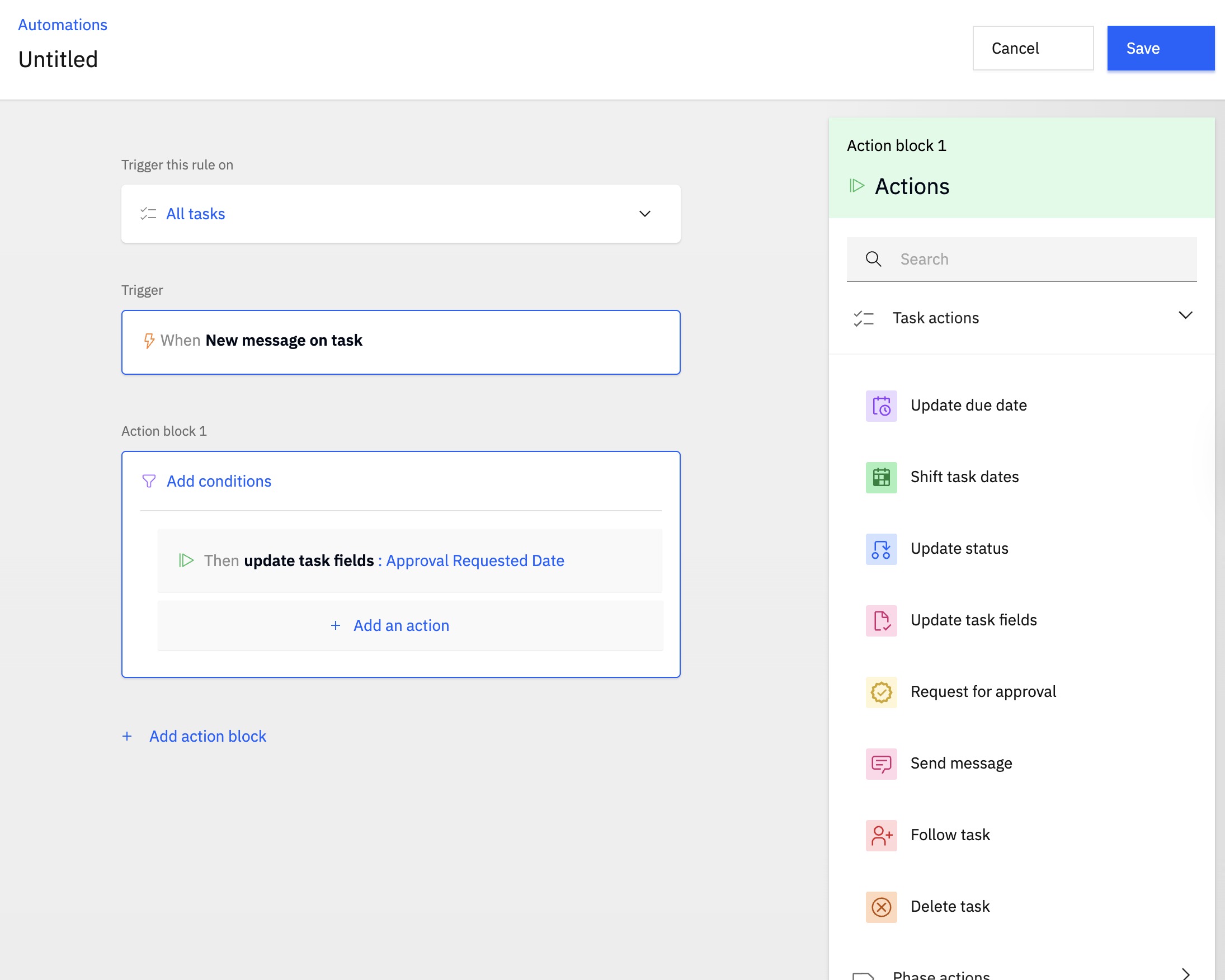
Trigger
Set the trigger to run whenever a comment or message is added to a task.
This trigger runs whenever someone posts a message in the task chat feed.
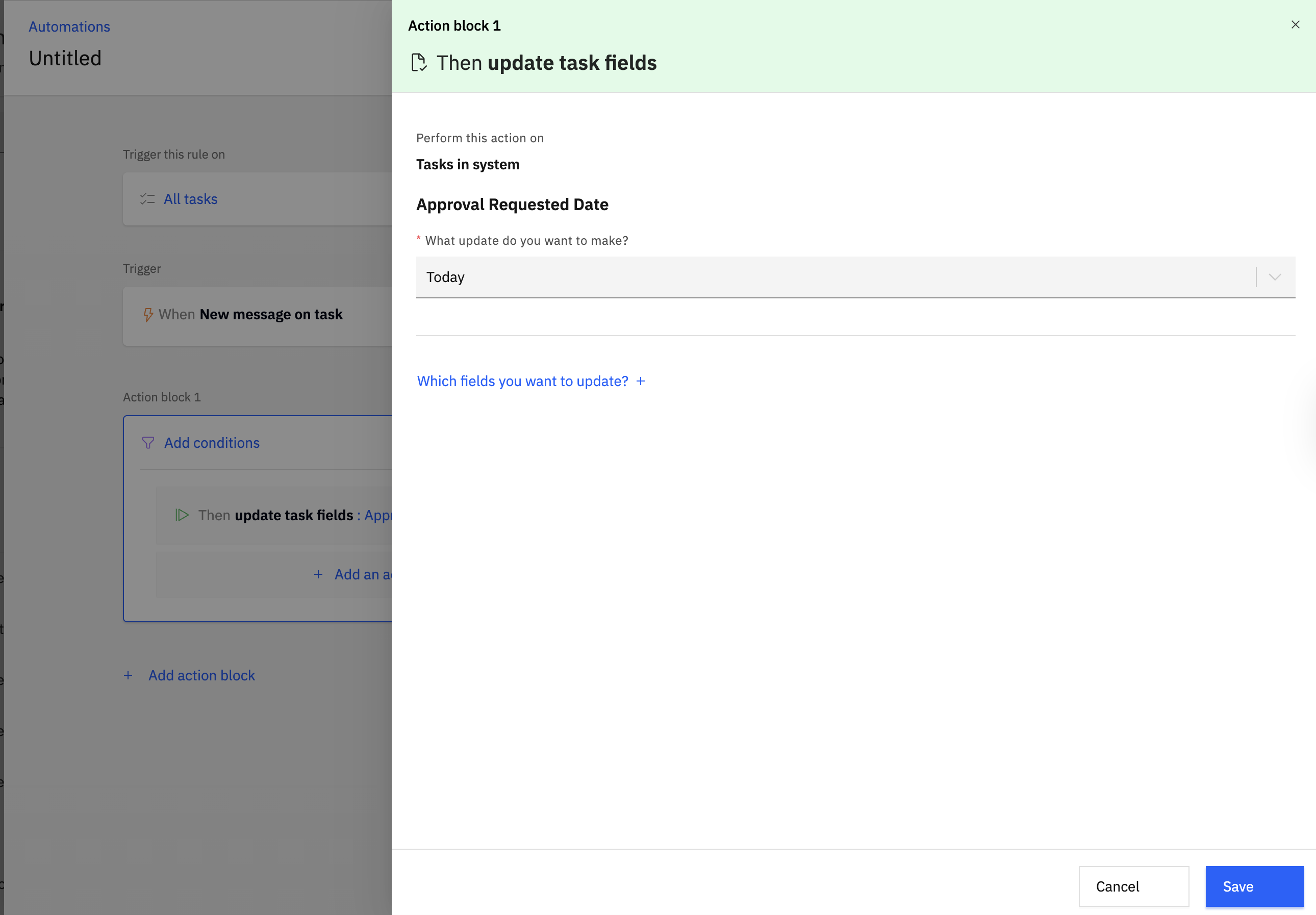
Action
Set the action to update the custom date field with the current date.
Optional: add conditions
Add conditions if you want to limit this automation to specific tasks or projects. For example, you can run it only for:
- Tasks in specific projects.
- Tasks with specific statuses.
- Specific task types, such as investigations, escalations, or action items.
Once the automation is active, the Last Comment Date field can be used across Rocketlane like any standard date field.