Customer form responses often provide the information teams need to continue onboarding, complete configurations, approve requests, or begin the next stage of a project. When team members must manually check individual projects for new responses, important submissions can go unnoticed and delay the work that follows.
You can create a form automation that notifies the appropriate internal team members as soon as a customer submits a response. The email can alert recipients to review the form in Rocketlane or include selected response data directly, helping teams act on customer inputs sooner and maintain consistent handoffs across projects.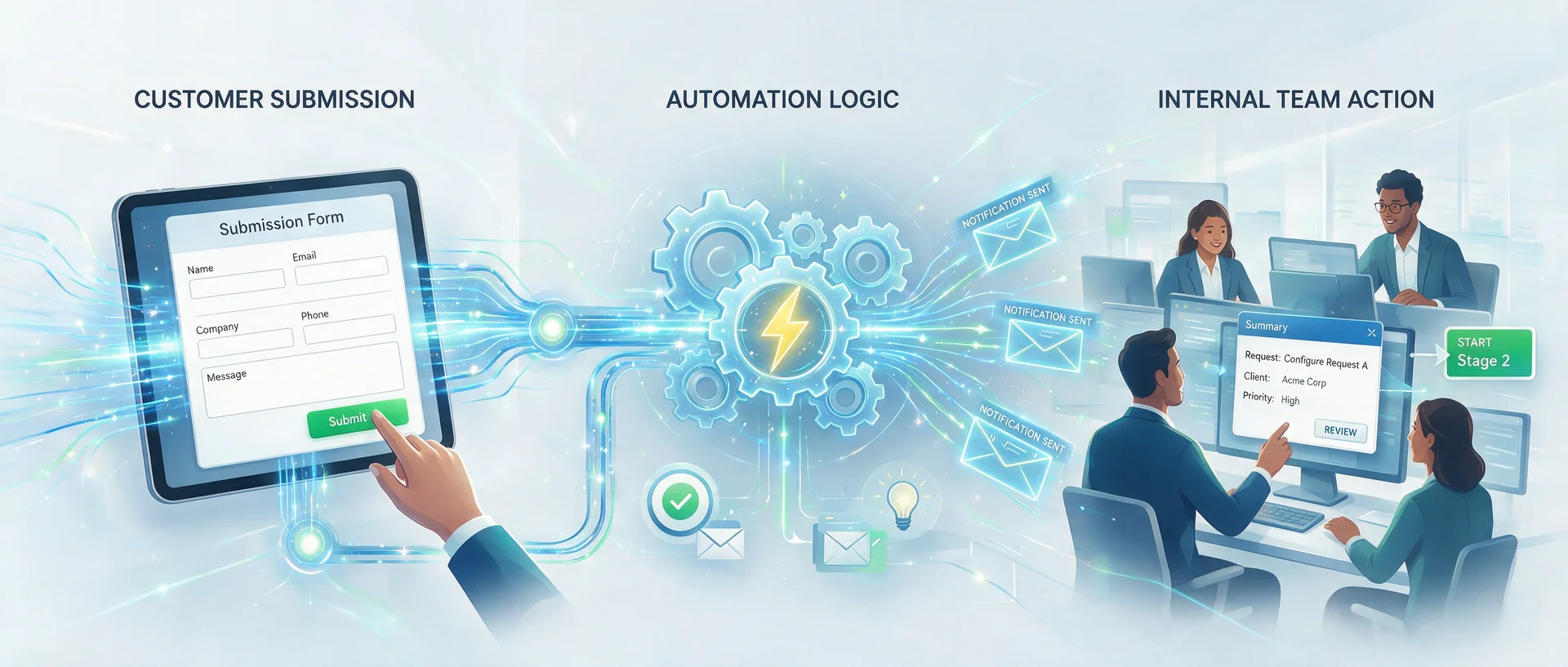
In this article
What this workflow helps you achieve
This workflow helps teams:
- Respond to customer submissions without waiting for someone to check the project.
- Route form completions to the team members responsible for the next step.
- Reduce delays caused by missed or unnoticed responses.
- Include important customer information directly in the notification email.
- Apply a consistent follow-up process across projects created from the same template.
How it works
The automation uses New form response as the trigger and Send email as the action.
You can configure the email in two ways:
Before you begin
Ensure that:
- The form has been added to the relevant project template.
- The internal recipient who should receive the email has been identified.
- Any responses that must appear in the email are mapped to project or task fields.
If the email only needs to notify the recipient that the form was completed, field mapping is not required.
Step 1: Map form questions to fields
Complete this step only if the email needs to contain the submitted responses.
- Go to Templates.
- Open the relevant project template.
- Add Form task and select the form.
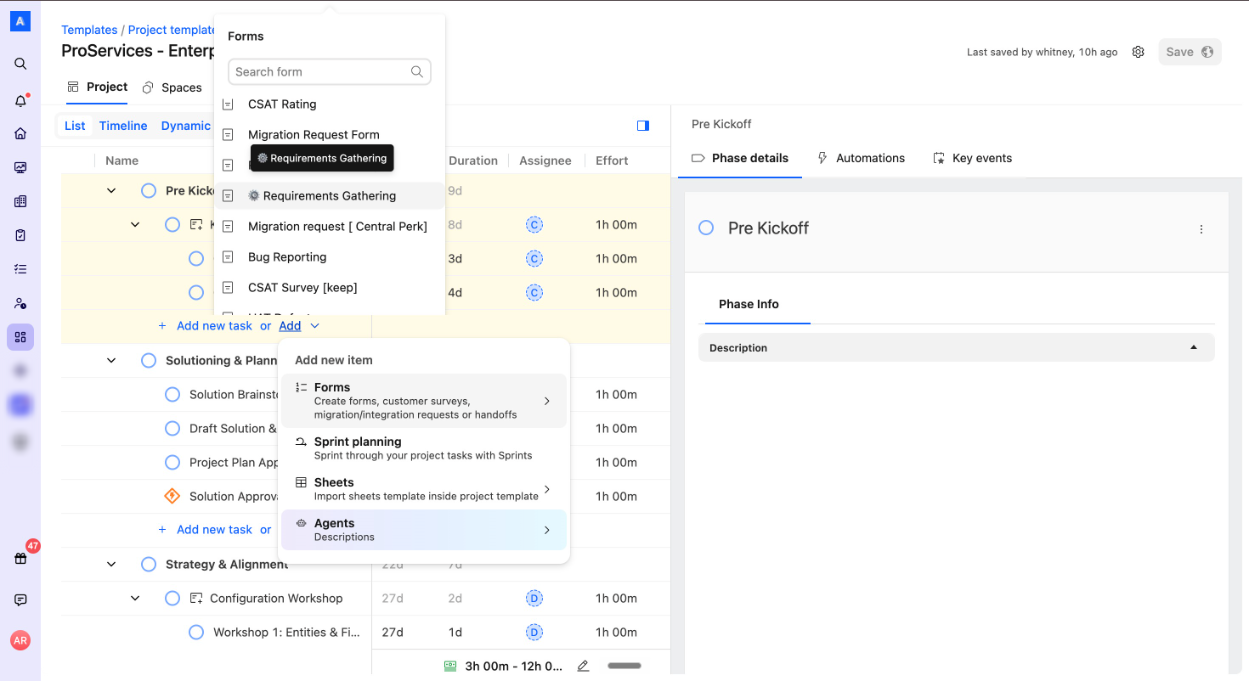
- Open the form question whose response should appear in the email.
- Map the question to the appropriate project or task field (in its Form template).
- Repeat this process for each response you want to include.
- Save the form.
When the customer submits the form, the submitted values are automatically added to the mapped fields.
Step 2: Add an automation to the form
- From the project template.
- Select the relevant form.
- Click Add Automation > Blank State.
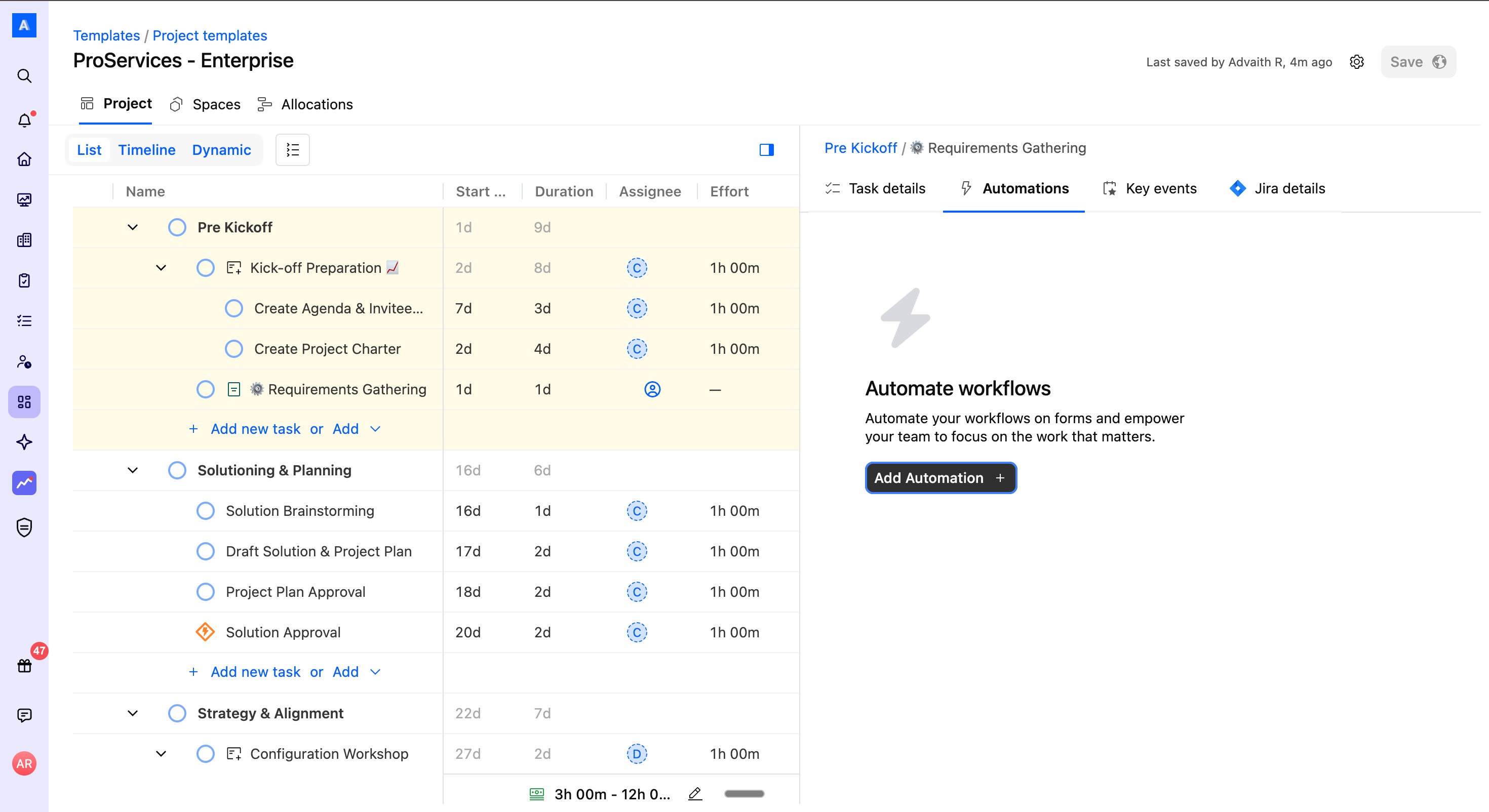
- Select New form response as the trigger.
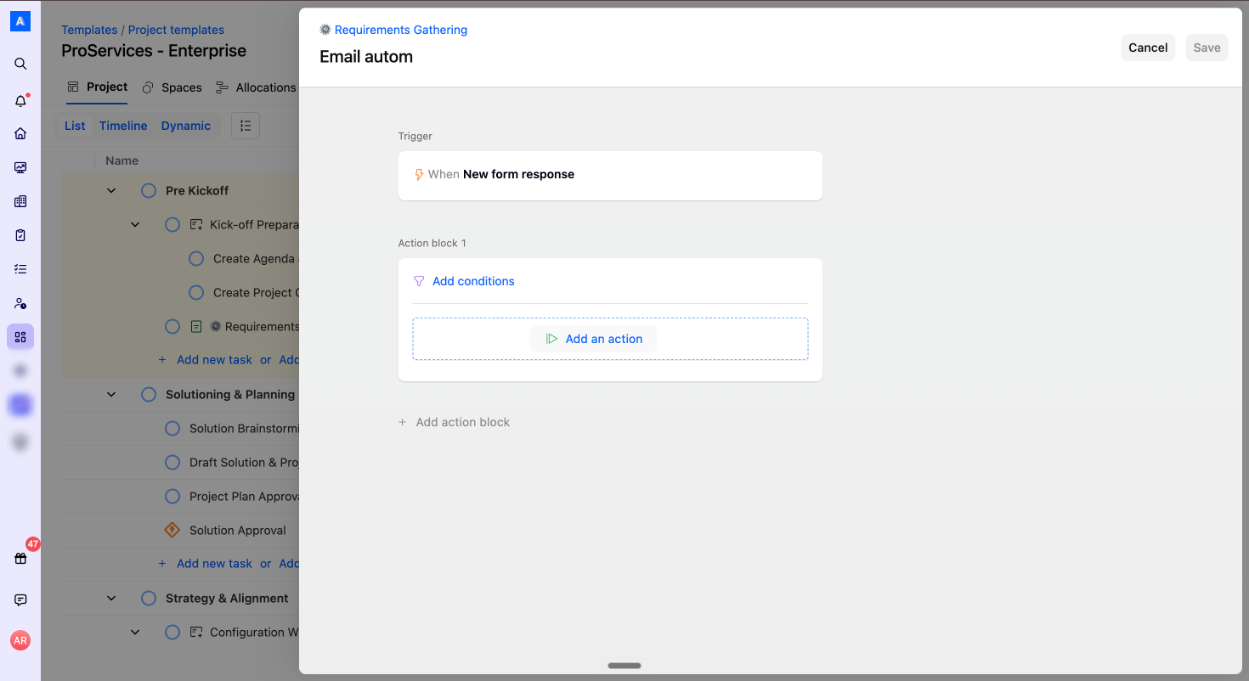
The automation will run whenever a customer submits a new response to that form.
Step 3: Configure the email action
- Add Send email as the automation action.
- Select the internal team member or members who should receive the email.
- Enter the email subject and message.
- If required, use SmartFill
{{to add the mapped project or task fields to the email body. - Save the automation.
For a simple completion notification, the email can inform the recipient that the form was submitted and ask them to open the project to review it.
If the email must contain response data, add the corresponding mapped fields through SmartFill.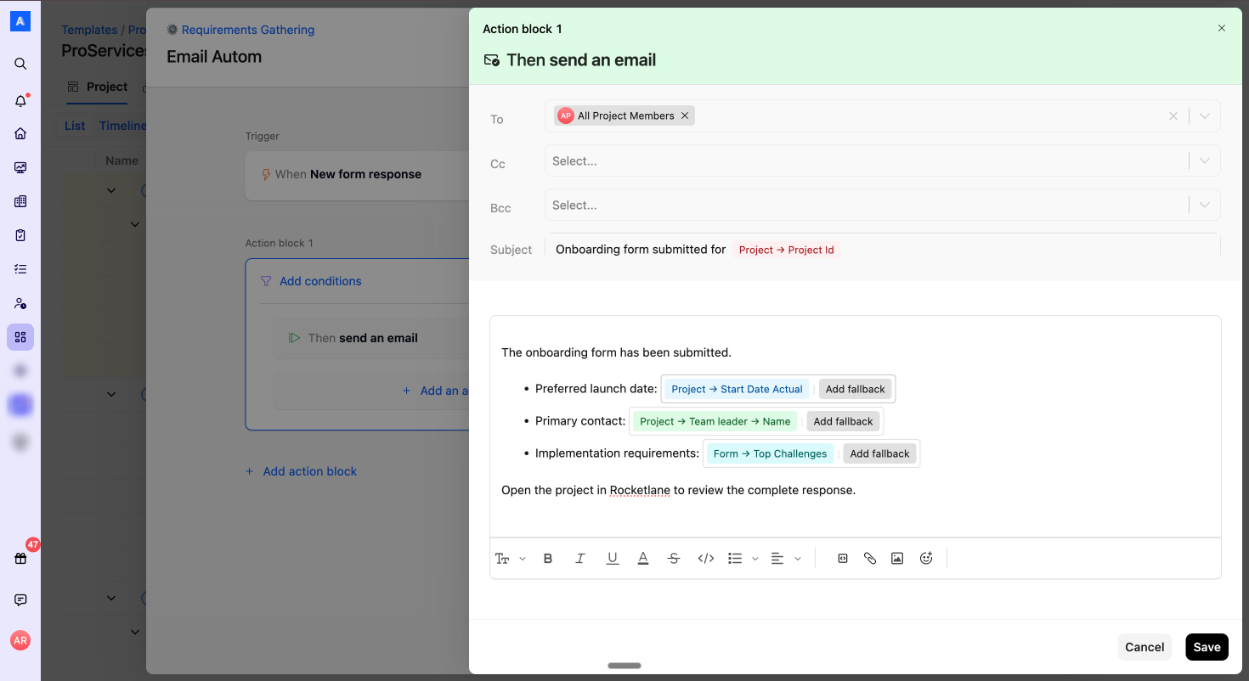
Example
A customer submits an onboarding form containing the following questions:
- Preferred launch date
- Primary contact
- Implementation requirements
Each question is mapped to a corresponding project field. The email automation then uses SmartFill to include those project fields in the message.
The internal recipient could receive an email similar to:
Subject: Onboarding form submitted for [Project Name]
The onboarding form has been submitted.
- Preferred launch date: [Launch Date]
- Primary contact: [Primary Contact]
- Implementation requirements: [Requirements]
Open the project in Rocketlane to review the complete response.