Table Of Contents
- When to Use
- Before you start
- Create a Report Using Forms as the Source
- Create a Tabular Form Report
- Create a Pivot Form Report
- Supported Fields
- Question Fields in Form Reports
- Excluded Fields
- How Forms Connect to Other Data
- Use Formula Fields with Form Reports
- Template Scope for Formula Fields
- Use Form Data in Dashboard Cards and Charts
- Grouping and Filtering Columns
- Related Articles
Form reports let you use responses submitted through forms as a reporting source in Rocketlane.
Just as you can build reports using project, task, people, and time tracking data, you can also report on the form responses received in your Rocketlane account. Every question on a form template becomes a reportable field, so you can track submissions, analyze answers, and connect form data with the related project, task, and company context.
For example, you can report on customer onboarding forms, internal review forms, handoff forms, risk assessment forms, or feedback forms, and use those responses to understand trends, identify blockers, monitor completion, and support better project decisions.
Use Form reports when you want to move form data out of individual submissions and into dashboards, charts, pivot reports, and tabular reports that your teams can act on.
When to Use
Use Form reports when you want to:
- Track form submission volume over time.
- Monitor completion trends.
- Analyze responses to specific questions across projects.
- View individual form responses in one place.
- Summarize form responses by project, task, or company details.
- Combine form answers with related project and task information.
- Build dashboards using form response data.
Before you start
- Feature availability: Form reports are available on accounts where Forms is enabled as a reporting source. If you don't see Form listed as a data source when creating a report, contact your Rocketlane representative.
- Permission: You need the Create and Edit report permission to create or edit reports.
- Data: You need at least one form template that has received responses. A report pulls from one form template at a time to compare several templates (for example, different onboarding forms for different programs), creating one report per template.
Create a Report Using Forms as the Source
When you create a report, select Form as the data source. Rocketlane then lets you choose the form template you want to report on.
You can create two types of reports using form responses:
- Tabular reports
- Pivot reports
Create a Tabular Form Report
Use a Tabular report when you want to view individual form responses as a list.
To create a Tabular Form report:
- Navigate to Reports
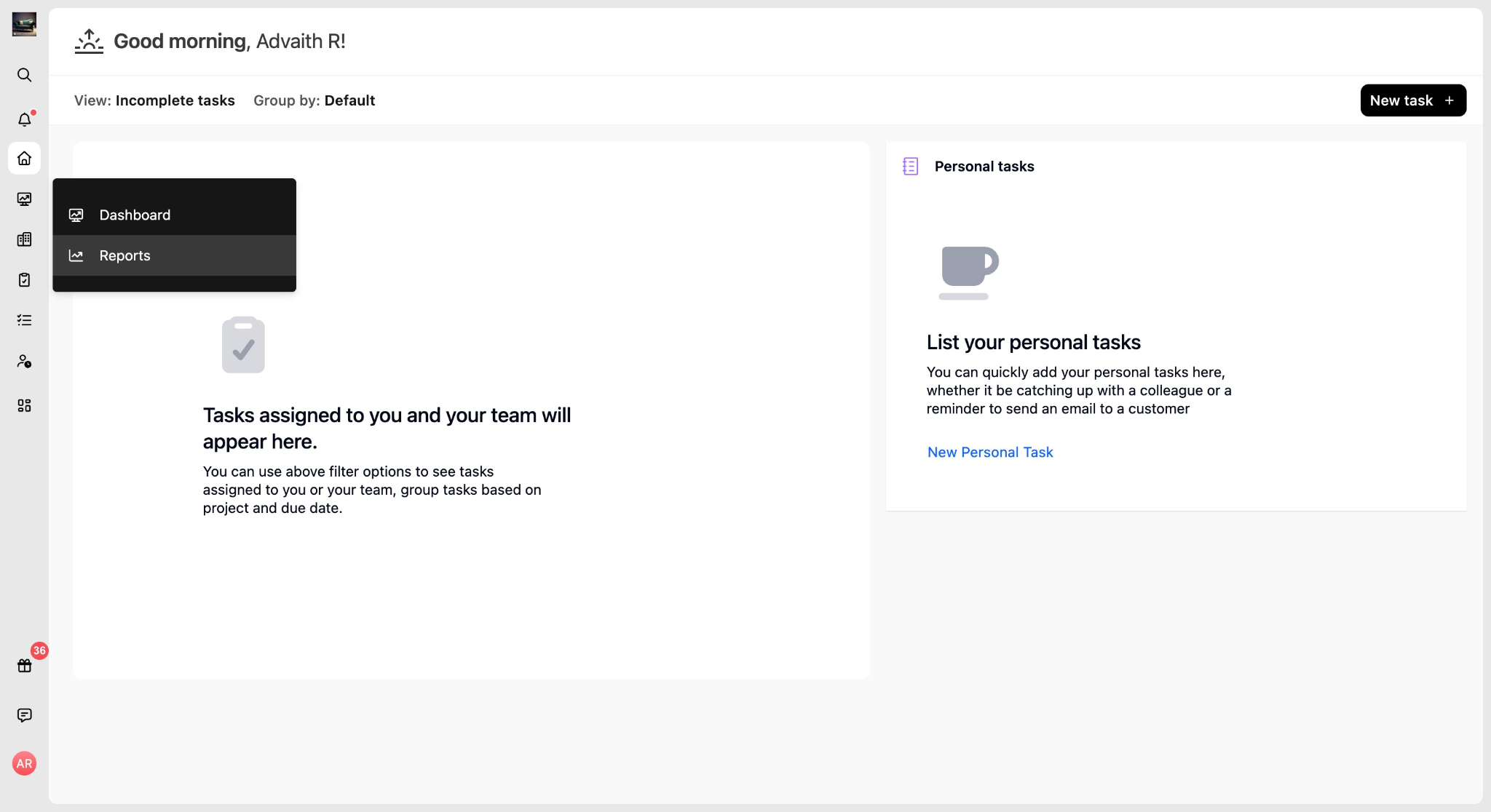
- Click +New Custom Report.
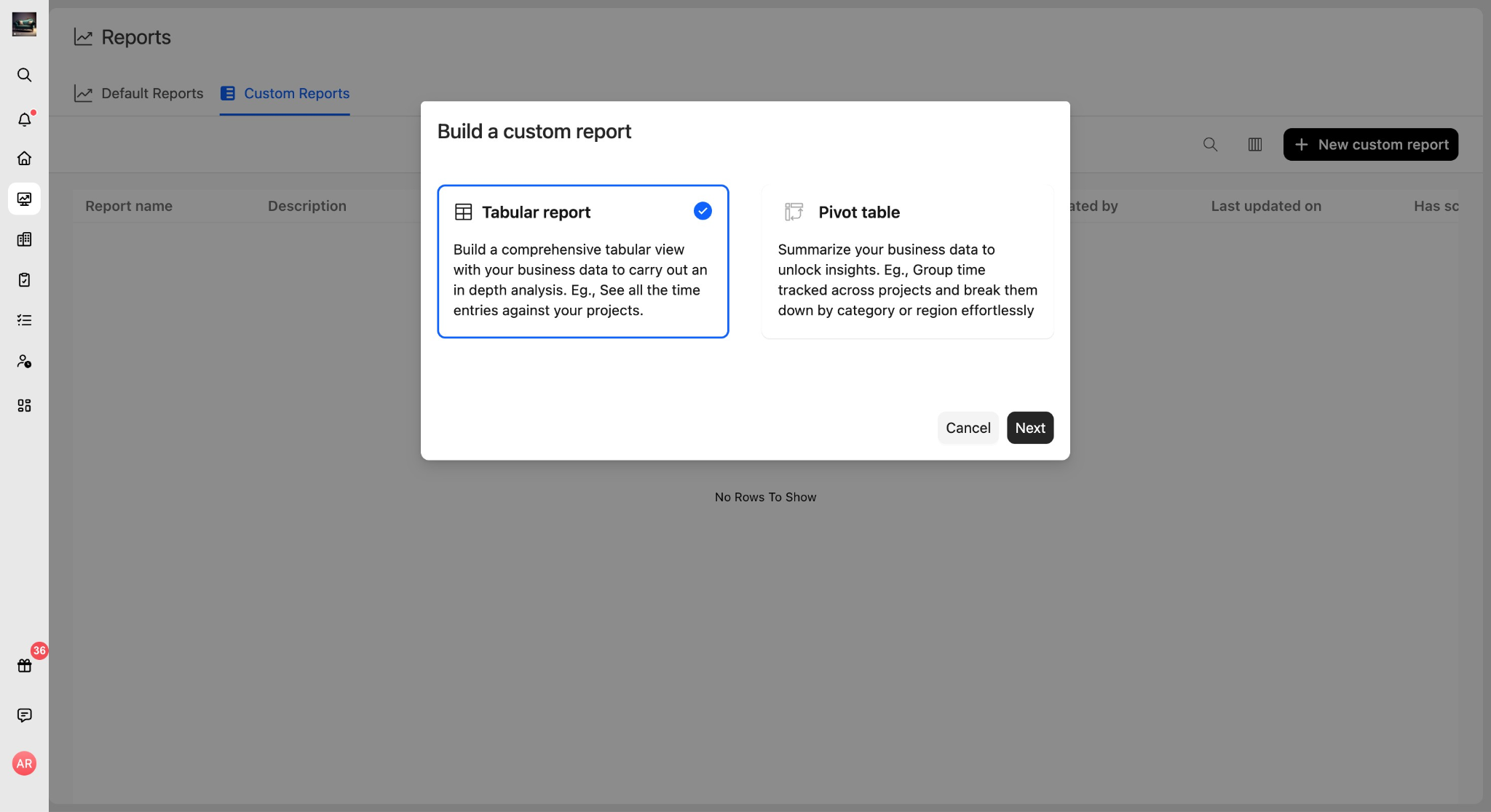
- Select Tabular.
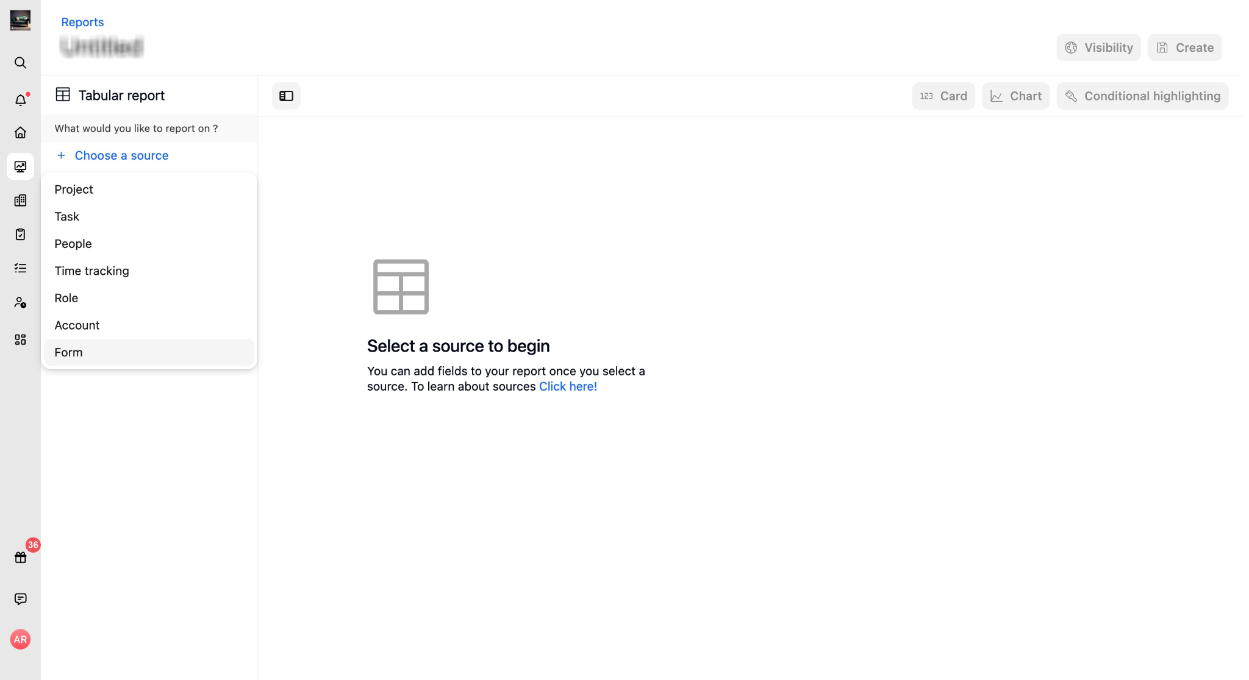
- Under the 'What would you like to report on?' section, click + Choose a source and select Form from the dropdown menu.
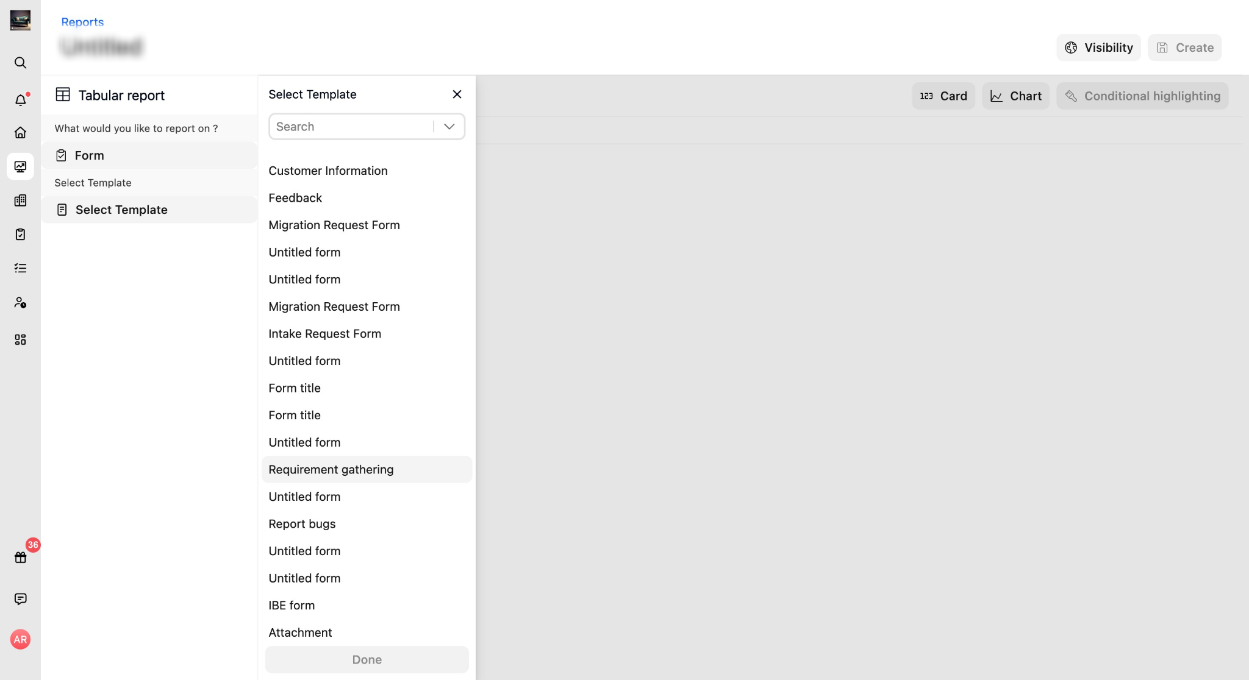
- Choose the form template you want to report on.
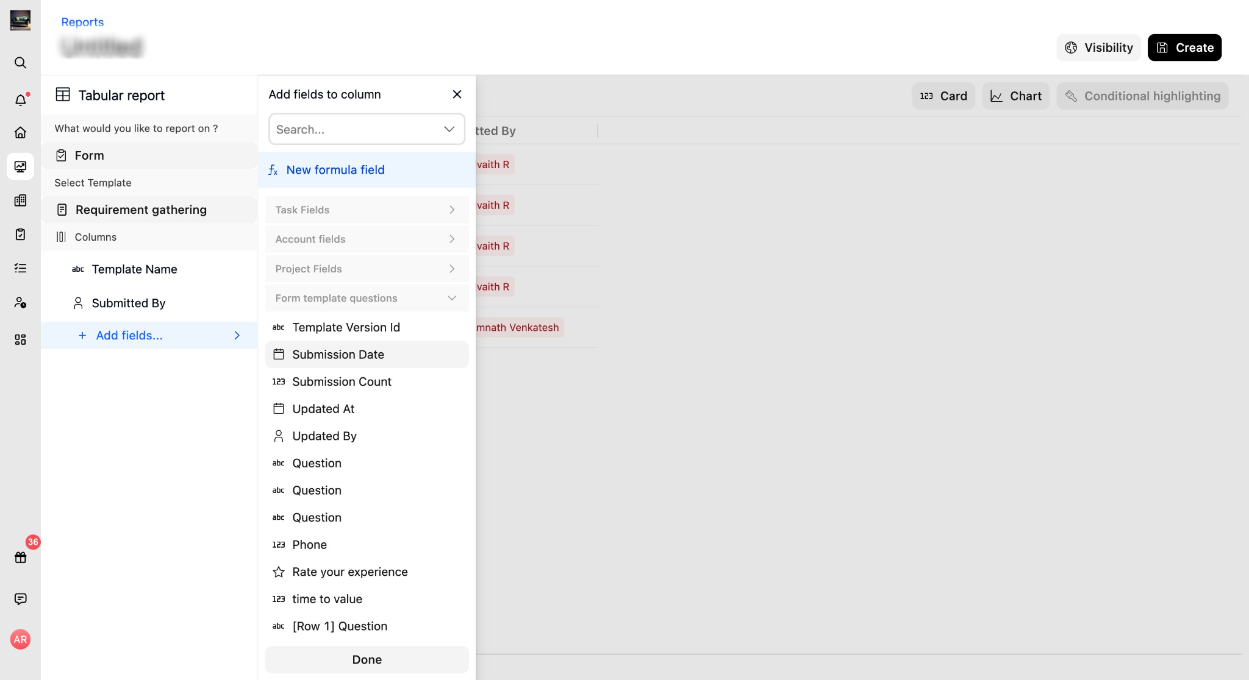
- Add the fields you want to include.
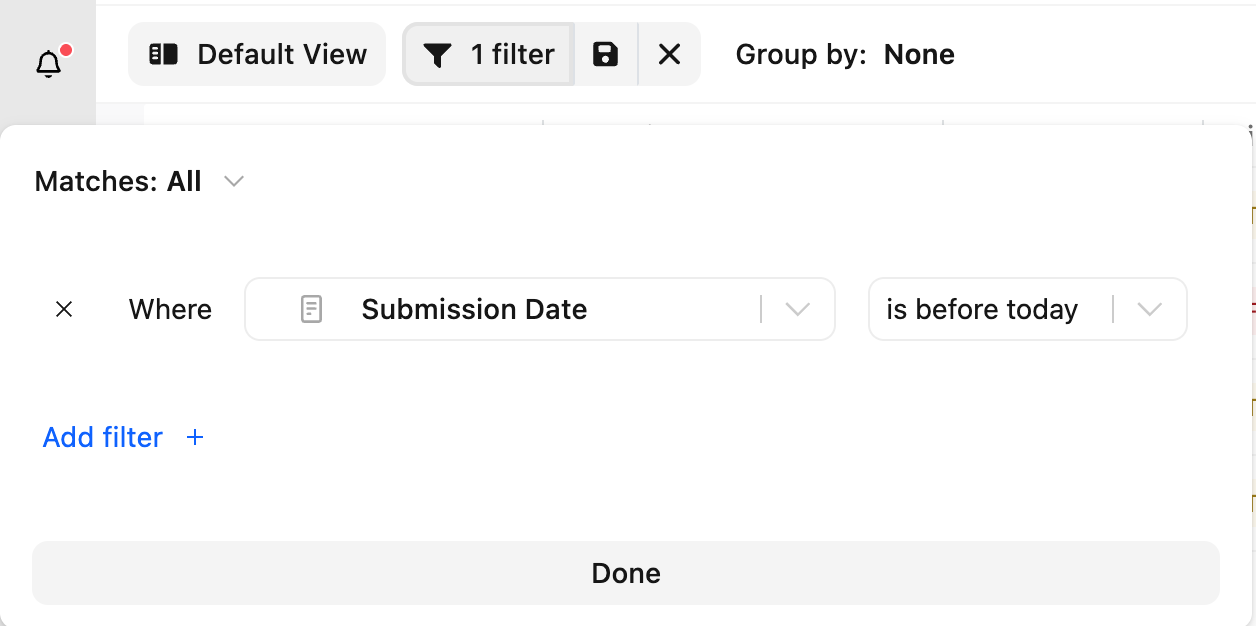
Examples:- Submission Date
- Submitted By
- Question fields from the selected form template
- Related project, task, or company fields
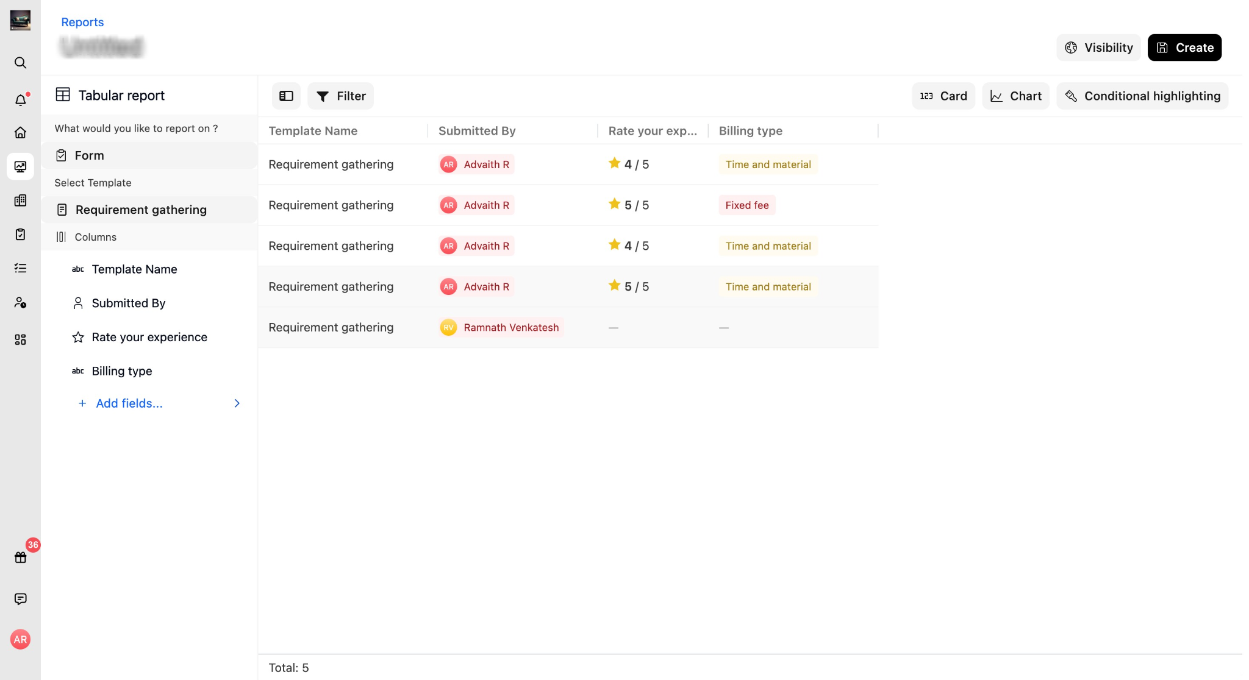
- Click + Add fields... again to add more fields, such as Start date and Billing type, and Click Create. The tabular report will automatically populate with the form submission data.
Create a Pivot Form Report
Use a Pivot report when you want to summarize form responses.
For example, you can count submissions, average a numeric answer, or group responses by a form answer, submission date, project, task, or company field.
To create a Pivot Form report:
- Navigate to Reports > +New Custom Report
- Select Pivot table.
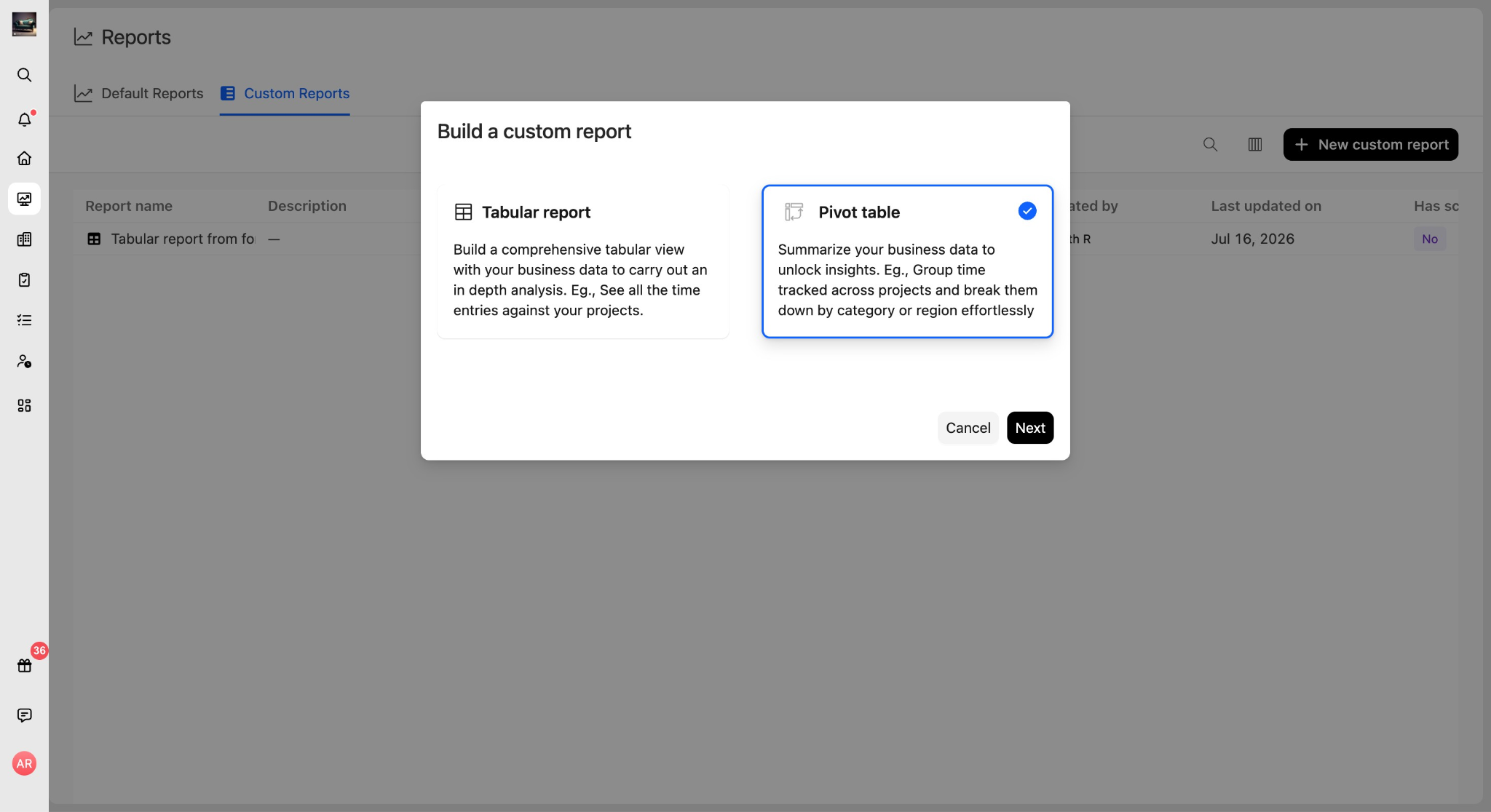
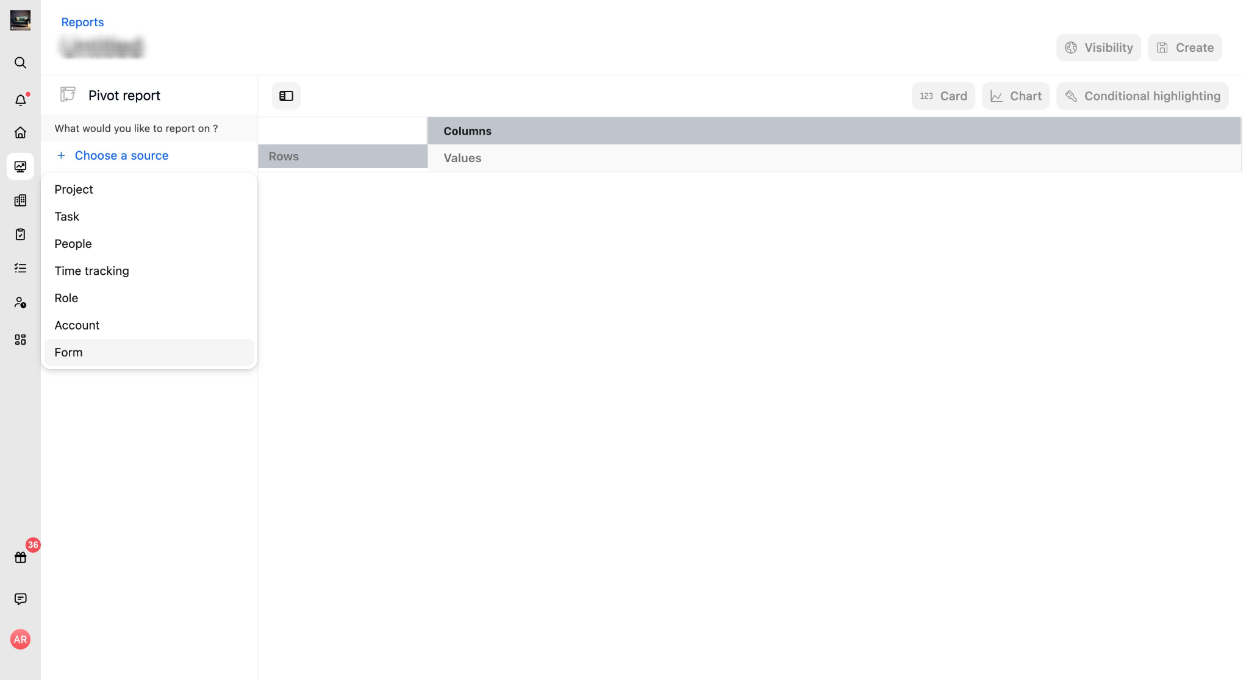
- Select Form as the data source.
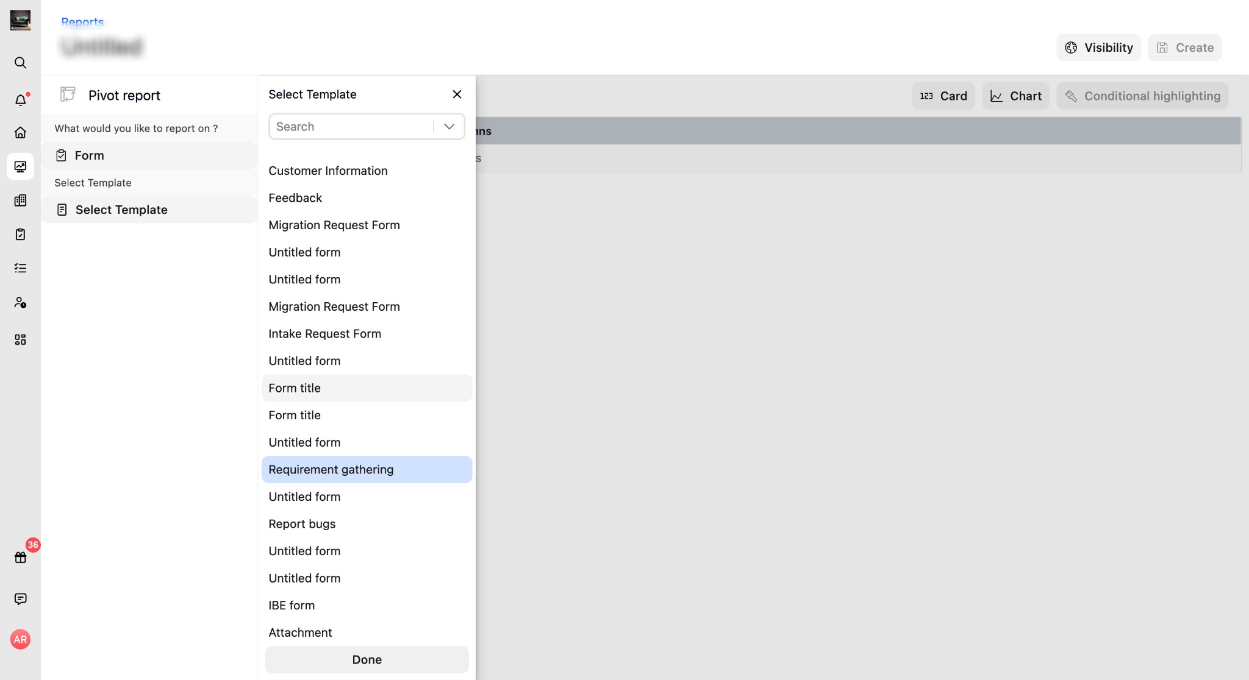
- Choose the form template you want to report on.
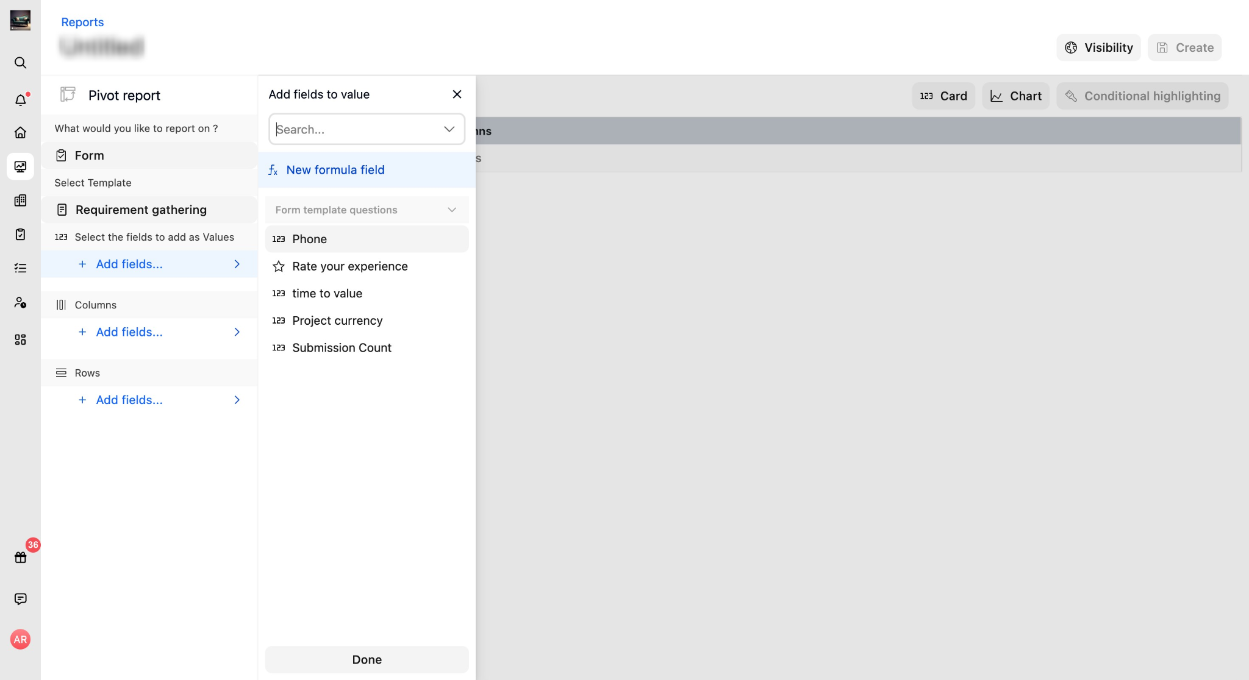
- Add a field to Values.
- Add fields to Rows or Columns to group the results.
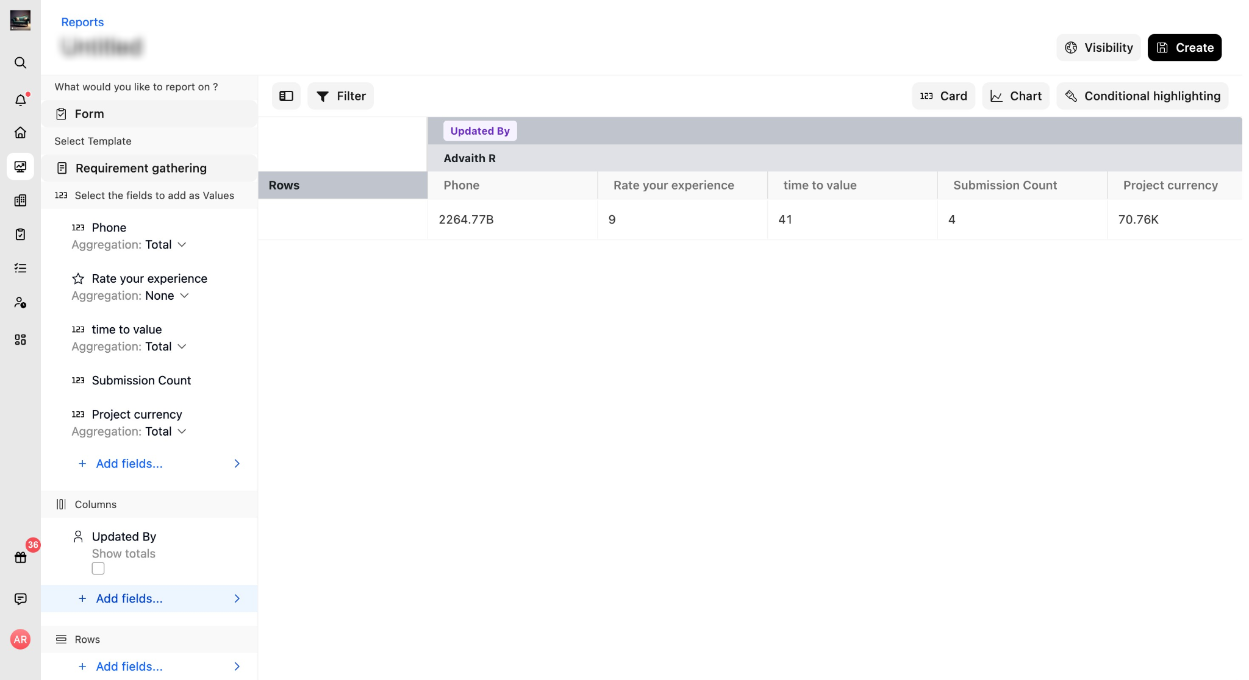
- Click Create.
Grouping rules for pivot reports (Rows and Columns)
Whether a field can be used to group a pivot report depends on its type:
Supported Fields
Standard Fields Available in Every Form Report
Every Form report includes standard fields in addition to the question fields.
Question Fields in Form Reports
When you select a form template, every question on that template becomes a reportable field.
The field label is based on the question text, so you can identify the exact question you want to include in the report.
For example, if a form question is What is the customer’s launch timeline?, that question appears as a field in the report builder.
Choice-Based Questions
For choice-based questions, reports show the option label instead of a raw stored value.
This applies to question types such as:
- Dropdowns
- Radio buttons
- Checkboxes
For example, if the selected value is High Priority, the report displays High Priority.
Miscellaneous Question Types
Some form question types behave differently in reports.
Excluded Fields
Form reports do not support all fields from related objects.
You cannot include:
- Custom fields from Projects, Tasks, or Companies.
- User or Role data.
- Time tracking data.
- Budget or financial data.
These fields are not connected to Forms in Tabular or Pivot reports.
How Forms Connect to Other Data
Every form is connected to a task, a project, and a company. Because of this, Form reports can include identifying details from these related records.
This works similar to how a People report can show related project fields.
You can include standard fields from:
- Project
- Task
- Company
Examples of related fields include:
Use related project, task, or company fields to add context to form responses.
Examples:
- Add Project Name to see which project each response belongs to.
- Add Task Status to see whether the task linked to the form is still open.
- Add Company Stage to understand the customer relationship stage tied to each response.
Use Formula Fields with Form Reports
You can create formula fields in Form-sourced reports to calculate values from form data. Just click +Add Fields > New Formula Field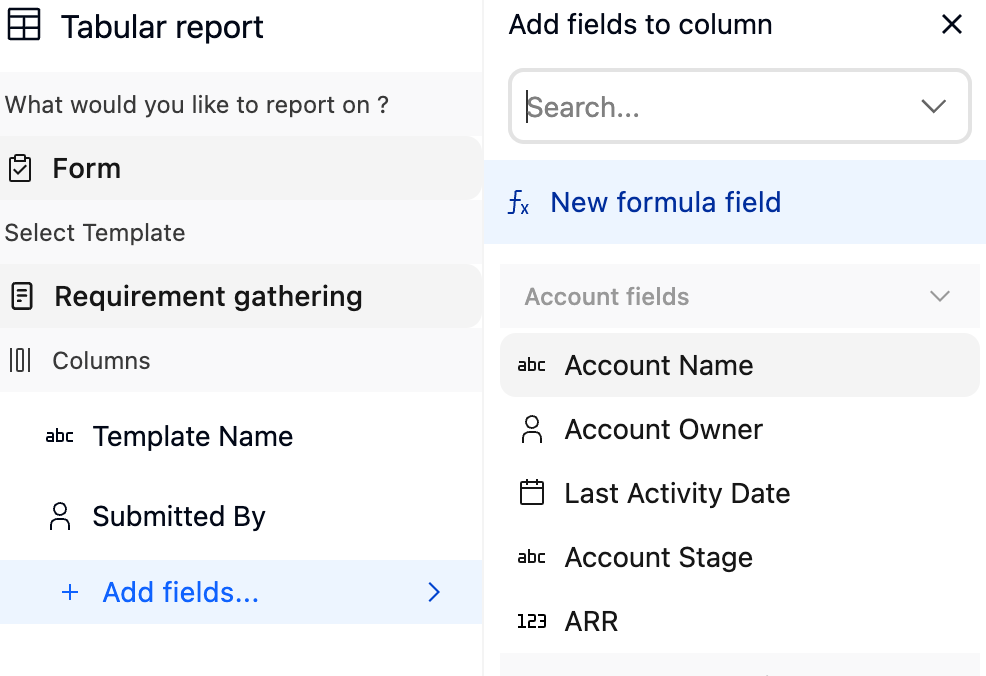
For example, you can create a formula that:
- Combines two number questions.
- Uses Submission Count in a calculation.
- Calculates based on a date question.
- Calculates based on a currency or rating question.
A new formula in a Form report can use:
- Submission Count
- Submission Date
- Updated At
- Number questions
- Currency questions
- Rating questions
- Date questions
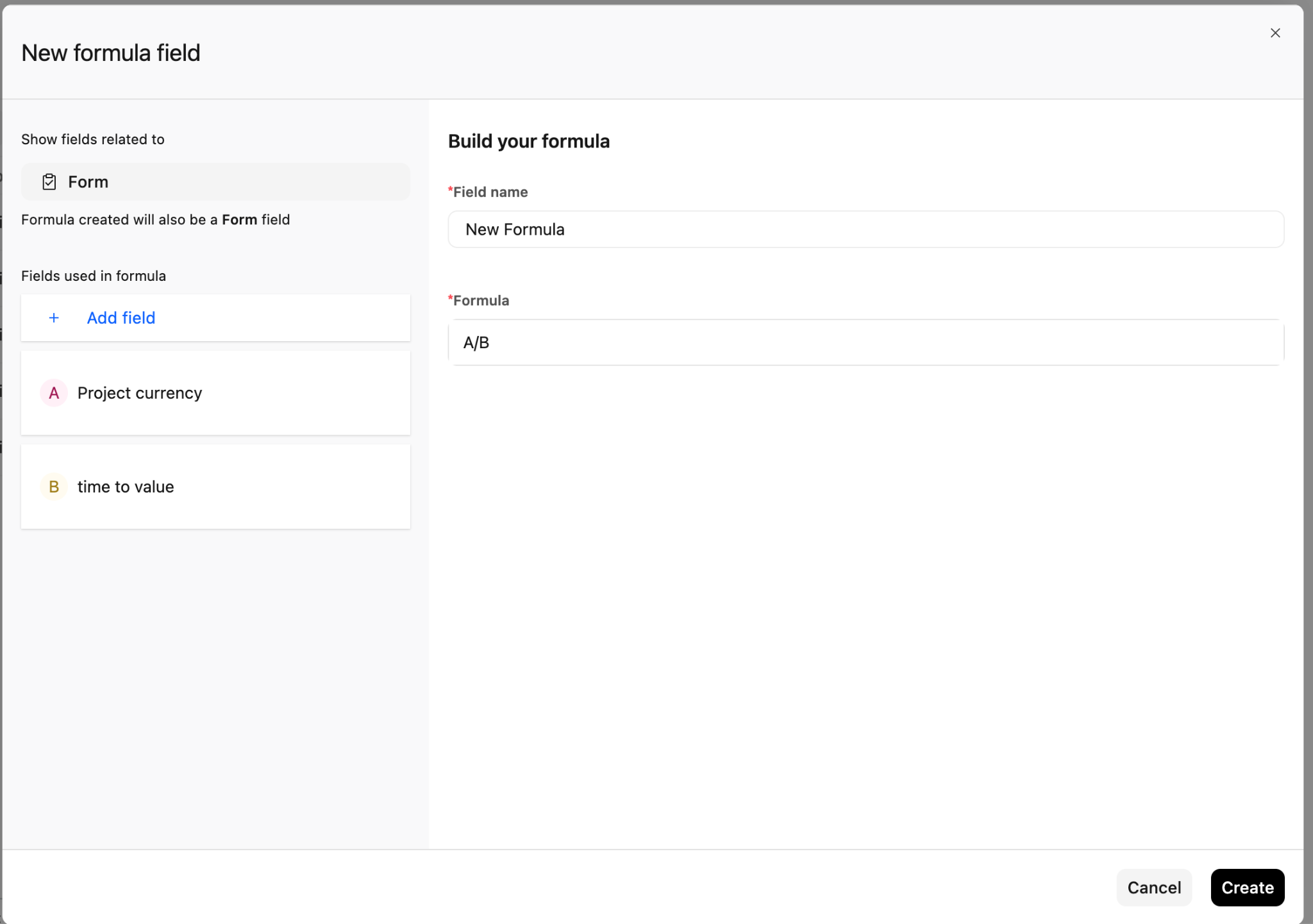
To learn more about Formula Fields, refer to this article
Template Scope for Formula Fields
Formula fields in Form reports are scoped to the selected form template.
A formula created for one template appears only in reports built using that same template. It does not carry over if you switch templates or create a report using a different form template.
This works reliably for Project fields. Mapping to a Task field only seeds a value on a newly auto-created task, so it is not a dependable way to get form answers into an existing task’s fields.
For more information on formula setup, see Formula Fields in Rocketlane: A Comprehensive Guide.
Use Form Data in Dashboard Cards and Charts
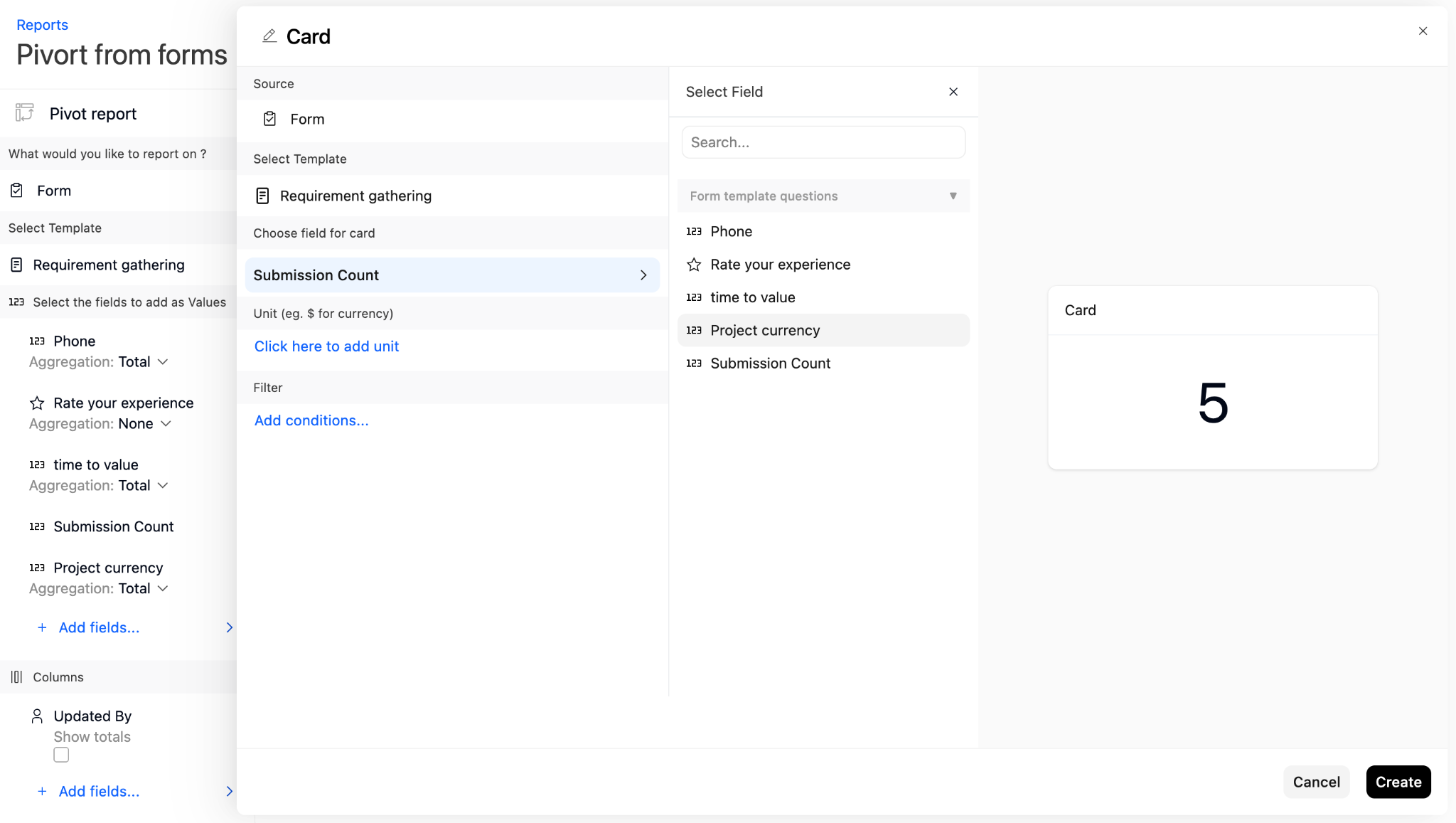
Forms can also be used as a data source for dashboard Cards and Charts.
Cards and Charts use the same form template picker as reports.
Only the following fields can be used as the value being measured or charted:
- Submission Count
- Number question fields
- Currency question fields
- Rating question fields
Grouping and Filtering Columns
Form reports include date fields that you can filter and group by.
Use these fields to analyze trends:
- Submission Date
- Updated At
For example, you can group by Submission Date to understand how form submissions change over time.