Formula fields in Rocketlane empower teams to create custom calculations directly within reports, eliminating the need for external tools. These fields enable dynamic, on-demand insights, allowing users to capture essential business metrics such as utilization (for example, productive or billable hours) and profitability. With formula fields, teams can tailor reports to their operational needs and make decisions using calculations based on current report data.
How to Create a Formula Field
Formula fields can be created within custom reports, specifically in tabular reports and pivot tables. To create a formula field:
Add a Formula Field
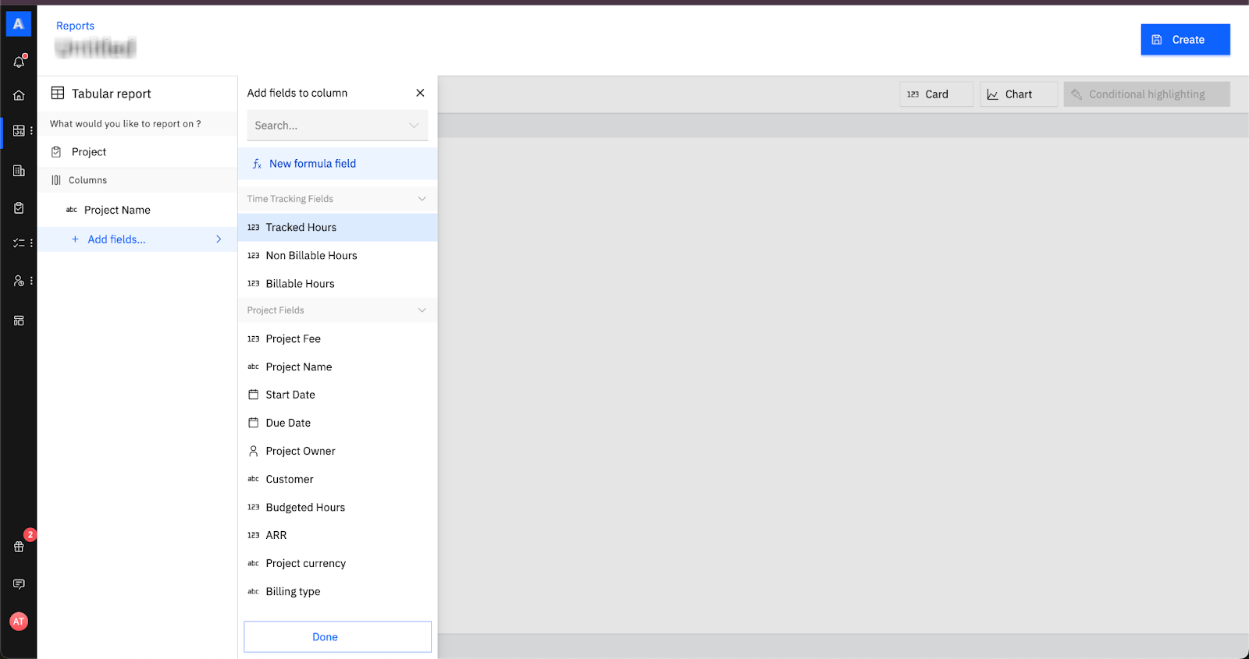
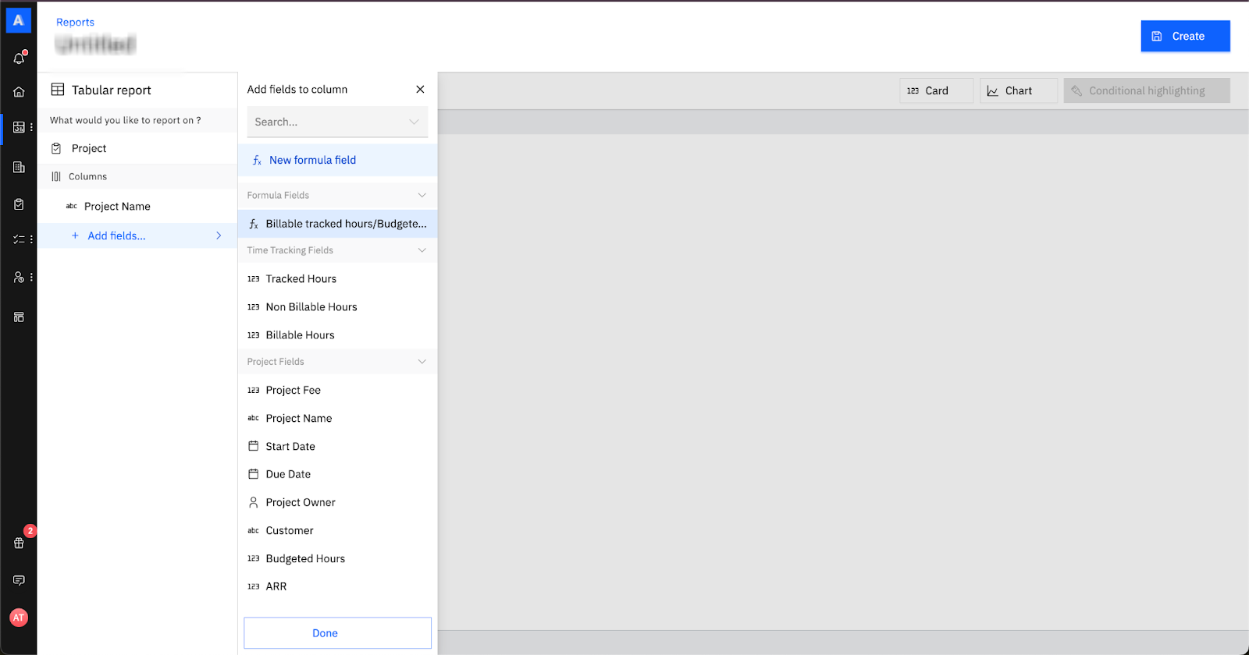
- Under the Columns section, select Add fields.
- Select New formula field from the dropdown menu.
Choose the type of formula field to create based on your requirements. The available options include:
- Project field
- Task field
- People field
- Role field
- Time tracking field
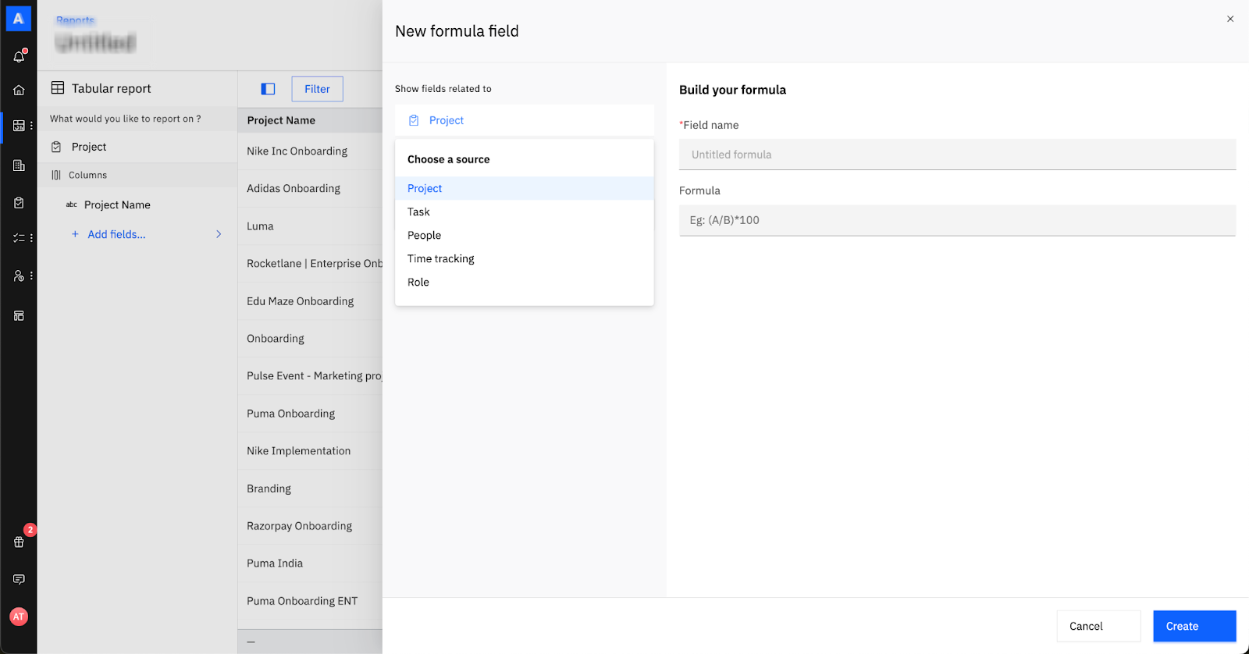
By default, the formula field type matches the report's source. For example, if the report source is Projects, the formula field will be a project formula field.
Construct the Formula
- Add the required fields to your formula using the Add fields button.
For example, to calculate the percentage of billable tracked hours relative to budgeted hours, add fields such as Tracked hours and Budgeted hours.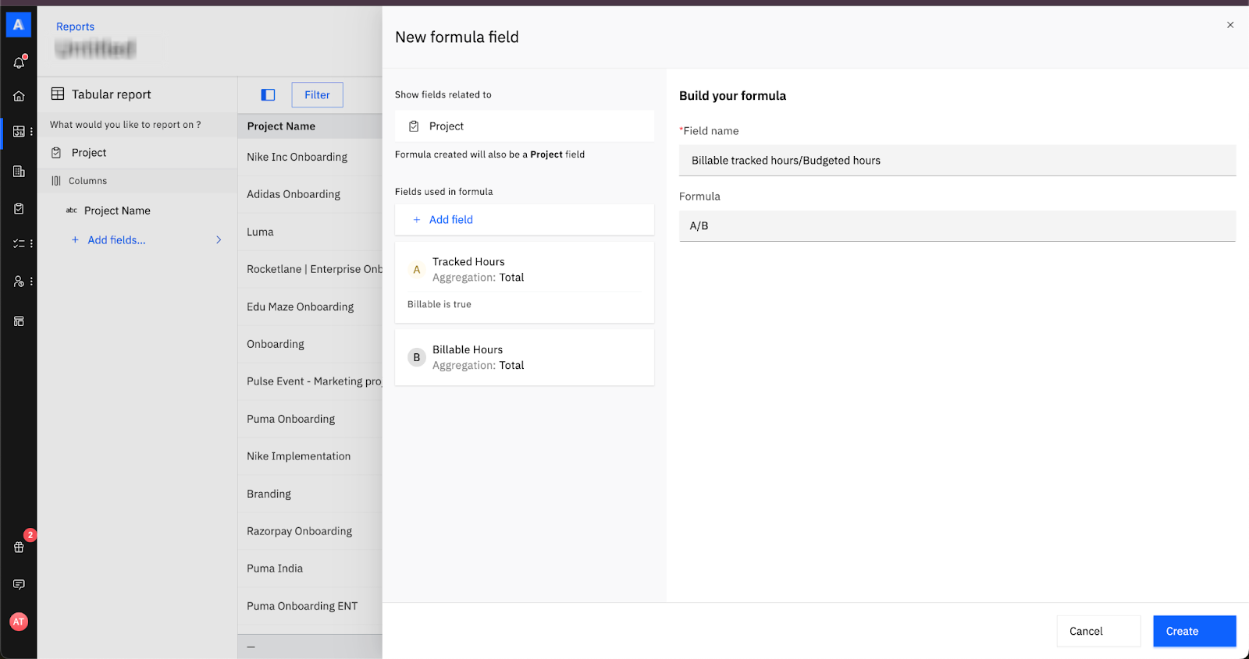
- For fields with a one-to-many relationship, such as Tasks or Time Tracking, apply filters to control which records are included:
- Hover over the field, such as Tracked hours, and select the filter icon.
- Add conditions to refine the data. For example, filter Tracked hours to include only billable hours.
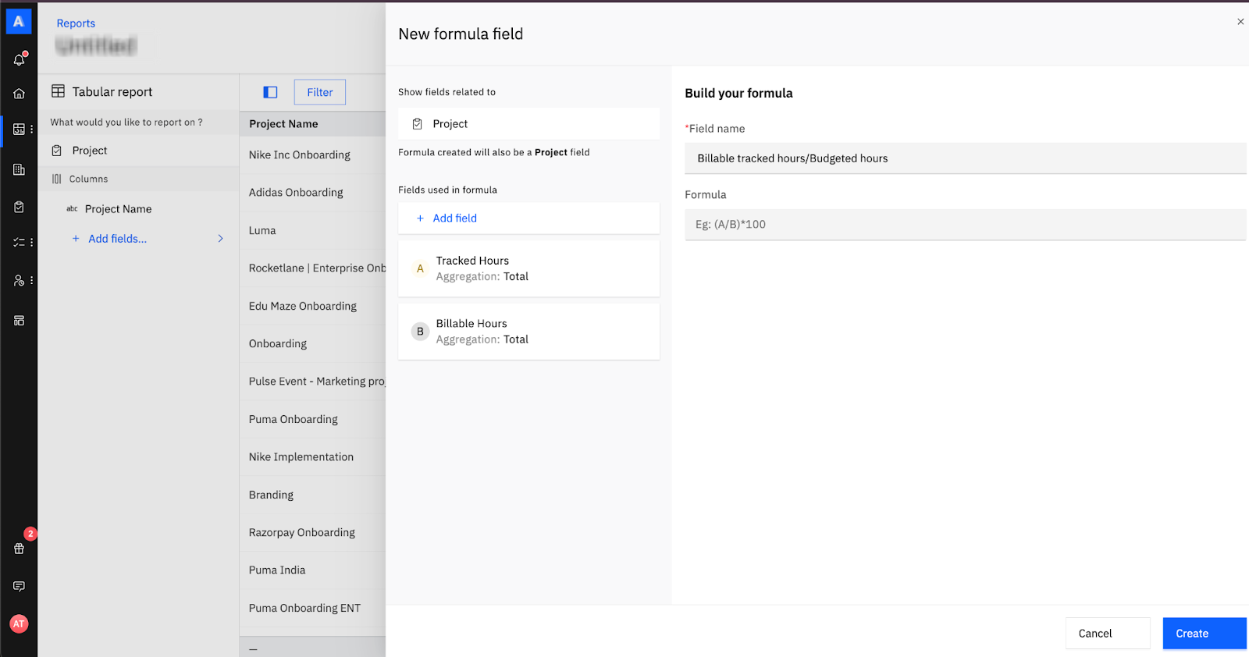
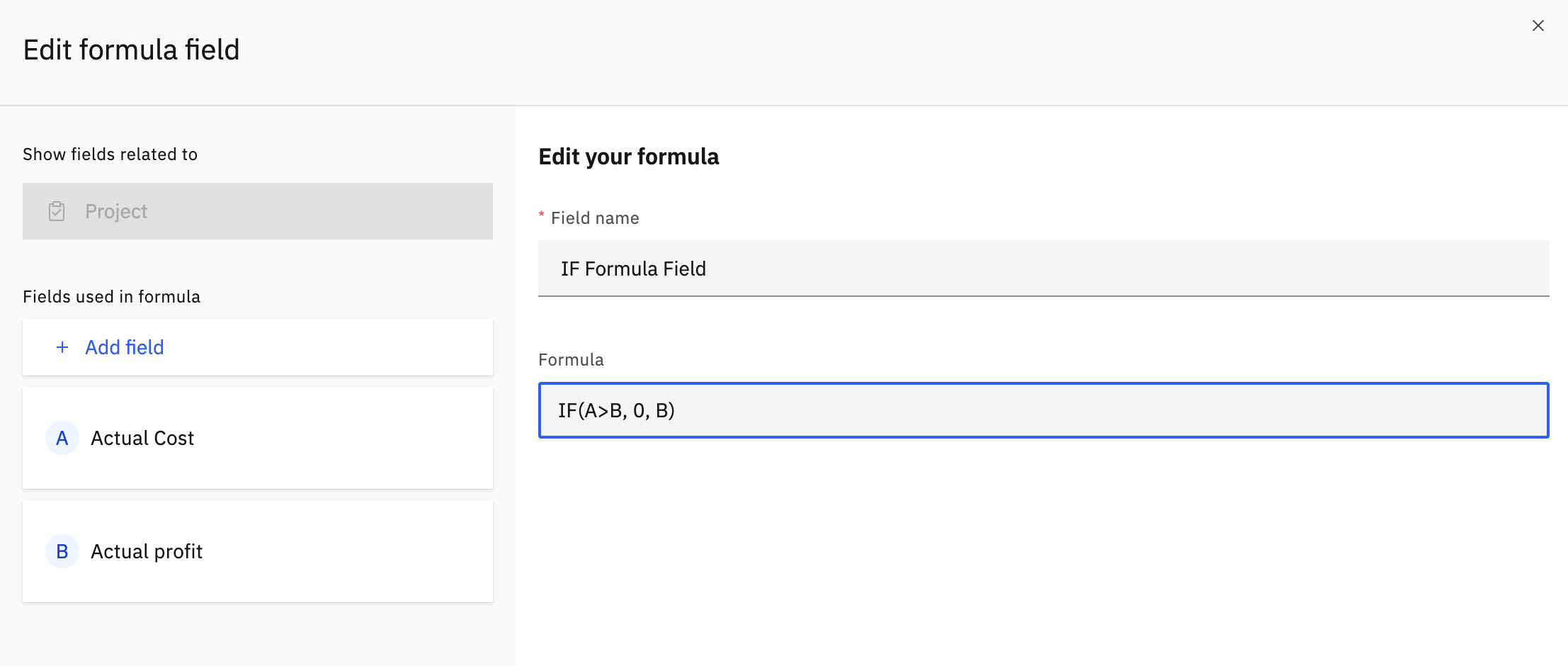
- Enter a name for the formula and define the calculation.
For example, to calculate billable tracked hours as a percentage of budgeted hours, enter: (A/B)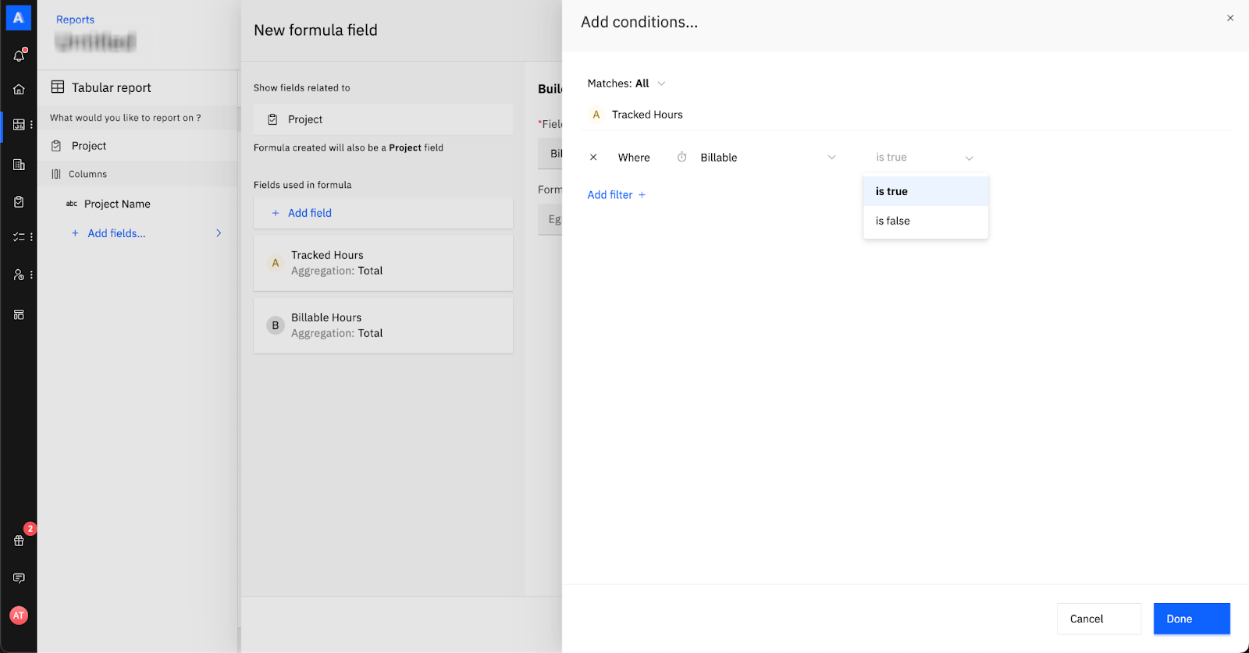
Using TODAY() in Date Calculations
Use TODAY() in a formula field to calculate a day count against a date. This can help you measure days overdue, days remaining until a due date, or days elapsed since a record was created.
Enter TODAY() directly in the formula box. There is no separate function picker.
In this example, A represents a date or date-time field that has been added to the formula.
- TODAY() does not accept any arguments.
- TODAY() cannot be used by itself as a formula. Combine it with a date field using either TODAY() - A or A - TODAY().
- The Skip weekends option applies to calculations that use TODAY(). Turn it on to calculate business days instead of calendar days.
- The calculation works with both date and date-time fields.
- TODAY() uses UTC and changes at midnight UTC, regardless of your account or personal timezone.
- The value is calculated when the report loads. Results can therefore change over time without the formula field being edited.
Examples
Assume today is September 18, 2026, and A represents the task's Due Date.
When Skip weekends is turned on, weekend days are excluded. For example, if the due date was last Friday and today is the following Tuesday, the calendar-day difference is 4 days. With weekends skipped, the result is 2 days because only Monday and Tuesday are counted.
Select Create to save your formula. Once saved, you can add the formula field to your report by selecting it under Add fields.
Formula fields are reusable across Rocketlane reports. A formula field created in one report can be added to other reports. Formula fields behave like standard fields and support filtering and sorting.