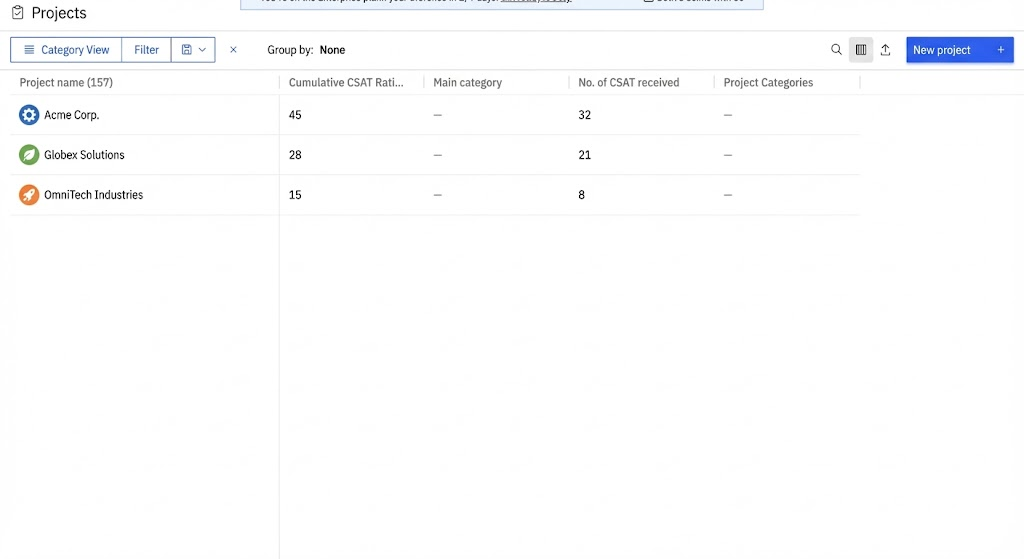
Use this workflow to automatically aggregate CSAT ratings submitted through a form into project fields. This helps you track the total CSAT score and number of responses without manually updating project fields.
This setup uses:
- Two project-level custom fields.
- One form template for CSAT ratings.
- One project template task with the CSAT form attached.
- One template-level automation on the CSAT form task, with condition blocks for ratings 1 to 5.
In this article
Create required custom fields
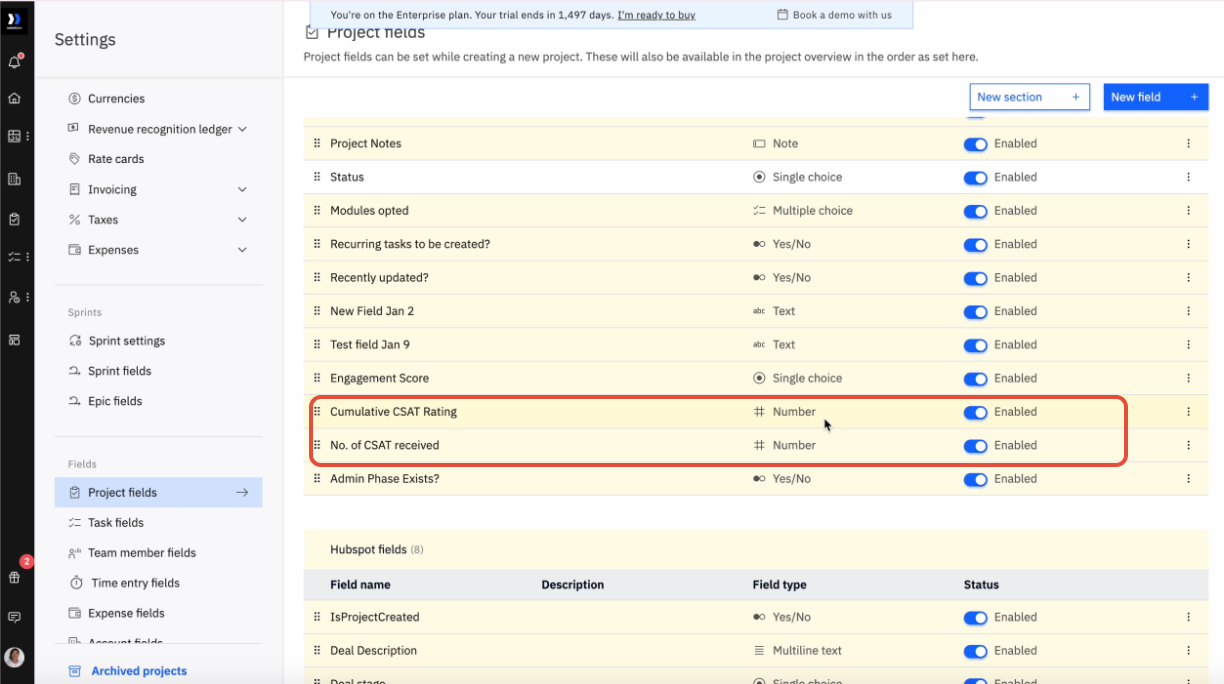
Start by creating two project-level custom fields. These fields store the running total of CSAT ratings and the number of responses received.
- Go to Settings > Project Fields.
- Create a Number type project field named
Cumulative CSAT Score. - Create a Number type project field named
Number of CSAT Responses.
Create the CSAT form template
Next, create a CSAT form template that captures the customer’s rating.
- Go to Templates > Form Templates.
- Create or open your CSAT form template.
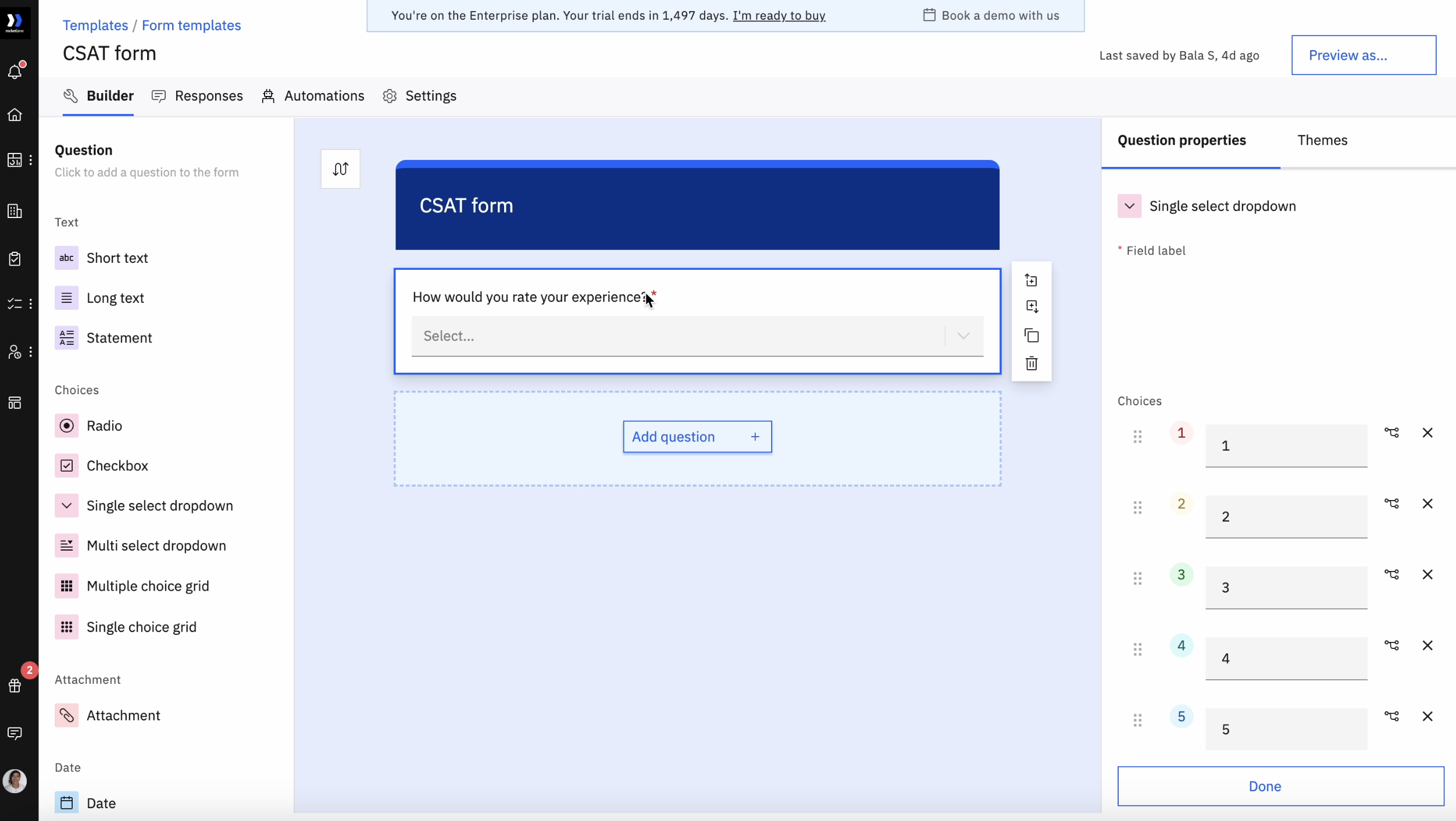
- Add a question with the following setup:
- Question text: How would you rate your experience?
- Field type: Single Select
- Options: 1, 2, 3, 4, 5
- Save the form template.
Add the CSAT form as a task
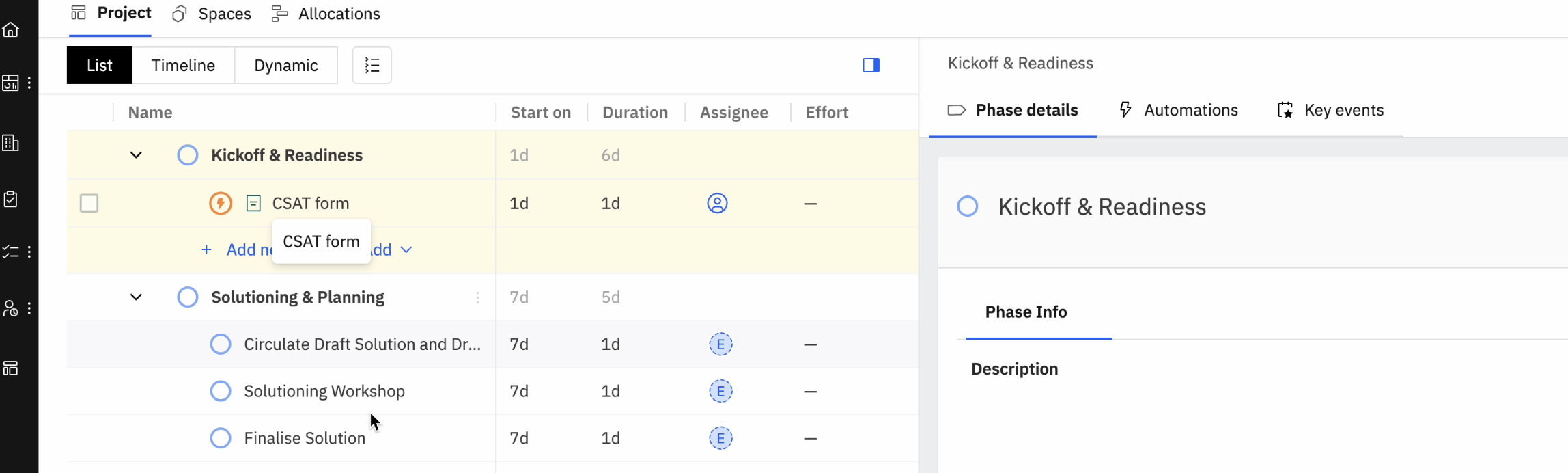
Add the CSAT form to a task in your project template. This ensures every project created from the template includes the CSAT form task.
- Go to Templates > Project Templates.
- Open the relevant project template.
- Add a task, for example CSAT Feedback Form.
- Attach the CSAT form template to this task.
- Save the project template.
Update cumulative CSAT score
Configure this automation on the CSAT form task inside the project template.
- Select the CSAT form task in the project template.
- In the right-side panel, go to the Automations tab.
- Click Create automation.
- Set the trigger as
New form response received.
Next, add condition and action blocks for each rating value.
Rating = 1
Add a condition block for the rating question:
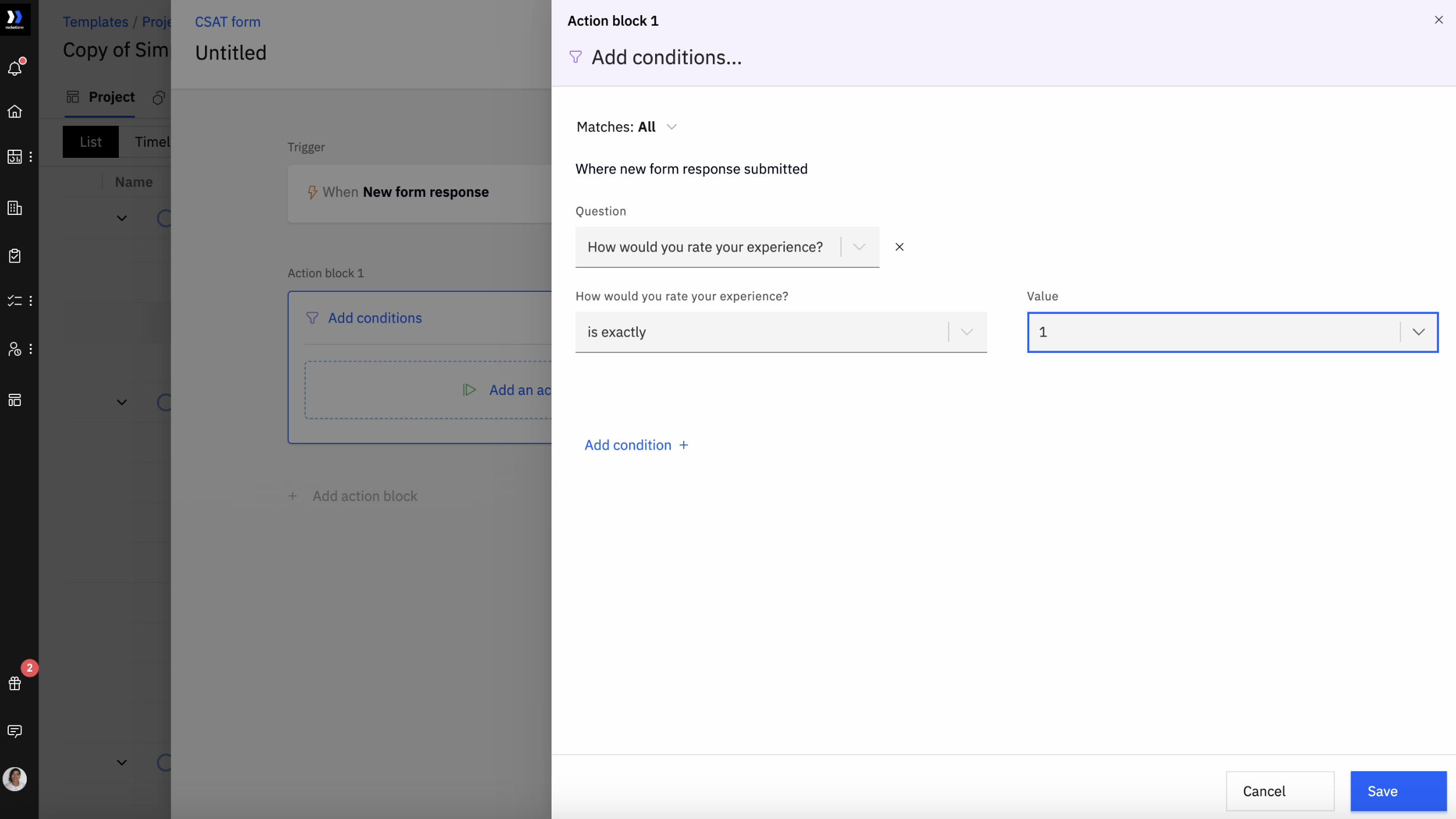
Add an action block to update the cumulative score:
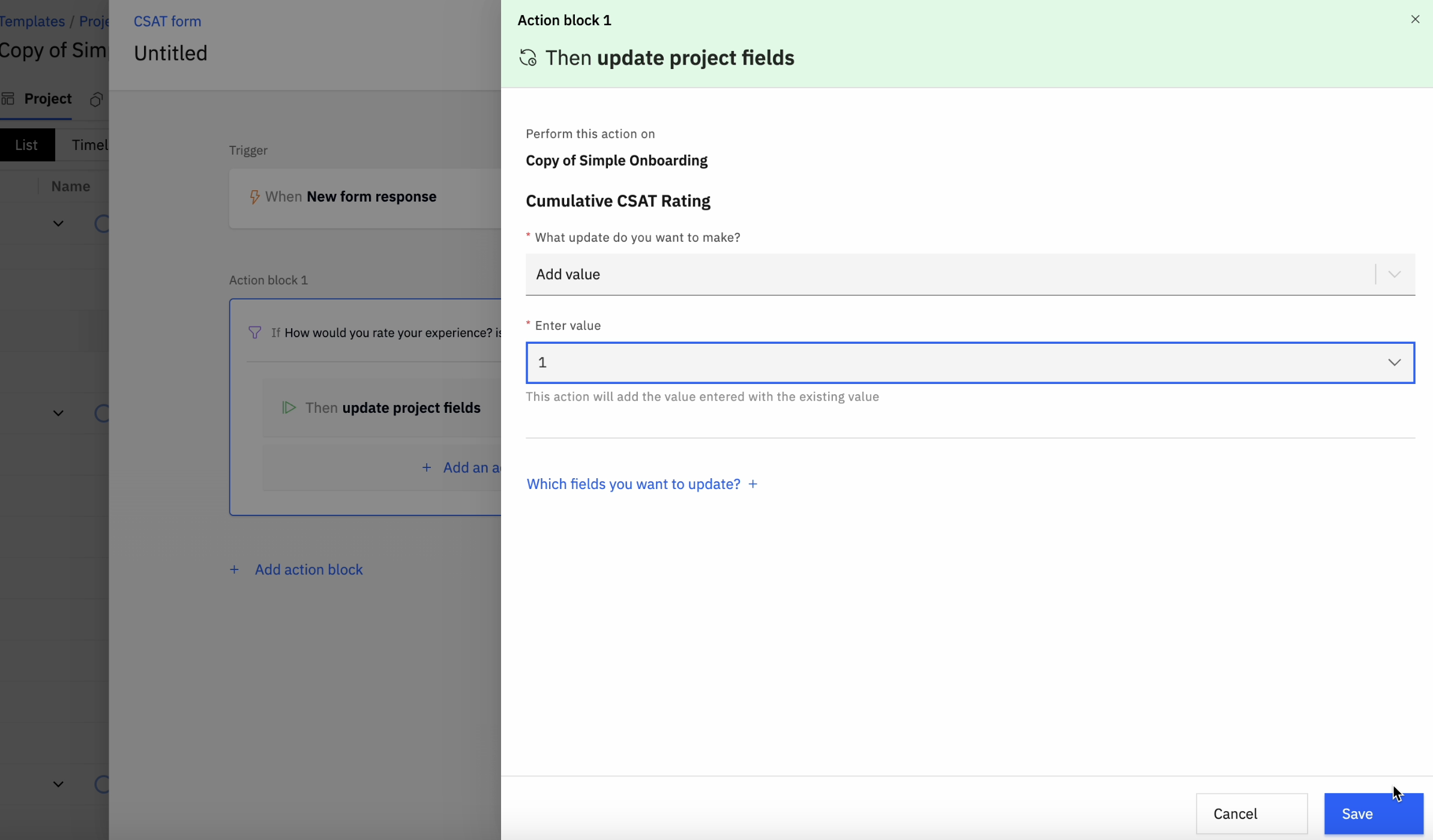
Repeat the same structure for each rating value:
- If rating = 2, add
2toCumulative CSAT Score. - If rating = 3, add
3toCumulative CSAT Score. - If rating = 4, add
4toCumulative CSAT Score. - If rating = 5, add
5toCumulative CSAT Score.
Increment number of CSAT responses
After the rating-based condition blocks, add one final action to increase the response count.
This ensures every new form response increases the response count by 1.
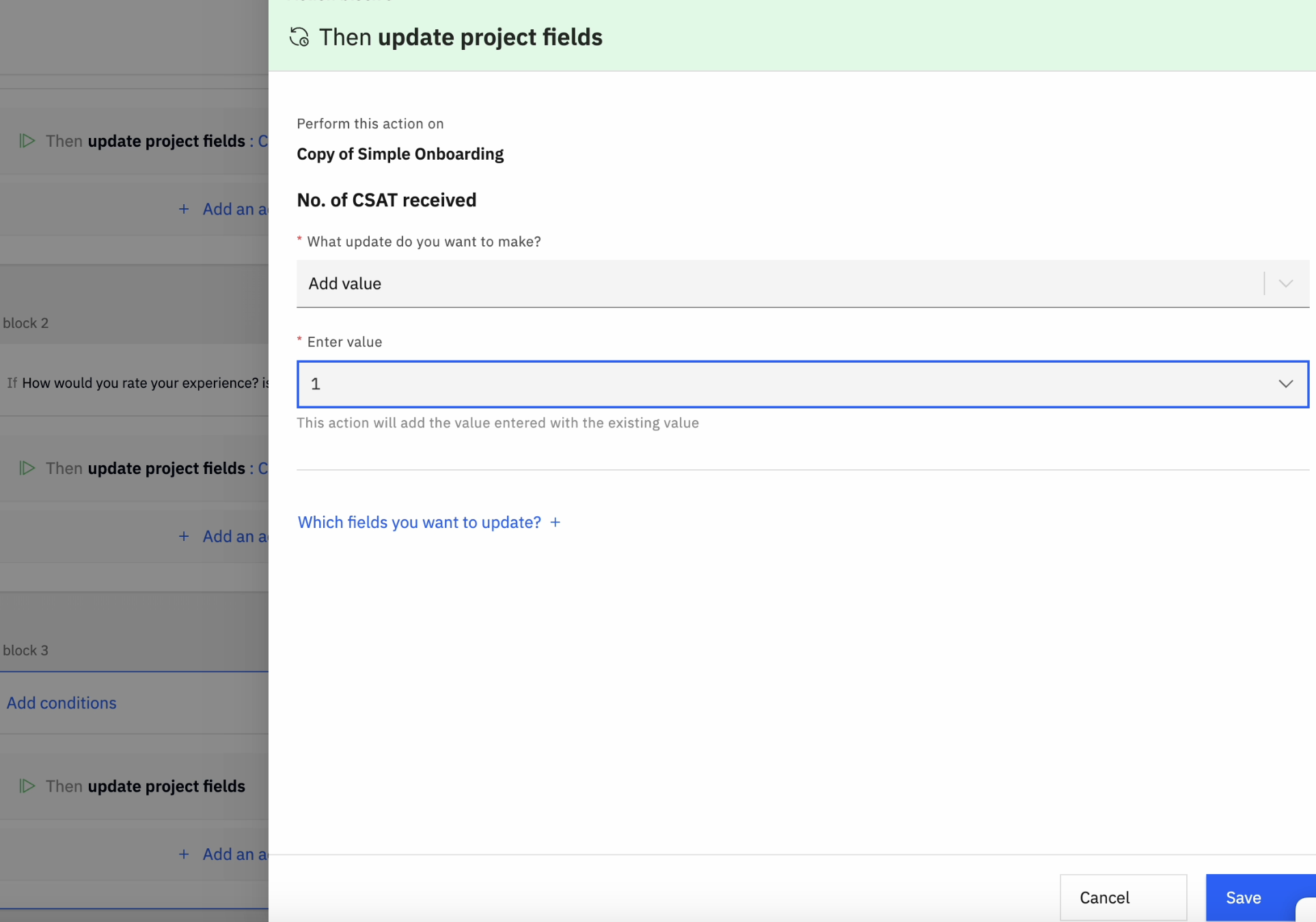
Result
Every time a CSAT form response is submitted:
- The selected rating is added to
Cumulative CSAT Score. Number of CSAT Responsesis incremented by 1.- The project always shows the latest CSAT total and response count.
You can use these fields to calculate the average CSAT score:
Average CSAT = Cumulative CSAT Score ÷ Number of CSAT Responses