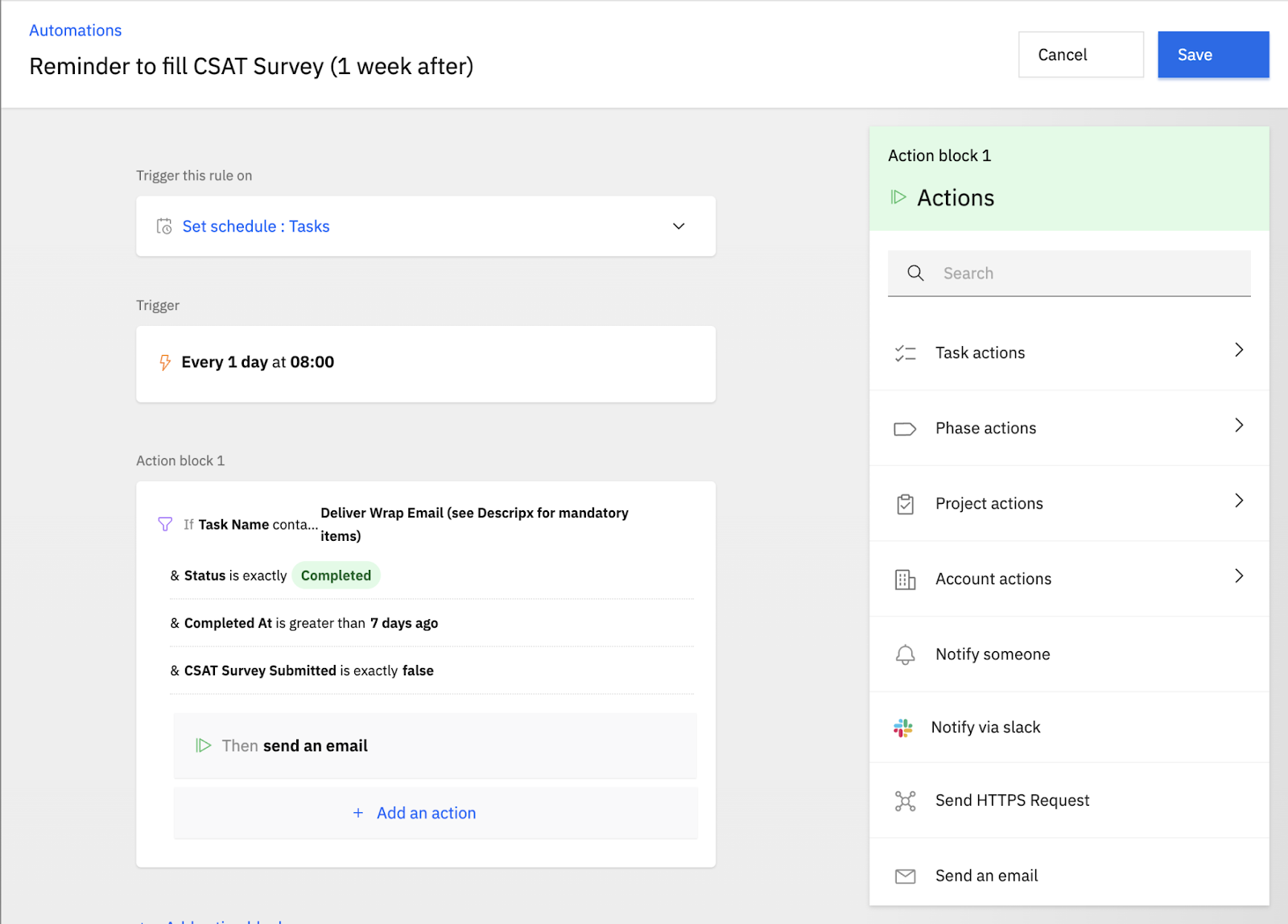
Use this workflow to automatically remind project stakeholders to submit a feedback or CSAT form one week after a phase is completed, only if the form has not been submitted yet.
This setup uses:
- Two project-level custom fields.
- Two template-level automations on the feedback form task.
- One global scheduled automation that sends the reminder email.
In this article
Create required custom fields
Start by creating two project-level custom fields. These fields store the form link and track whether a response has been received.
- Go to Settings > Accounts > Fields, or the equivalent Project fields configuration.
- Create a Text type project field named
Form URL. - Create a Boolean type project field named
Form Submitted.
Store the form URL when the form is created
Configure this automation on the feedback form task inside the project template.
- Go to Templates > Projects.
- Open the relevant project template.
- Select the feedback form task.
- Go to the Automations tab.
- Click Create automation.
Configure the first automation as follows:
To add the value, click into the value box and type {{ to open SmartFill. Select the option that inserts the share URL for the form.
Save the automation. This ensures the project’s Form URL field always holds the correct feedback form link.
Mark the form as submitted when a response is received
Next, create a second automation on the same feedback form task. This automation updates the project once a form response is received.
- On the feedback form task > Automations tab, click Create automation again.
Configure the second automation as follows:
Save the automation. This updates the project’s Form Submitted flag once any response is received.
Create a global scheduled reminder automation
Finally, create a scheduled automation that checks once per day which projects need a feedback reminder.
- Go to Settings > Automations for global automations.
- Click Create automation.
Configure the trigger
Configure the conditions
Add conditions to identify projects where the feedback form reminder should be sent.
Configure the action
Configure the action to send the reminder email.
Save the automation.
This automation runs every day, finds tasks that were completed more than a week ago, checks whether the feedback form has been submitted, and sends a reminder email only when Form Submitted is still false.