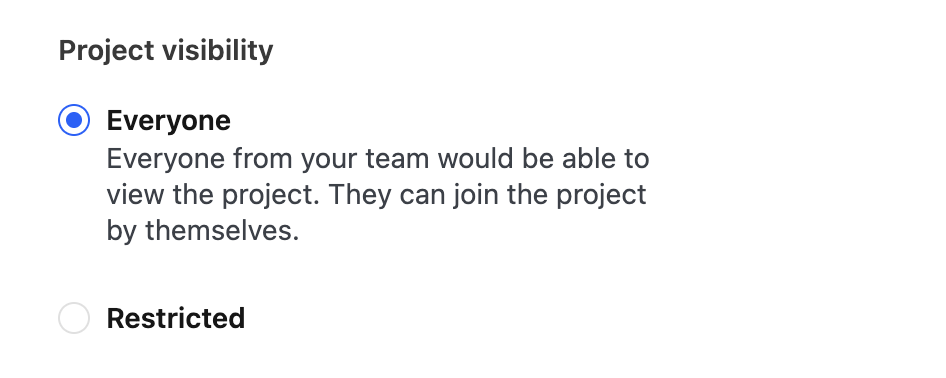
Managing permissions and visibility settings in Rocketlane is crucial for ensuring that users have appropriate access to projects. This article provides guidance on troubleshooting visibility issues and understanding how visibility settings work.
Troubleshooting Visibility Issues
If a user cannot see a project after permissions or visibility settings have been updated, follow these steps:
- Refresh the Session: Ensure the user refreshes their browser session to apply the updated permissions and visibility settings. This step ensures that the changes are reflected in their current session.
- Verify Permissions: Double-check that the user has been granted the necessary permissions to view the project. Permissions may need to be adjusted if the issue persists.
Understanding Visibility Settings
Rocketlane allows for flexible visibility settings that determine who can view a project. Here are key points to consider:
- Visibility Levels: Projects can be set to different visibility levels, such as "Everyone" or restricted to specific team members. If a project is set to "Everyone," any collaborator can view the project, even if they are not explicitly added as team members.
- Restricting Access: To prevent a user from viewing a project, you must adjust the project’s visibility settings or permissions. Simply removing them from the team will not restrict their access if the visibility is set to "Everyone."