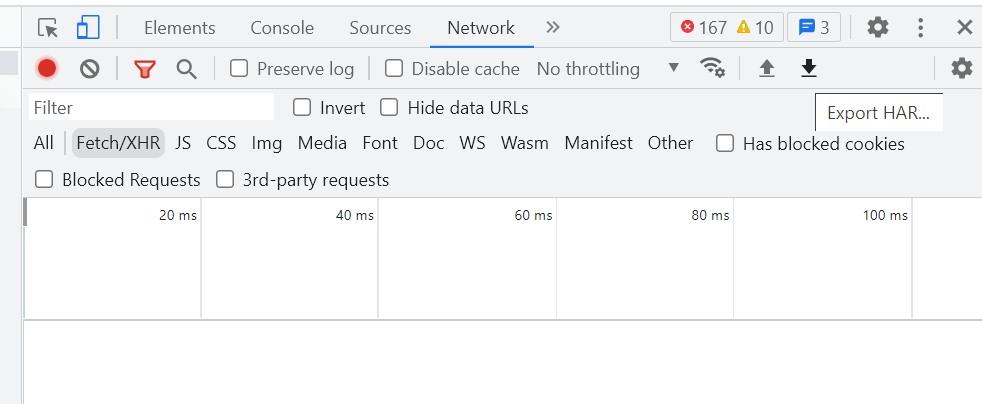
(You can find the steps to generate the HAR file below.)
- Kindly open Rocketlane and navigate to the page where the issue is occurring.
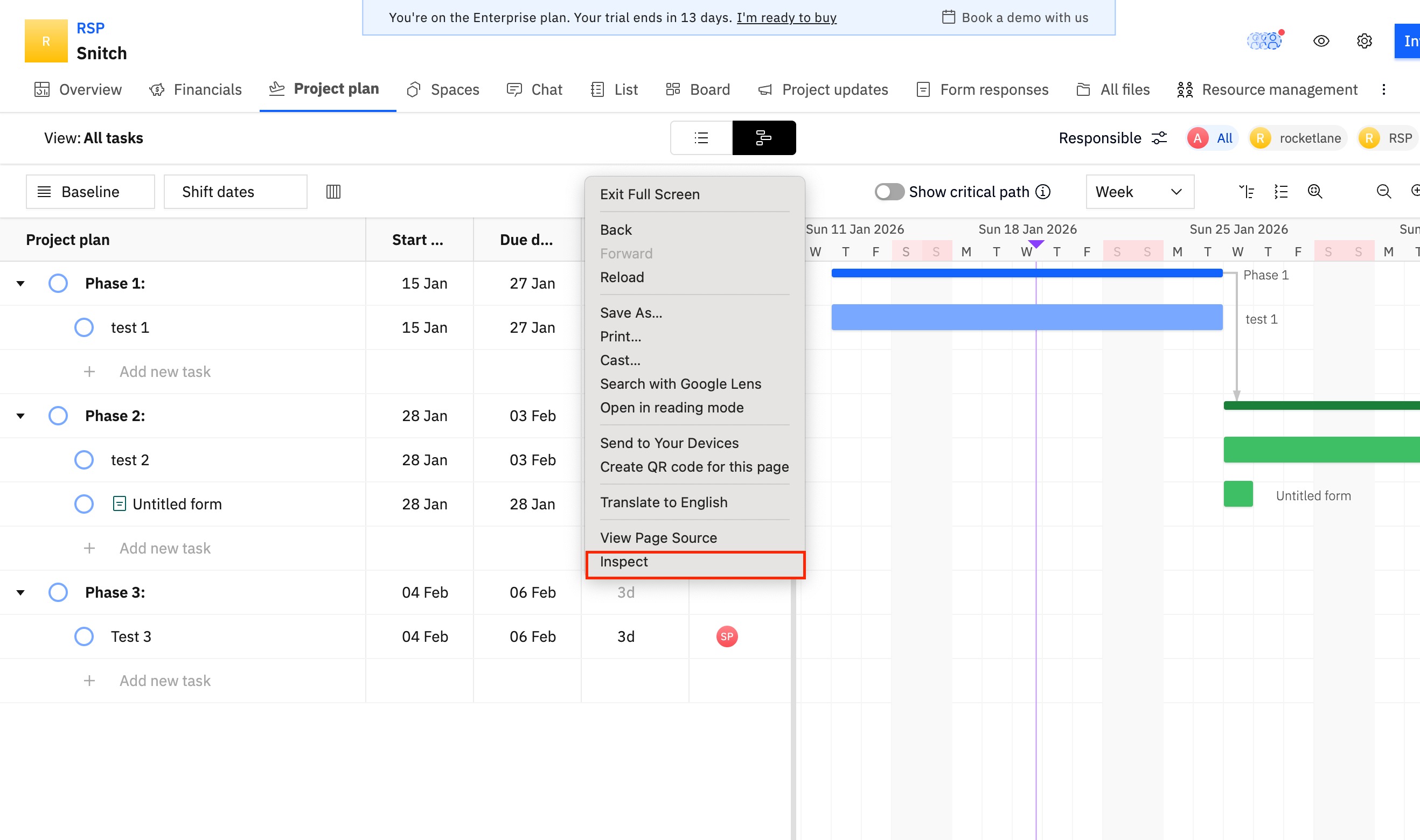
- Right click anywhere inside the UI and click on Inspect.
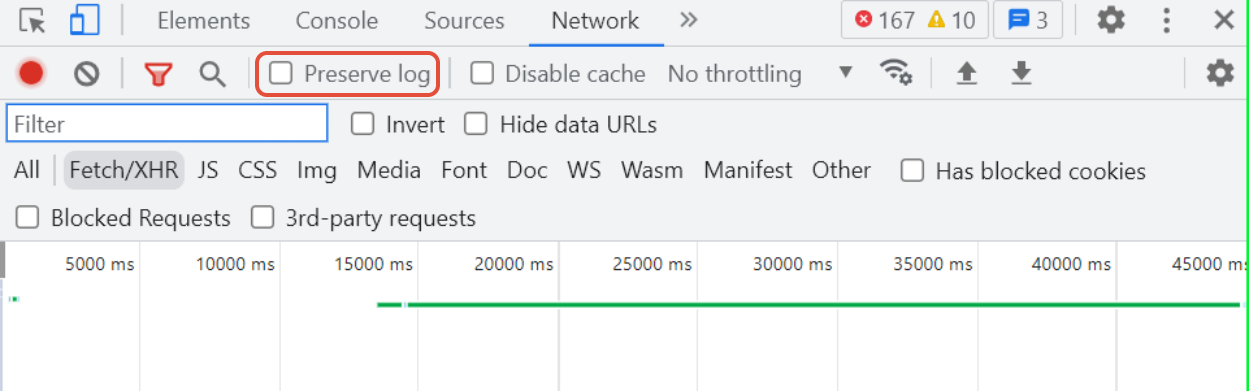
- Navigate to the Network tab in the opened panel.
- Kindly clear out any existing logs from the Network tab by clicking on Clear Icon(
 ).
). - Click on the Record button (
 ) in the upper left corner of the tab (If it is grey, kindly click it once to start recording).
 - Enable the Preserve log check box.
- Now try to reproduce the issue while the network log is being preserved.
- Once the issue is reproduced, click Export HAR to download and then save this file in your computer: