In this article
- How Sheets permissions are structured
- Configure global Sheets permissions
- Sheet template permissions
- Permissions for sheets in a project
- Sheets permissions
- Sheet tab permissions
- Sheet field settings permissions
- Sheet field values permissions
- Global access vs group-based access
- Notes about sub-permissions
- Template-level sheet permissions
- Default access behavior without the RBAC add-on
Rocketlane allows admins to control access to Sheets using role-based access control (RBAC). With Sheets RBAC, admins can decide what users can view, create, edit, delete, or manage across sheet templates and sheets inside projects.
Sheets permissions are configured at two levels: Global Sheets permissions that apply across the workspace for all sheets in projects, and Sheet template permissions that apply only to sheets created from a specific sheet template.
How Sheets permissions are structured
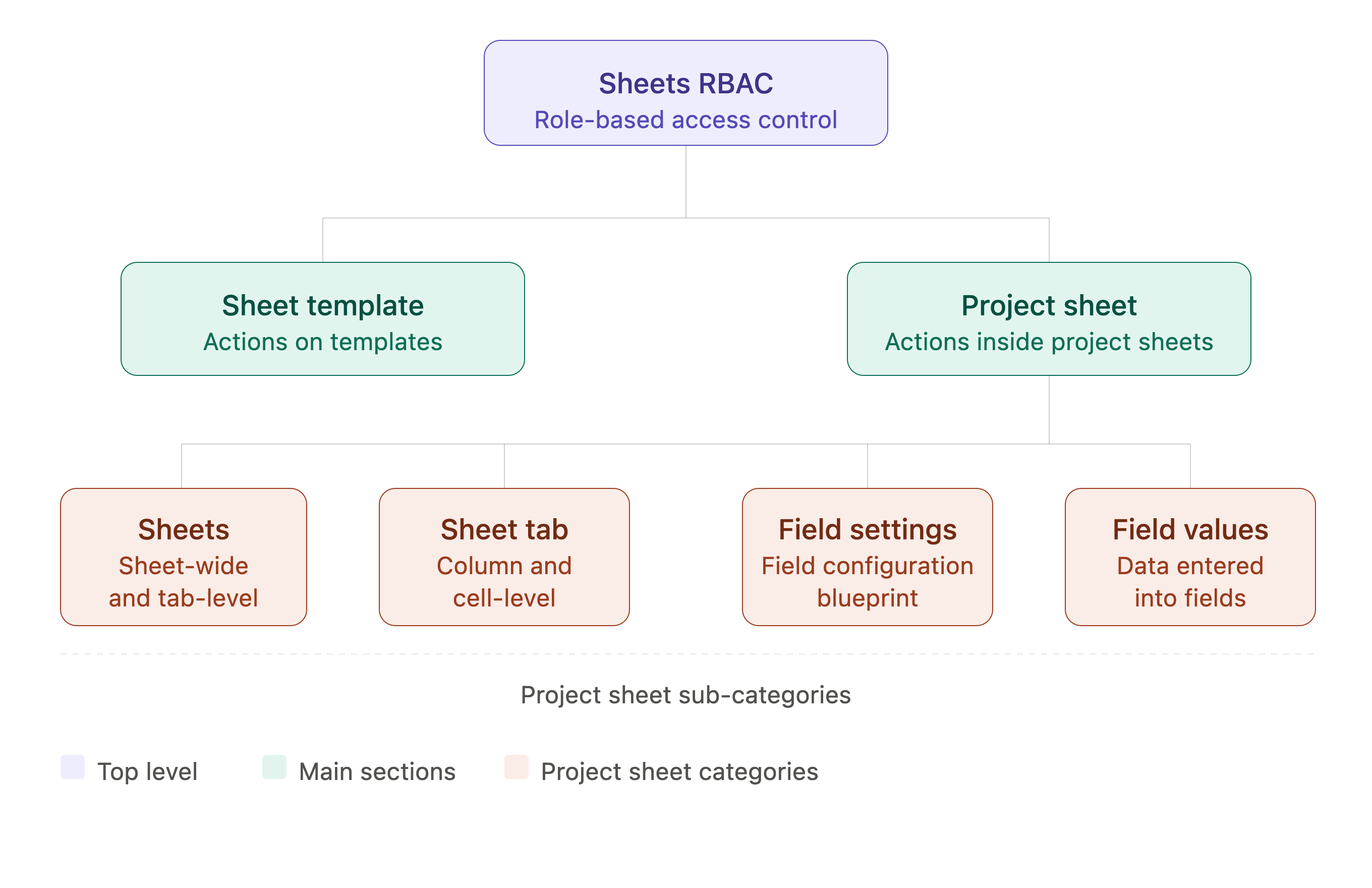
Sheets permissions are divided into two main sections:
The Sheets in project section is further divided into four categories:
Configure global Sheets permissions
Global Sheets permissions are configured from the workspace permissions settings.
To configure global Sheets permissions:
- Go to Settings → Permissions.
- Select Account level.
- Select the role you want to configure.
- Open the Sheet section.
- Enable or disable the required permissions.
- Save the changes.
The Sheet section includes two subsections: Sheet template and Permissions for Sheets in Projects.
Sheet template permissions
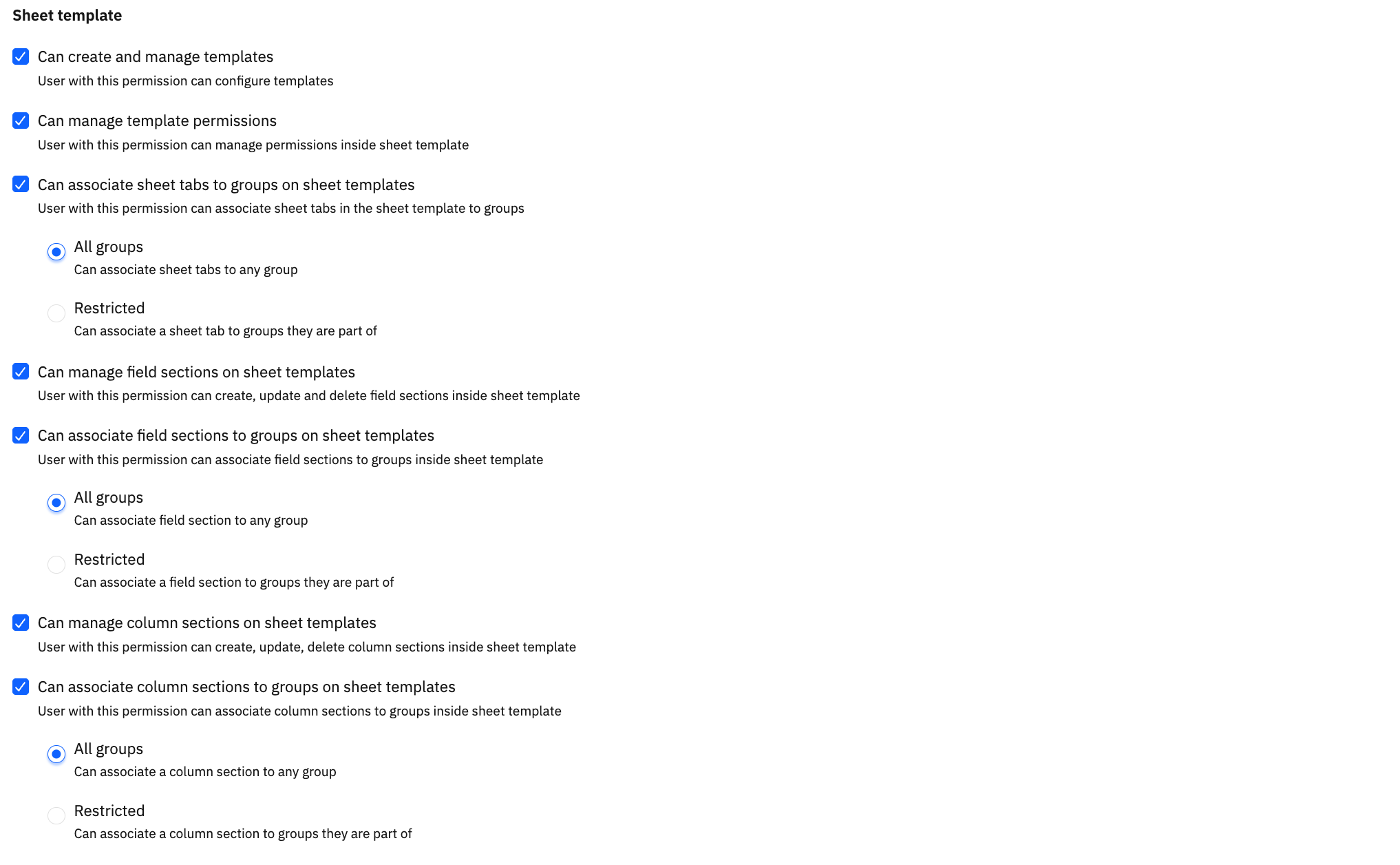
Sheet template permissions control what users can do with sheet templates. These are configured globally under the Sheet template section.
Permissions for sheets in a project
These permissions control what users can do inside sheets that exist within projects. They are grouped into four categories: Sheets, Sheet Tab, Sheet Field Settings, and Sheet Field Values.
Sheets permissions
Sheets permissions control sheet-wide and tab-level actions.
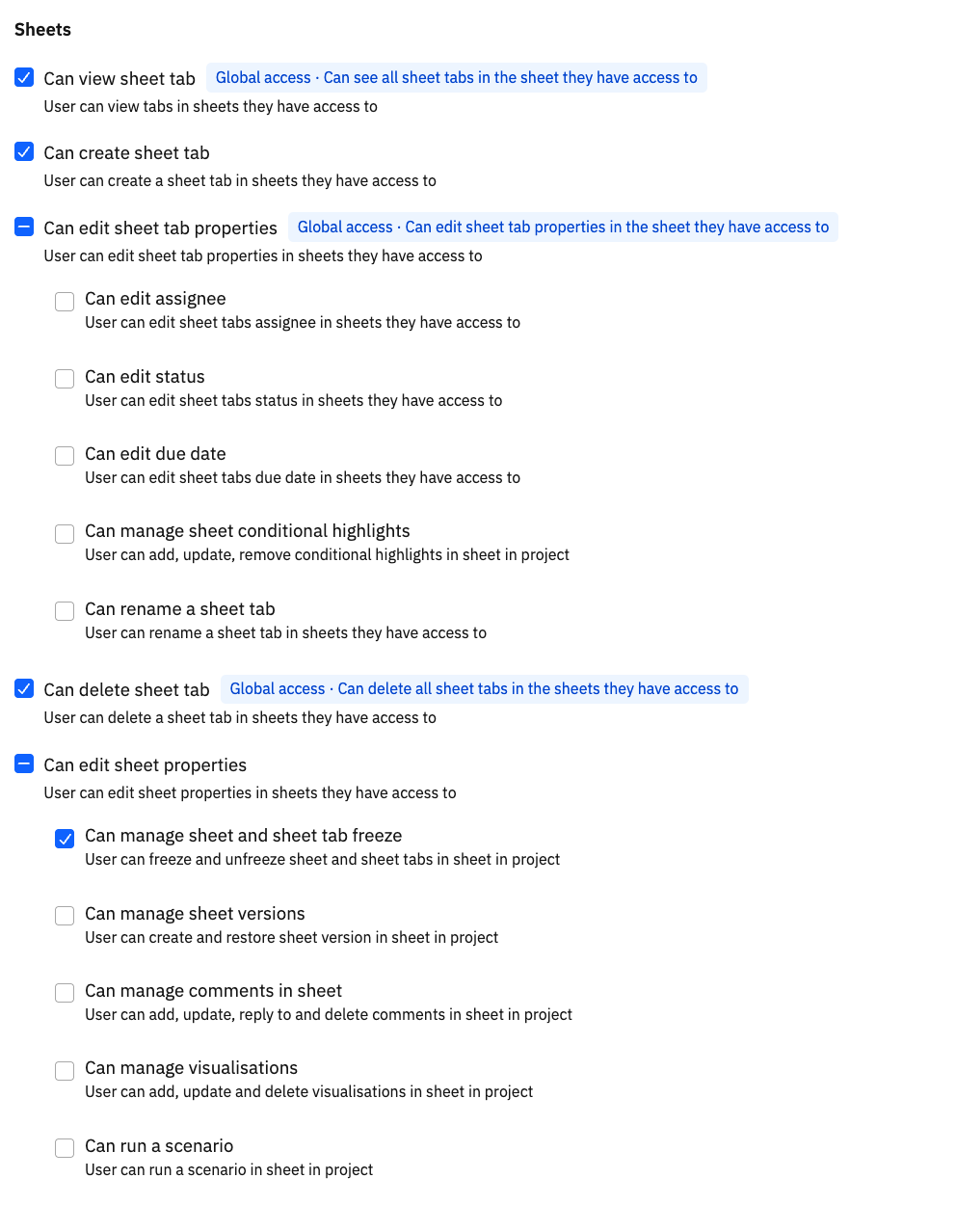
Sub-permissions under Can edit sheet properties
When Can edit sheet properties is enabled, the following sub-permissions become available:
Sheet tab permissions
Sheet tab permissions control what users can do inside individual sheet tabs.
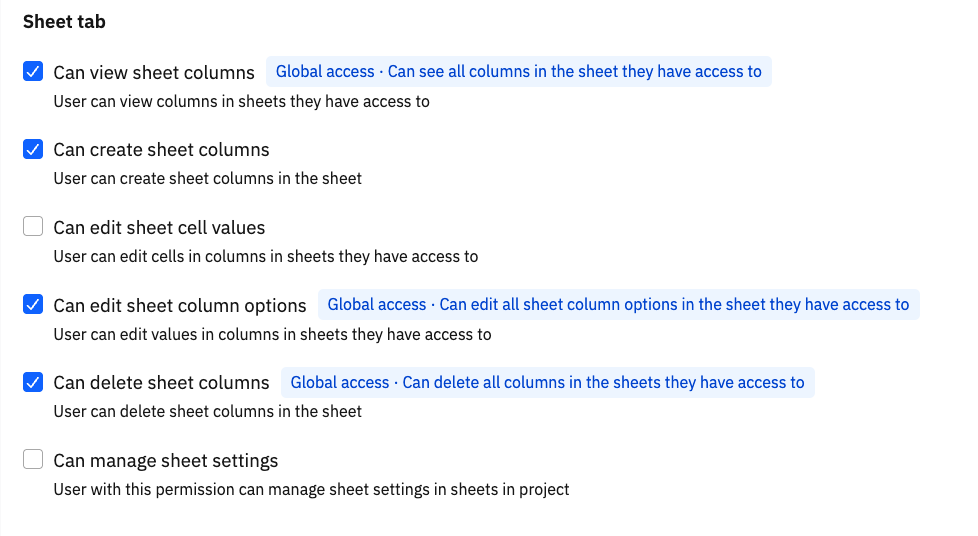 Sub-permissions under Can edit sheet tab properties
When Can edit sheet tab properties is enabled, the following sub-permissions become available:
- Can edit assignee
- Can edit status
- Can edit start date
- Can edit due date
- Can manage sheet conditional highlights
Column values vs cell values
The permissions Can edit sheet column values and Can edit sheet cell values control different actions.
For example, an admin may allow collaborators to update cell data while preventing them from changing dropdown options or column configuration. This is a common setup when teams want users to update project information without changing the structure of the sheet.
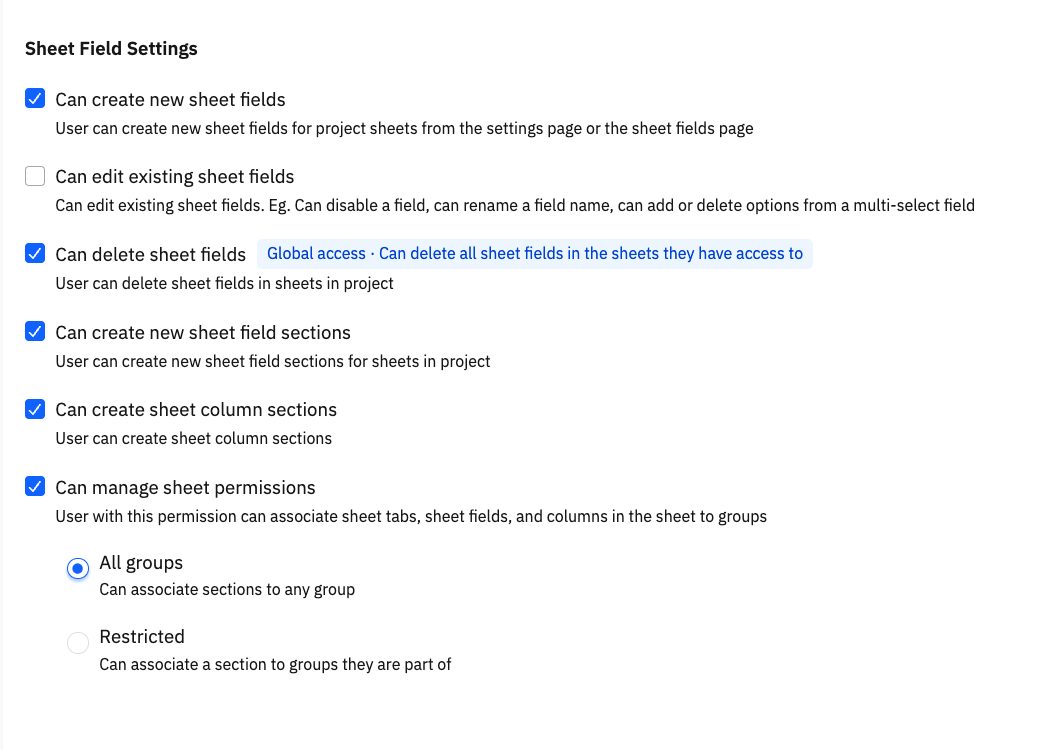
Sheet field settings permissions
Sheet field settings permissions control what users can do in the sheet fields settings page of a sheet instance. This page is accessed from the gear icon inside the sheet.
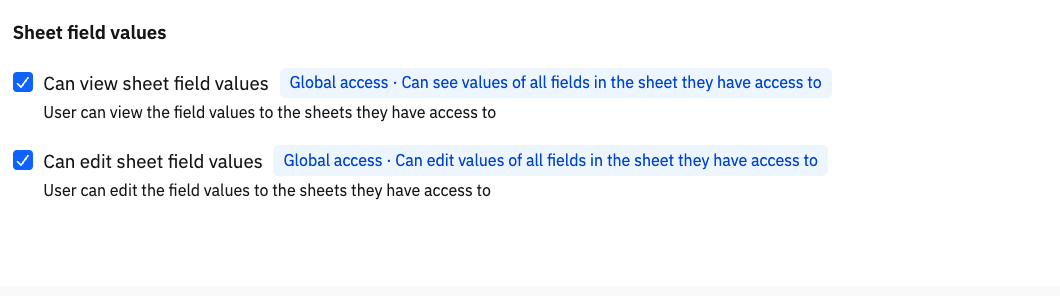
Sheet field values permissions
Sheet field values permissions control whether users can view or edit values entered into sheet fields.
Global access vs group-based access
Many permissions under Permissions for Sheets in a Project support access modes, configured from the permission modal for each permission.
For example: with Global access for Can view sheet columns, the user can see all columns in the sheet they have access to. With Group & Visible, the user can see only columns associated with their groups and columns visible to all.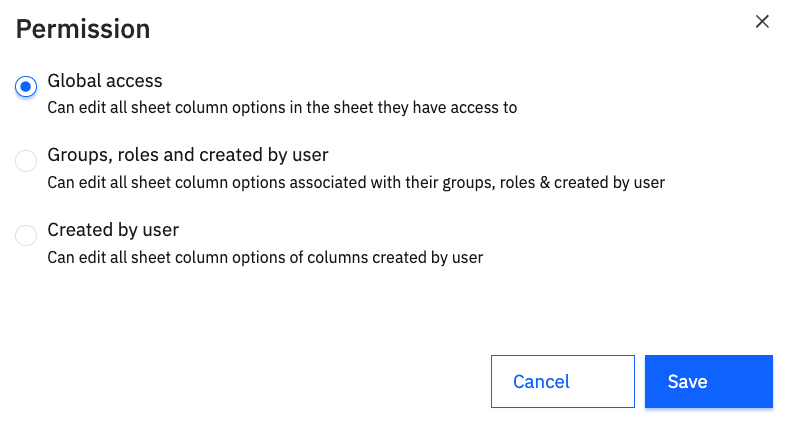
Permissions that support group-based access
Notes about sub-permissions
- Sub-permissions are available only when the parent permission is enabled.
- Permissions apply only to sheets a user already has access to.
- Enabling a permission does not automatically expose new sheets to the user.
- If a user cannot access a sheet, Sheets RBAC does not grant access by itself.
- Created by user restricts action to content the user created. Users can edit only properties of tabs/sheets they created, not tabs created by others. This scope is unique to Sheets and no equivalent exists elsewhere in Rocketlane.
Template-level sheet permissions
Rocketlane supports permission sets at the sheet template level. These permission sets allow admins to configure different access rules for different sheet templates without changing workspace-wide defaults.
Use template-level permissions when one template needs stricter access than another. For example:
- A RAID log template may be editable only by project owners.
- An Onboarding tracker template may allow collaborators to update data.
Configure template-level permissions
Template-level permissions are configured from inside the sheet template.
To configure template-level permissions:
- Go to Templates → Sheet templates.
- Open the relevant sheet template.
- Click the three-dot menu in the top-right of the template editor.
- Select Sheet permission.
- Review the existing permission sets for the template.
- Click + New permission to create a permission set.
The Sheet permission page lists the permission set name, scope, created by, and created on.
Create a template permission set
To create a permission set:
- Click + New permission.
- Enter a name for the permission set.
- Under Select permission set, use the Label dropdown to associate this permission set with an existing custom permission set.
- Configure the permissions required for this template.
- Click Save.
The permission set editor includes the same permission categories as global RBAC: Sheets, Sheet tab, Sheet field settings, and Sheet field values.
How template permissions work
Template permissions do not replace global permissions. Rocketlane uses the union of the user's global Sheets permissions and the permissions granted in the specific sheet template.
Column and field configuration in templates
Sheet templates include a configuration page for tabs, fields, and columns. This controls how sheet content is organized into sections and how visibility and edit access are scoped to groups. This is the primary way to configure group-based access within a sheet template.
To access this configuration, open the template settings. The configuration page includes three tabs:
Configure tab permissions in a template
The Tabs tab lists all sheet tabs in the template. Each tab includes view and edit permission settings. Available options include All team members or Only select groups and roles. Use the three-dot menu on a tab row to access additional actions.
Configure column sections in a template
The Columns tab allows columns to be organized into named sections. Each section can be scoped to specific groups and roles.
To create a column section:
- Open the Columns tab.
- Click + New section.
- Enter the Section name.
- Use Select columns to choose the columns for the section. Columns are grouped by sheet tab in the dropdown.
- Click Create section.
After a section is created, use the three-dot menu on the section row to open its permissions.
Configure field sections in a template
The Fields tab works like the Columns tab, but for sheet fields.
To create a field section:
- Open the Fields tab.
- Click + New section.
- Enter the section name.
- Select the fields to include.
- Click Create section.
Use the permissions modal to configure view and edit access. Field section permissions include the same options as column sections: view and edit, each scoped to all team members, select groups and roles, or none.
Default access behavior without the RBAC add-on
If you do not have the RBAC add-on in your Rocketlane subscription, users are assigned one of the default roles: Admin, Super user, Project owner, or Collaborator.
When Sheets RBAC is applied, these roles receive preset access instead of unrestricted admin-like behavior. Depending on the role, default restrictions may include:
- Deleting sheet tabs
- Deleting sheet columns
- Editing column configuration values
- Associating field or column sections to groups
- Managing template-level permissions