The Copy-Paste functionality in Rocketlane Sheets is designed to be intelligent. It not only pastes text but also identifies column types, formats dates, maps users, and can assist in updating selected options in your sheet configuration. This facilitates the seamless transfer of data from tools like Google Sheets, Excel, or CSV files into Rocketlane while maintaining clean and consistent data.
This article outlines the process of copying and pasting into Rocketlane Sheets, the supported column types, and how validation operates when pasted data does not align with the column configuration.
Steps for Copy-Pasting
Step 1: Copy the original data
Highlight the necessary cells in the source document (Google Sheets, Excel, or CSV).
Copy using:
Cmd + C (Mac)
Ctrl + C (Windows)
Step 2: Choose the destination in Rocketlane
Access the appropriate Rocketlane Sheet.
Click on the cell where pasting should commence.
Rocketlane fills in cells to the right and below according to the copied selection.
Step 3: Paste and wait for processing
Paste using:
Cmd + V (Mac)
Ctrl + V (Windows)
If there is a discrepancy, Rocketlane will prompt for validation or display an error indicator.

Note: Rocketlane Sheets do not dynamically expand; if you paste 50 cells into a 25-cell range, only the first 25 cells will be filled.
Supported Column Types and Intelligent Mapping
Rocketlane identifies column formats and implements type-sensitive actions during pasting to preserve data integrity.
Text and Notes
Exactly pastes text as it was copied.
Select and Multi-select
Recognizes previously available options within the column configuration.
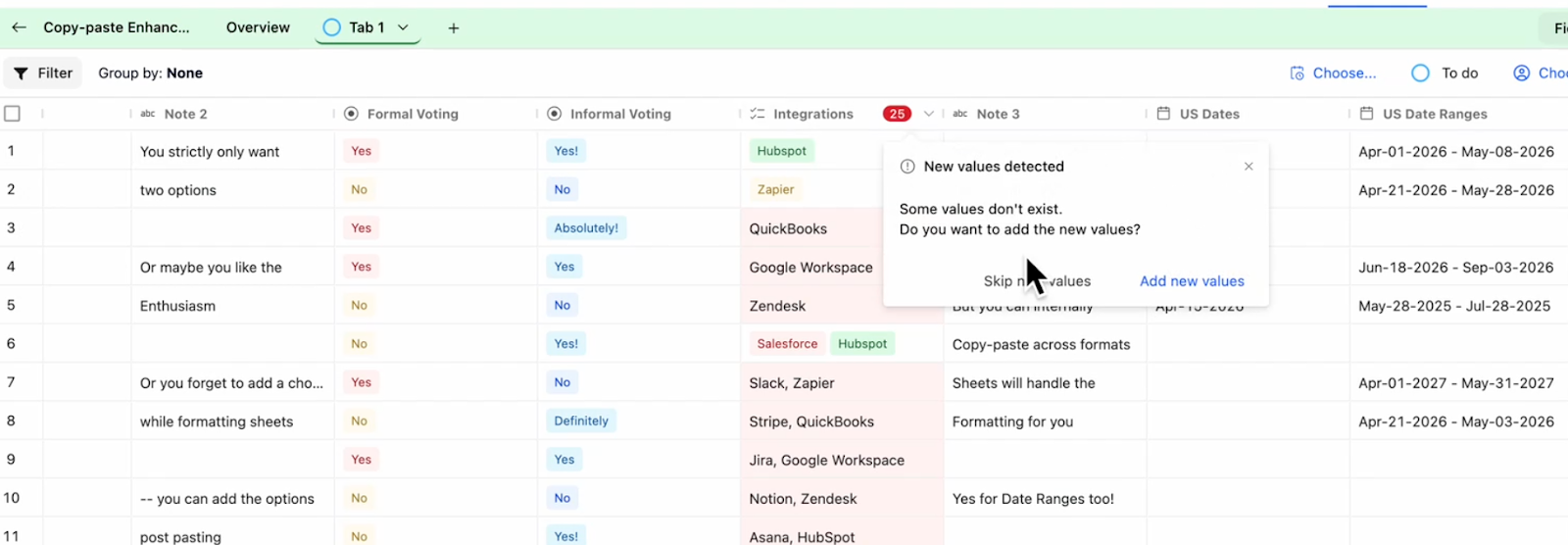
If pasted values aren’t found in the dropdown options, Rocketlane prompts to address new values:
Add new values to update the column configuration seamlessly
Skip new values to only paste those that already exist in the dropdown
Dates
The column supports dates in formats such as MM/DD/YYYY, DD/MM/YYYY, or 04-Apr-2026 based on your configuration.
- Automatically reformats pasted dates to align with the configured date format for the column.
Date ranges
Recognizes ranges formatted as: “Apr 01 - May 08”
- Maps the entire range into a singular Date Range cell.
Note: Date ranges are functional only within Rocketlane Sheets and will only be preserved when copied between Rocketlane Sheets.
Numbers
Accepts numerical entries.
- If the copied entry contains non-numeric characters (like “Nil” or “N/A”), Rocketlane triggers a validation error.
Assignees
When an email address is pasted into an Assignee column, it is automatically matched to the relevant Rocketlane user, provided they are part of the project.
- The sheet displays the name and profile avatar icon of the mapped user.
Ratings
Pasting numbers (for instance, 1–5) into a Rating column transforms them into the corresponding star rating visual.
Note: Attachments do not support copy-pasting.
Addressing Validation Alerts and Error Indicators
Scenario A: Newly Detected Select Options
When new values are introduced to a Select or Multi-select column that are not present in the existing dropdown setup, (for instance, pasting "Intercom" into an "Integrations" column where it hasn't been added previously), a new modal will emerge.
Available options:
Include new values
Adds all new values in bulk to the column configuration for future use.
Ignore new values
Only values that match existing options (such as "Slack" or "Jira") will be pasted; all others will remain empty.
Leave empty cells for values that are not configured yet.
Note: Adding newly detected values to the sheet requires appropriate user permissions.
Scenario B: Incorrect Data Types
If the pasted data does not correspond to the anticipated column type (for instance, inserting text into a Number column), Rocketlane will display an Invalid data type notification or an error bubble (usually found in the top-right corner).
For instance: You unintentionally copy a text string such as "Error" and paste it into an Email or Number field.
Available options:
Create only valid
Pastes values that correspond to the column type.
Leaves invalid cells unfilled, (i.e, the "Error" cell would be vacant)
This is generally the most effective choice when pasting large data ranges.
Skip
Bypasses pasting into the invalid cells (or cancels the paste for those particular cells, depending on the prompt displayed).
Note: For Assignee / Multi User Columns / Rating columns - incorrect values are quietly discarded.
Keyboard shortcuts for Sheets
Rocketlane Sheets supports keyboard shortcuts for common actions while working inside cells.
| Shortcut | Action |
|---|---|
| Shift + Enter | Inserts a new row below the focused cell |
| Escape (while editing) | Cancels the edit and reverts the cell to its previous value |
| Tab | Moves focus to the next cell on the right within the same row |
| Shift + Tab | Moves focus to the previous cell on the left within the same row |
| ⌘ + Option + M on Mac | Opens the comment popup for the focused cell |
| Ctrl + Alt + M on Windows/Linux | Opens the comment popup for the focused cell |
Note: Tab navigation works only within the same row. If the focused cell is in the last column, pressing Tab does not move focus. If the focused cell is in the first column, pressing Shift + Tab does not move focus.