Meeting Intelligence brings customer conversations into Rocketlane and turns them into information your teams can use throughout a project.
It can retrieve recordings from connected cloud platforms or record scheduled meetings using the Rocketlane AI Notetaker. Once a meeting has been captured, Rocketlane can create a meeting page, generate content using AI Fills, and identify customer signals when the meeting is associated with a company.
This article explains how administrators can configure Meeting Intelligence, connect recording sources, manage meeting scope, and retrieve historical recordings.
In this article
- How Meeting Intelligence works
- Who can configure Meeting Intelligence?
- Before you begin
- Open the Meeting Intelligence settings
- Step 1: Enable Meeting Intelligence
- Step 2: Choose your recording sources
- Step 3: Connect cloud recording sources
- Step 4: Configure the Rocketlane AI Notetaker
- Step 5: Configure historical recording retrieval
- Step 6: Understand internal and customer meetings
- Step 7: Configure AI Fills
- Step 8: Configure Signals
- What happens after setup?
- Frequently asked questions
How Meeting Intelligence Works
Meeting Intelligence supports the following capabilities:
AI Fills and Signals are configured independently. You can enable and manage them from their respective Meeting Intelligence settings pages.
Who Can Configure Meeting Intelligence?
Meeting Intelligence can be configured by Account Admins and users with permission to manage Meeting Intelligence settings.
Users without this permission will not see the Meeting Intelligence configuration pages. Depending on the features enabled for the account, they may still be able to access captured meetings and use AI Fills.
Before You Begin
Before configuring Meeting Intelligence:
- Identify the recording platforms used across your organization.
- Confirm that you have administrator access to any cloud platforms you need to connect.
- Decide whether your teams will use cloud recordings, the Rocketlane AI Notetaker, or both.
- If you plan to use the AI Notetaker, ensure that eligible meeting hosts have a Rocketlane licence and can connect their Google Calendar or Outlook calendar.
- Ensure that customer contacts and company website URLs are maintained in Rocketlane. This information helps Rocketlane associate meetings with the correct customers.
Open the Meeting Intelligence Settings
Go to Settings > Meeting Intelligence.
The settings are organized into three pages:
Step 1: Enable Meeting Intelligence
- Go to Settings > Meeting Intelligence > Capture.
- Enable Meeting Intelligence.
- Review the available recording sources.
Once Meeting Intelligence is enabled, you can connect the recording sources used by your organization.
Step 2: Choose Your Recording Sources
Rocketlane supports two types of recording sources:
Cloud Recording Sources
Rocketlane retrieves completed recordings and transcripts directly from connected providers after a meeting ends. Available cloud sources include:
- Gong
- Zoom
- Microsoft Teams
- Google Meet
For cloud recording sources, the person participating in or hosting the call does not need a Rocketlane licence or a connected Rocketlane calendar. Rocketlane matches and retrieves eligible recordings through the provider's API.
Rocketlane AI Notetaker
The Rocketlane AI Notetaker joins scheduled Zoom, Microsoft Teams, or Google Meet calls as a meeting participant and records them.
Each meeting host using the AI Notetaker must:
- Have a Rocketlane licence.
- Connect their Google Calendar or Outlook calendar to Rocketlane.
- Be included in the AI Notetaker recording configuration.
Use Multiple Sources Together
You can connect multiple cloud recording sources and use the Rocketlane AI Notetaker at the same time. The sources are additive and do not require an account-wide choice between one recorder and another.
For example, your sales team can continue using Gong while your implementation team uses the Rocketlane AI Notetaker. Recordings from both teams can be brought into Rocketlane through their respective sources.
This also allows different teams to use different conferencing platforms without changing the recording method used by the rest of the organization.
Step 3: Connect Cloud Recording Sources
To connect a cloud recording source:
- Go to Settings > Meeting Intelligence > Setup & recording.
- Find the required platform under Cloud recording sources.
- Click Connect.
- Sign in to the platform using an account with the required permissions.
- Review and authorize the requested access.
- Repeat these steps for every cloud source your organization uses.
Each source is connected independently. Connecting one source does not disconnect or disable the others.
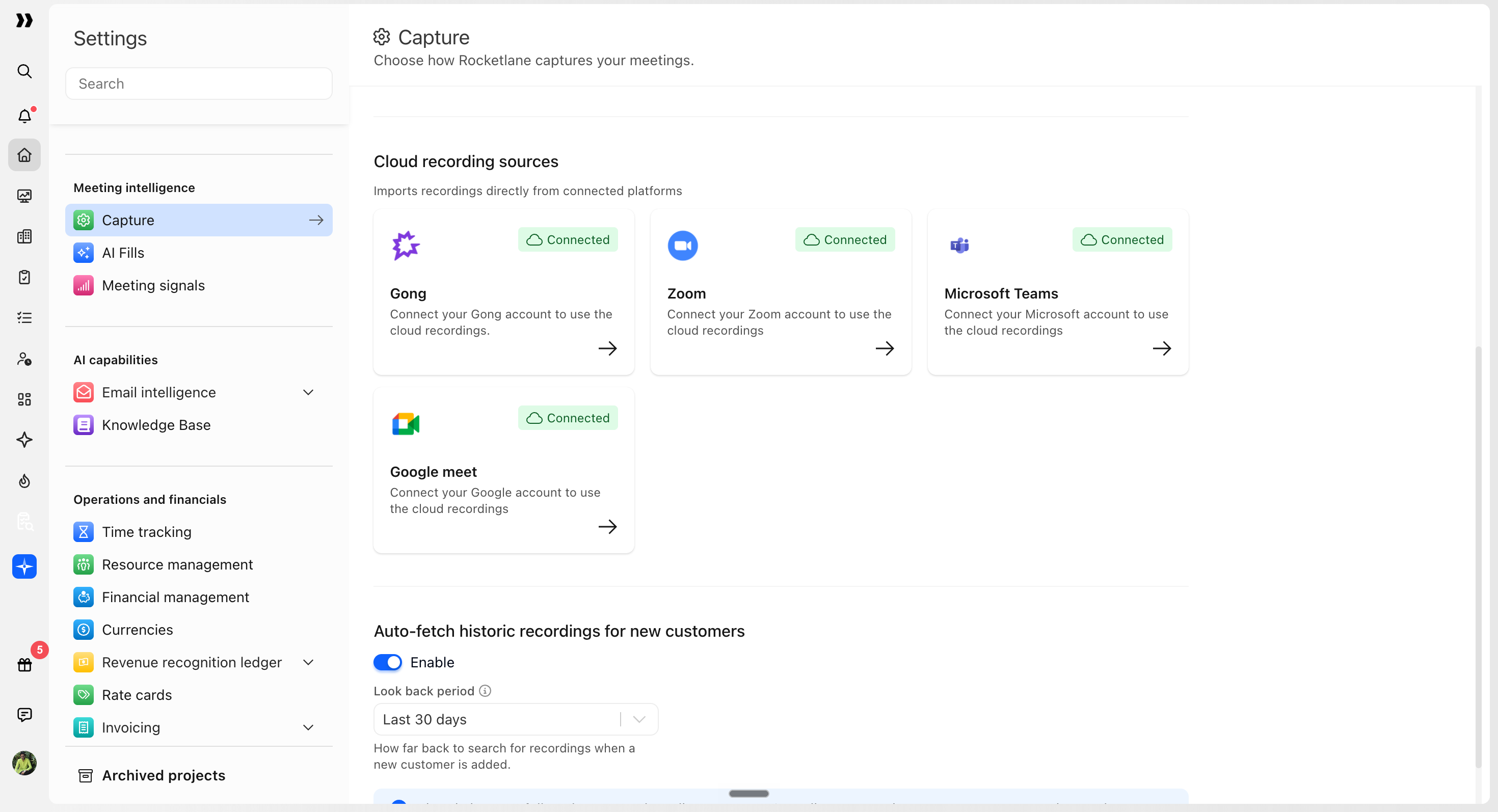
For platform-specific prerequisites and authorization instructions, refer to:
- Connect Zoom to Rocketlane
- Connect Gong to Rocketlane
- Connect Google Meet to Rocketlane
- Connect Microsoft Teams to Rocketlane
Step 4: Configure the Rocketlane AI Notetaker
Complete this step only if you want the Rocketlane AI Notetaker to join and record scheduled meetings.
Enable the AI Notetaker
- Go to Settings > Meeting Intelligence > Setup & recording.
- Enable the AI Notetaker.
- Enter the name that should appear when the notetaker joins a meeting.
- Choose which team members should have their meetings recorded.
- Save the configuration.
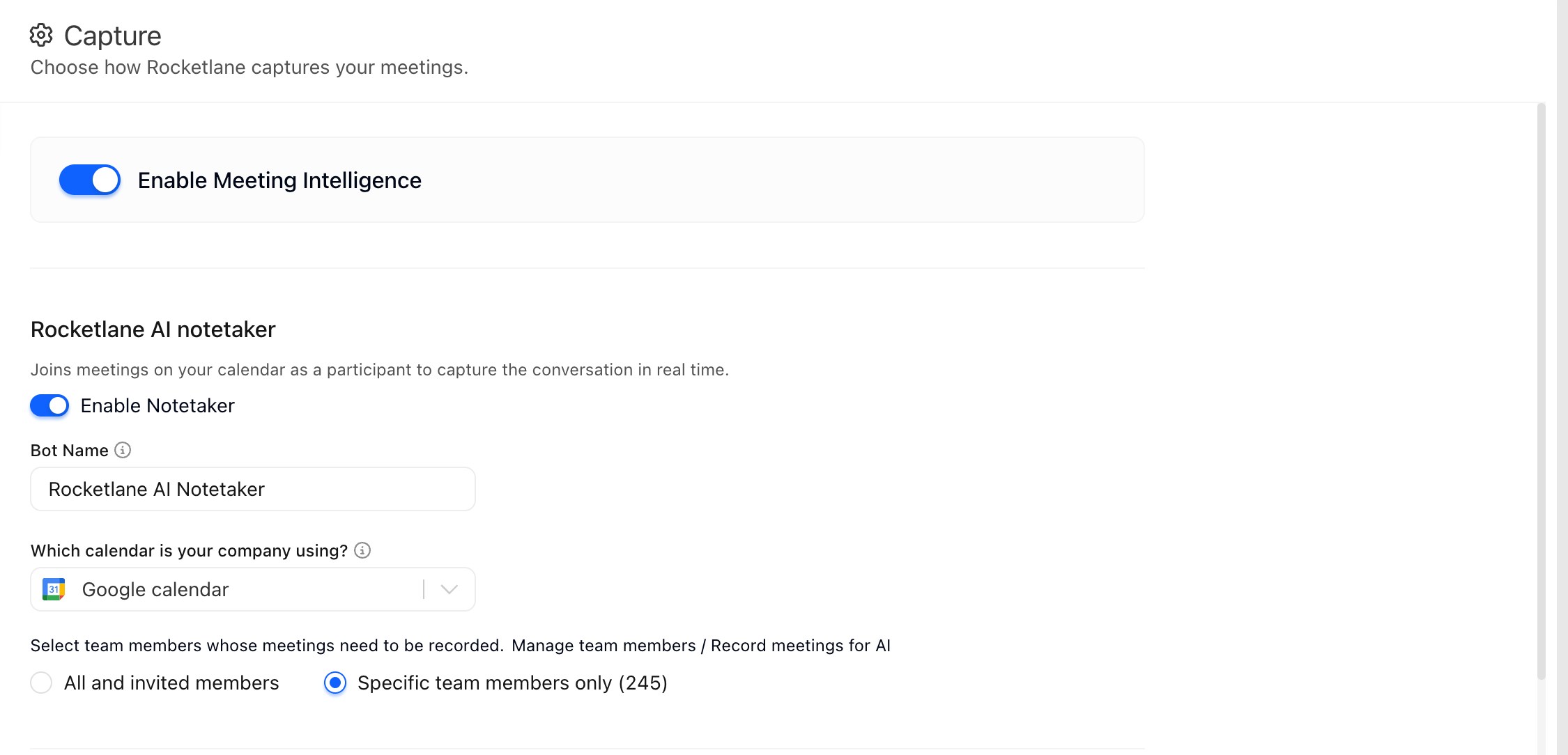
You can enable the AI Notetaker for all eligible team members or select specific team members.
To stop the AI Notetaker from joining meetings with specific people, domains, or meeting titles, add an exclusion. For more information, see Excluding Meetings and Emails from Capture.
Connect Calendars
The AI Notetaker uses calendar events to determine which meetings it should join. Each enabled meeting host must connect their calendar individually. Once the AI Notetaker is enabled and a calendar provider is selected, team members will receive an email prompting them to connect their calendars. If team members don't see the email in their inbox, ask them to check their spam or junk folder.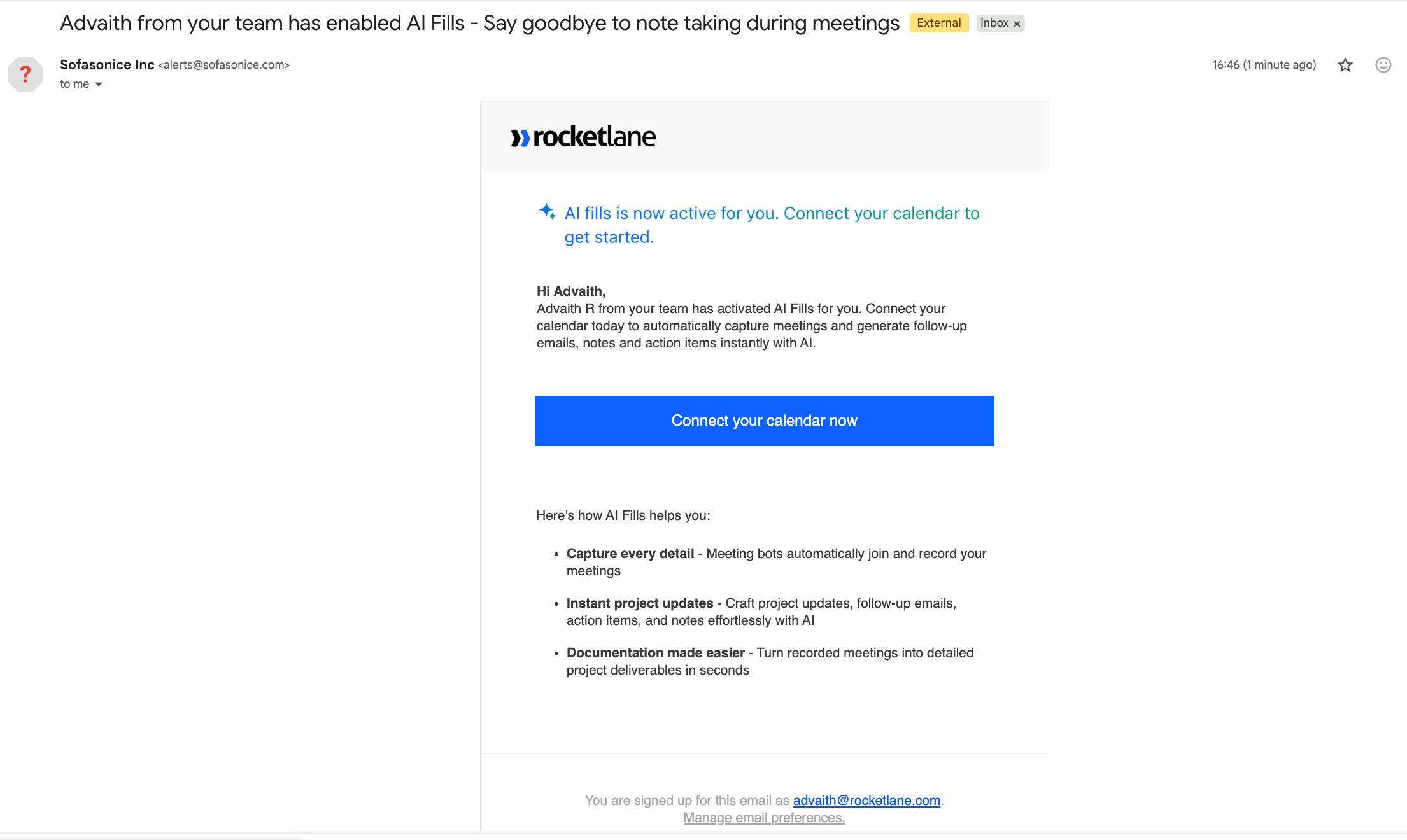
Users can connect:
- Google Calendar
- Outlook Calendar
If a calendar has already been connected for another Rocketlane feature, the same connection is used. If it has not been connected, Rocketlane may prompt the user to sign in when they access a meeting-powered workflow.
Calendar connections are user-level settings. Users can manage or disconnect their calendar from their own account settings.
Step 5: Configure Historical Recording Retrieval
Meeting Intelligence can automatically retrieve matching historical recordings from connected cloud sources when a customer company is added to Rocketlane.
This helps teams begin a new engagement with access to relevant earlier conversations instead of starting with an empty meeting history.
To configure historical retrieval:
- Go to Settings > Meeting Intelligence > Capture.
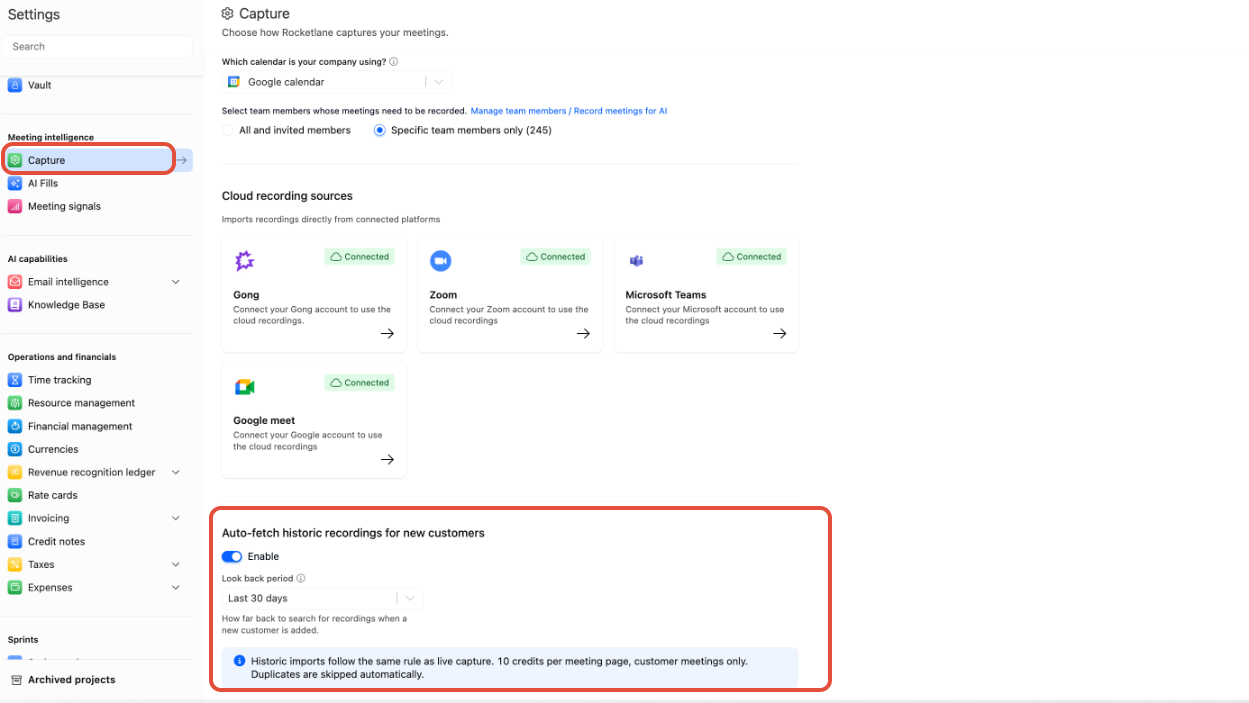
- Scroll to find the setting for automatically fetching historical recordings for new customers.
- Enable the setting.
- Select the historical retrieval period.
- Save the configuration.
Depending on the available configuration, the historical retrieval period can include the last 7, 30, 90, or 180 days, or all available history.
Historical retrieval can run when:
- A new customer company is created.
- Historical retrieval is enabled for the first time.
- The configured retrieval period is changed.
- A new cloud recording source is connected.
When a new customer is created, Rocketlane searches the connected cloud sources for recordings that match the company's contacts, email domain, or website information. The retrieval period used for a newly created customer is limited to the configured period, up to 30 days.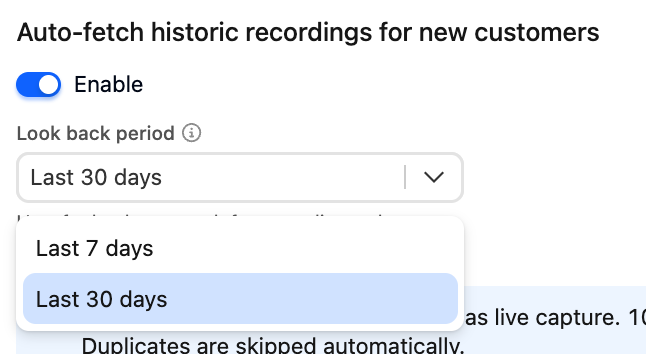
Step 6: Understand Internal and Customer Meetings
Rocketlane classifies meeting participants as internal or external. This classification helps determine whether a meeting is a customer meeting and whether customer-specific features, such as Signals, should run.
Internal Participants
A participant is treated as internal when:
- Their email address belongs to a team member or partner in the Rocketlane account.
- Their email domain matches a domain associated with a team member or partner.
Team members and partners with an Active, Invited, or Passive status contribute to internal classification. Deactivated or removed users do not.
To review the internal domains list, or add other domains your organization uses, go to Settings > AI capabilities > Internal domains. For more information, see Managing Internal Domains for Meetings and Emails.
If your organization uses multiple internal email domains, Rocketlane can recognize each domain represented by an eligible team member or partner.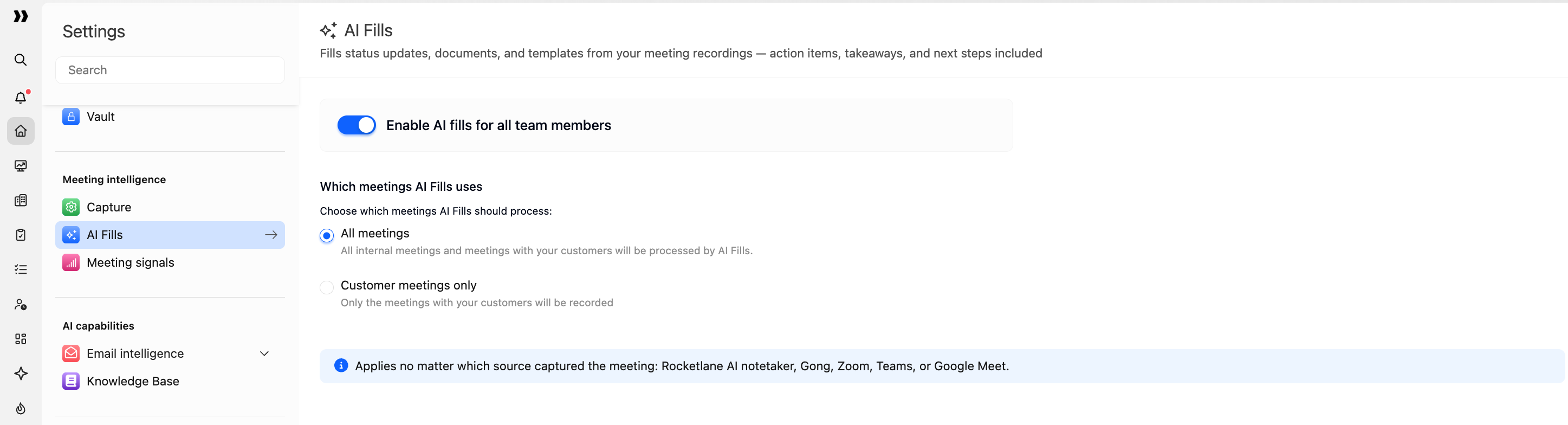
Customer Meetings
A meeting is treated as a customer meeting when it includes at least one participant who is not recognized as an internal team member or partner.
For example:
Because Carol is external, a meeting containing all three participants is classified as a customer meeting. A meeting containing only Alice and Raj is classified as an internal meeting.
Meeting bots, calendar resources, no-reply addresses, and common public email domains are excluded where they cannot reliably identify an organization.
Step 7: Configure AI Fills
AI Fills generates structured content from captured meetings, including summaries, follow-up emails, action items, project updates, documents, and internal notes.
To configure AI Fills:
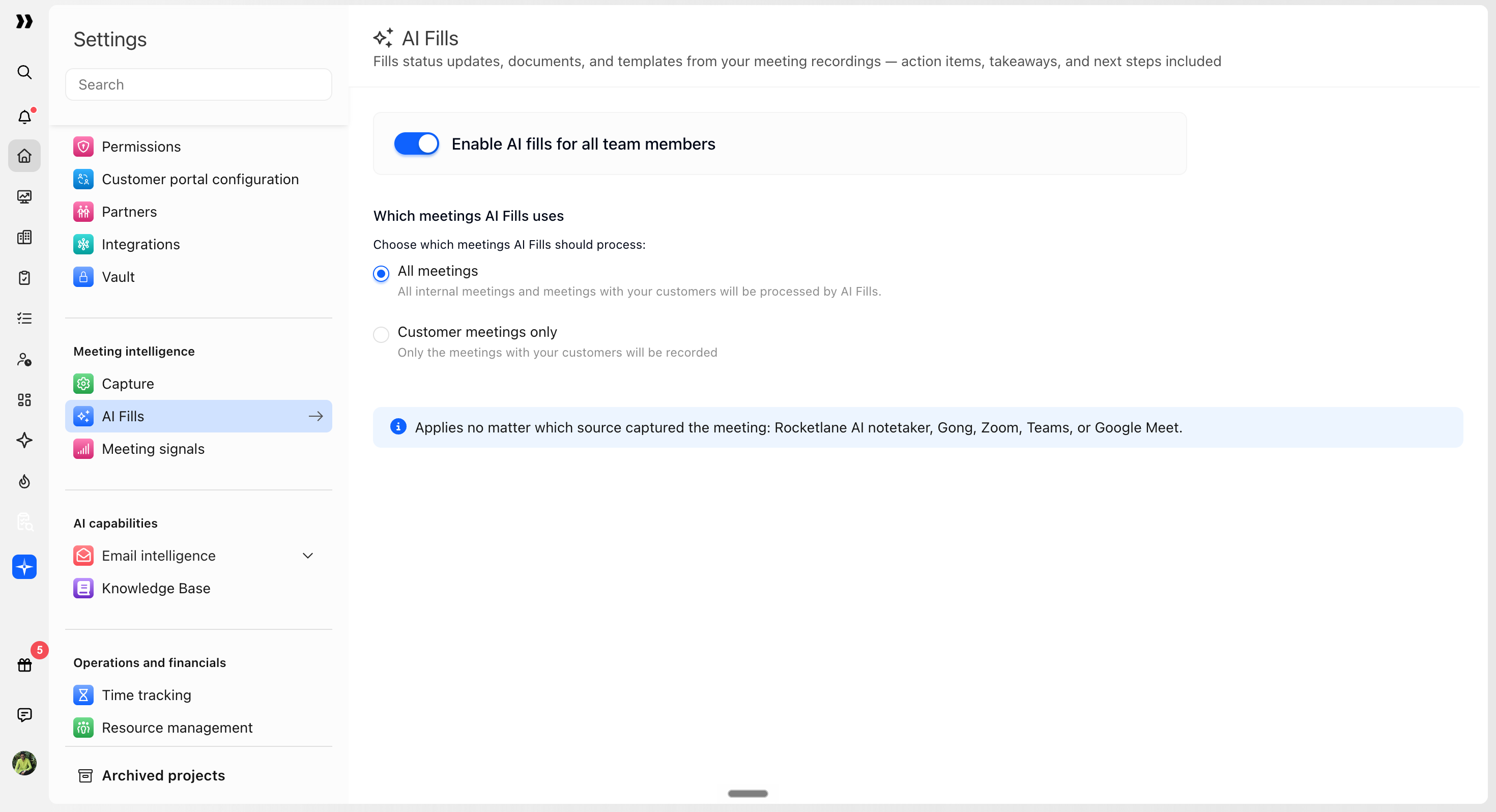
- Go to Settings > Meeting Intelligence > AI Fills.
- Enable AI Fills.
- Choose whether AI Fills should process customer meetings only or include internal meetings.
- Save the configuration.
By default, AI Fills processes customer meetings. Enable internal meetings if you also want AI Fills to process conversations attended only by internal team members and partners.
Step 8: Configure Signals
Signals identify relevant risks, opportunities, and project information from customer conversations.
To configure Signals:
- Go to Settings > Meeting Intelligence > Signals.
- Enable Signals.
- Configure the available signal-detection settings.
- Save the configuration.
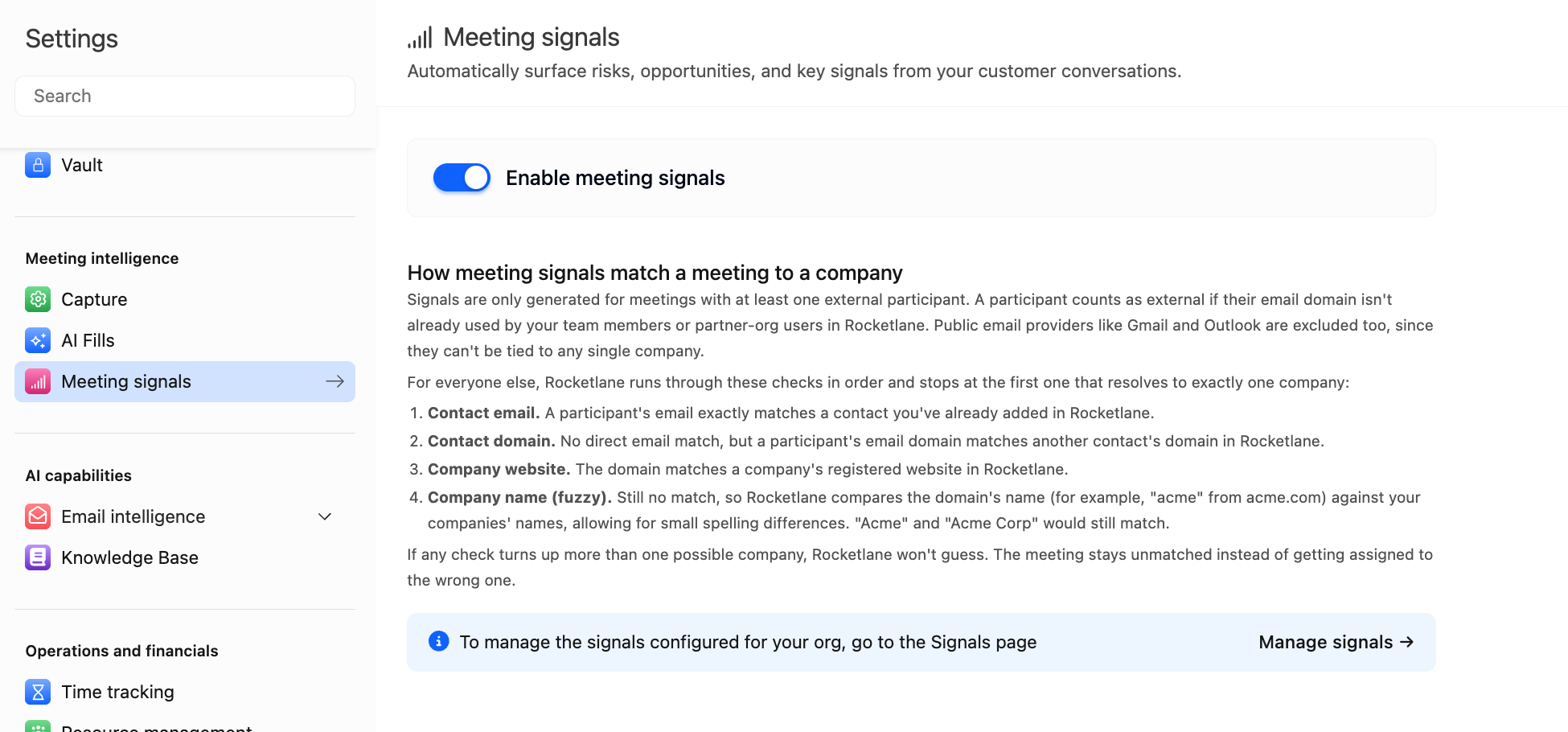
Signals run only for eligible customer meetings. The meeting must be associated with a customer company before customer-specific signals can be generated.
Meeting pages are still created for captured meetings that are internal or cannot be associated with a customer. These meetings do not generate customer Signals.
What Happens After Setup?
After Meeting Intelligence is configured:
- Rocketlane receives recordings from the AI Notetaker and connected cloud sources.
- Meeting pages are created for captured meetings.
- Rocketlane attempts to associate customer meetings with the correct company.
- AI Fills processes meetings according to its configured scope.
- Signals are generated for eligible customer meetings that are associated with a company.
- Team members can use meeting content in project updates, documents, and supported communication areas.
Frequently Asked Questions
Can we connect Gong, Zoom, Microsoft Teams, and Google Meet at the same time?
Yes. Each cloud recording source can be connected independently. You can also use the Rocketlane AI Notetaker alongside the connected cloud sources.
Do people whose recordings are retrieved from a cloud source need Rocketlane licences?
No. For Gong, Zoom, Microsoft Teams, and Google Meet cloud retrieval, Rocketlane matches and retrieves eligible recordings through the provider's API. The people on those calls do not need Rocketlane licences solely for recording ingestion.
Who needs to connect a calendar?
Only meeting hosts using the Rocketlane AI Notetaker need to connect Google Calendar or Outlook. Calendar connections are not required for users whose recordings are retrieved exclusively from cloud sources.
Can AI Fills process internal meetings?
Yes. Go to Settings > Meeting Intelligence > AI Fills and enable internal meetings. Signals remain limited to eligible customer meetings.
What happens if a meeting cannot be associated with a customer?
The meeting is still captured and its meeting page remains available. It will not appear in a customer's meeting history or generate customer Signals until it is associated with a company.