Connect Microsoft Teams to Rocketlane to bring eligible Teams recordings and transcripts into Meeting Intelligence. Captured meetings can be accessed from meeting pages and used with features such as AI Fills and Signals, depending on the meeting and your account configuration.
Microsoft Teams can operate alongside Gong, Zoom, Google Meet, and the Rocketlane AI Notetaker. Connecting Teams does not require you to disable any other recording source.
In this article
- How the Microsoft Teams integration works
- Before you begin
- Enable recording and transcription
- Connect Microsoft Teams in Rocketlane
- Configure the Teams application access policy
- Record and transcribe meetings
- Which Teams recordings are retrieved?
- Use Microsoft Teams with other recording sources
- Retrieve historical Teams recordings
- Use Teams recordings with AI Fills
- Use the Rocketlane AI Notetaker in Teams meetings
- Disconnect Microsoft Teams
- Troubleshooting
- Frequently asked questions
How the Microsoft Teams integration works
After the integration is connected, Rocketlane retrieves eligible completed meeting recordings and transcripts from the connected Microsoft tenant through Microsoft Graph. No Rocketlane bot is required for cloud recording retrieval.
The Microsoft Teams integration supports two related workflows:
You can enable one or both workflows. Teams cloud retrieval and the AI Notetaker can operate at the same time.
Before you begin
Ensure that:
- Meeting Intelligence is enabled in Rocketlane.
- You have administrator access in Rocketlane.
- You have Microsoft 365 or Microsoft Entra administrator access for the tenant you want to connect.
- The relevant Microsoft 365 subscription supports Teams cloud recording and transcription.
- Cloud recording and transcription are enabled in the applicable Teams meeting policies.
- You can grant the required administrator consent for the Rocketlane application.
- A Teams application access policy can be configured for the users whose meetings Rocketlane should access.
- Customer contacts and company website information are maintained in Rocketlane to support meeting matching.
Step 1: Enable recording and transcription in Microsoft Teams
Before connecting Teams to Rocketlane, confirm that the applicable Teams meeting policies allow recording and transcription.
Using the Microsoft Teams admin center, review the meeting policy assigned to the relevant users and enable:
- Cloud recording
- Transcription
The corresponding Teams meeting policy values should permit cloud recording and transcription for meeting organizers whose recordings should be available in Rocketlane.
If a user cannot start a recording or generate a transcript, verify the meeting policy applied to that user and any organization-wide restrictions.
Step 2: Connect Microsoft Teams in Rocketlane
To connect Microsoft Teams:
- Sign in to Rocketlane as an administrator.
- Go to Settings > Meeting Intelligence > Setup & recording.
- Find Microsoft Teams under Cloud recording sources.
- Click Connect.
- Sign in using a Microsoft administrator account for the tenant you want to connect.
- Review the permissions requested by Rocketlane.
- Grant administrator consent to complete the connection.
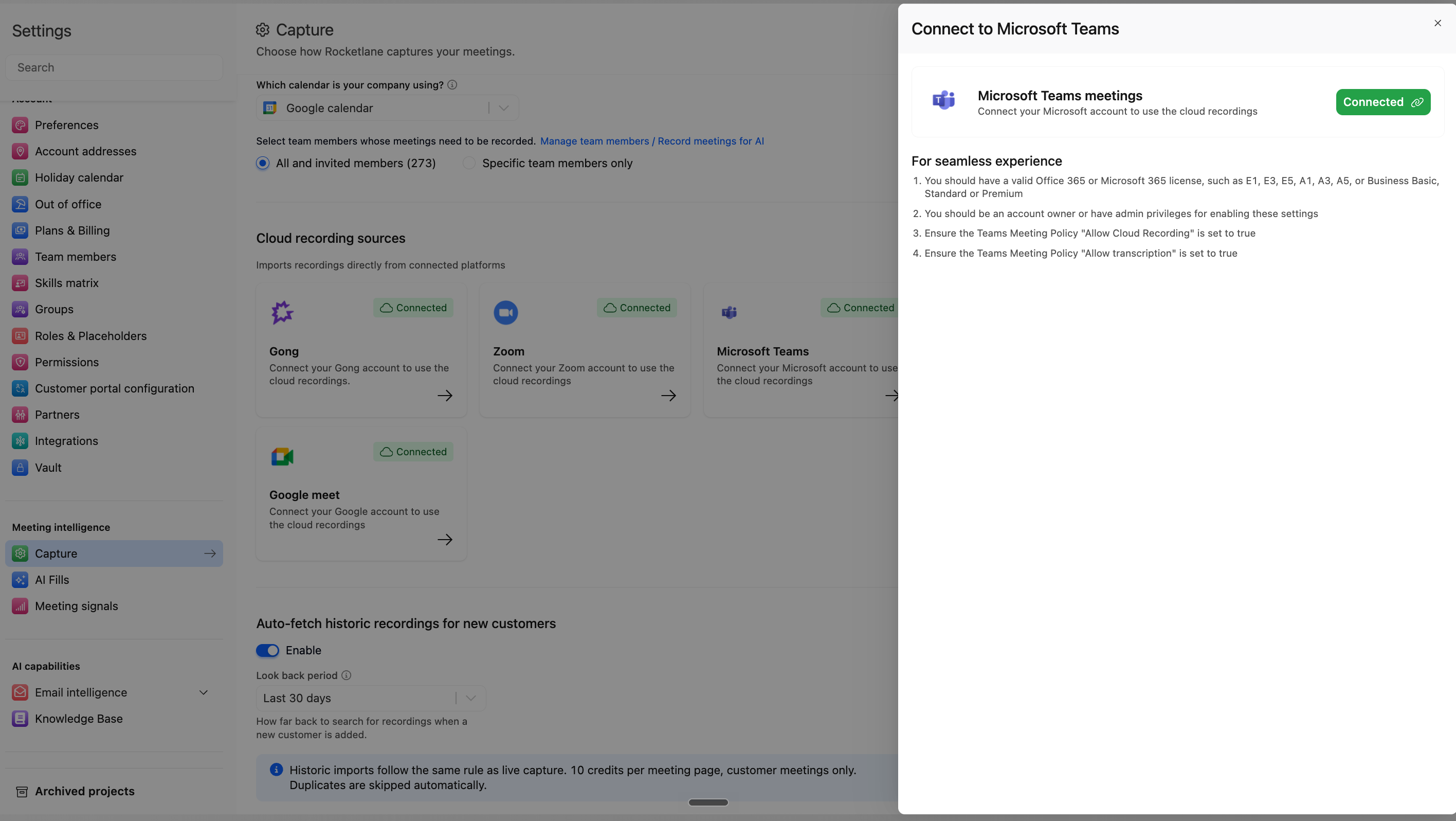
Once authorization is complete, Microsoft Teams appears as a connected recording source in Rocketlane.
Step 3: Configure the Teams application access policy
Microsoft requires an application access policy before applications using application permissions can access certain online meeting recordings and transcripts.
A Microsoft administrator must configure a policy that permits the Rocketlane application to access meetings for the relevant users. The policy can be assigned to specific users or, where appropriate for your organization, at the tenant level.
At a high level, the administrator must:
- Identify the Rocketlane application’s Microsoft application ID.
- Create a Teams application access policy that includes the application ID.
- Grant the policy to the users whose meeting recordings should be available to Rocketlane, or apply it according to the organization’s tenant-level policy.
- Allow time for the policy change to take effect.
For Microsoft’s configuration instructions, refer to Configure application access to online meetings or virtual events.
Step 4: Record and transcribe meetings in Teams
For Rocketlane to retrieve a meeting through the Teams cloud integration, the recording and transcript must be available through Microsoft 365.
During an eligible Teams meeting:
- Start the meeting recording.
- Ensure transcription is enabled or started according to your Teams configuration.
- Conduct and end the meeting normally.
- Allow Microsoft Teams time to process the recording and transcript.
Rocketlane retrieves eligible data after it becomes available through Microsoft Graph.
Which Teams recordings are retrieved?
Rocketlane can retrieve eligible recordings for users covered by the connected Microsoft tenant and the configured application access policy. These users do not need to be Rocketlane team members.
The meeting host or participant does not need:
- A Rocketlane licence solely for Teams cloud recording ingestion.
- A Google Calendar or Outlook connection in Rocketlane.
- The Rocketlane AI Notetaker to have attended the meeting.
After an eligible meeting is retrieved:
- Rocketlane creates a meeting page for the captured meeting.
- Rocketlane classifies the meeting as internal or customer-facing.
- For customer meetings, Rocketlane attempts to associate the meeting with the appropriate company.
- AI Fills and Signals run according to their respective configurations and eligibility rules.
Use Microsoft Teams with other recording sources
Microsoft Teams can remain connected while other cloud recording sources and the Rocketlane AI Notetaker are enabled.
For example:
- One business unit can retrieve recordings from Microsoft Teams.
- Another team can continue using Gong or Zoom.
- Selected meeting hosts can use the Rocketlane AI Notetaker.
Rocketlane can receive meetings from each configured source without requiring one recording method to be selected for the entire account.
Retrieve historical Teams recordings
When historical recording retrieval is enabled, Rocketlane can search Microsoft Teams for eligible earlier recordings.
Historical retrieval can run when:
- Microsoft Teams is connected as a new cloud recording source.
- Historical retrieval is enabled for the first time.
- The configured historical retrieval period is changed.
- A new customer company is created in Rocketlane.
Rocketlane matches historical meetings using available customer contacts, participant domains, company website information, and company names.
To review or change this behavior, go to Settings > Meeting Intelligence > Setup & recording and find the historical recording retrieval settings.
Use Teams recordings with AI Fills
Once a Teams meeting has been captured, team members can use it with AI Fills according to the configured AI Fills meeting scope.
AI Fills can generate content such as:
- Meeting summaries
- Follow-up emails
- Action items
- Decisions and next steps
- Project updates
- Project documents
- Internal notes
AI Fills can also be configured to process internal meetings. This setting is managed under Settings > Meeting Intelligence > AI Fills.
For instructions on creating templates and generating content, refer to Create and Use AI Fills.
Use the Rocketlane AI Notetaker in Teams meetings
The Rocketlane AI Notetaker can join scheduled Teams meetings alongside the cloud integration.
For the AI Notetaker to join a host’s meetings:
- The AI Notetaker must be enabled for that team member.
- The host must have a Rocketlane licence.
- The host must connect Google Calendar or Outlook to Rocketlane.
- The calendar event must contain a valid Microsoft Teams meeting link.
These requirements apply to the AI Notetaker workflow. They do not apply to every person whose Teams cloud recording is retrieved.
Disconnect Microsoft Teams from Rocketlane
To stop Rocketlane from retrieving new Teams recordings:
- Go to Settings > Meeting Intelligence > Setup & recording.
- Find Microsoft Teams under Cloud recording sources.
- Open the Teams connection settings.
- Click Disconnect.
- Confirm the disconnection.
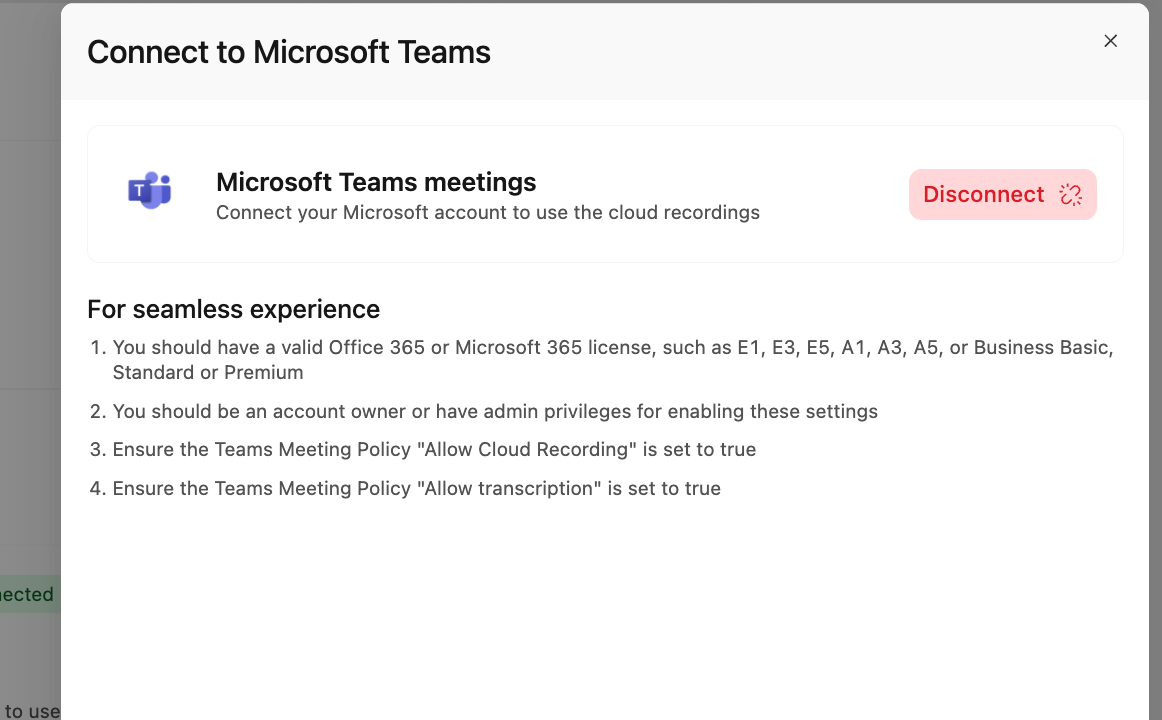
Rocketlane will stop retrieving new recordings and transcripts through the Microsoft Teams connection. Meetings retrieved before the disconnection remain available in Rocketlane.
If your organization also needs to revoke Rocketlane’s authorization in Microsoft 365, remove the applicable enterprise application authorization and review any application access policies created for Rocketlane.
Troubleshooting
A Teams recording is not appearing in Rocketlane
Verify that:
- The meeting was recorded in Microsoft Teams.
- A transcript was generated and has finished processing.
- The Microsoft Teams integration is still connected in Rocketlane.
- Administrator consent remains active.
- The meeting organizer is covered by the Teams application access policy.
- The recording and transcript are available through Microsoft 365.
Rocketlane receives a forbidden or application-policy error
Check whether:
- The Rocketlane application ID is included in the correct application access policy.
- The policy has been granted to the relevant meeting organizer or at the required tenant scope.
- Sufficient time has passed for a newly assigned policy to take effect.
- The Microsoft permissions granted to the application have not been revoked.
Recording or transcription is unavailable in Teams
Check whether:
- The user’s Microsoft 365 subscription supports the required feature.
- The assigned Teams meeting policy allows cloud recording and transcription.
- The user has an eligible role in the meeting.
- An administrator has restricted recording or transcription.
The AI Notetaker did not join a Teams meeting
Verify that:
- The AI Notetaker is enabled for the meeting host.
- The host has a Rocketlane licence.
- The host has connected the correct Google Calendar or Outlook account.
- The calendar event contains a valid Teams meeting link.
A meeting was captured but was not associated with a customer
Check whether:
- The customer contacts have been added to Rocketlane.
- The participant email domains match the expected customer.
- The customer’s website URL is present on its company record.
- Multiple companies use the same domain or have similar names.
The meeting page remains available even when Rocketlane cannot associate the meeting with one customer confidently.
Frequently asked questions
Does connecting Microsoft Teams disable other recording sources?
No. Microsoft Teams can operate alongside Gong, Zoom, Google Meet, and the Rocketlane AI Notetaker.
Does every Teams meeting organizer need a Rocketlane licence?
No. A Rocketlane licence is not required solely for Teams cloud recording retrieval. A licence and connected calendar are required when the organizer uses the Rocketlane AI Notetaker.
Must a Teams meeting be scheduled on a connected calendar for cloud retrieval?
No. Eligible Teams cloud recordings can be retrieved even when the meeting was not scheduled through a Rocketlane-connected calendar.
Why is an application access policy required?
Microsoft requires the policy to control which users’ online meetings an application can access using application permissions.
Are earlier Teams recordings imported automatically?
They can be retrieved when historical recording retrieval is enabled and the recordings meet the configured date and matching criteria.
What happens to existing meetings after Teams is disconnected?
Previously retrieved meetings remain available in Rocketlane. New Teams recordings are no longer retrieved after the connection is disconnected.