You can embed videos from YouTube, Vimeo, Loom, Wistia, or another video provider using an Iframe section. For a simple YouTube link, you can also use the Videos section.
To embed a video using an Iframe section:
Go to Templates and open Customer Portal templates.
Select the template you want to edit.
Open the page where you want the video to appear.
Hover over the boundary between sections and select +.
Under Static sections, select Iframe.
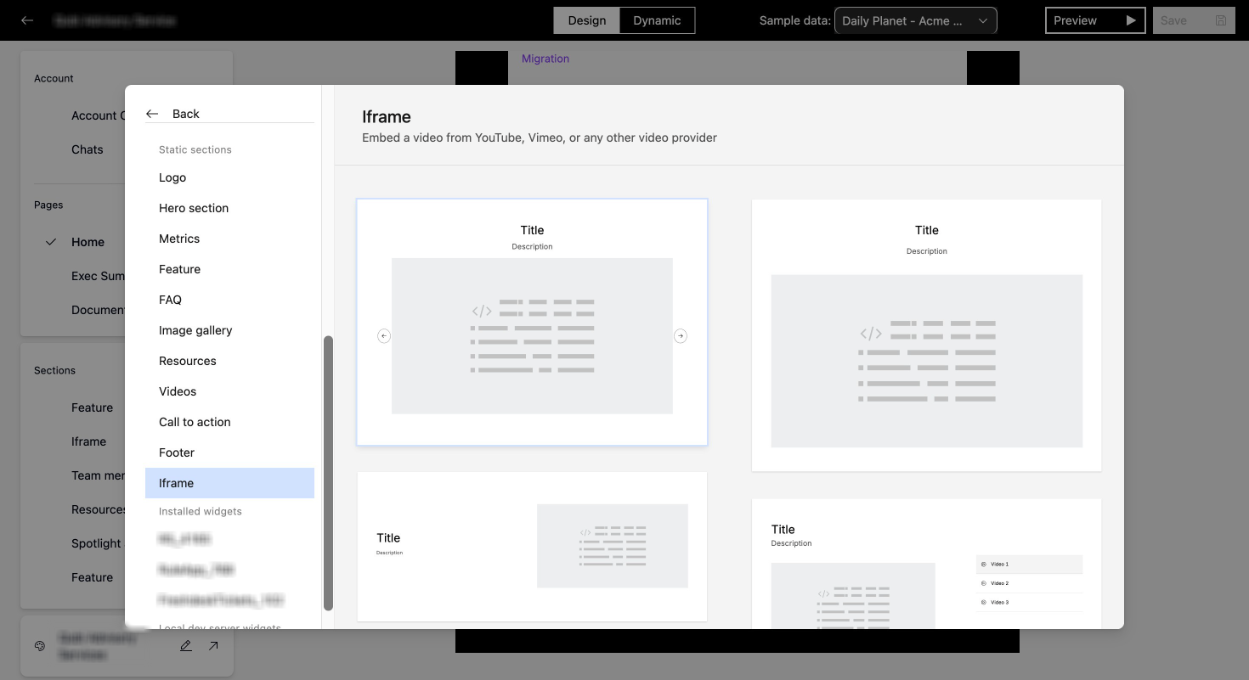
Choose a layout.
From the Section: Iframe sidebar, open Details.
Enter a title and description.
Select an item tab and paste the video URL or HTML iframe snippet into Embed code.
Add more tabs if you want to include additional videos.
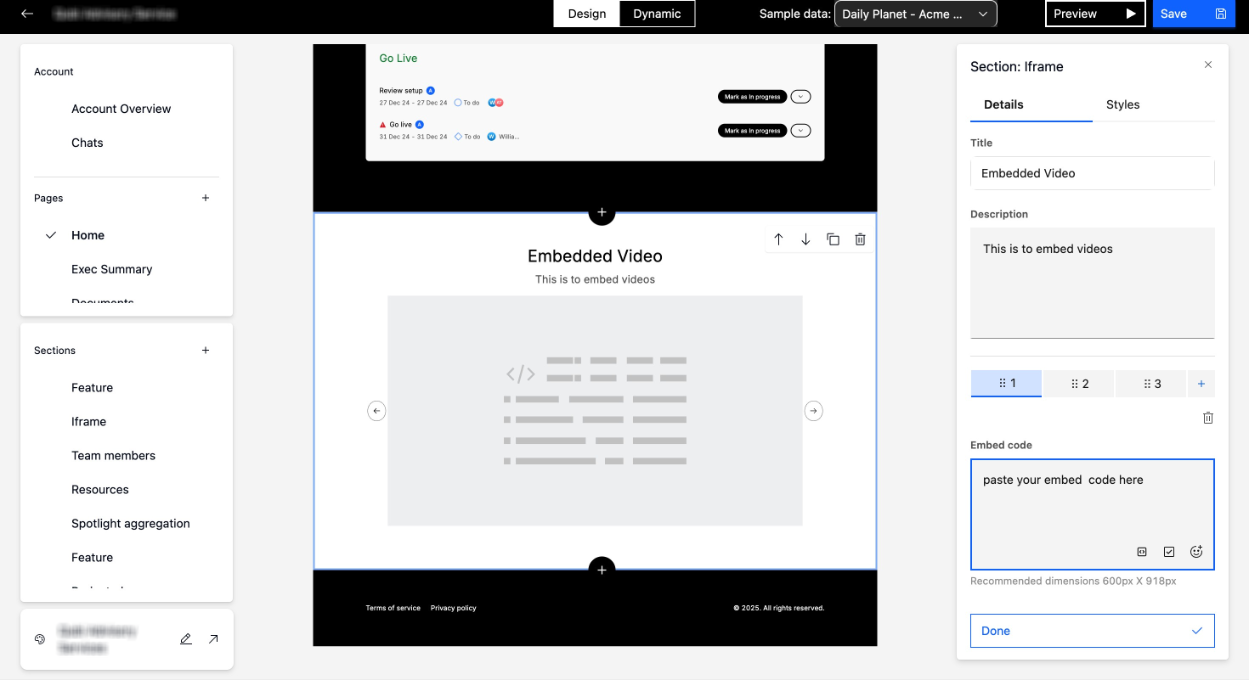
Select Done to apply the section.
Select Preview to confirm how the video appears to customers.
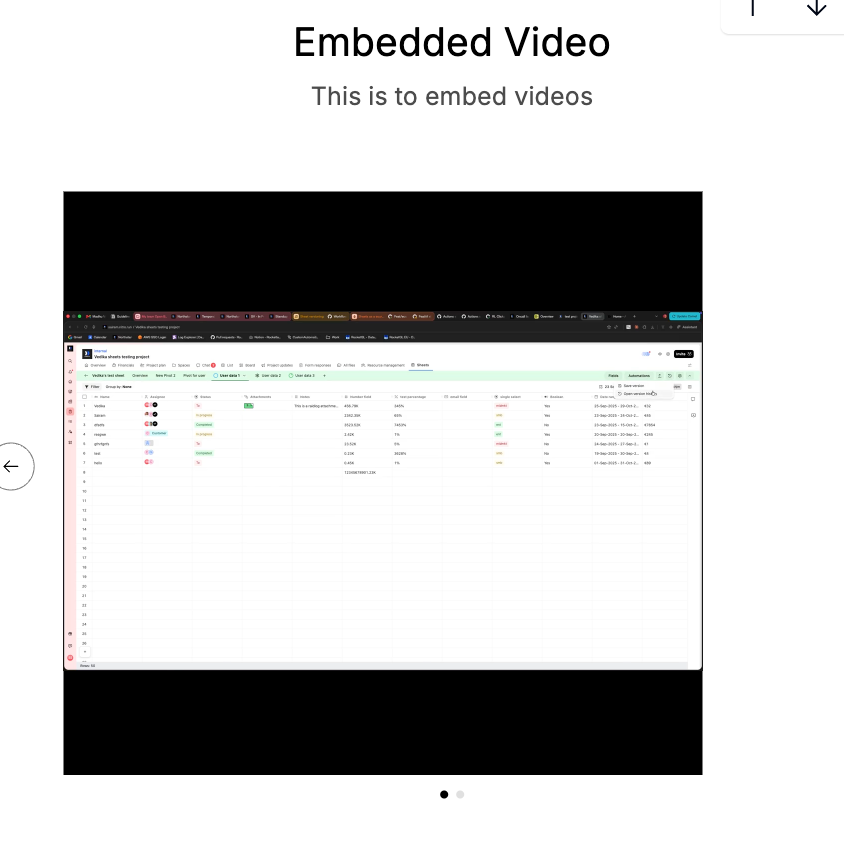
Note: For Loom or Wistia videos, convert the provider's embed code to HTML iframe format before pasting it into Embed code. The recommended iframe size is 600 px × 918 px.
See How to build your Customer Portal for more information about configuring portal pages and sections.