As your organization creates more project, form, document, and other templates, finding the right one in a single list can become difficult. Folders help you organize related templates and make them easier to find wherever templates are selected in Rocketlane.
In this article
Templates that support folders
Folder support depends on the template type.
Built-in templates and templates created by your organization can both be moved into folders and reordered.
Creating a folder
- Go to Templates.
- Select the template category you want to organize, such as Project templates.
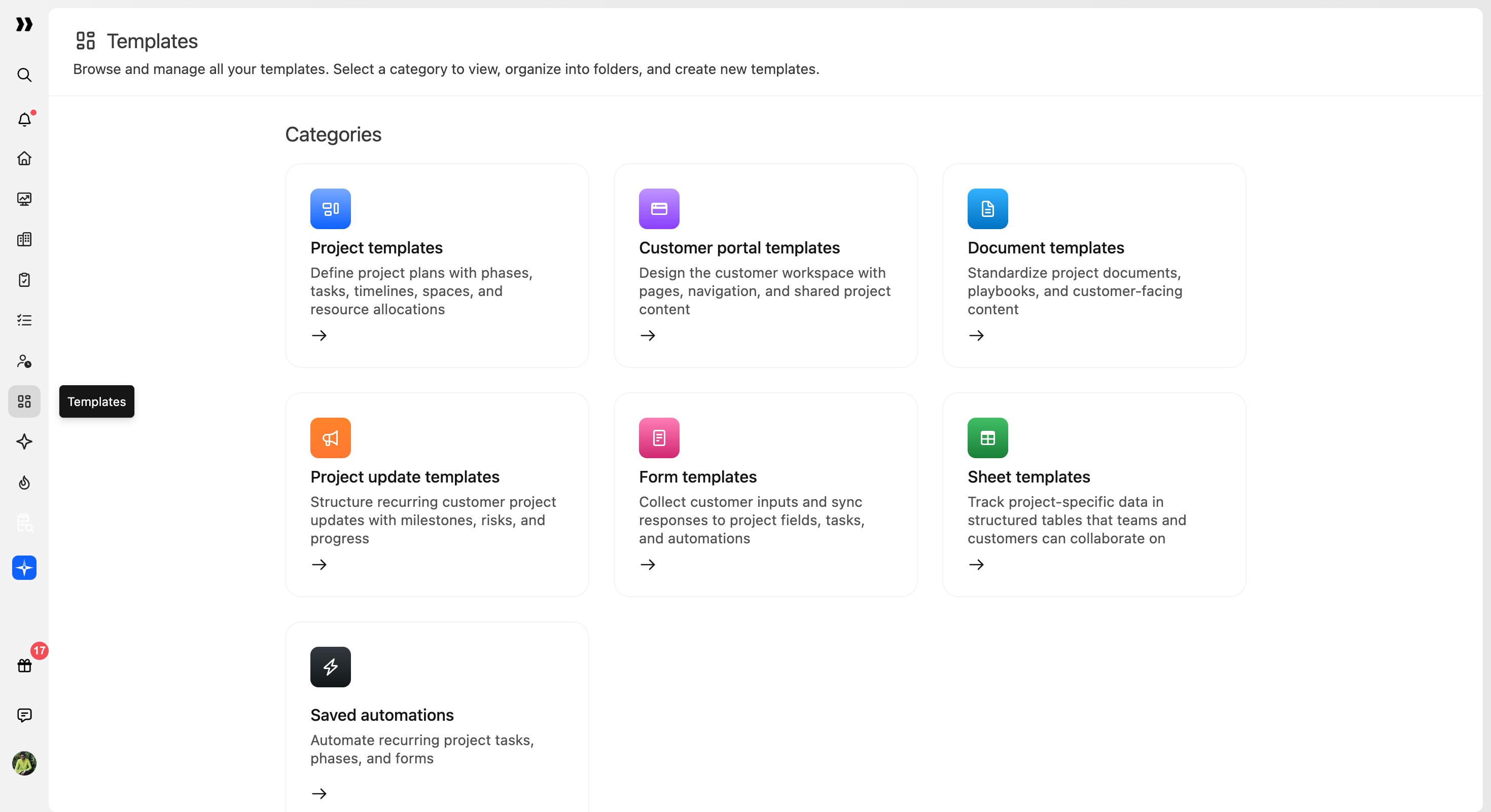
- Select New folder.
- Enter a name for the folder.
- Save the folder.
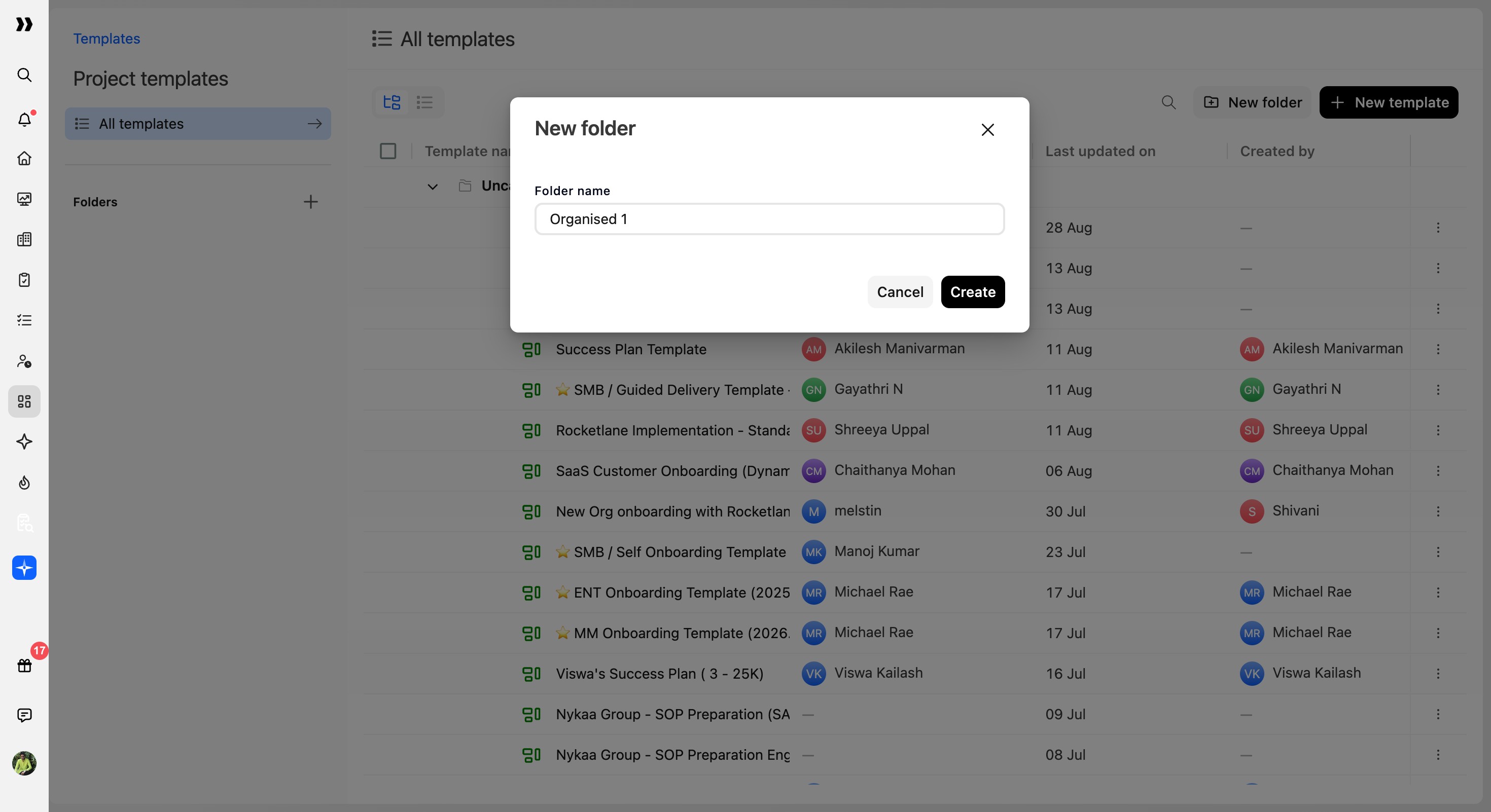
Kickoff and kickoff are treated as the same name.Folders in different template types can use the same name. For example, you can have a Kickoff folder under both Project templates and Document templates.
Moving templates into a folder
You can move one template or several templates at once.
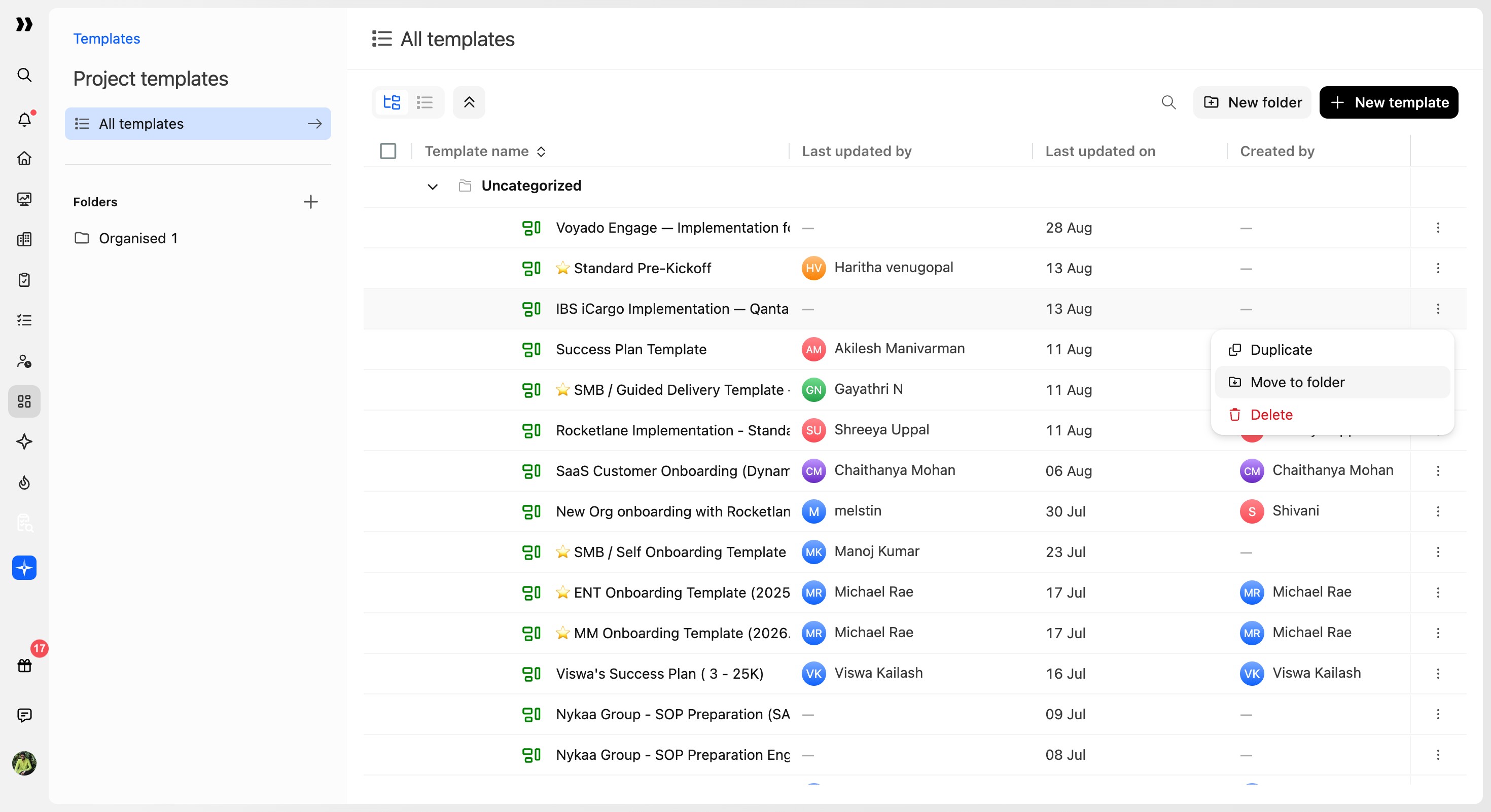
Moving a single template
- Open the row menu for the template.
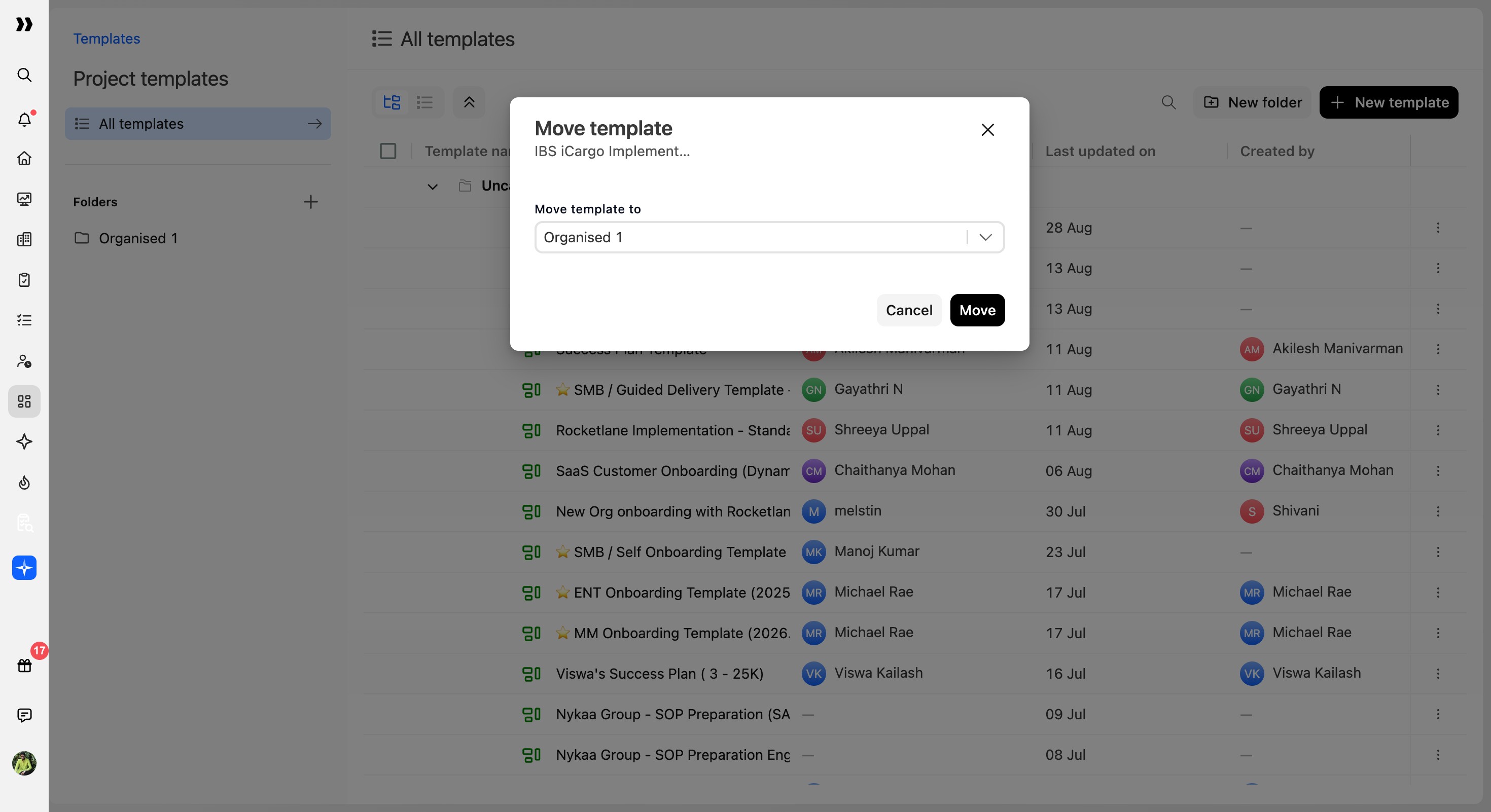
- Select Move to folder.
- Select the destination folder.
Moving multiple templates
- Select the templates you want to move.
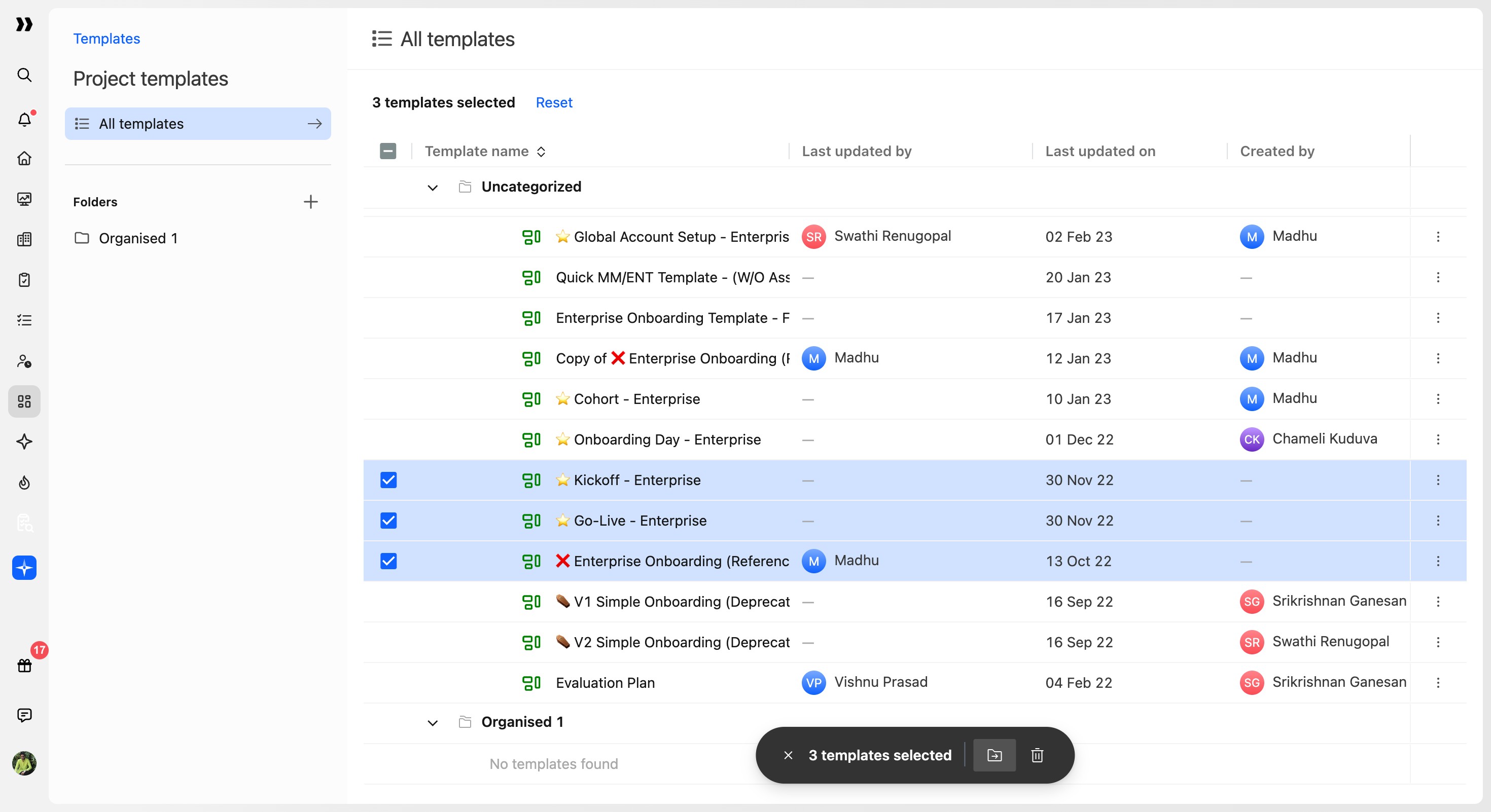
- From the bulk action bar, select Move to folder.
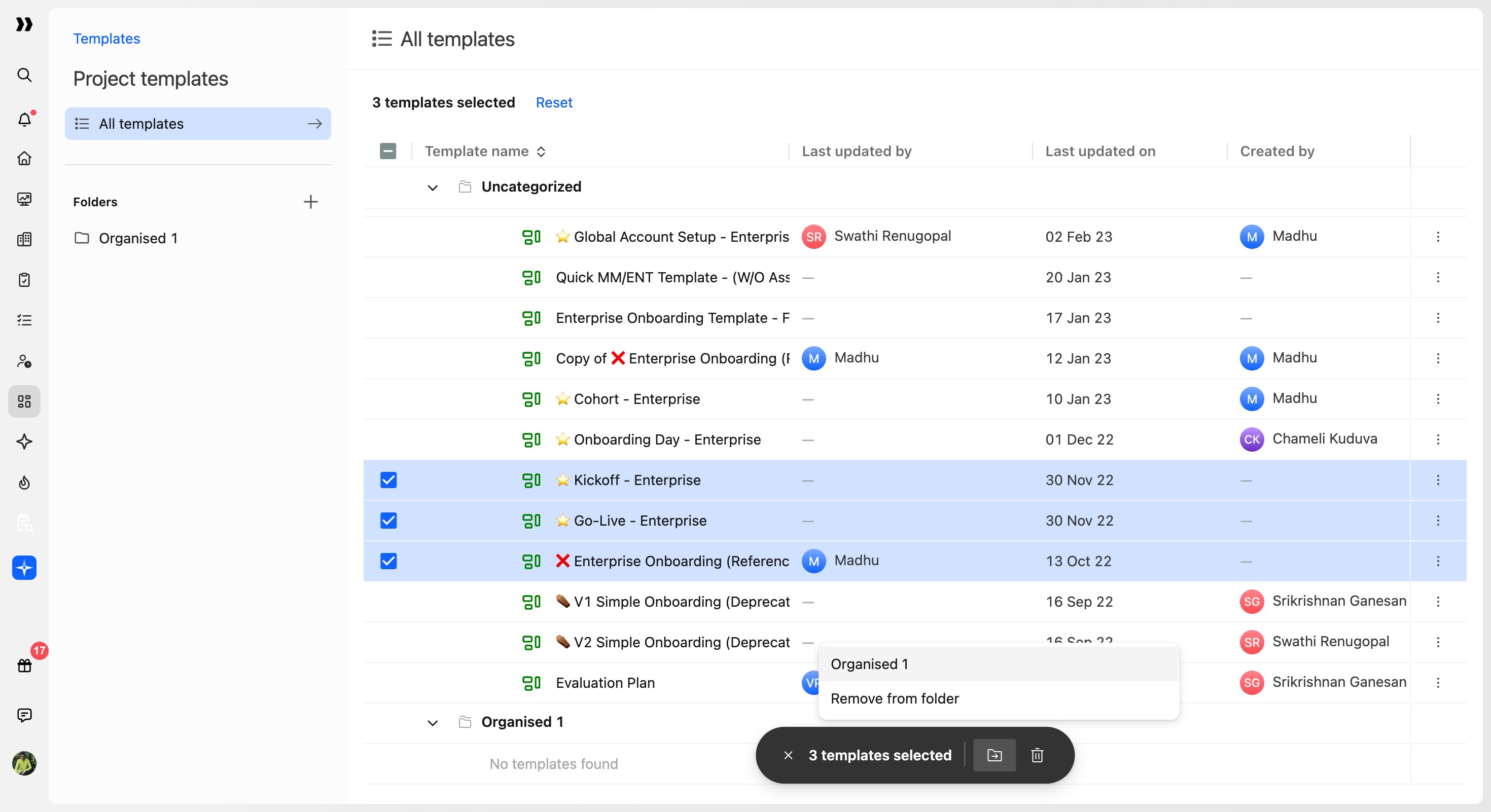
- Select the destination folder.
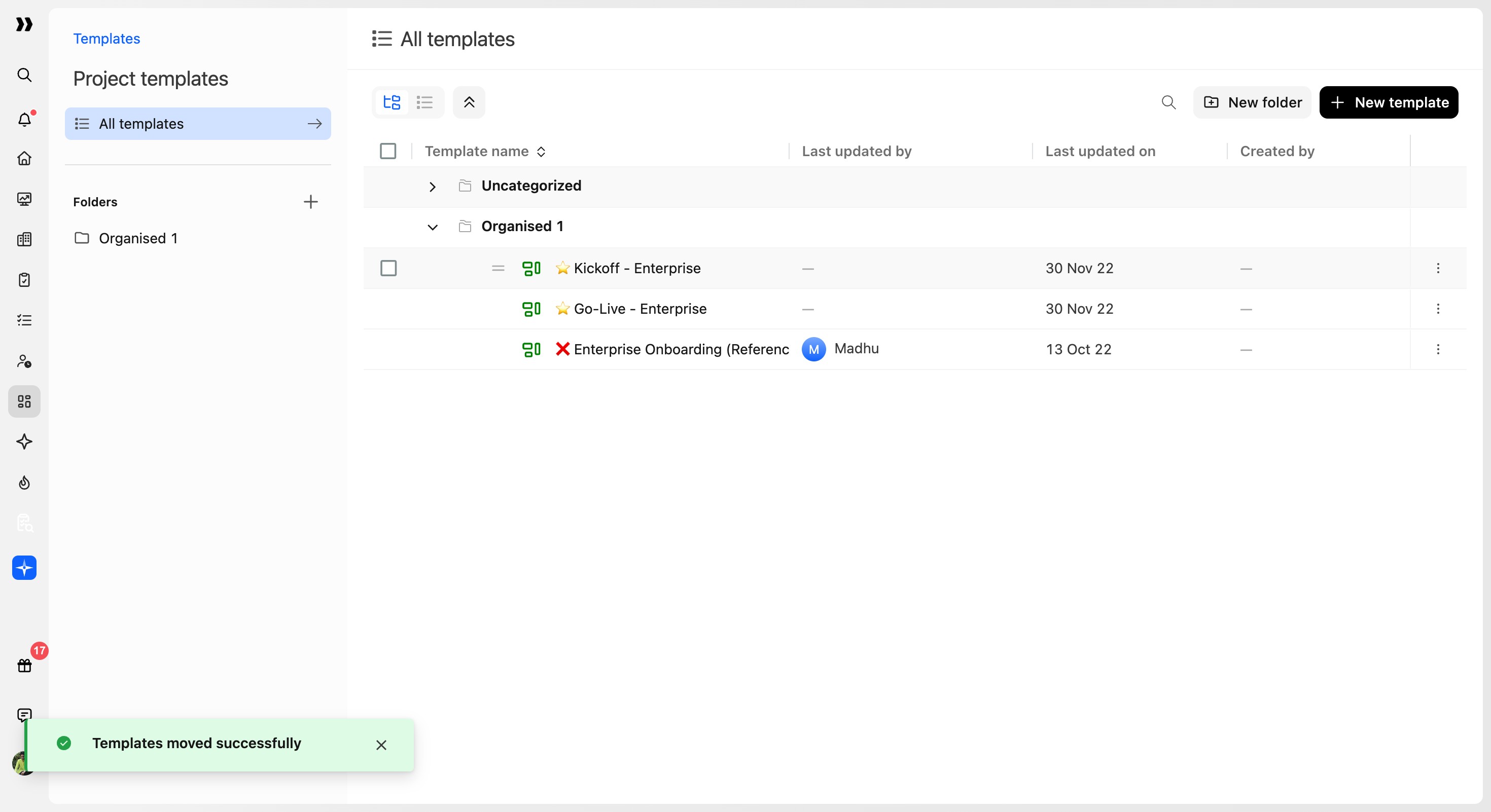
The bulk action bar also includes a Delete option for removing the selected templates.
Managing uncategorized templates
Templates that have not been moved into a folder appear under Uncategorized.
Existing templates remain uncategorized until you create folders and move them. Creating a folder does not move or reorganize templates automatically.
Reordering templates
You can reorder templates within a folder or outside folders. You can also select and reorder multiple templates together.
Reordering changes only the position of the templates you move. Templates you do not select retain their existing position.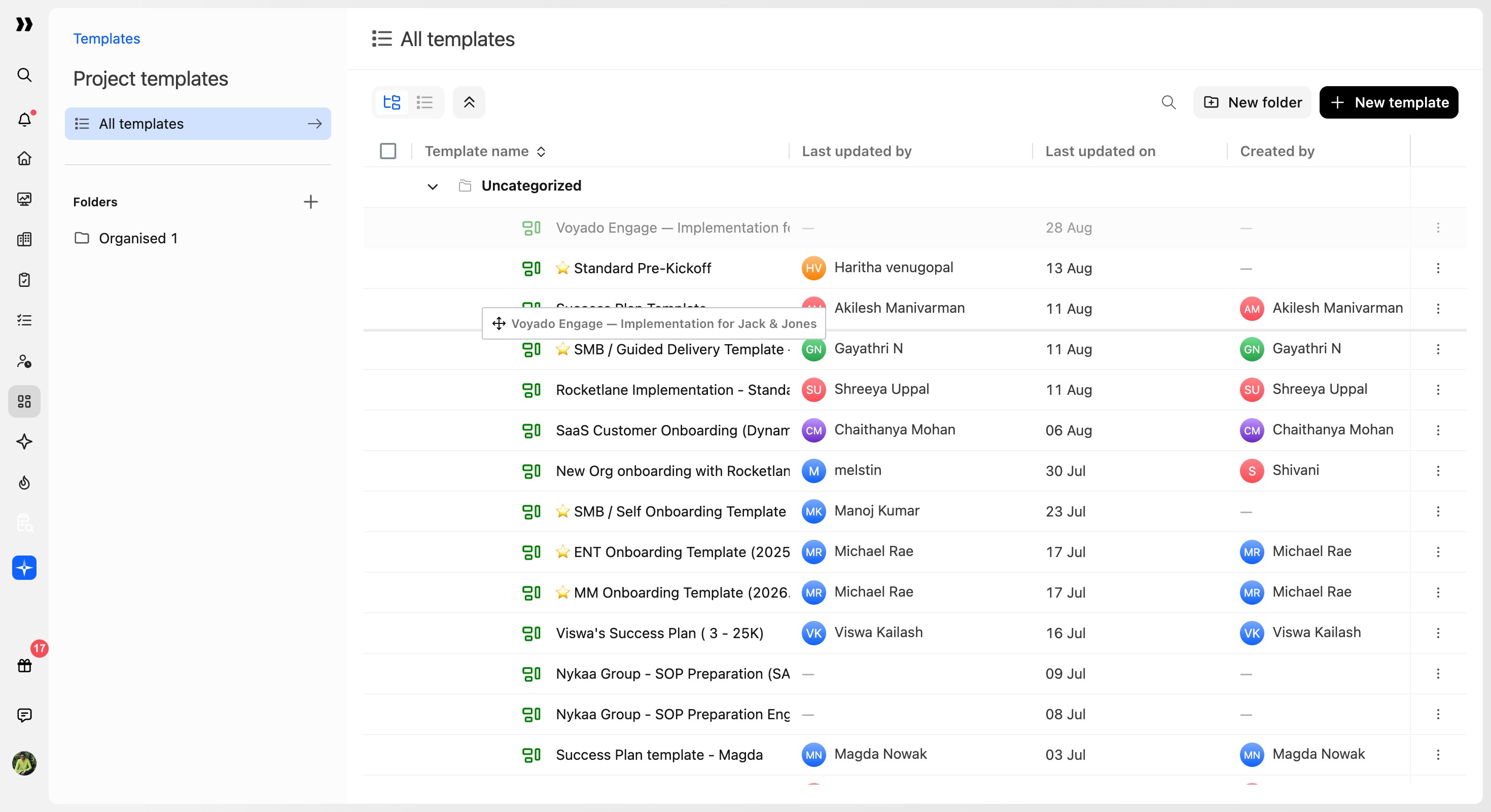
Deleting a folder
Deleting a folder does not delete the templates stored inside it. The templates are moved back to Uncategorized.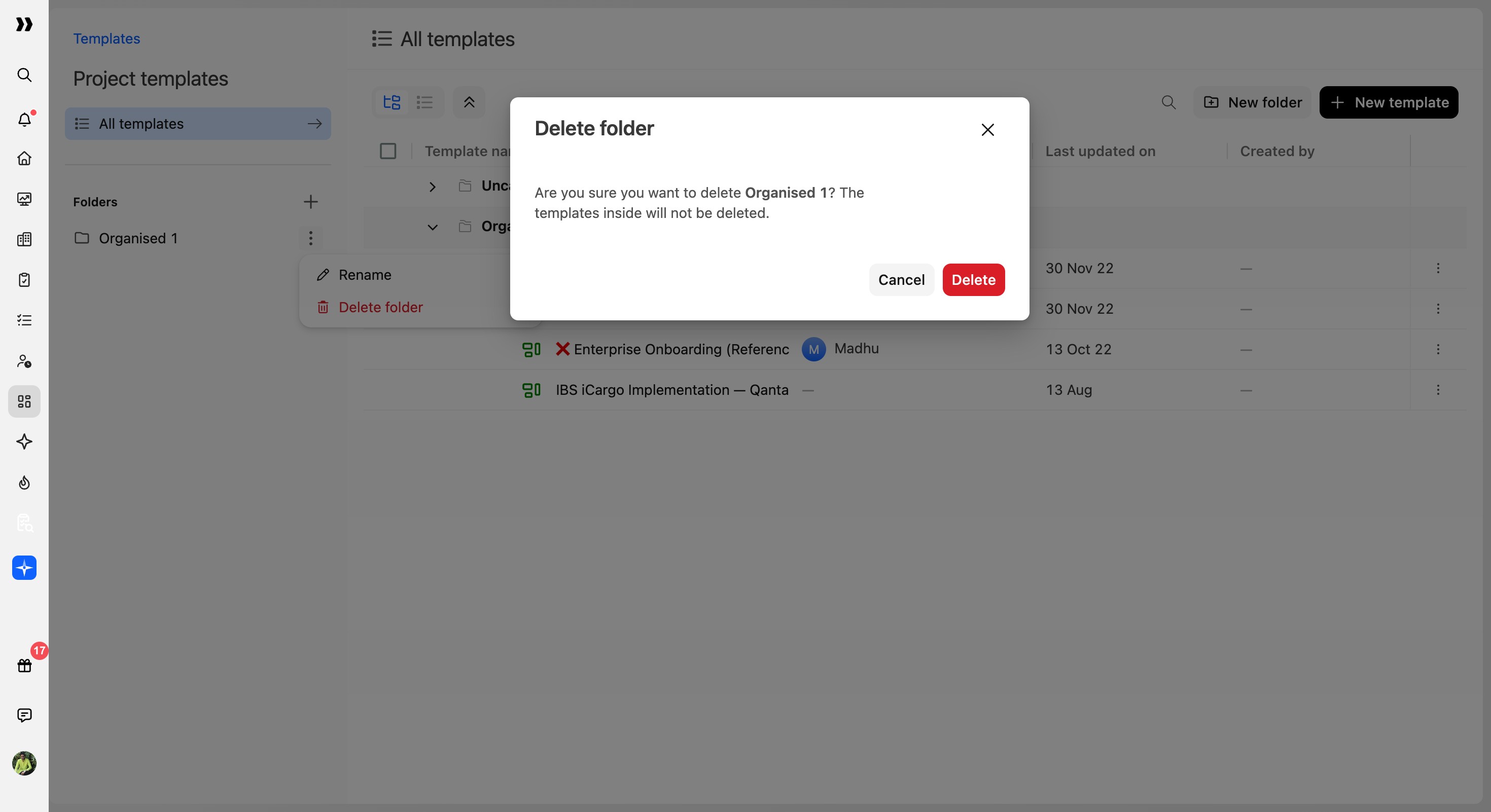
Finding folders in template pickers
Folders appear wherever you select a supported template in Rocketlane. For example, when creating a project from a template, the template picker groups available project templates by folder instead of displaying one flat list.
Folders do not change how templates work. A template remains available wherever its type is supported, regardless of which folder contains it.
Where templates are used
The following table lists common places where each supported template type is used.
FAQ
Can I create two folders with the same name?
Not within the same template type. Folder names are not case-sensitive, so changing capitalization does not make the name unique.
You can use the same folder name in different template types.
If I duplicate a template, is the copy added to the same folder?
Yes. If the original template is stored in a folder, its copy is added to that folder. If the original is uncategorized, the copy remains uncategorized.
Does moving a template break an automation or another workflow that uses it?
No. Folders are purely organizational. Moving a template does not change its identity or affect where it is already being used.
What happens to templates when I delete their folder?
The templates move to Uncategorized. Deleting a folder does not delete its contents.
Can I reorder templates within a folder?
Yes. You can reorder templates within folders or outside folders, including multiple templates at once. Templates you do not move keep their current position.
Can built-in templates be organized into folders?
Yes. Built-in templates can be moved into folders and reordered alongside templates created by your organization.