As your organization grows, Rocketlane needs to reflect how your team actually operates: which timezone you work in, how you measure capacity, when your fiscal year starts, and how your account looks to your own team and to your customers.
Account Preferences is where you configure these defaults for your entire Rocketlane account. Changes here apply account-wide, not just to your own user profile.
In this article
Where to find it
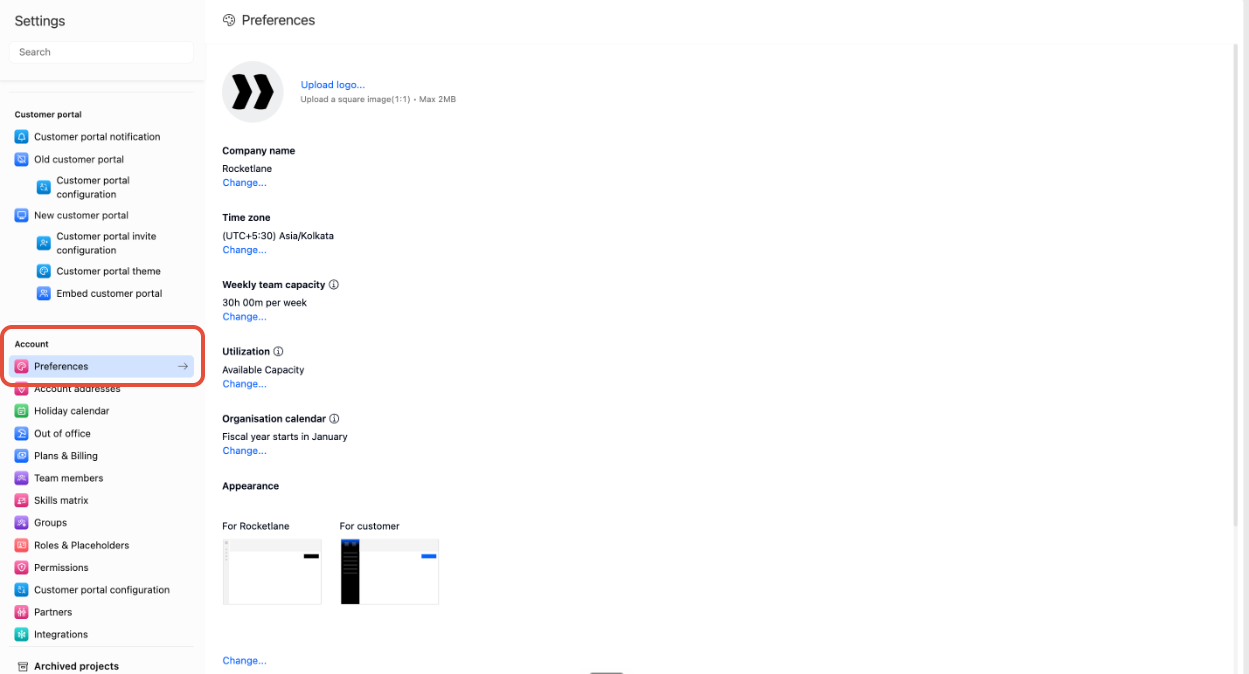
Go to Settings, then select Preferences under the Account section of the left-hand navigation.
Who can access these settings
- Viewing this page requires the Can manage account preferences permission. Changing a setting requires the write-level version of the same permission. If a setting appears without a Change link or editable control, you have read-only access to it.
- Partner users see only Company logo and Company name. The remaining settings, including Timezone, Weekly team capacity, Utilization, Organisation calendar, Appearance, and Sample data, are not shown to Partner users.
What you can configure
Company logo
- Go to Settings > Preferences.
- Click Upload logo.
- Choose an image file from your device.
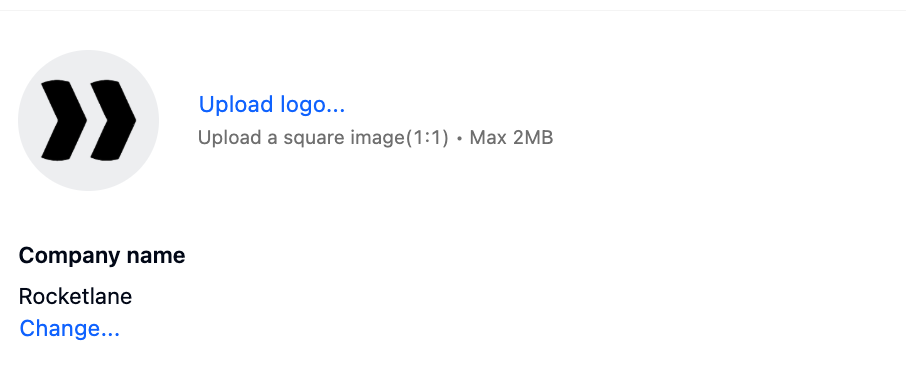
Rocketlane replaces the current logo as soon as the upload finishes.
Company name
- Click Change next to Company name.
- Enter your organization's name.
- Save your changes.
Timezone
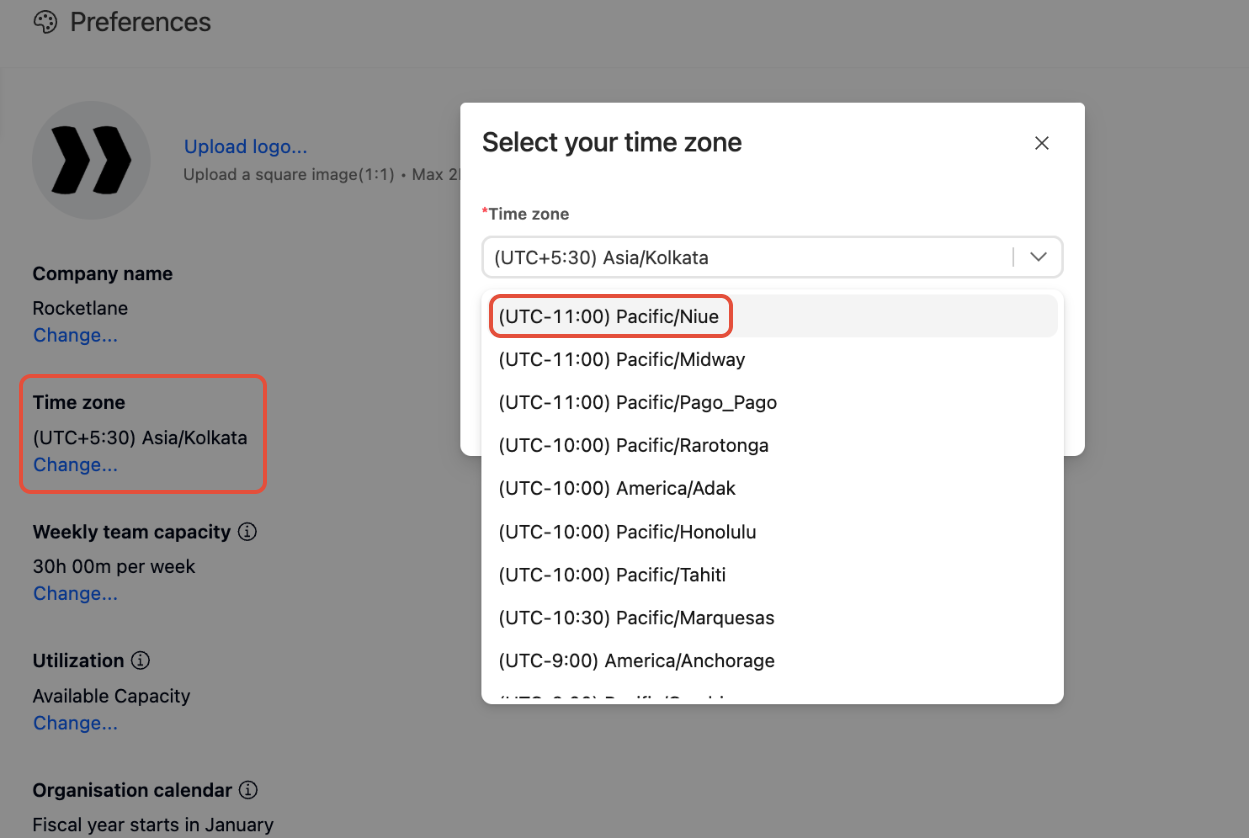
- Click Change next to Timezone.
- Search for and select your timezone. Each option shows its current UTC offset alongside the name.
- Save your changes.
Weekly team capacity
Rocketlane uses this figure across Resource Management, Timesheets, and capacity reports, so it is important to set it accurately.
- Click Change next to Weekly team capacity.
- Enter the number of hours and minutes, if needed, that a team member is expected to be available each week.
- Save your changes.
Utilization
This setting controls how Rocketlane calculates each person's utilization percentage across Resource Management, Timesheets, and reports.
- Click Change next to Utilization.
- Choose how utilization should be calculated.
- Save your changes.
Organisation calendar
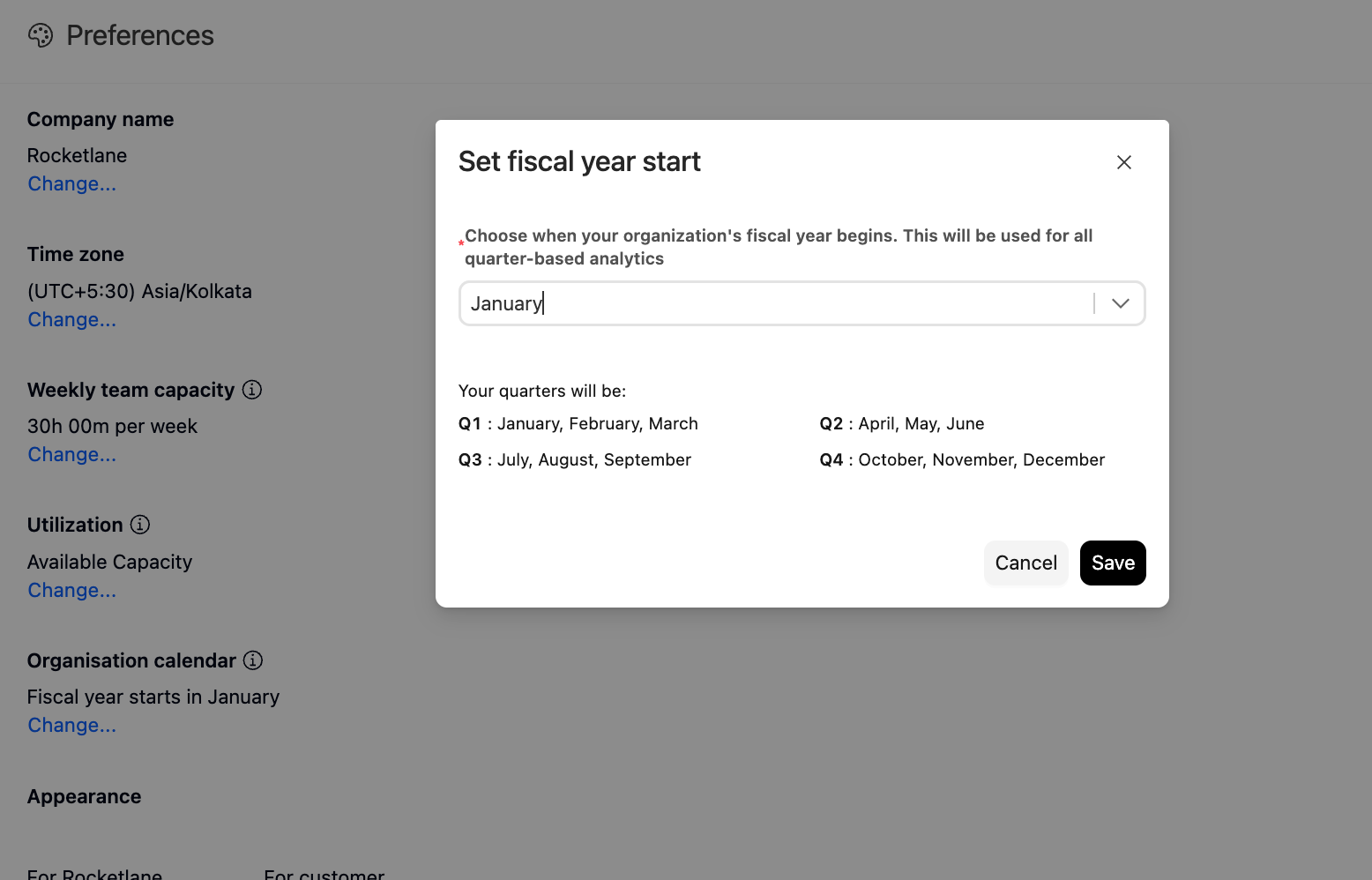
Your fiscal year start month determines how Rocketlane groups dates into quarters across quarter-based reports and analytics.
- Click Change next to Organisation calendar.
- Select the month your fiscal year begins in. Rocketlane shows a preview of how Q1 through Q4 map to calendar months.
- Save your changes.
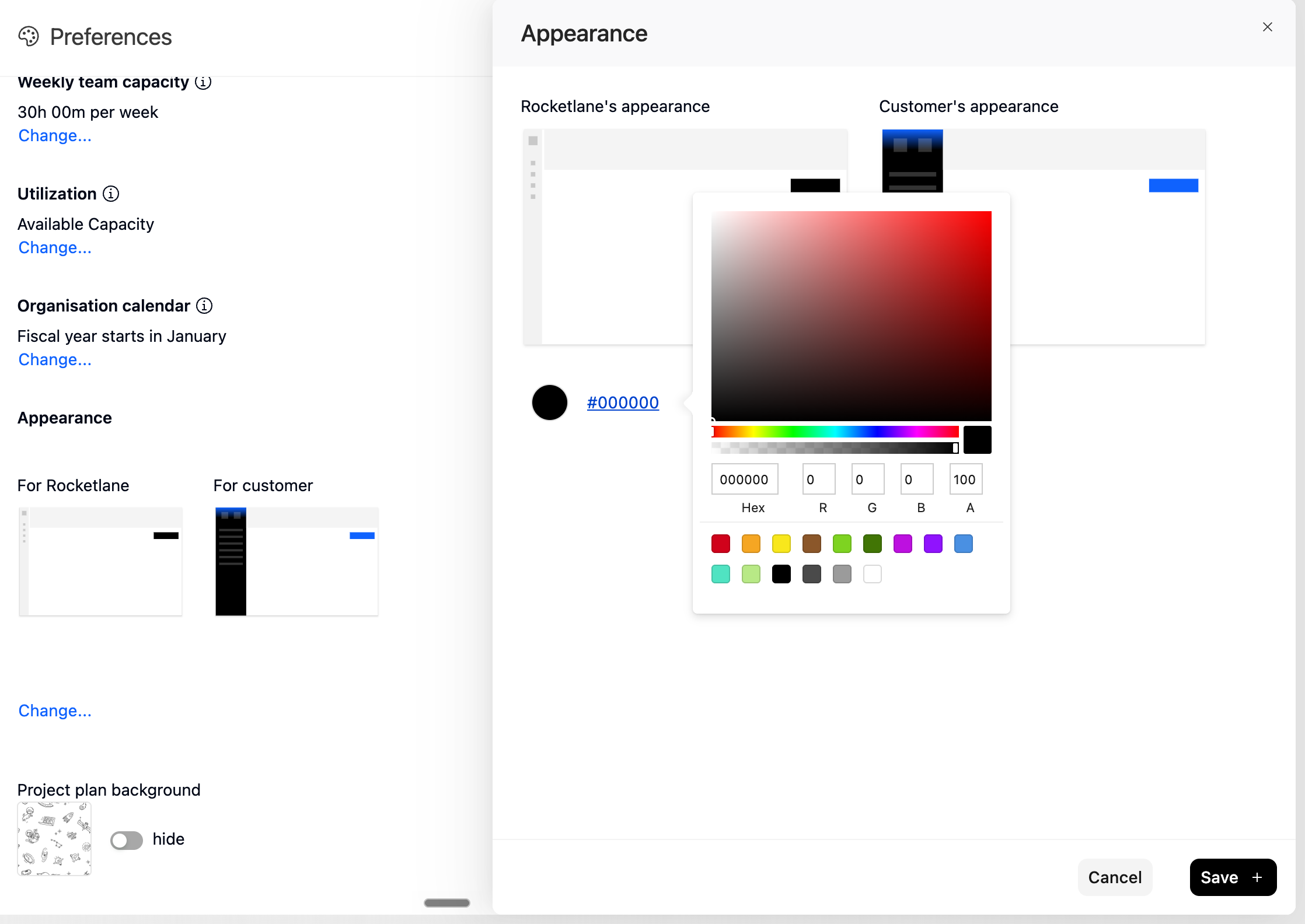
Appearance
Appearance controls how your account navigation looks, with separate previews for your team's view and your customers' view.
- Click Change next to Appearance.
- Set a sidebar background color and turn the project plan background on or off.
- Review the previews for your team and your customers.
- Save your changes.
Sample data
New Rocketlane accounts include sample projects, tasks, and other content so you can explore the product before adding your own data.
- If the account still contains sample content, select Remove sample data when you are ready to work with your own projects.
- If the sample content has already been removed, the button reads Reload sample data. Use it to bring the sample content back, for example, to test a feature using example data before using it on a real project.

FAQ
Why can't I see some of these settings?
Most Account Preferences settings are hidden from Partner users, and all settings require the Can manage account preferences permission to view.
Why can I see a setting but not change it?
You have read access but not write access to Account Preferences. Ask an account admin to update the setting or grant you write access.
Does changing the fiscal year start affect reports I have already built?
It changes how Rocketlane groups dates into quarters going forward in any quarter-based report or analytics view.