Rocketlane MCP lets ChatGPT connect securely to Rocketlane so users can work with Rocketlane data and actions directly from ChatGPT.
Use this article to configure Rocketlane MCP as a ChatGPT app.
Prerequisites
Before connecting Rocketlane MCP to ChatGPT:
- Ensure the workspace has access to ChatGPT apps and MCP configuration.
- Ensure the user configuring the app has access to Workspace Settings.
- Ensure the user has access to Rocketlane.
- Ensure the user can complete the OAuth authorization flow.
Rocketlane MCP Server URL
Use the following MCP server URL while creating the ChatGPT app:
https://rocket-mcp.rl-platforms.rocketlane.com/mcp
Enable Developer Mode
- In ChatGPT, go to Settings.
- Enable Developer Mode.
Developer Mode is required to create and configure the Rocketlane MCP app in ChatGPT.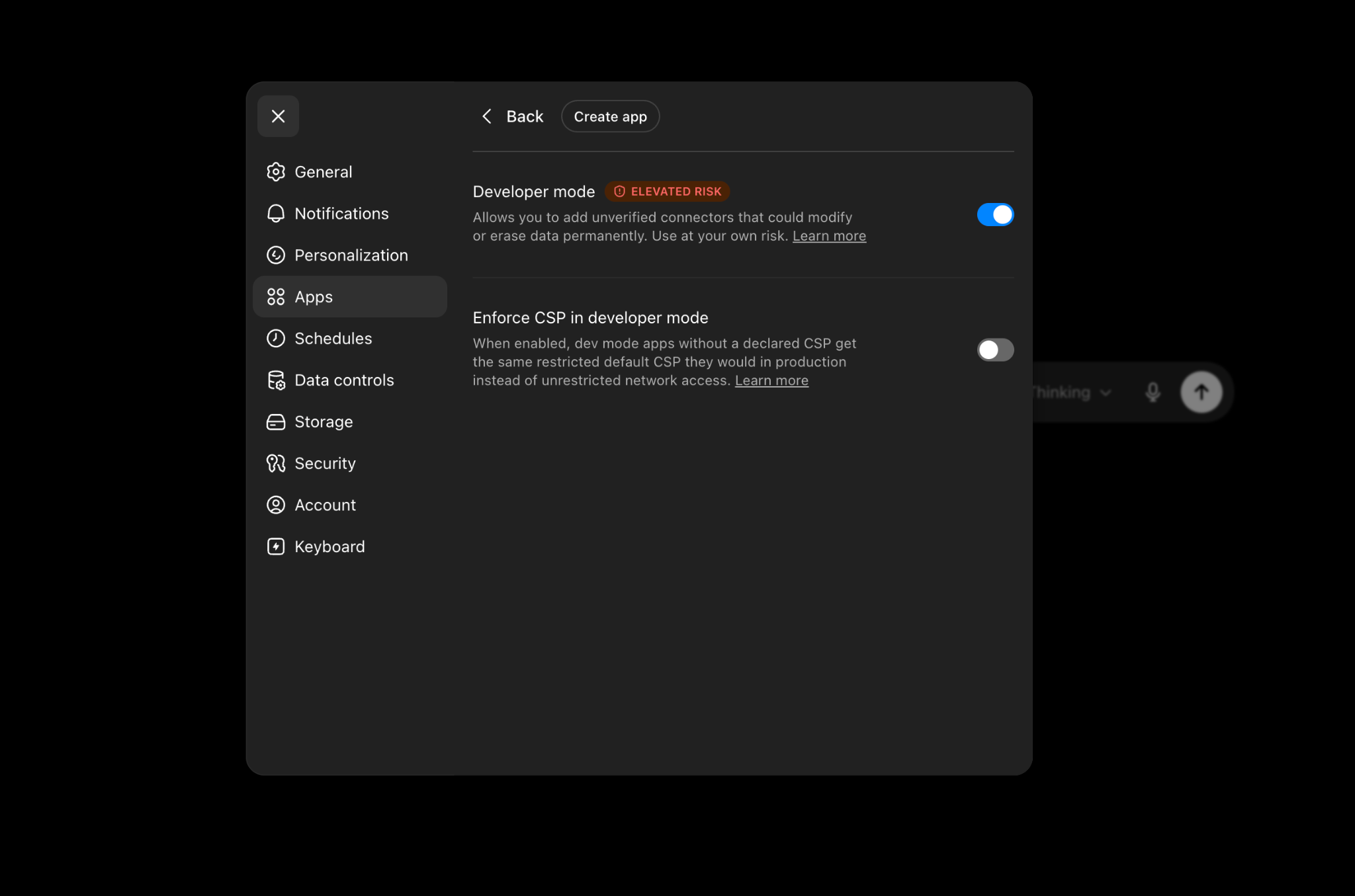
Create the Rocketlane MCP App
- Go to Workspace Settings → Apps → Create.
- Fill in the app details:
- Name
- Description
- MCP Server URL: https://rocket-mcp.rl-platforms.rocketlane.com/mcp
- Authentication: OAuth
- Open Advanced OAuth settings.
- Under Registration method, select Dynamic Client Registration (DCR).
- Click Create.
The Rocketlane MCP app is now created in the workspace.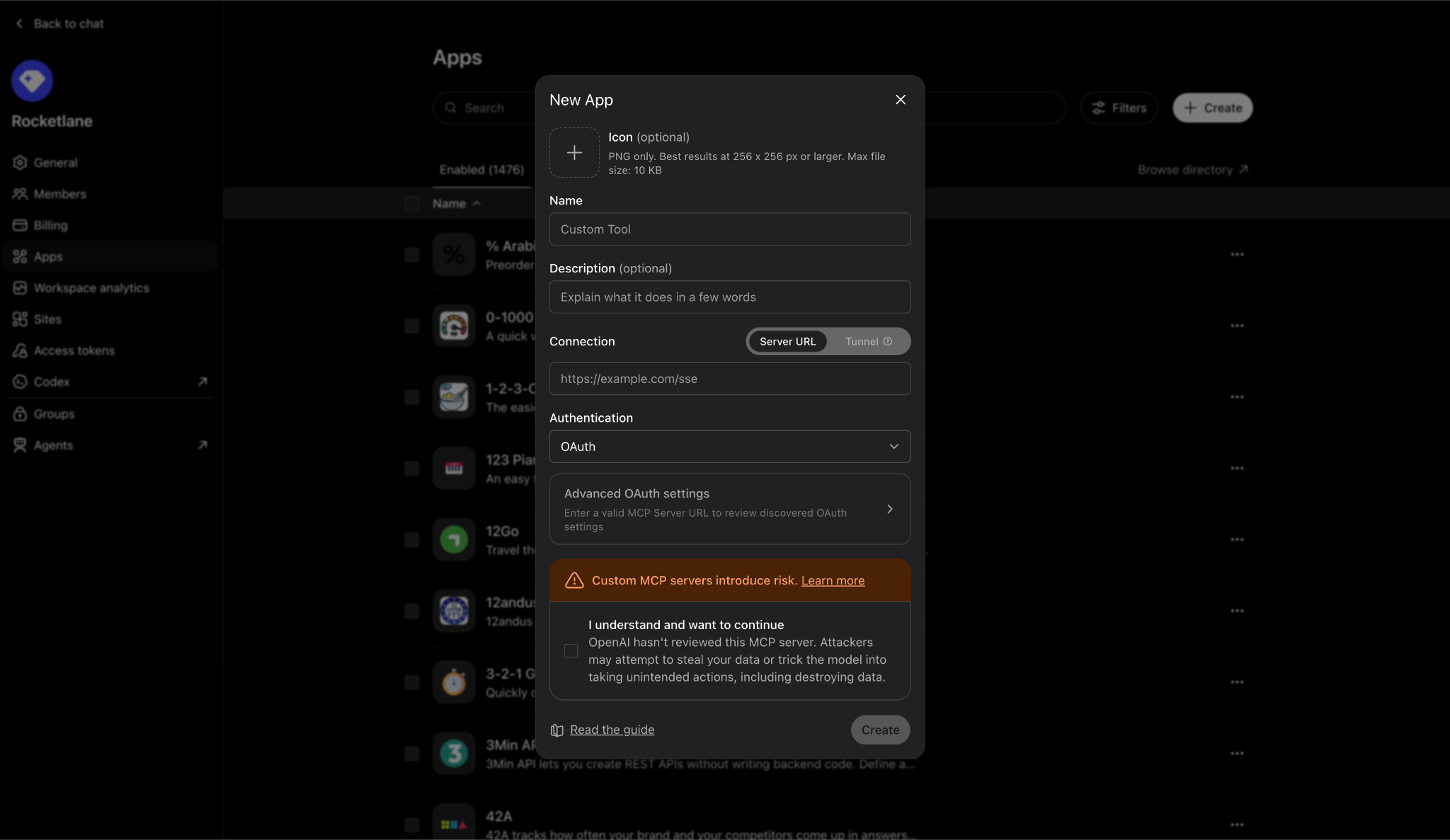
Connect Rocketlane from Your Profile
After the app is created, connect Rocketlane from the user profile.
- Go to Profile → Settings → Apps → Add More.
- Search for Rocketlane.
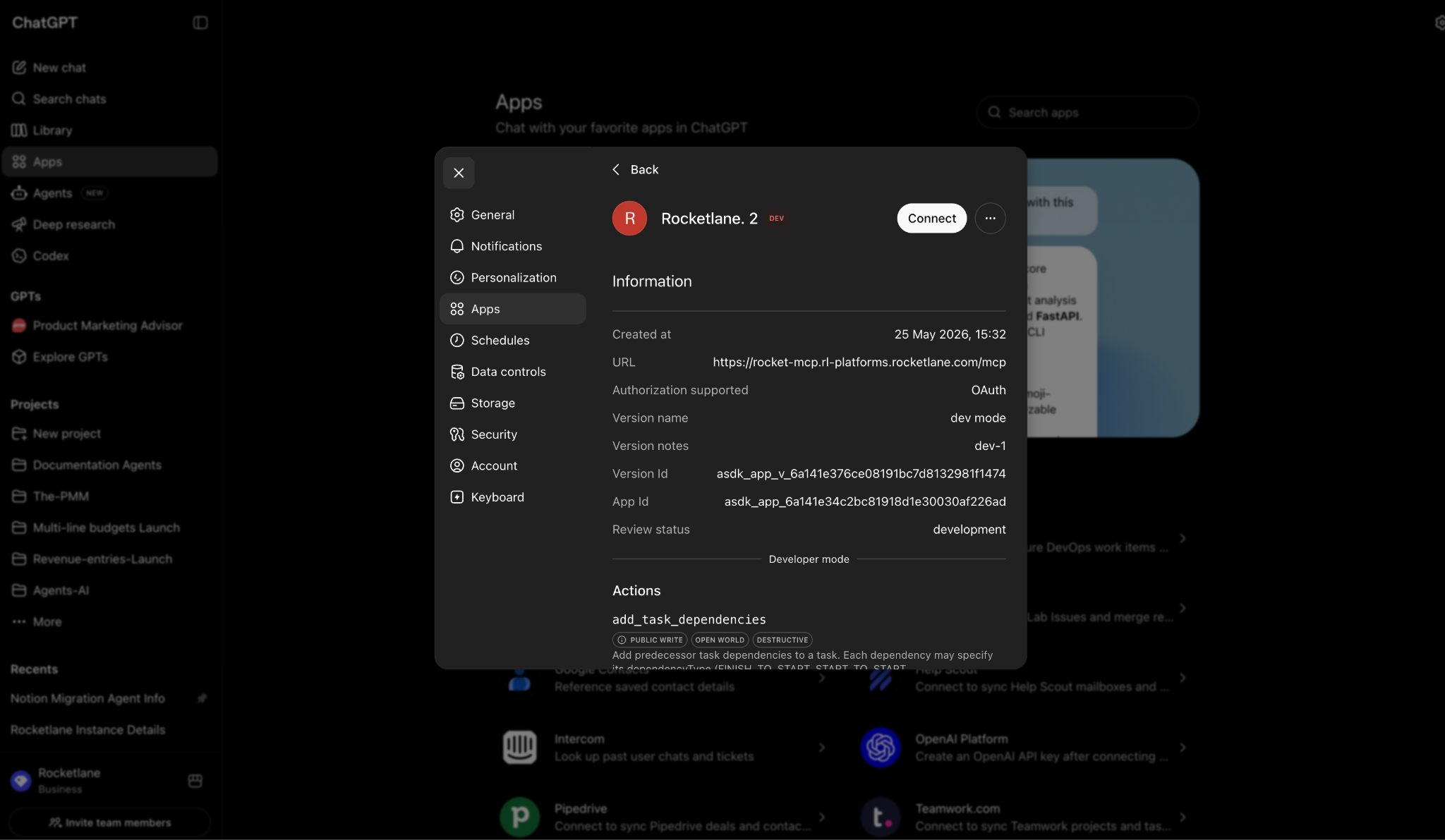
- Click Connect.
- Select the Rocketlane instance when prompted.
- Complete the OAuth authorization flow.
Once authorization is complete, Rocketlane MCP is connected to ChatGPT.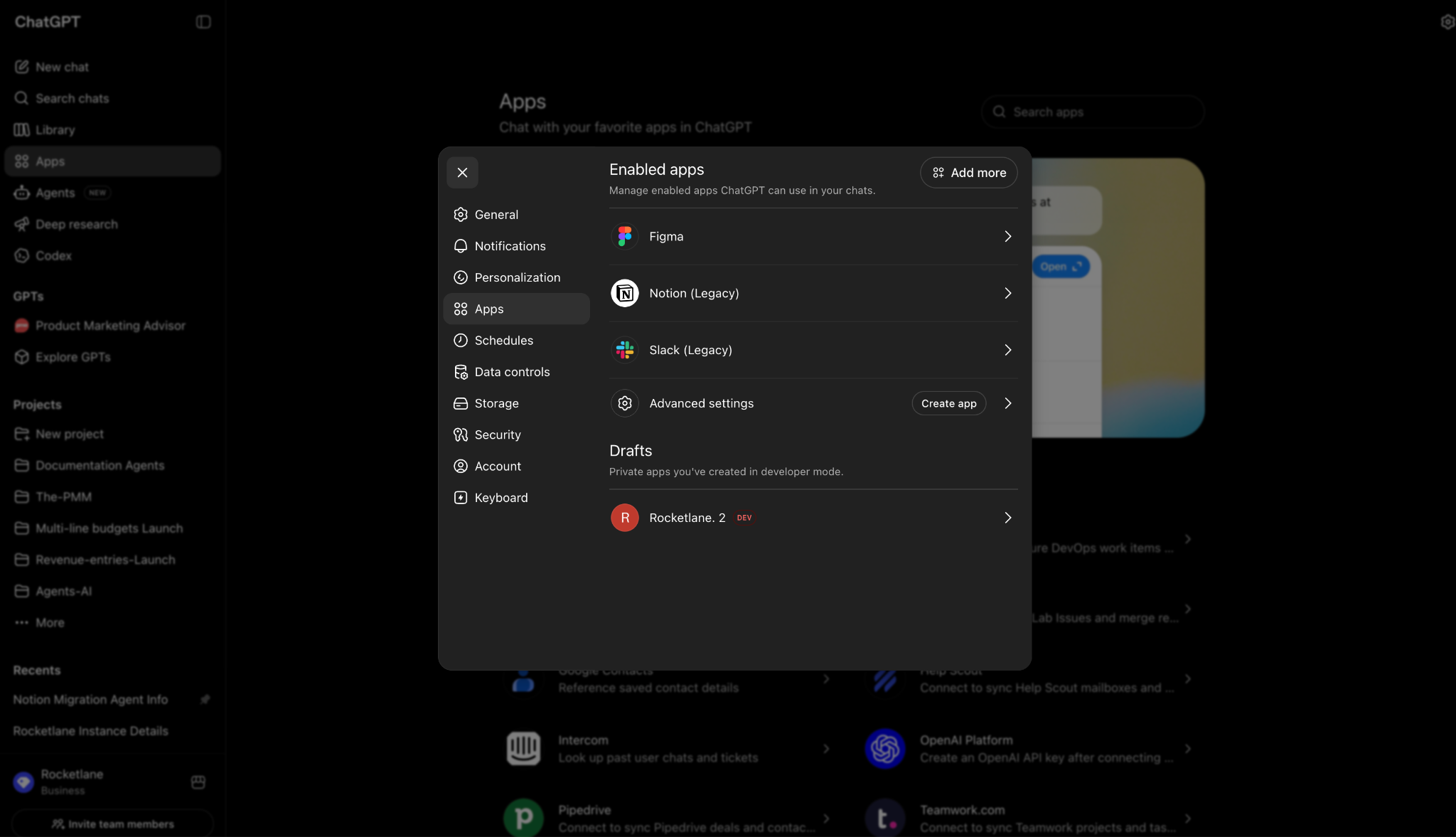
Verify the Connection
After connecting Rocketlane, test the app with a simple Rocketlane prompt.
Try:
Show me my Rocketlane account profile.
You can also try:
Show me my Rocketlane projects.
If ChatGPT returns Rocketlane data, the connection is working.
Troubleshooting
Rocketlane does not appear under Apps
If Rocketlane does not appear under Apps → Add More:
- Confirm Developer Mode is enabled.
- Confirm the app was created under Workspace Settings → Apps.
- Confirm the MCP server URL was entered correctly.
- Refresh ChatGPT and check the apps list again.
OAuth connection does not complete
If OAuth does not complete:
- Start the connection again from Profile → Settings → Apps → Add More.
- Search for Rocketlane.
- Click Connect.
- Select the correct Rocketlane instance.
- Complete the authorization flow.
Rocketlane data does not appear after connection
If the connection succeeds but Rocketlane data is not returned:
- Confirm the user has access to the Rocketlane instance selected during setup.
- Confirm the user has permission to view the requested Rocketlane data.
- Disconnect and reconnect the app if needed.