Rocketlane MCP, or Model Context Protocol, lets your AI assistant securely access Rocketlane so you can search projects, create and update tasks, and stay on top of delivery work without switching tools.
Rocketlane MCP connects to your AI tool through an MCP server URL and uses OAuth for authentication.
When to use Rocketlane MCP
Use Rocketlane MCP when you want your AI assistant to help with delivery work in Rocketlane.
You can use it to:
- Create, update, and search tasks across projects.
- Summarize project status and flag overdue or blocked work.
- Turn customer inputs, such as handoff notes, discovery context, or SOWs, into a structured project plan.
- Log or update time entries from your AI assistant, where supported in your setup.
- Search users, projects, and fields so actions can be performed with the correct values.
Prerequisites
Before connecting Rocketlane MCP, make sure:
- You have a Rocketlane user account and access to the projects you want to work with.
- Your Rocketlane permissions allow the actions you want to perform, such as creating tasks, updating tasks, or creating time entries.
- Your AI tool supports MCP and OAuth, or supports adding MCP servers.
Connect Rocketlane MCP to Claude Desktop
Use the following steps to connect Rocketlane MCP to Claude Desktop.
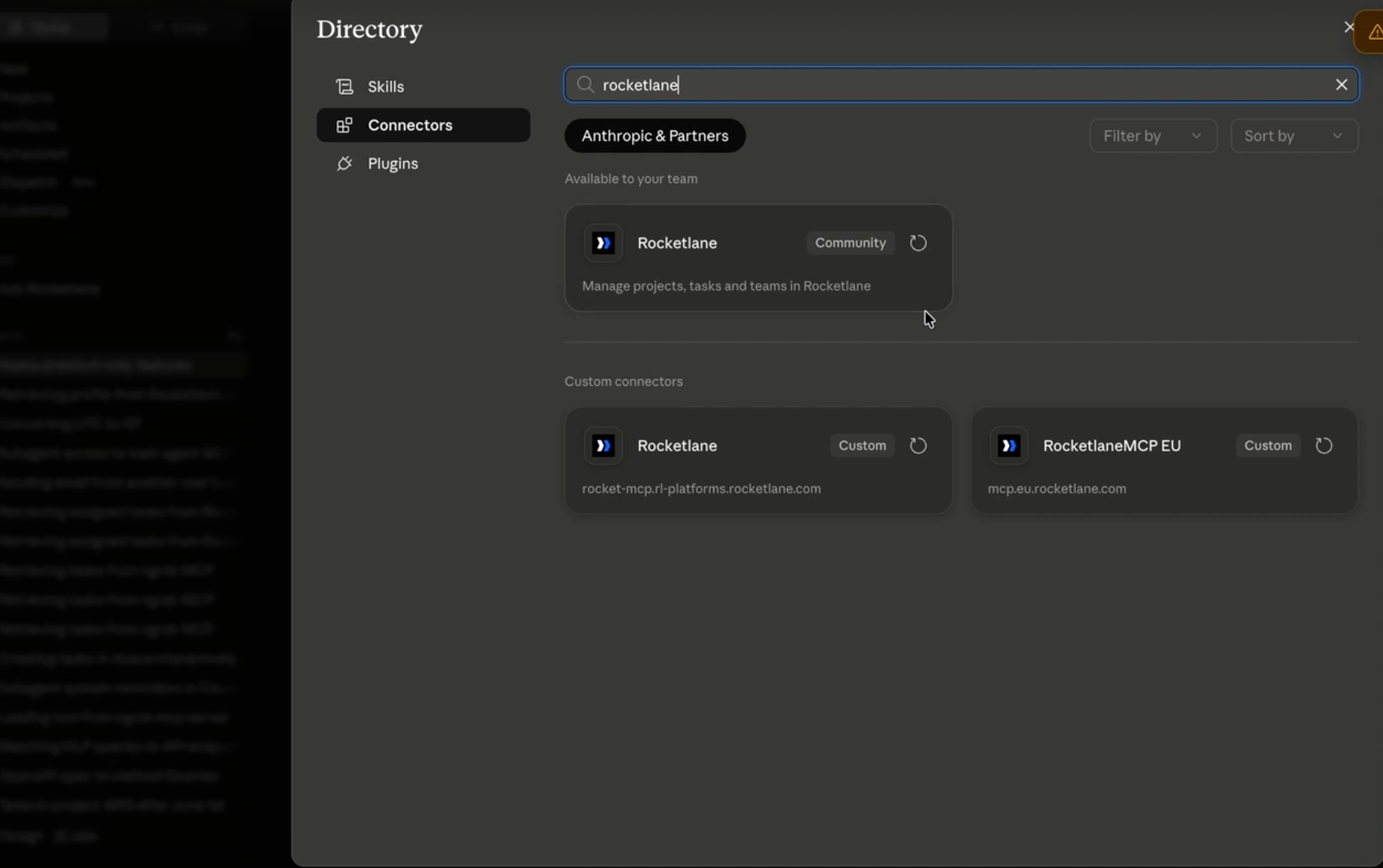
- In your Claude account, go to Customise > Connectors > Rocketlane > Connect. If the mcp isnt listed under connectors, browse for the connector
- Complete the OAuth authorization flow.
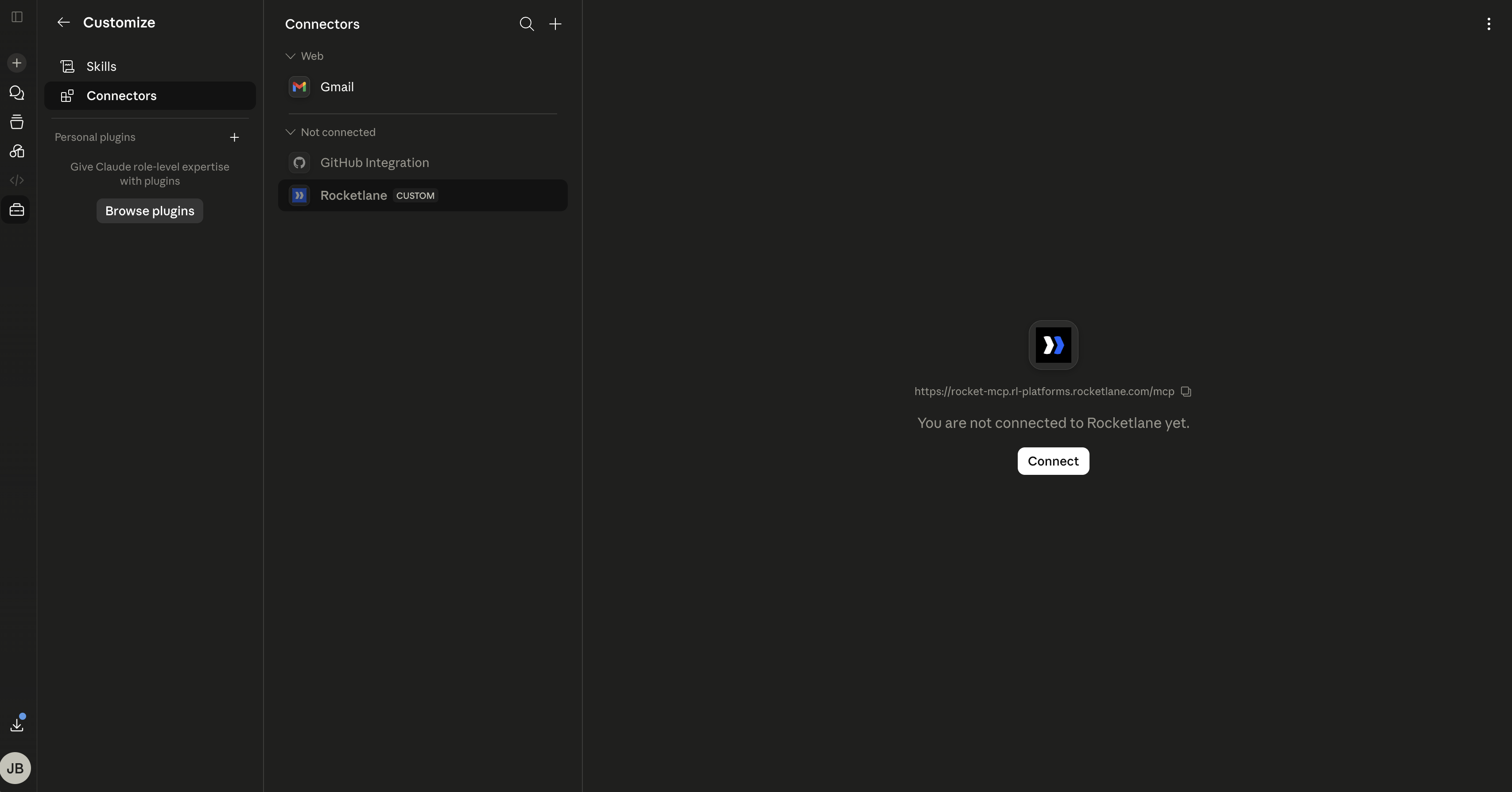
- Click Connect next to Rocketlane in the Connectors list to start the authorization.
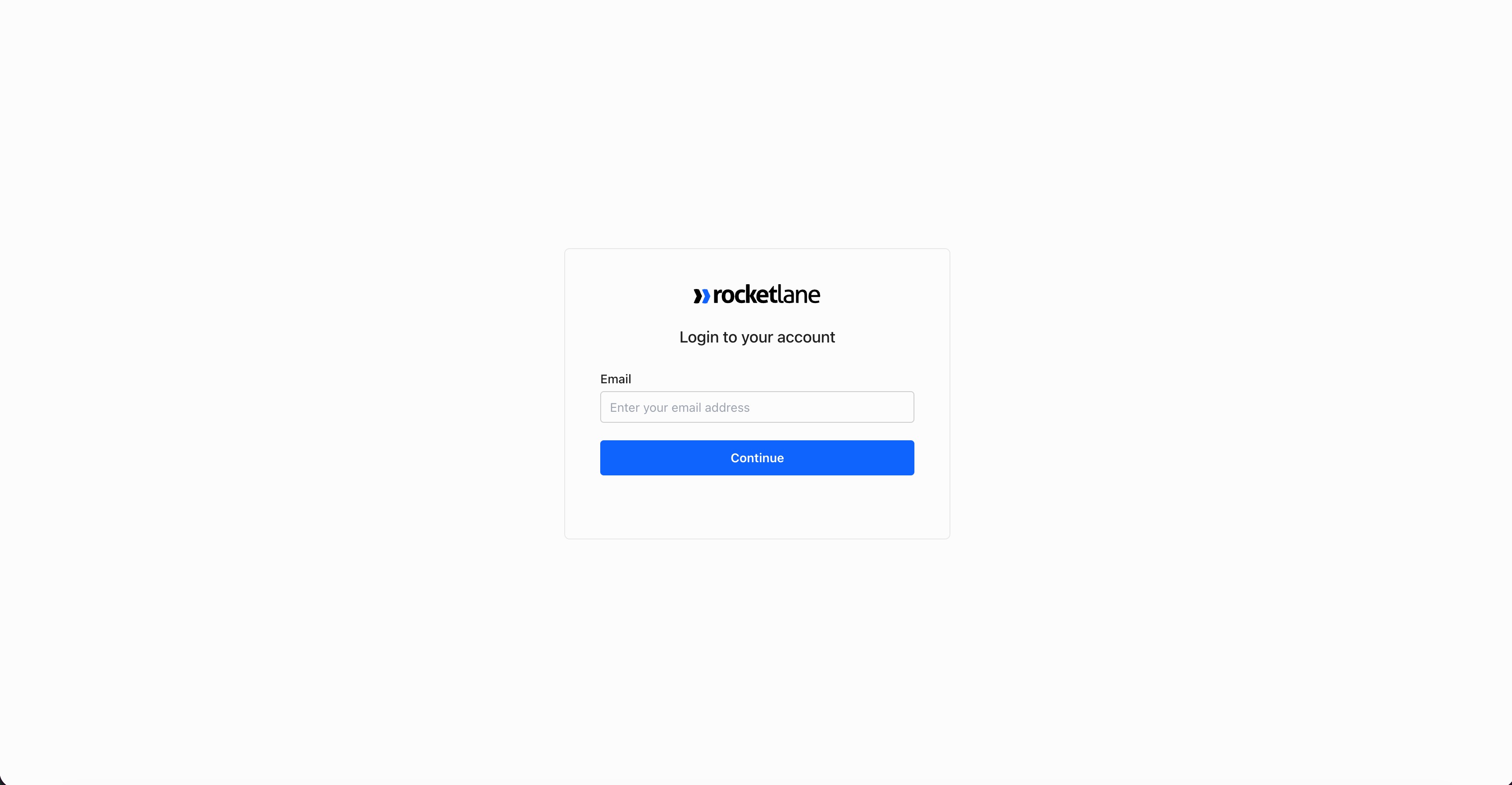
- Sign in with your Rocketlane credentials to grant access.
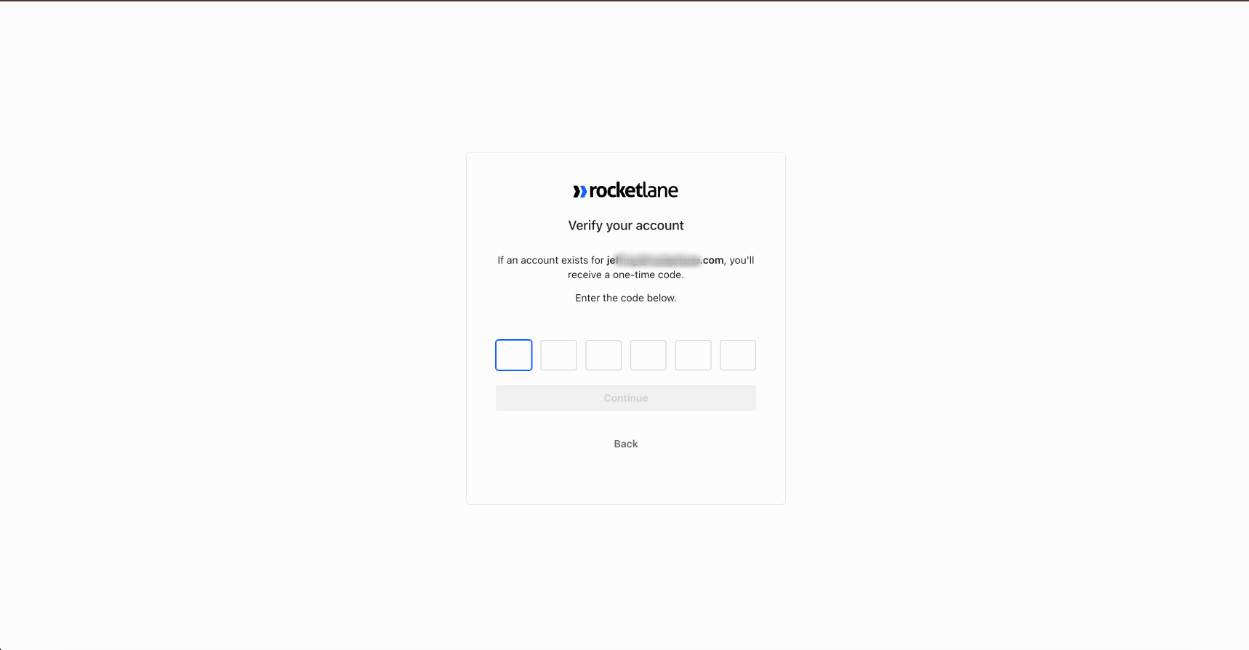
- Enter the one-time code sent to your email to verify your identity.
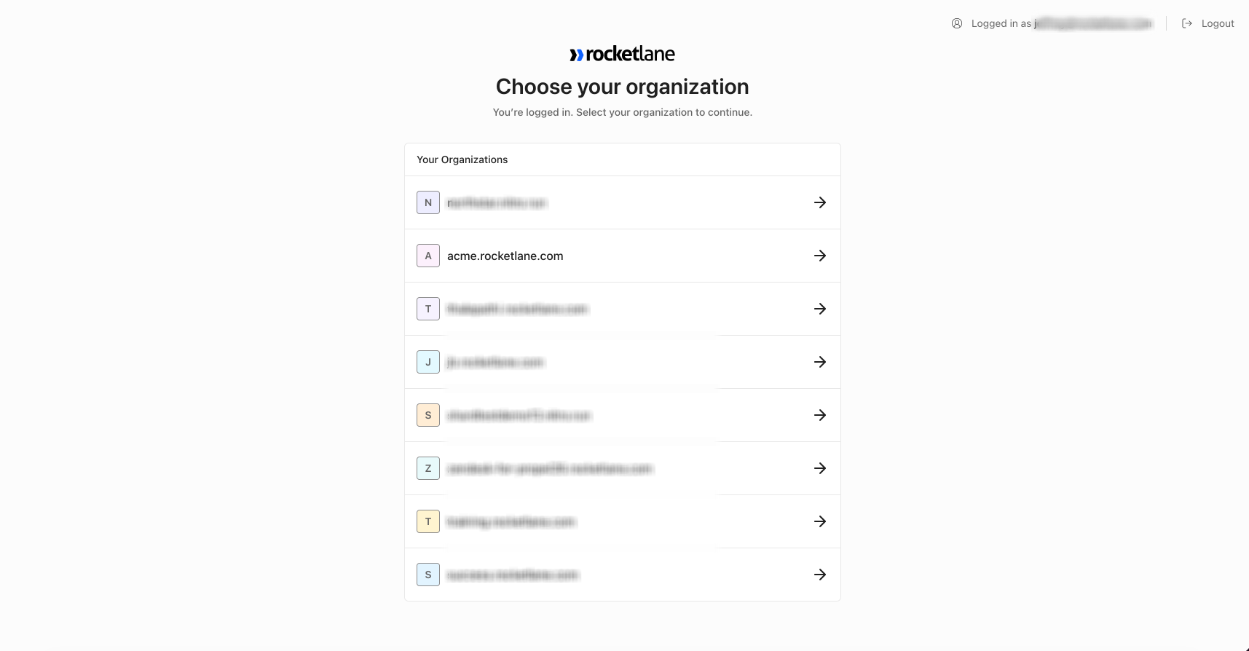
- Select your Rocketlane organization to complete the connection.
NoteWe recommend using Claude Sonnet 4.6 and enabling lazy tool loading if it is available in your Claude setup.