Rocketlane MCP lets Cursor connect securely to Rocketlane so users can search Rocketlane data, view projects and tasks, and work with Rocketlane directly from Cursor.
Use this article to configure Rocketlane MCP in Cursor.
In this article
``````Prerequisites
Before connecting Rocketlane MCP to Cursor, ensure that:
- Cursor is installed.
- The user has access to Rocketlane.
- The Rocketlane MCP server URL is available.
- The user can complete the OAuth authorization flow.
Rocketlane MCP server URL
Use the following MCP server URL while configuring Rocketlane in Cursor:
https://rocket-mcp.rl-platforms.rocketlane.com/mcpOpen the MCP configuration file
Cursor reads MCP server configuration from the mcp.json file.
The file is located at:
~/.cursor/mcp.jsonThere are multiple ways to open or create this file.
Method A: Use Quick Open
This is the recommended method.
- Open Cursor.
- Press ⌘P on Mac or Ctrl+P on Windows/Linux.
- Type:
~/.cursor/mcp.json- Press Enter.
- If the file does not exist, Cursor prompts you to create it. Select Yes.
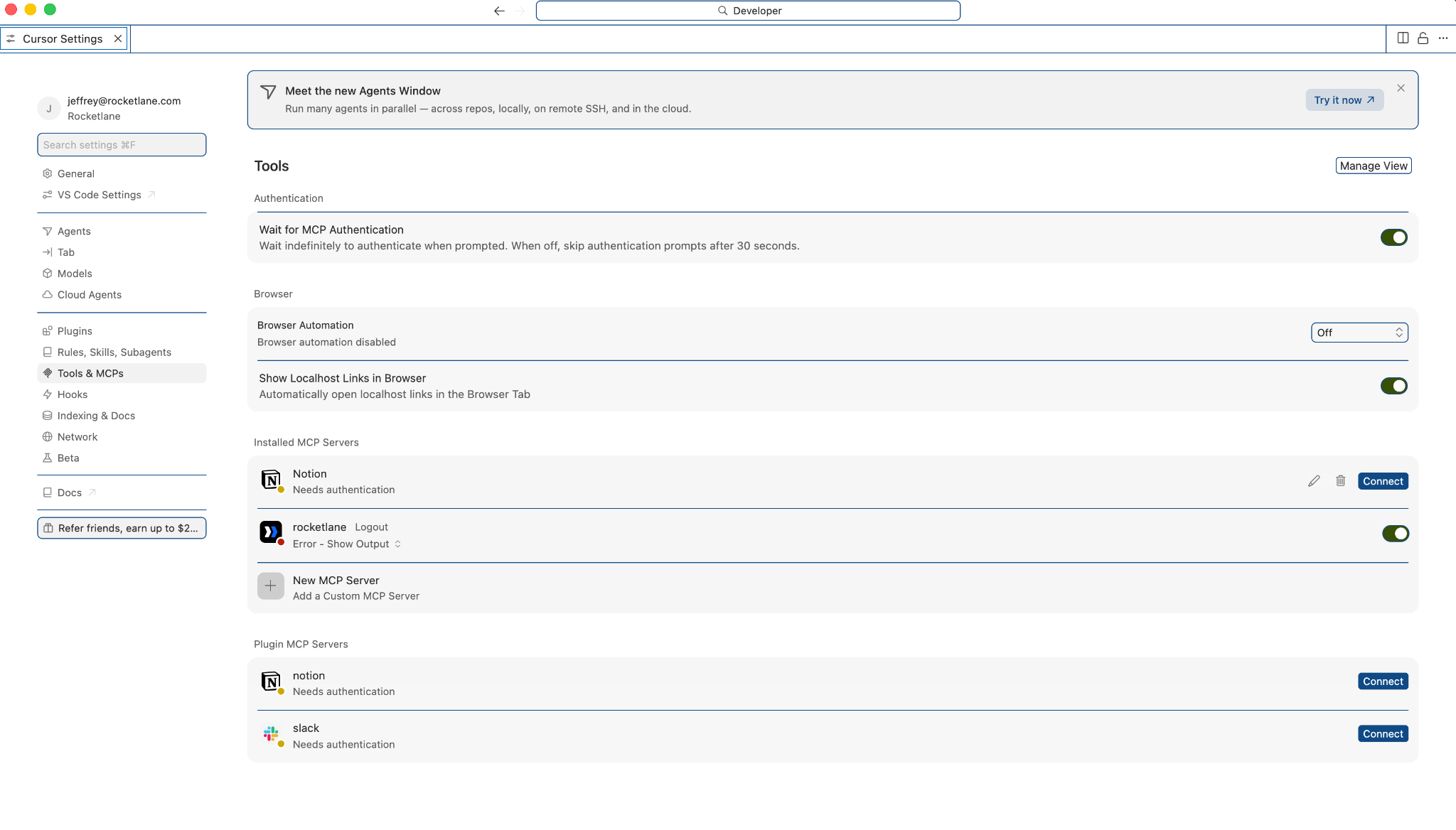
Method B: Use the File menu
- Open Cursor.
- Select File > New File if the file does not exist, or File > Open File... if it already exists.
- Press ⌘⇧G on Mac, or browse to the home directory on Windows/Linux.
- Navigate to:
~/.cursor/- Create or open the file named mcp.json.
Method C: Use Terminal
Use Terminal if you prefer to create or edit the configuration file manually.
To open the file in Nano:
nano ~/.cursor/mcp.jsonTo open the file in VS Code:
code ~/.cursor/mcp.jsonAdd the Rocketlane MCP configuration
Once mcp.json is open, add the Rocketlane MCP server configuration.
Paste the following configuration:
{
  "mcpServers": {
    "rocketlane": {
      "url": "https://rocket-mcp.rl-platforms.rocketlane.com/mcp"
    }
  }
}
If the file already has other MCP servers
If mcp.json already contains other MCP servers, merge the Rocketlane configuration with the existing content.
Example:
{
  "mcpServers": {
    "existing-server": {
      "url": "https://example.com/mcp"
    },
    "rocketlane": {
      "url": "https://rocket-mcp.rl-platforms.rocketlane.com/mcp"
    }
  }
}
Save the configuration file
After adding the Rocketlane MCP configuration:
- Press ⌘S on Mac or Ctrl+S on Windows/Linux.
- Confirm that the file is saved as:
~/.cursor/mcp.json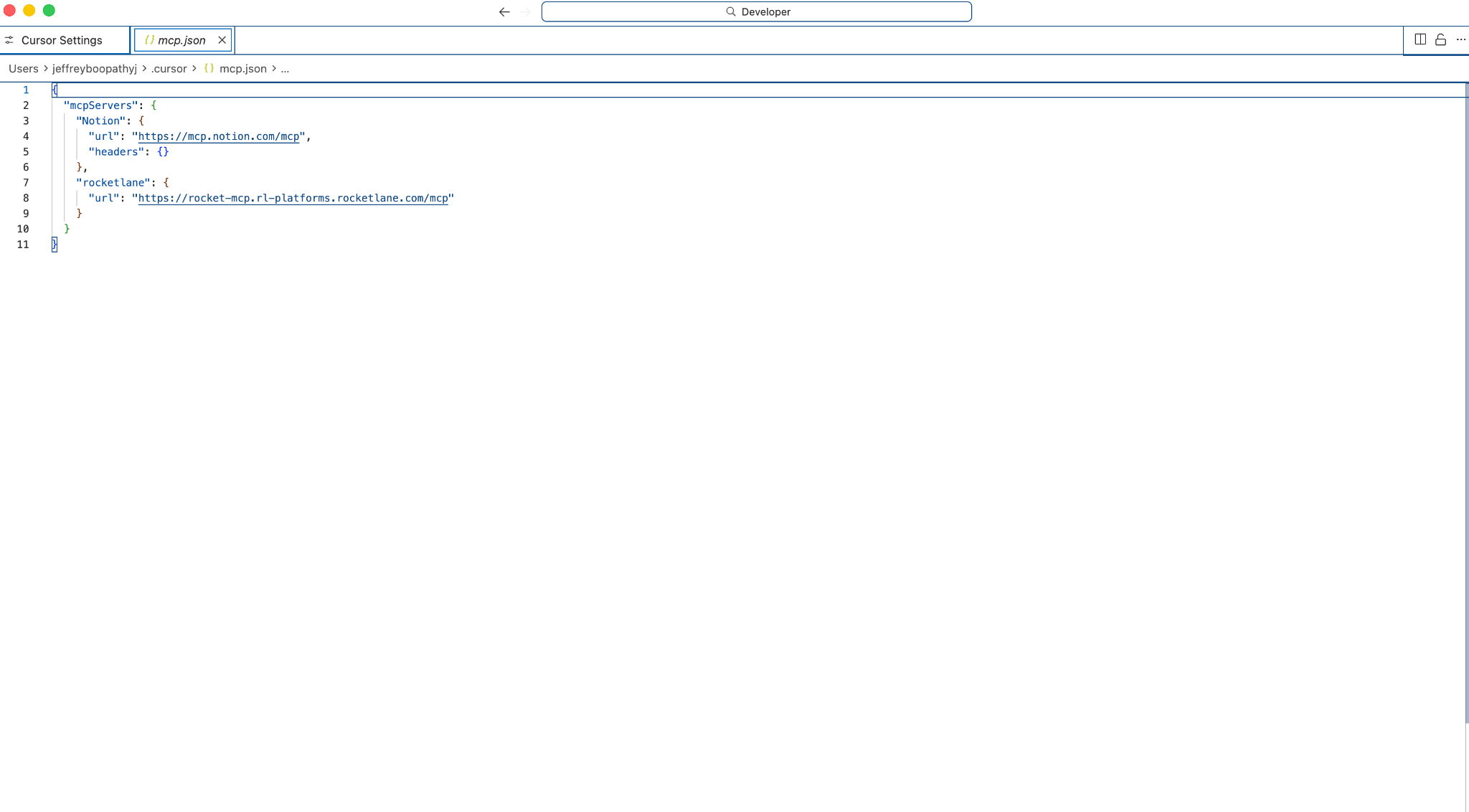
Restart Cursor
Restart Cursor so it can load the new MCP configuration.
- Quit Cursor completely.
- On Mac, press ⌘Q.
- On Windows/Linux, close all Cursor windows.
- Reopen Cursor.
Rocketlane MCP should appear in the tools panel or MCP features section.
Verify and authenticate the connection
After restarting Cursor, verify that Rocketlane MCP is available and complete authentication.
Open Cursor Composer
- Press ⌘I on Mac or Ctrl+I on Windows/Linux.
- The Composer panel opens.
Test Rocketlane MCP
- In Composer, type:
rocketlaneYou can also try:
show my Rocketlane projects- Press Enter.
Authenticate Rocketlane
When Cursor detects the Rocketlane MCP server, it prompts the user to connect.
- Click Connect with rocketlane.
- Select Authenticate.
- Complete the OAuth authorization flow in the browser.
- Return to Cursor.
After authentication is complete, Rocketlane MCP tools become available in Cursor.
Confirm the connection is working
Run any of the following prompts in Cursor:
- Show me my Rocketlane projects
- List my active tasks in Rocketlane
- What’s my Rocketlane account profile?
If Cursor returns Rocketlane data, the connection is working.
Troubleshooting
Rocketlane MCP does not appear in Cursor
If Rocketlane MCP does not appear after restarting Cursor:
- Confirm that the configuration file is saved at:
~/.cursor/mcp.json- Check that the JSON syntax is valid.
- Confirm that the Rocketlane MCP server URL is entered correctly.
- Restart Cursor completely and try again.
Cursor does not prompt for authentication
If Cursor does not prompt for authentication:
- Open Composer again.
- Enter a Rocketlane-related prompt, such as:
Show me my Rocketlane projects- Check whether Cursor prompts to connect with Rocketlane.
- If not, restart Cursor and verify the MCP configuration.
Authentication does not complete
If OAuth authentication does not complete:
- Restart Cursor.
- Trigger Rocketlane again from Composer.
- Reauthenticate through the browser.
- Confirm that the Rocketlane account has access to the workspace and projects being queried.