In this article
When critical project information is buried in email threads or lost in hours of meeting footage, staying proactive becomes a challenge. Signals solve this by transforming unstructured interaction data into clear, AI-powered insights.
This capability, known as Enterprise Listening, allows Rocketlane AI to monitor conversations across your team for specific, pre-configured statements. Rather than just scanning text, the AI applies your unique business context to evaluate interactions through your organization's specific lens.
By analyzing one or more transcripts from your interactions, Rocketlane AI identifies specific patterns or events that carry business significance. For example, if a customer mentions a budget freeze in an email or expresses frustration during a weekly sync, the AI signals this as a potential risk to the account.
Signal types
Signals are classified into three broad types:
Risk
Factors that may negatively impact renewal or adoption, for example:
- Churn threats
- Escalations
- Repeated dissatisfaction
Opportunity
Factors that may lead to more revenue, for example:
- Expansion interest
- Cross-sell or upsell signals
- Interest in new modules or higher tiers
Operational
Signals that matter but are not defined as a risk or opportunity, for example:
- Bugs
- Gaps in process or documentation
- Repeated how-to friction points

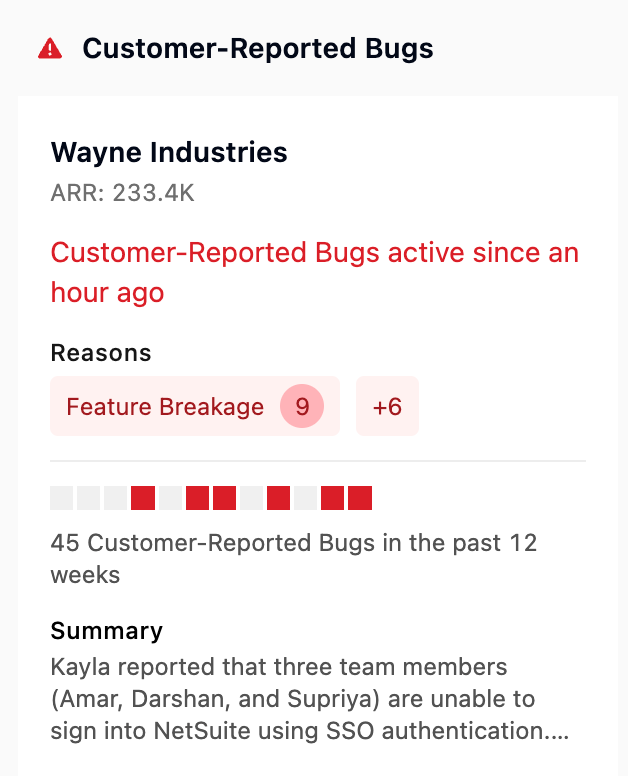
What a signal card contains
A signal card typically includes:
- Signal type: Risk, Opportunity, or Operational
- Reason code: A finer category of the issue (for example, "Data sync issue")
- Title
- Description
- Citations: Excerpts or references from the transcript
- Date
- Person(s) who raised it
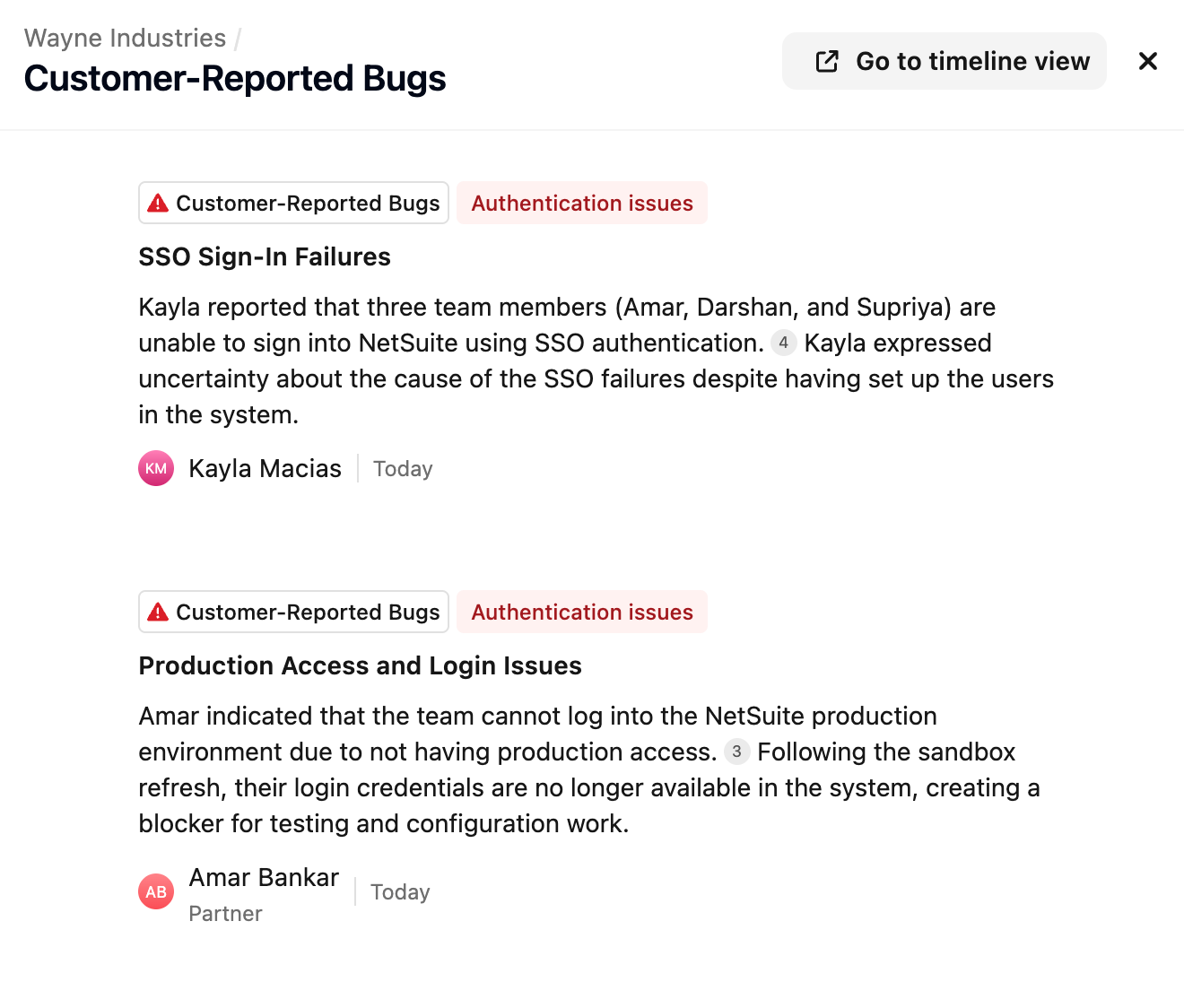
Signal occurrences
Each time a signal is detected from a transcript, Rocketlane creates a signal occurrence - the specific instance of a signal triggered by a specific transcript. Signal occurrences are what get surfaced and grouped in the Signals UI as cards.
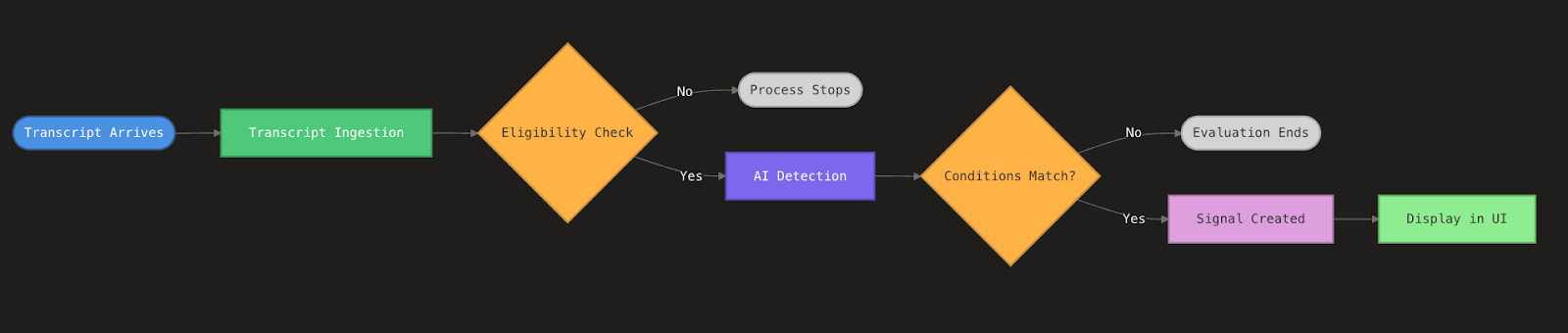
Signal lifecycle
When a new transcript arrives (meeting or email), Rocketlane runs a detection pipeline. The pipeline follows a logical, step-by-step path to filter out noise and focus on high-value data.
Transcript ingestion
The process triggers immediately whenever a new transcript - whether from a recorded meeting or a synced email thread - arrives in the system.
For a transcript to enter the signal detection workflow, it must be linked to a customer account. Rocketlane identifies these interactions through two methods:
- Project membership: The system checks if the meeting or email includes a participant who is already a member of the project.
- Domain matching: If the participant is not a project member, the system cross-references their email domain against the domain fields stored within your Account objects.
Purely internal communications are automatically excluded from signal detection. If all participants belong to your organization's domain, the system classifies the transcript as internal and bypasses it. Similarly, interactions from domains not associated with a known customer account will not trigger signal generation.
Eligibility and filtering
Before the AI begins its analysis, the transcript passes through a set of defined filters - the conditions you establish when creating a signal to clarify exactly what counts and what doesn't. If the transcript does not meet these eligibility requirements, the process stops here.
Signal detection
Once a transcript is deemed eligible, the AI performs a comprehensive evaluation - comparing your specific conditions against the meeting or email transcript to find a match. If the stated conditions are not detected within the text, the evaluation ends.
Signal occurrence and visibility
If the AI confirms a match, a signal occurrence is created and surfaced directly in your Signals UI.
Conditions act as a gate - if a transcript is not eligible, Rocketlane does not run detection for it.
Creating a signal definition
When you create a signal definition, Rocketlane builds a structured signal configuration through a guided flow.

Inputs used to build the signal configuration
Signal configuration is built using three inputs:
- User input: The user defines what they want the AI to look for using natural language. For example: "Flag an escalation risk whenever a leadership-level stakeholder from the account is involved in the conversation and expresses dissatisfaction."
- Business context: Signals depend on what "risk" or "opportunity" means for your business. For example, "billing issues" may be operational for one company but a major risk for a billing platform company. This context is sourced from a knowledge base.
- Conditions and filters parsing: The system extracts structured eligibility criteria from your request. For example, "Only run this for high-value accounts" becomes an account filter like ARR > $100K.
Clarifying questions
Rocketlane asks clarifying questions before finalizing the configuration to narrow down the specifics. Examples:
- "Does leadership involvement apply only to high-value accounts or any account?"
- "Should this signal trigger on general dissatisfaction, or only when the customer mentions churn or switching vendors?"
Reason codes and examples
Signal definitions often need second-level classification through a reason code, which defines what the signal is specifically for. For example, a broad "Feature request" signal can result in reason codes such as:
- Workflow
- Mobile app
- Reporting
- Customization
To improve accuracy, signal configurations can include:
- Positive examples: When to trigger the signal - for example, "When a customer explicitly requests a new feature."
- Negative examples: When not to trigger the signal - for example, "Customer asks how to do something."
Create and test a signal
Create a new signal
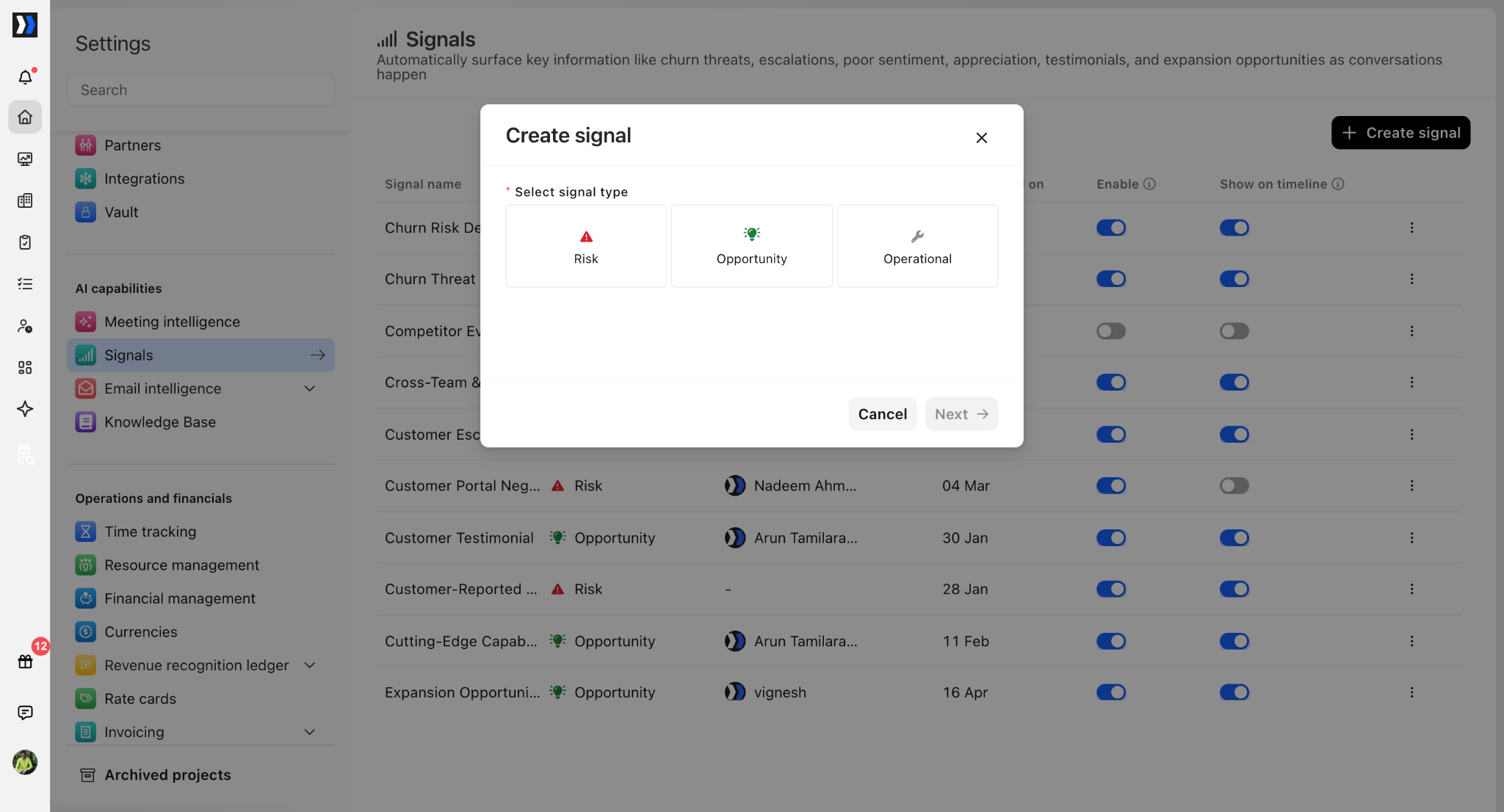
- Navigate to Settings → Signals → Create signal.
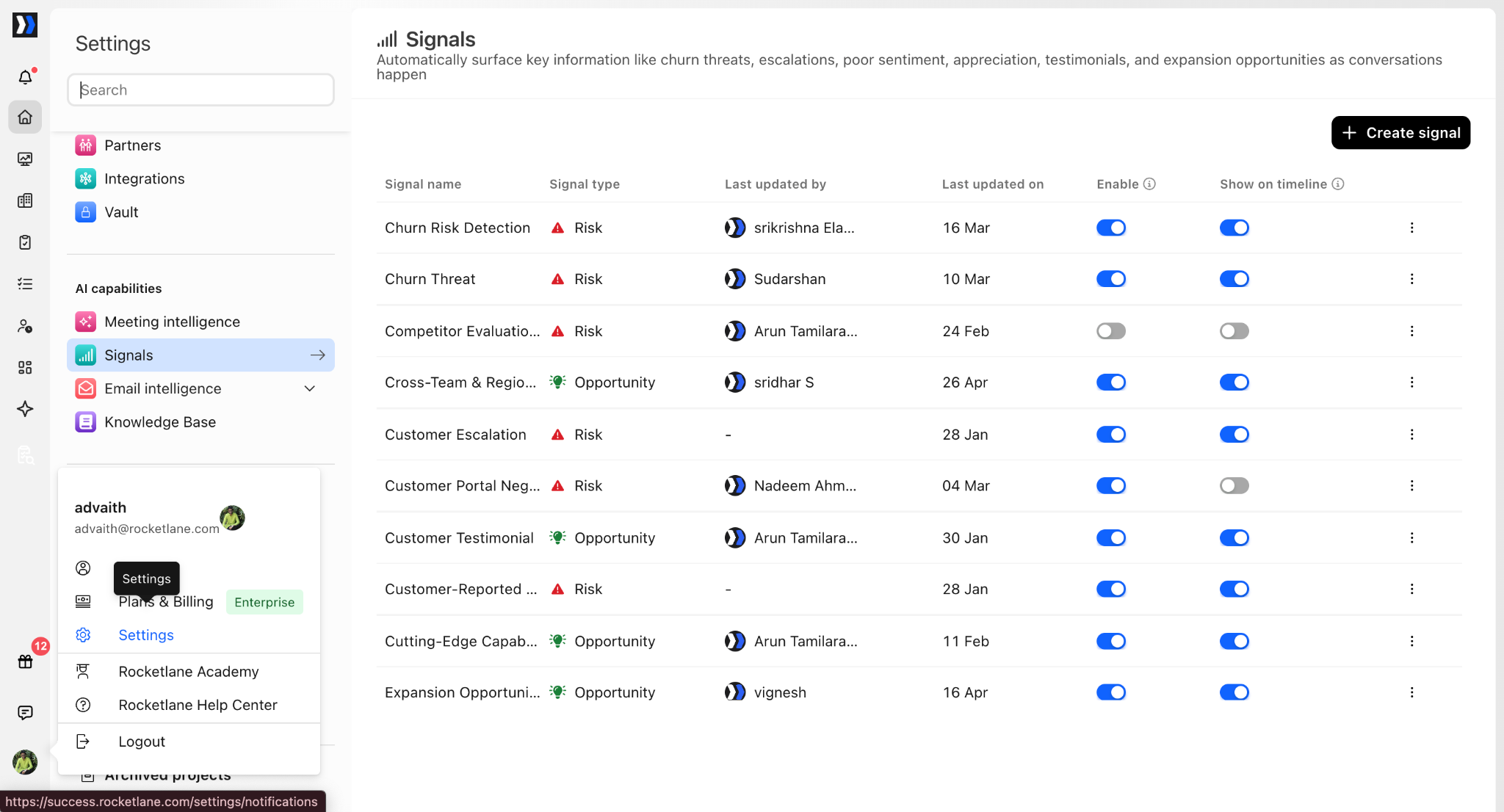
- Select the signal type: Risk, Opportunity, or Operational.
- Enter your prompt in Nitro AI. For example: "Whenever any high value account or if the leadership of any account says that they are considering moving away from our product because we don't support integration of X."
Rocketlane uses your input prompt, business context from the knowledge base, and parsed conditions from your request to generate the configuration.
Rocketlane may ask follow-up questions to refine conditions. For example, if you say "high value account," Rocketlane may ask you to define it - you might specify "accounts by ARR." Conditions can be generated from transcript content as well as Rocketlane account data.
Review the generated configuration
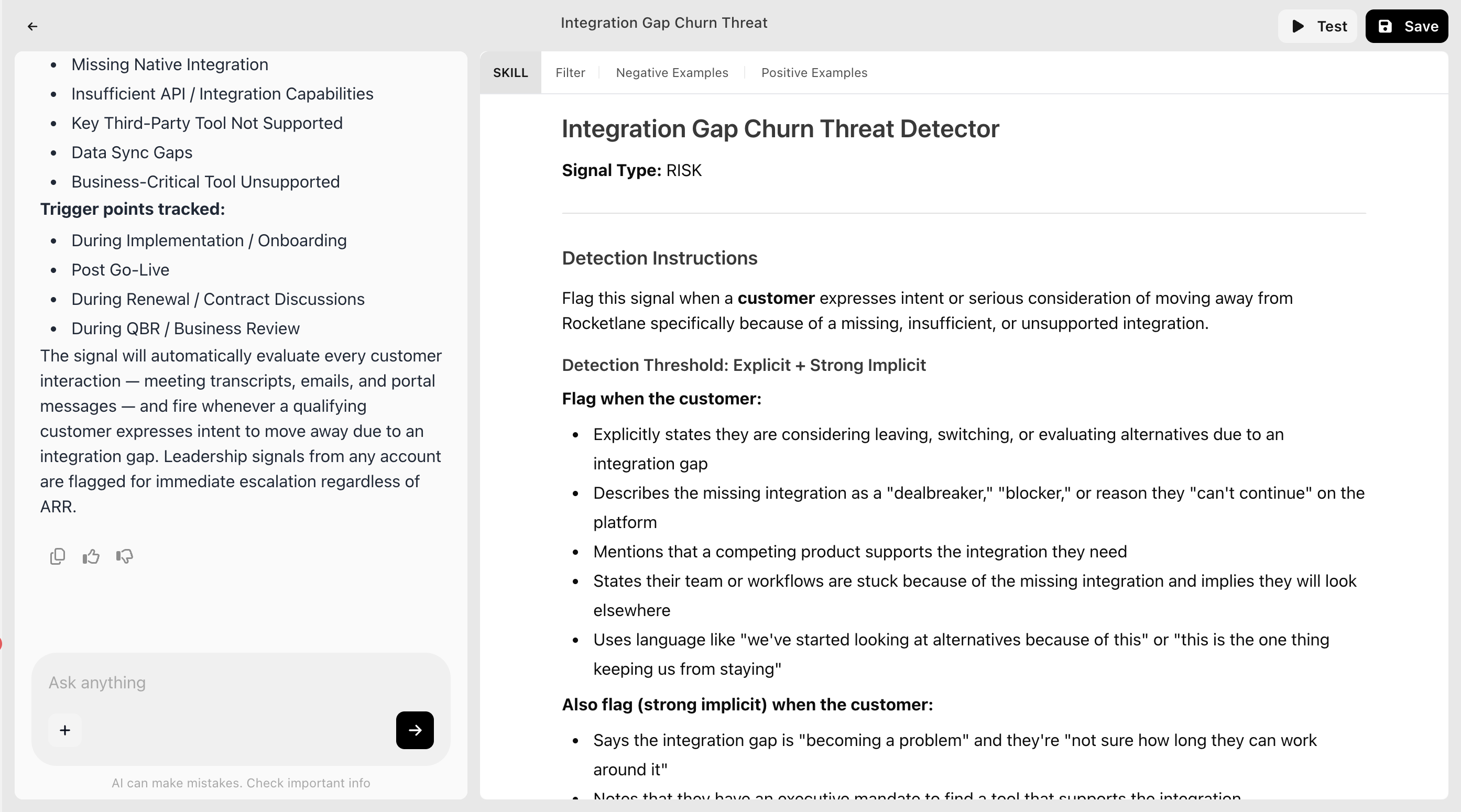
After answering clarifying questions, Rocketlane presents a window with the chat on the side and four configuration tabs.
Instructions
The detailed description of what Nitro AI will look for and how it will evaluate transcripts. Instructions typically include:
- Signal identity and purpose: Defines the segment and objective.
- Detection logic: Defines phrases, behaviors, or sentiments that trigger an alert.
- Eligibility criteria: Sets guardrails for which accounts or personas apply.
- Classification by reason and root cause: Categorizes the business driver and source of the interaction.
- Output format: Defines how findings are presented.
Filter
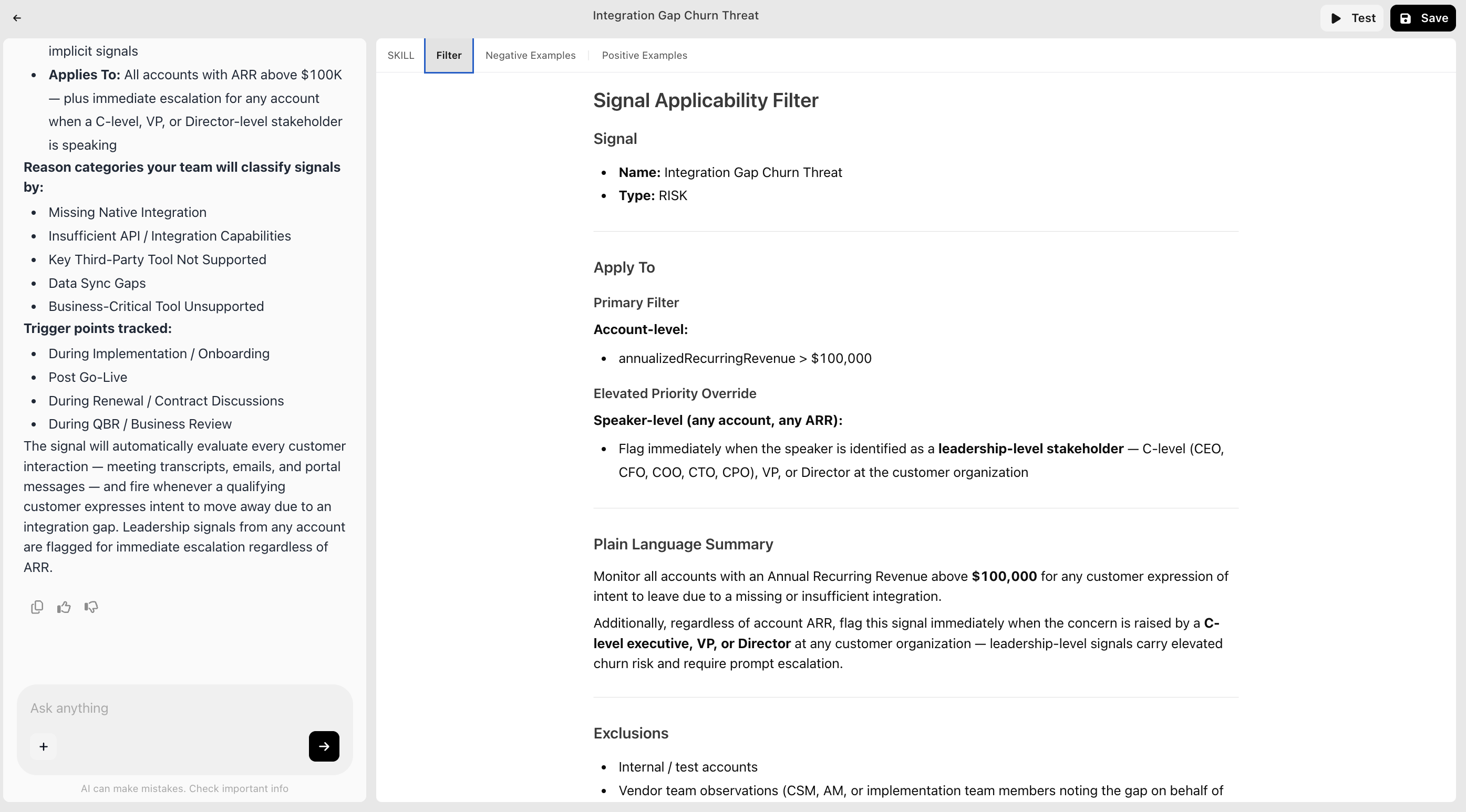
The structured conditions Rocketlane uses to gate eligibility and scope. Filters typically include:
- Signal metadata: Core identification and categorization.
- Primary target filters: Quantitative and qualitative thresholds (for example ARR > $50K, leadership titles).
- Data exclusions: Excludes accounts like internal or test accounts.
- Channel scope: Defines which interaction channels are monitored (meetings, emails).
- Plain language summary: A readable explanation of what the filter is doing.
Negative examples
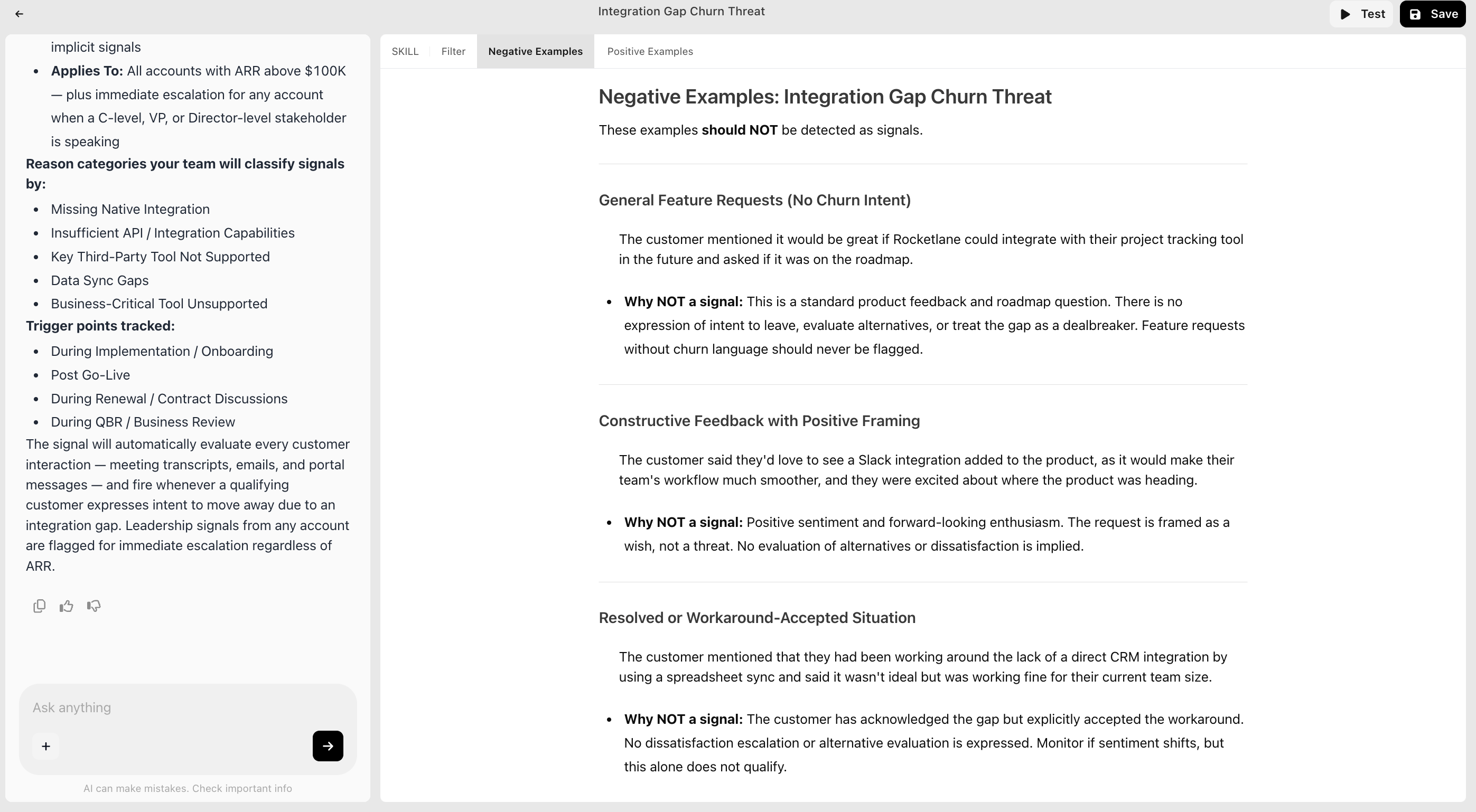
Examples of scenarios that should NOT trigger a signal, with reasoning. For example:
- Neutral request: "It would be great to have X integration one day." (No urgency or threat)
- Internal note: "CSM noted customer uses X." (Not customer voice)
Positive examples
Examples of scenarios that SHOULD trigger a signal, with reasoning. For example:
- Explicit threat: "If we don't get X soon, we'll switch to a competitor." (Clear intent to leave)
- Executive mandate: "CFO says we need this in X or we can't renew." (Leadership-driven risk)
You can use the chat on the left to edit the skill, filters, or add more refinement.
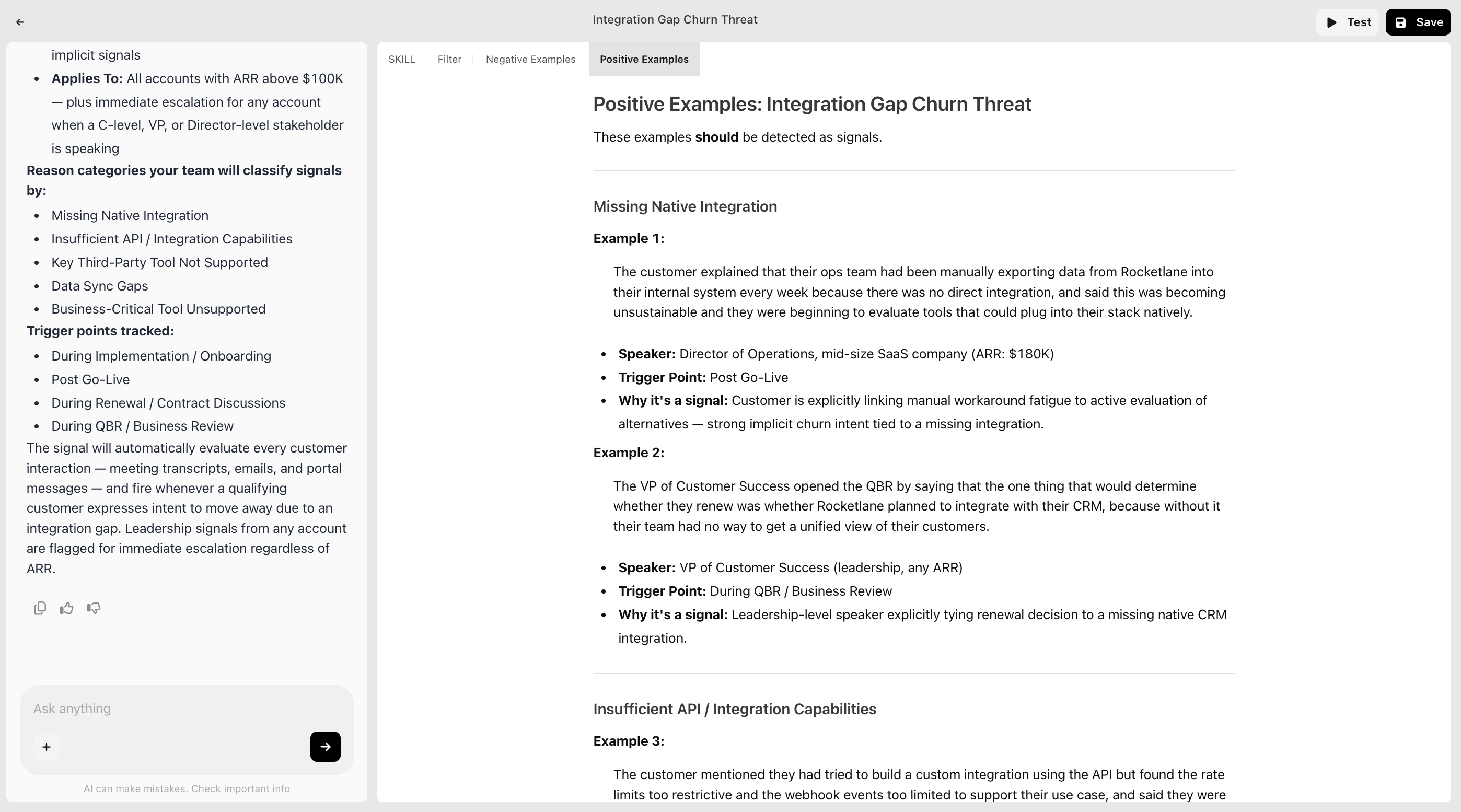
Test the signal
- Click Test (top right).
- Select the transcript source: Meetings or Emails.
- Select the meeting or email.
- Click Run.
Rocketlane AI analyzes the selected transcript based on your signal definition. After testing, proceed to create the signal if it is satisfactory, or continue to tweak it in the chat window.
RBAC for signals
The Signals module lets admins control who can view, hide, and configure signals, as well as who can access the Signal Analyst feature. Viewing permissions are scoped to limit the reach of signal data across the account.
Location: Settings → Permissions → Signals → Signals: Account level
Permission categories
1. Viewing signals
2. Signal settings
3. Signal analyst
Scope options
Scopes control which signals a user can see when a viewing or Signal Analyst permission is granted.