A partner company may need different levels of access across your projects. On one project, the partner may work alongside your team and need access to private tasks and documents. On another, the same partner may be the customer and should see only shared information.
Partner permission sets let you control what each partner team member can view and do. Assign an account-level permission set to define their baseline access, then use a project-level permission set when they need additional access on a particular project.
In this article
- Before you start
- How partner permission sets work
- Visibility scope
- How account and project permissions combine
- Default partner permission sets
- Configure allowed permission sets for a partner company
- Assign an account-level permission set
- Assign a project-level permission set
- Create a custom partner permission set (Enterprise or RBAC add-on)
- Example: One partner company with two access requirements
- FAQ
- Summary
Before you start
Confirm the following before configuring partner permissions:
- You need access to Settings > Partners and Settings > Permissions.
- Partner permission sets must be enabled for your account.
- Creating custom permission sets requires the Enterprise plan or the RBAC add-on.
- The six default partner permission sets are available without the Enterprise plan or RBAC add-on.
If you cannot find the Partner: Account and Partner: Project tabs under Settings > Permissions, contact Rocketlane Support.
Partner permission sets apply to partners who work alongside your team in Rocketlane. Client partners who access projects through the Customer Portal are configured separately. See Client Partners in Rocketlane.
How partner permission sets work
Partner access is configured at three levels.
| Level | Where it is configured | What it controls |
|---|---|---|
| Partner company | Settings > Partners, then edit the partner company | The permission sets that can be assigned to members of that partner company |
| Account | Settings > Permissions > Partner: Account | A partner team member’s baseline access across the projects they can access |
| Project | Project > Settings > Team members | Additional access for a partner team member on a specific project |
Partner access is assigned to individual partner team members through permission sets. A single company-wide access level is not applied to every member of the partner company.
Visibility scope
Each partner permission set has a Visibility scope that determines whether the partner team member can access private project resources.
| Visibility scope | What the partner team member can access |
|---|---|
| Shared + Private | Shared and private project resources permitted by the set |
| Shared only | Shared project resources permitted by the set |
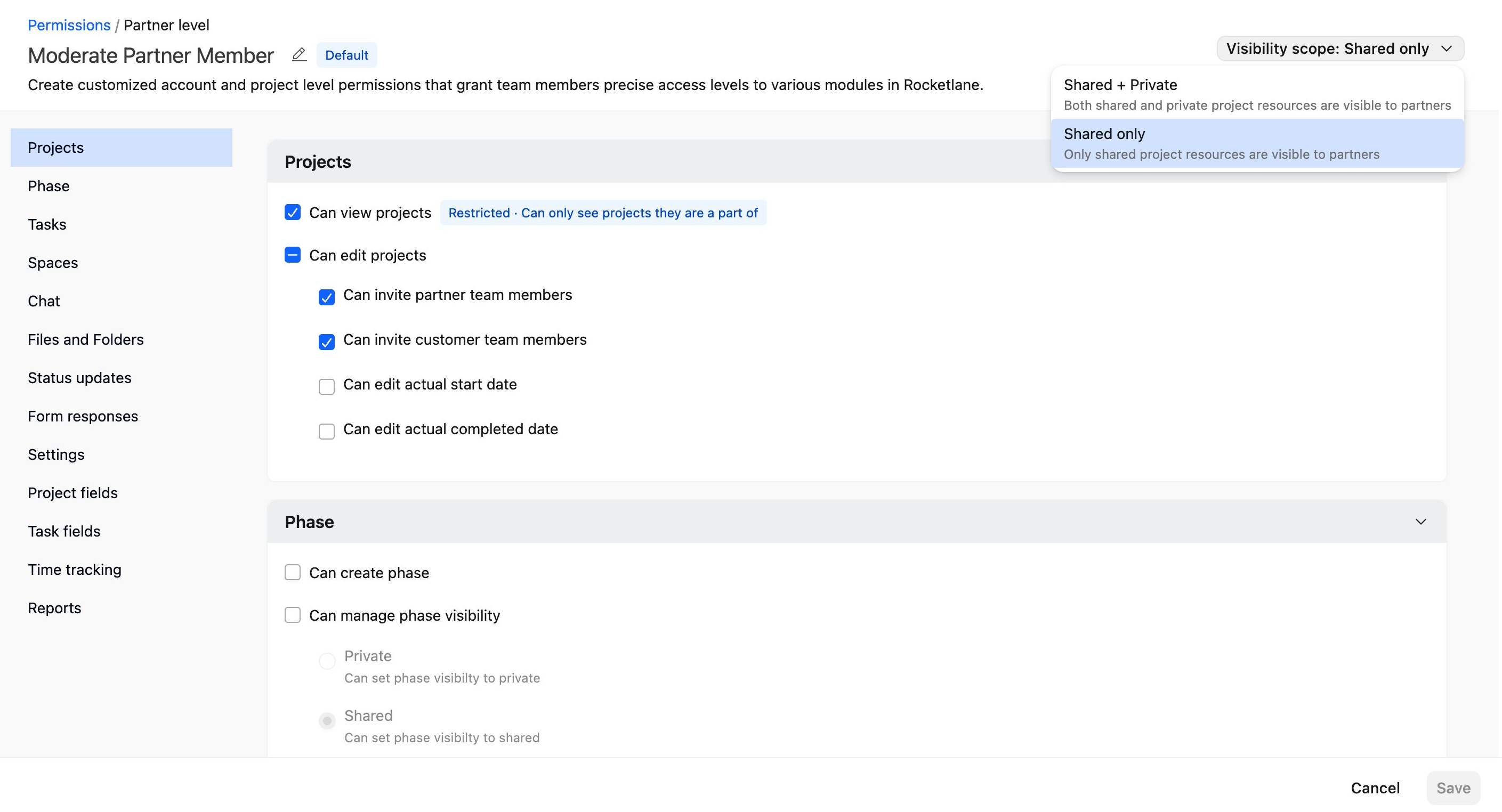
When Shared only is selected, permissions for private resources are disabled within the permission set.
How account and project permissions combine
A partner team member can have:
- An account-level permission set that defines their baseline access.
- A project-level permission set that provides additional access on a particular project.
When both sets apply, Rocketlane compares them permission by permission and grants the higher level of access.
A project-level permission set can add access for a project. It cannot remove access already granted by the account-level set.
For example, if the account-level set allows access to private tasks, assigning a Shared only project-level set does not remove that access.
To give a partner limited access by default and broader access on selected projects, use a narrower account-level set and assign a broader project-level set only where required.
For more information, see Difference and Precedence Between Account and Project Level Permissions.
Default partner permission sets
Rocketlane provides six default permission sets under Settings > Permissions > Partner: Account.
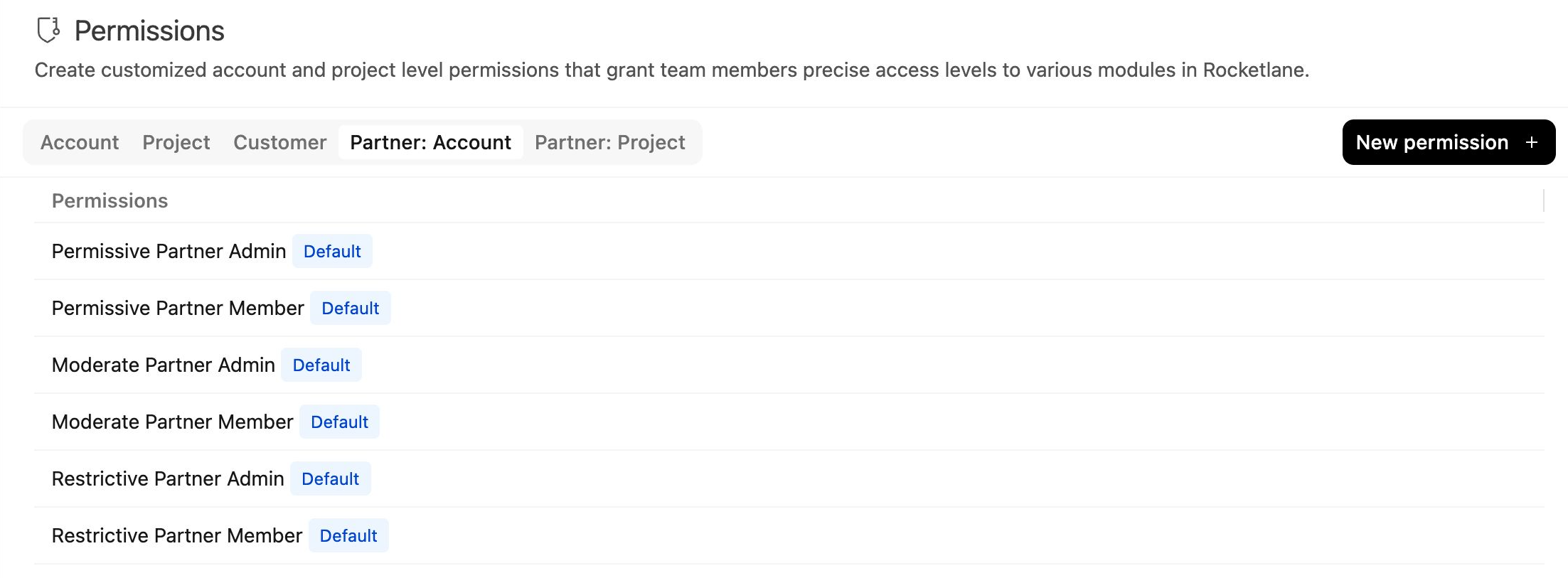
Each set combines:
- An access tier: Permissive, Moderate, or Restrictive.
- A role: Admin or Member.
| Permission set | Projects they can access | Visibility scope |
|---|---|---|
| Permissive Partner Admin | Projects their partner company is part of | Shared + Private |
| Permissive Partner Member | Projects they are part of | Shared + Private |
| Moderate Partner Admin | Projects their partner company is part of | Shared only |
| Moderate Partner Member | Projects they are part of | Shared only |
| Restrictive Partner Admin | Projects their partner company is part of | Shared only |
| Restrictive Partner Member | Projects they are part of | Shared only |
On partner management screens, these permission sets may appear with shorter names, such as Permissive Admin or Restrictive Member.
If partner access was configured before permission sets were enabled, Rocketlane assigns each existing partner team member the default set corresponding to their earlier access level and role.
Project permissions by access tier
The access tier determines what partner team members can do within a project. Admin and Member sets within the same tier have the same project-level permissions.
| Action | Permissive | Moderate | Restrictive |
|---|---|---|---|
| View tasks | All tasks in the project | All shared tasks in the project | Tasks assigned to them |
| Create and delete tasks | Yes, shared and private | Yes, shared only | No |
| Edit task names | Yes | Yes | No |
| Update task status, dates, assignees, effort, progress, and priority | Yes | Yes | Yes |
| Add dependencies, attachments, and task field values | Yes | Yes | Yes |
| Create subtasks | Yes | Yes | No |
| Change task privacy or move tasks between phases | Yes | No | No |
| Create, edit, and delete phases | Yes | No | No |
| Create spaces, documents, and folders | Yes, shared and private | Yes, shared only | No |
| Create project conversations | Yes, shared and private | Yes, shared only | No |
| Create and publish status updates | Yes, shared and private | Yes, shared only | No |
| View form responses | All responses in the project | All responses in the project | Responses they can access |
| Edit form responses | Yes | No | No |
| Edit project field values | Yes | Yes | No, view only |
| Edit project details | Yes | No | No |
| Preview the project as a customer | Yes | No | No |
| Add partner team members to the project | Yes | Yes | Yes |
| Log time on the project | Yes | Yes | Yes |
Account permissions by Admin or Member role
The Admin or Member role determines the partner team member’s account-level access.
| Capability | Partner Admin sets | Partner Member sets |
|---|---|---|
| Projects they can access | Projects their partner company is part of | Projects they are part of |
| Manage organization and partner team member settings | Yes | No |
| View time analytics, utilization, and timesheet submission reports | Yes | No |
| Approve timesheets | Yes | No |
| Log time and submit timesheets | Yes | Yes |
Configure allowed permission sets for a partner company
Each partner company has a list of permission sets that can be assigned to its members.
- Go to Settings > Partners.
- Open the partner company and select Edit.
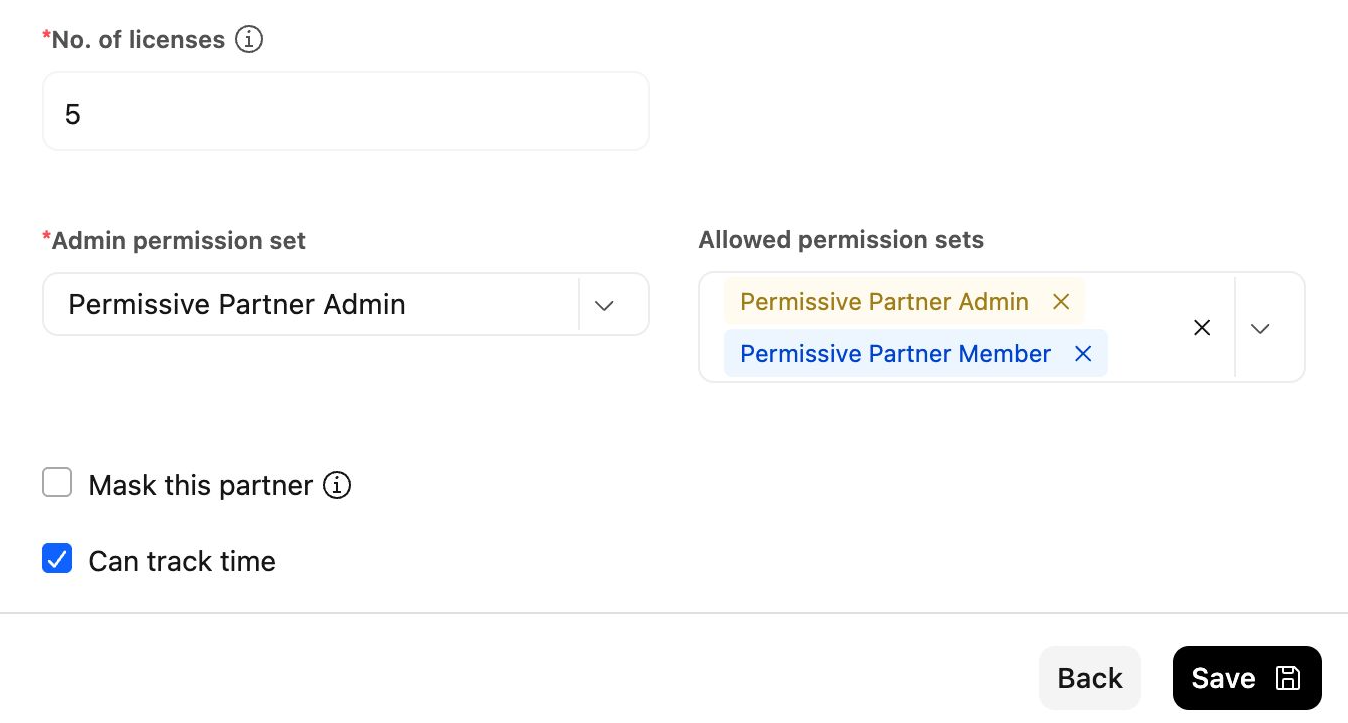
- Under Admin permission set, select the permission set for the partner company’s primary admin.
- Under Allowed permission sets, select every account-level set that can be assigned to members of the partner company.
- Select Save.
The Admin permission set is required and is automatically included under Allowed permission sets. You do not need to select it twice.
Both fields display permission sets from the Partner: Account tab.
Assign an account-level permission set
An account-level permission set defines a partner team member’s baseline access across all projects they can access.
You can assign the set while inviting the partner team member.
- Go to Settings > Partners.
- Open the partner company.
- Select Partner team members.
- Select Invite members.
- Enter the partner team member’s details.
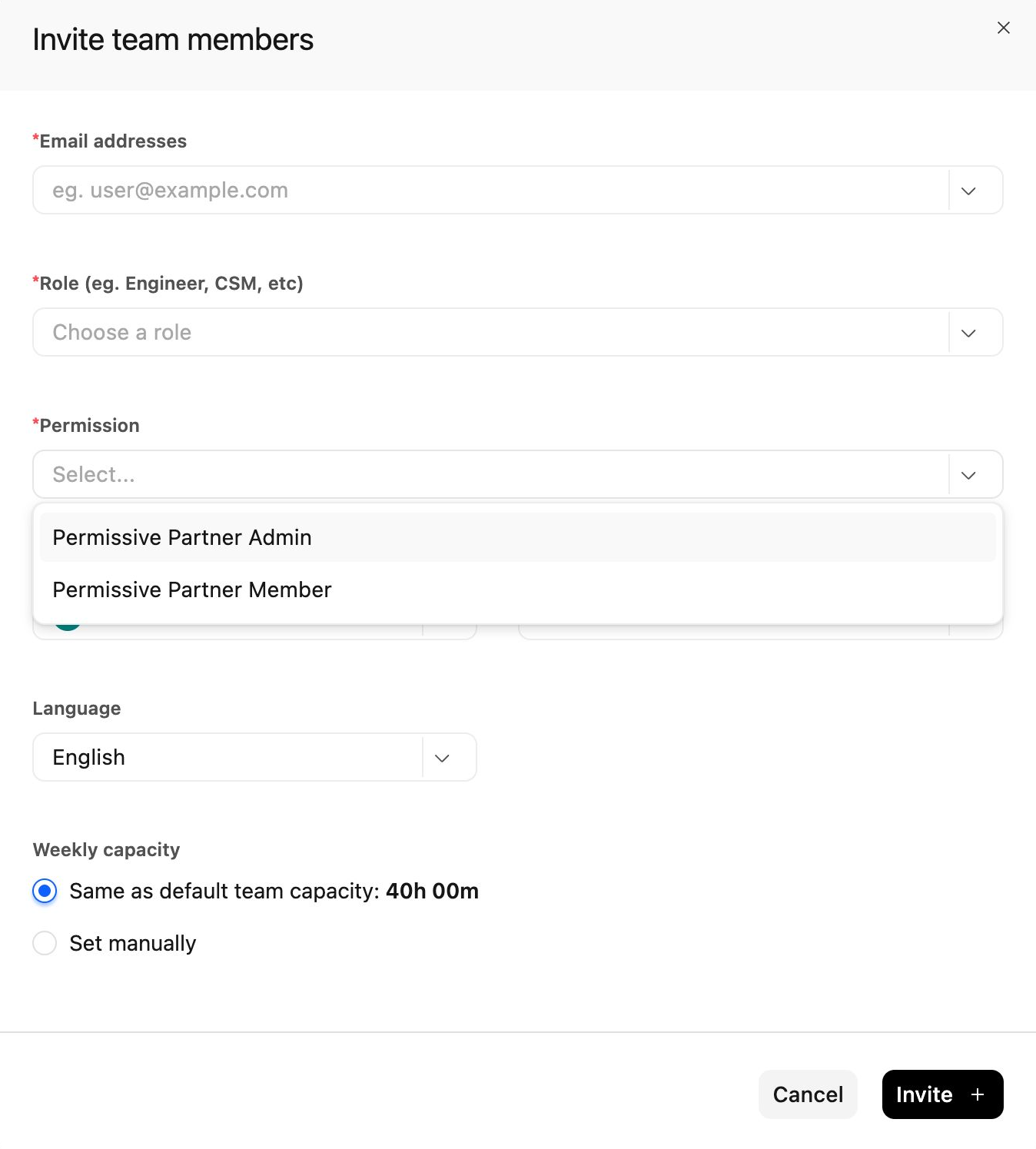
- Under Permission, select one of the partner company’s allowed permission sets.
- Send the invitation.
The selected permission set applies across every project the partner team member can access.
If the required permission set is not listed, add it to the partner company’s Allowed permission sets first.
Assign a project-level permission set
Use a project-level permission set when a partner team member needs additional access on one project.
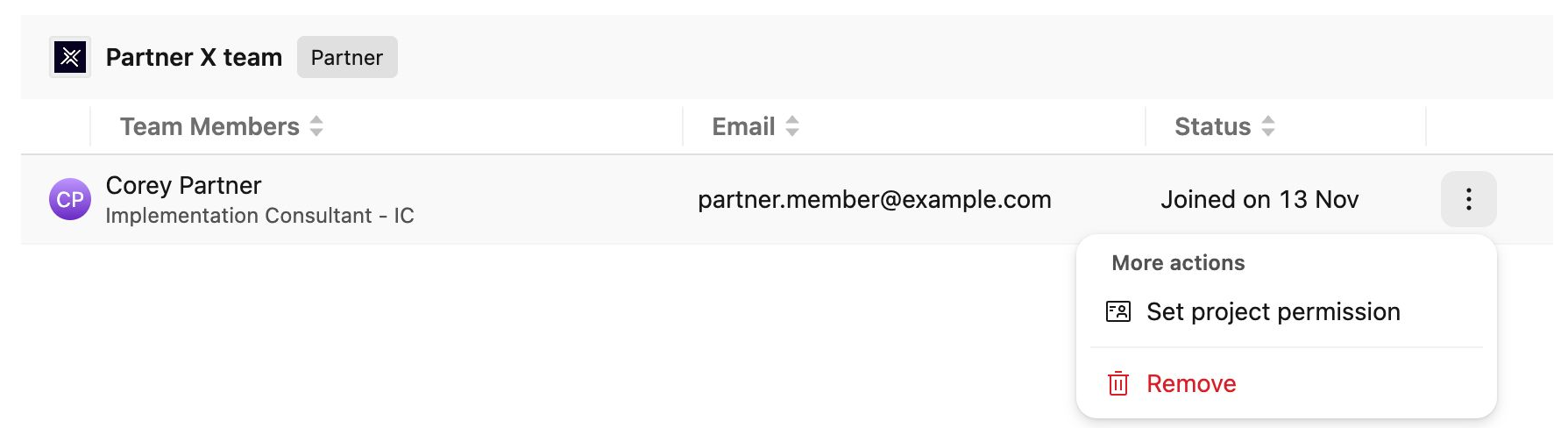
- Open the project and go to Settings > Team members.
- Open the actions menu for the partner team member.
- Select Set project permission.
- Select a permission set from the Partner: Project tab.
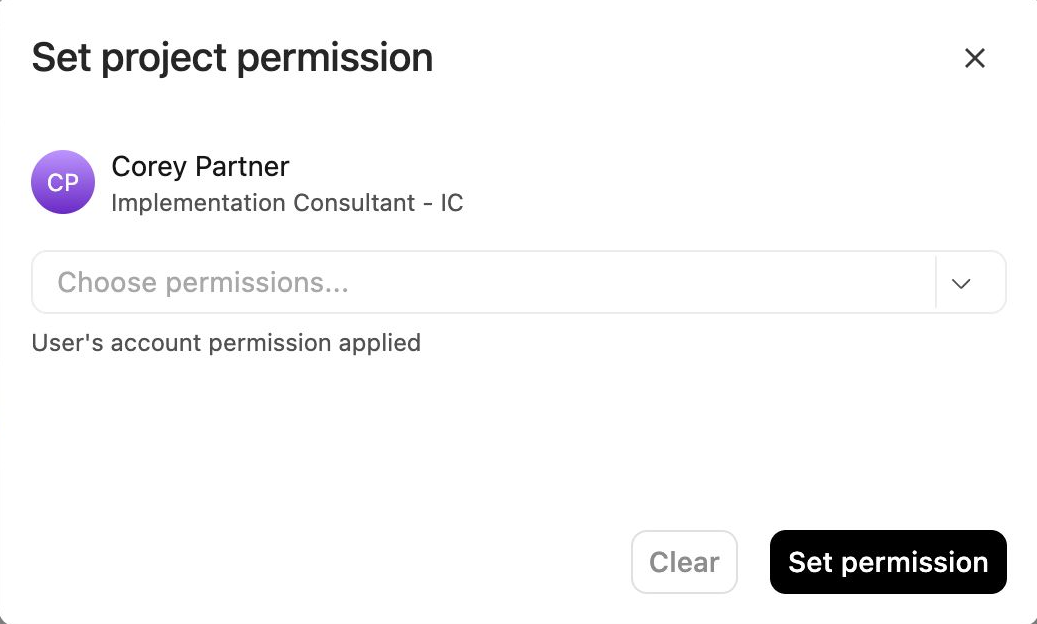
- Select Set permission.
The project-level set applies only to that project. Rocketlane combines it with the partner team member’s account-level set and grants the higher access for each permission.
To change the project-level set later, select Update permission from the same menu.
Create a custom partner permission set (Enterprise or RBAC add-on)
Create a custom permission set when the default sets do not provide the required access.
- Go to Settings > Permissions.
- Select one of the following tabs:
| Tab | When to use it |
|---|---|
| Partner: Account | The permission set should define baseline access across the partner team member’s projects |
| Partner: Project | The permission set should be assigned only on selected projects |
- Select New permission.
- Choose the Visibility scope.
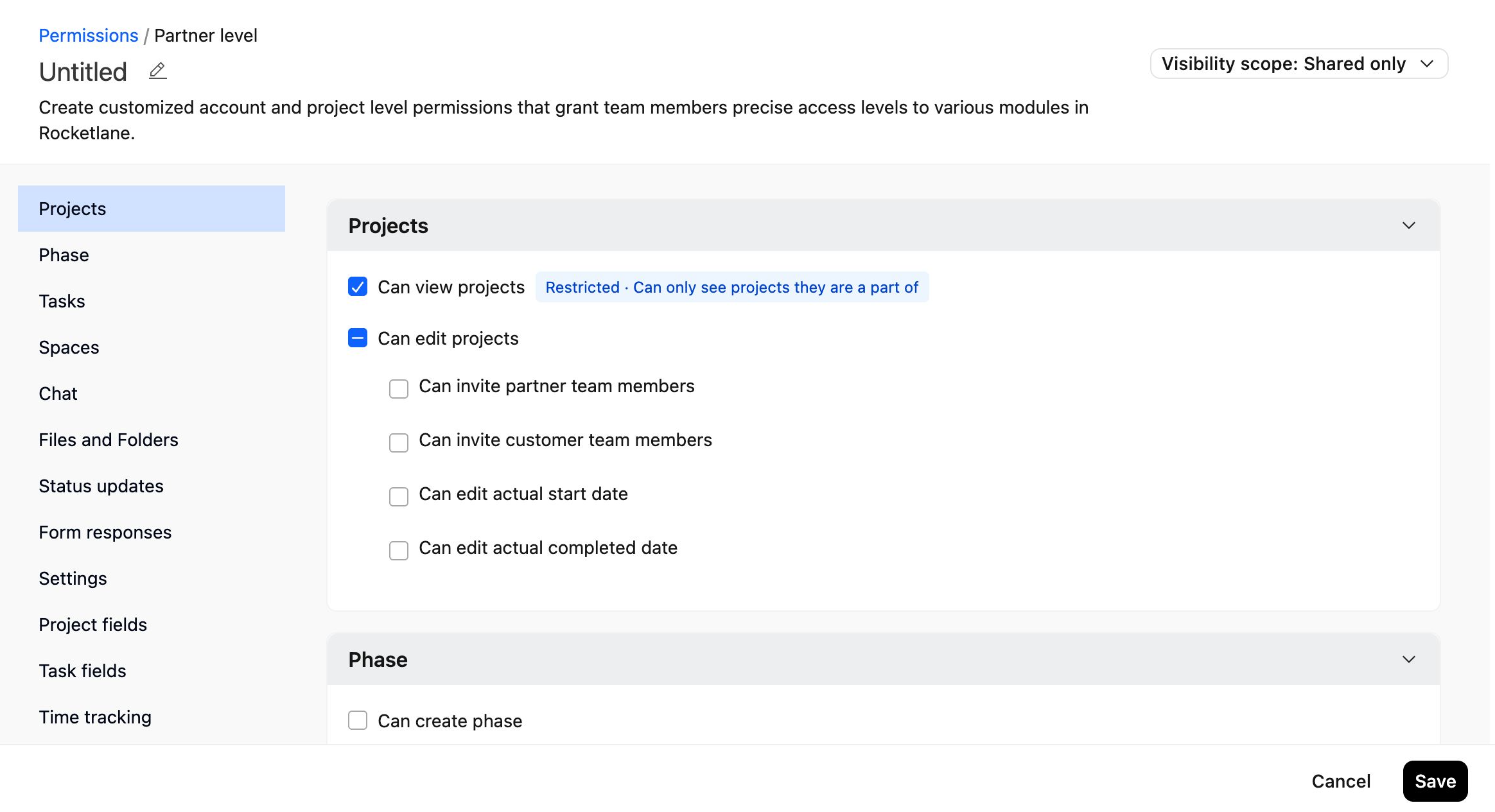
- Configure the required permissions.
- Save the permission set.
To use a new Partner: Account set, add it to the Allowed permission sets for each partner company that needs it.
Example: One partner company with two access requirements
Your organization works with the same partner company on two kinds of projects:
- Delivery projects: The partner works alongside your team and needs access to shared and private resources.
- Partner-as-customer projects: Your organization delivers the project for the partner, so the partner should see only shared resources.
Configure access as follows:
- Assign the partner team members an account-level permission set with the Shared only visibility scope.
- On each delivery project, assign those partner team members a project-level permission set with the Shared + Private visibility scope.
The partner team members can access shared and private resources on delivery projects. On other projects, their account-level Shared only access continues to apply.
This approach works because project-level permission sets can add access without reducing the access granted at the account level.
FAQ
Why can’t I find the Partner: Account and Partner: Project tabs?
Partner permission sets may not be enabled for your account. Contact Rocketlane Support to have the feature enabled.
Why is a permission set missing when I invite a partner team member?
The permission set is not included in the partner company’s Allowed permission sets.
Go to Settings > Partners, edit the partner company, and add the required set.
Why can’t I find the access level setting for a partner company?
Partner access is configured through permission sets instead of a single company-level access setting.
Use Admin permission set and Allowed permission sets when configuring the partner company. Then assign the appropriate permission set to each partner team member.
Can a project-level permission set reduce access on one project?
No. Rocketlane compares the account-level and project-level sets permission by permission and grants the higher access.
To provide narrower access by default, assign a restricted account-level set and use project-level sets to add access only where required.
What is the difference between a Partner Admin and Partner Member?
A Partner Admin can access every project their partner company is part of. Depending on the configured permission set, they may also manage partner settings, view time reports, and approve timesheets.
A Partner Member can access only the projects they have joined or been added to.
Within a project, Admin and Member sets belonging to the same access tier have the same default project permissions.
Does Permissive Partner Member include private resources?
Yes. Both default Permissive sets use the Shared + Private visibility scope.
The default Moderate and Restrictive sets use Shared only.
Can a partner team member with a Restrictive set update tasks?
Yes. A Restrictive partner team member can access the tasks assigned to them and update supported fields such as status, dates, assignees, effort, progress, priority, attachments, and task field values.
They can also log time against supported project work.
Why can’t I create a custom partner permission set?
Creating custom permission sets requires the Enterprise plan or the RBAC add-on.
The six default partner permission sets remain available without either.
Why do the permissions in my account differ from this article?
An admin may have changed a default permission set or created custom permission sets.
Review the current configuration under Settings > Permissions > Partner: Account or Partner: Project.
Summary
- Partner access is assigned through permission sets for individual partner team members.
- Each partner company defines which account-level permission sets can be assigned to its members.
- Partner: Account sets provide baseline access across projects.
- Partner: Project sets can add access on a specific project but cannot remove account-level access.
- Shared + Private includes private project resources, while Shared only limits access to shared resources.
- Rocketlane provides six default partner permission sets that combine an access tier with an Admin or Member role.
- Custom partner permission sets require the Enterprise plan or the RBAC add-on.