When an automation does not do what you expected, or you are not sure it ran at all, it can be hard to troubleshoot without checking the task, project, or record it affected. It gets harder when you need to know why one specific action in an automation did not run, or when someone last changed the automation setup.
Automation Logs gives you a full history of how each automation has run, action by action. It also records when an automation's configuration was changed.
In this article
``````When to use it
Automation Logs is useful any time you need to understand an automation's behavior after it ran.
For example, use Automation Logs when:
- A customer says they did not receive a notification you expected an automation to send, and you need to confirm whether it ran.
- A task's due date changed unexpectedly, and you want to know whether an automation caused it.
- An automation works sometimes but not others, and you need to check which condition failed.
- You want to confirm when an automation was last edited and what changed.
Where to find it
- Go to Settings.
- Select Automations.
- Select Automation logs.
- Choose Global automation or Template automation, depending on where the automation was set up.
This list shows every automation of that type, along with what it runs on, when it last ran, its total run count, and its number of failures.
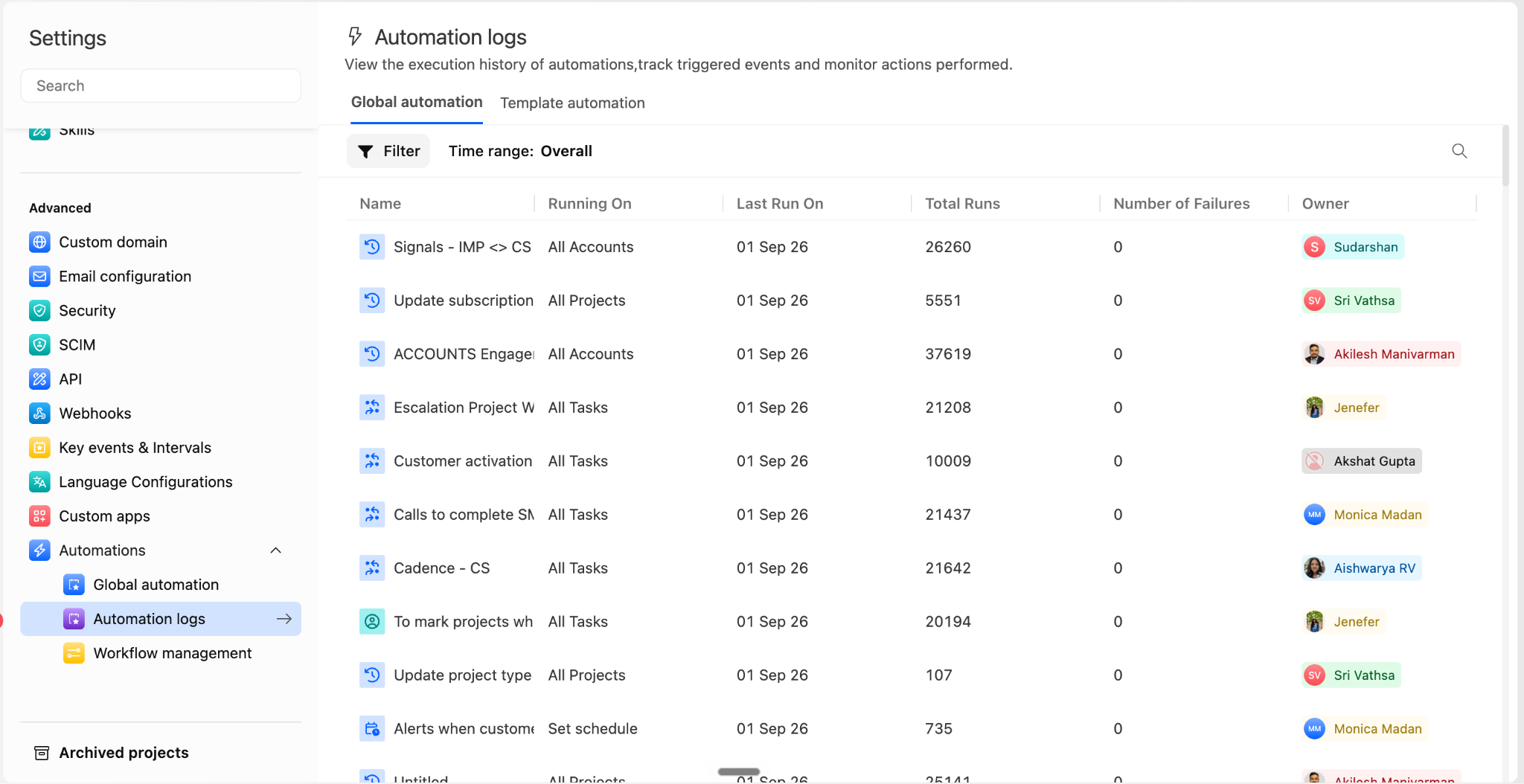
Select an automation from the list to open its run history.
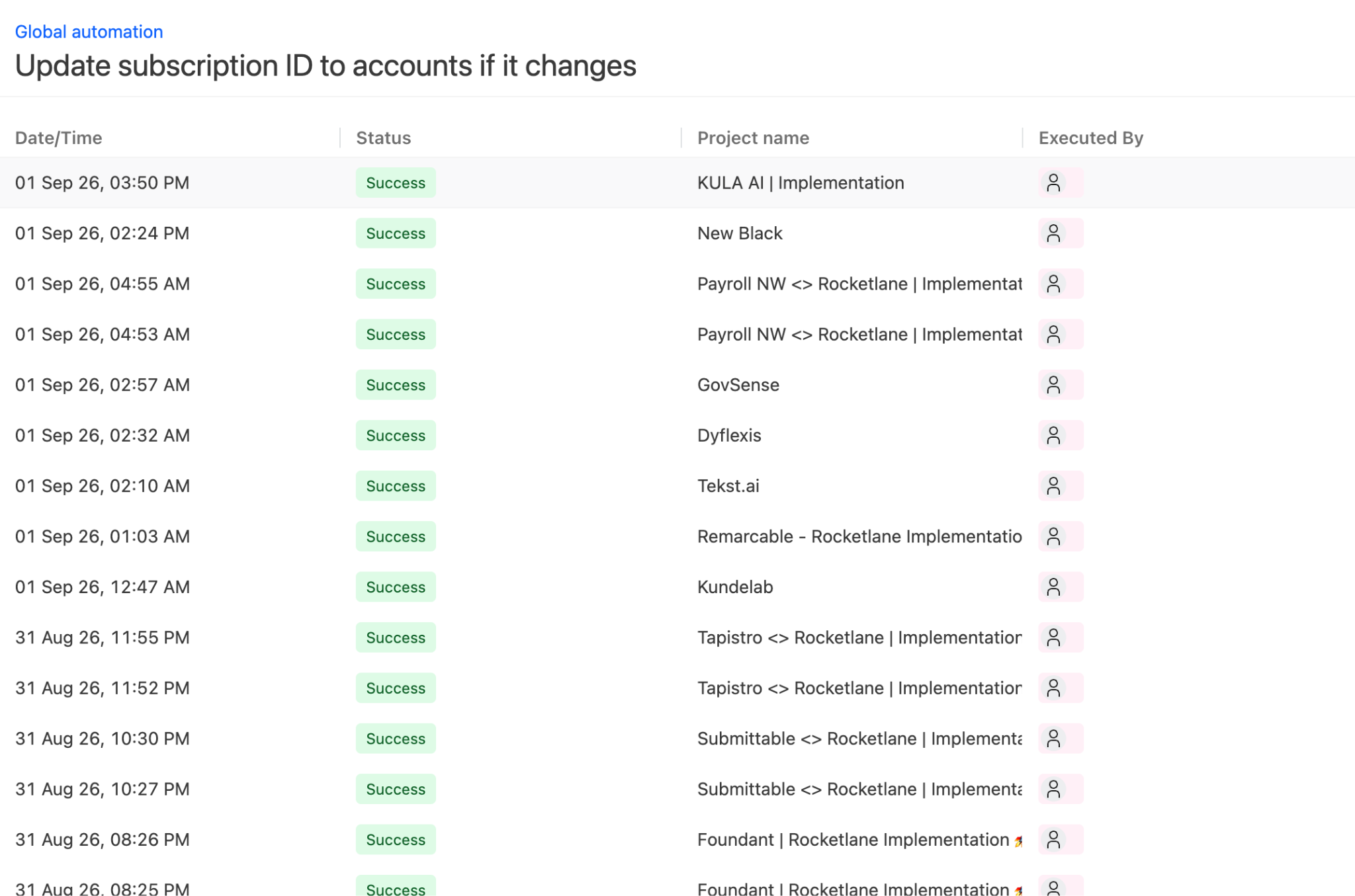
Reading an automation's run history
After you open a specific automation, you see a table listing every time it ran or was changed.
- Use the breadcrumb at the top, labeled Global automation or Template automation, to return to the full list if needed.
- Check the Date/Time column to see when each entry happened.
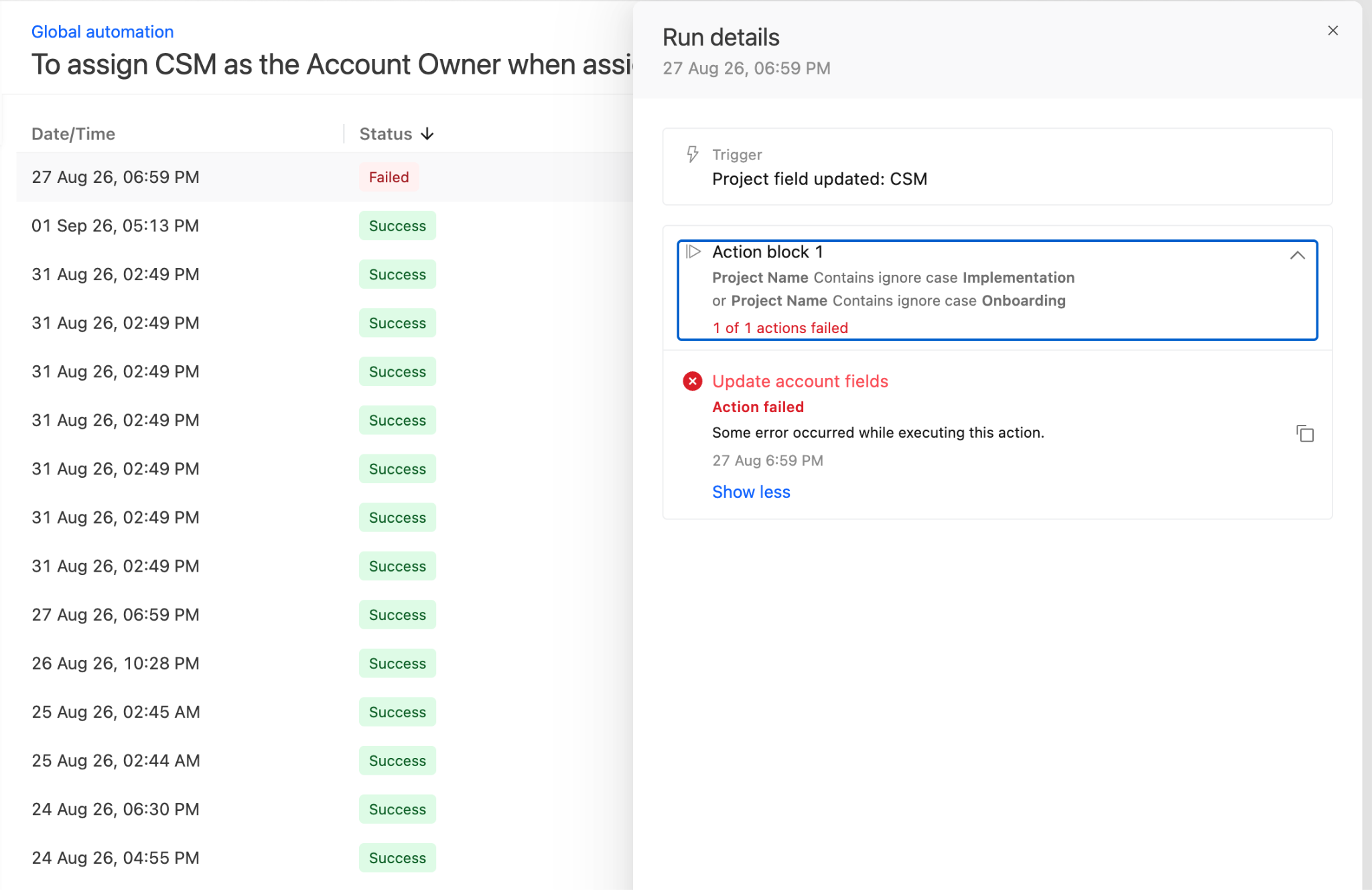
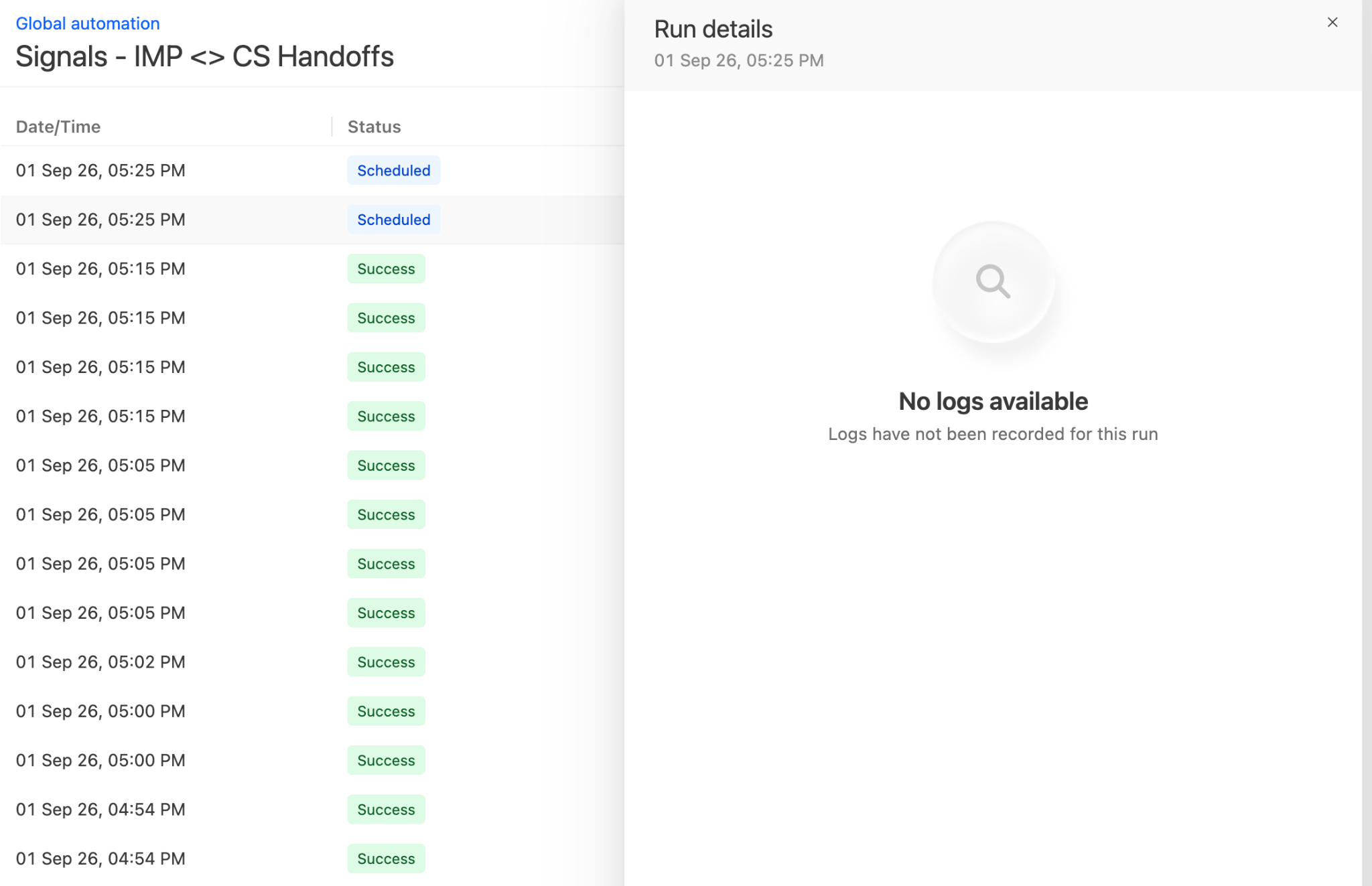
- Check the Status column to understand the run result.
- Check the entity column. Its header changes based on what triggered the automation, such as Task name, Project name, Phase name, Account name, Sheet name, Sheet tab name, or Form name. This shows the exact task, project, or other item that triggered the run.
- Check the Executed By column to see who or what triggered the run.
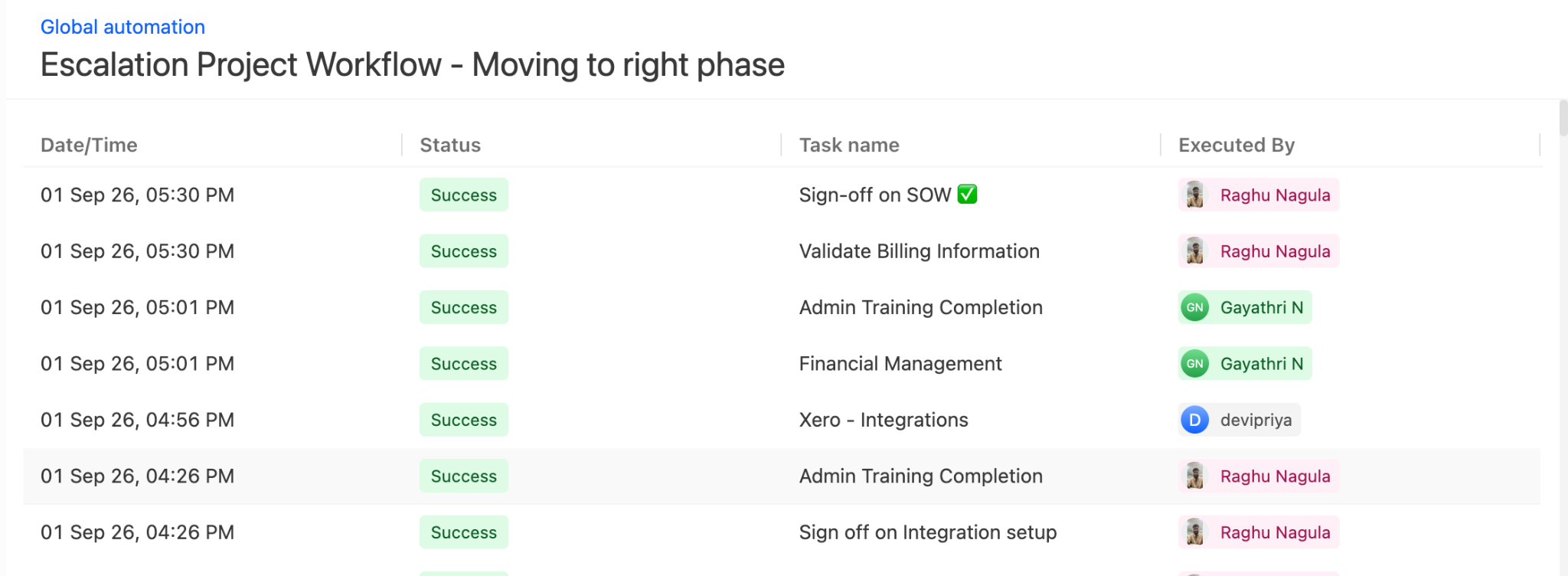
Automation run statuses
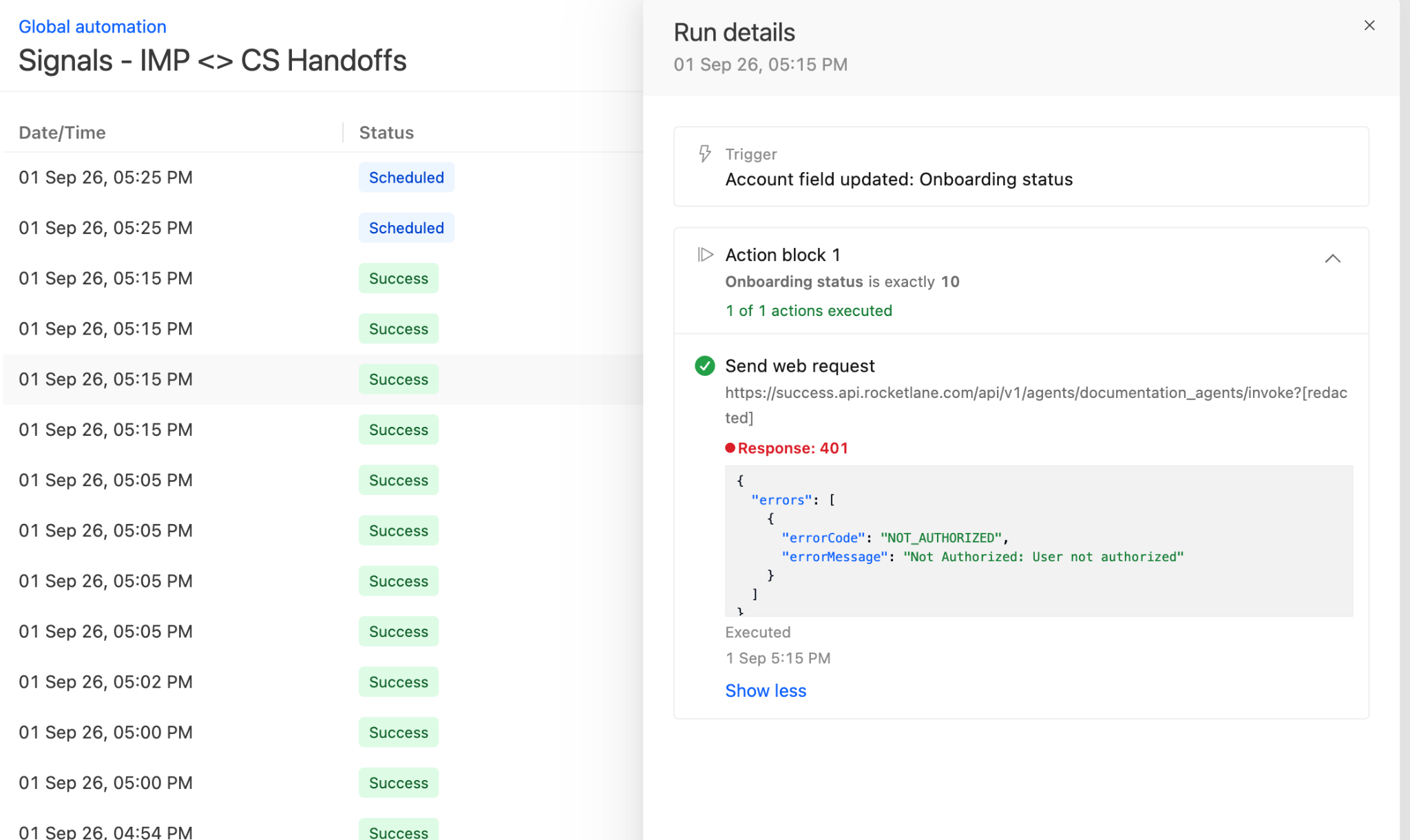
Understanding Executed By
The Executed By column can show three different things:
- A person's name: The run was triggered by that person's action, such as updating a task's status.
- Automation Bot: The run was triggered automatically by the system, such as by a scheduled automation or another automation.
- Blank: The run's triggering user no longer matches anyone currently active or invited on your account, such as a user who has since been deactivated or removed.
Opening a run
- Select any row to open its run details.
- Review the trigger information at the top. This tells you what happened, such as Task status is updated.
- Work through the action blocks in order, from top to bottom. Each block represents one condition and the action or actions tied to it.
- Read the condition shown for the block. It is written as a plain sentence describing the rule, such as Status changed to Completed & Task Name Contains ignore case 'Collaborative Session 1'.
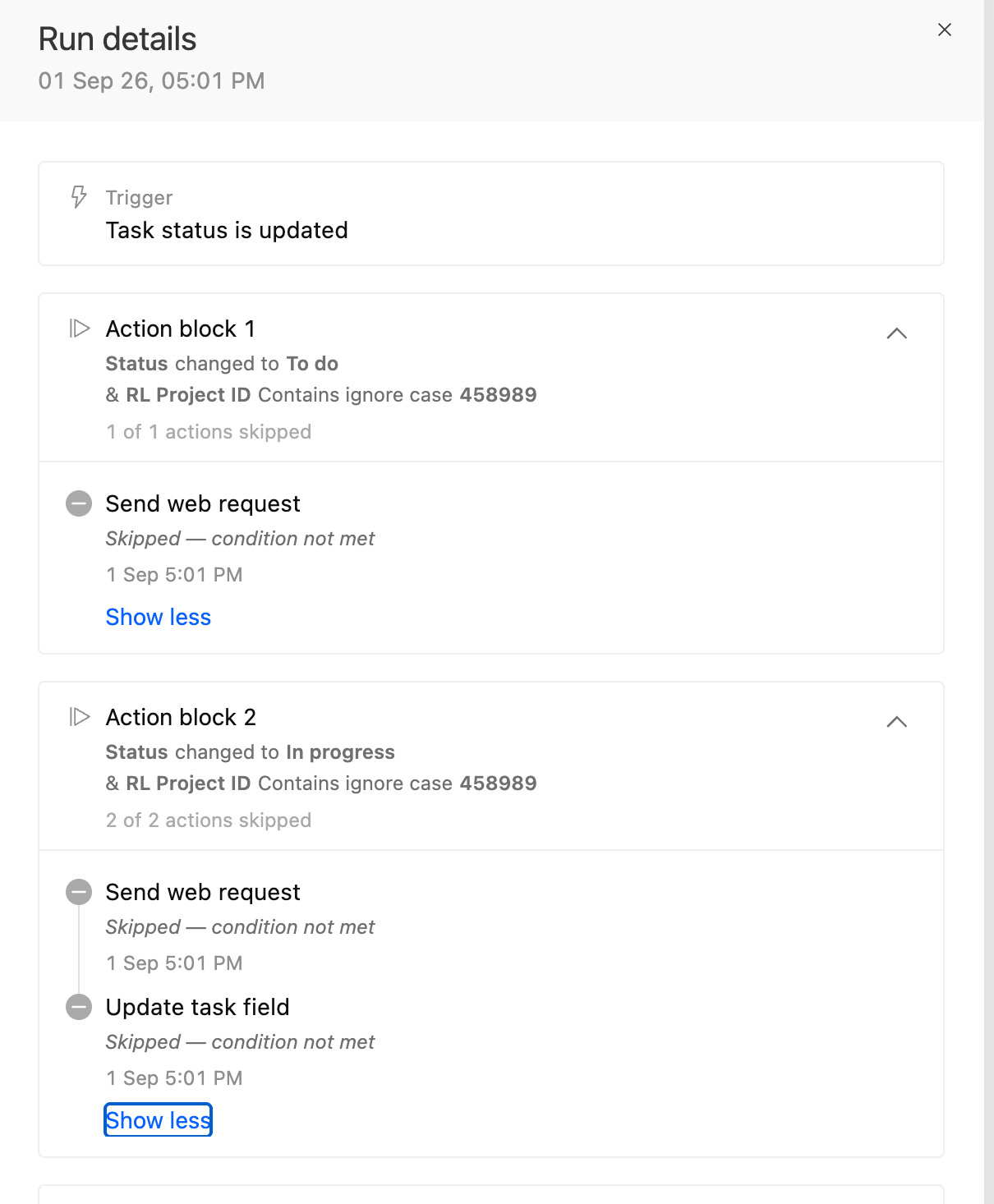
- Check the block's summary line, such as X of Y actions executed, X of Y actions skipped, or X of Y actions failed. A block can contain more than one action, and this line tells you how the actions went as a group.
- Review the individual actions listed under the block. Each action shows its own outcome.
- Select View more details on a block to expand every action in it. Select Show less to collapse it again.
Expanded details show the reason for a skipped action, the specific detail for what a completed action did, and, for a failed action, an error message with a Copy debug info option that you can share with support.
Action outcomes
What you'll see for each action type
Once you expand a block's details, the information you see depends on the action type:
- Field updates: Shows either the exact value that was set or a plain description of the change. For example, an action that pushes a due date back may show Postponed due date by 5 days instead of a raw before-and-after value.
- Notifications: Shows the recipients and a preview of the message content.
- Structural actions: Shows the affected entity and what happened to it. This includes actions such as creating a task or deleting a phase.
Configuration change history
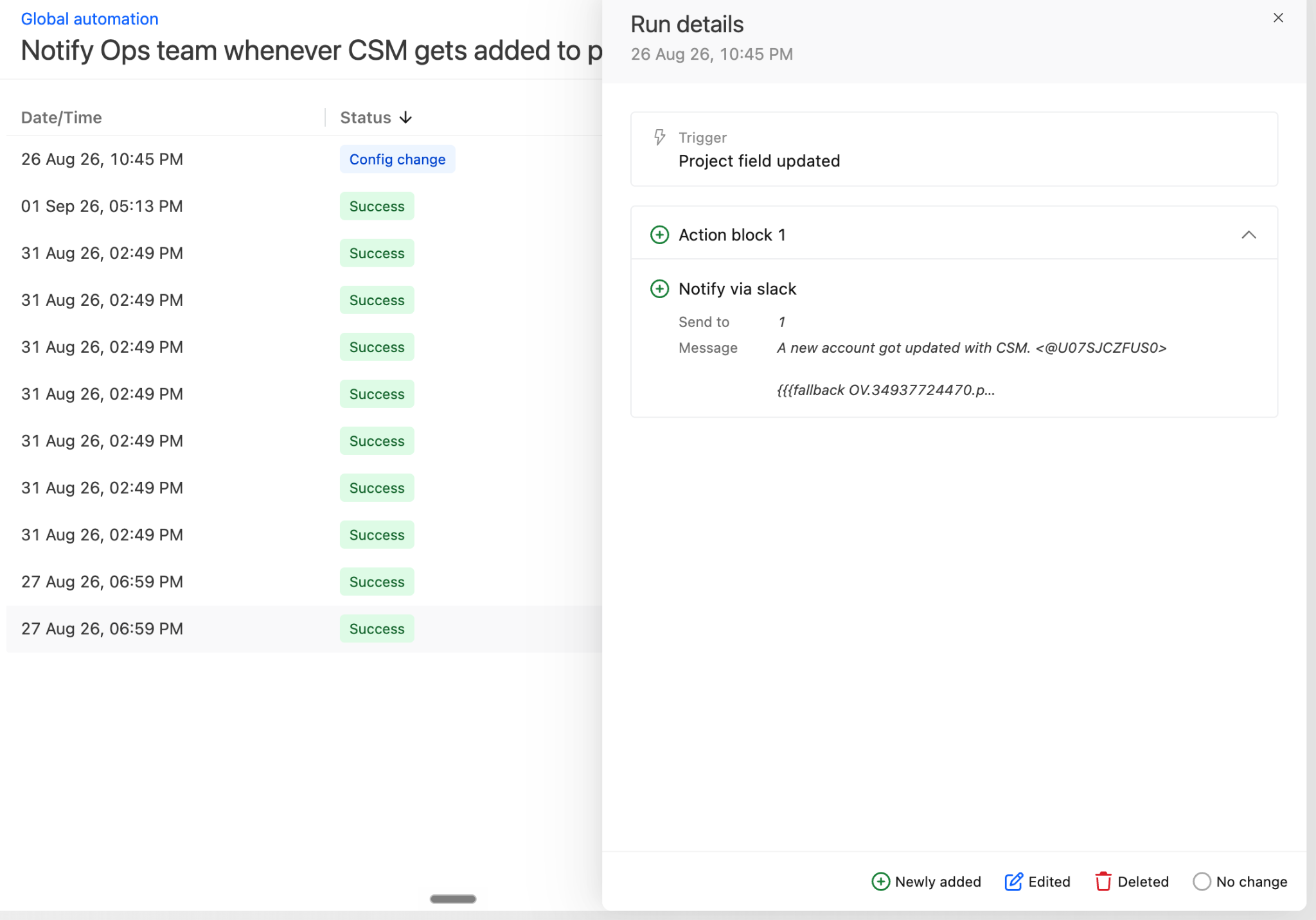
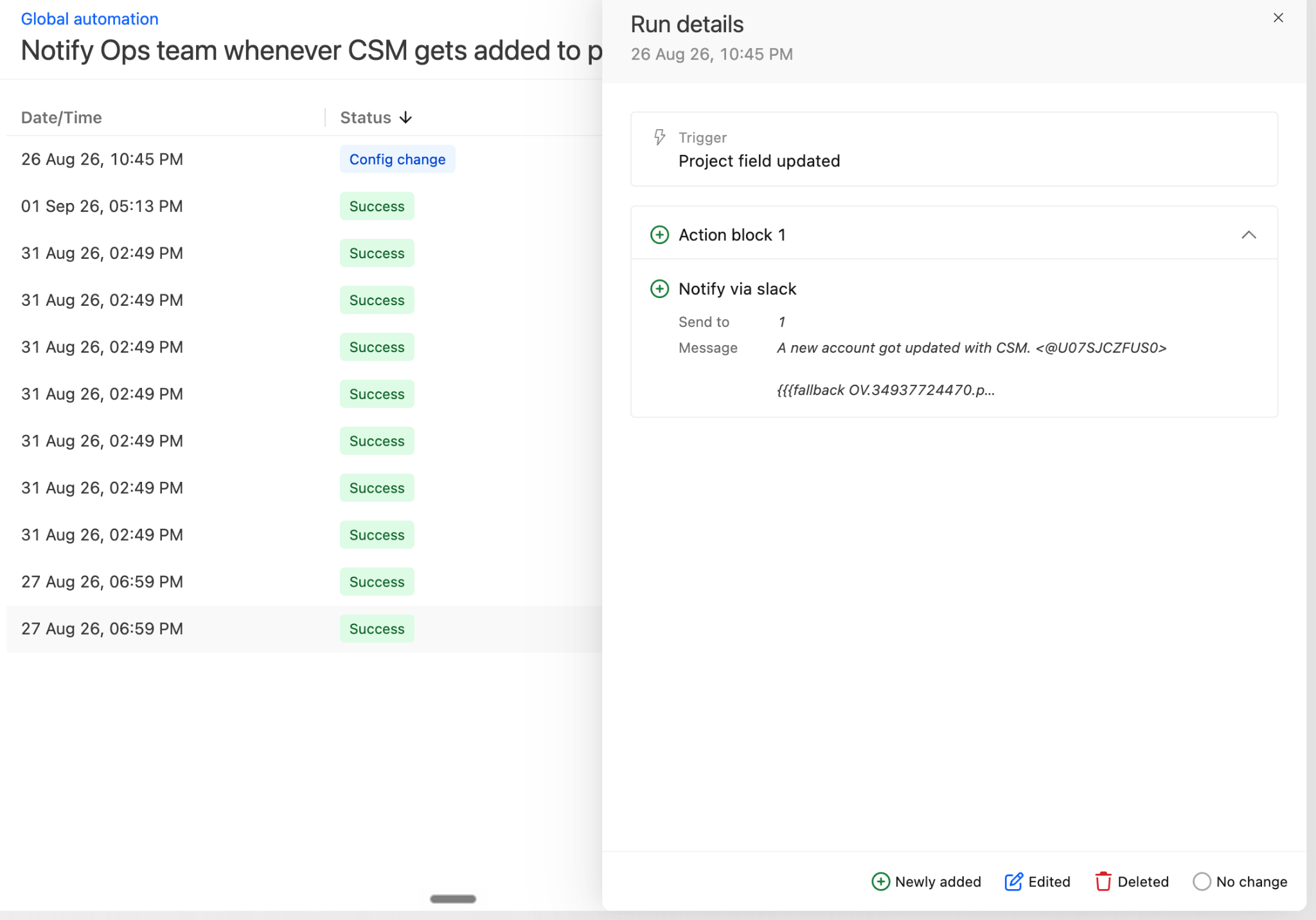
The same run history table also records changes to the automation's setup, not just its runs. These appear as rows with the Config change status.
- Look for a row with the Config change status in the automation's run history.
- Select it to open its details. Instead of a trigger and action blocks, you see what changed in the automation's configuration.
- If it is the automation's first configuration change entry, the entire setup appears as a baseline. Every trigger, condition, and action appears as newly added.
- If it is a later edit, you see only what changed, such as a trigger, condition, or action that was added, removed, or modified.
- Cosmetic changes, such as turning an automation on or off, do not create an entry here. If you do not see a Config change row for something you changed, it most likely did not affect the trigger, conditions, or actions.
Example
Say you have an onboarding automation that updates a project's fields when a specific task is marked complete. The automation has a separate action block for each task it watches for, such as Kickoff call, Training session, and Go-live.
If someone completes a task that is not one of those three:
- Open the run for that task completion. The overall status still shows Success, because the automation ran without error.
- Open the run details. Each action block shows 0 of 1 actions executed or an equivalent all-skipped summary because none of the conditions matched the completed task.
- Select View more details on any block to confirm the skip reason reads condition not met. This tells you the automation behaved correctly. It simply had nothing to do for that task.
This is a normal, expected result, not a failure. It also shows why the overall Success status alone does not tell the full story.
FAQ
Why does a run show as Success if some of its actions were skipped?
The overall status reflects whether the automation finished running, not whether every action executed. Open the run to see which actions ran, which were skipped, and why.
Why is Executed By blank for some rows?
The person who triggered that run no longer matches anyone currently active or invited on your account. This is different from Automation Bot, which means the run was triggered by the system rather than by a removed or deactivated person.
Why does the entity column say Project name on one automation and Task name on another?
The column reflects what that specific automation is triggered by. An automation triggered by task changes shows Task name, one triggered by project changes shows Project name, and so on.
Does turning an automation on or off show up in the log?
No. Turning an automation on or off is treated as a cosmetic change and does not create a configuration change entry. Only changes to triggers, conditions, or actions are logged.
What does View more details show?
It expands every action within that block. You can see the specific detail for what happened, such as a field value, a notification preview, or an affected entity. For failed actions, it also shows an error message and a Copy debug info option.
Who can see Automation Logs?
Anyone with permission to manage automations can view Automation Logs. There is no separate, narrower permission just for viewing logs.