As teams use Nitro agents across meetings, projects, and reports, administrators may need visibility into how credits are being consumed and which agent runs account for that usage.
The Nitro credit consumption page provides an account-level view of available credits, monthly usage, and individual agent runs. You can use it to monitor credit consumption, identify usage patterns, and export detailed records for further analysis.
In this article
Understanding Nitro credits
When the page becomes available
The Nitro credit consumption page is added to your account automatically when Nitro is enabled. No additional setup is required.
Access Nitro credit consumption
To open the page:
- Go to Settings.
- Select Nitro.
- Click Nitro credit consumption.
View your credit summary
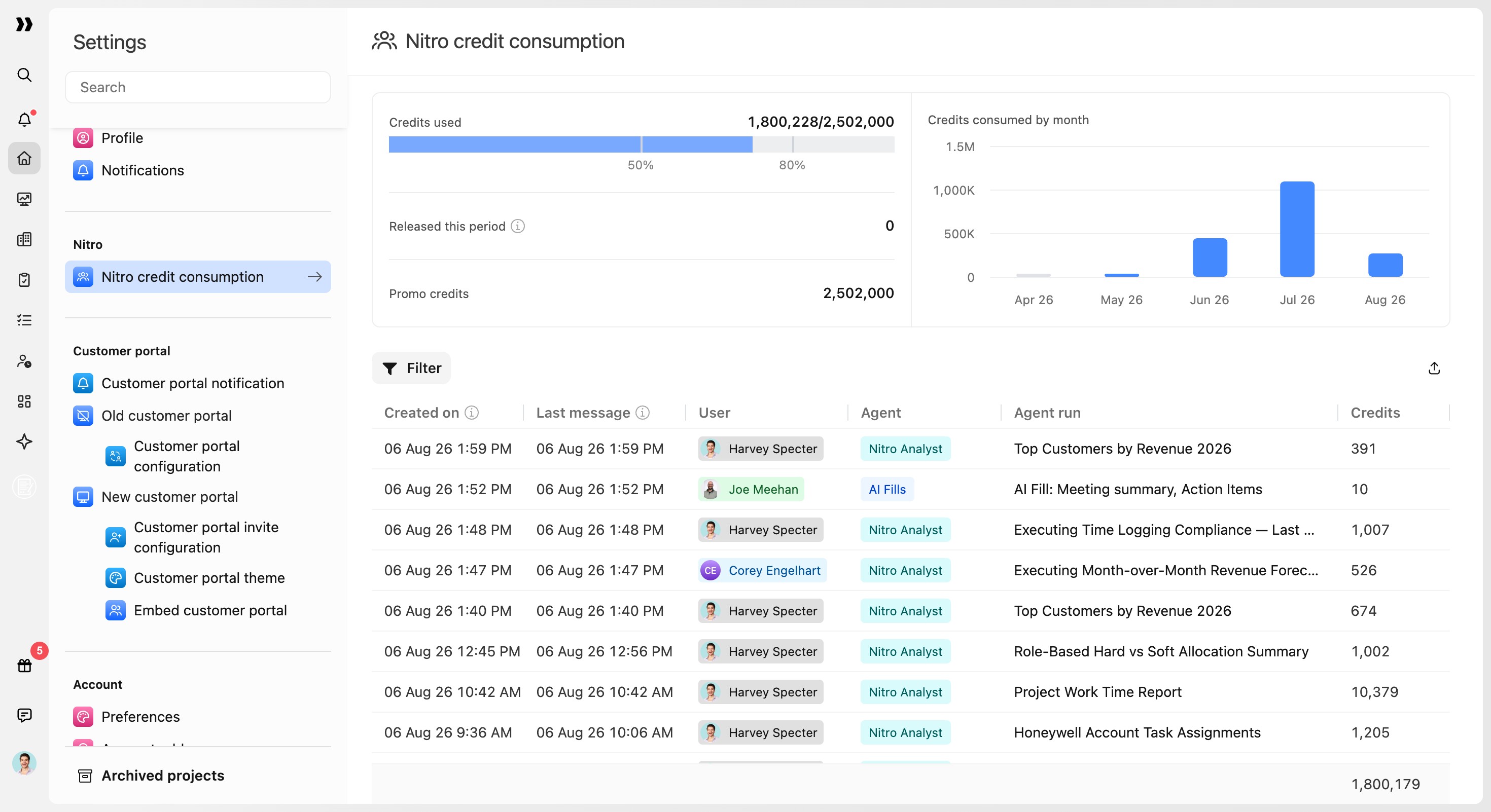
The summary card at the top of the page displays:
- Credits used: The number of credits consumed against the credits currently available. Usage is represented through a progress bar.
- Promo credits: Any promotional credits available on your account.
Below the summary card, the Credits consumed by month chart displays Nitro credit usage for the previous six months.
This helps administrators compare recent usage and identify changes in credit consumption over time.
Review agent runs
The agent runs table lists each completed Nitro agent run on your account.
Each row displays:
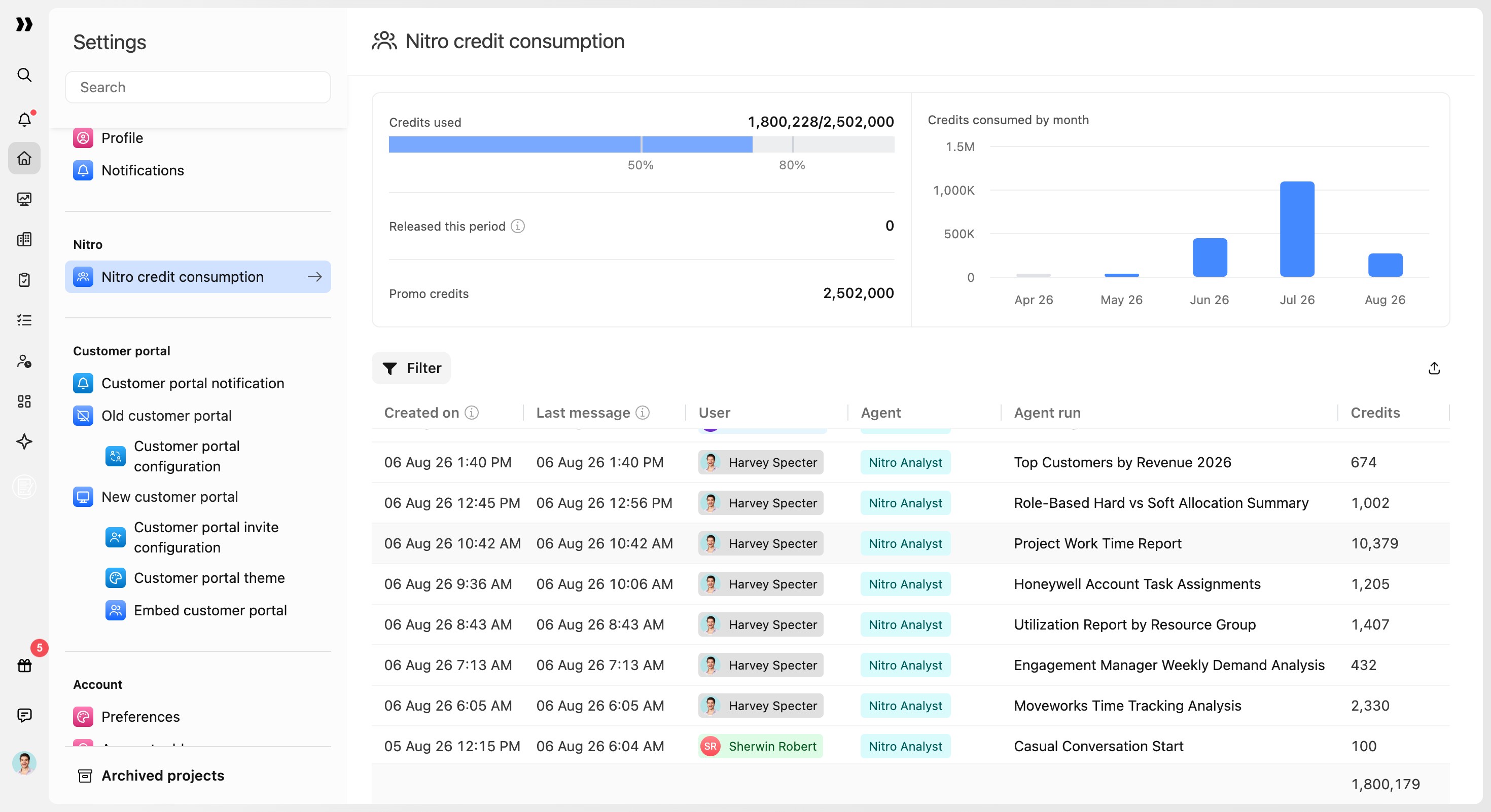
You can filter the table by:
- User
- Agent
- Credit amount
These filters help you review usage for a particular team member, agent, or level of credit consumption.
Export credit consumption data
To export agent run details:
- Apply any required filters to the agent runs table.
- Click Export at the top of the table.
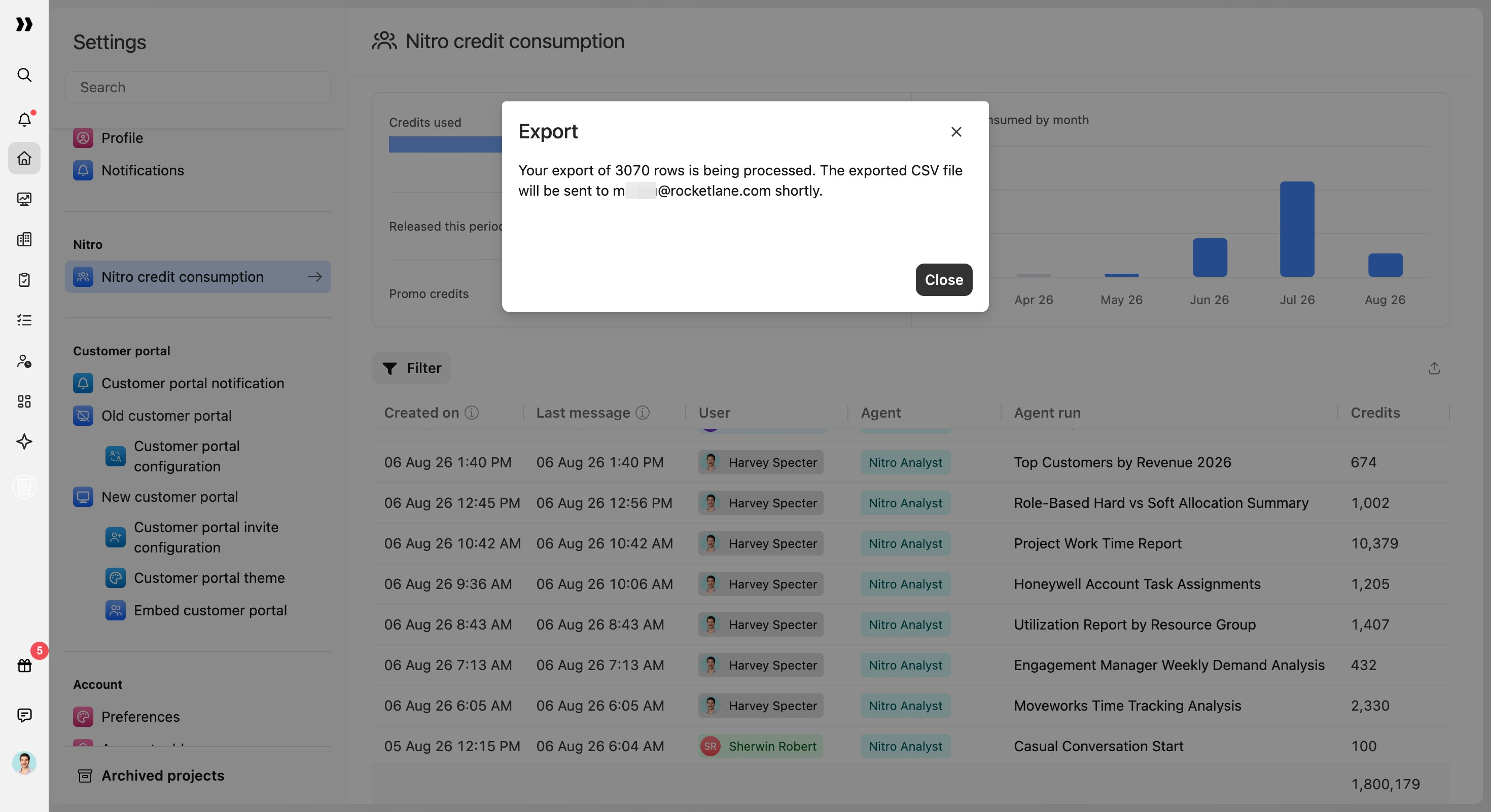
The exported CSV contains the rows matching the currently applied filters.
Depending on the size of the export, the CSV is either downloaded directly or sent to your email address.
Manage access to credit consumption
Access to the page is controlled by the Can access Nitro credit consumption page permission.
By default, this permission is available to:
- Account Admins
- Super Users
To provide another role with access:
- Go to Settings > Permissions.
- Open the relevant role.
- Enable Can access Nitro credit consumption page.
- Save the changes.
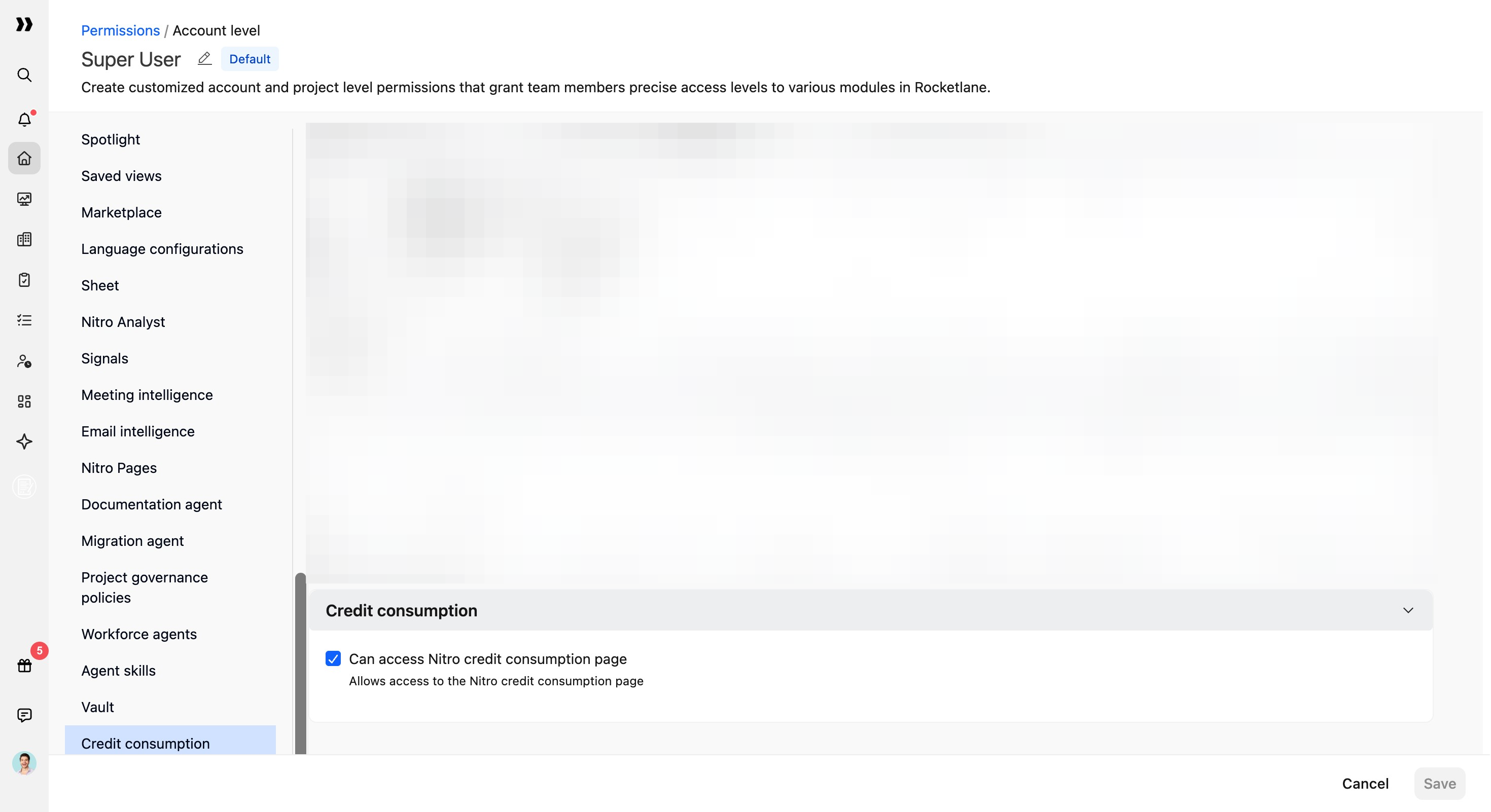
Only users with this permission can access Nitro credit consumption details.
Add or renew Nitro credits
For questions about adding credits, renewing your credit allocation, or managing your Nitro subscription, contact the Rocketlane support team at care@rocketlane.com.