Rocketlane supports custom fields for Resource Management, allowing teams to capture business-specific context on resource allocations.
Use allocation custom fields to track additional information such as sales orders, billing categories, delivery workstreams, internal cost classifications, approval notes, or any allocation-specific details your team needs for planning and reporting.
Like other custom fields in Rocketlane, allocation fields help teams standardize information and organize it in a way that matches their business process. Rocketlane’s project fields, for example, support custom field creation, field sections, field types, and tooltips for better field context. (Rocketlane)
When to Use
Use allocation custom fields when you want to:
Capture business-specific details for every resource allocation.
Track sales order, billing category, workstream, region, skill, or delivery context on allocations.
Pull values automatically from related objects such as tasks, projects, users, or companies.
Make important allocation fields mandatory.
Organize allocation fields into sections.
Control who can view or edit specific allocation fields.
Filter allocations by custom field values.
Include allocation custom fields in CSV exports.
Where Allocation Custom Fields Are Used
Allocation custom fields are available across Resource Management workflows, including:
Settings → Allocation fields
Project Resource Plan
Resource Requests and Approval
Resource Management → People
Resource Management → Projects
Allocation custom fields can also be used in filters on the Resource Management People and Projects pages, and are included in CSV exports.
Configure Allocation Fields
Admins can create and manage allocation fields from Settings → Allocation fields.
To create an allocation field:
Go to Settings → Allocation fields.
Click New field.
Enter the field name.
Select the field type.
Choose how the field should be populated.
Add the field to the relevant section.
Configure whether the field is mandatory.
Configure field permissions, if required.
Save the field.
Allocation fields can be organized into sections, similar to how Rocketlane lets project fields be grouped into field sections for easier categorization. (Fields in Rocketlane)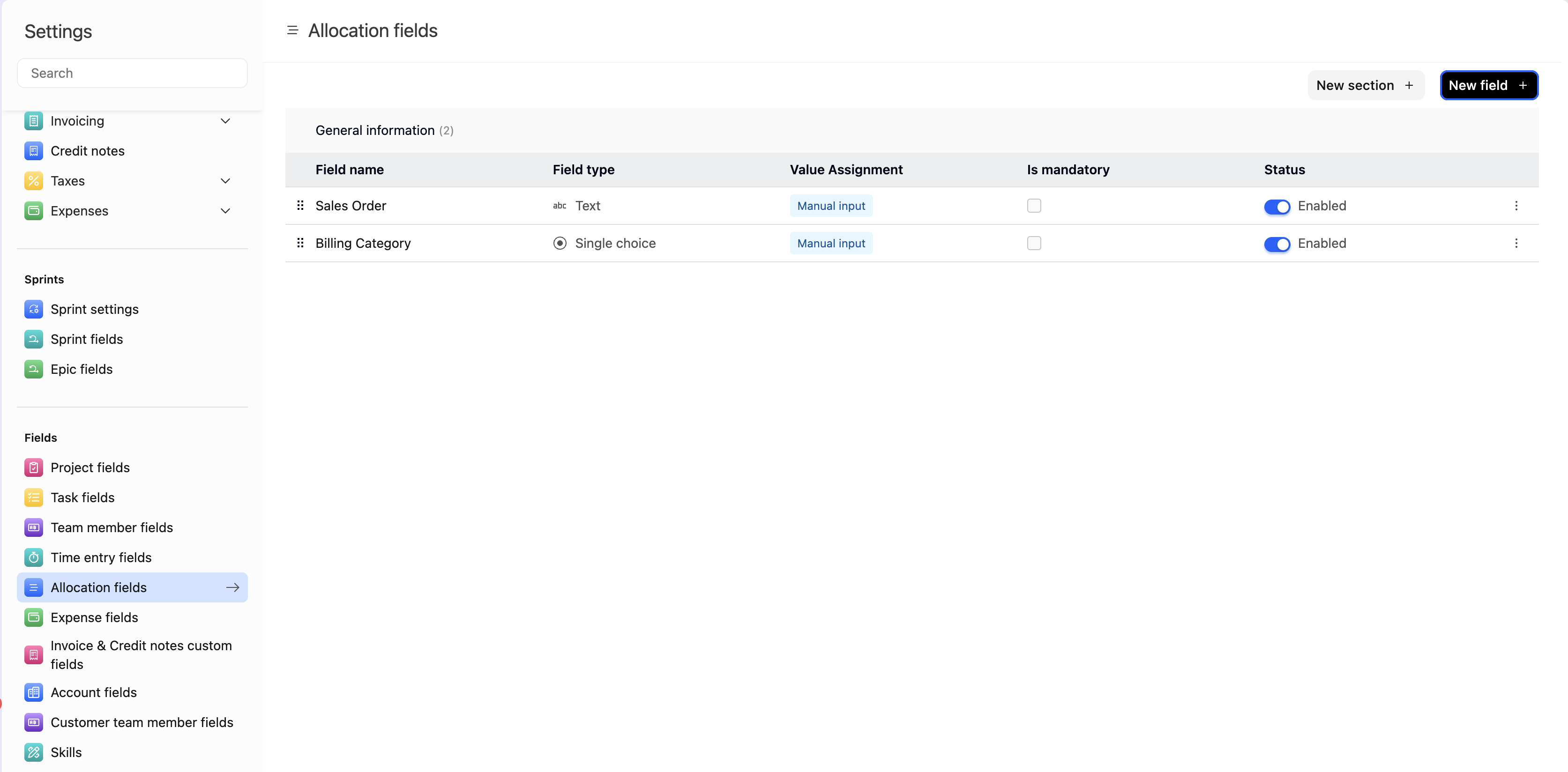
Types of Allocation Custom Fields
Rocketlane supports two types of allocation custom fields:
| Field type | How it works |
|---|---|
| Manual Input | Users enter the value directly while creating or editing an allocation. |
| Inherited Field | Rocketlane automatically pulls the value from a related object such as the task, project, user, or company. |
Manual Input Fields
Use Manual Input fields when users should enter allocation-specific details manually.
For example, create manual fields for:
Sales order number
Billing category
Delivery workstream
Allocation notes
Internal staffing classification
Approval reference
Manual input fields are useful when the value is specific to the allocation and cannot be reliably inherited from another object.
Example
A team wants every allocation to include a billing category.
Create a Billing Category allocation field as a manual input field. When a project manager or resource manager creates an allocation, they select the correct billing category for that allocation.
Inherited Fields
Use Inherited Fields when the allocation should automatically carry context from a related object.
Rocketlane can pull inherited values from:
Task
Project
User
Company
For example, an allocation can inherit:
| Source object | Example inherited value |
|---|---|
| Task | Task type, task category, milestone, workstream |
| Project | Project type, practice, region, billing model |
| User | Department, role, location, skill, level |
| Company | Customer segment, account tier, industry |
Inherited fields help reduce manual entry and improve consistency across allocations.
Configure a fallback value
For inherited fields, admins can configure a fallback value.
The fallback value is used when the source field is empty.
For example, if an allocation inherits Billing Region from the project and the project does not have a billing region value, Rocketlane can use the configured fallback value instead.
Supported Field Types
Allocation custom fields follow the same custom-field model used across Rocketlane.
Common field types include:
| Field type | Use it for |
|---|---|
| Text | Short text values such as codes or labels |
| Multiline Text | Longer notes or descriptions |
| Number | Numeric values such as order value, allocation score, or priority |
| Yes/No | Boolean fields such as approval required |
| Date | Dates such as planned start, billing date, or approval date |
| Single Choice | One value from a predefined list |
| Multiple Choice | Multiple values from a predefined list |
| Single User | One user value |
| Multiple User | Multiple user values |
Rocketlane’s custom field framework supports these field types for project fields, and allocation fields follow the same pattern for capturing structured information. (Rocketlane)
Mark Allocation Fields as Mandatory
Admins can mark allocation fields as required.
When a field is mandatory, users must provide a value while creating or updating an allocation, unless the value is inherited automatically.
Use mandatory fields for information that must be captured consistently, such as:
Sales order
Billing category
Delivery region
Workstream
Approval reference
Auto-allocate behavior for mandatory fields
For allocations created through Auto-allocate, Rocketlane still creates the allocation even if mandatory allocation fields are empty.
After auto-allocation, users must update the required allocation fields manually.
This ensures allocation creation is not blocked by missing custom field values during automated planning, while still allowing teams to identify and complete required allocation context later.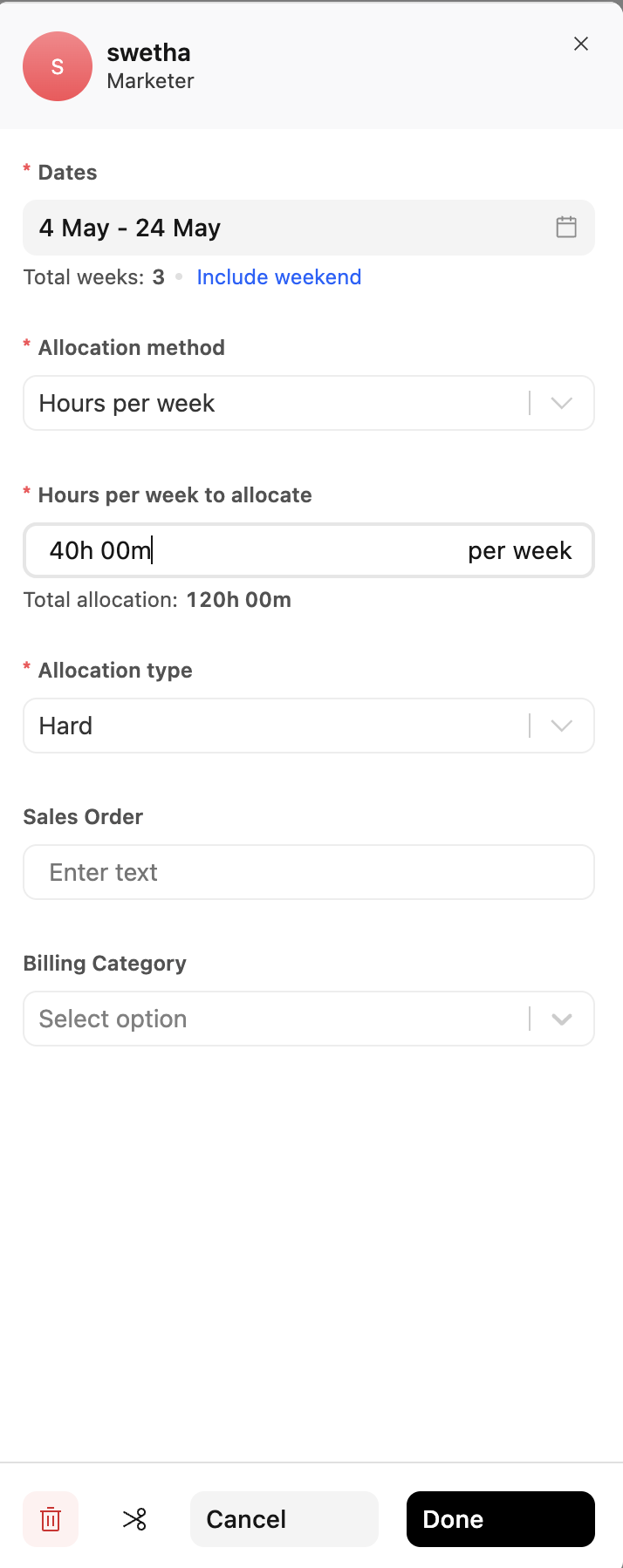
Organize Allocation Fields into Sections
Allocation fields can be organized into sections.
Use sections to group related fields together, for example:
| Section | Example fields |
|---|---|
| Billing Details | Sales order, billing category, billing region |
| Delivery Context | Workstream, practice, delivery phase |
| Approval Details | Approval required, approver, approval date |
| Internal Planning | Staffing priority, allocation reason, notes |
Sections help admins keep allocation fields structured and easier to manage.
Configure Field Permissions
Allocation fields can be organized into sections with granular view and edit permissions for different user groups.
This works similarly to time entry fields.
Use field permissions when:
Finance should view or edit billing fields.
Delivery managers should edit planning fields.
Resource managers should update allocation context.
Team members should view only the fields relevant to them.
Sensitive internal fields should be hidden from some groups.
For each section, admins can define who can:
View the fields in the section
Edit the fields in the section
Example
A Billing Details section contains:
Sales order
Billing category
Billing notes
Finance and operations teams can view and edit the section. Delivery team members can view the fields, but cannot edit them.
Filter Allocations by Custom Field Values
Allocation custom fields are available as filters in Resource Management.
You can filter allocations by custom field values from:
Resource Management → People
Resource Management → Projects
Use filters to answer questions such as:
Which allocations are tied to a specific sales order?
Which allocations belong to a billing category?
Which allocations are part of a specific workstream?
Which allocations need approval details filled in?
Which allocations are missing mandatory field values?
Export Allocation Custom Fields
Allocation custom fields are included in CSV exports.
Use CSV exports when you need to analyze allocation data outside Rocketlane or share it with finance, operations, or leadership teams.
Exported allocation custom fields can support:
Billing reconciliation
Sales order tracking
Staffing analysis
Utilization reporting
Workstream-level planning
Audit and compliance reviews
Example: Track Billing Category on Allocations
A services team wants to distinguish between billable implementation work, non-billable support work, and internal enablement.
To configure this:
Go to Settings → Allocation fields.
Create a new field named Billing Category.
Select Manual Input.
Choose Single Choice as the field type.
Add options such as:
Billable Implementation
Non-billable Support
Internal Enablement
Mark the field as mandatory.
Add the field to a Billing Details section.
Configure view and edit permissions for the section.
Save the field.
When allocations are created, users select the billing category. Resource managers can then filter allocations by billing category and include this field in exports.
Example: Inherit Region from Project
A team wants allocation records to automatically carry the delivery region from the project.
To configure this:
Go to Settings → Allocation fields.
Create a new field named Delivery Region.
Select Inherited Field.
Choose Project as the source object.
Select the project field that stores region.
Configure a fallback value if the project field is empty.
Add the field to a Delivery Context section.
Save the field.
When allocations are created, Rocketlane pulls the region from the related project. If the project does not have a region value, Rocketlane uses the fallback value.