Rocketlane sends notifications to keep submitters and approvers informed throughout the expense approval process. This article explains who receives notifications, how they behave in multi step approval workflows, how batching works with the 10 minute window, and how notifications work when expenses are submitted on behalf of someone else.
TABLE OF CONTENTS
- Overview
- Types of Expense Notifications
- Notification Timing and Consolidation
- Notification Behavior in Multi Step Approval Workflows
- Notifications When Submitting on Behalf of Another User
Overview
The Expenses module allows users to:
Create expenses
Group them into an expense report
Submit the report for approval
Get each expense approved or rejected
Notifications are driven by the status of individual expenses, not the report as a whole. The report acts as a container that helps group expenses and consolidate notifications.
There are two types of users who receive notifications:
Expense creators or submitters
Expense approvers
Across these two roles, three kinds of notifications are generated.
Channels of Communication
Rocketlane delivers expense notifications through multiple channels, ensuring users never miss important updates.
Users may receive notifications via:
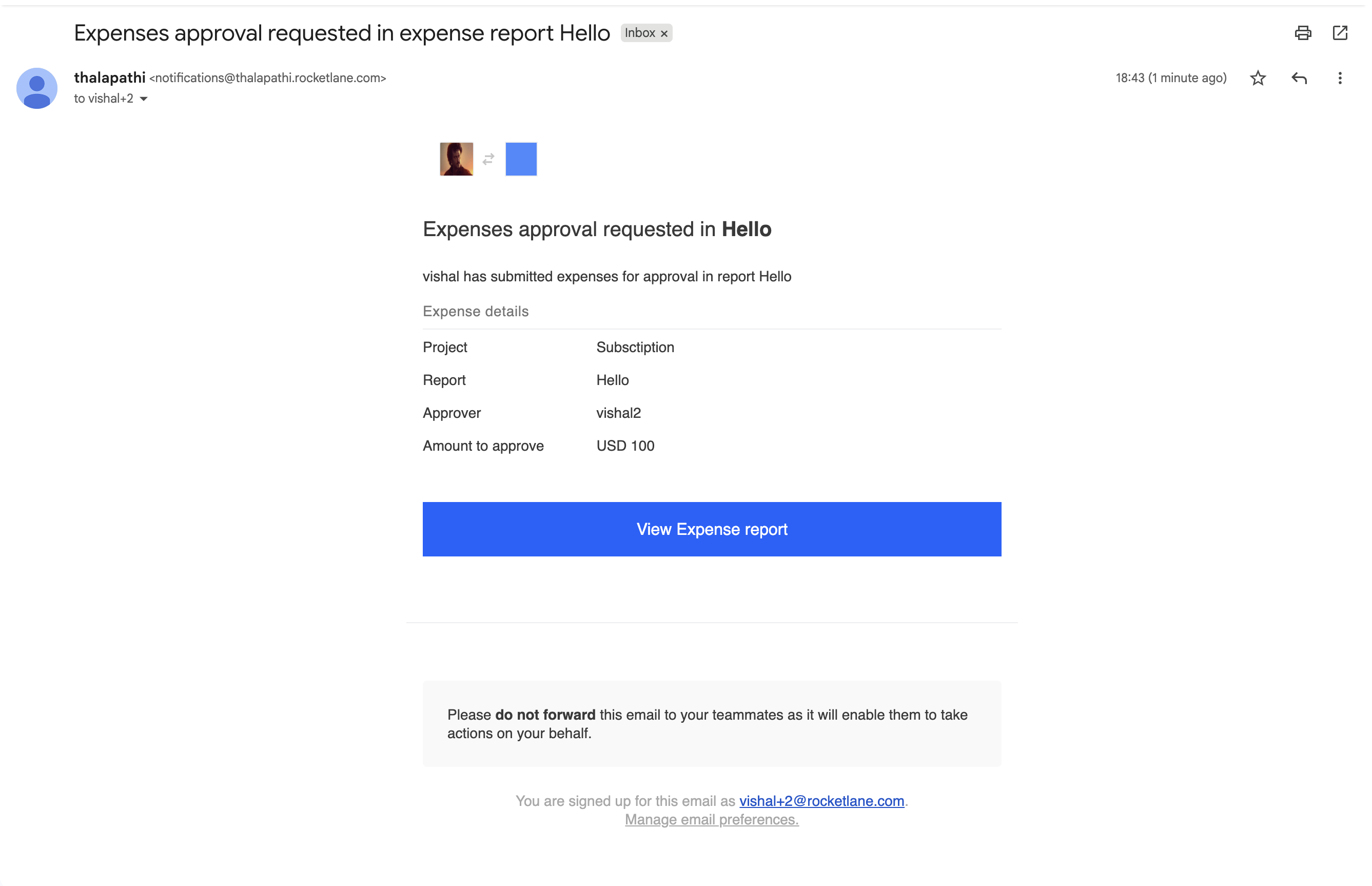
Email
Sent to the user’s registered email address.Slack
If Slack integration is enabled for the workspace, notifications appear in the configured Slack channel or direct message.Rocketlane Notifications Menu
All notifications also appear inside the Notifications panel within Rocketlane.
Types of Expense Notifications
1. Notifications for Expense Submitters
Submitters, also called creators or expense owners, receive notifications when the expenses in their report are approved or rejected.
They can receive:
Approved notification
Sent when one or more expenses in the report are approved.Rejected notification
Sent when one or more expenses in the report are rejected.
These notifications are consolidated per report using a 10 minute window. Details are covered in the section Notification Timing and Consolidation.
Partial Approvals
If a report contains multiple expenses and only some are approved or rejected, this is effectively a partial approval.
Important behaviors:
There is no special partial approval notification type.
The expense owner is notified only through the consolidated approved and rejected notifications, which are driven by individual expense status changes.
The only status that matters for notifications is the status of each expense, not the report.
The report view simply consolidates the underlying expense statuses for easier review.
In other words, if only some expenses in a report are approved during a 10 minute window, the notification will say that expenses in the report have been approved, even if other expenses in the same report are still pending or later rejected.
2. Notifications for Expense Approvers
Approvers receive a single kind of notification:
New expense report awaiting approval
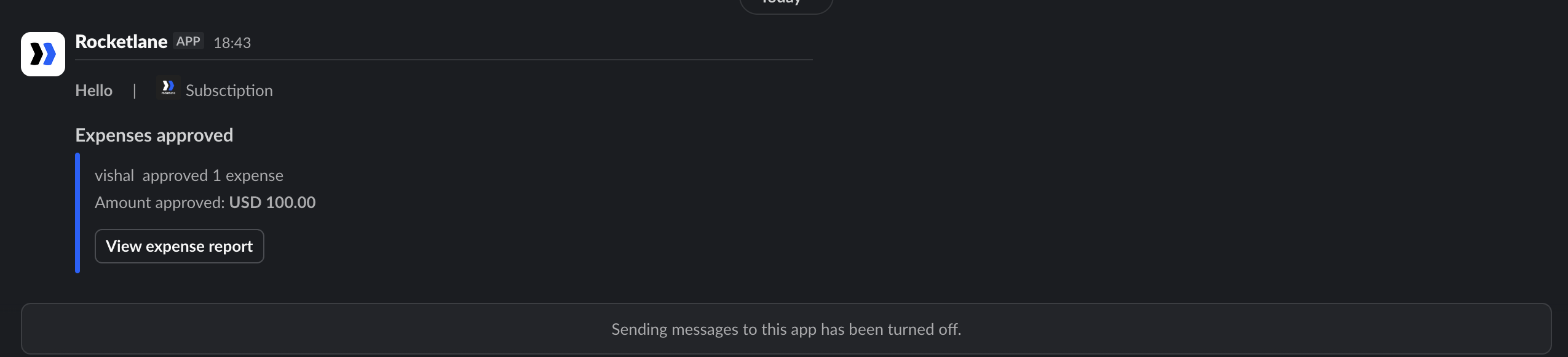
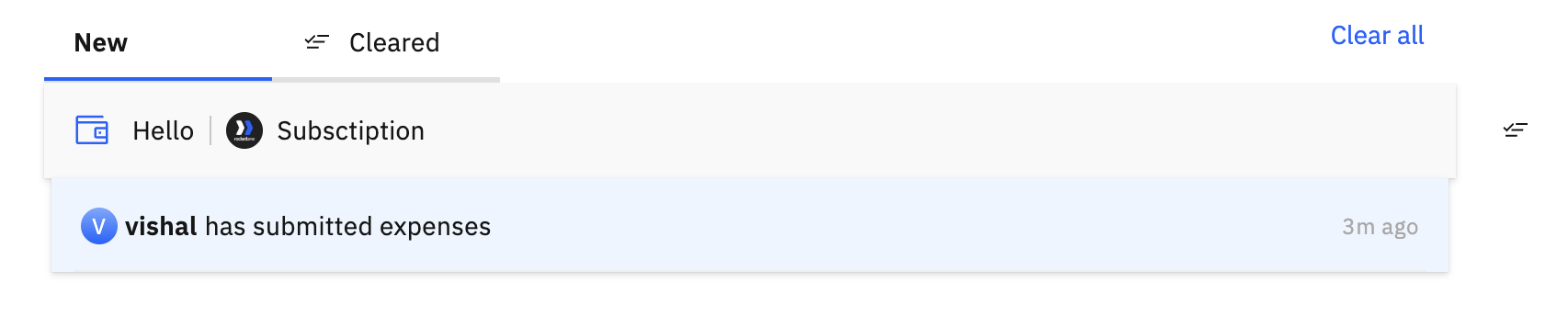
This notification is sent as soon as an expense report requires their action.
Note:
Approvers do not receive separate notifications for each individual expense inside the report.
A single notification is sent that says the expense report needs to be reviewed and approved.
Notification Timing and Consolidation
Rocketlane reduces notification noise for submitters by consolidating expense level updates.
Ten Minute Window per Report
For each expense report:
- Once the first expense in that report is approved or rejected, Rocketlane starts a 10 minute timer for that report.
- All approval and rejection events for expenses in that report within the next 10 minutes are batched together.
- After 10 minutes, the expense owner receives a single notification, i.e, one notification per approval and rejection.
Example:
You have Report 1 with 10 expenses.
An approver approves expenses one by one over a few minutes.
Instead of 10 separate notifications, Rocketlane groups them and sends one notification such as:
“Some expenses in your expense report have been approved.”
The same logic applies to expense rejections. Approvals and rejections within that window are consolidated into a single update that reflects the changes that occurred during that period.
What is Consolidated
Notifications are based on expense level status changes (approved or rejected).
The report notification is simply a grouped summary of those changes for that report.
There is no separate report approved or report rejected notification that is independent of the expense statuses.
Notification Behavior in Multi Step Approval Workflows
Expense approval workflows can involve multiple approvers in sequence.
How it works
When the submitter sends the expense report, Rocketlane identifies the current approver in the workflow.
Only the current approver receives an approval request notification.
When that approver approves, the workflow moves to the next approver, who then receives an approval request notification.
This continues until all required approvers have completed their step.
At any point in the workflow:
Only the current approver receives approval request notifications.
Expense owners receive consolidated notifications for approved or rejected expenses based on the 10 minute window logic described earlier.
Notifications When Submitting on Behalf of Another User
Users can create and submit expenses on behalf of someone else. In that scenario:
The expense owner (the person on whose behalf the report is submitted) receives a notification stating that the report was submitted on their behalf.
The approver receives an approval request notification that clearly indicates the report was submitted on behalf of another user.
When expenses in the report are approved or rejected, the expense owner receives the consolidated notification(s) after the 10 minute window, based on expense status changes.
The person who submitted on their behalf does not receive the final approval or rejection notifications, unless they are also the owner.