The Time Tracking widget in the Customer Portal gives customers visibility into tracked hours across projects and accounts. This is useful for teams that work with bundled hours or time and material projects, where customers need to understand how many hours have been used and how those hours align with the project scope.
You can add the widget to a Customer Portal template and configure what customers should see, including progress, trends, and detailed time breakdowns.
In this article
Add Time Tracking to the Customer Portal
When creating or editing a Customer Portal template, you can add Time Tracking as a widget in a new section.
Widget behavior based on project type
The widget displays time tracking data differently based on the project type:
- Fixed Fee, Time & Material, and Non-Billable projects: Shows time tracking data as a cumulative summary.
- Subscription projects: Shows time tracking data period by period instead of as a single total.
You can configure this behavior from the Configuration tab. Use the toggle to switch between settings for non-recurring projects and subscription projects.
Time Tracking widget structure
The Time Tracking widget has three components. You can enable or disable each component based on what you want customers to see.
- Progress Tracker
- Graph View
- Table View
Progress Tracker
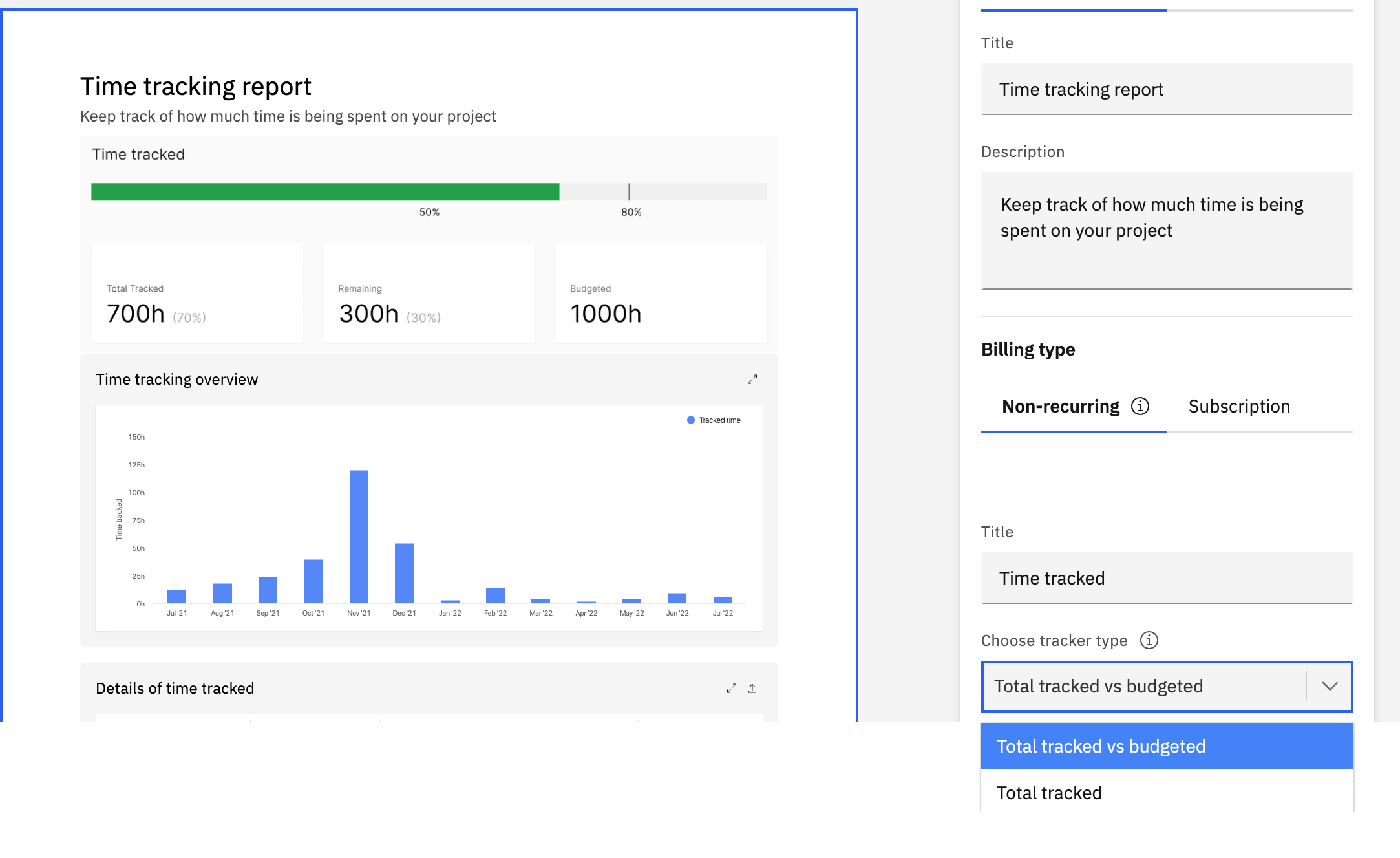
The Progress Tracker shows a visual summary of tracked hours using a progress bar.
It can display the following metrics:
- Budgeted Hours
- Tracked Hours
- Remaining Hours
You can choose whether to display budgeted hours or only tracked hours. The progress bar helps customers quickly understand how much time has been used and how much remains.
In this example, the tracked hours are 591h 45m, remaining hours are 908h 15m, and budgeted hours are 1500h.
Graph View
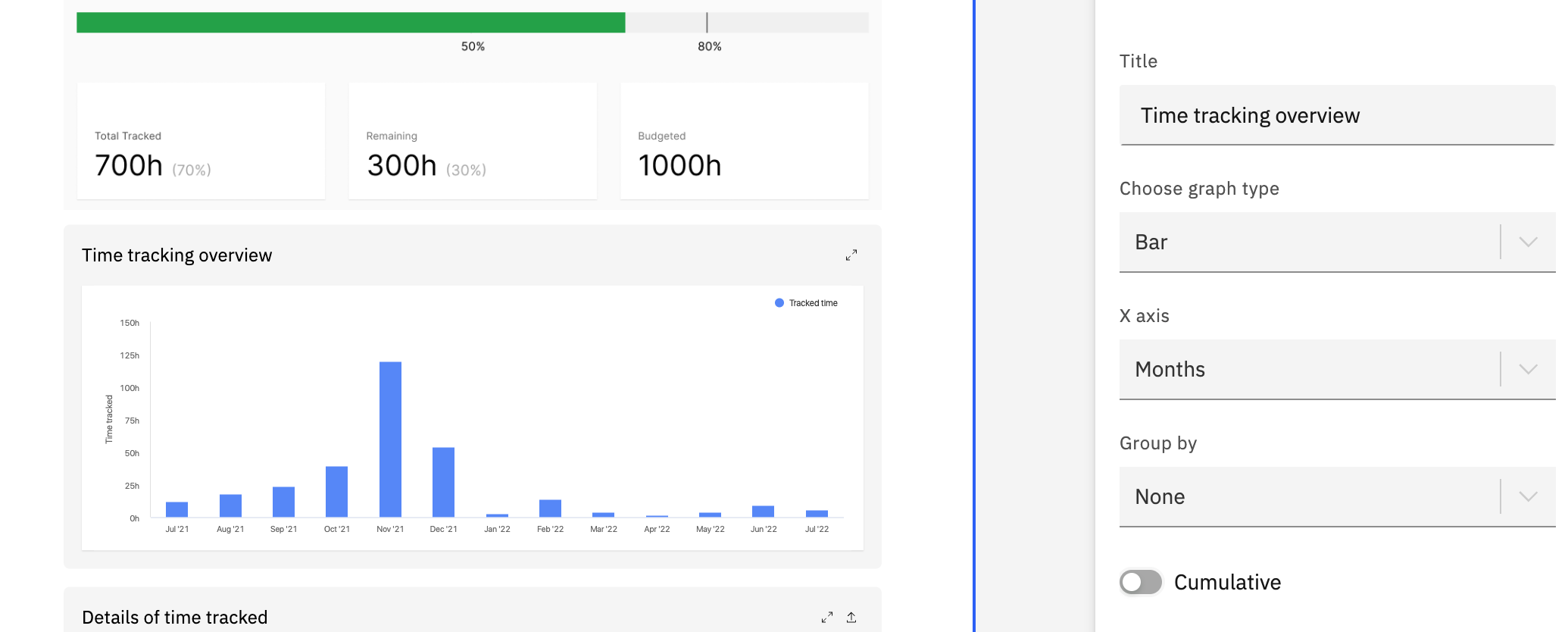
The Graph View helps customers analyze time tracking trends across different time frames and categories.
Graph type options
You can choose from the following graph types:
- Bar Graph
- Line Graph
- Area Graph
X-axis options
You can customize the X-axis to represent:
- Weeks
- Months
- Roles
- Team Members
- Phases
The Y-axis always represents tracked hours.
Grouping and filtering
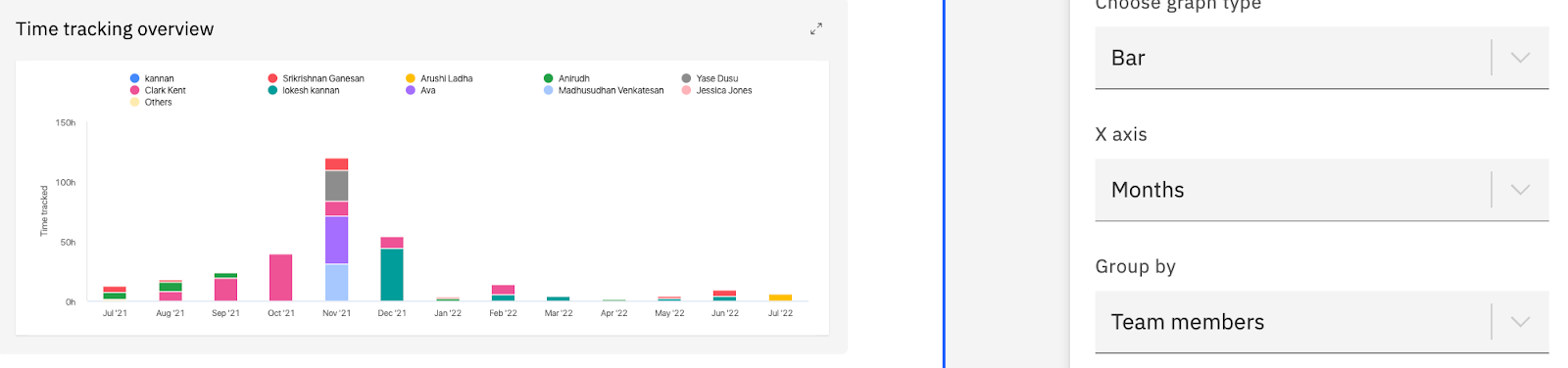
The graph can be grouped and filtered by projects, roles, or team members.
In this example, the data is grouped by team members.
Cumulative option
The cumulative option displays the graph in a cumulative format.
In this example, the X-axis is grouped by phases and the cumulative checkbox is enabled.
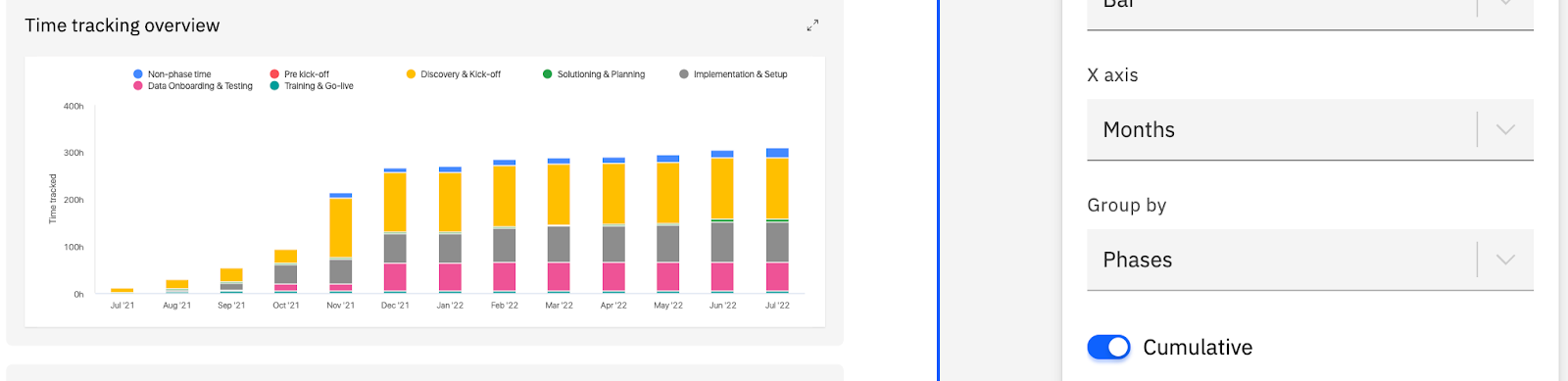
Table View
The Table View provides a detailed breakdown of tracked hours.
Table name and grouping
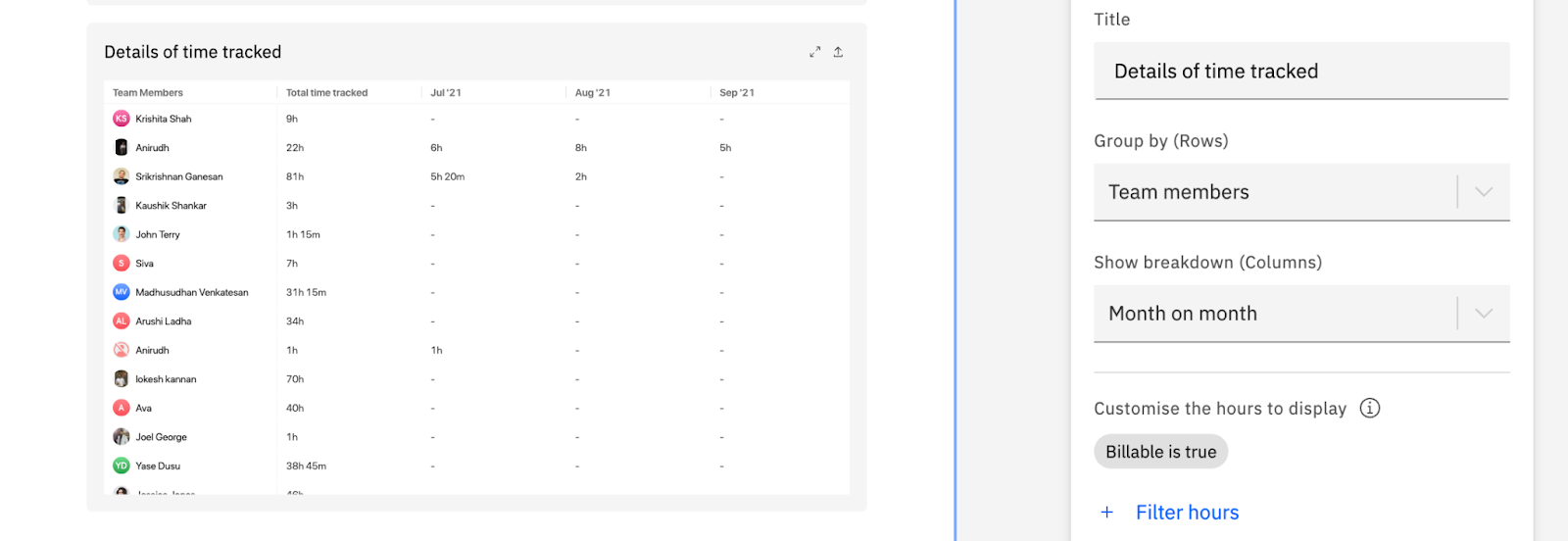
You can configure the table name and group the table by:
- Projects
- Roles
- Team Members
- Phases
- Tasks
- Categories
Column breakdown options
The table always includes Total Tracked Time by default. You can add more breakdown columns from Show Breakdown.
Available breakdown options include:
- Overall Time Tracked
- Week-on-Week Tracking
- Month-on-Month Tracking
Exporting data
The export button at the top-right corner of the table provides two export options:
- Table Data (CSV): Exports the visible table data.
- Raw Data: Exports the underlying time analytics used to generate the table.
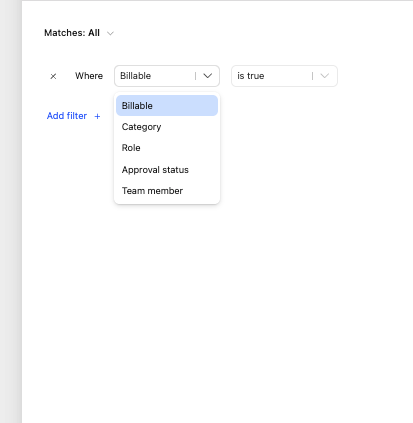
Customize hours to display
By default, the table displays billable hours. You can change this setting from Customize Hours to Display.
You can filter the displayed hours by:
- Billable Hours
- Approval Status
- Categories
- Roles
- Team Members